Free β€’ No signup Fix Underexposed photo Β· Free

Fix Underexposed Photo

Type 'brighten the dark areas and recover shadow detail' and watch dim indoor shots, backlit faces, and night photos come back in seconds.

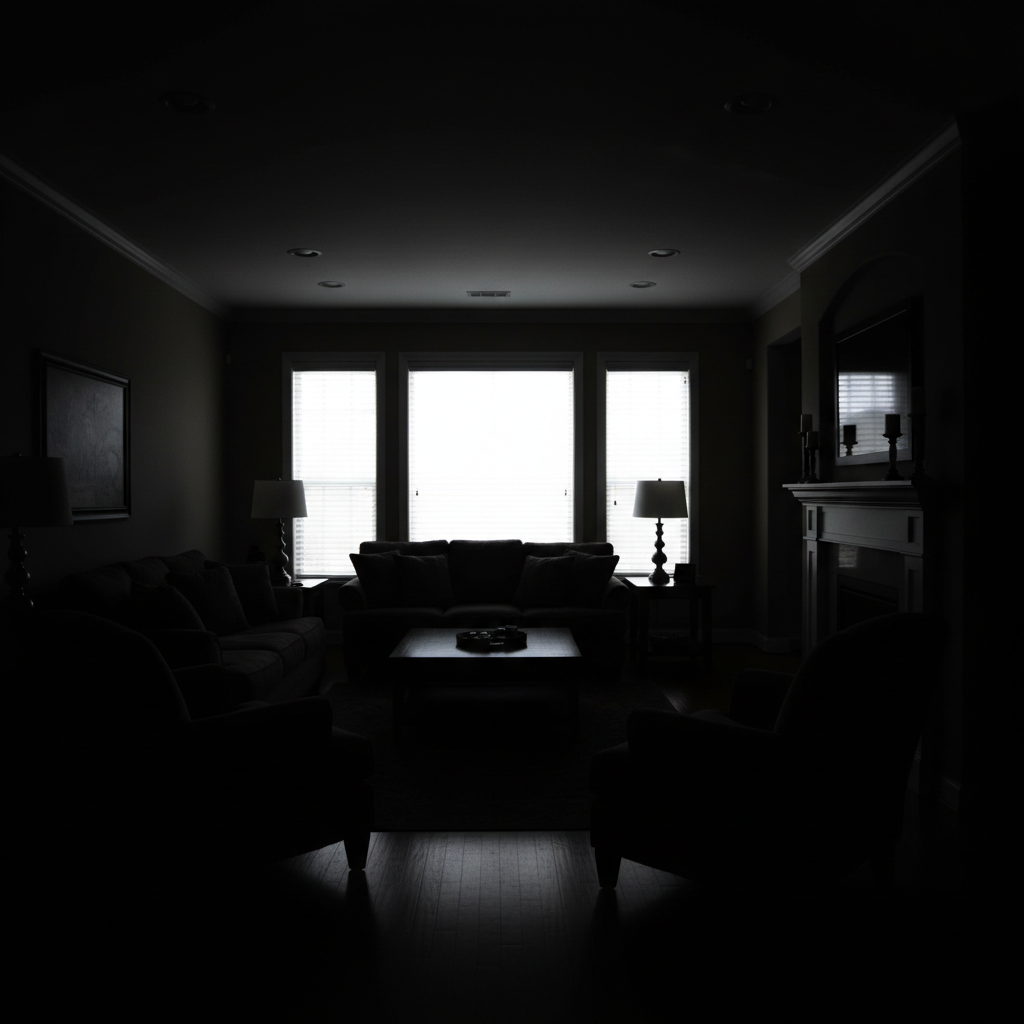
Dark indoor family photo with faces barely visible in shadow
Before
β†’
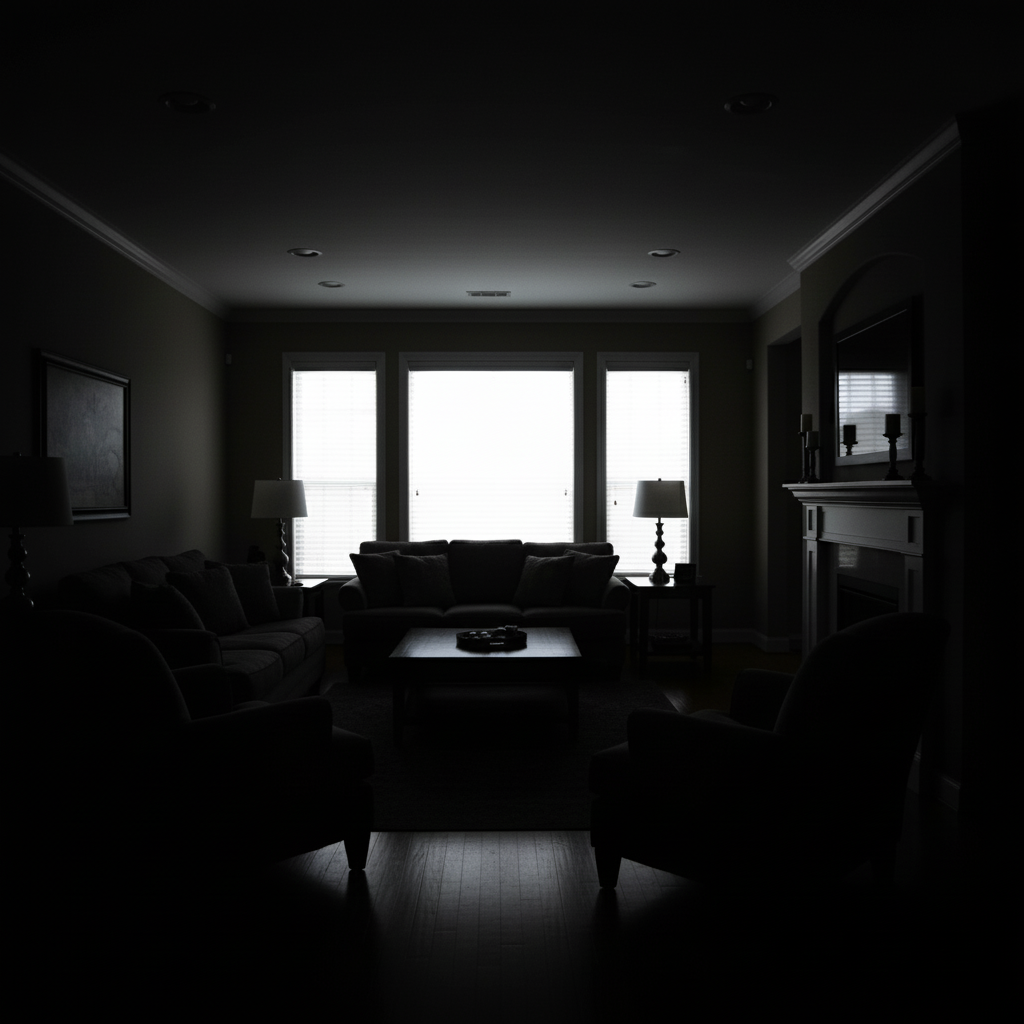
Same family photo with bright visible faces and natural healthy skin tones
After

Fix Underexposed Photo

Upload photo to fix underexposed photo

Free β€’ Results in 30 seconds β€’ No signup

Release to upload

FreeNo signupNo watermark

1 free edit·then from $1.99

Popular use cases:
  • dark indoor photos
  • backlit portraits
  • restaurant and food photos
  • concert photography
  • night photography
  • smartphone low light
  • wedding reception photos
  • marketplace product photos

Cost
Free No signup required
Time
Instant results in 15-30 seconds
Works on
Any device - browser, phone, tablet, desktop
Powered by
AI-powered photo editing
Scenario Prompt Time
Backlit silhouette brighten the backlit subject, keep background unchanged 20s
Dark indoor shot brighten this dark indoor scene to look naturally well-lit, no noise 20s
Shadowed face in portrait brighten the shadowed face, restore skin texture, no grain 20s
Night or evening photo lift shadows to reveal detail, preserve evening mood 25s

How it works

  1. Upload your dark photo

    Drop the underexposed image into EditThisPic. JPG, PNG, WebP, and HEIC up to 7MB. The AI can recover usable detail from photos that look almost completely black, though the deeper the shadows, the more the result relies on intelligent reconstruction.

    Expect: Mild underexposure (1 stop): 15-20 seconds. Severe shadow recovery (2-3 stops): 25-30 seconds and may benefit from a second pass for noise.
  2. Describe what should be brighter

    Type your fix in plain English: 'brighten the shadowed face and recover skin detail' or 'fix the dark indoor scene without adding noise.' The AI understands 'underexposed,' 'dark,' 'backlit,' and 'shadow' β€” you do not need to mark or trace anything.

    Tip: Always include 'without adding noise' or 'reduce noise as you brighten.' Lifting shadows amplifies hidden sensor noise β€” telling the AI in the same prompt fixes both at once instead of forcing a second pass.

    Copy one of these to get started:

    Backlit face that came out as a silhouette brighten the backlit subject in the foreground and recover facial detail, keep the bright background exactly as it is
    Dark indoor photo with no flash brighten this dark indoor scene to look naturally well-lit, recover detail in the shadows without adding noise or grain
    Dark face in a portrait brighten the shadowed face and recover skin texture, maintain warm natural healthy skin tones, no graininess
    Evening or night photo with hidden detail lift the shadows to reveal hidden detail in the dark areas, preserve the evening atmosphere and mood, do not make it look like daytime
    2 more prompts
    Restaurant or candlelit food photo brighten the dark food and table setting to show appetizing detail, keep the warm restaurant ambiance and candlelight glow
    Dark product photo for a listing brighten the underexposed product to professional listing quality, maintain accurate color and product detail, no noise
  3. Generate and check at 100%

    Tap generate and zoom into the previously-dark areas. Look for natural skin tones, smooth gradients in shadows, and visible texture without grain. Recovered shadows should blend seamlessly with the parts of the photo that were already correctly exposed.

    Tip: If recovered shadows look gray or muddy, follow up with 'restore rich color and contrast in the recovered shadow areas.'
  4. Refine with markers if needed

    If you want to brighten one shadowed face but keep another in dramatic shadow (artistic intent), tap markers on the areas you want lifted and regenerate. Markers are also useful for backlit subjects where the background is already correctly exposed.

    Tip: Markers protect intentional shadows. Drop one on every dark area you want to keep dark, and the AI lifts everything else.
Try it free ↓

Fix Underexposed Photo

Upload photo to fix underexposed photo

Free β€’ Results in 30 seconds β€’ No signup

Release to upload

Free β€’ No signup

See it in action

Dark indoor family photo with faces barely visible in shadow
Before
->
Same family photo with bright visible faces and natural healthy skin tones
After

Indoor family portrait rescued from shadow

Poorly lit family photo where the faces were almost invisible. One prompt brightened everyone evenly while keeping skin tones natural.

Prompt: brighten the dark faces and recover facial detail with natural healthy skin tones, no grain
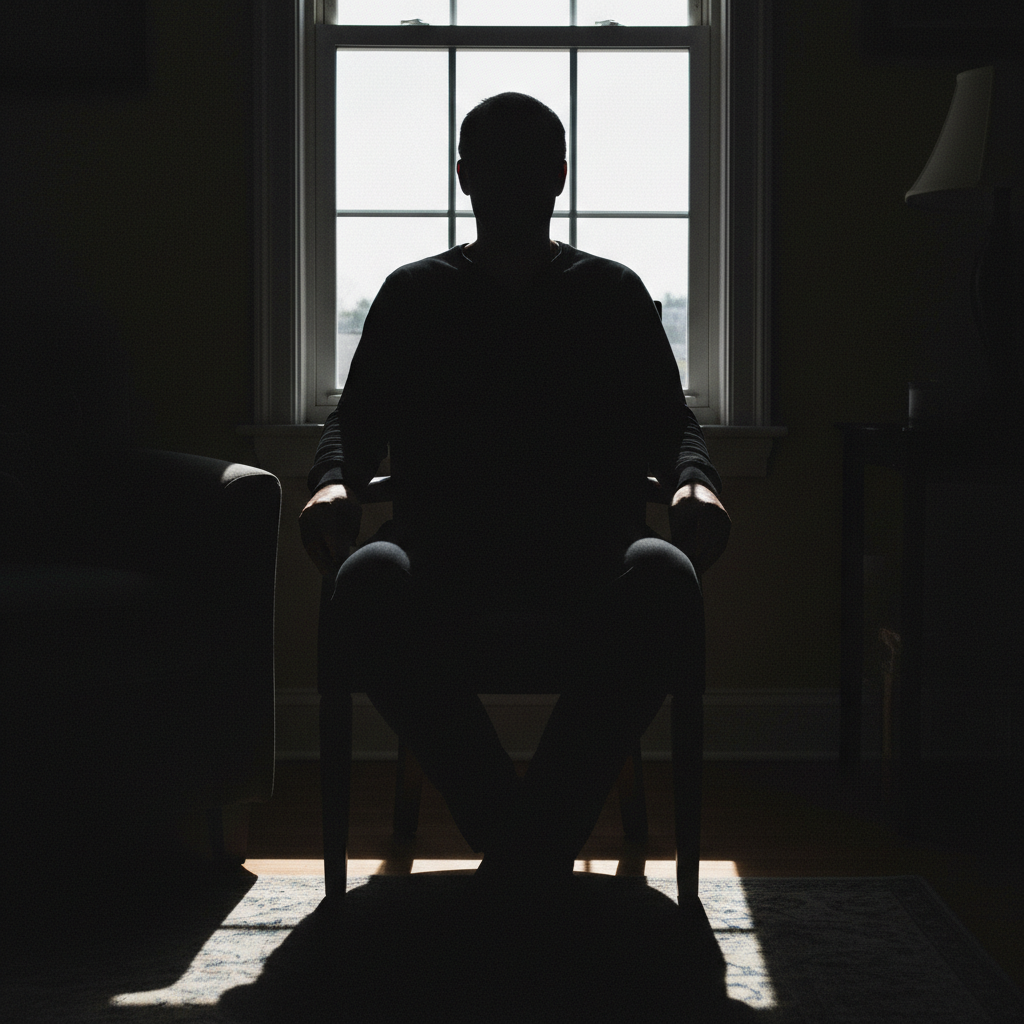
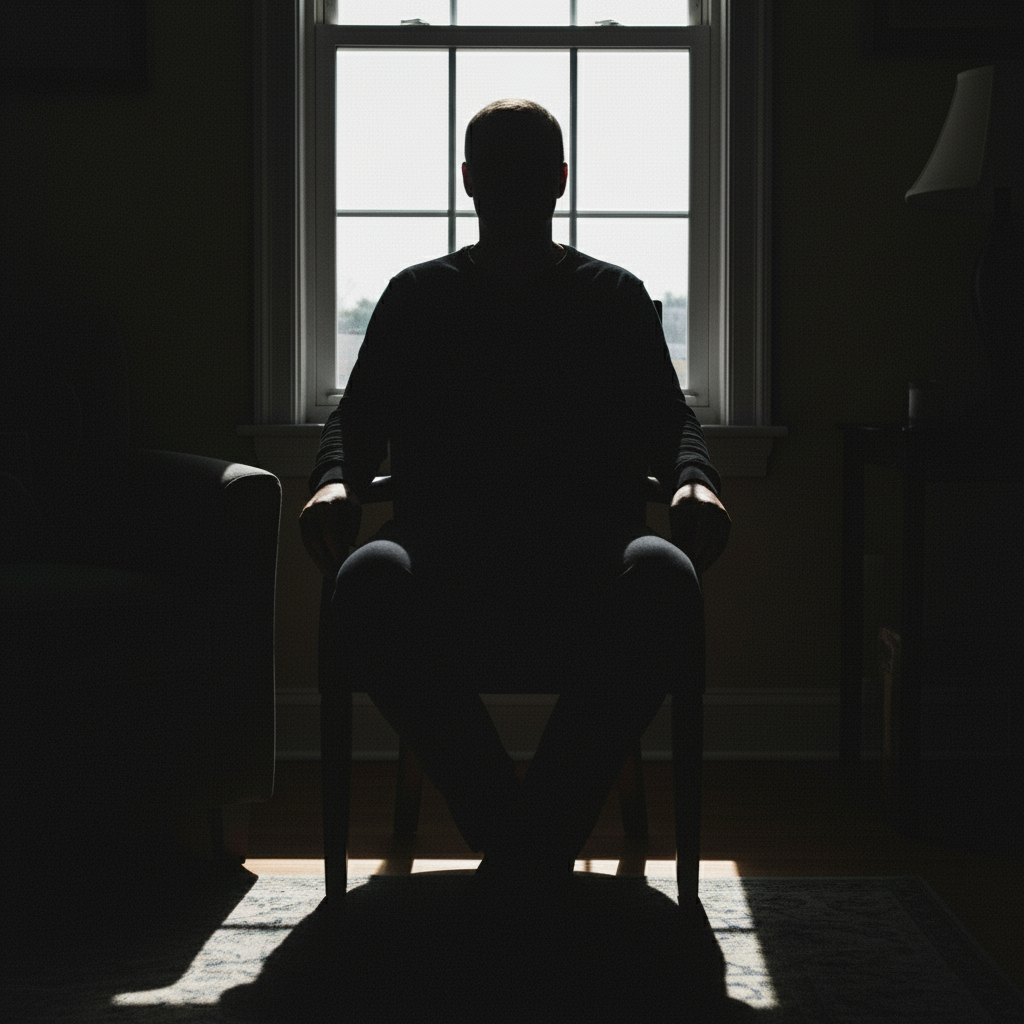
Person as dark silhouette against bright sunset sky
Before
->
Same photo with visible face and clothing detail, sunset background preserved
After

Backlit silhouette turned into a real portrait

Sunset portrait where the subject came out as a pure black silhouette. The AI rebuilt the face and clothing while keeping the sunset sky untouched.

Prompt: brighten the backlit subject in the foreground and recover facial detail, keep the bright sunset background exactly as it is
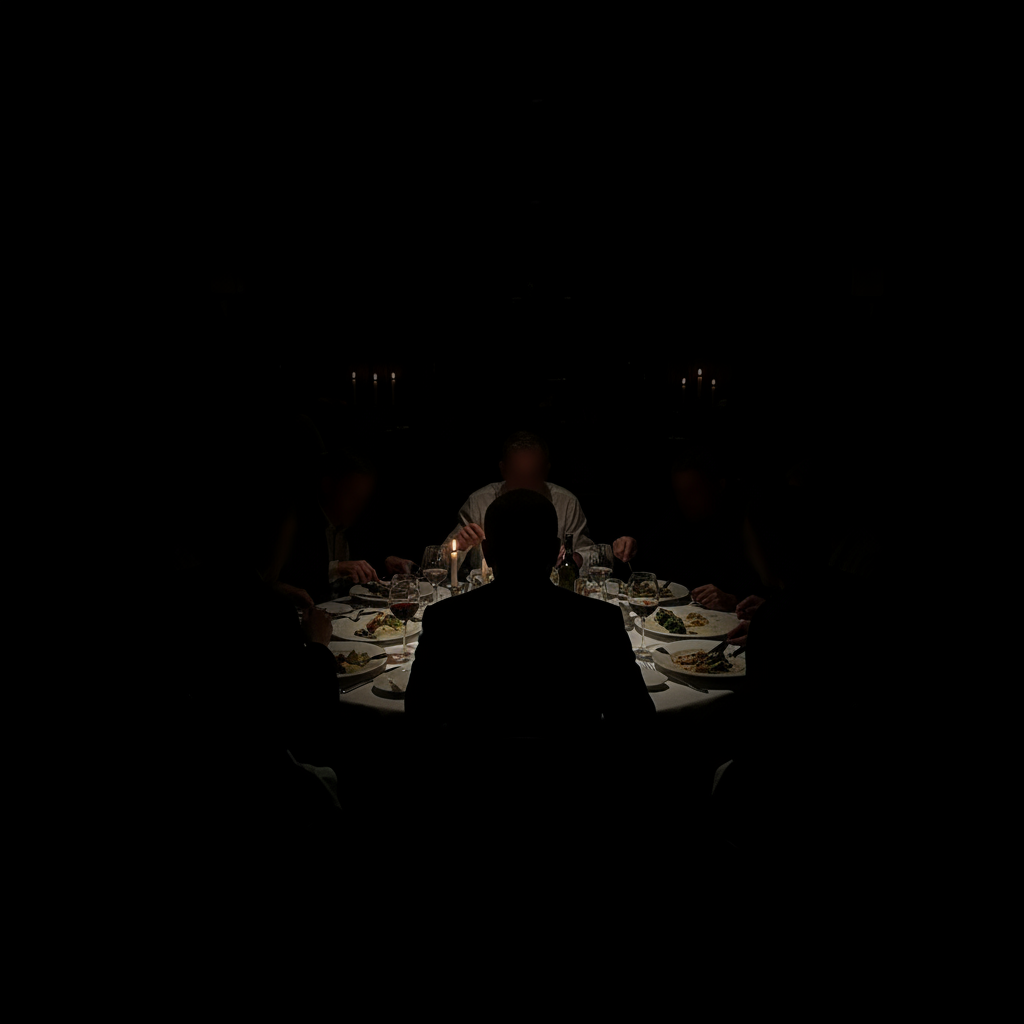
Dark restaurant table with barely visible food in candlelit setting
Before
->
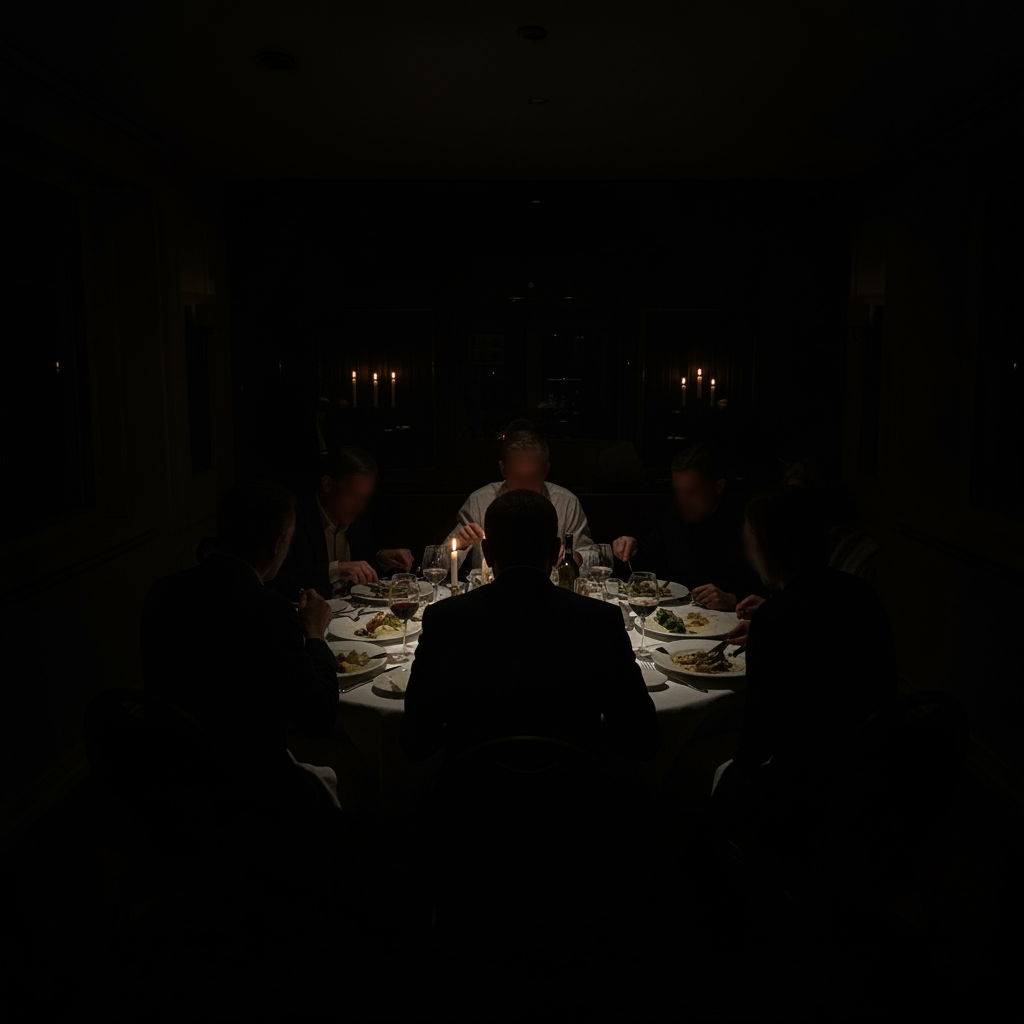
Same table with visible appetizing food detail, warm ambiance preserved
After

Dim restaurant photo with food recovered

Candlelit restaurant photo where the food was lost in shadow. The AI brightened the plate and table while preserving the warm glow and ambiance.

Prompt: brighten the dark food and table setting to show appetizing detail, keep the warm restaurant ambiance and candlelight glow

Detailed Guides by Scenario

πŸ“·

Backlit Silhouettes & Portraits

Backlit portraits β€” taken against a window, sunset, or bright sky β€” almost always render the subject as a black silhouette because the camera meters for the bright background. AI shadow recovery rebuilds the face and clothing without touching the already-correct background.

Common Scenarios

  • Sunset portraits where the person came out as a pure black silhouette
  • Indoor photos where someone is standing in front of a bright window
  • Outdoor selfies taken with the sun behind you
  • Family group shots where the background is a bright sky

Best Practices

  • Always lock the background: 'keep the bright background exactly as it is'
  • Name the part you want recovered ('face,' 'foreground subject,' 'closest person')
  • Use markers when there are multiple people and only some are in shadow
  • Add 'restore natural skin tones' to prevent the AI from adding an orange or green cast to the recovered face
πŸ“·

Dark Indoor & Low-Light Shots

Indoor photos taken without flash β€” at restaurants, family gatherings, in dim hotel rooms, at concerts β€” almost always come out underexposed because phone sensors max out at the ISO they need for the scene. AI recovery brightens the room while killing the noise that would normally appear.

Common Scenarios

  • Family gatherings shot in dim living rooms or restaurants
  • Concert and event photos from phones at high ISO
  • Evening dinner photos in candlelit settings
  • Indoor selfies in poorly lit hotel rooms or bedrooms

Best Practices

  • Always include 'no noise' or 'reduce noise as you brighten' β€” phone shadows are noisy by default
  • Use 'naturally well-lit' to tell the AI to simulate proper room lighting, not just crank brightness
  • If it's a candlelit or warm-light scene, add 'preserve the warm ambiance' to keep the mood
  • For concerts, 'keep the stage lights bright' protects the actual light sources
πŸ“·

Marketplace & Product Listings

Selling on eBay, Facebook Marketplace, Etsy, or Poshmark? Dark or shadowy product photos kill conversions. AI recovery brightens product shots to listing-quality while preserving exact color β€” buyers return products that don't match the photo.

Common Scenarios

  • eBay and Marketplace listings shot in dim garages or basements
  • Etsy product photos taken indoors without proper lighting
  • Poshmark clothing photos where fabric color is hard to see
  • Real estate listing interiors that came out too dark

Best Practices

  • Always include 'maintain accurate color' β€” color shifts kill marketplace listings
  • Mention the product type ('clothing,' 'electronics,' 'furniture') so the AI prioritizes the right details
  • For fabric items, ask for 'true to life color and texture'
  • Add 'listing quality' or 'professional brightness' to push the AI past 'just visible' into 'sellable'

If something looks off

Brightened areas look noisy or grainy

Why: Lifting shadows amplifies sensor noise that was hidden in the dark. Digital cameras always have more noise in shadows than highlights β€” the deeper the shadow, the worse the noise floor.

Try: brighten the underexposed areas, reduce noise and grain, recover smooth detail in the shadows

Tip: Always pair 'brighten' with 'reduce noise' in the same prompt. Doing both at once produces dramatically cleaner results than running them as separate edits.

Colors look washed out or faded after brightening

Why: Underexposed areas have compressed color data, and lifting brightness without restoring saturation leaves shadows looking gray and lifeless.

Try: brighten the dark areas and restore rich vibrant color and contrast while keeping the result natural

Tip: If colors still look flat, follow up with 'add back natural color saturation in the recovered shadow areas.'

The whole photo got brighter, not just the dark parts

Why: The AI applied a global brightness boost instead of targeted shadow recovery, washing out the parts that were already correctly exposed.

Try: brighten only the dark shadow areas, keep all properly-exposed regions at their current brightness

Tip: Being explicit about 'only the shadows' is the single biggest fix for over-correction.

Skin tones look orange or unnatural after fixing a backlit face

Why: Recovering shadows from a backlit face often introduces a warm color cast because the channels were not equally suppressed.

Try: brighten the backlit face and correct the skin tone to look warm, healthy, and natural β€” remove any orange or yellow cast

Tip: If a green cast appears instead, swap 'orange or yellow' for 'green or magenta' in the same template.

Recovered area has visible banding or posterization

Why: When original shadows have very few tonal levels (common in compressed JPEGs from phones), lifting them reveals stair-step gradients instead of smooth transitions.

Try: brighten the dark area and smooth out any banding or posterization, generate gradual tonal transitions

Tip: Banding is worst in skies and walls. Telling the AI the surface type ('smooth wall,' 'gradient sky') helps it rebuild gradients correctly.

Backlit subject got brighter but the background blew out

Why: The AI globally lifted exposure instead of just brightening the foreground, pushing already-bright areas into clipping.

Try: Tap a marker on the dark face and regenerate: brighten only this person in the foreground, keep the background exposure unchanged

Tip: Markers are the cleanest way to handle backlit shots β€” drop one on the face you want lifted and let the AI leave everything else alone.

Quick answers

How do I brighten a dark photo without adding noise?

In a single prompt, ask for both at once: 'brighten the dark areas and reduce noise as you recover shadow detail.' The AI handles brightening and denoising together rather than amplifying hidden grain. This works far better than brightening first and trying to denoise after β€” by then the noise is baked in. Underexposed JPEGs from phones are the most prone to noise, so this combined prompt is especially important for mobile photos.

Can AI recover shadows in dark photos?

Yes β€” and it's better at shadow recovery than highlight recovery, because dark areas usually retain more residual data than blown white areas. The AI can lift roughly 3 stops of underexposure with real recoverable detail, and even photos that look completely black often have hidden texture the AI can rebuild. The deeper the shadow, the more the result is intelligent reconstruction rather than literal recovery.

What's the difference between brightening and exposure recovery?

Brightening is a global lift β€” every pixel gets brighter, including parts that were already correctly exposed, which often blows highlights and washes the photo out. Exposure recovery is targeted: only the dark areas come up while shadows lift, midtones stay, and highlights are protected. EditThisPic's AI does proper recovery by default when you describe what's dark, instead of just 'make it brighter.'

How many stops of underexposure can AI recover?

Roughly 3 stops with strong results, and up to 4-5 stops with intelligent reconstruction (where the AI is generating plausible detail rather than literally recovering it). Shadow recovery has more headroom than highlight recovery because dark pixels almost always retain some data β€” pure black (RGB 0,0,0) is rarer than pure white. Phone JPEGs recover about a stop less than DSLR RAW.

Why does brightening a dark photo make it grainy?

Digital camera sensors generate constant electronic noise, but in bright areas the noise is overwhelmed by the actual image signal. In shadows, the signal is weak and the noise becomes visible the moment you lift them. This is why phone photos at high ISO get noisy when brightened. The fix is to denoise and brighten in the same step β€” telling the AI 'recover detail without grain' addresses both at once.

How do I fix a backlit photo where the face is a silhouette?

Type 'brighten the backlit subject in the foreground, recover facial detail, keep the bright background exactly as it is.' Locking the background is the key step β€” without it, the AI lifts global exposure and blows out the bright sky or window behind the subject. If the background still gets washed out, drop a marker on the face and re-prompt with the targeted version.

Can EditThisPic fix dark iPhone photos?

Yes. EditThisPic accepts HEIC directly and works in any mobile browser β€” no app download. iPhone Night Mode helps with truly dim scenes but often produces a washed-out, low-contrast result that benefits from AI recovery. JPG, PNG, WebP, and HEIC up to 7MB are all supported on mobile. The full editing experience works on iPhone and Android.

Is there a free underexposed photo fixer with no signup?

Yes β€” EditThisPic gives you one free edit per week with no account required, and there's no watermark on the result. Paid plans start at $4.99/month for 15 edits if you fix photos regularly, but you can rescue a dark photo right now without entering an email address.

Is this better than Lightroom's Shadows slider?

For mild underexposure they're similar. For severe cases β€” backlit silhouettes, near-black indoor shots, lost-in-shadow night photos β€” AI recovery wins because it generates actual detail where the shadow slider can only stretch existing tones. Lightroom is also limited by RAW headroom; AI recovery works on JPEGs, HEICs, and screenshots without that constraint.

What happens if a part of my photo is completely black?

Pure black (RGB 0,0,0) has no original detail to recover β€” just like pure white can't be recovered literally. In that case the AI generates plausible texture from surrounding context: a shadowed face becomes a face the AI thinks would fit there, a dark wall becomes a wall texture. Results are usually convincing for skin, walls, and fabric, weaker for fine detail like text or jewelry.

How much does EditThisPic cost?

You get 1 free edit per week β€” no account needed. After that, credit packs start at $1.99 for 3 edits. Monthly plans start at $4.99/mo for 15 edits with unused credits rolling over. All edits are full resolution with no watermark.

Ready to fix your dark photos?

Free to try. No signup required.

1 free edit included·Credit packs from $1.99