Free • No signup Remove Haze · Free

AI Haze Remover

Just describe what you want cleared and the AI handles the rest.

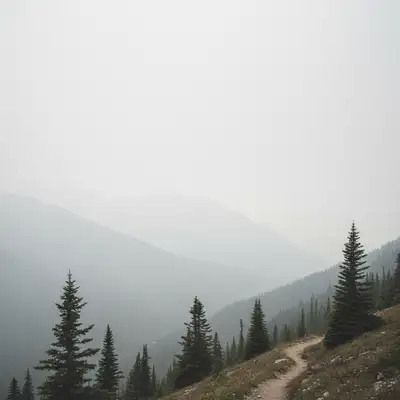
Mountain landscape with heavy atmospheric haze obscuring distant peaks
Before
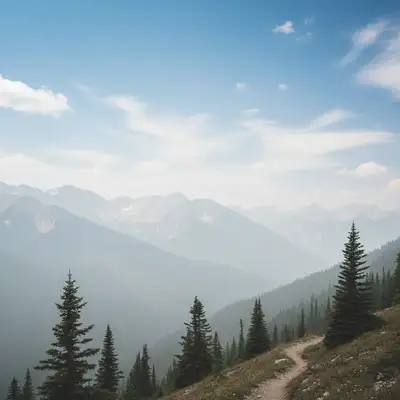
Clear mountain landscape after haze removal showing sharp peak details
After

Remove Haze from Photo

Drop your photo here

or click to browse

Release to upload

Free • No signup

Advertisement
Popular use cases:
  • landscape photography
  • mountain photos
  • travel photography
  • outdoor shots
  • real estate exteriors
  • nature photography
  • architectural photography

Cost
Free No signup required
Time
Instant results in 15-30 seconds
Works on
Any device - browser, phone, tablet, desktop
Powered by
AI-powered photo editing
Scenario Prompt Time
Light atmospheric haze remove atmospheric haze and increase clarity to reveal distant details 15s
Mountain fog clear the fog from distant mountains and enhance visibility 20s
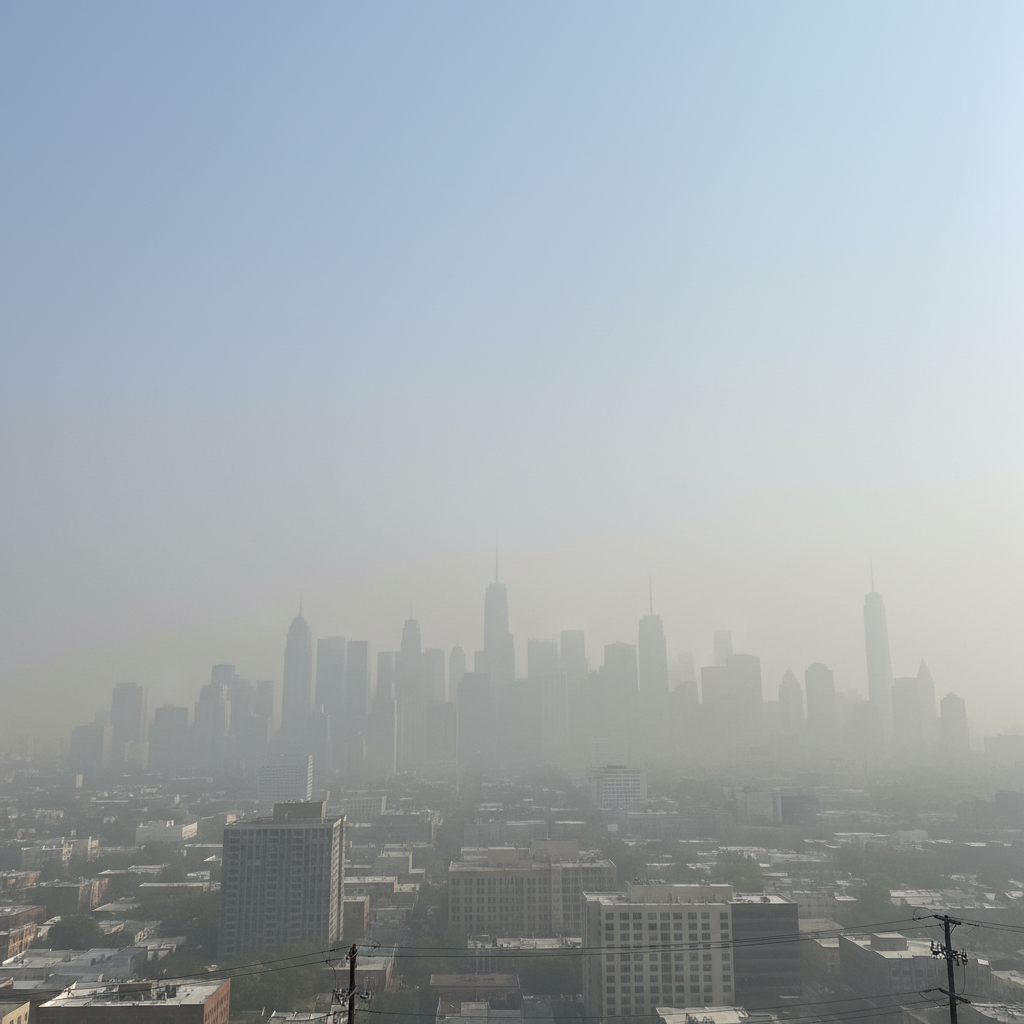
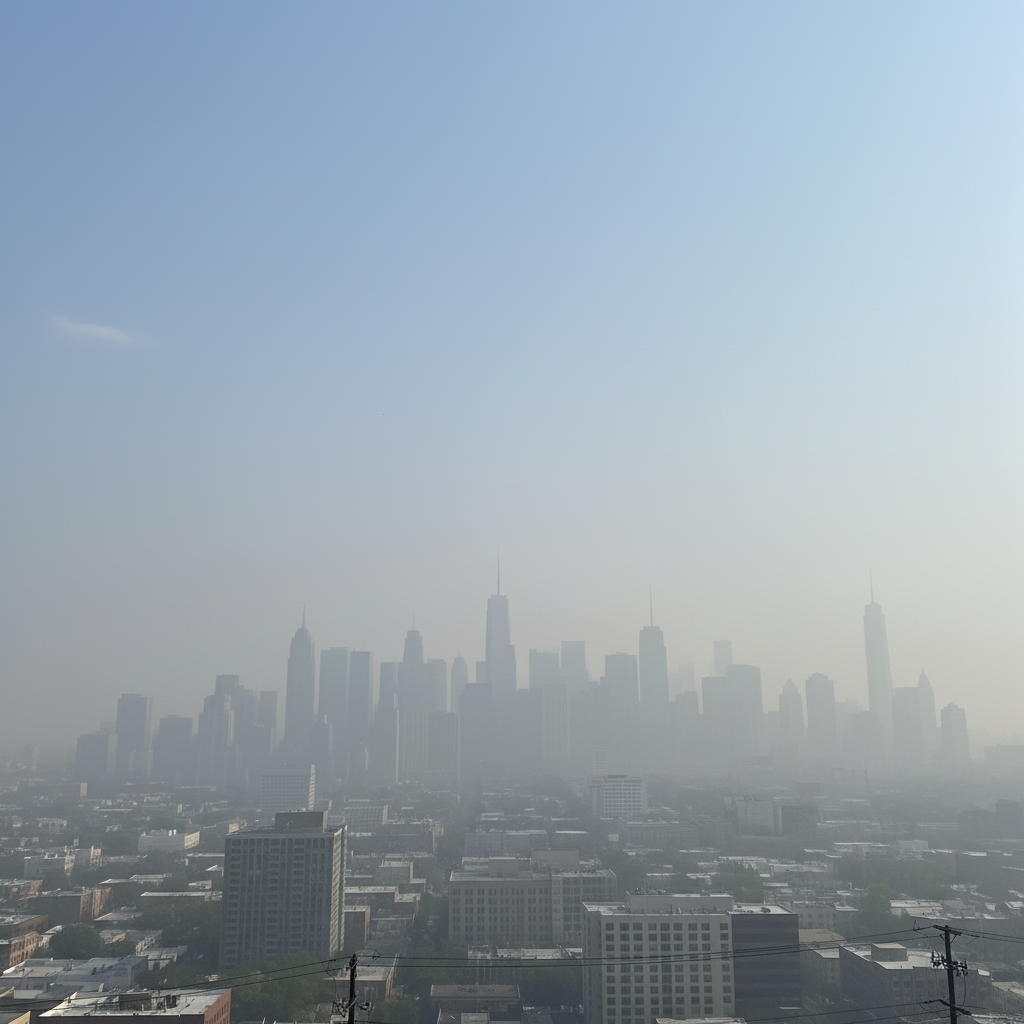
Urban pollution haze remove urban haze from city skyline and sharpen building details 20s
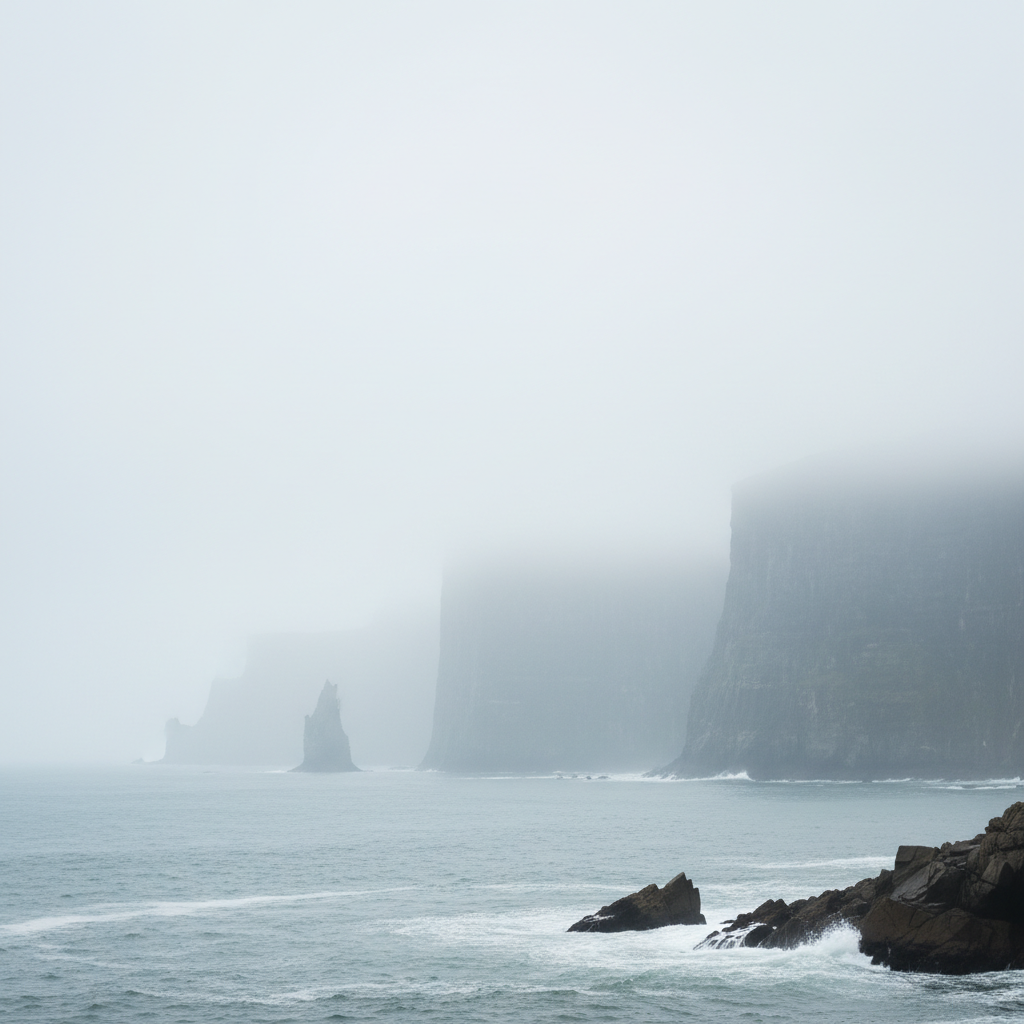
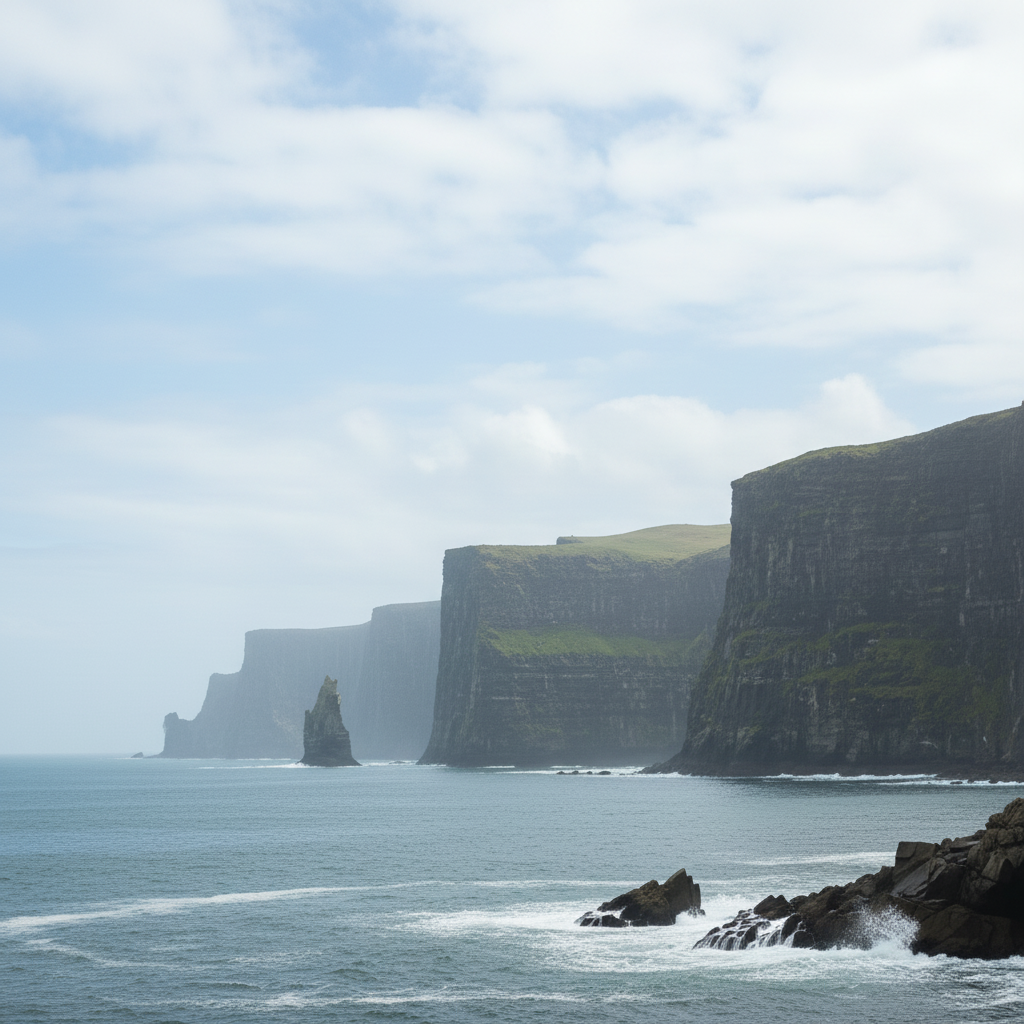
Coastal fog clear coastal fog and reveal the ocean horizon with natural colors 25s

How it works

  1. Upload your photo

    Drop your outdoor or landscape image into EditThisPic. JPG, PNG, WebP up to 7MB. Works best on photos where distant objects are obscured by atmospheric haze or fog.

    Expect: Simple edits with moderate haze: 15-30 seconds. Heavy fog conditions: may need 2-3 refinements for optimal clarity.
  2. Describe what you want

    Type your instruction: 'remove atmospheric haze and increase clarity' or 'clear the fog from distant mountains.' Be specific about which areas need clearing if only part of the image is affected. No marking needed—the AI understands atmospheric conditions.

    Tip: Include what should be revealed: 'clear haze to show distant mountains' gives better results than just 'remove haze'

    Copy one of these to get started:

    General atmospheric haze remove atmospheric haze and increase clarity to reveal distant details
    Mountain landscape fog clear the fog from distant mountains and enhance visibility
    Cityscape haze remove urban haze from city skyline and sharpen building details
    Coastal fog clear coastal fog and reveal the ocean horizon with natural colors
    2 more prompts
    Heavy morning mist remove thick morning mist while preserving natural lighting and warmth
    Distant subject clarity clear haze between camera and distant subject, enhance depth and sharpness
  3. Generate and review

    Click Generate and watch the AI clear atmospheric haze while preserving natural colors and contrast. Check distant details at full zoom to verify clarity improvement.

  4. Refine with markers if needed

    If specific areas still appear hazy or the AI cleared too much, tap markers on those spots and regenerate. This is optional—most haze removal works without markers.

    Tip: Markers are for precision refinement, not required. Try without them first.
Try it free

Remove Haze from Photo

Drop your photo here

or click to browse

Release to upload

Free • No signup

"Turned my foggy mountain photo into a crystal-clear shot. Couldn't believe how simple it was." @outdoor_photographer

See it in action

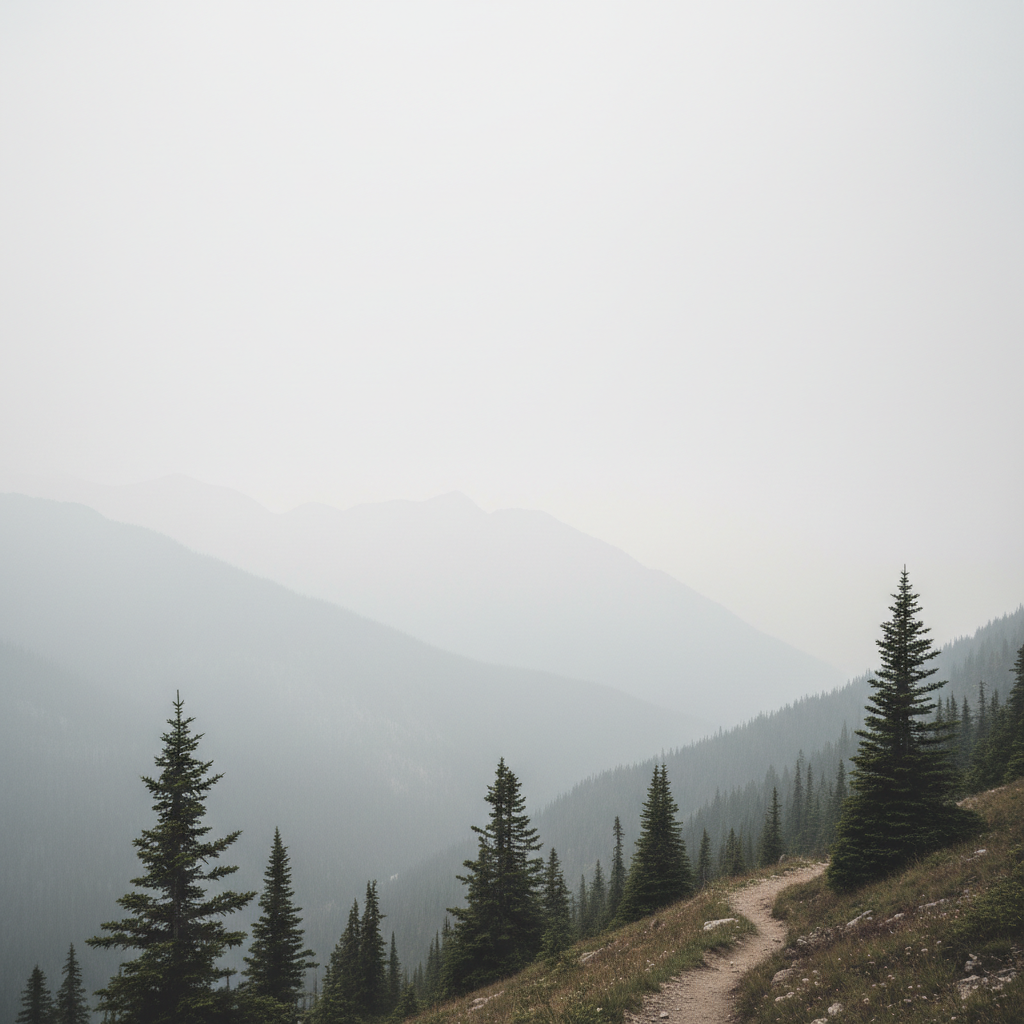
Mountain landscape with heavy atmospheric haze obscuring distant peaks
Before
->
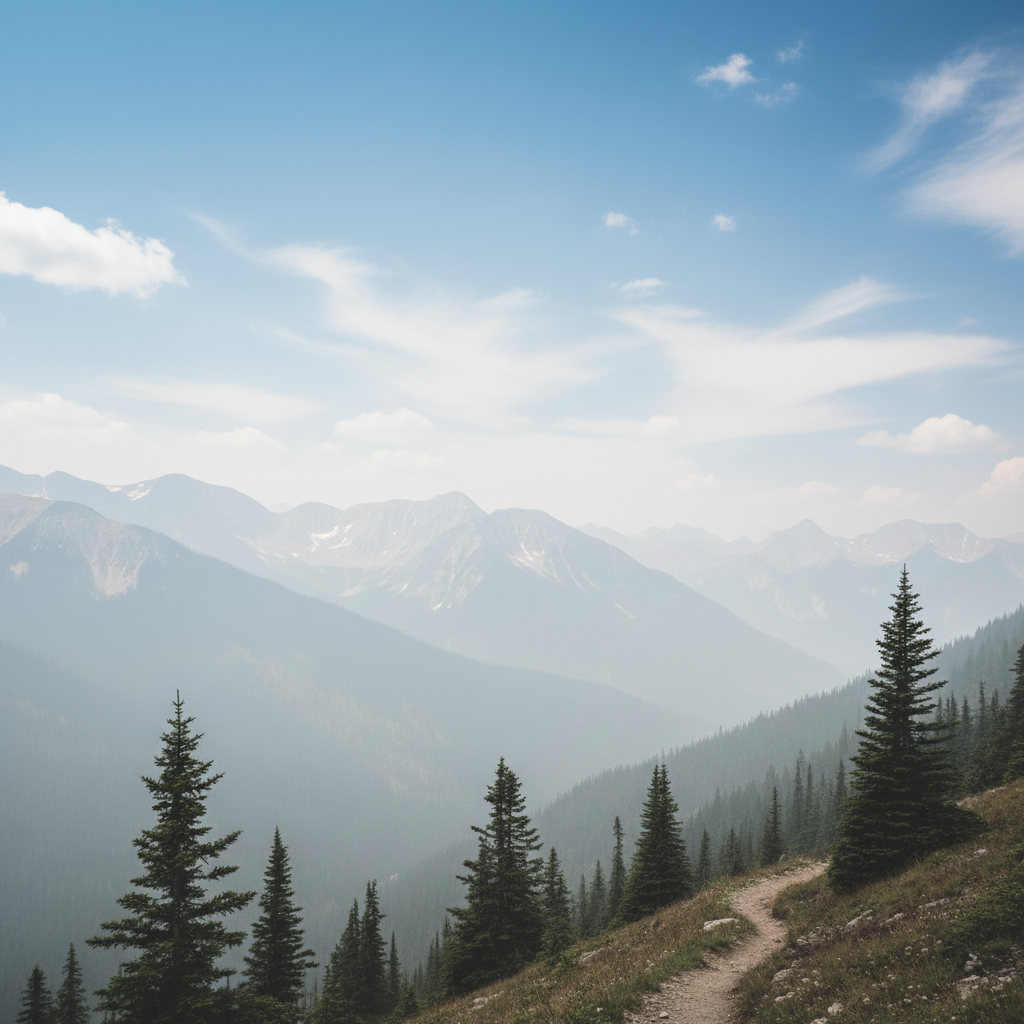
Clear mountain landscape after haze removal showing sharp peak details
After

Mountain landscape cleared

Thick atmospheric haze obscured distant peaks. One prompt revealed the mountain details with enhanced clarity.

Prompt: remove atmospheric haze and reveal distant mountain peaks with clarity
City skyline with urban haze reducing building clarity
Before
->
Clear city skyline after haze removal with sharp architectural details
After

City skyline enhanced

Urban pollution haze reduced building visibility. AI cleared the haze and sharpened architectural details.

Prompt: remove urban haze from city skyline and sharpen building details
Coastal scene with heavy fog obscuring ocean horizon
Before
->
Clear coastal view after fog removal revealing ocean and horizon
After

Coastal fog cleared

Heavy morning fog obscured the ocean view. One prompt revealed the horizon and enhanced water colors.

Prompt: clear coastal fog and reveal the ocean horizon with natural colors
Advertisement

If something looks off

AI changed the wrong area or something I didn't want changed

Why: The AI couldn't determine exactly which area you meant from description alone. This happens with ambiguous requests.

Try: Tap a marker on the specific hazy area you want to clear, then regenerate with the same prompt

Tip: Markers tell the AI 'I mean THIS area specifically.' Use them when description alone is ambiguous.

Image looks oversaturated or colors seem unnatural

Why: Aggressive haze removal can boost colors beyond natural levels, especially in skies and distant landscapes.

Try: Add 'while preserving natural colors and saturation' to your prompt to maintain realistic tones

Tip: For morning or evening shots, specify 'preserve the warm/cool lighting' to maintain the mood

Foreground became too sharp or processed-looking

Why: The AI applied clarity enhancement across the entire image instead of just distant hazy areas.

Try: Be specific: 'remove haze from distant mountains only, keep foreground natural' to protect near elements

Tip: Use markers on distant areas to focus the haze removal away from sharp foreground subjects

Details are lost or image looks flat

Why: Heavy haze removal can reduce atmospheric depth if applied too aggressively across all distance layers.

Try: Add 'preserve atmospheric depth and natural perspective' to maintain some separation between near and far

Tip: Some haze is natural and helps depth perception - don't remove all atmospheric effects

Haze remains in some areas after processing

Why: Very thick fog or uneven haze distribution may need targeted clearing instead of global removal.

Try: Use markers to tap on the specific remaining hazy areas, then regenerate with 'clear this specific area'

Tip: Complex fog scenes may need 2-3 passes: clear heavy areas first, then refine stubborn spots

Quick answers

Do I need to mark the hazy areas before describing?

No! Just describe what you want: 'remove atmospheric haze' or 'clear fog from mountains.' The AI understands atmospheric conditions. Only use markers when you need precision—like clearing haze from one specific area while leaving atmospheric depth elsewhere.

How do I remove haze from a photo for free?

Upload your image to EditThisPic, type 'remove atmospheric haze and increase clarity,' and click Generate. The AI automatically identifies and removes haze while preserving natural colors and details. Free to try with no account needed.

Will removing haze make my photo look unnatural?

EditThisPic's AI preserves natural atmospheric perspective and color gradients while clearing haze. The key is being specific in your prompt—mention 'natural colors' and 'preserve lighting' to maintain realistic results. Some atmospheric depth is retained for natural-looking landscapes.

Can I remove haze from just part of a photo?

Yes. Describe the specific area: 'clear haze from distant mountains only' or use markers to tap on the hazy region you want cleared. This preserves foreground clarity while enhancing distant visibility.

What's the difference between haze and fog removal?

Haze is typically thinner atmospheric obscuration that reduces contrast and clarity. Fog is denser and can completely obscure subjects. EditThisPic handles both—just describe what you see: 'remove haze' for thin atmospheric effects or 'clear thick fog' for dense obscuration.

Ready to clear haze from your photos?

Free to try. No signup required.

Try it free