Free • No signup Remove Compression artifacts · Free

AI Compression Artifact Remover

Just describe the artifact issue and AI fixes the compression damage.

Sunset photo with blocky compression artifacts in sky
Before
Clean sunset photo with smooth sky gradient restored
After

Remove Compression Artifacts from Photo

Upload photo to remove compression artifacts

Free • Results in 30 seconds • No signup

Release to upload

FreeNo signupNo watermark
Popular use cases:
  • social media downloads
  • over-compressed photos
  • low-quality JPEG
  • product photography
  • portrait cleanup
  • sky restoration
  • gradient fixing

Cost
Free No signup required
Time
Instant results in 15-30 seconds
Works on
Any device - browser, phone, tablet, desktop
Powered by
AI-powered photo editing
Scenario Prompt Time
Blocky sky fix remove compression artifacts from the sky and restore smooth gradient 15s
General JPEG cleanup remove all compression artifacts and blocky areas, restore natural detail 20s
Skin tone artifact removal remove compression artifacts from skin, restore smooth skin tones 20s
Gradient banding fix remove banding and compression artifacts from background, restore seamless transition 15s

How it works

  1. Upload your compressed photo

    Drop your over-compressed image into EditThisPic. Works with JPG, PNG, WebP up to 7MB. The tool handles images saved at low quality settings, heavily compressed social media downloads, or photos with visible blocky artifacts.

    Expect: Simple cases with mild artifacts: 15-30 seconds. Heavy compression with lots of damage: may need 2-3 refinements to restore all detail.
  2. Describe what you want

    Type your instruction: 'remove compression artifacts and restore smooth gradients' or 'fix blocky sky and restore natural detail.' Be specific about which areas need work—skies, skin tones, gradients. No marking needed—the AI understands what compression artifacts look like.

    Tip: Mention the type of artifact: 'blocky sky', 'banding in gradients', or 'pixelated edges' helps the AI target specific issues.

    Copy one of these to get started:

    Fix blocky sky from over-compression remove compression artifacts from the sky and restore smooth blue gradient
    Clean up JPEG artifacts throughout photo remove all compression artifacts and blocky areas, restore natural detail and smooth gradients
    Fix compressed skin tones in portrait remove compression artifacts from skin, restore smooth skin tones and natural texture
    Restore detail lost to compression remove compression artifacts and restore fine detail that was lost to over-compression
    3 more prompts
    Fix banding in gradient backgrounds remove banding and compression artifacts from smooth gradient background, restore seamless transition
    Clean up low-quality social media download remove compression artifacts from this low-quality download, restore photo to clean, sharp quality
    Fix pixelated edges around subject remove pixelated compression artifacts around edges, restore clean sharp boundaries
  3. Generate and review

    AI analyzes compression patterns and reconstructs smooth detail. Zoom to 100% to verify artifacts are gone and gradients look natural. Check areas that were most compressed—usually skies, smooth backgrounds, or skin tones.

  4. Refine with markers if needed

    If some blocky areas remain or certain zones need more work, tap markers on those specific spots and regenerate. This is optional—most compression fixes work without markers.

    Tip: Markers are for targeting stubborn artifact areas. Try without them first—most images clean up completely on first attempt.
Try it free

Remove Compression Artifacts from Photo

Upload photo to remove compression artifacts

Free • Results in 30 seconds • No signup

Release to upload

Free • No signup

"Fixed my over-compressed product photos in seconds. The blocky artifacts vanished completely." @photographer_pro

See it in action

Sunset photo with blocky compression artifacts in sky
Before
->
Clean sunset photo with smooth sky gradient restored
After

Blocky Sky Cleanup

Over-compressed sunset photo with visible blocky artifacts in the sky gradient. One prompt restored smooth color transitions.

Prompt: remove compression artifacts from the sky and restore smooth gradient
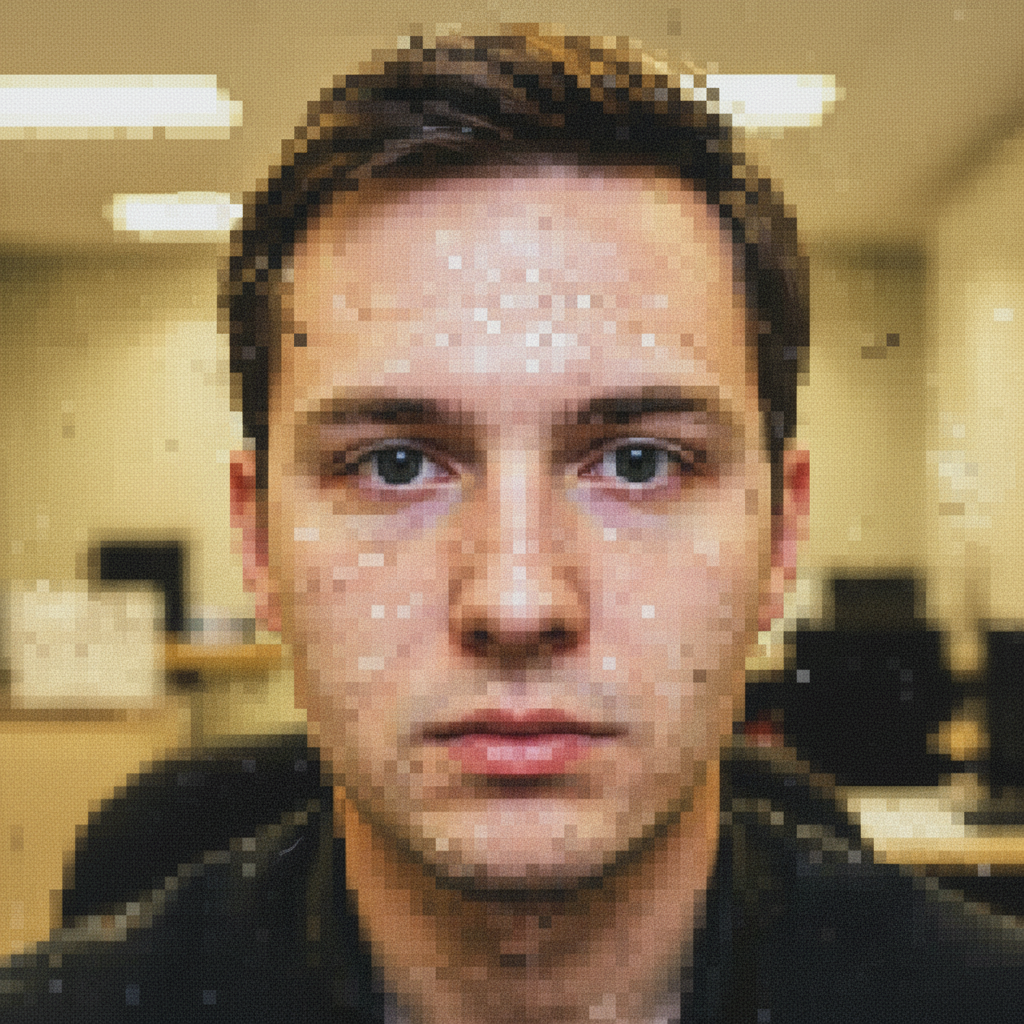
Portrait with compression artifacts on skin
Before
->
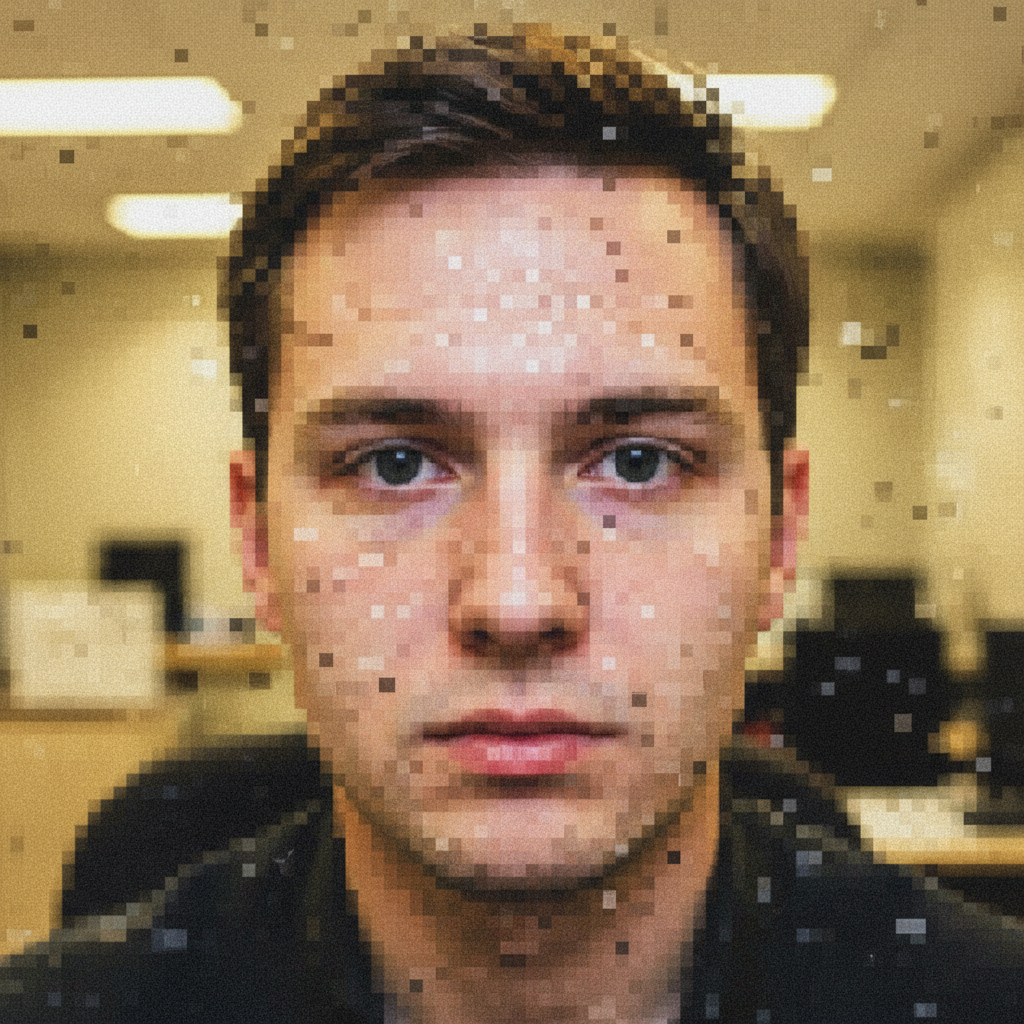
Clean portrait with smooth skin restored
After

Portrait JPEG Artifact Removal

Social media profile photo re-saved multiple times with visible compression on skin tones. AI removed blocky patches while preserving skin texture.

Prompt: remove compression artifacts from skin, restore smooth skin tones and natural texture

Detailed Guides by Scenario

📷

Professional Photography

Remove unwanted compression artifacts from professional photo shoots, client deliverables, and stock photography to achieve clean, polished results.

Common Scenarios

  • Client portrait sessions where the compression artifacts appeared unexpectedly in frame
  • Stock photography that needs the compression artifacts removed for broader commercial appeal
  • Product photography with distracting compression artifacts in the background

Best Practices

  • Zoom in and place a marker directly on the compression artifacts for the most accurate removal
  • Run a second pass if any faint outlines or shadows remain after the first edit
  • Describe the desired background fill — e.g., 'replace the compression artifacts with clean wall' for predictable results
📷

Real Estate & Property Listings

Clean up property photos by removing compression artifacts that distract buyers and lower perceived home value.

Common Scenarios

  • Listing photos where the compression artifacts clutters the frame and makes rooms look smaller
  • Exterior shots with compression artifacts that hurt curb appeal
  • Open house photos that need the compression artifacts removed before uploading to MLS

Best Practices

  • Shoot the space first, then edit — AI removal works better than awkward staging workarounds
  • After removing the compression artifacts, check that floor lines and wall edges still look straight
  • Process all listing photos in one session so lighting and style stay consistent
📷

Personal & Social Media

Fix personal photos by removing compression artifacts before sharing on social media, printing, or gifting.

Common Scenarios

  • Vacation photos where the compression artifacts appeared in an otherwise perfect shot
  • Family photos with compression artifacts that distract from the people in the frame
  • Profile pictures and dating app photos that need the compression artifacts cleaned out

Best Practices

  • Save the original photo first — edit a copy so you can always go back
  • For group photos, mark the compression artifacts carefully to avoid affecting nearby people
  • If the first result isn't perfect, try rewording your prompt with more detail about the background

If something looks off

AI changed the wrong area or something I didn't want changed

Why: The AI couldn't determine exactly which compressed areas you meant from description alone. This happens when artifacts appear throughout the image.

Try: Tap a marker on the specific blocky or artifacted area you want to clean up, then regenerate with the same prompt

Tip: Markers tell the AI 'fix THIS compressed area specifically.' Use them when artifacts vary across the image.

Some blocky areas still visible after cleanup

Why: Severe compression damage may need multiple passes. The AI prioritizes preserving detail over aggressive smoothing.

Try: regenerate with: 'more aggressively remove remaining compression artifacts' or mark the stubborn blocky areas and try again

Tip: A quick second pass on remaining traces usually gives a clean final result.

Image looks too smooth or detail was lost

Why: The AI over-smoothed while removing artifacts, losing legitimate detail along with compression damage.

Try: regenerate with: 'remove compression artifacts but preserve all original detail and texture'

Tip: Include 'keep natural texture and detail' in your prompt to avoid over-processing.

Colors look different after artifact removal

Why: Heavy compression often damages color information. Reconstruction may shift colors slightly as it fills in missing data.

Try: Try: 'remove artifacts while preserving exact original colors' or adjust color separately after artifact cleanup

Tip: Specify the exact colors you want, like 'warm natural tones' or 'cool blue tint.'

Edges look soft or blurry after cleanup

Why: Artifact removal can soften edges as it smooths blocky areas. The AI may need to know you want sharpness preserved.

Try: regenerate with: 'remove compression artifacts while keeping edges sharp and defined'

Tip: Start with a higher-resolution upload for sharper AI-generated results.

New artifacts appeared that weren't there before

Why: The reconstruction process sometimes creates new patterns when filling in heavily damaged areas.

Try: Try a lighter touch: 'gently reduce compression artifacts without creating new patterns' or mark problem areas for targeted fixing

Tip: Zoom in and mark just the edges that need fixing for a seamless blend.

Quick answers

Do I need to mark the compressed areas before describing?

No! Just describe what you want: 'remove compression artifacts from sky' or 'fix blocky areas throughout.' The AI recognizes compression patterns automatically. Only use markers when you need to target specific areas that didn't clean up on the first attempt.

How do I remove compression artifacts from a photo for free?

Upload your over-compressed image to EditThisPic and type 'remove compression artifacts and restore detail.' The AI analyzes blocky patterns, banding, and JPEG artifacts, then reconstructs smooth detail. Free to use, no account needed, no watermark on results.

Can this fix photos saved at very low JPEG quality?

Yes, the AI handles JPEG artifacts from low-quality saves, including blocky areas, color banding, and lost detail. Severe compression may need 2-3 refinements. The tool works best when some detail remains visible—it can't fully restore information that was completely destroyed.

Will this work on photos downloaded from social media?

Yes, social platforms heavily compress uploads. The tool removes Facebook, Instagram, and Twitter compression artifacts. Results depend on how much detail survived—mildly compressed images restore well, while multiple re-compressions may limit what's recoverable.

What's the difference between compression artifacts and noise?

Compression artifacts are blocky squares, banding, and color patches from over-compression. Noise is random grain from high ISO or low light. This tool fixes compression damage. For camera noise, use our AI Noise Remover instead.

Is EditThisPic's AI compression artifacts remover really free?

Yes — you get 1 free edit per week, no account needed. For unlimited edits, plans start at $3.99/month.

Can I remove compression artifacts on my phone?

Yes. EditThisPic works in any mobile browser — iPhone, Android, tablet. No app download needed.

What photo formats does the AI compression artifacts remover support?

JPG, PNG, WebP, and HEIC. Upload any common photo format and EditThisPic handles the rest.

Ready to remove compression artifacts?

Free to try. No signup required.