Instagram Image Size & Photo Dimensions Guide 2026
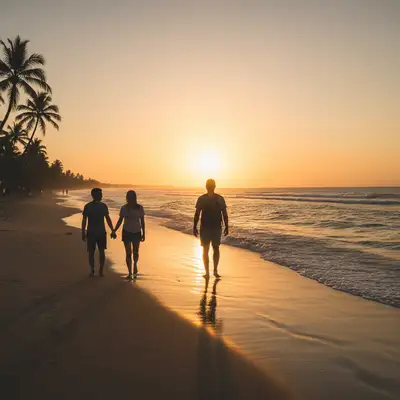
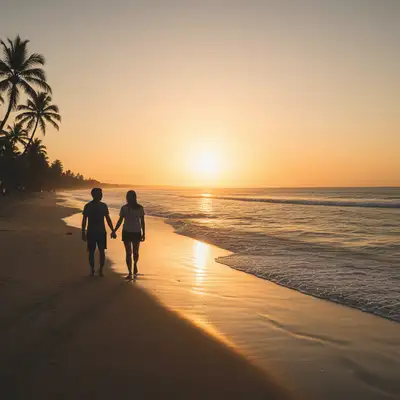
Feed Post Image Sizes
Instagram supports three aspect ratios for feed posts: square (1:1), portrait (4:5), and landscape (1.91:1). 4:5 portrait (1080x1350) is the recommended default. It takes up the most screen real estate in the feed, giving your image maximum visibility as users scroll. This format dominates engagement metrics. 1:1 square (1080x1080) is the classic Instagram format. Clean, balanced, and works well for centered subjects and product photos. 1.91:1 landscape (1080x566) displays the smallest in the feed. Use only when the composition demands it (panoramic views, wide group shots). Most landscape photos perform better cropped to 4:5. Resolution: always upload at 1080 pixels wide minimum. Instagram compresses images, so uploading at the exact recommended size produces the sharpest results. Larger images get downscaled and re-compressed. Format: JPEG under 30MB. PNG is supported but Instagram converts everything to JPEG internally, so PNG files offer no quality advantage and upload slower.
Default to 4:5 portrait
1080x1350 pixels. Takes up the most feed space and maximizes engagement.
Use 1:1 for centered subjects
1080x1080 for product photos, symmetrical compositions, and classic Instagram aesthetics.
Upload at exact dimensions
Don't upload massive files. 1080px wide at the correct aspect ratio gives the sharpest result after Instagram's compression.
Stories Dimensions
Stories and vertical content: 1080 x 1920 pixels (9:16 aspect ratio). This fills the entire phone screen. Safe zone: keep important content within the center 1080x1420 area. The top ~200 pixels are covered by the account name and icon. The bottom ~300 pixels may be covered by Story interaction elements (polls, links, reactions). Stories compress images more aggressively than feed posts. Upload at exactly 1080x1920 for the sharpest result. Larger files get re-compressed more heavily. For photo Stories, vertical images work best. Horizontal photos displayed in Stories show small with large black bars above and below. If you must use a horizontal photo, place it centered and add a background color or blur to fill the vertical space.
Use 1080x1920
Exact 9:16 vertical format. Fills the screen completely.
Keep text in the safe zone
Avoid the top 200px and bottom 300px for important text or visuals.
Convert horizontal photos
Place horizontal images centered on a vertical canvas with background blur or color fill.
Reels Cover Photos and Thumbnails
Reels cover photo: 1080 x 1920 (9:16). This is what displays when viewing the Reel in your profile grid. You can upload a custom cover image or choose a frame from the video. Reels in the profile grid display as a 9:16 crop. In the main feed, Reels may display with a 4:5 crop. Design your cover image so the key content is visible in both crops. The profile grid shows a cropped center portion of the Reel cover. Keep the main subject and any text centered to ensure it's visible in the grid thumbnail. Reels video: 1080x1920 (9:16) at 30fps minimum. Up to 90 seconds for standard accounts. Instagram recommends 1080p resolution for the best quality.
Create a custom cover
Design a 1080x1920 cover with the key content centered. This appears in your profile grid.
Center important content
The grid thumbnail crops the cover image. Keep text and key visuals in the center safe zone.
Test both crops
Preview how your cover looks in both 9:16 (Reels tab) and the profile grid (1:1 crop from center).
Profile Photo Size
Profile photo: 320 x 320 pixels. It displays as a circle, so ensure your face or logo is centered and fits within a circular crop. The profile photo appears small in most contexts: 32px in comments, 56px in Stories, and 150px on your profile page. Design for legibility at small sizes. For personal accounts: a clear, well-lit headshot with your face filling most of the frame. Avoid full-body shots or busy backgrounds since they're unrecognizable at thumbnail sizes. For business accounts: a simple, high-contrast logo that reads at small sizes. Remove text if it's illegible at 32px. The icon or symbol alone often works better than the full logo.
Upload 320x320
Square image that works as a circle. Center the face or logo within a circular crop.
Fill the frame
Headshots: face fills 70%+ of the circle. Logos: simple icon that's readable at 32px.
Test at small sizes
Preview at 32px (comment size) to ensure it's recognizable.
Carousel Post Dimensions
Carousels allow up to 20 images or videos in a single swipeable post. All images in a carousel must use the same aspect ratio. If the first image is 4:5, all following images are cropped to 4:5. If the first is 1:1, all are 1:1. Choose the aspect ratio that works best for most of your images, then design all slides to fit. Carousel posts get higher engagement than single images because Instagram reshows them to users who scroll past without swiping. The algorithm interprets the second view as a re-engagement signal. Design carousels with a hook first slide, educational or story content in the middle, and a CTA or summary on the last slide. This structure maximizes both swipe-through rates and saves/shares.
Choose one aspect ratio
4:5 (1080x1350) for maximum feed presence. 1:1 (1080x1080) for clean educational carousels.
Design all slides consistently
Same fonts, colors, and layout across all slides. Consistent visual branding within the carousel.
Hook on slide 1, CTA on last
First slide grabs attention. Last slide tells them what to do (follow, save, share, click link).
Editing Photos for Instagram
Instagram's compression degrades image quality. Editing before upload gives you control over the final look. For cropping to the right dimensions: 'crop this photo to 4:5 portrait orientation, keeping the main subject centered' or 'extend the top and bottom of this landscape photo to make it 4:5 vertical'. For Instagram aesthetic: 'brighten the photo and add a warm tone' or 'make the colors more vivid and add slight contrast'. Consistency in your editing style builds a cohesive feed. For Stories: 'convert this horizontal photo to vertical by extending the background above and below' fills the vertical frame without awkward cropping.
Crop to 4:5
'Crop to 4:5 portrait with the subject centered' or extend the background for vertical format.
Match your feed aesthetic
Apply consistent editing: warm, cool, muted, or vibrant. Your choice, but keep it consistent.
Convert for Stories
'Extend the background to make this photo 9:16 vertical for Instagram Stories.'
Frequently Asked Questions
Need to resize or edit for Instagram?
Crop, extend backgrounds, enhance colors. Upload and describe. Free, no signup.
Edit for Instagram
"Edit this instagram photo"
Free to try · no sign-up · photos are never shared
Release to upload