LinkedIn Profile Photo Guidelines 2026

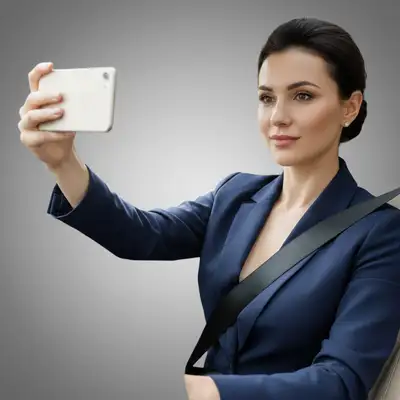
LinkedIn Image Dimensions
Profile photo: 400x400 minimum, 800x800 recommended. Displayed as a circle in most contexts. Maximum file size 8MB, JPEG or PNG. LinkedIn banner: 1584x396 pixels. The banner appears behind your profile photo on your profile page. The profile photo displays at different sizes across LinkedIn: large on your profile page, medium in post feeds, and small (56px) in comments and messages. Design for legibility at all sizes. LinkedIn crops the photo to a circle. Ensure your face is centered and fits within a circular crop. The corners of the square upload are not visible.
Upload 800x800 square
Higher resolution than minimum ensures crisp display on all devices and context sizes.
Center your face for circle crop
LinkedIn displays as circle. Center your face so nothing important is cropped by the circular mask.
Test at small sizes
Your photo appears as small as 56px in comments. Make sure your face is recognizable at that size.
Composition Guidelines
Your face should fill 60-70% of the frame. This means a tight headshot from mid-chest to slightly above the head. Full-body shots, group photos, and distant shots don't work at the small display sizes LinkedIn uses. Look directly at the camera with a natural, approachable expression. A slight smile reads as confident and friendly. An intense stare reads as aggressive. A wide grin reads as informal. Your head should be slightly tilted (5-10 degrees) rather than perfectly straight. A slight tilt looks natural and approachable. Perfectly straight-on looks like a mugshot. The crop should show your shoulders and the top of your outfit. This provides professional context without wasting frame space on your environment.
Frame from mid-chest up
Face fills 60-70% of the frame. Show shoulders and the top of your outfit.
Natural, approachable expression
Slight smile, direct eye contact with the camera. Not too serious, not too casual.
Slight head tilt
5-10 degrees of tilt looks natural. Perfectly straight-on looks stiff and unfriendly.
Background Recommendations
Solid color backgrounds work best. They're clean, professional, and don't compete with your face. Gray, light blue, or dark blue are the most popular choices. Blurred backgrounds (natural bokeh from portrait mode or AI blur) provide depth and look professional. An office, park, or urban setting blurred behind you suggests context without distraction. Avoid: busy patterns, cluttered rooms, bathroom mirrors, bed headboards, other people visible, branded walls (unless it's your company), and harsh direct sunlight casting shadows. For the most professional look, a simple gradient background (dark to light or vice versa) in a neutral color makes you look like you had a studio headshot.
Use a solid or blurred background
Solid gray, blue, or white. Or a naturally blurred setting using portrait mode.
Avoid distracting backgrounds
No cluttered rooms, bathroom mirrors, beds, or other people visible in the background.
Match your industry
Tech: casual, outdoor or office blur. Finance: solid, studio-style. Creative: slightly more personality allowed.
What to Wear
Wear what you'd wear to work or a client meeting. Your LinkedIn photo should match the professional context of your industry. Corporate/finance: blazer, dress shirt, tie optional. Dark colors and solid patterns photograph best. Tech/startup: smart casual. Button-down shirt, clean crew neck, or blazer without tie. Avoid overly casual t-shirts. Creative fields: more flexibility. Express personality while maintaining professional polish. Interesting colors and accessories are welcome. Avoid: busy patterns that create visual noise at small sizes, logos and branding, all-white or all-black clothing (creates exposure problems), and casual beachwear or workout clothes. Solid colors in jewel tones (deep blue, emerald, burgundy) photograph well across skin tones and look professional at every display size.
Match your industry standard
Dress like you would for a meeting with a client or partner in your field.
Wear solid colors
Solid jewel tones photograph best. Avoid busy patterns, stripes, and small prints.
Groom as you would for work
Clean, professional grooming. This photo represents you in a work context.
DIY Professional Headshot at Home
You don't need a photographer for a good LinkedIn headshot. A phone camera with the right setup produces professional results. Use the rear camera (higher quality) with a timer, not a selfie. The front camera distorts facial proportions at close range. Set a 10-second timer, prop the phone on a shelf or tripod, and step back. Natural window light is ideal. Face a large window with the light slightly to one side. No direct sunlight. Overcast days are perfect. Use portrait mode for background blur. Stand 4-6 feet from the camera, ensure clear separation from the background, and let the computational blur do its work.
Use rear camera with timer
Prop phone at face height, set 10-second timer. Rear camera avoids selfie distortion.
Face window light
Stand facing a large window for soft, even illumination. Light slightly to one side for depth.
Enable portrait mode
Stand 4-6 feet from the camera with clear background separation for good blur.
Take many shots
Take 20-30 photos and pick the best expression. Review at full size, not just thumbnail.
AI Headshot Enhancement
AI editing transforms a decent headshot into a polished, professional one. Common enhancements include background replacement, lighting correction, and subtle retouching. Background swap: 'Replace the background with a professional gray gradient' or 'Blur the background and make it look like a studio shot' instantly upgrades a home photo. Lighting fix: 'Even out the lighting on my face' or 'Brighten the photo and reduce shadows under the eyes' corrects common DIY headshot lighting issues. Subtle retouching: 'Remove blemishes while keeping natural skin texture' and 'Reduce shine on forehead' for a polished but authentic look. Avoid over-retouching that makes you look different from reality.
Replace the background
'Replace the background with a professional solid gray or soft blue.'
Fix the lighting
'Brighten the face and even out the shadows for a professional look.'
Subtle retouching
'Remove blemishes and reduce shine while keeping a natural appearance.'
Frequently Asked Questions
Need a professional LinkedIn headshot?
Fix backgrounds, improve lighting, subtle retouching. Upload and describe. Free, no signup.
Upgrade My Headshot
"enhance this headshot with professional lighting and a clean background"
Free to try · no sign-up · photos are never shared
Release to upload