How to Change Colors in Photos with AI
To change a color in your photo, upload the image and describe what you want: 'change the red car to blue' or 'make the walls white instead of yellow.' The AI identifies the object and replaces the color while preserving texture, shadows, and lighting. Works on clothes, cars, walls, hair, and more.
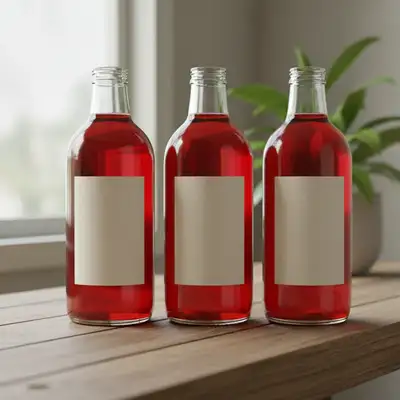
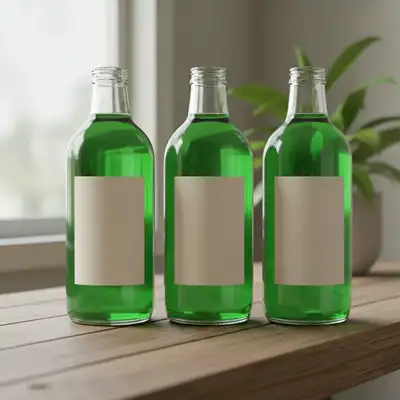
Change Any Color Without Selection Tools
Forget manually selecting areas with complex tools. AI understands what 'the car' or 'her shirt' means. Just describe the color change you want, and it happens. The AI preserves highlights, shadows, and texture while swapping the color.
How AI Color Replacement Works
EditThisPic's AI analyzes your image to identify objects and their colors. When you say 'change the blue dress to red,' it understands which pixels belong to the dress, adjusts the hue while maintaining luminosity and saturation variations, and preserves fabric texture and folds.
Popular Color Changes
- Changing clothing colors for product photos
- Recoloring walls in real estate listings
- Swapping car colors for marketing
- Testing hair colors before dyeing
- Adjusting brand colors in graphics
Tips for Perfect Color Changes
Be specific about the target: 'change the left person's jacket' instead of just 'change the jacket.' For accurate colors, use names like 'navy blue' or 'emerald green' rather than generic terms. If the result isn't quite right, try describing the shade differently.
Step-by-Step Guide
Upload Your Photo
Drop your image into EditThisPic. JPG, PNG, or WebP up to 7MB.
Describe the Color Change
Type what you want: 'change the red car to midnight blue' or 'make her green eyes brown.' Be specific about which object and what color.
Generate and Review
The AI processes your request in seconds. Check that the right areas changed and the new color looks natural.
Refine If Needed
If parts were missed, describe them: 'also change the matching shoes.' If the shade is off, try: 'make it a lighter blue.'
Frequently Asked Questions
Ready to Change Colors?
Upload your photo and describe the change. Free, no signup.
Drop your photo to start editing
"Replace the main color in this photo with a new one"
Release to upload