How to Fix a Color Cast in a Photo
To remove a color cast from a photo, upload it to EditThisPic and describe the problem: 'remove the color cast' or 'fix the blue/yellow/green tint.' The AI identifies the unwanted color shift, corrects the white balance, and restores natural-looking tones across the entire image. Free, no signup required.
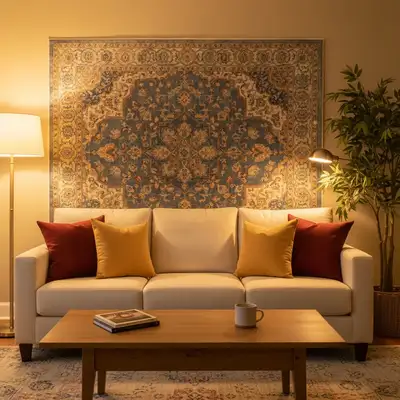
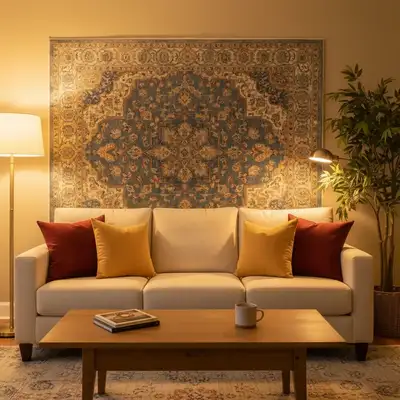
What Is a Color Cast and Why Does It Happen
A color cast is an overall tint that shifts every color in your photo toward one hue. Whites look yellow, blue, green, or pink instead of neutral. It happens when your camera's white balance doesn't match the actual lighting — shooting under fluorescent lights without correction turns everything green, tungsten bulbs add yellow, shade adds blue. Your eyes adjust automatically, but the camera records exactly what it sees.
Common Types of Color Cast
- Yellow/orange — tungsten bulbs, warm LEDs, candlelight
- Blue — shooting in shade, cloudy skies, blue LED panels
- Green — fluorescent office lights, cheap LED strips
- Magenta/pink — some LED grow lights, mixed neon lighting
- Mixed — multiple light sources creating different casts in different areas
How AI Removes a Color Cast
EditThisPic's AI detects the color cast by analyzing surfaces that should be neutral — whites, grays, and skin tones. It calculates how far these have shifted from true neutral and applies the opposite correction across the image. Unlike a simple white balance slider, the AI adjusts proportionally: heavily tinted areas get more correction while areas with natural color get less. Skin tones receive special handling to avoid looking unnatural.
Fixing Mixed Lighting Color Casts
The hardest color casts come from mixed lighting — a room lit by both warm lamps and cool daylight from a window. One side of the photo looks orange while the other looks blue. A global white balance slider can't fix both. AI handles this by treating each region independently, correcting each area's cast without overcorrecting the other. Describe the problem: 'the left side is yellow from lamps and the right side is blue from the window — balance the colors.'
Removing the Cast Without Killing the Mood
Sometimes a slight warm tone is intentional — golden hour sunset, cozy restaurant ambiance, candlelit dinner. A full color cast removal might strip away the mood you want to keep. In these cases, ask for a partial fix: 'reduce the yellow cast but keep a warm feel' or 'remove the green tint but don't make it look cold.' The AI adjusts the intensity of the correction based on your description.
Tips for Best Results
Name the color you see: 'remove the green cast' gives better results than 'fix the colors.' If you're unsure which color the cast is, whites are your guide — look at something that should be white and describe what color it actually looks. For portraits, add 'and make the skin tones look natural' to ensure faces look right after the correction.
Step-by-Step Guide
Upload Your Color-Tinted Photo
Drop your image into EditThisPic. Works with JPG, PNG, HEIC, and WebP up to 7MB. Any color cast — yellow, blue, green, magenta — can be corrected.
Describe the Color Cast
Type what you see: 'remove the yellow color cast' or 'fix the green tint from fluorescent lights.' Name the tint color for the most accurate correction.
Check the Corrected Colors
Look at whites and skin tones first — these reveal whether the correction is accurate. Use the before/after slider to compare. Whites should look neutral and skin should look natural.
Adjust If Needed
If the photo swung too far the other way (yellow cast removed but now looks blue), try 'warm it up slightly' or 'the correction went too far, back off a bit.' If some areas still have the cast, describe them specifically.
Frequently Asked Questions
Remove the Color Cast from Your Photo
Upload your tinted image and restore natural, accurate colors. Free, instant results.
Drop your photo to start editing
"Fix color — describe what you want in the prompt"
Release to upload