Instagram Post Size 2026: All Three Ratios Explained
The Three Feed Ratios & When to Use Each
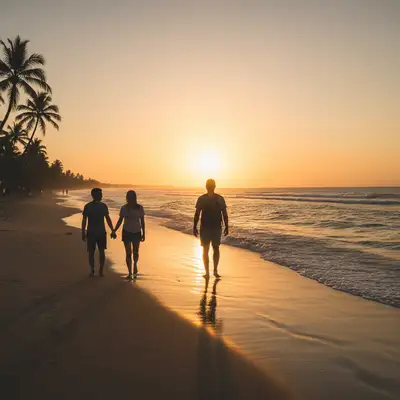
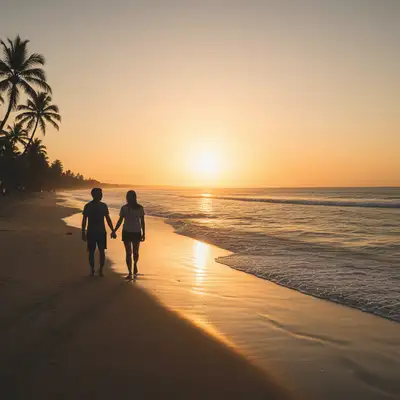
Instagram feed posts support three aspect ratios. The 4:5 portrait ratio at 1080×1350 px takes up more vertical screen space than any other format, which means users have to scroll past more of your image — making it the strongest choice for most photos. Square posts at 1080×1080 px are the classic Instagram format, ideal for centered compositions, product flat-lays, and symmetrical shots where a taller frame would add empty space at the top and bottom. Landscape posts at 1080×566 px display the smallest in the feed and are best reserved for wide panoramic shots or group photos where a vertical crop would cut too many people out. For most content, defaulting to 4:5 portrait is the right decision.
Default to 4:5 portrait (1080×1350)
Takes up the most feed real estate. Best for portraits, food, lifestyle, and most content.
Use 1:1 square (1080×1080) for centered subjects
Ideal for product shots, flat-lays, architecture, and symmetrical compositions.
Reserve landscape (1080×566) for wide shots
Panoramas, wide cityscapes, or group photos where a vertical crop loses essential content.
The 3:4 Grid Preview Crop
Your Instagram profile grid displays all posts cropped to a 3:4 (portrait) thumbnail regardless of the original post ratio. This means a square post shows with a 3:4 crop in the grid, and a landscape post also gets cropped to 3:4. The crop is always taken from the center of the image. If your photo has a face or key subject positioned near the edges — for example, a person standing at the far left of a landscape shot — the grid preview may cut them out entirely, creating a misleading first impression for visitors browsing your profile. Always check how a post will appear in the grid before publishing by previewing the 3:4 center crop of your image.
Center the key subject
Faces, products, or text should be horizontally centered so the 3:4 grid crop does not cut them.
Preview the grid crop before posting
Instagram's native app shows a grid preview during upload. Check it before confirming.
For off-center compositions, use 4:5
A taller crop makes it easier to keep subjects centered in both the feed post and the grid preview.
Carousel Ratio Locking
Instagram carousels lock every slide to the aspect ratio of the first image you upload. If the first slide is 4:5 portrait, Instagram crops all subsequent slides to 4:5 — even if they were originally square or landscape. This is one of the most common sources of unexpected cropping when creating carousels. Plan your carousel ratio before you start: choose the ratio that works best for the majority of your slides, set that ratio as the first image, and then prepare all remaining images at the same ratio before uploading. Mixing orientations in a carousel is not possible — the first slide's ratio is final.
Choose your carousel ratio upfront
4:5 (1080×1350) for vertical content, 1:1 (1080×1080) for square series. Decide before you start.
Prepare all slides at the same ratio
Resize and crop every image to your chosen ratio before uploading. The first slide locks it for all slides.
Keep key content center-framed on each slide
Even within a consistent ratio, the grid preview crops to 3:4 from the first slide only.
Surviving Instagram's Compression
Instagram recompresses every image you upload, and uploading at the wrong size or in the wrong format makes that compression more aggressive. The single most effective rule is to upload at exactly 1080 px wide — if you upload a 4000 px wide photo, Instagram downscales it and then compresses the result, introducing two rounds of quality loss. Uploading at 1080 px means only one compression pass. Use JPG format; Instagram converts PNG to JPG internally anyway, so uploading PNG provides no quality advantage and increases upload time. For maximum sharpness, save your JPG at 85–90% quality before uploading — very high quality settings create large files that Instagram may compress more heavily.
Upload at exactly 1080 px wide
Avoid oversized files. 1080×1350, 1080×1080, or 1080×566 — one compression pass instead of two.
Use JPG format
PNG offers no advantage since Instagram converts everything to JPG. Save as JPG at 85–90% quality.
Avoid pre-editing with heavy compression
Every save-as-JPG degrades quality slightly. Edit once, export once, upload once.
Resizing Photos for Instagram Posts
Most phones shoot at 4:3 or 16:9 ratios, neither of which matches Instagram's preferred 4:5 portrait. To convert a 4:3 phone photo to 4:5, you can either crop tightly — removing some top and bottom — or extend the background above and below. For portrait photos of people, a prompt like 'Crop to 4:5 portrait keeping the face centered and some space above the head' produces a natural composition. For landscape photos, 'Convert to 4:5 portrait by extending the background above and below the main subject' fills the frame without cropping out important elements. The result exports at the correct dimensions for a direct Instagram upload.
Crop to 4:5 with centered subject
'Crop to 4:5 portrait keeping the subject centered' — the cleanest approach for portraits.
Extend background for landscape photos
'Extend the background above and below to make this photo 4:5 portrait' preserves the full width.
Resize to exactly 1080 px wide
Export at 1080×1350 (4:5), 1080×1080 (square), or 1080×566 (landscape) before uploading.
Frequently Asked Questions
Need to resize a photo for an Instagram post?
Crop to 4:5, extend backgrounds, resize to 1080 px. Upload and describe. Free, no signup.
Resize for Instagram
"Crop and resize this photo to 4:5 portrait (1080x1350) for an Instagram post, keeping the main subject centered"
Free to try · no sign-up · photos are never shared
Release to upload