Instagram Story Size 2026: Dimensions, Safe Zones & Conversion Tips
9:16 Full-Bleed Dimensions
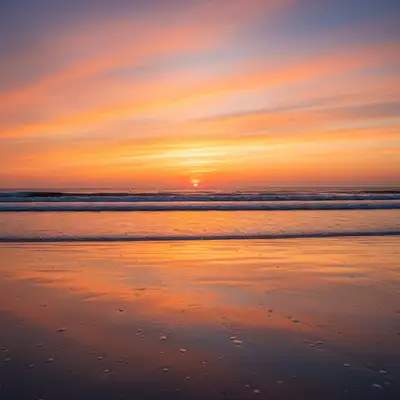
Instagram Stories display at 1080×1920 pixels in a 9:16 vertical aspect ratio, filling the entire phone screen from edge to edge. This is the same ratio used by TikTok carousels, YouTube Shorts, and most vertical video formats, so content designed for one vertical platform transfers directly to others. Upload as JPG or PNG. Instagram applies its own compression to Stories, so uploading at exactly 1080×1920 — rather than a larger size that Instagram will downscale — gives the best result. Stories are displayed for up to 15 seconds for photos, and the upload file size limit is 30MB for static images.
Use exactly 1080×1920 px
Uploading at the correct size avoids a downscaling step that adds a second round of compression.
JPG or PNG both work
Instagram compresses Stories aggressively. JPG at high quality is the standard choice.
Same ratio as TikTok and Shorts
9:16 content created for one platform works for all vertical formats without re-cropping.
Top & Bottom Safe Zones
Instagram overlays user interface elements at the top and bottom of every Story frame. The top of the screen shows the account name, profile picture, close button, and a progress bar indicating where the Story sits in the sequence — this overlay covers roughly the top 250 pixels. The bottom of the screen shows the reply input field, reaction emoji row, and sometimes a link sticker area — this overlay covers roughly the bottom 250 pixels. Any text, graphics, or interactive stickers you place in these zones will be partially or fully obscured by the UI. The safe zone for content is approximately the center 1080×1420 px band between these two UI overlays, running from about 250 px from the top to 250 px from the bottom.
Keep content above 250 px from the bottom
The reply box and reaction row cover the bottom ~250 px. Text or stickers there will be hidden.
Keep content below 250 px from the top
The account name, progress bar, and close button cover the top ~250 px.
Design in the center band
The safe area is approximately 1080×1420 px centered in the 1080×1920 canvas — use this zone for all copy and calls to action.
Converting Landscape Photos to Story Format
When you upload a landscape or square photo to Instagram Stories, Instagram letterboxes it — placing the photo in the center of the 9:16 frame and filling the top and bottom with a blurred gradient of the photo's colors. This blurred-background letterbox is a serviceable fallback but often looks unintentional and reduces the visual impact of the image. A better approach is to extend the background above and below the original photo using AI editing, which generates natural-looking continuation of the photo's environment and fills the full 9:16 frame without the blurred-letterbox look. This technique works especially well for outdoor photography where extending sky or ground is seamless.
Extend the background vertically
'Extend the background above and below to make this photo 9:16 vertical for Instagram Stories' fills the frame naturally.
Keep the subject centered
The original photo should sit in the center-middle of the extended canvas. Most AI tools do this automatically.
Check the safe zones
After extension, verify no important content from the original photo sits in the top or bottom 250 px overlaid area.
Making Story Graphics
Stories designed as full-bleed graphics — rather than converted photos — benefit from bold, simple layouts with a single focal point, since users tap through Stories quickly and attention spans are short. Use high-contrast color combinations and limit text to a single short sentence visible at a glance. A common Story template starts with a strong background image or color, a centered headline in the safe zone, and a call-to-action near the bottom safe-zone boundary. When creating graphics from photos, prompts like 'Make this photo vibrant and full-bleed vertical for an Instagram Story, with a clean background' or 'Crop and enhance this image to fill a 9:16 Story frame' convert standard photos into compelling Story visuals.
One focal point per Story
Users tap through quickly. A single bold image or message performs better than complex layouts.
High contrast and bold type
Text must be readable in a split second. Use thick fonts at large sizes with background contrast.
CTA near the bottom safe-zone boundary
Place your call-to-action or link sticker just above the 250 px safe-zone line at the bottom.
Resizing Photos for Instagram Stories
The fastest way to get any photo into Story format is to describe the target dimensions directly in an edit prompt. For landscape photos: 'Resize this photo to 1080×1920 for Instagram Stories by extending the sky above and adding blurred ground below, keeping the subject centered.' For portrait photos close to 9:16 already: 'Crop and resize to exactly 1080×1920 with the subject in the center third.' For square photos: 'Extend above and below to reach 1080×1920 Instagram Story format, using a natural background continuation.' After editing, the exported image uploads directly to Stories without any further resizing. One free fast edit per week is available with no account required.
For landscape photos: extend vertically
'Extend the background above and below to fill 1080×1920 for an Instagram Story' is the cleanest conversion.
For square photos: extend top and bottom equally
'Add natural background above and below to reach 9:16 Story format' preserves the full square image.
For portrait photos: crop and resize
'Crop to 9:16 portrait keeping the subject in the center' works well for photos already close to vertical.
Frequently Asked Questions
Need to resize or create an Instagram Story?
Extend backgrounds, crop to 9:16, enhance colors. Upload and describe. Free, no signup.
Create an Instagram Story
"Extend this photo above and below to fill a 1080×1920 Instagram Story frame, keeping the subject centered and adding natural background continuation"
Free to try · no sign-up · photos are never shared
Release to upload