Kostenlos • Keine Anmeldung Enhance Details · Kostenlos

Foto Details erweitern

Just describe what you want sharper. No sliders, no manual adjustments required.
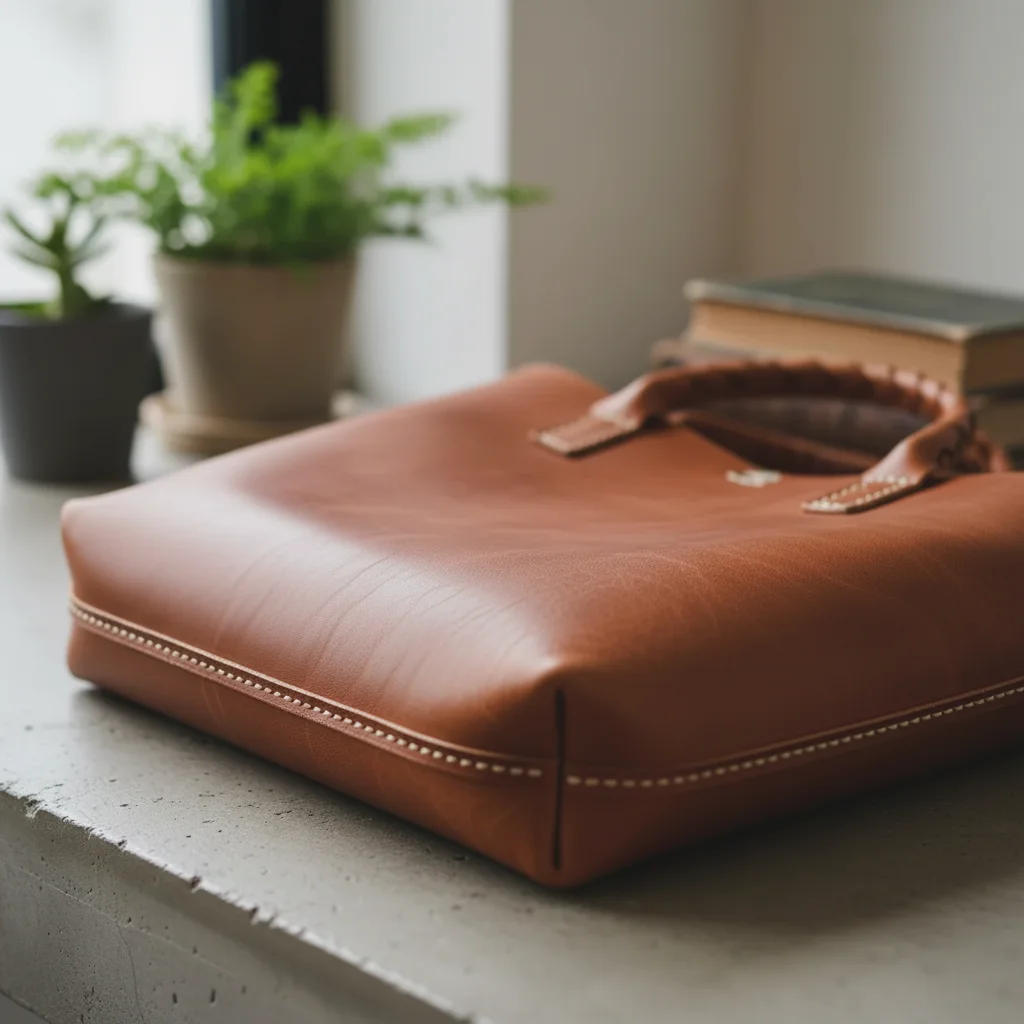
Leather bag with soft, lacking detail texture
Before
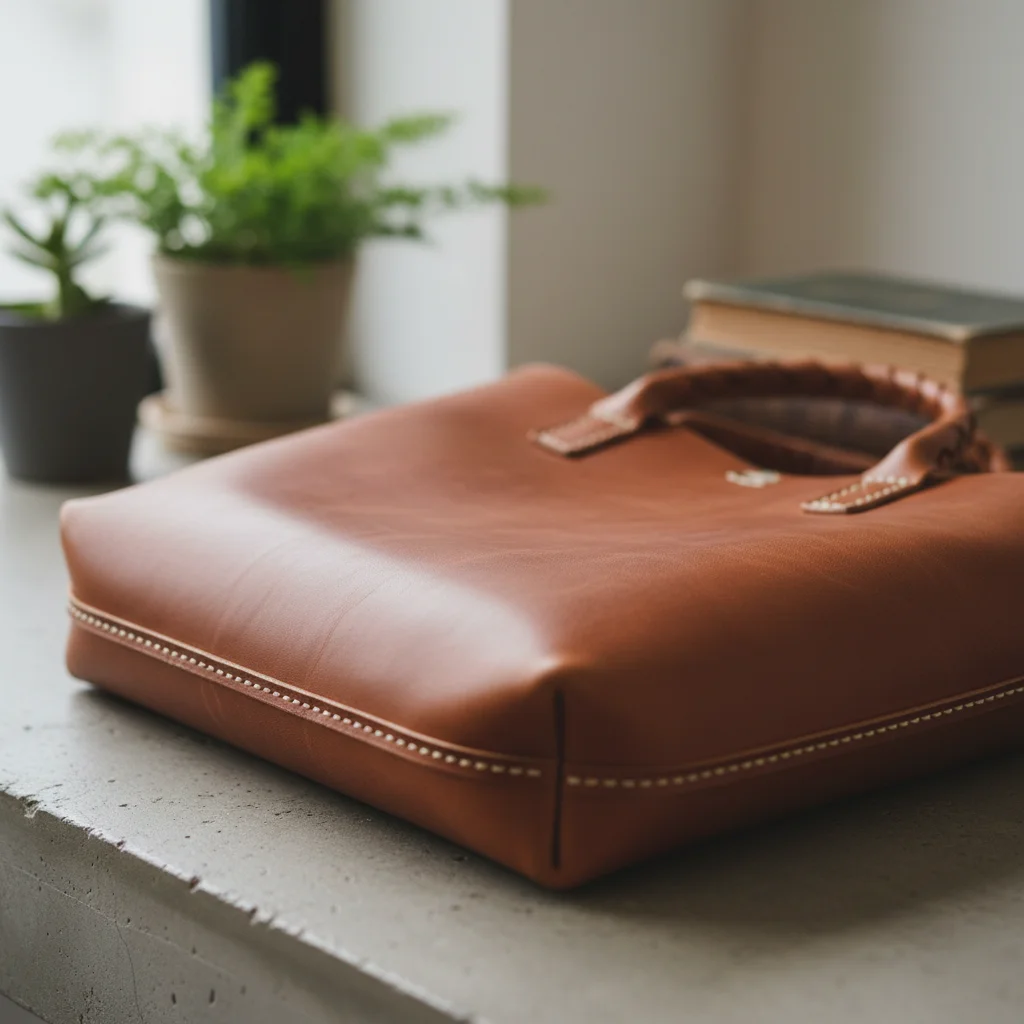
Same leather bag with crisp grain and visible stitching
After

Foto Details erweitern

Drop your photo here

or click to browse

Release to upload

Kostenlos • Keine Anmeldung

Advertisement
Popular use cases:
  • Product photography
  • E-commerce listings
  • Architectural photography
  • Texture shots
  • Craft and handmade products
  • Real estate details

Cost
Free No signup required
Time
Instant results in 15-30 seconds
Works on
Any device - browser, phone, tablet, desktop
Powered by
AI-powered photo editing
Scenario Prompt Time
Product textures sharpen and enhance fine details, bring out textures with natural clarity 15s
Architecture enhance architectural details, sharpen edges and lines 20s
Fabric/textile enhance fabric texture, bring out weave pattern and stitching 20s
Metalwork enhance fine metalwork details, bring out engravings 25s

How it works

  1. Upload your photo

    Drop your image into EditThisPic. JPG, PNG, and WebP up to 7MB work best. Higher resolution photos give the AI more detail to recover and enhance.

    Expect: Simple enhancements: 15-25 seconds. Complex texture recovery: may need one refinement over 30-45 seconds.
  2. Describe what you want enhanced

    Type exactly what needs sharpening: 'enhance the fine details and texture' or 'sharpen the architectural lines and edges.' That's it. The AI understands—no marking, no selecting. Most photos sharpen perfectly on the first try.

    Tip: Be specific about what matters: 'bring out the wood grain texture' or 'sharpen the fabric weave pattern' gives better results than generic 'make it sharper.'

    Copy one of these to get started:

    Product photography sharpening sharpen and enhance all fine details, bring out textures and surface patterns with natural clarity
    Architectural detail enhancement enhance the architectural details, sharpen edges and lines while preserving natural tones
    Fabric and textile clarity enhance the fabric texture, bring out the weave pattern and stitching details with crisp clarity
    Food photography texture sharpen the food textures, enhance the surface details and make ingredients look crisp and appetizing
    2 more prompts
    Jewelry and metalwork detail enhance the fine metalwork details, bring out engravings and surface texture with sharp precision
    Nature and macro photography enhance natural textures, sharpen leaf veins, bark patterns, and organic surface details
  3. Generate and review

    Tap generate and examine the result at full zoom. Check textures, edges, and fine patterns. Look for natural sharpening without halos or over-processing artifacts.

    Tip: Always zoom to 100% to verify detail enhancement. Thumbnails can't show the fine texture improvements.
  4. Refine specific areas if needed

    If certain areas need more or less sharpening, tap markers on those spots and describe what you want. This is optional—most detail enhancements work without markers.

    Tip: Markers are for precision refinement, not required. Try describing the whole image first.
Try it free

Foto Details erweitern

Drop your photo here

or click to browse

Release to upload

Kostenlos • Keine Anmeldung

"My product photos looked soft on my phone but after typing 'enhance the stitching details' they're crisp enough for my website zoom feature." @LeatherCraftMike

See it in action

Leather bag with soft, lacking detail texture
Before
->
Same leather bag with crisp grain and visible stitching
After

Leather bag product shot

Handmade leather bag photographed with phone camera looked soft. One prompt brought out the grain and stitching for the online store.

Prompt: sharpen and enhance the leather texture, bring out the grain pattern and stitching details with natural clarity
Building facade with soft brick and stonework details
Before
->
Same building with crisp brick texture and sharp decorative elements
After

Architectural exterior detail

Historic building facade shot from street level appeared soft. Enhanced the brick texture and ornamental stonework for portfolio use.

Prompt: enhance the architectural details, sharpen the brick texture and decorative stonework with crisp edges
Advertisement

If something looks off

AI changed the wrong area or sharpened something I didn't want

Why: The AI enhanced all details when you only wanted specific areas sharpened. This happens with general requests on complex images.

Try: Tap a marker on the specific area you want enhanced, then regenerate with the same prompt

Tip: Markers tell the AI 'I mean THIS area specifically.' Use them when description alone is too broad.

Image looks over-sharpened with halos around edges

Why: The AI applied too aggressive sharpening. This often happens with high-contrast edges or when the original had compression artifacts.

Try: enhance details with subtle natural sharpening, avoid halos and over-processing artifacts

Tip: Adding 'subtle' and 'natural' prevents the AI from pushing sharpening too far.

Details enhanced but image now looks noisy

Why: The AI amplified existing noise along with the details. Low-light or high-ISO photos are prone to this.

Try: sharpen fine details while reducing noise, maintain clean smooth areas between textures

Tip: For noisy originals, specify 'reduce noise' alongside 'enhance details' for balanced results.

Some textures sharpened but others still look soft

Why: The AI prioritized certain areas over others based on the prompt wording or image content.

Try: Tap markers on the soft areas that need more sharpening, then type 'enhance these specific areas'

Tip: Multi-texture images may need two passes—one for the main subject, another for secondary areas.

Quick answers

Do I need to mark specific areas before describing?

No! Just type what you want enhanced: 'sharpen the texture and fine details' usually works on the first try. The AI understands these concepts without marking. Only use markers if you need to target specific spots that didn't enhance properly, or if you want different sharpening levels in different areas.

Will this fix blurry or out-of-focus photos?

Detail enhancement works best on photos that are in focus but lack crispness—like phone camera shots or compressed images. Severely blurry or motion-blurred photos have lost too much information to fully recover. For slight softness, try 'enhance sharpness and recover fine details' and you may get usable improvement.

How is this different from the sharpen tool in other apps?

Traditional sharpening applies the same algorithm everywhere, often creating halos around edges. EditThisPic's AI understands what it's looking at—fabric, metal, wood—and enhances the actual texture detail rather than just boosting contrast at edges. You describe what matters, and it sharpens intelligently.

What types of photos benefit most from detail enhancement?

Product photography, architectural shots, and texture-focused images see the biggest improvement. Leather goods, jewelry, fabrics, building details, food textures—anything where surface quality matters. Portrait retouching is a different use case; detail enhancement can make skin look harsh if applied to faces.

Ready to enhance your photo details?

Free to try. No signup required.

Try it free