Complete Guide to Removing Anything from Photos
The Key Technique: Describe What to Create
Here's the secret that makes EditThisPic different from other removal tools: instead of telling the AI what to remove, tell it what to create. When you say 'remove the person', the AI has to guess what was behind them. But when you say 'replace the person with sand and ocean waves', the AI knows exactly what to generate. This simple shift in how you write prompts produces dramatically better, more natural results.
How to Remove People from Photos
Whether it's a photobomber, an ex, or a stranger in your travel shot, removing people is one of the most common photo editing needs. The key is helping the AI understand what should appear where the person was.
Upload your photo
Drop your image into EditThisPic. Supported formats: JPG, PNG, WebP up to 7MB.
Mark the person (optional)
Tap on the person you want to remove. This helps the AI know exactly who you mean, especially in group photos.
Describe the replacement
Instead of 'remove the person', try 'remove the marked person and fill with the beach sand and ocean' or 'replace with the natural background'.
Review and refine
If shadows or edges remain, do a second pass: 'remove the remaining shadow and blend with the ground'.
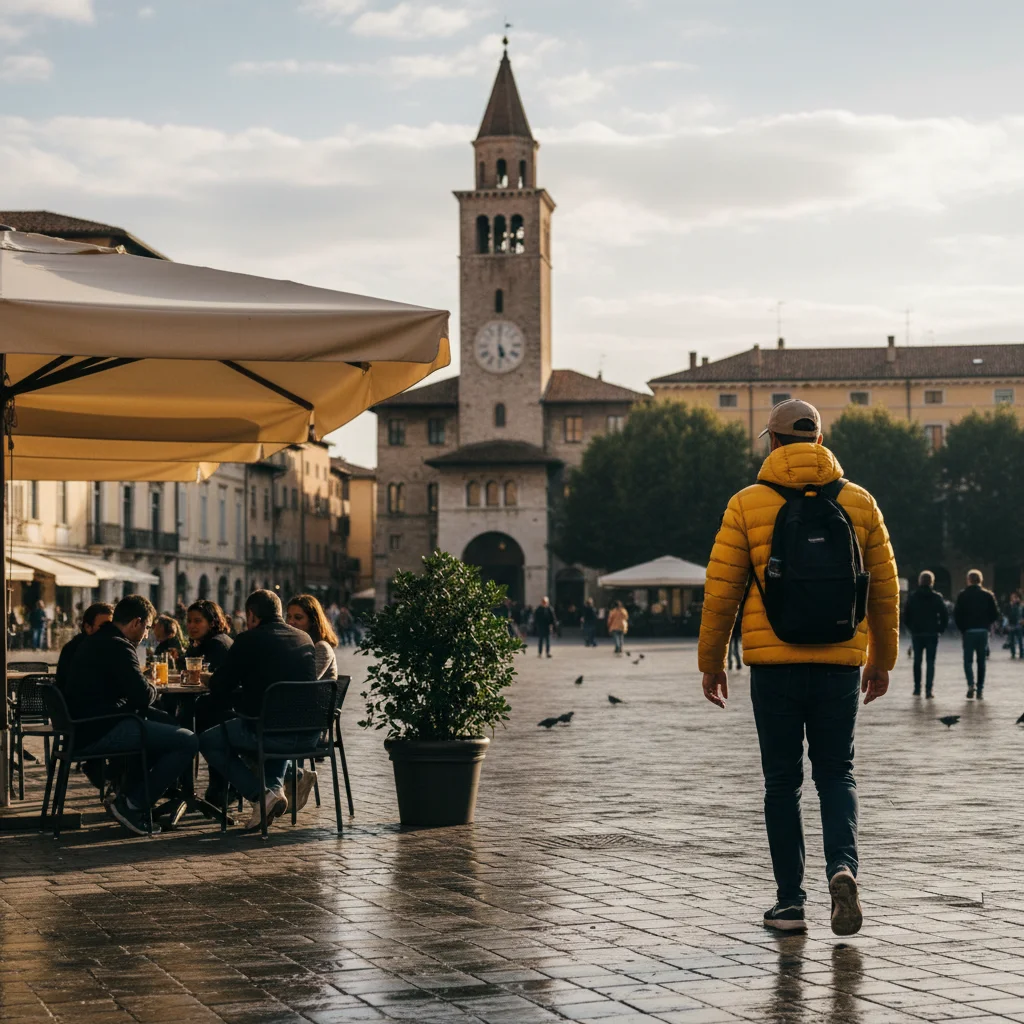
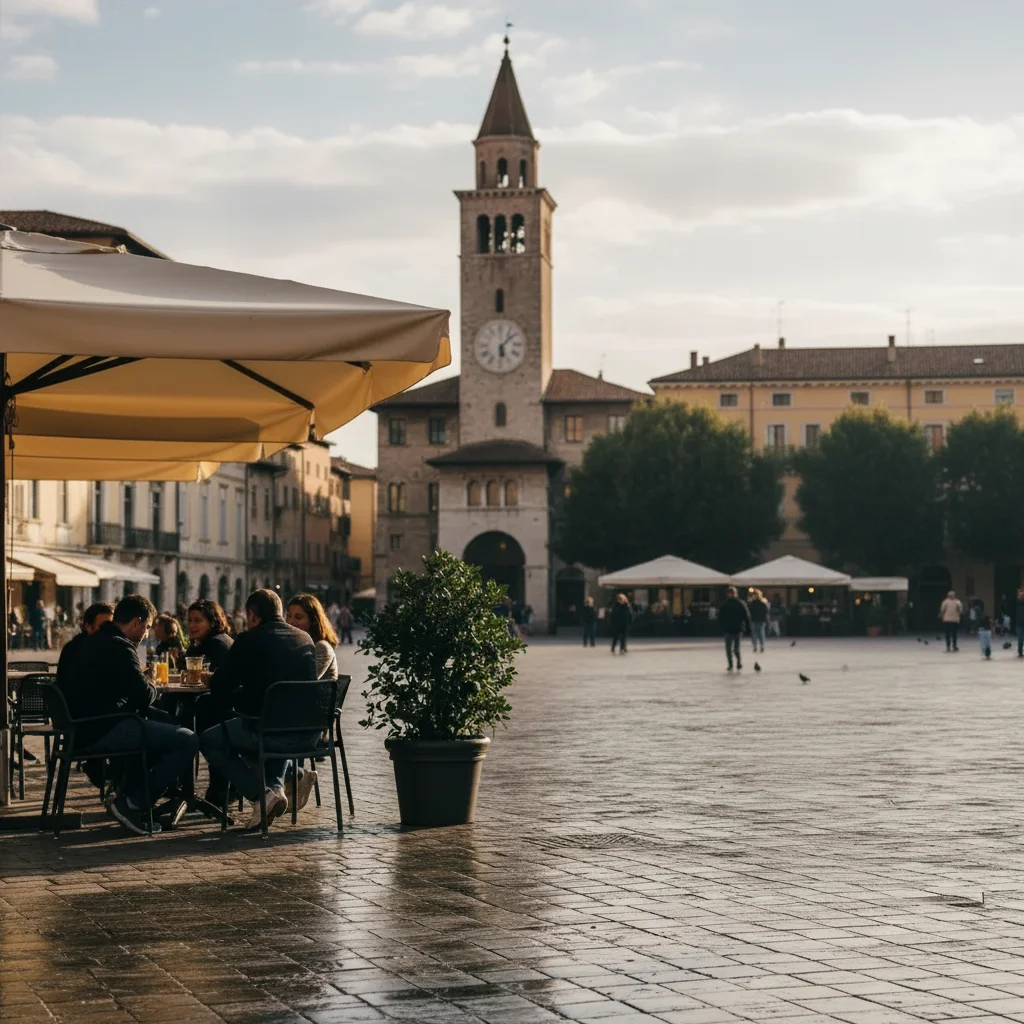
Prompt: "Remove the person on the right and fill with the tower background"
How to Remove Objects from Photos
Power lines, trash cans, signs, parked cars - unwanted objects can ruin an otherwise perfect shot. The removal process is similar to people: mark, describe what replaces it, download.
Identify the object
Look at what you want to remove and what's behind/around it.
Mark if needed
For small objects, tap to place a marker. For obvious things, you can just describe them.
Describe the fill
'Remove the power lines and show clear sky' or 'remove the trash can and extend the grass'.
Check edges
Objects often leave subtle traces. Refine with 'clean up any remaining traces and blend smoothly'.
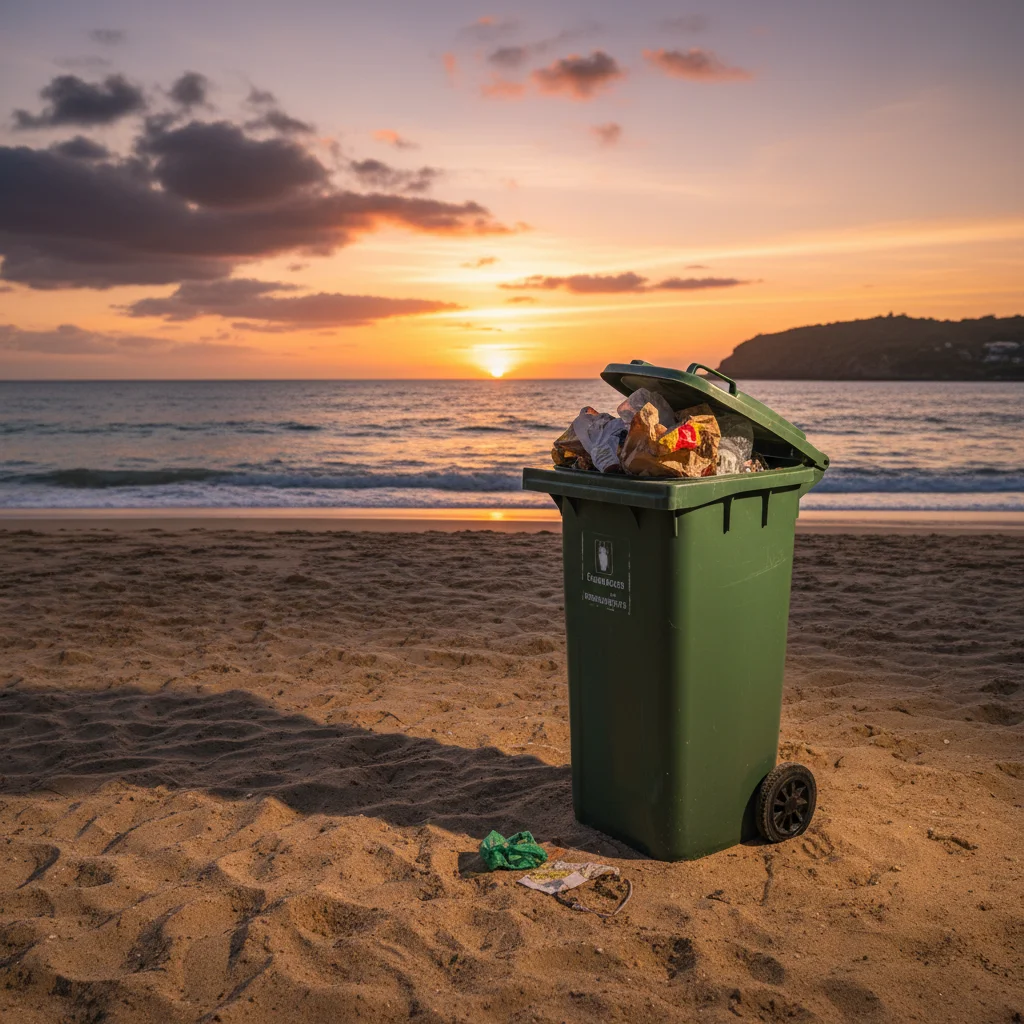
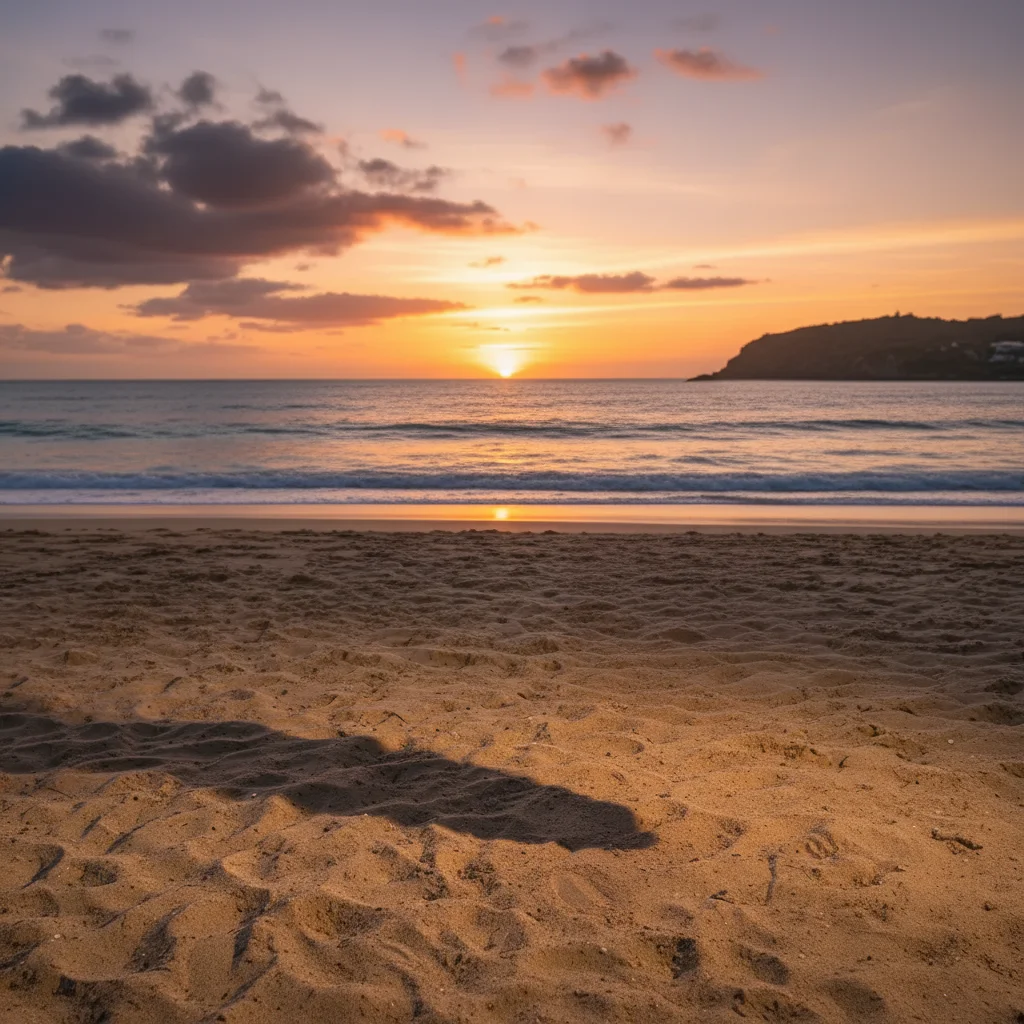
Prompt: "Remove the object and fill with natural background"
How to Remove Watermarks
Stock photo watermarks, date stamps, and logos can obscure important parts of images. Note: Only remove watermarks from images you own or have rights to use.
Upload the watermarked image
The AI can handle transparent, semi-transparent, and solid watermarks.
Describe the removal
'Remove the watermark and restore the image underneath' or 'remove the date stamp from the corner'.
Review quality
Complex watermarks over detailed areas may need multiple passes.


Prompt: "Remove the watermark"
How to Remove Backgrounds
Background removal is essential for product photos, profile pictures, and creative compositions. You can make backgrounds transparent, solid colored, or replace them entirely.
Upload your image
Works best with clear subjects that stand out from the background.
Choose your approach
'Remove the background and make it white' for products, 'remove background and make transparent' for overlays, or 'replace background with a sunset beach'.
Check edges
Hair and fine details are the trickiest. Refine with 'clean up the edges around the hair'.


Prompt: "Remove the background and make it transparent"
Troubleshooting Common Issues
Even with AI, some removals are trickier than others. Here are solutions to the most common problems users encounter.
Shadows remaining
Always mention shadows in your prompt: 'remove the person AND their shadow, fill with ground texture'.
Unnatural fill
Be more specific about what should appear: instead of 'remove object', try 'remove object and continue the brick wall pattern'.
Partial removal
For complex subjects, do multiple passes. Remove the main part first, then clean up remaining elements.
Edge artifacts
Finish with a smoothing pass: 'blend the edited area seamlessly with surroundings'.
Frequently Asked Questions
Ready to remove anything from your photos?
Upload a photo and describe what you want gone. Free, no signup required.
Try It Free