How to Fix a Faded Photo
To restore a faded photo, upload it to EditThisPic and describe what you need: 'restore the faded colors' or 'fix this washed-out old photo.' The AI analyzes the remaining color data, rebuilds lost tones, and restores contrast to bring the image back to life. Free, no signup.
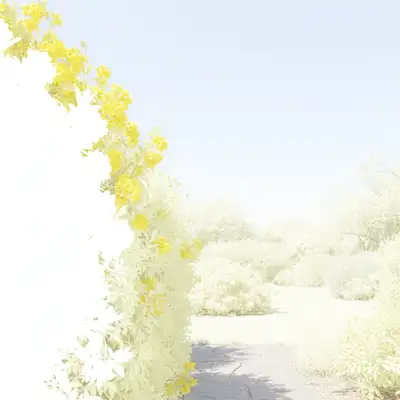
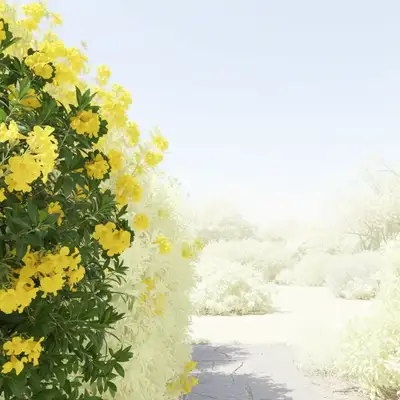
Why Photos Fade Over Time
Printed photos fade because the dyes in photographic paper break down when exposed to light, heat, and humidity. Sunlight is the biggest culprit — photos displayed on walls or near windows lose color fastest. Red dyes degrade first, which is why old photos often have a blue or green color cast. Even photos stored in albums fade over decades as the chemical compounds slowly deteriorate.
How AI Restores Faded Photos
The AI reads the remaining color information in a faded photo and maps it to what the original colors likely were. Even in a heavily washed-out image, there's still data — it's just compressed into a narrow, pale range. The AI expands that range back to full saturation and contrast. It also corrects color casts: if the reds faded more than the blues, the AI rebalances the color channels individually so skin tones, grass, sky, and clothing all look natural again.
Common Fading Patterns
- Overall wash-out — everything looks pale and low-contrast
- Yellow or brown color cast from aged paper and adhesives
- Blue-green shift from red dye degradation
- Uneven fading — edges more faded than the center
- Selective fading — some colors gone while others remain
- Sun damage — rectangular bleached areas from partial sunlight exposure
Scanning Faded Photos for Best Results
Scan at 300-600 DPI to capture as much remaining color data as possible. Don't apply any auto-correction in the scanner software — let the AI work with the raw faded scan. If the photo has a glossy surface, angle the scanner lid slightly to avoid glare streaks. For severely faded prints, a higher DPI captures subtle color variations that give the AI more to work with.
Fixing More Than Just Color
Faded photos often have other age-related issues: yellowed borders, brown spots (foxing), dust scratches from years of handling, and paper texture showing through. You can address these in sequence — restore the color first, then follow up with 'remove the spots' or 'clean up the scratches.' Tackling one issue at a time gives the AI a clearer task and produces better results.
Tips for the Best Restoration
Describe the specific fading: 'restore the colors in this faded 1970s photo' gives context about the era's color palette. For photos with a color cast, mention it: 'fix the yellow tint and restore natural colors.' If the AI over-saturates, follow up with 'make the colors more subtle and natural' or 'less saturated, keep it realistic.' For black-and-white photos that have yellowed, try 'remove the yellow tint and restore clean black and white tones.'
Step-by-Step Guide
Scan Your Faded Photo
Scan at 300+ DPI with no auto-correction applied. If you don't have a scanner, photograph the print in even, indirect light without flash.
Upload to EditThisPic
Drop the scanned image into the editor. Any format works — JPEG, PNG, HEIC, WebP.
Describe the Fading
Type your edit: 'restore the faded colors,' 'fix this washed-out photo,' or be specific like 'remove the yellow cast and bring back the original colors.' Mentioning the era helps: 'restore this 1980s family photo.'
Compare and Adjust
Use the before/after slider to see the difference. If colors look too vivid, ask to 'tone down the saturation.' If some areas still look faded, try 'make the sky bluer' or 'bring out more detail in the faces.'
Frequently Asked Questions
Restore Your Faded Photo Now
Upload your washed-out old photo and let AI bring the colors back. Free, instant results.
Drop your photo to start editing
"Restore the faded colors and contrast in this photo"
Release to upload