Free • No signup Fix Faded photo · Free

Fix Faded Photo Colors with AI

Upload your faded photo, describe what needs fixing, and get vibrant colors back instantly

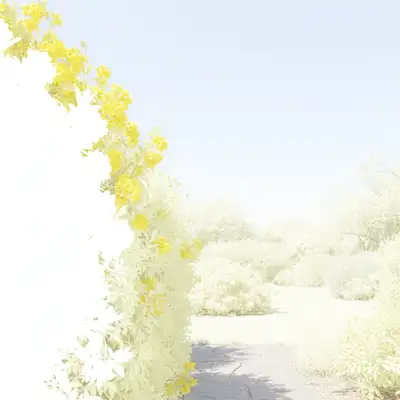
Overexposed garden photo with blown out white flowers and pale washed green leaves
Before
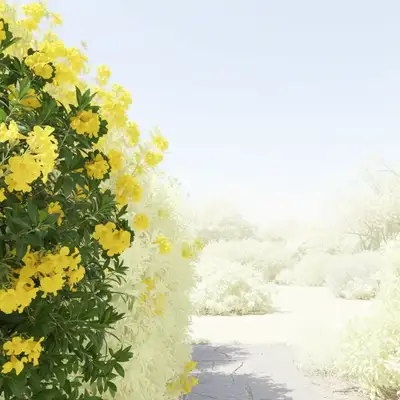
Recovered garden photo with visible yellow flower details and rich deep green foliage
After

Fix Faded Photo Colors in Seconds

Drop your photo here

or click to browse

Release to upload

Free • No signup

Popular use cases:
  • sun-bleached photo
  • washed out colors
  • faded prints
  • overexposed photo
  • yellowed photo
  • vintage photo restoration
  • old photograph colors
  • color recovery

Cost
Free No signup required
Time
Instant results in 15-30 seconds
Works on
Any device - browser, phone, tablet, desktop
Powered by
AI-powered photo editing
Scenario Prompt Time
General faded photo Restore the faded colors and increase the contrast 15s
Sun-bleached print Fix the sun-bleached washed out colors and restore the rich tones 20s
Yellowed vintage photo Remove the yellow tint and restore the original natural colors 25s
Overexposed highlights Recover the overexposed blown out areas and restore the faded colors 30s

How it works

  1. Upload your faded photo

    Click the upload area and select your faded photo. This works especially well for old prints that have been exposed to sunlight, overexposed digital photos, or scanned images that lost color over the years. The AI handles various types of fading including uniform color loss, uneven sun damage, and contrast degradation.

    Expect: Simple faded photos (uniform color loss): 15-20 seconds. Complex cases (uneven fading, severe damage): 30-45 seconds and may need refinement for specific areas.
  2. Describe what you want restored

    Type your instruction in plain language. Be specific about what's faded: 'restore the faded blue sky and green grass colors' works better than just 'fix colors.' Mention if you want the original vibrant look, increased contrast, or specific color areas brought back. The AI understands natural descriptions without needing you to select anything. You can describe overall restoration or focus on specific color ranges that have faded most.

    Tip: Mention specific colors that have faded (blue sky, green foliage, skin tones) for more targeted restoration rather than generic 'fix everything' instructions.

    Copy one of these to get started:

    General faded photo restoration Restore the faded colors and increase the contrast to bring back the original vibrancy
    Sun-bleached print with washed colors Fix the sun-bleached washed out colors and restore the rich tones that have faded
    Old photo with yellowed tones Remove the yellow tint and restore the original natural colors that have faded over time
    Overexposed photo with blown highlights Recover the overexposed blown out areas and restore the faded colors in the highlights
    3 more prompts
    Faded landscape with specific color areas Restore the vibrant blue sky and green foliage colors that have become washed out and faded
    Portrait with faded skin tones Bring back the natural warm skin tones and fix the faded colors while keeping faces looking natural
    Severely faded vintage photo Completely restore this heavily faded vintage photo to vibrant colors with strong contrast and rich saturation
  3. Review the restored result

    Check if the colors look natural and vibrant without being oversaturated. Zoom in on faces to ensure skin tones weren't overcorrected. Look at sky and foliage areas which often show the most fading. Compare details in shadow areas to make sure contrast increase didn't lose dark detail.

  4. Refine with markers if needed

    If certain areas need different restoration intensity, tap a marker on that specific region and describe what you want. For example, if the foreground looks good but the background sky is still washed out, place a marker on the sky and say 'restore the deep blue color in this sky area.' Most uniform fading fixes work perfectly without markers.

    Tip: Markers are helpful when different parts of the photo faded differently, like one side exposed to more sunlight than the other.
Try it free

Fix Faded Photo Colors in Seconds

Drop your photo here

or click to browse

Release to upload

Free • No signup

"Brought my grandmother's 1960s beach photo back to life. The sunset colors looked completely washed out, but now they're vibrant again. Took maybe 30 seconds total." @PhotoMemories2024

See it in action

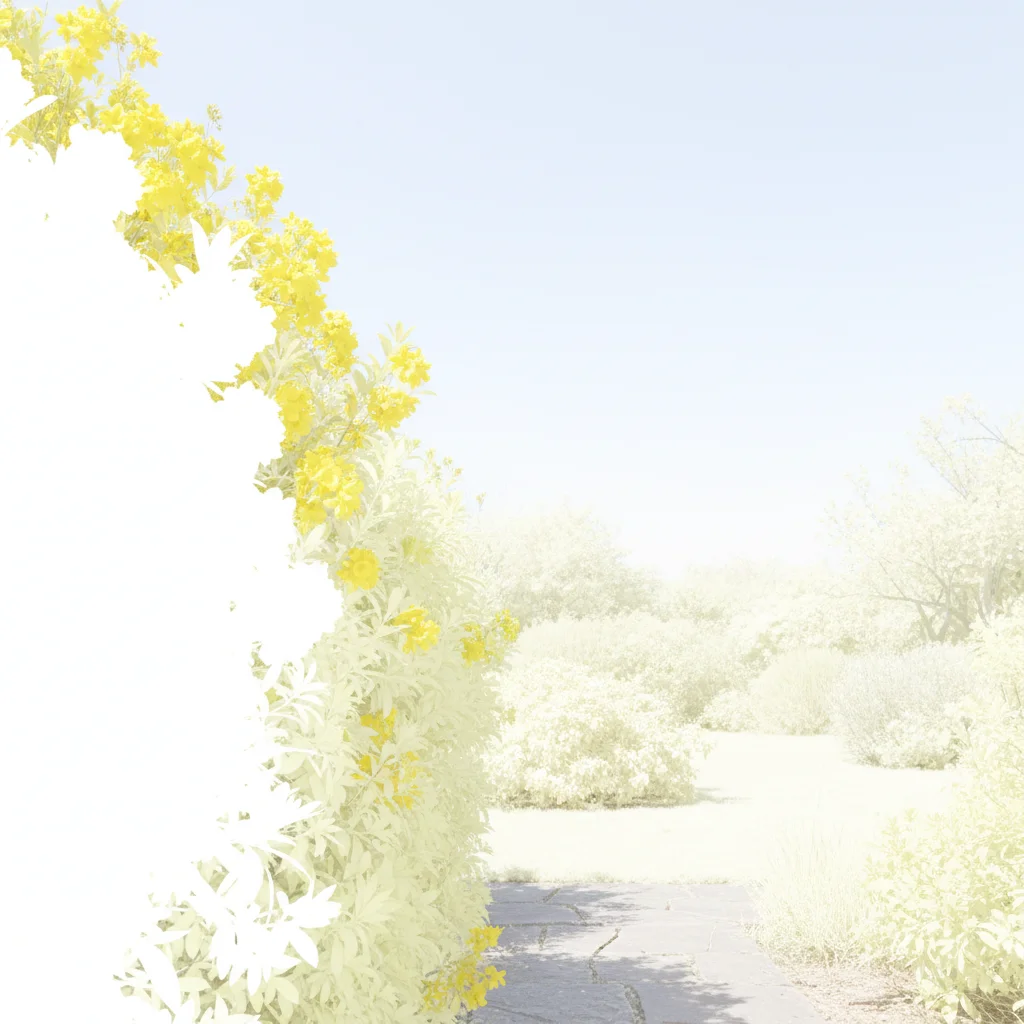
Overexposed garden photo with blown out white flowers and pale washed green leaves
Before
->
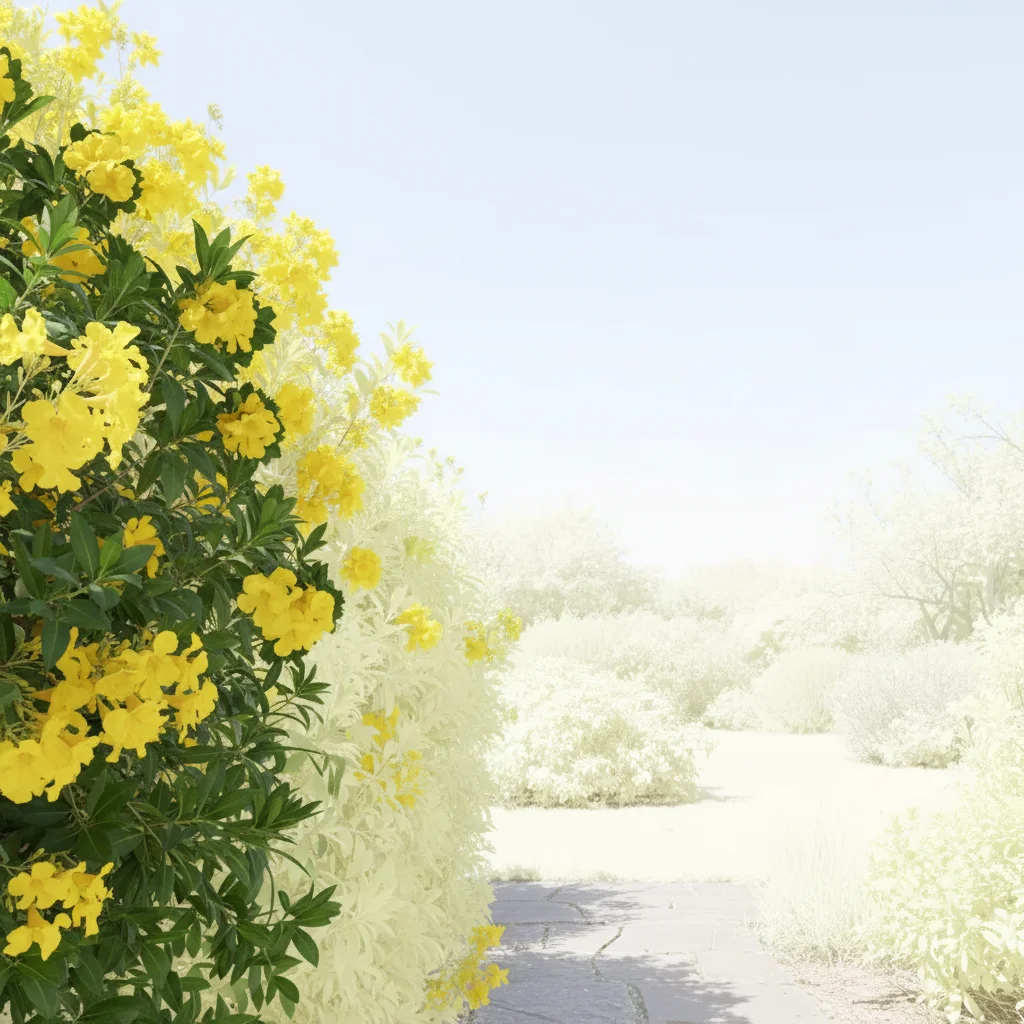
Recovered garden photo with visible yellow flower details and rich deep green foliage
After

Overexposed garden photo with blown highlights

A digital photo taken at noon with automatic camera settings. The bright flowers were completely blown out white, and the green leaves looked pale yellow-green.

Prompt: Recover the overexposed white flower petals and restore the rich colors in the blown out highlights while bringing back the deep green foliage
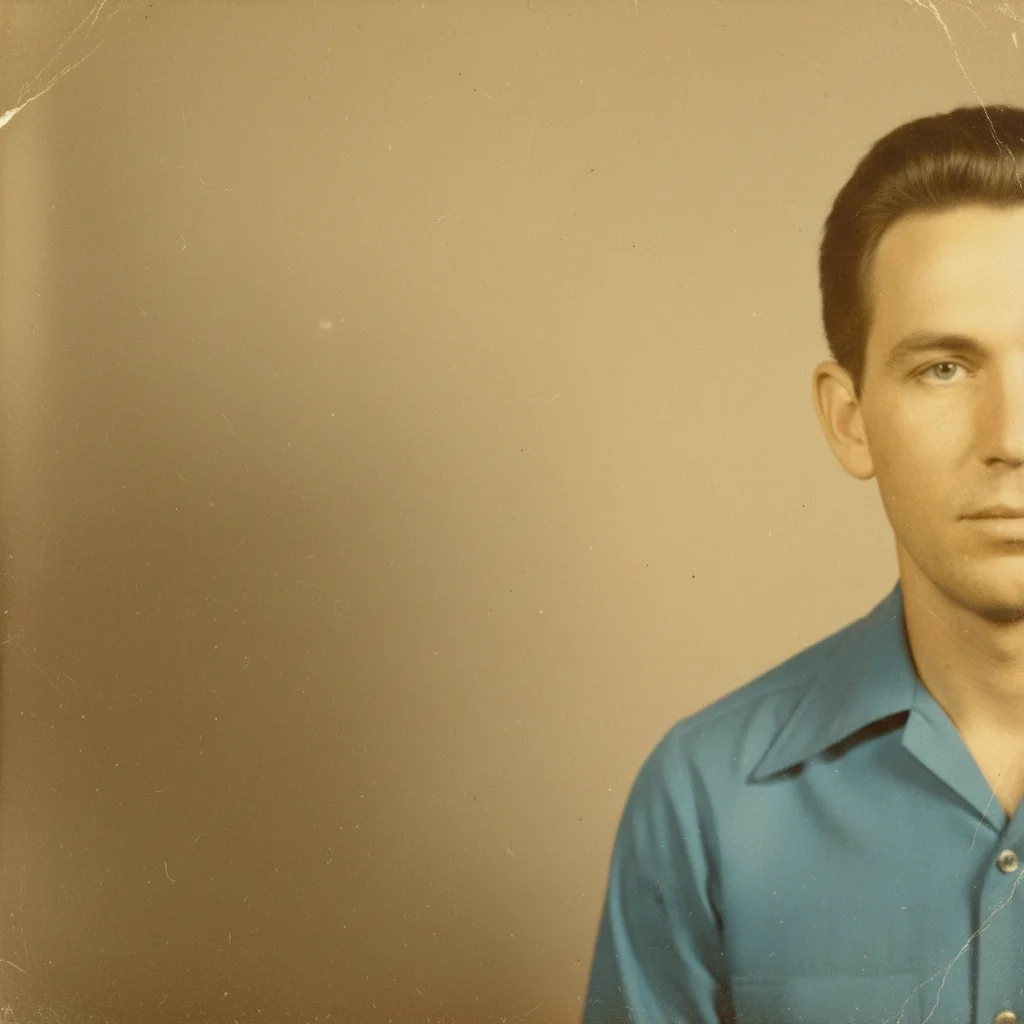
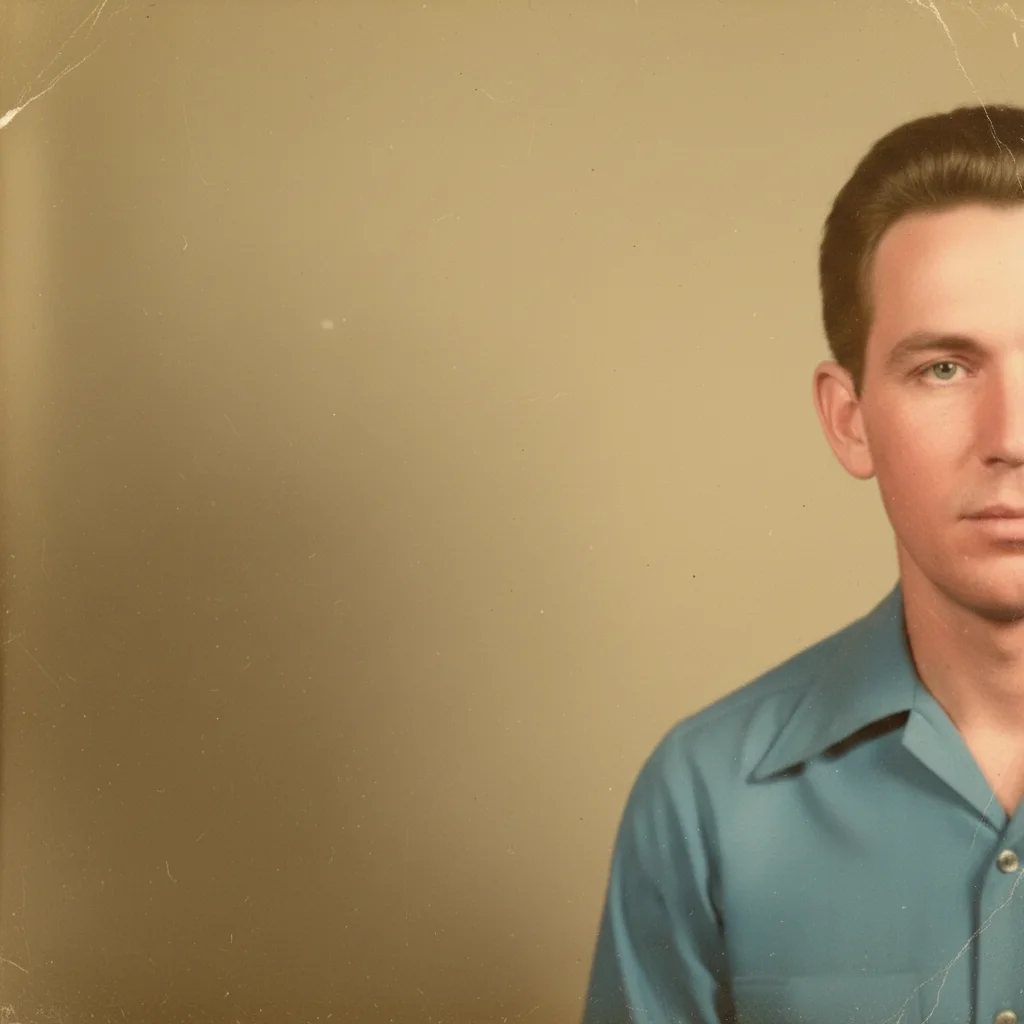
Yellowed vintage portrait with strong sepia cast and faded unnatural skin tones
Before
->
Color-corrected portrait with natural skin tones and restored original blue shirt color
After

Vintage portrait with yellowed color cast

A 1970s portrait that developed the typical yellow-brown color shift over 50 years. Faces looked sickly and all colors had a sepia tone overlay.

Prompt: Remove the yellow aging tint and restore the natural skin tones and original colors that have faded beneath the discoloration

Detailed Guides by Scenario

📷

Photo Rescue & Restoration

Revive old, damaged, or poorly-shot photos with AI faded photo — bring new life to images you thought were unsalvageable.

Common Scenarios

  • Applying faded photo to old family photos that have degraded over time
  • Fixing a once-in-a-lifetime shot (wedding, graduation) that suffers from poor quality
  • Using faded photo on scanned prints to get crisp digital versions

Best Practices

  • Scan old photos at the highest DPI your scanner supports before uploading for best results
  • Describe the specific issue — 'this photo is too dark and blurry' gives better faded photo than a generic prompt
  • For severely damaged photos, work in stages: fix the biggest issue first, then refine
📷

Professional & Business Use

Ensure photos for websites, presentations, and marketing meet professional standards with faded photo.

Common Scenarios

  • Using faded photo on employee photos for a company website that need to look polished
  • Applying faded photo to event photos before sharing in a client presentation
  • Improving product images with faded photo for an online store or catalog

Best Practices

  • Process all images in a batch with the same enhancement settings for visual consistency
  • For web use, balance enhancement quality with file size — overly large images slow page loads
  • Always compare before and after to make sure faded photo looks natural, not over-processed
📷

Social Media & Personal Sharing

Make your personal photos look their best before sharing with friends, family, or followers using faded photo.

Common Scenarios

  • Quickly applying faded photo to vacation photos before posting on social media
  • Using faded photo on a selfie that has great composition but poor lighting
  • Batch-fixing a phone gallery of photos with faded photo before creating an album to share

Best Practices

  • Start with the photo you'd most like to share — fix that one first and use the same approach on the rest
  • For selfies, subtle enhancement always beats heavy processing — keep it natural
  • If the photo was shot in low light, mention it in the prompt so the AI tailors faded photo accordingly

If something looks off

AI changed the wrong area or something I didn't want changed

Why: The AI couldn't determine exactly which area you meant from description alone.

Try: Tap a marker on the specific area you want to restore, then regenerate with the same prompt

Tip: Markers tell the AI 'I mean THIS one specifically.' Use them when description alone is ambiguous.

Colors look oversaturated or unnatural after restoration

Why: The AI restored colors too aggressively for the amount of fading present.

Try: Try 'Restore the faded colors naturally without oversaturating' or 'Bring back colors subtly to look realistic'

Tip: Add words like 'naturally,' 'subtly,' or 'realistic' to prevent overcorrection of mildly faded photos.

Some areas restored perfectly but others still look faded

Why: The photo has uneven fading, common when one side was exposed to more light than the other.

Try: Place a marker on the still-faded area and say 'Restore the faded colors in this specific area to match the rest of the photo'

Tip: Compare both sides of the photo. If one edge was facing a window for years, it may need separate targeted restoration.

Faces look weird or skin tones are too orange/pink

Why: Aggressive color restoration can overcorrect skin tones which are naturally more subtle.

Try: Regenerate with 'Restore the faded colors but keep skin tones natural and realistic'

Tip: Always mention natural skin tones specifically when restoring portraits, even if the main issue is background fading.

Dark areas became too black or lost shadow detail

Why: Increasing contrast to fix fading can crush shadow details if pushed too far.

Try: Try 'Restore the faded colors and increase contrast while preserving shadow details'

Tip: Zoom into dark areas of the result. If they're solid black with no texture, request shadow detail preservation.

The result looks good but has a slight color cast

Why: The AI restored color intensity but didn't fully correct the underlying color shift from aging.

Try: Describe the cast you see: 'Remove the slight yellow tint' or 'Correct the blue color cast'

Tip: Look at areas that should be neutral gray or white. If they have a color tint, that's your color cast to mention.

Quick answers

Do I need to mark the faded areas before describing what I want?

No! Just describe what's faded in plain language like 'restore the faded blue sky' or 'bring back the colors that have washed out.' The AI analyzes the whole photo and fixes the fading automatically. Only use markers when you need to target a specific area that the AI can't identify from your description alone, like 'the person on the left' in a group photo where multiple people have faded differently.

How do I fix a faded photo for free?

Upload your faded photo to EditThisPic and describe what you want restored. The tool is completely free with no signup required and no watermarks on your restored photo. You can fix as many faded photos as you want and download them all in full resolution.

Can this fix severely sun-damaged photos that are almost completely white?

Yes, the AI can restore even severely bleached photos, but results depend on how much actual image data remains. If you can still see faint outlines of objects and subtle color differences, the AI can usually bring them back dramatically. If the photo is completely uniform white in areas, there's no data to recover. Try describing it as 'completely restore this heavily faded photo to vibrant colors' for aggressive restoration.

Will this work on photos that have both fading and a yellow color cast?

Absolutely. Old photos often have both issues aging color shift plus fading. Describe both problems: 'Remove the yellow tint and restore the faded colors to natural vibrant tones.' The AI handles multiple types of degradation simultaneously, correcting the color cast while bringing back lost color saturation.

How is this different from just increasing saturation in a photo editor?

Simple saturation increase makes everything more intense equally, often creating unnatural results and oversaturated skin tones. This AI analyzes which colors have actually faded based on the image content, restores them proportionally, and understands context like 'sky should be blue' and 'skin should stay natural.' It's intelligent selective restoration, not a uniform filter.

Ready to fix your faded photo?

Free to try. No signup required.

Try it free