Photo Editing for E-Commerce
Why Product Photos Matter for Sales
Product photos are the first thing shoppers evaluate. On Amazon, listings with high-quality images see 2-3x higher conversion rates. On Etsy, the main listing photo determines whether buyers click through. Poor lighting, cluttered backgrounds, and inconsistent styling make products look cheap regardless of their actual quality. Professional product photography studios charge $25-50 per image. For sellers with hundreds of SKUs, that adds up fast. AI photo editing tools give you studio-quality results from photos taken on your kitchen table with a smartphone.
Background Removal for Product Photos
A clean white background is the standard for most marketplaces. Amazon requires pure white (#FFFFFF) backgrounds for main listing images. Etsy and Shopify benefit from consistent backgrounds across all product listings. AI background removal handles the hardest parts automatically: hair on wigs and accessories, transparent objects like glassware, intricate jewelry chains, and products with complex edges like plants or fabric.
Upload your product photo
Take your photo in good lighting against any background. The AI works best when the product is clearly separated from the surface.
Describe the edit
Type 'remove the background and replace with pure white' for Amazon-compliant images. For Etsy, try 'remove the background and add a soft gradient' for a more stylized look.
Review edges
Check the edges of your product closely. Zoom in on fine details like jewelry chains, fabric edges, or transparent areas. If any edges are rough, use markers on the problem area and regenerate.


Prompt: "Remove the background and replace with pure white"
Adding Shadows and Reflections
Products floating on a white background look unnatural. A subtle shadow grounds the product and makes it look like it exists in real space. This small detail significantly impacts perceived quality. Drop shadows work for most products. Contact shadows (darker at the base, fading outward) look most realistic for items sitting on a surface. Reflection shadows suit luxury products like watches, perfume bottles, and electronics.
Start with a clean background
Remove the original background first if needed. Shadows work best when added to a product already on white.
Request a shadow
Type 'add a subtle drop shadow beneath the product' for a standard look. For luxury items, try 'add a soft reflection shadow under the product like it is sitting on a glossy surface.'
Adjust if needed
If the shadow is too strong or too light, regenerate with adjusted wording: 'add a very faint shadow' or 'add a prominent shadow with clear direction from the upper left.'
Color Correction and White Balance
Accurate colors are essential for e-commerce. Returns spike when the product color does not match the listing photo. Indoor lighting often adds yellow or blue casts that shift how colors appear. AI color correction neutralizes color casts and ensures what the camera captured matches what the eye sees. This is especially critical for clothing, cosmetics, paint, fabrics, and any product where the exact shade matters.
Upload the product image
Photos taken under mixed lighting or fluorescent bulbs benefit most from correction.
Describe the correction
Type 'fix the white balance, make the colors accurate and natural' for general correction. For specific issues: 'remove the yellow cast from the lighting' or 'make the blue fabric look true to life.'
Compare with reality
Hold the actual product next to your screen. The edited photo should closely match. If a specific color is still off, describe what needs adjustment: 'the red should be more vibrant' or 'the wood tone is too warm.'
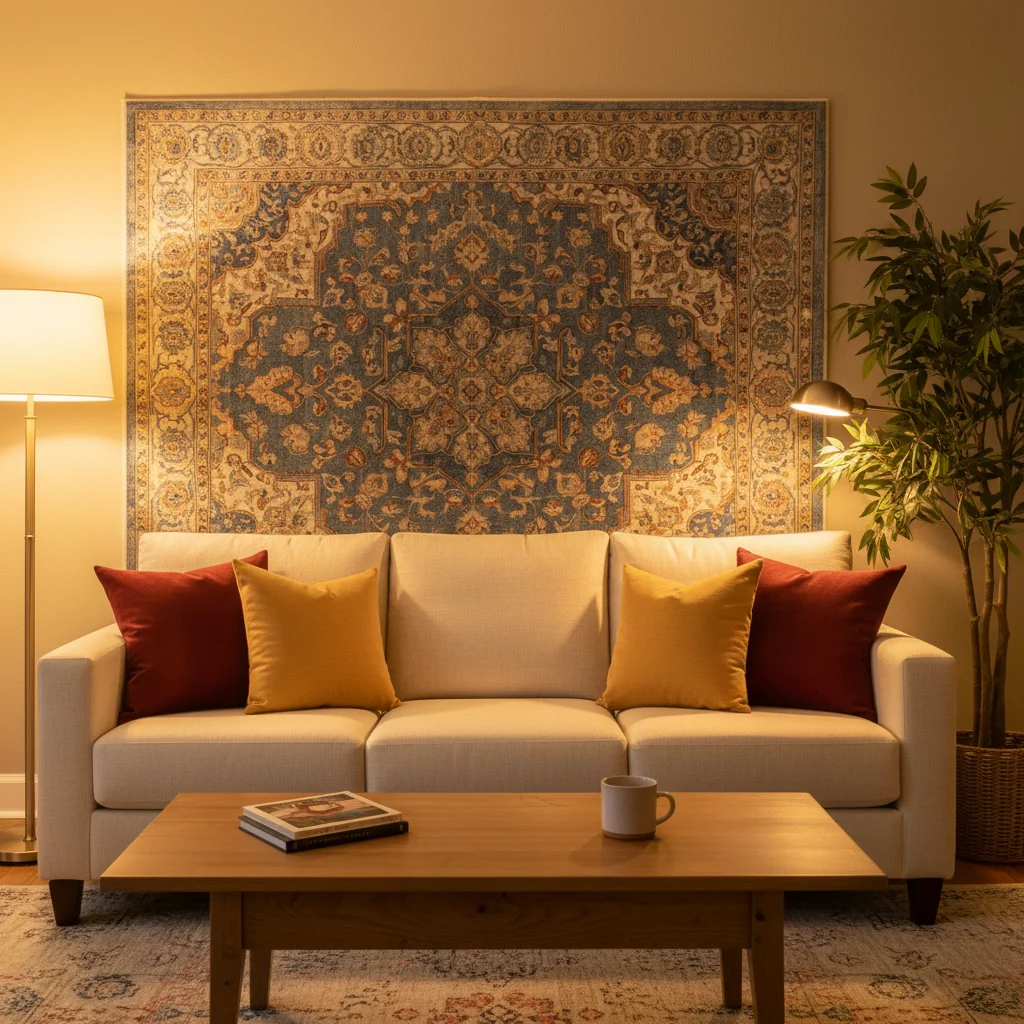
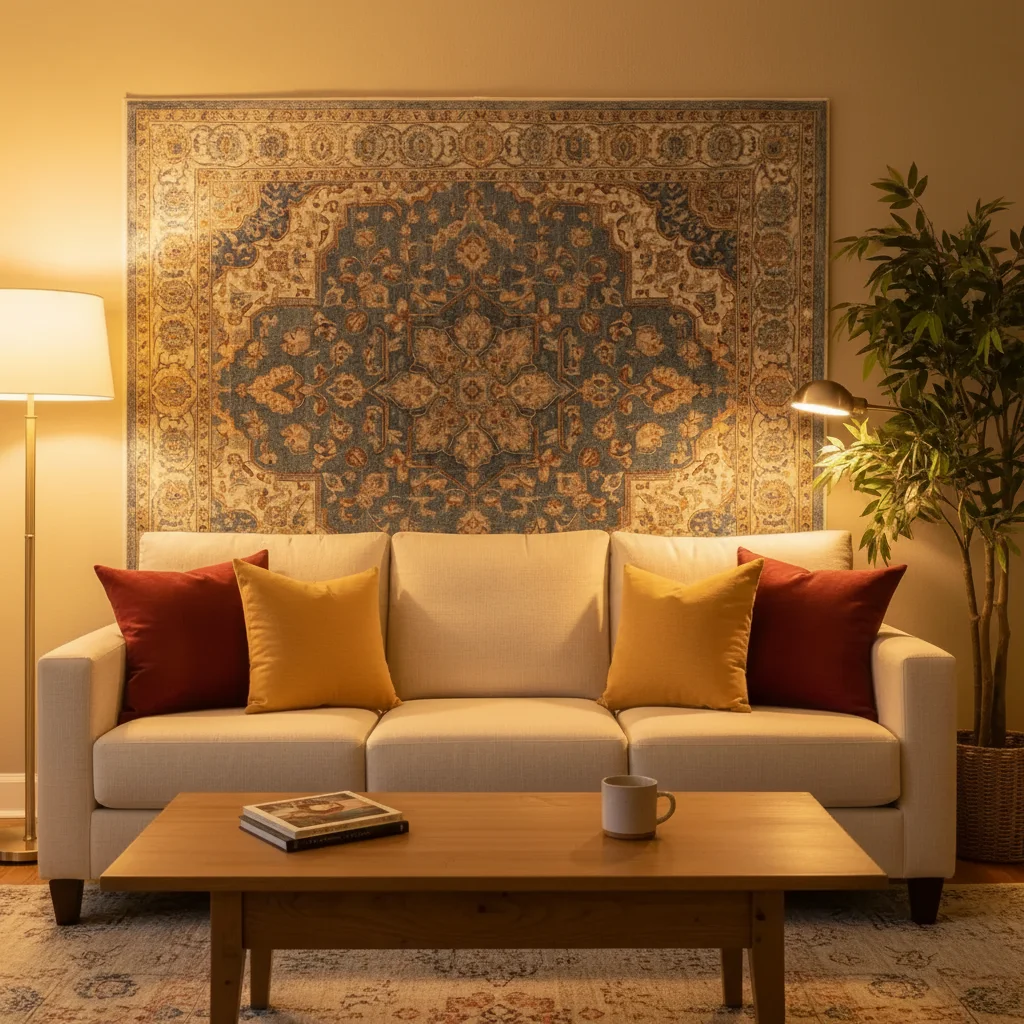
Prompt: "Fix the white balance, make the colors accurate and natural"
Marketplace Image Requirements
Each marketplace has specific image requirements. Getting these wrong means rejected listings or suppressed search visibility. <strong>Amazon:</strong> Main image must have pure white background (#FFFFFF), product fills 85% of frame, minimum 1000x1000px for zoom. No text, borders, logos, or watermarks on main image. <strong>Etsy:</strong> Minimum 2000px on shortest side. First image is the thumbnail shown in search. White backgrounds are not required but consistency across your shop matters. <strong>Shopify:</strong> Square images (2048x2048px recommended). Consistent style across all products. Use variant images to show different colors and angles. <strong>eBay:</strong> Minimum 500px, recommended 1600px. White or light background for main image. No borders, text overlays, or promotional graphics. AI editing handles the creative work, but always verify your final images meet the pixel dimensions and file size requirements of your platform.
Ghost Mannequin for Clothing
The ghost mannequin effect makes clothing appear three-dimensional without showing the mannequin or model wearing it. This is standard for professional clothing listings and gives garments a clean, floating appearance that shows their shape. Traditionally this requires photographing the garment on a mannequin, then separately photographing the inside, and compositing them in Photoshop. AI can achieve a similar effect from a single photo.
Photograph on a mannequin
Use a standard mannequin and photograph against a neutral background. The AI needs to see the garment's full shape.
Remove the mannequin
Upload and type 'remove the mannequin, keep the clothing looking three-dimensional as if someone invisible is wearing it.' The AI removes the mannequin while maintaining the garment's form.
Clean up the interior
If the neckline or sleeves show gaps where the mannequin was removed, describe what to fix: 'fill in the neck opening with the inside of the shirt collar.'
Food Product Photography
Food products need to look appetizing in the listing photo. This means vibrant colors, visible texture, and attractive presentation. Unlike restaurant food photography, packaged food products need to show the actual product clearly. For items sold in packaging (like snack bags, canned goods, or boxed meals), photograph the product both in and out of the packaging. For items sold as ingredients (spices, grains, produce), show them in appealing arrangements. AI editing can enhance food colors without making them look unrealistic, add steam to hot items, improve plating presentation, and create consistent styling across a product line.
Try this tool →Creating Lifestyle Images from Product Shots
Beyond the standard white-background main image, lifestyle images show your product in use. These context shots help buyers imagine the product in their own lives and significantly boost conversion rates. AI can place your product into realistic scenes without needing an actual photoshoot. A candle can appear on a cozy living room shelf. A watch can appear on a wrist with a blurred cafe background. A kitchen tool can appear in a well-appointed kitchen. The key is making the placement look natural: matching lighting direction, adding appropriate shadows, and ensuring the product scale makes sense in the scene.
Frequently Asked Questions
Ready to create product photos that sell?
Upload a product photo and edit it with AI in seconds. Free, no signup required.
Try It Free
Free to try · no sign-up · never used for AI training
Release to upload