AI Photo Editor for eBay Product Photos
Last updated
Professional eBay listing photos in seconds. Clean backgrounds, clear condition shots, gallery-ready images.
Drop your photo here
"replace background with clean white, professional product photography, soft even lighting"
Release to upload
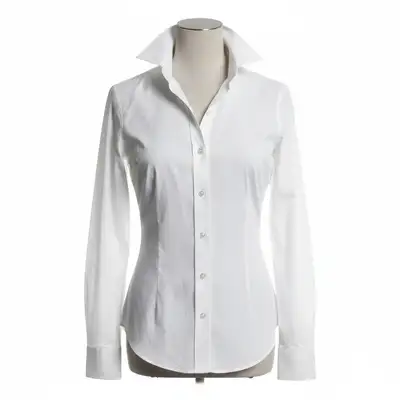
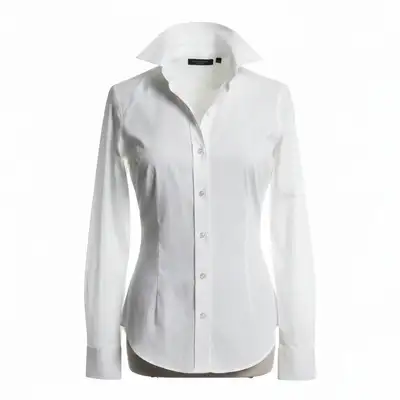
Built for eBay Sellers
eBay success depends on trust. Buyers can't hold your item, so they rely on photos to assess condition. EditThisPic helps you create clean, professional gallery images and detailed condition shots that give buyers confidence to bid higher. Process your entire inventory in minutes, not hours.
Tools eBay Sellers Use Most
Remove Background
Create clean gallery photos that stand out in search results
Enhance Photo
Improve lighting and clarity to show condition accurately
Remove Shadow
Clean up harsh shadows that hide item details
Remove Object
Remove dust, fingerprints, or background clutter from shots
Create eBay-Ready Product Photos
-
Upload your product photo
Drop your item photo into EditThisPic. JPG, PNG, and WebP up to 7MB. eBay accepts up to 12 photos per listing, so shoot multiple angles to document condition thoroughly.
Simple background cleanup: 15-20 seconds. Detailed condition shots with multiple elements: may need 2-3 refinements. -
Describe the edit you want
Type 'replace background with clean white' for gallery shots or 'enhance lighting to show condition details' for close-ups. The AI understands eBay seller needs. No need to trace around your item or use selection tools.
For vintage items, add 'preserve patina and authentic wear' to keep the honest character buyers expect. -
Review and verify condition visibility
Check that the background is clean, item condition is clearly visible, and no details are lost. For collectibles, verify that serial numbers, maker's marks, and condition flaws remain sharp and readable.
Zoom to 100% on condition details. Buyers will zoom too, so make sure scratches, wear, and authenticity markers are clearly documented. -
Refine specific areas if needed
If edges need cleanup or the AI affected condition details you want preserved, tap markers on those spots and regenerate. Most eBay photos work perfectly on the first try.
For items with intentional wear (vintage patina, antique aging), mark those areas to ensure the AI preserves them authentically.
eBay Product Photo Prompts
replace background with clean white, professional product photography, soft even lighting
Clean backgrounds make your listing stand out in eBay search results and photo galleries.
replace background with clean neutral backdrop, preserve authentic patina and vintage character, show honest condition
Vintage buyers expect honest wear. This prompt cleans the background while keeping the authentic aging.
enhance lighting and clarity to show condition details clearly, remove distracting background elements, keep all scratches and wear marks visible
Honest condition documentation builds trust and reduces return requests.
replace background with clean white, enhance sharpness on serial number and maker's mark, professional documentation quality
Authentication details need to be crystal clear for serious collectors.
Show 4 more prompts
replace background with clean white seamless backdrop, match lighting style to previous photos in series, consistent professional look
Consistent gallery photos look professional and help buyers compare angles easily.
replace background with clean white, preserve screen display and LED indicators, show all ports and buttons clearly
Electronics buyers need to see every port, button, and screen condition.
replace background with clean neutral gray, enhance detail visibility, professional jewelry photography lighting
Gray backgrounds work better than white for jewelry, preventing overexposure on metallic surfaces.
replace background with clean white, keep product and original packaging together, professional flat lay composition
Original boxes and packaging increase value. Show them together in one clean shot.
| Edit Type | Prompt | Time | |
|---|---|---|---|
| Gallery photo (clean white) | replace background with clean white, professional product photography |
15s | Try This → |
| Vintage item (preserve patina) | replace background with clean neutral backdrop, preserve authentic patina |
20s | Try This → |
| Condition close-up | enhance lighting to show condition details clearly |
15s | Try This → |
| Collectible (serial number) | replace background with clean white, enhance sharpness on serial number |
20s | Try This → |
eBay Product Photo Examples


Vintage camera ready for bidding
Classic 35mm film camera photographed on cluttered desk. One prompt created a clean gallery-ready image.
replace background with clean white, preserve vintage patina and authentic wear, professional product photography
Collectible watch with visible condition
Vintage wristwatch showing honest wear. Clean background while preserving patina that collectors expect.
replace background with clean neutral backdrop, preserve authentic patina and wear marks, show dial and crystal condition clearly
Electronics with clear port documentation
Gaming controller showing all buttons and ports. Clean background with every detail visible.
replace background with clean white, show all buttons and ports clearly, professional product photography lighting
Common eBay Photo Issues
AI removed condition flaws I wanted to show
Why: The AI interpreted scratches or wear as 'damage to fix' rather than condition documentation. It tried to help by cleaning them up.
replace background with clean white, preserve all scratches and wear marks as-is, honest condition documentation
Add 'honest condition documentation' to signal you want authentic representation, not cosmetic fixes.
Vintage patina looks artificially cleaned
Why: Enhancement algorithms can over-correct authentic aging, making items look restored when they're original.
replace background only, preserve authentic patina and vintage character exactly as-is
Be explicit about preserving 'vintage character' or 'original patina' for collectibles where authenticity matters.
AI changed the wrong area or affected the product
Why: The AI couldn't determine exactly which area you meant. This happens with items that have white or light-colored sections.
Tap markers on the product areas you want to preserve, then regenerate with the same prompt
Markers tell the AI 'protect THIS area specifically.' Essential for items with condition details you must preserve.
Serial numbers or maker's marks became blurry
Why: Background removal sometimes softens fine text and details at edges. Authentication marks need extra sharpness.
enhance sharpness on serial number and text, keep background clean white, documentation quality
Run a second pass with 'enhance sharpness' focused on the authentication details after background removal.
Reflective items show background in reflections
Why: Chrome, glass, and glossy surfaces capture reflections of the original environment. The AI can struggle with these.
replace background with clean white, replace reflections with neutral studio reflections, maintain glossy surface
Requesting 'studio reflections' replaces messy room reflections with clean, professional-looking ones.
Colors look different from actual item
Why: Lighting changes can shift color accuracy. eBay requires honest representation to avoid returns.
replace background with clean white, preserve original product colors exactly, no color enhancement
Add 'no color enhancement' when you need colors to match the actual item exactly.
eBay Seller Questions
Do I need to trace around my item or select the background first?
No. Just type 'replace background with clean white' and the AI handles it. EditThisPic understands what 'background' means without you selecting anything. Only use markers if you need to refine specific edges or protect condition details from being changed.
Will the AI hide condition flaws I need to disclose?
Not if you're specific. Add 'preserve all scratches and wear marks as-is' or 'honest condition documentation' to your prompt. The AI will clean the background while keeping condition details visible. eBay requires honest representation, and EditThisPic can deliver that.
How do I photograph items from multiple angles efficiently?
Shoot all angles quickly on any surface, then batch process through EditThisPic. Once you have a prompt that works, apply it to all photos. Add 'consistent lighting style' to match your gallery. Most sellers process 10+ photos in under 15 minutes.
Is this better than eBay's built-in background removal?
EditThisPic offers more control. eBay's auto-removal is basic and can't preserve patina, enhance condition visibility, or handle complex items. With EditThisPic, you describe exactly what you need: preserve wear marks, enhance serial numbers, match lighting across angles.
Can I use this for vintage and antique items?
Yes, and it's especially useful. Vintage items need honest representation. Use prompts like 'preserve authentic patina and vintage character' to ensure age-appropriate wear stays visible. Collectors expect and want to see honest condition.
What background color works best for eBay listings?
White works for most items and looks cleanest in eBay's gallery view. For jewelry and metallic items, try 'neutral gray' to prevent overexposure. For vintage items, 'clean neutral backdrop' gives a professional look without stark white contrast.
Is EditThisPic's AI photo editor for ebay product photos really free?
Yes — you get 1 free edit per week, no account needed. Plans start at $4.99/month for 15 edits.
Can I ebay product on my phone?
Yes. EditThisPic works in any mobile browser — iPhone, Android, tablet. No app download needed.
Popular use cases
Ready to create professional eBay listing photos?
Free to try. No signup required. Start selling faster.
Start EditingTrusted by 15,000+ users