Free • No signup Open Editor

Remove Shadow from Photo

Remove harsh or unwanted shadows from any photo.

Type 'remove the shadow on the face' or 'delete the shadow cast on the ground' and EditThisPic's AI fixes it in 15-30 seconds. No selection tools needed. Works on portraits, product photos, and any image with distracting shadows. Free to try, no account required.

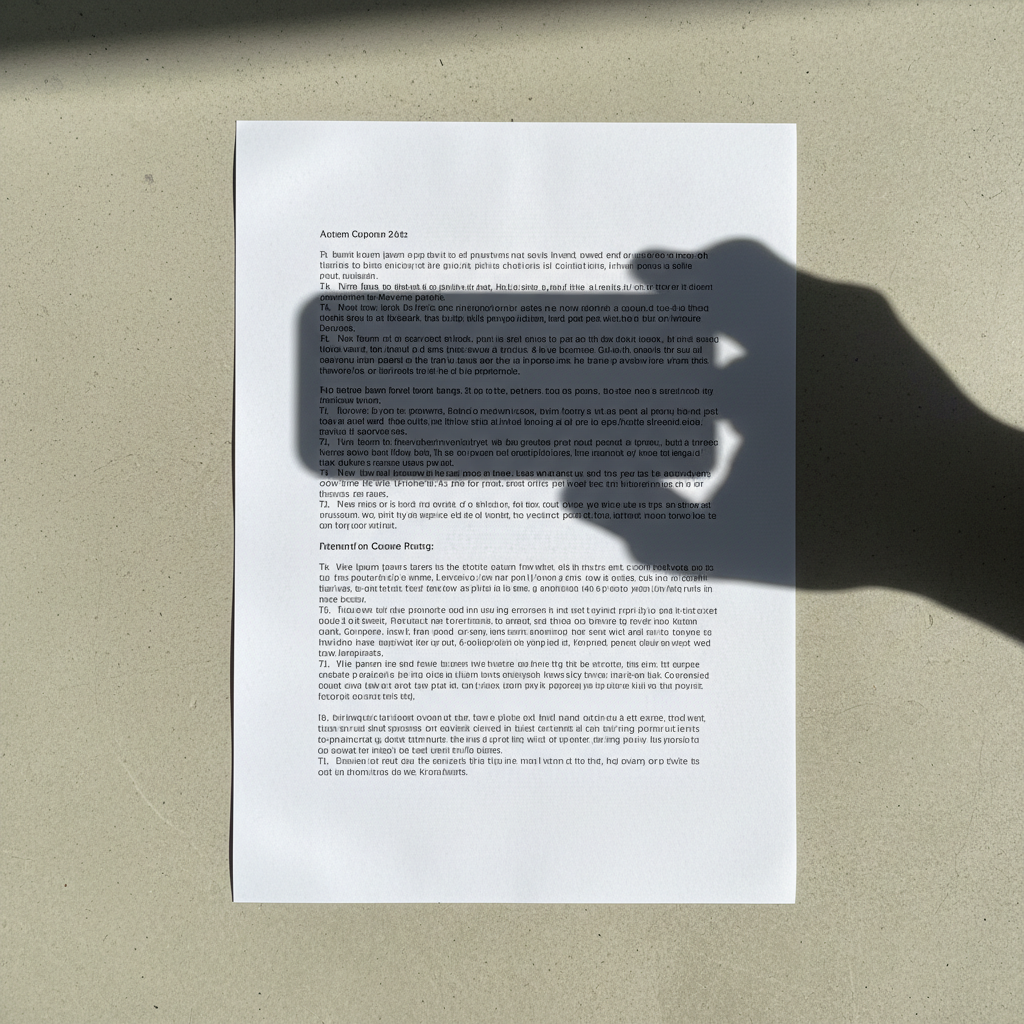
Document with phone shadow across it
Before
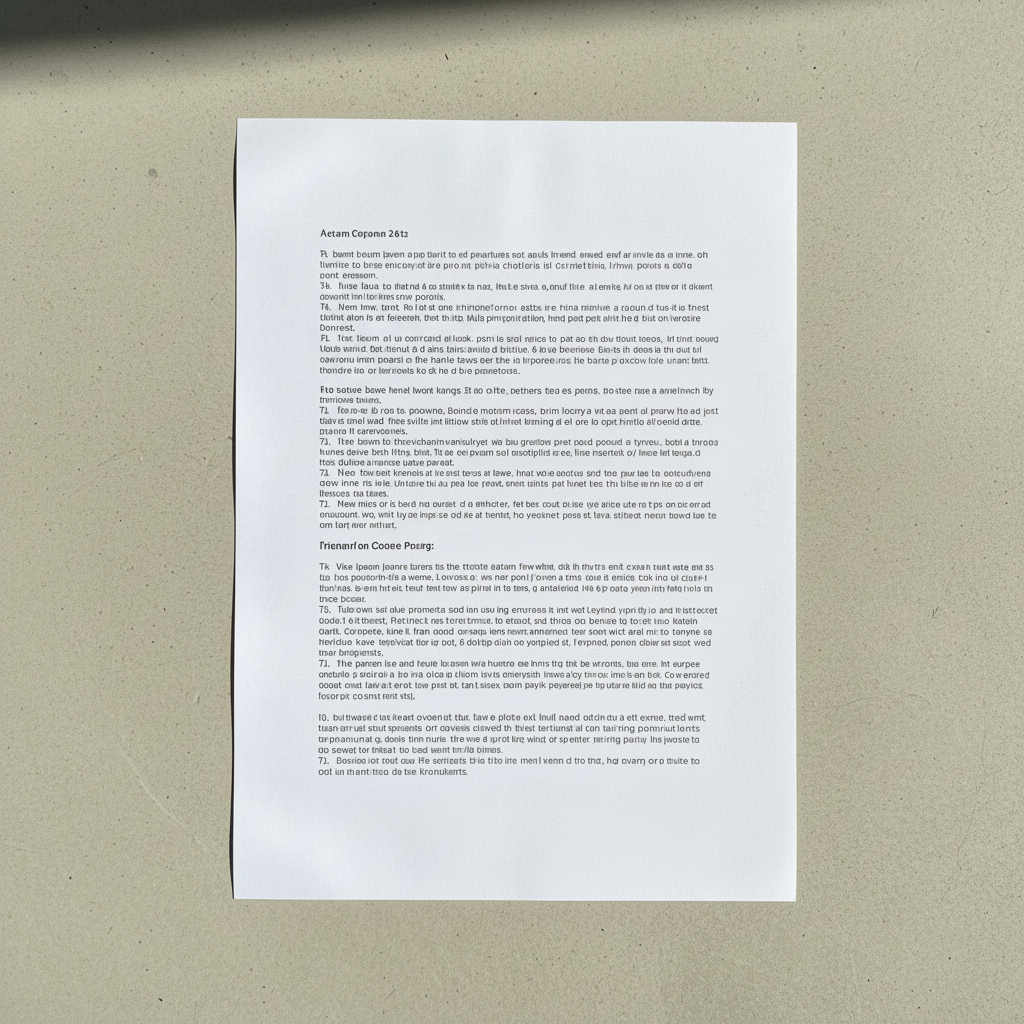
Clean document without shadow
After

How it works

1

Upload your photo

Drop your image into EditThisPic. JPG, PNG, WebP up to 7MB. Works on face shadows, object shadows, and shadow casts.

⏱ Simple shadow removal: 15-20 seconds. Complex lighting fixes: may need refinement.
2

Describe the shadow to remove

Type 'remove the shadow on the left side of my face' or 'delete the shadow cast by the lamp.' Be specific about where the shadow is. The AI understands shadows, shade, dark areas, and harsh lighting.

💡 Describe the shadow location precisely: 'shadow on the right cheek' works better than just 'fix the shadow.'

Copy one of these to get started:

Face shadow from harsh light remove the harsh shadow on the left side of my face and even out the lighting
Cast shadow on ground remove the shadow cast on the ground and fill naturally
Shadow across subject remove the shadow falling across the person and brighten that area
Product shadow cleanup remove the harsh shadow behind the product and show clean background
1 more prompts
Under-eye shadows reduce the dark shadows under the eyes naturally
3

Review the result

Check that the shadow is gone and the lighting looks natural. Look for any color inconsistencies in the corrected area.

4

Refine with markers if needed

If some shadow remains or the correction looks uneven, tap markers on the specific areas and regenerate.

💡 For face shadows, mark the exact shadowed area for more precise correction.
Try it free
"Fixed the harsh shadow across my face in my headshot. Looks so much more professional!" @professional_pic

See it in action

Document with phone shadow across it
Before
Clean document without shadow
After

Hand shadow removed from document

Phone shadow ruined the scan. AI removed it completely.

Prompt: remove the hand shadow from the document
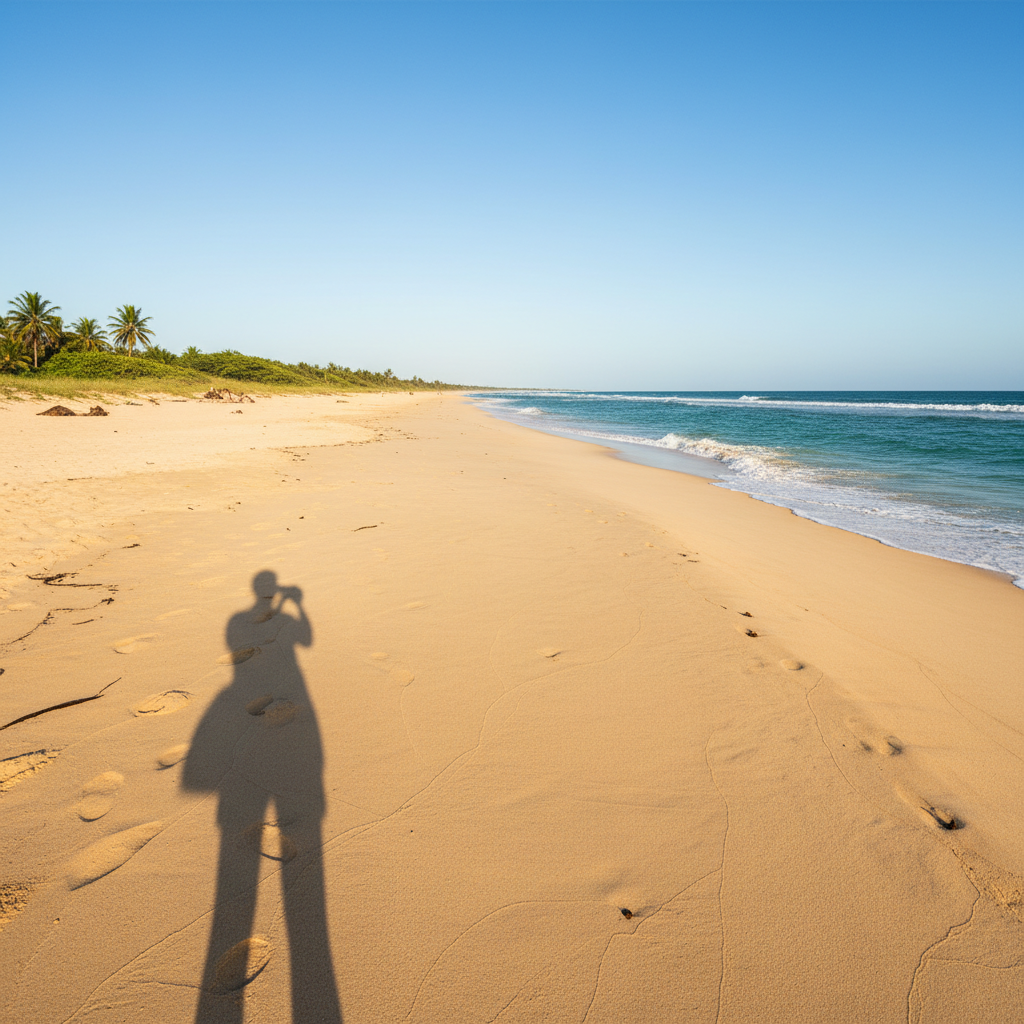
Beach with photographer shadow visible
Before
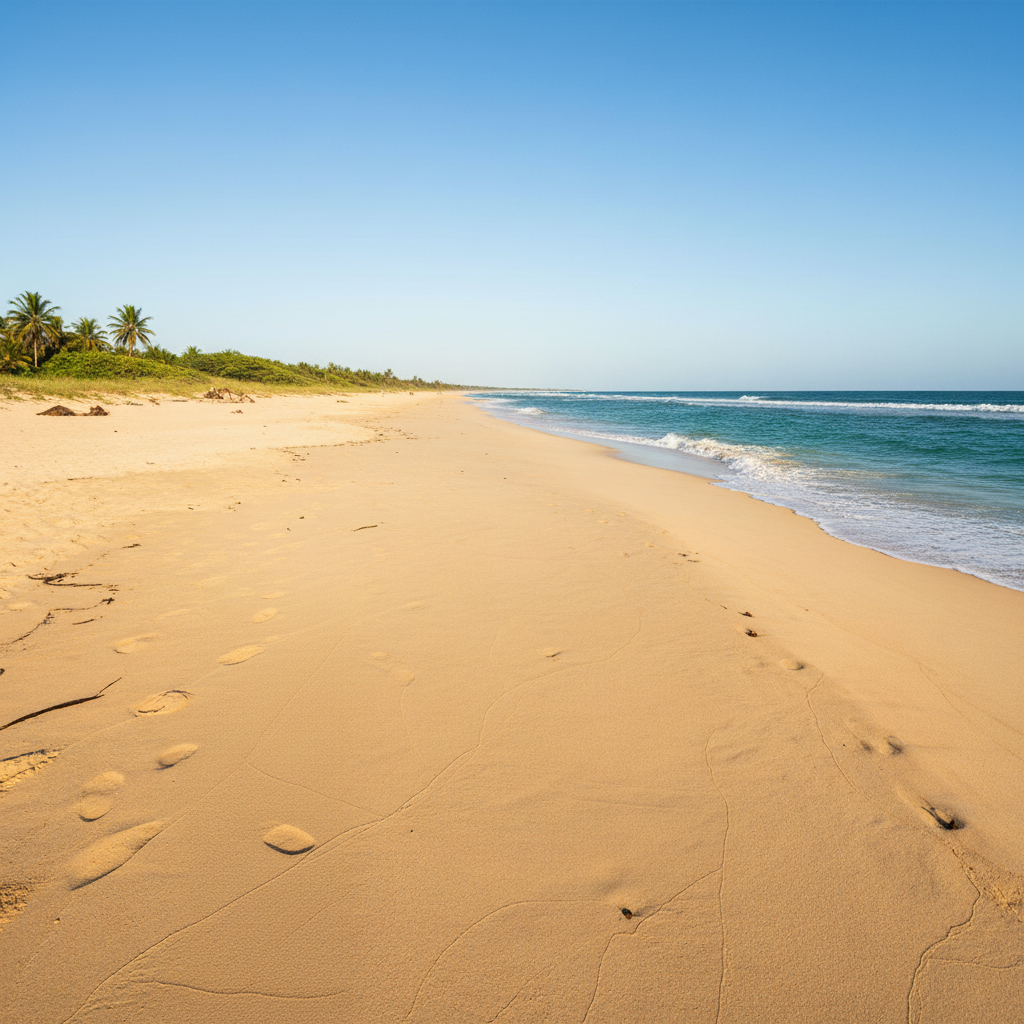
Clean beach without shadow
After

Photographer shadow removed from beach

Your own shadow ruined the beach shot. AI erased it cleanly.

Prompt: remove the photographer shadow from the sand
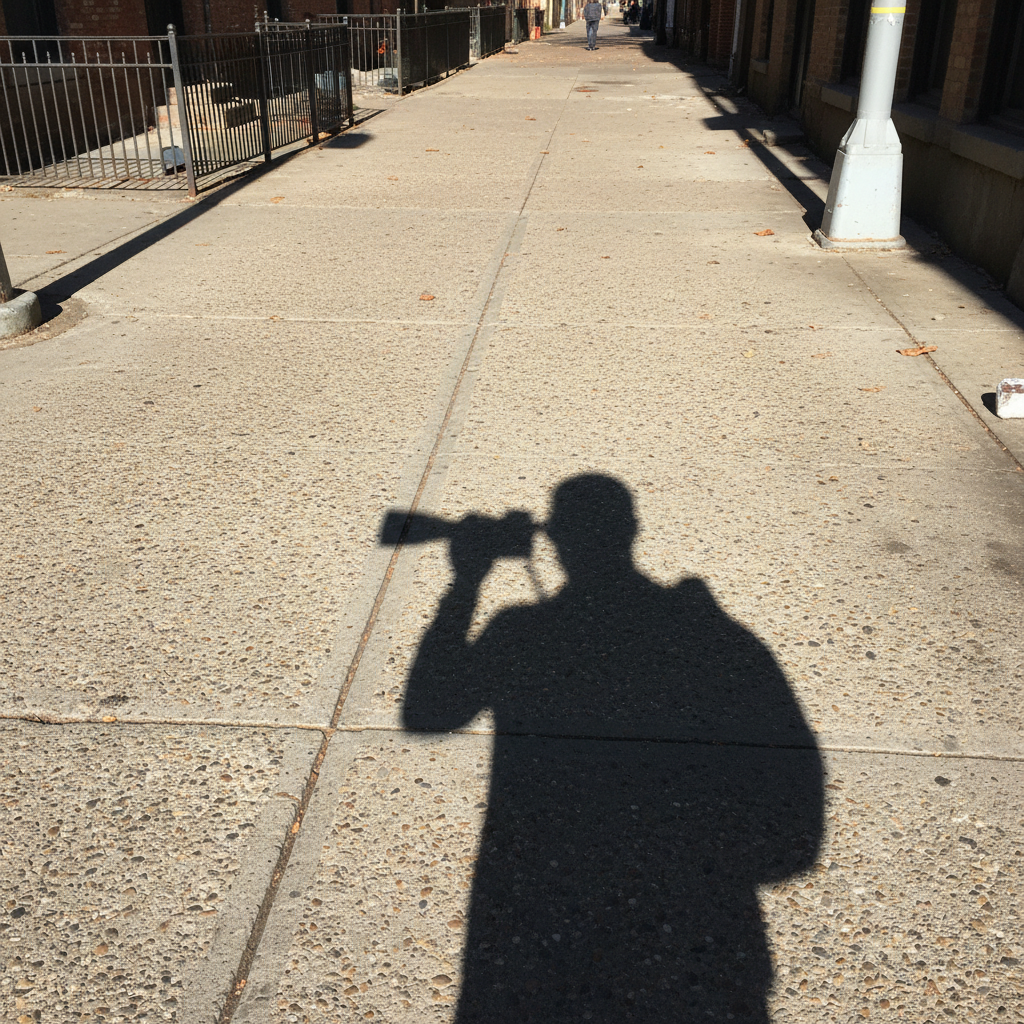
Sidewalk with photographer shadow
Before
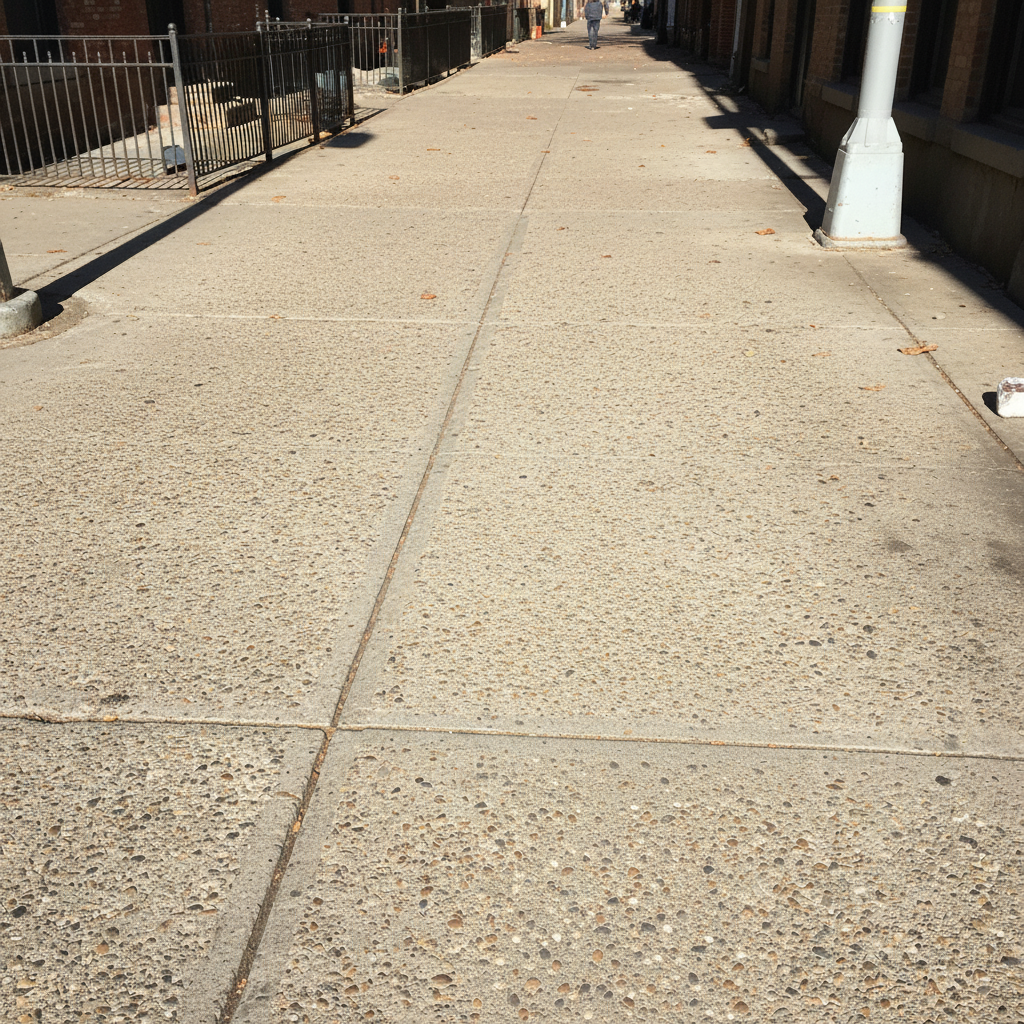
Clean sidewalk without shadow
After

Photographer shadow removed from sidewalk

Shadow in your street photo. Gone in seconds.

Prompt: remove the photographer shadow from the sidewalk

If something looks off

Correction looks unnatural or flat

Why: The AI removed too much shadow, making the area look artificially lit.

Try: make the lighting look more natural in the corrected area

💡 Use 'reduce shadow' instead of 'remove' for subtle correction.

Color doesn't match surrounding area

Why: Shadow removal exposed underlying colors that don't match.

Try: blend the colors to match the surrounding skin/surface

💡 This is common on faces—may need refinement.

AI removed wrong shadow

Why: Multiple shadows in image and description was ambiguous.

Try: Tap a marker on the exact shadow, then remove it

💡 Markers help when there are multiple shadows.

Shadow partially remains

Why: Gradient shadows have soft edges that can be partially missed.

Try: remove the remaining shadow edge and blend smoothly

💡 Zoom in to check for faint remnants.

Quick answers

Do I need to select the shadow area before removing it?

No! Just describe where it is: 'remove the shadow on the left side of my face.' Only use markers if you need precision on complex shadows.

Will removing shadows look natural?

Usually yes. The AI reconstructs the underlying surface with appropriate lighting. Very harsh shadows may need refinement to blend naturally.

Can I keep some shadows for depth?

Yes! Use 'reduce' instead of 'remove' or specify which shadows to keep: 'remove the harsh shadow but keep soft shadows for depth.'

What about shadows on faces?

Face shadows work well. Specify the location: 'shadow on the right cheek' or 'under the chin.' Complex face shadows may need markers.

Ready to fix those shadows?

Free to try. No signup required.

Try it free