AI Photo Editor for Product Photos
Last updated
Turn kitchen table product shots into professional catalog images in 30 seconds.
Drop your photo here
"replace background with pure white #FFFFFF studio backdrop, no shadows, clean edges"
Release to upload
Built for E-Commerce Sellers
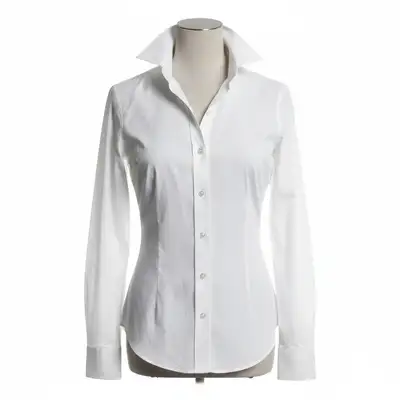
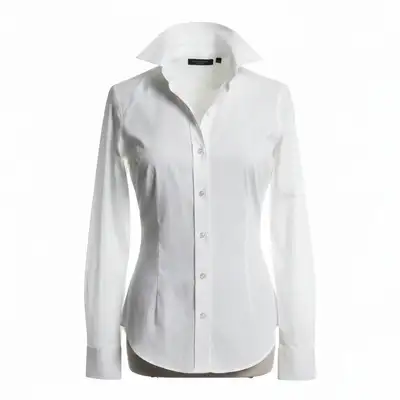
Product photography makes or breaks online sales. Professional studios charge $15-50 per image. Photoshop takes hours to learn. EditThisPic lets you describe the professional look you want in plain English and get marketplace-ready images in seconds. Works on any product from jewelry to furniture.
Tools Product Sellers Use Most
Remove Background
Extract products with transparent backgrounds for versatile use
Replace Background
Swap messy backgrounds for clean studio backdrops
Remove Reflection
Clean up unwanted reflections on glass, metal, or shiny products
Remove Shadow
Eliminate harsh shadows from overhead lighting
Enhance Lighting
Fix poorly lit product photos with balanced exposure
How to AI Photo Editor for Product Photos
-
Upload your product photo
Drop your product image into EditThisPic. Works with any camera or smartphone photo. JPG, PNG, WebP up to 7MB. Don't worry about the background - that's what we're fixing.
Background replacement: 15-30 seconds. Detailed products with fine edges: may need 2-3 refinements. -
Describe the professional look you want
Type your instruction: 'replace background with pure white studio backdrop' or 'remove the shadow and add soft diffused lighting.' Be specific about colors and style. The AI understands product photography terms.
For Amazon compliance, use: 'pure white #FFFFFF background, no shadows, product fills 85% of frame' -
Review product edges and download
Check edges at full zoom, especially for fine details like jewelry chains or product holes. Verify colors match your actual product. Download your marketplace-ready image.
-
Refine tricky edges if needed
If edges around transparent, reflective, or fine-detailed products need cleanup, tap markers on those spots and regenerate. Most solid products work perfectly on first try.
For transparent products like glass, add 'preserve product transparency' to your prompt.
Copy-Paste Prompts for Product Photos
replace background with pure white #FFFFFF studio backdrop, no shadows, clean edges
Pure white meets Amazon's main image requirements. Include #FFFFFF for exact white
replace background with white backdrop, add soft contact shadow underneath product for depth
Contact shadows make products look grounded and professional, not floating
replace background with modern marble countertop, soft natural window light from left side
Lifestyle contexts help customers visualize products in their home
remove the unwanted reflections on the product surface while keeping the natural metallic sheen
'Keep natural sheen' preserves product character while removing distracting reflections
Show 4 more prompts
replace background with gradient dark gray to black studio backdrop, subtle rim lighting on product edges
Dark backgrounds work well for tech products, watches, and premium items
remove the price tag and barcode sticker, fill with matching product surface texture
Specify 'matching texture' for seamless removal on patterned products
replace background with white, preserve glass transparency and refraction, keep product edges crisp
Transparent products need explicit instructions to preserve see-through quality
replace background with solid soft pastel pink that complements the product colors
Complementary background colors make products pop in social media feeds
| Edit Type | Prompt | Time | |
|---|---|---|---|
| White background | replace background with pure white #FFFFFF |
15s | Try This → |
| With shadow | white background, add soft contact shadow |
20s | Try This → |
| Lifestyle scene | replace with marble countertop, natural light |
25s | Try This → |
| Remove reflection | remove reflections, keep natural sheen |
25s | Try This → |
Real Examples


Jewelry on white background
Silver necklace photographed on cluttered desk transformed to professional studio shot with clean white background.
Kitchen product with lifestyle context
Ceramic mug shot against plain wall now shown in inviting kitchen scene with marble countertop.
replace background with modern kitchen scene, marble countertop, warm morning light
Electronics with premium dark backdrop
Wireless earbuds photographed on bedsheet elevated to premium product imagery with professional lighting.
replace background with dark gradient studio backdrop, subtle rim lighting, premium tech aesthetic
When Things Go Wrong
White background has yellow or blue color tint
Why: The AI matched ambient lighting from your original photo. Indoor lighting creates color casts.
replace background with pure white #FFFFFF studio backdrop, neutral daylight balanced
Include '#FFFFFF' and 'neutral' for true marketplace-compliant white.
Product edges look choppy or have remnants
Why: Fine details like chains, mesh, or fur are challenging for automatic edge detection.
For very fine details, try: 'preserve all fine edge details of the product'
Product colors look different after edit
Why: Changing lighting or background can shift color perception.
replace background with white, preserve exact original product colors, no color correction
Always include 'preserve original product colors' for color-critical products.
Transparent product lost its transparency
Why: The AI filled transparent areas with solid color by default.
replace background with white, keep product transparency and glass refraction visible
Explicitly mention 'transparency' and 'glass' for see-through products.
Frequently Asked Questions
Will this work for Amazon listing requirements?
Yes. Using 'pure white #FFFFFF background' produces Amazon-compliant main images. Amazon requires pure white backgrounds (RGB 255,255,255), product filling at least 85% of frame, and no text or logos. EditThisPic handles the background - you control framing in your original shot.
Do I need to outline my product before editing?
No! Just describe what you want: 'replace background with white' and the AI automatically identifies your product. Only use markers if you need precision on tricky edges like transparent glass, fine jewelry chains, or if the AI changed something you didn't intend.
What product types work best?
Solid products with clear edges work perfectly: electronics, kitchenware, shoes, bags, beauty products, toys. Products with fine details like jewelry or lace may need one refinement. Transparent products (glass, clear plastic) require specific prompts to preserve transparency.
How do I maintain consistency across my catalog?
Use the exact same prompt for each product image. Save your working prompts and reuse them. For identical lighting and shadows across products, include specific details like 'soft shadow falling lower right, rim light from upper left' in every prompt.
Can I add realistic shadows?
Yes. Add shadow instructions: 'add soft contact shadow directly underneath product' for grounded look. For more dramatic: 'add diffused shadow falling to lower right.' Specify direction if your product has clear lighting direction.
Will it remove reflections from shiny products?
Yes. Use 'remove unwanted reflections while preserving natural product sheen.' This removes environmental reflections (your hand holding phone, room reflections) while keeping the product's natural metallic or glossy character.
Is EditThisPic's AI photo editor for product photos really free?
Yes — you get 1 free edit per week, no account needed. Plans start at $4.99/month for 15 edits.
Can I product photos on my phone?
Yes. EditThisPic works in any mobile browser — iPhone, Android, tablet. No app download needed.
Popular use cases
Ready to create professional product photos?
Free to try. No signup required. No watermarks.
Upload Your First ProductTrusted by 15,000+ users