Free • No signup Open Editor

Enhance Photo

Just type 'enhance this photo' and the AI figures out what needs fixing.

Type 'enhance this photo' and EditThisPic's AI analyzes your image and automatically improves what needs fixing--lighting, colors, sharpness, and contrast--in 15-30 seconds. No sliders to adjust, no settings to learn. The AI determines what your photo needs. For specific improvements, just describe them. Free, no signup needed.

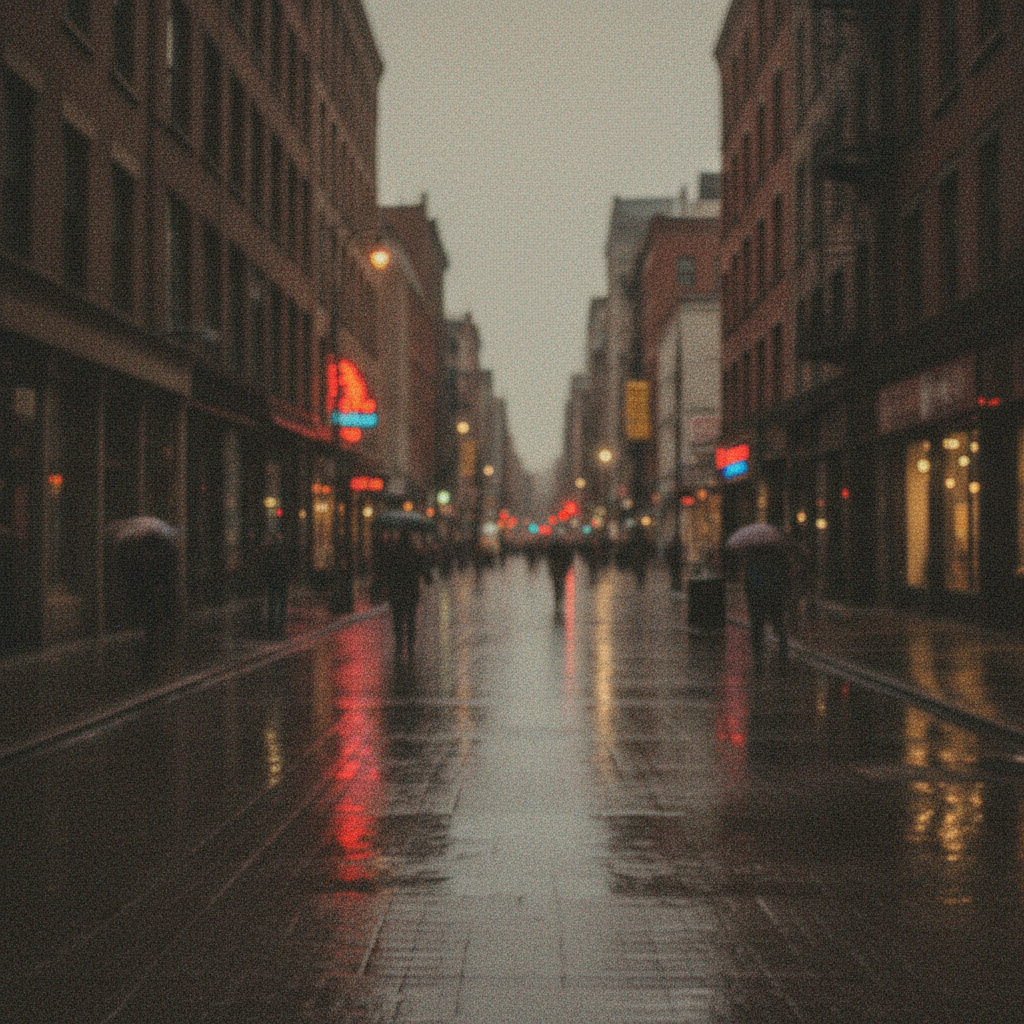
Underexposed phone photo of coffee with color cast
Before
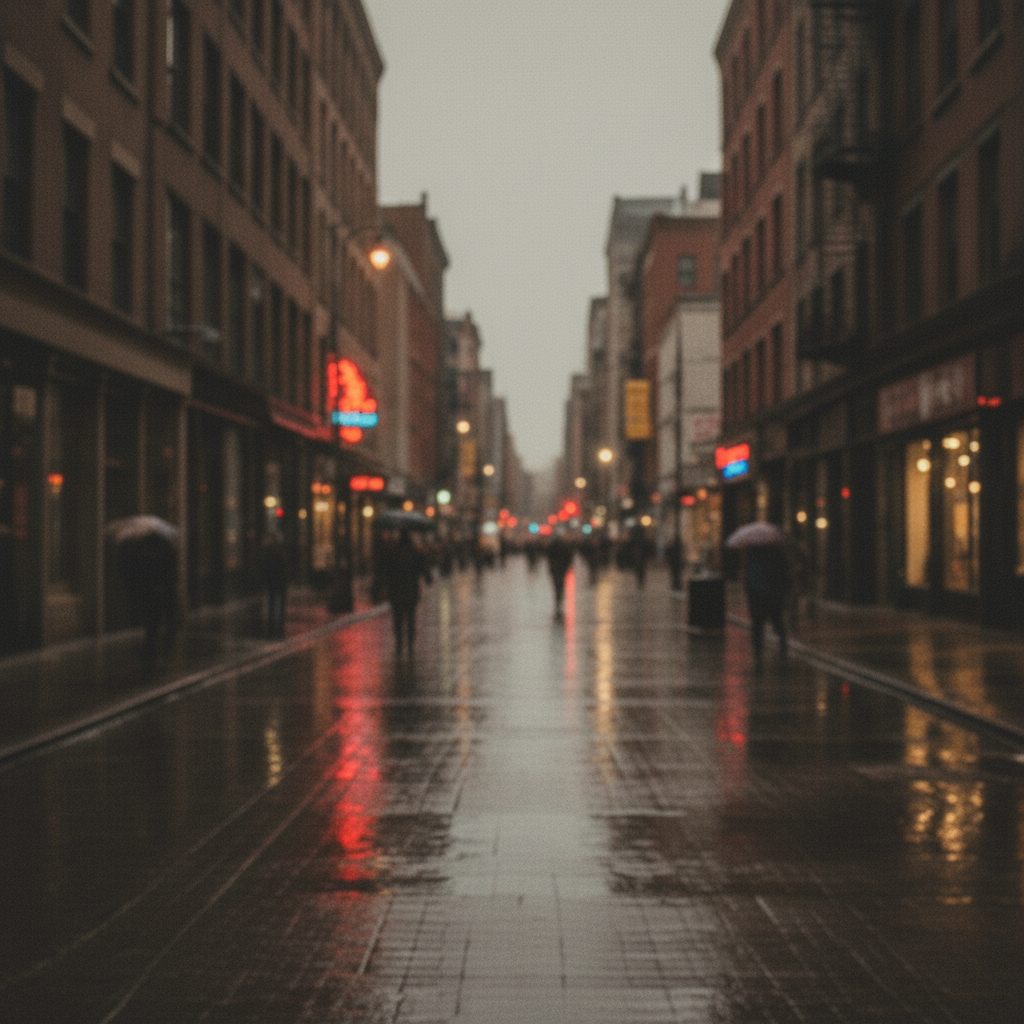
Same photo with balanced exposure and corrected colors
After

How it works

1

Upload your photo

Drop any image into EditThisPic. JPG, PNG, and WebP up to 7MB work. The AI works with whatever you have--smartphone snapshots, older scanned photos, or professional camera shots all benefit from enhancement.

⏱ General enhancement: 15-30 seconds. Complex corrections like severe exposure issues: may need 2-3 refinements.
2

Describe what you want

Type 'enhance this photo' and let the AI determine what improvements are needed. That's genuinely all it takes for most photos. The AI analyzes lighting, color balance, sharpness, and contrast, then applies intelligent corrections automatically.

💡 If you know what's wrong, mention it: 'enhance this photo, especially the dark shadows' guides the AI to focus there while still improving everything else.

Copy one of these to get started:

General improvement for any photo enhance this photo, improve lighting, colors, and sharpness naturally
Underexposed or dark photo enhance this photo, brighten the dark areas while keeping highlights natural, improve shadow detail
Dull or faded colors enhance this photo with more vibrant and saturated colors while keeping skin tones natural
Slightly blurry or soft photo enhance this photo with improved sharpness and clarity, bring out fine details
3 more prompts
Old or scanned photo restoration enhance this old photo, improve faded colors, reduce grain, and sharpen details while preserving vintage character
Portrait needing polish enhance this portrait with better skin tones, subtle eye brightening, and improved overall lighting
Landscape needing drama enhance this landscape photo with more dramatic contrast, richer sky colors, and sharper foreground details
3

Generate and review

Tap generate and compare before and after. Check that skin tones look natural, shadows have visible detail, and colors pop without looking oversaturated. The AI aims for improvements that feel natural, not processed.

💡 Toggle between before and after at full zoom. The difference is often subtle but significant--especially in shadow detail and color accuracy.
4

Refine if needed

If the enhancement went too far or not far enough in certain areas, add specifics: 'enhance but keep the warm sunset tones' or 'enhance more aggressively, make colors really pop.' Markers can target specific areas for selective enhancement.

💡 If one area is perfect but another needs more work, tap a marker on that specific area and describe what it needs.
Try it free
"I had no idea what was wrong with my photo, just that it looked off. Typed 'enhance this photo' and it fixed everything I couldn't even name." @CasualPhotographer_Mike

See it in action

Underexposed phone photo of coffee with color cast
Before
Same photo with balanced exposure and corrected colors
After

Smartphone snapshot improvement

Quick phone photo taken in mixed lighting. The AI balanced the exposure, corrected the color cast, and added natural sharpness.

Prompt: enhance this photo, improve lighting, colors, and sharpness naturally
Backlit portrait with dark silhouetted face
Before
Same portrait with visible facial details and balanced exposure
After

Backlit portrait rescue

Portrait taken against a bright window made the subject dark. Enhancement brought out facial details while keeping the bright background under control.

Prompt: enhance this photo, brighten the dark face while keeping the window background natural, improve overall quality
Faded beach photo with washed-out pink-shifted colors
Before
Same beach photo with restored natural colors and clarity
After

Faded vacation photo revival

Old vacation photo had lost its vibrancy over time. The AI restored color accuracy and added clarity without making it look artificially modern.

Prompt: enhance this old photo, restore faded colors to natural vibrancy, improve clarity while keeping its authentic vintage feel

If something looks off

Enhancement looks too aggressive or oversaturated

Why: The AI may interpret 'enhance' as 'make more dramatic' which isn't always what you want. Some images benefit from subtle improvement.

Try: enhance this photo subtly and naturally, avoid oversaturation, keep improvements realistic

💡 Adding 'subtly' or 'naturally' dials back the intensity while still improving the image.

Skin tones look unnatural after enhancement

Why: When boosting overall saturation and contrast, skin can shift toward orange or magenta. The AI needs explicit guidance to protect skin.

Try: enhance this photo while preserving natural realistic skin tones, boost other colors but keep faces accurate

💡 Always check skin tones first--they're the most sensitive to color adjustments.

Enhancement didn't do enough--photo still looks flat

Why: The AI errs on the side of subtlety to avoid over-processing. Some photos need more aggressive treatment.

Try: enhance this photo more dramatically with stronger contrast, bolder colors, and enhanced clarity

💡 Using words like 'dramatic', 'bold', and 'strong' signals the AI to push further.

AI changed the wrong area or something I didn't want changed

Why: General enhancement affects the entire image. The AI couldn't know you wanted to preserve certain areas.

Try: Tap a marker on the area you want to preserve unchanged, then regenerate with 'enhance photo but keep the marked area as-is'

💡 Markers tell the AI 'leave THIS alone.' Use them when you want selective enhancement.

Photo looks over-sharpened with visible halos around edges

Why: Sharpening applied too aggressively creates light or dark halos at high-contrast edges. This is especially visible around text or silhouettes.

Try: enhance this photo with gentle natural sharpening, avoid halos and over-sharpening artifacts

💡 If you see halos, the sharpening went too far. Request 'gentle' or 'subtle' sharpening.

Highlights are blown out or shadows crushed after enhancement

Why: Contrast boost can push already-bright areas to pure white or dark areas to pure black, losing detail.

Try: enhance this photo while preserving highlight and shadow detail, avoid clipping bright or dark areas

💡 Mentioning 'preserve detail' tells the AI to enhance within the existing dynamic range.

Quick answers

What does 'enhance photo' actually do?

The AI analyzes your specific image and applies whatever improvements it needs. This typically includes adjusting exposure and brightness, correcting color balance and removing color casts, boosting contrast and vibrancy appropriately, improving sharpness and clarity, and recovering shadow and highlight detail. You don't need to diagnose the problem--just type 'enhance this photo' and the AI determines what corrections will help most.

Do I need to mark anything before enhancing?

No--just type 'enhance this photo' and it works on the entire image. Markers are only useful if you want to enhance specific areas differently, like brightening just someone's face while leaving the background alone. Most enhancement works perfectly without any marking.

Will enhancement fix a blurry photo?

Enhancement can improve slightly soft or unfocused images by adding sharpness and clarity. However, severe blur from camera shake or missed focus can't be fully corrected--the detail simply isn't there to recover. For best results, try 'enhance this photo with maximum sharpening' and see how much improvement is possible.

Can I enhance old or scanned photos?

Yes--old photos often benefit the most from enhancement. Type 'enhance this old photo, restore faded colors and reduce grain while keeping its authentic character.' The AI can correct color fading, improve contrast lost over time, reduce visible grain or scanning artifacts, and sharpen details that have softened. Results vary based on original image quality.

How is this different from Instagram filters?

Instagram filters apply the same preset adjustments to every photo regardless of what each image actually needs. EditThisPic's AI analyzes your specific photo and applies custom corrections based on what it actually requires. A dark photo gets brightened; a washed-out photo gets contrast; a photo with color cast gets corrected colors. The enhancement is tailored to your image, not a one-size-fits-all filter.

Ready to enhance your photo?

Free to try. No signup required.

Try it free