Free • No signup Make Thumbnails · Free

AI Thumbnail Maker

Describe the thumbnail look you want and AI transforms your photo into a click magnet.

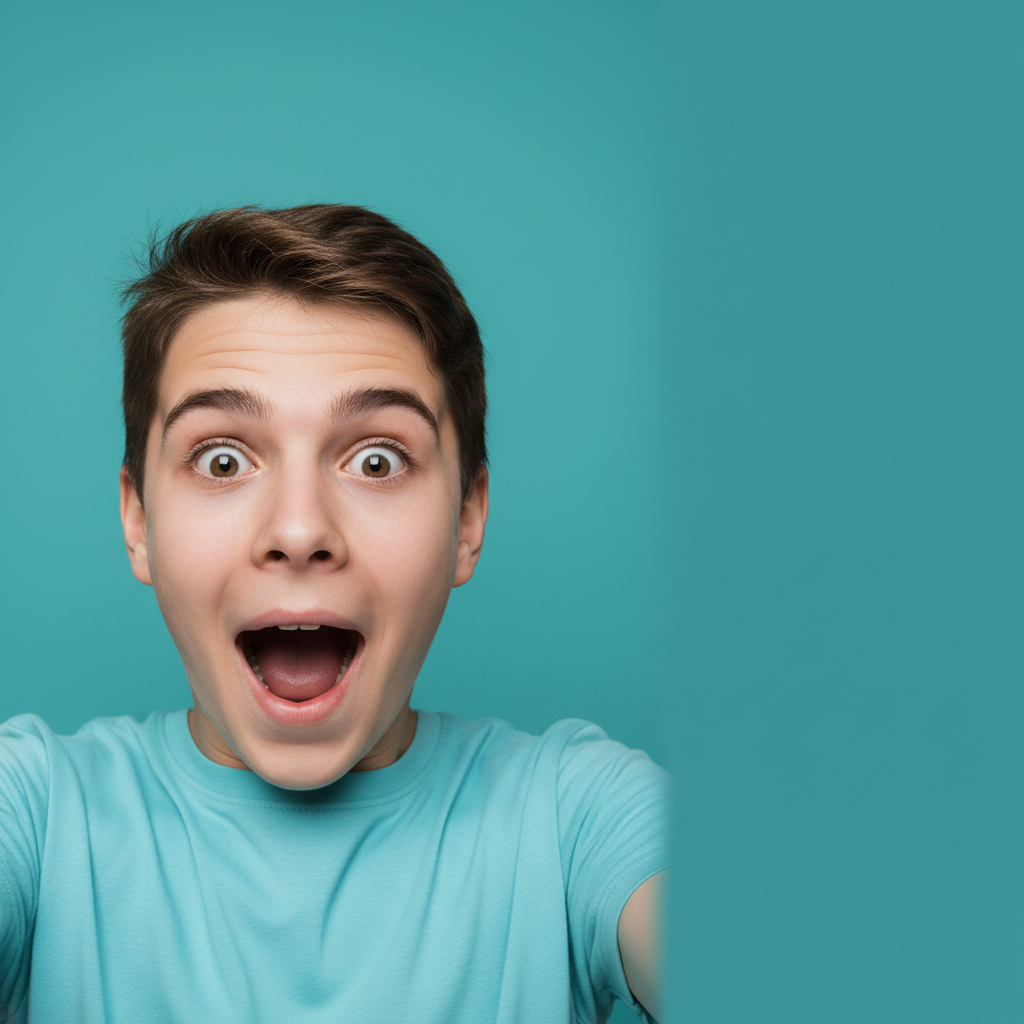
Flat video screenshot with dull colors and low contrast
Before
Same image with bold vivid colors and high contrast thumbnail look
After

AI Thumbnail Maker

Drop your photo here

or click to browse

Release to upload

Free • No signup

Advertisement
Popular use cases:
  • YouTube thumbnail
  • video thumbnail maker
  • thumbnail design
  • YouTube CTR optimization
  • podcast cover photo
  • course thumbnail
  • video cover image
  • click-worthy thumbnail

Cost
Free No signup required
Time
Instant results in 15-30 seconds
Works on
Any device - browser, phone, tablet, desktop
Powered by
AI-powered photo editing
Scenario Prompt Time
Quick color boost boost contrast and colors for a bold thumbnail 20s
Subject-background separation brighten face, blur and darken background 30s
Full thumbnail optimization vivid colors, high contrast, sharp subject, blurred background 40s

How it works

  1. Upload your photo

    Drop your image into EditThisPic. JPG, PNG, WebP up to 7MB. Screenshots from your video, camera photos, or existing images all work. Landscape orientation (16:9) is ideal for YouTube thumbnails.

    Expect: Quick color and contrast boosts: 20-30 seconds. Full thumbnail-style transformation: 35-50 seconds and may need refinements.
  2. Describe the thumbnail style you want

    Type your instruction: 'make this a bold thumbnail with high contrast, vivid saturated colors, and the subject sharply in focus' or 'enhance the face to be brighter and add a dramatic background blur.' Be specific about contrast, color intensity, and focus. No marking needed—the AI understands thumbnail optimization naturally.

    Tip: Thumbnails are viewed at tiny sizes. Ask for 'high contrast' and 'vivid colors' to ensure your subject stands out even at 120px wide.

    Copy one of these to get started:

    Bold YouTube thumbnail make this a bold YouTube thumbnail with high contrast, vivid saturated colors, sharp subject, and slightly blurred background
    Face-focused reaction thumbnail brighten and sharpen my face dramatically, increase the contrast, blur the background heavily, make this look like a YouTube reaction thumbnail
    Tutorial or how-to thumbnail enhance this photo with clean professional lighting, crisp sharp details, and a slightly simplified background for a tutorial thumbnail
    Gaming thumbnail enhancement boost the colors to be extremely vivid and saturated, increase contrast dramatically, sharpen all details for a gaming thumbnail
    3 more prompts
    Podcast cover photo enhance this headshot with warm professional lighting, smooth subtle background, and slightly increased contrast for a podcast cover
    Dramatic before/after split enhance the right half of this photo to be bright, vivid, and polished while keeping the left half looking dull and unedited for a before-after thumbnail
    Vlog with cinematic feel give this photo a cinematic color grade with teal shadows and warm highlights, increase contrast, and sharpen the subject for a vlog thumbnail
  3. Preview at thumbnail size

    Shrink the result to thumbnail size in your browser to check if the subject is clearly visible, colors pop at small scale, and the image reads well at a glance. If it doesn't grab attention at thumbnail size, it won't work on YouTube.

  4. Refine with markers if needed

    If specific areas like the face brightness or background need different treatment, tap markers on those spots and regenerate. Most thumbnail edits work well on the first try without markers.

    Tip: Markers are for precision refinement only. Try without them first—you usually won't need them.
Try it free

AI Thumbnail Maker

Drop your photo here

or click to browse

Release to upload

Free • No signup

"My CTR jumped from 4% to 9% after I started running my thumbnail photos through this. The AI makes everything pop—brighter face, cleaner background, more contrast. Takes me 30 seconds per video now." @YouTubeGrowth_Danny

See it in action

Flat video screenshot with dull colors and low contrast
Before
->
Same image with bold vivid colors and high contrast thumbnail look
After

Flat video screenshot to click-worthy thumbnail

A bland video screenshot transformed into a bold, high-contrast thumbnail that pops at small sizes.

Prompt: make this a bold YouTube thumbnail with high contrast, vivid saturated colors, sharp subject, and slightly blurred background
Dark underexposed cooking photo with muted food colors
Before
->
Same cooking scene with bright professional lighting and vivid food colors
After

Dark cooking shot to vibrant food thumbnail

A dim kitchen cooking photo enhanced into a vibrant, appetizing thumbnail for a cooking channel.

Prompt: enhance this photo with clean professional lighting, crisp sharp details, and a slightly simplified background for a tutorial thumbnail
Advertisement

If something looks off

AI changed the wrong area or something I didn't want changed

Why: The AI couldn't determine exactly which area you meant from description alone. This happens when you want different treatments for subject versus background.

Try: Tap a marker on the specific area you want to change, then regenerate with the same prompt

Tip: Markers tell the AI 'I mean THIS area specifically.' Use them when description alone is ambiguous.

Colors look garish or oversaturated at full size

Why: Thumbnail optimization pushes colors hard, which can look excessive when viewed at full resolution. What works at 120px can look garish at 1920px.

Try: boost colors and contrast moderately for thumbnail use, keep it vivid but not cartoonish

Tip: Always preview at actual thumbnail size. What looks 'too much' at full size often looks perfect at 120px.

Subject doesn't stand out from background enough

Why: The subject and background have similar colors or contrast levels, making the thumbnail look flat even after enhancement.

Try: dramatically increase brightness on the subject's face and upper body, darken and blur the background behind them for maximum separation

Tip: Subject-background separation is the number one factor in thumbnail effectiveness. Prioritize this over everything else.

Image looks grainy or noisy after heavy enhancement

Why: Pushing contrast and color on low-resolution or compressed screenshots amplifies existing noise and compression artifacts.

Try: enhance colors and contrast while reducing noise and grain, keep the image clean and sharp

Tip: Start with the highest resolution source you can. A 1080p screenshot from your timeline beats a compressed export.

Thumbnail doesn't read at small size

Why: Too many details or subtle changes don't translate when shrunk to thumbnail size. Thumbnails need bold, simple visual statements.

Try: simplify the image with very high contrast, make the main subject extremely bright against a darker blurred background, bold simple look

Tip: The 3-second rule: if you can't identify what the thumbnail is about in 3 seconds at small size, simplify further.

Quick answers

Do I need to select the subject before describing the thumbnail edit?

No! Just describe what you want: 'make this a bold thumbnail with high contrast and vivid colors.' The AI automatically identifies the subject and enhances accordingly. Only use markers if you want very specific treatment—like brightening just the face while darkening everything else.

How do I make YouTube thumbnails without Photoshop?

Upload your photo or video screenshot to EditThisPic and describe the thumbnail look you want. Say 'bold high contrast with vivid colors' or 'brighten my face and blur the background.' The AI handles color grading, contrast, and focus adjustments automatically. No software to install, no design skills needed. Free and works in your browser.

Is there a free thumbnail maker that doesn't require an account?

Yes, EditThisPic is free to try with no account needed. Upload your image, describe the thumbnail style you want, and download the result. No watermarks on outputs. Works for YouTube, Vimeo, course platforms, and any video content.

What makes a good YouTube thumbnail?

High contrast, vivid colors, a clearly visible subject, and simplicity. The subject should pop against the background even at 120px. EditThisPic handles these optimizations with one prompt—describe the look and the AI adjusts contrast, color, focus, and separation automatically.

Ready to make thumbnails that get clicks?

Free to try. No signup required.

Try it free