How do I preview a ring from an Etsy or Poshmark listing?
Copy the listing title into the prompt: 'add [exact listing title] on the ring finger of my left hand.' For more accuracy, also open the listing photo in a new tab and describe key details — metal, stone size, setting style. EditThisPic generates a preview on your hand in 30 seconds. Works for Etsy, Poshmark, Mercari, Depop, eBay, Shopify jewelry stores, Amazon Handmade, Facebook Marketplace.
Can I preview engagement rings before proposing?
Yes. Upload a photo of her (or your) hand and prompt 'add a 1.5 carat round brilliant diamond solitaire in platinum on the ring finger.' Test 3-5 variations: round vs oval, solitaire vs halo, platinum vs yellow gold, different carat sizes. Many people do this before shopping to clarify style preferences. For the final decision, try on the real ring in-store.
What jewelry types work — diamonds, pearls, gold, silver?
All of them. The AI handles diamonds (all cuts: round, princess, cushion, emerald, oval, pear, marquise, radiant, asscher, heart), pearls (freshwater, Akoya, Tahitian, South Sea), colored gems (emerald, sapphire, ruby, amethyst, topaz, opal, turquoise), and metals (platinum, 10K/14K/18K/24K gold, sterling silver, rose gold, palladium, titanium, tungsten). Name what you want.
Can I preview different metals — yellow gold vs white gold vs platinum?
Yes. Run separate edits for each metal: first 'platinum setting,' then '18K yellow gold,' then '14K white gold,' then 'rose gold.' Each renders the same design in a different metal so you can compare. Platinum and white gold look similar but platinum reads slightly whiter; 14K and 18K yellow gold differ in warmth.
How accurate is the size rendering?
Scale accuracy depends on your reference photo. If you shoot your hand with a known-size object in frame (a coin, a pen), the AI calibrates well. Without a reference, scale is approximate — within 15-20% of real size. For big-purchase decisions, always verify with a physical try-on or paper ring-size guide.
Can I try on necklaces at different lengths?
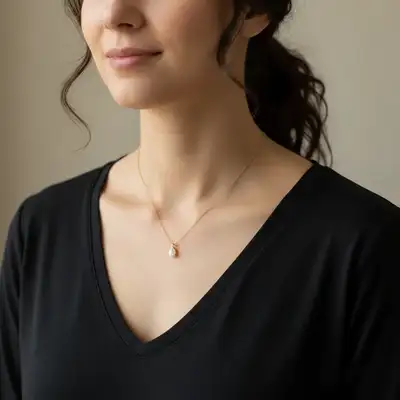
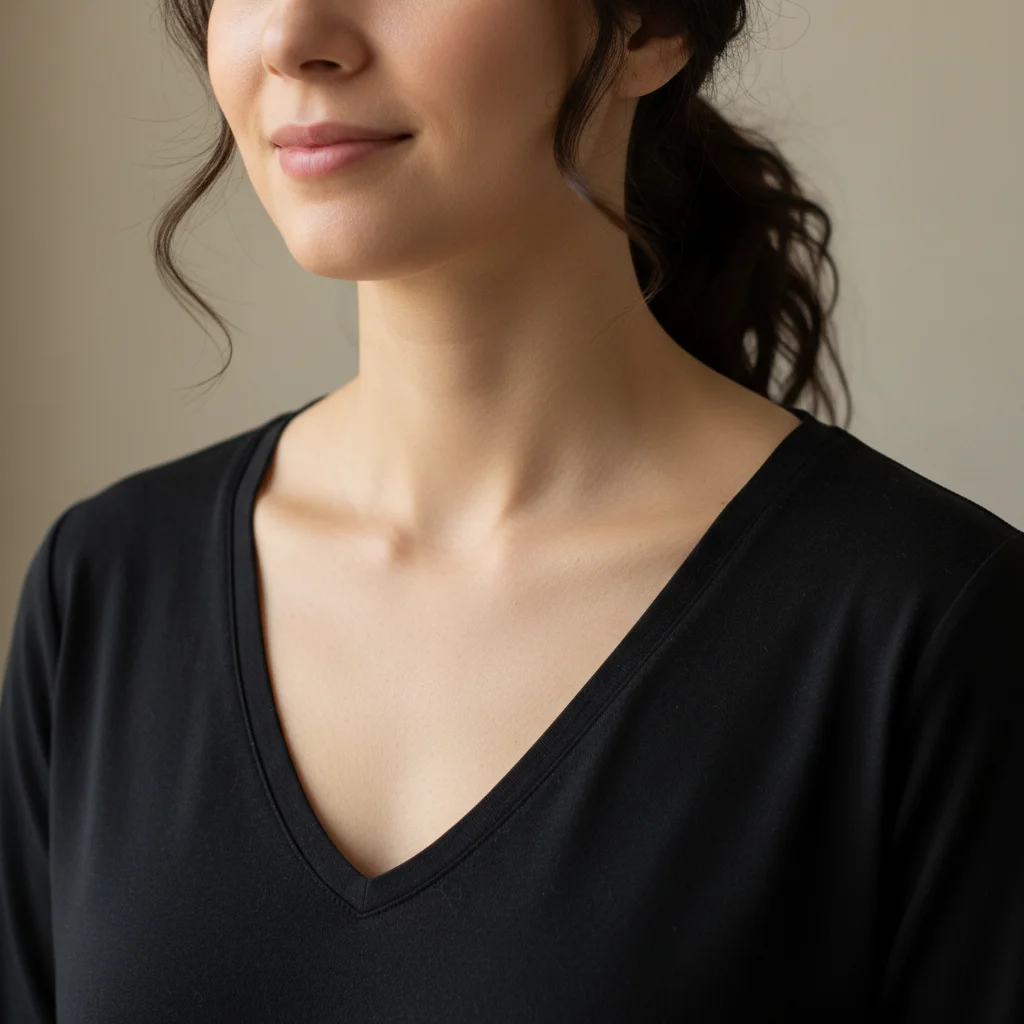
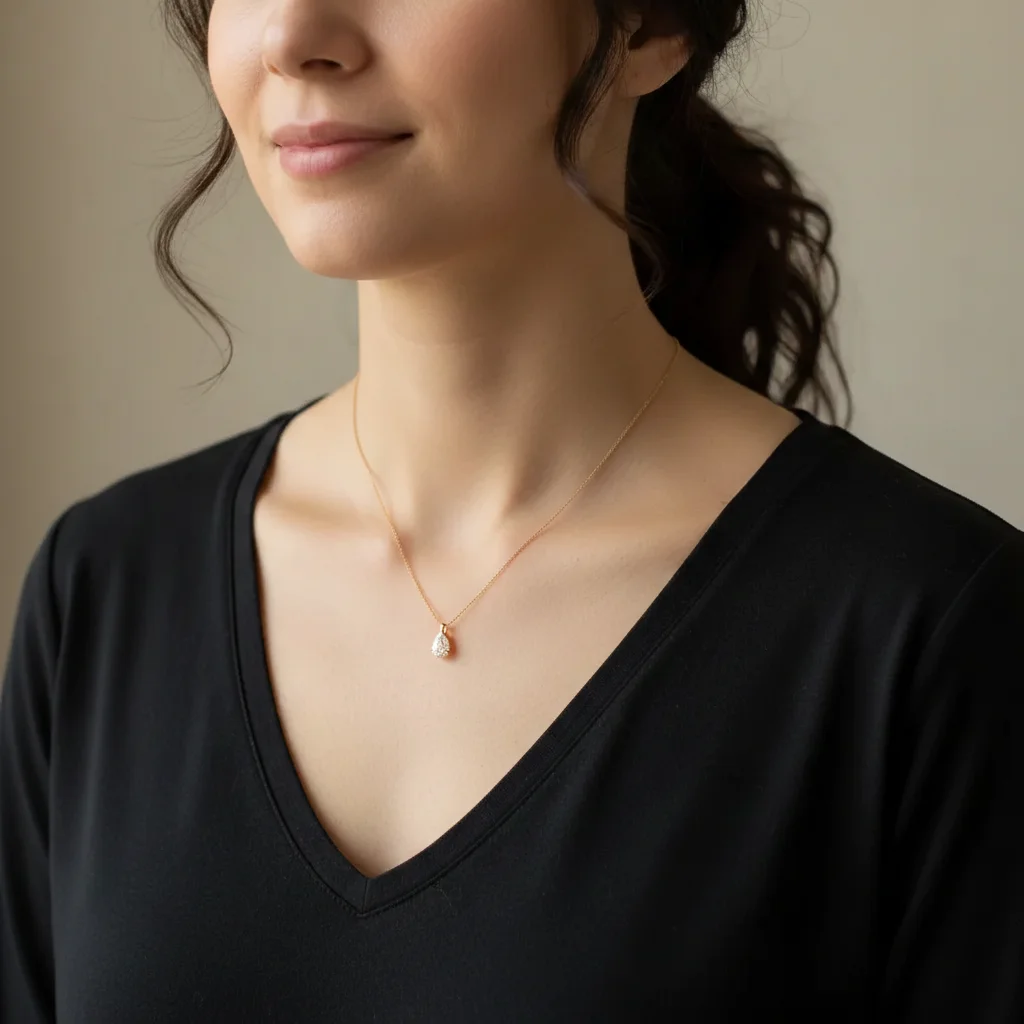
Yes. Necklace standard lengths: choker (14"), princess (18"), matinee (20-24"), opera (28-34"), rope (36"+). Specify the length in the prompt: 'add a 20-inch gold chain' or 'add a 36-inch opera-length pearl strand.' Pearl layering (2-3 strands of different lengths) also works if described explicitly.
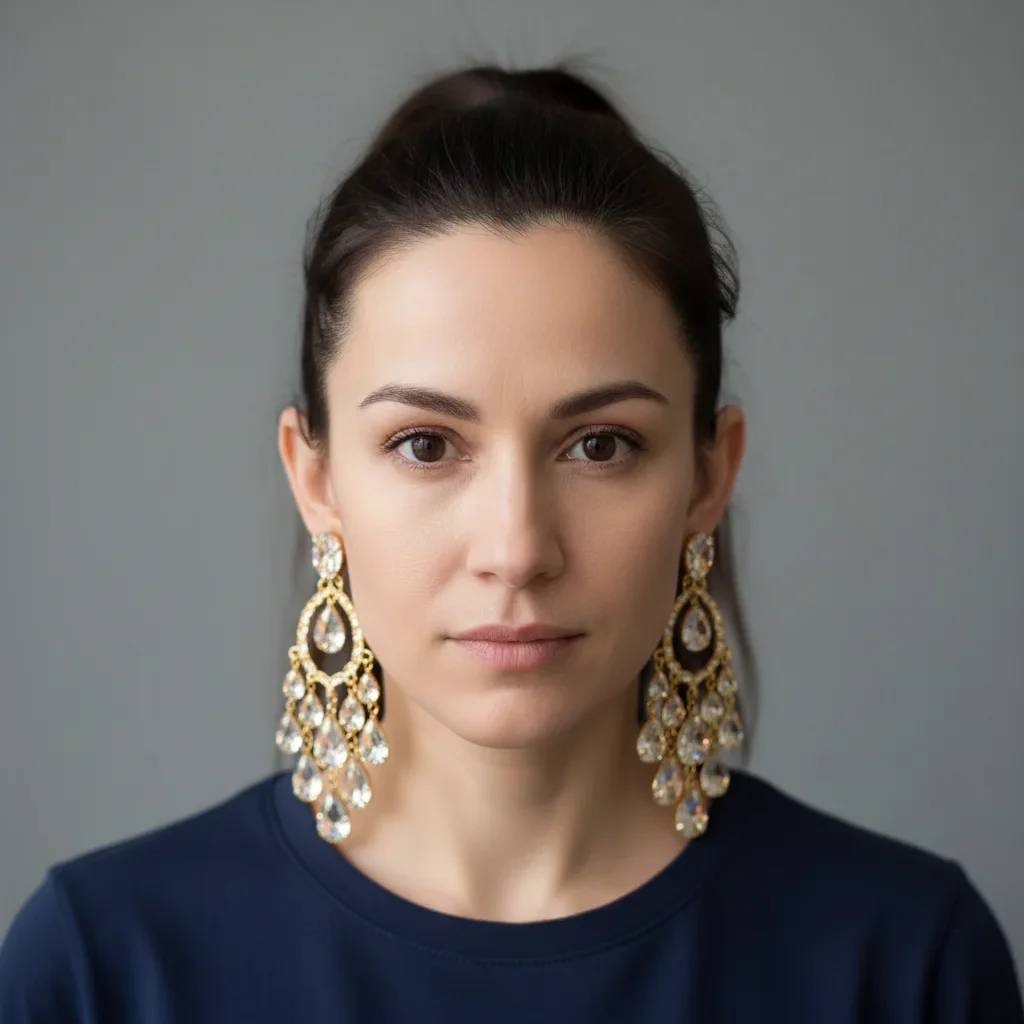
Does it work for earrings — studs, hoops, drops, chandeliers?
Yes for all earring styles. Studs (specify size — 4mm, 6mm, 8mm), hoops (huggie, small, medium, large, oversized), drop earrings (describe the drop length and components), chandelier (describe the tiers). For asymmetric looks (mismatched earrings), describe each side separately.
Can I preview bracelets or watches on my wrist?
Yes. Photograph your wrist from above and prompt 'add a gold tennis bracelet with round diamonds' or 'add a silver bangle with filigree detail.' For watches, specify the case size (38mm, 42mm), band material (leather, metal mesh, Milanese, rubber), and face style. See our dedicated bracelet and watch try-on pages.
Is it safe to upload my photos for jewelry try-on?
Yes. EditThisPic processes photos privately and does not store your uploads long-term. No account is required, which means no photos are associated with a login. If privacy is a priority, crop the photo to just the relevant area (hand, ear, neck) before uploading — the AI still renders jewelry accurately from partial shots.
Can a jeweler or designer use this with their client's photo?
Yes — this is a major use case. Custom jewelry designers ask clients for a clean hand or neck photo, then generate 3-5 design variations for the client to pick from before cutting stones or casting metal. Saves hours of CAD rendering for mid-commitment pre-visualization. For a custom $5K+ ring, the preview is a persuasion tool, not a final spec.
Will the try-on work on AI-generated or stock photos?
Technically yes, but don't buy jewelry based on an AI-photo-plus-AI-preview combo — errors compound. Always preview on a real photo of the actual person who will wear it. Stock photos work for marketing mockups (showing designs on generic hands for an Etsy listing), but not for purchase decisions.
How much does EditThisPic cost?
You get 1 free edit per week — no account needed. After that, one-time credit packs start at $4.99 for 10 edits, valid 12 months, no subscription. Power users who edit daily can pick Studio Membership, a monthly workspace at $49.99/mo for 300 edits. Purchased downloads are clean with no watermark.