AI Photo Editor for Diwali Photos
Last updated
Make your Diwali memories glow as bright as the festival itself.
Drop your photo here
"brighten all faces while keeping the warm golden glow of the diyas and candles"
Release to upload
How to Edit Diwali Photos
-
Upload your Diwali photo
Drop your festival photo into EditThisPic. Diya arrangements, rangoli designs, puja ceremonies, fireworks, family gatherings, and outfit portraits all work. JPG, PNG, WebP up to 7MB.
Lighting enhancement: 15-20 seconds. Color enhancement: 20-25 seconds. -
Describe your edit
Type what you want: 'brighten faces while keeping the warm diya candlelight' or 'make the rangoli colors vivid and saturated' or 'enhance the fireworks against the night sky.'
For diya-lit photos, try 'brighten faces while preserving the warm golden glow of the diyas' to keep the festive atmosphere. -
Review and share
Check that the festive spirit shines through. Download for social media, family sharing, or printing.
Best Prompts for Diwali Photos
brighten all faces while keeping the warm golden glow of the diyas and candles
Diya-lit photos need face brightening without losing the warm festival light
enhance the rangoli colors to be vivid, saturated, and true to life
Phone cameras desaturate the vibrant powder colors that make rangoli stunning
brighten the puja scene with warm lighting, keep the sacred atmosphere
Brightening puja photos while preserving reverence requires warm tones
enhance the fireworks brightness and colors, brighten the people watching
Fireworks photos often underexpose the people in the foreground
Show more prompts
enhance the fabric colors and embroidery detail, add soft warm portrait lighting
Traditional lehenga, saree, and sherwani details deserve to be seen clearly
enhance the lighting on the decorations, make fairy lights glow and flowers pop
Diwali home decorations often include fairy lights that get washed out in photos
Diwali Photo Transformations
Diya ceremony faces brightened
Family gathered around diyas with faces now beautifully illuminated while preserving the warm candlelight glow.
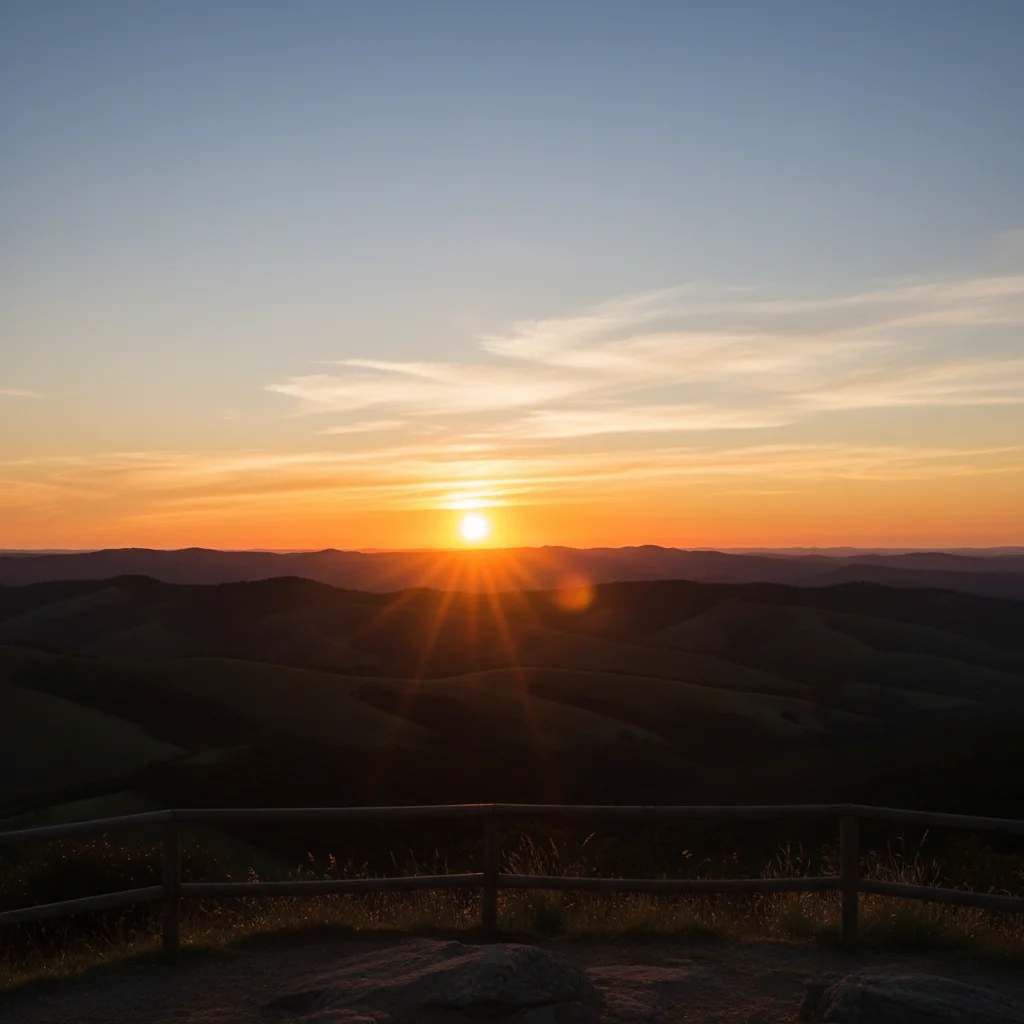
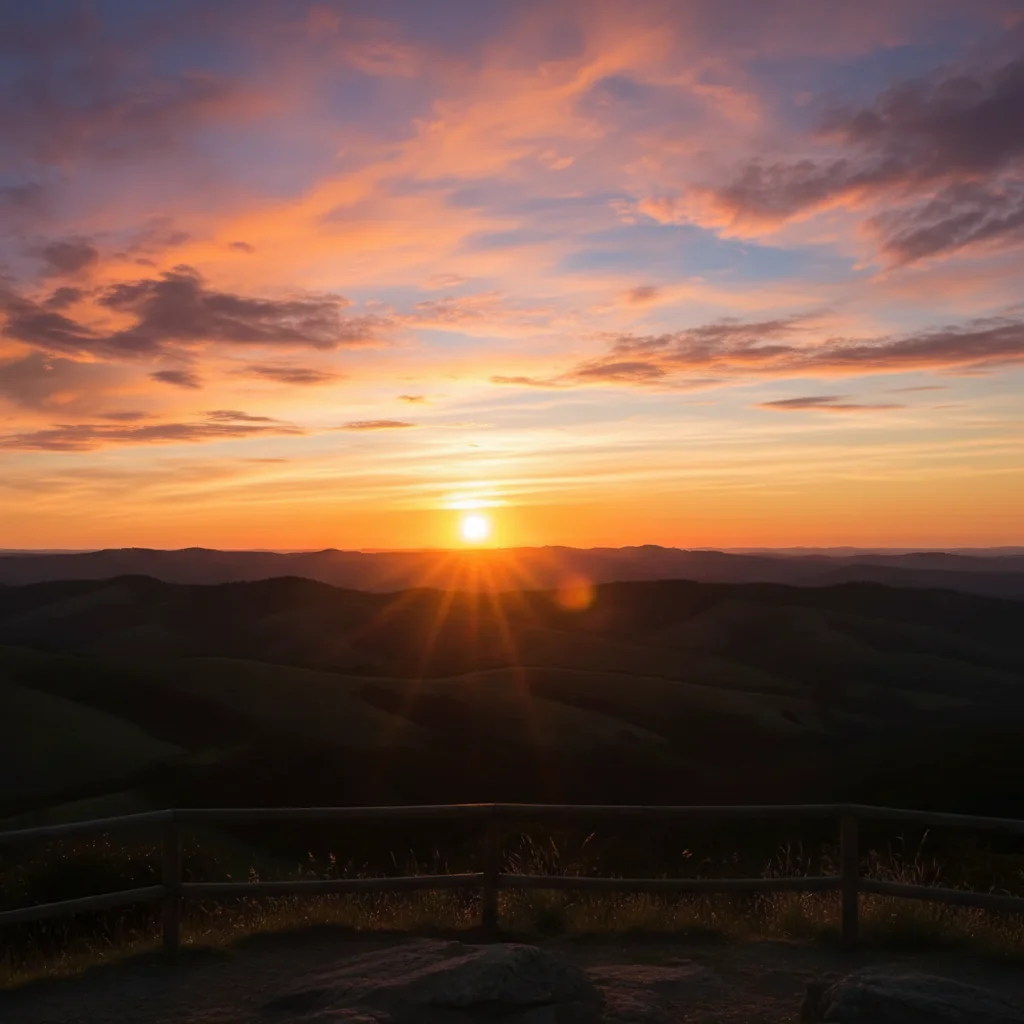
Rangoli colors enhanced
Beautiful rangoli design with faded colors transformed into a vibrant, true-to-life representation.
Common Issues
Brightening the photo killed the warm diya glow
Why: AI added neutral white light instead of preserving warm candlelight
brighten only the faces, keep the warm golden candlelight atmosphere everywhere else
'Only faces' tells the AI to leave the beautiful warm diya lighting untouched
Rangoli color boost made the floor look unnatural
Why: Color enhancement affected the surrounding floor too
Specifying 'only the rangoli' prevents color changes bleeding into other areas
Fireworks look overprocessed and fake
Why: AI over-enhanced the light trails
Fireworks need subtle enhancement - overdoing it creates an artificial look
Frequently Asked Questions
How do I fix dark Diwali diya photos?
Type 'brighten faces while keeping the warm golden glow of the diyas.' The AI brightens people without losing the beautiful candlelight atmosphere that makes Diwali photos special.
Can I make rangoli colors more vibrant in photos?
Yes! Type 'enhance rangoli colors to be vivid and saturated.' Phone cameras wash out the vibrant powder colors. The AI restores them to match what you see in person.
How do I edit Diwali fireworks photos?
Type 'enhance fireworks brightness and brighten people in the foreground.' This brings out firework detail while making sure the people watching are also visible.
Can I enhance traditional outfit details in photos?
Yes! Type 'enhance fabric colors and embroidery detail.' The AI brings out the intricate details of lehengas, sarees, and sherwanis that phone cameras miss.
How do I brighten indoor puja ceremony photos?
Type 'brighten the puja scene with warm lighting.' The AI adds light while preserving the sacred, warm atmosphere of the ceremony.
Is this Diwali photo editor free?
Yes - you get 1 free edit per week, no account needed. Plans start at $4.99/month for 15 edits.
Can I edit Diwali photos on my phone?
Yes. EditThisPic works in any mobile browser - iPhone, Android, tablet. No app download needed.
Popular use cases
Ready to edit your photos?
Free to try. No signup required. Festival-worthy results in seconds.
Upload Your PhotoTrusted by 15,000+ users