Free • No signup Merge Team headshots into group · Free

Merge Team Headshots into Group Photo

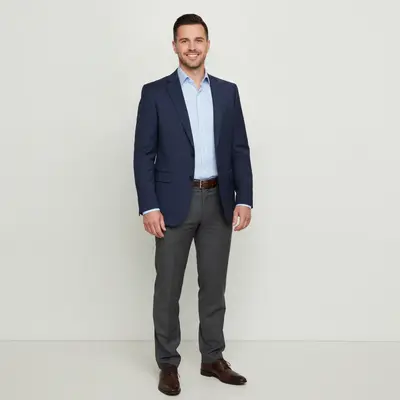
Upload a team background and individual headshots. AI composites them into one group photo.
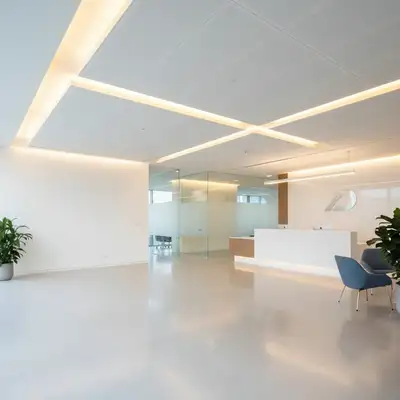
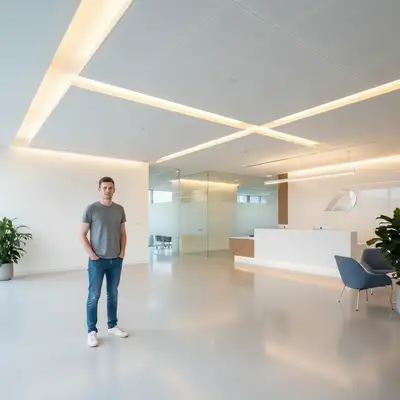
Empty corporate office lobby with space for team members
Before
Professional team photo with five employees composited into office lobby
After

Merge Team Headshots into Group Photo

Drop your photo here

or click to browse

Release to upload

Free • No signup

Popular use cases:
  • merge team headshots into group photo
  • combine employee headshots
  • corporate team photo composite
  • remote team group photo
  • company website team photo
  • headshot to group photo AI
  • team photo from individual headshots

Cost
Free No signup required
Time
Instant results in 15-30 seconds
Works on
Any device - browser, phone, tablet, desktop
Powered by
AI-powered photo editing
Scenario Prompt Time
First person on background place this person from the reference on the left side, match the lighting 30s
Add next team member add this person from the reference to the right of the existing group, same scale 30s
Remote team member extract this person and place them in the group, color-correct to match 45s
Final harmonization pass harmonize color temperature and lighting across all people in this photo 20s

How it works

  1. Upload your team background

    Upload the photo that will be the foundation of your team photo. This could be an office lobby, conference room, outdoor setting, or a clean studio backdrop. This is where team members will be placed. JPG, PNG, WebP up to 7MB.

    Expect: Each person takes 30-60 seconds to composite. A 5-person team photo may need 3-5 minutes total with refinements.
  2. Add a headshot and describe placement

    Click '+ Add reference image' and upload one team member's headshot. Then type your instruction: 'place this person from the reference on the left side of the group, match the office lighting and scale to the other people.' Be specific about position, scale, and lighting direction. The AI extracts the person and composites them into the scene.

    Tip: Start from the edges and work inward. Place people at the far left or right first, then fill the middle. This prevents overlap issues.

    Copy one of these to get started:

    First person placement on office background Place this person from the reference photo on the left side of the office scene, match the indoor lighting and scale them to look like they're standing naturally in the room
    Adding next person beside existing team Add this person from the reference photo standing to the right of the existing team member, same height and lighting, professional posture
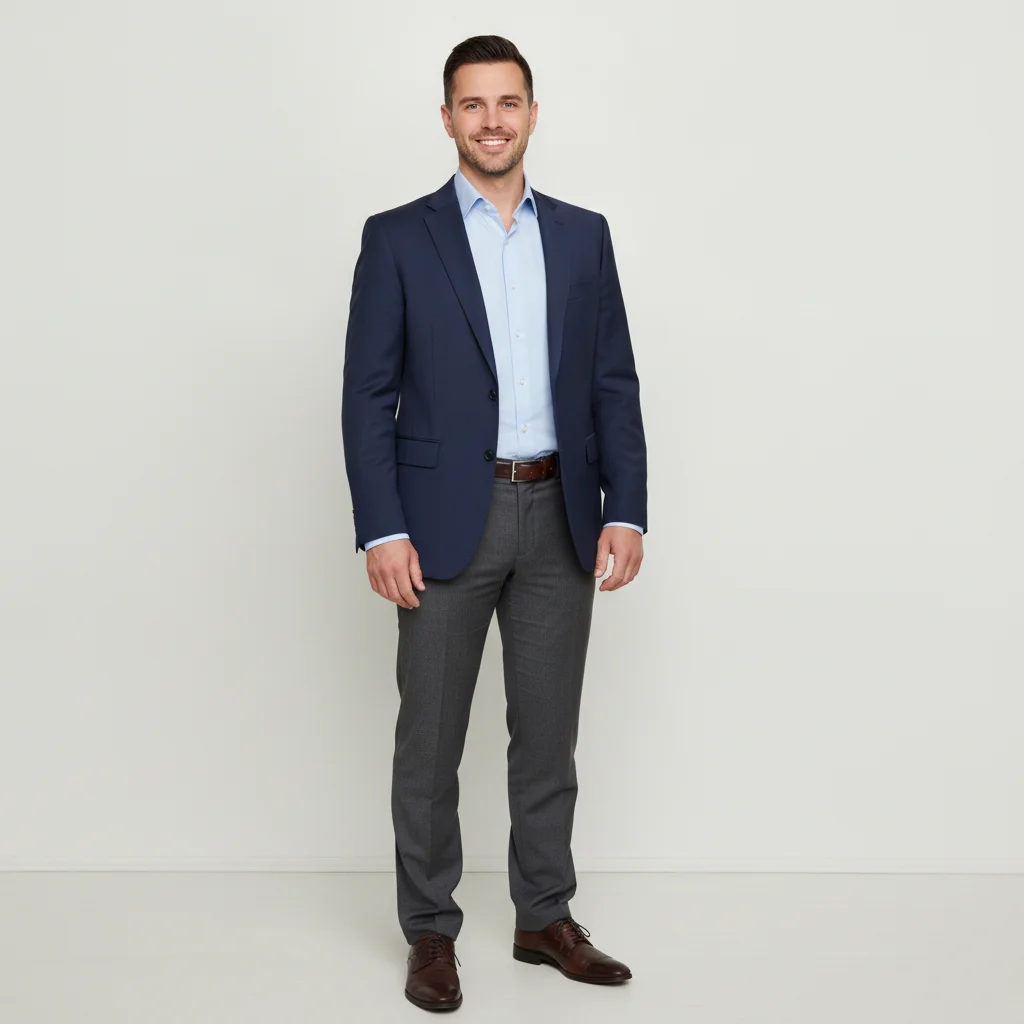
    Corporate headshot on white background Composite this person from the reference headshot into the center of the group photo, blend their lighting to match the studio backdrop, keep their professional attire visible from waist up
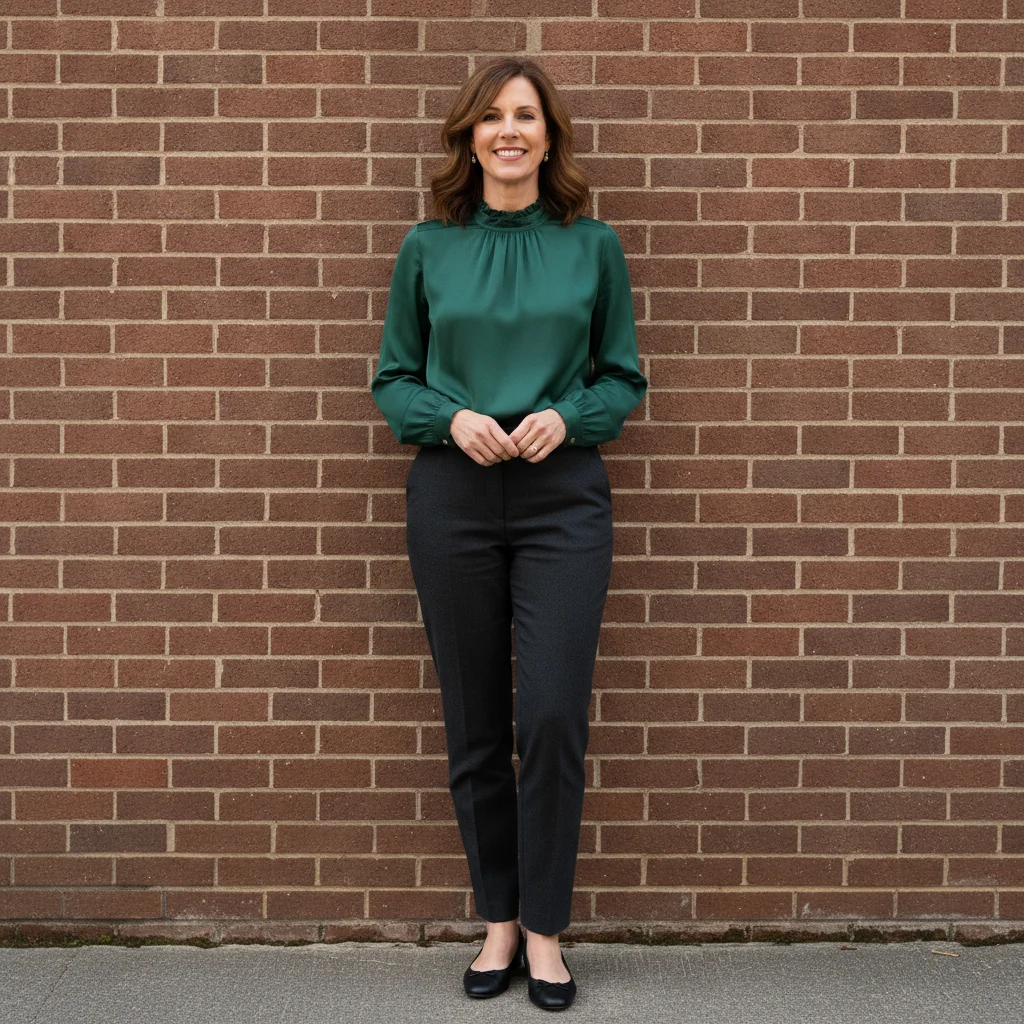
    Remote team with mismatched backgrounds Extract this person from the reference photo and place them into the team photo on the right end, color-correct their skin tone and lighting to match the rest of the group
    4 more prompts
    Building a two-row team layout Place this person from the reference in the back row of the group, slightly behind and between the two front-row people, scale down slightly to show depth
    Matching formal business attire look Add this person from the reference headshot into the group photo, match the formal business attire tone and professional studio lighting of the other team members
    Outdoor team photo composite Place this person from the reference photo into the outdoor team shot standing at the right end, match the natural daylight and add a subtle ground shadow
    Final group color harmonization Harmonize the color temperature and lighting across all people in this team photo so they look like they were photographed together in the same room
  3. Review and repeat for each person

    Check that the composited person looks natural. Verify lighting direction, shadow consistency, and scale relative to the scene. Save the result and use it as the new base photo. Upload the next headshot as the reference and repeat the process for each team member.

  4. Refine with markers if needed

    If edges look rough or a person appears at the wrong size, tap markers on the problem area and describe the fix. Common refinements include edge softening, shadow adjustment, and color temperature matching between composited people.

    Tip: Markers are optional. Try without them first. Use them when edges between the headshot cutout and background need cleanup.
Try it free

Merge Team Headshots into Group Photo

Drop your photo here

or click to browse

Release to upload

Free • No signup

"Our remote team is spread across 4 time zones. Combined everyone's headshots into one group photo for the company website in under 10 minutes." @HRDirector_Sarah

See it in action

Empty corporate office lobby with space for team members
Before
->
Professional team photo with five employees composited into office lobby
After

Corporate team photo from individual headshots

Five employees photographed separately in different offices. All composited into one professional team photo against an office lobby background.

Prompt: Place this person from the reference photo on the left side of the office lobby, match the indoor lighting direction and scale them to look like they're standing naturally at full height
Outdoor courtyard with brick wall and empty space for team
Before
->
Four remote team members composited into courtyard for website photo
After

Remote team assembled for company website

Remote team members across three time zones composited into one unified group photo for the About page.

Prompt: Add this person from the reference standing to the right of the existing team, match the outdoor lighting and color temperature, professional pose
White studio backdrop ready for team photo composite
Before
->
Three marketing team members composited on white studio backdrop
After

Marketing team headshots for campaign materials

Individual LinkedIn-style headshots combined into a single group layout for a marketing brochure.

Prompt: Composite this person from the reference headshot into the center of the group on the clean white backdrop, blend lighting to match the studio setup, waist-up framing

Detailed Guides by Scenario

📷

Corporate Websites & About Pages

Build professional team photos for company websites when scheduling an all-hands photo shoot isn't practical. Especially useful for distributed and hybrid teams.

Common Scenarios

  • Creating an About page team photo from individual employee headshots
  • Updating the team page when new hires join without reshooting the entire group
  • Building department-specific group photos from existing headshot libraries

Best Practices

  • Use a consistent background that matches your brand aesthetic: office interior, outdoor campus, or clean studio backdrop
  • Start placement from the edges and work inward to avoid overlap issues
  • Run a final color harmonization pass so all team members look consistently lit
📷

Marketing Materials & Brochures

Create polished team composites for brochures, pitch decks, investor materials, and trade show displays without coordinating schedules for a photo shoot.

Common Scenarios

  • Building a leadership team photo for investor presentations
  • Creating team composites for trade show booth displays and banners
  • Assembling project team photos for client-facing proposal documents

Best Practices

  • Use high-resolution headshots (1000x1000 pixels minimum) for print-quality output
  • Match formal attire tone across the composite: specify 'professional business attire' in prompts
  • Use a studio white backdrop for maximum flexibility in marketing layouts
📷

Remote & Distributed Teams

Assemble team photos for fully remote companies where team members have never been in the same room. Combine headshots from different cities, countries, and time zones into unified group images.

Common Scenarios

  • Creating the first-ever team photo for a fully remote company
  • Building org chart visuals that show teams as unified groups rather than isolated headshots
  • Assembling all-hands group photos for remote company newsletters and Slack announcements

Best Practices

  • Ask all team members to submit headshots with similar framing: shoulders up, neutral background
  • Choose a virtual background that feels authentic: modern office, outdoor courtyard, or branded backdrop
  • Process one person at a time and save intermediate results as new base photos

If something looks off

AI changed the wrong area or something I didn't want changed

Why: The AI couldn't determine exactly which area you meant from description alone. This happens with ambiguous requests like 'add person here' without specifying a clear position.

Try: Tap a marker on the specific spot where you want the person placed, then regenerate with the same prompt

Tip: Markers tell the AI 'I mean THIS spot specifically.' Use them when description alone is ambiguous about position.

Composited person looks pasted on with visible edges

Why: The headshot background wasn't cleanly separated, or lighting direction doesn't match the base photo.

Try: Add this person from the reference photo, blend edges seamlessly, soften the outline, and match the lighting direction from the background photo

Tip: Headshots on plain white or grey backgrounds produce the cleanest cutouts. If the headshot has a busy background, mention 'extract only the person' in your prompt.

Person is the wrong size relative to others in the group

Why: The AI estimated scale incorrectly because the headshot was cropped differently than the base photo.

Try: Regenerate and specify 'scale this person to match the height and proportions of the other people already in the photo'

Tip: Reference an existing person: 'same height as the person on the left' gives the AI a concrete scale target.

Skin tones and color temperature don't match across team members

Why: Each headshot was taken under different lighting with different white balance settings.

Try: Harmonize the skin tones and color temperature across all people in this photo so they look like they were shot together

Tip: Run a color harmonization pass as your final step after all people are composited. This evens out the differences from individually-shot headshots.

Shadows are inconsistent between composited people

Why: Each headshot had light coming from different directions, creating conflicting shadow angles.

Try: Unify the shadow direction for all people in this photo, light should come from upper left, add consistent ground shadows

Tip: Pick one lighting direction and specify it explicitly. 'Light from upper left' is the most common studio setup.

Person appears to be floating or not grounded in the scene

Why: The composite is missing a ground shadow or contact shadow where the person meets the floor.

Try: Add a natural ground shadow beneath this person's feet, matching the shadow direction and intensity of the rest of the scene

Tip: Always include 'add ground shadow' in your prompt when compositing full-body shots. This single detail makes the biggest difference in realism.

Quick answers

Do I need to mark where each person goes in the team photo?

No. Just describe the placement in your prompt: 'place this person on the left side' or 'add them to the right of the existing group.' The AI understands spatial positioning from natural language. Use markers only if the AI places someone in the wrong spot and you need to point to the exact position.

How do I create a team photo from individual headshots?

Upload an office or studio background as your main photo. Click '+ Add reference image' and upload one headshot. Type 'place this person from the reference on the left side, match the lighting.' Save the result, use it as the new base, and repeat for each team member. Each person takes 30-60 seconds.

Is there a free tool to merge headshots into a team photo?

Yes. EditThisPic lets you composite headshots into team photos for free with no signup or watermark. Upload your background and a headshot, describe the placement, and download the result. One free edit per week, with credit packs starting at $1.99 for larger teams.

How does the AI match lighting between different headshots?

The AI analyzes the lighting direction, color temperature, and intensity in your background photo, then adjusts each composited person to match. For best results, include 'match the lighting' in your prompt. Headshots taken under similar conditions (all indoor or all outdoor) blend most naturally.

Can I merge more than two or three people into one team photo?

Yes. Add one person at a time: composite the first headshot, save the result, then use that result as the new base and add the next person. There's no limit to how many people you can add. Teams of 10-15 people work well with this iterative approach.

What resolution do the individual headshots need to be?

Higher resolution headshots produce better composites. At minimum, each headshot should be at least 500x500 pixels. Professional headshots at 1000x1000 or higher are ideal. The background photo should be the highest resolution image since it sets the overall quality of the final group photo.

Do all the headshots need to have the same background?

No. The AI extracts each person from their headshot regardless of the original background. Plain white, grey, or solid-color backgrounds produce the cleanest extraction, but the AI handles office backgrounds, outdoor shots, and even casual selfies. Just specify 'extract only the person' if the headshot background is busy.

How does this compare to hiring a Photoshop editor for team composites?

A professional Photoshop editor typically charges $50-200 for a team composite and takes 1-3 business days. EditThisPic delivers results in minutes for free. The AI handles edge blending, lighting matching, and shadow generation automatically. For high-stakes marketing materials, you can refine the result iteratively until it meets your standards.

Ready to build your team photo?

Free to try. No signup required.

Try it free