Free • No signup Merge Photos · Free

AI Photo Merger

Upload two photos, describe how to combine them. The AI handles the blending.
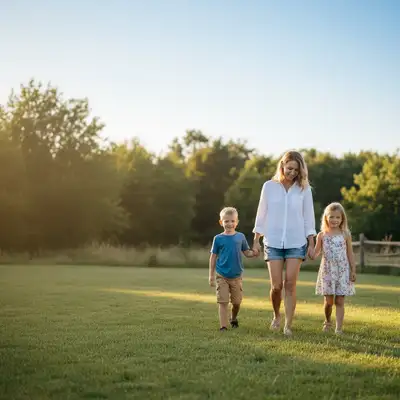
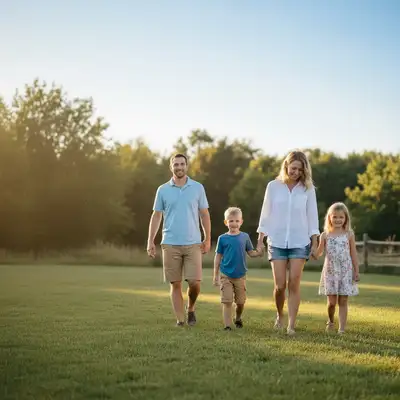
Family group outdoors with space on the left
Before
Complete family photo with dad merged in on the left
After

AI Photo Merger

Drop your photo here

or click to browse

Release to upload

Free • No signup

Popular use cases:
  • merge family photos
  • combine group photos
  • photo merger online
  • blend images together
  • put two photos together
  • combine photos free
  • photo composite tool

Cost
Free No signup required
Time
Instant results in 15-30 seconds
Works on
Any device - browser, phone, tablet, desktop
Powered by
AI-powered photo editing
Scenario Prompt Time
Add person to group add the person from photo 2 into photo 1, match lighting 30s
Double exposure create a double exposure effect blending photo 1 and photo 2 25s
Background swap keep person from photo 1, replace background with photo 2 25s

How it works

  1. Upload your base photo

    Drop the photo that will be the foundation - the background or main scene you want to add to. This becomes 'photo 1' in your prompt. JPG, PNG, WebP up to 7MB.

    Expect: Simple merges: 20-30 seconds. Complex composites with multiple elements: may need 2-3 refinements.
  2. Add the second photo

    Click '+ Add reference image' and upload the photo containing what you want to merge in - a person, object, or scene to blend. This becomes 'photo 2.' The AI will extract elements from this photo.

    Tip: Choose photos with similar lighting for the most natural merge. Outdoor + outdoor or indoor + indoor work best.

    Copy one of these to get started:

    Photo Merger + Add reference image — make it look natural and professional
    Combine two group photos merge the people from photo 2 into the right side of photo 1, blend edges naturally and match lighting
    Double exposure artistic effect create a double exposure effect blending photo 1 and photo 2, with photo 1 as the main subject
    Replace background keeping subject keep the person from photo 1 but replace the background with the scene from photo 2
    2 more prompts
    Blend best expressions replace the expression of the person in blue from photo 1 with their better expression from photo 2
    Product composite place the product from photo 2 onto the table in photo 1, add realistic shadow and match lighting
  3. Describe the merge

    Tell the AI how to combine them: 'add the person from photo 2 into photo 1 on the left side' or 'blend these photos together with a double exposure effect.' Be specific about what to take from each photo.

    Tip: Reference 'photo 1' and 'photo 2' explicitly so the AI knows which is the base and which is the source.

    Copy one of these to get started:

    Photo Merger + Add reference image — make it look natural and professional
    Combine two group photos merge the people from photo 2 into the right side of photo 1, blend edges naturally and match lighting
    Double exposure artistic effect create a double exposure effect blending photo 1 and photo 2, with photo 1 as the main subject
    Replace background keeping subject keep the person from photo 1 but replace the background with the scene from photo 2
    2 more prompts
    Blend best expressions replace the expression of the person in blue from photo 1 with their better expression from photo 2
    Product composite place the product from photo 2 onto the table in photo 1, add realistic shadow and match lighting
  4. Review and refine

    Check that edges blend naturally, lighting matches, and the composition looks right. If something looks off, describe the specific fix or use markers on problem areas.

Try it free

AI Photo Merger

Drop your photo here

or click to browse

Release to upload

Free • No signup

"My parents were in two different photos at the reunion. Merged them into one perfect family portrait in under a minute." @FamilyPhotoSaver

See it in action

Family group outdoors with space on the left
Before
->
Complete family photo with dad merged in on the left
After

Family members merged into one photo

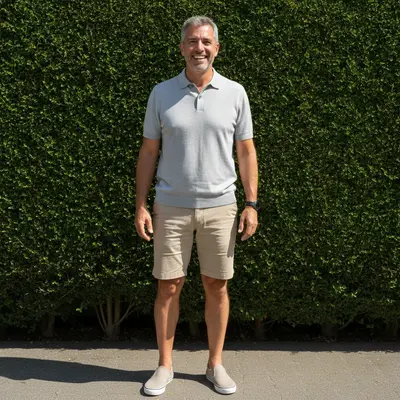
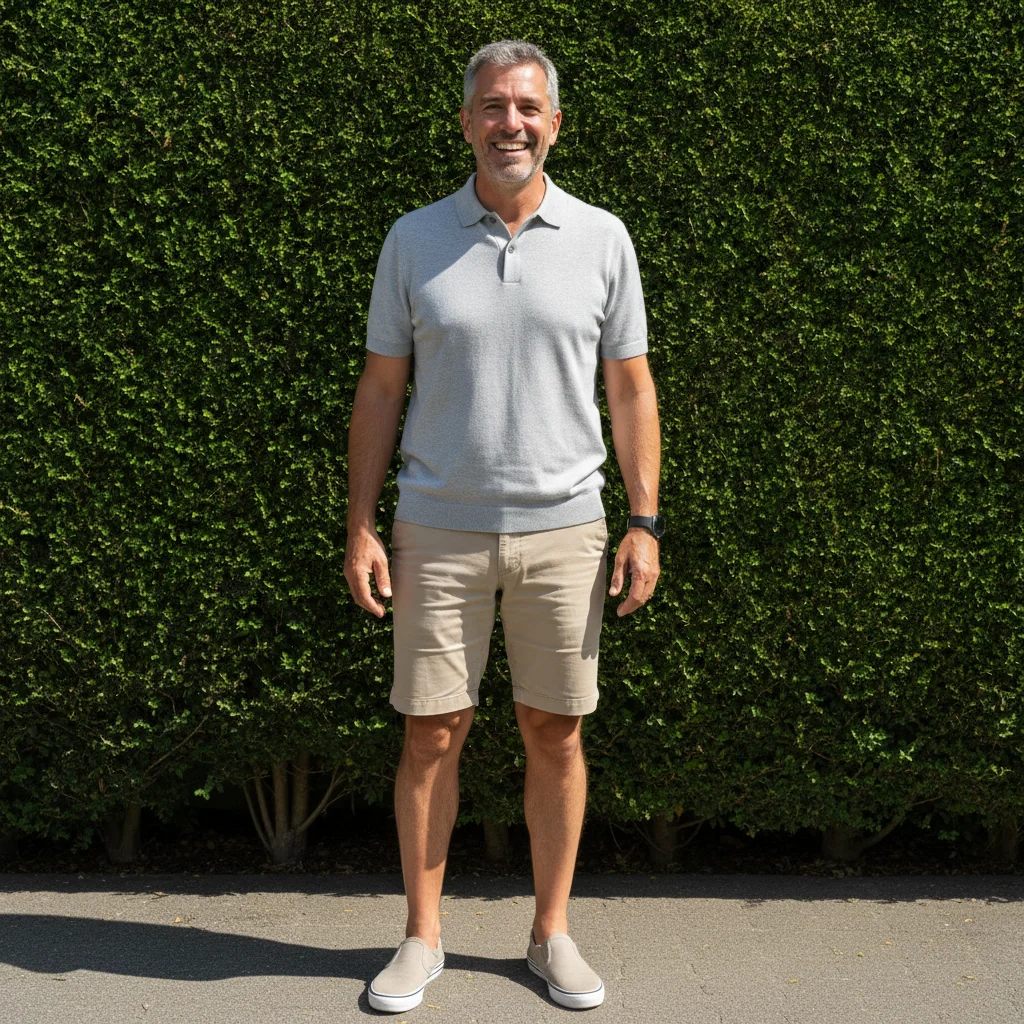
Dad couldn't make it to the family photo. Merged him from a solo shot into the group.

Prompt: add the man from photo 2 into photo 1 standing on the left side next to the group, match the lighting and scale naturally
Portrait of woman with plain background
Before
->
Artistic double exposure with forest blended into portrait
After

Double exposure portrait

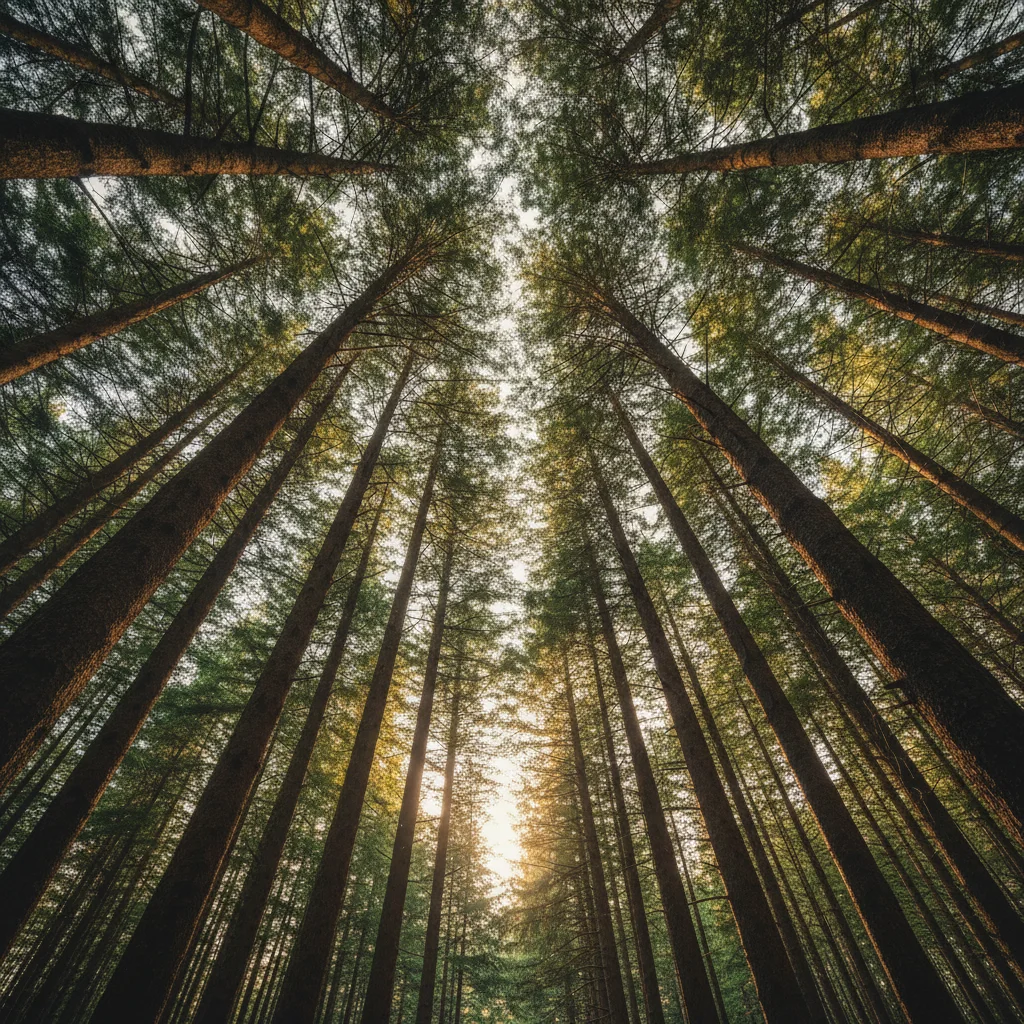
Created artistic double exposure by blending a portrait with a forest scene.

Prompt: create a double exposure effect blending the portrait from photo 1 with the forest trees from photo 2, artistic and dreamy
Empty marble countertop with warm lighting
Before
->
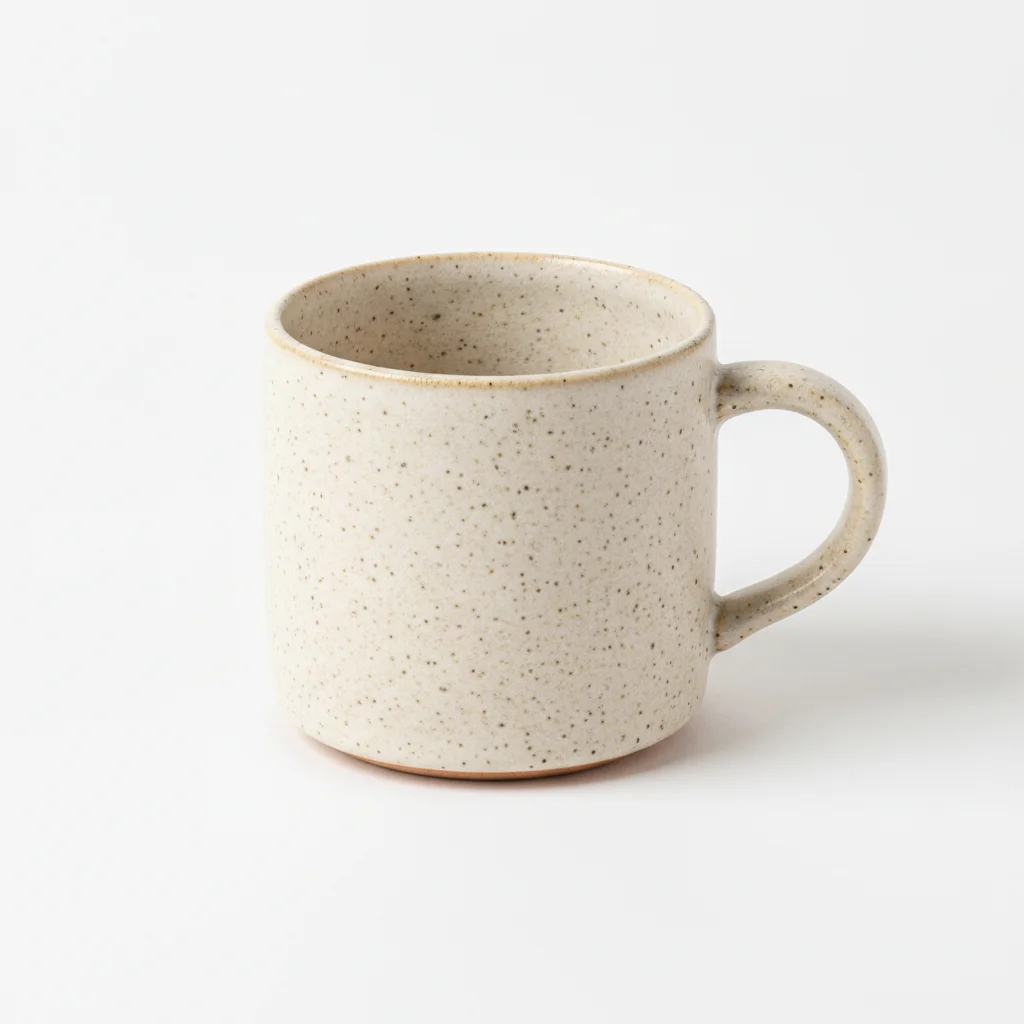
Coffee mug composited onto countertop with realistic shadow
After

Product placed in lifestyle scene

Took a product photo and placed it on a styled marble countertop background.

Prompt: place the coffee mug from photo 2 onto the marble countertop in photo 1, add realistic shadow, match the warm morning lighting

Detailed Guides by Scenario

📷

Family & Group Photos

Combine family members from different photos into one complete group portrait.

Common Scenarios

  • Adding someone who couldn't attend a family event
  • Combining the best expressions from multiple group shots
  • Creating memorial photos with loved ones who passed away

Best Practices

  • Use photos from the same day for matching clothing and lighting
  • Position added people at the edges of groups for natural placement
  • Describe clothing adjustments if needed to match the scene
📷

Creative & Artistic Effects

Create artistic effects like double exposures, dreamy overlays, and surreal composites.

Common Scenarios

  • Double exposure portrait blended with nature
  • Artistic overlay of two scenes
  • Surreal composite images

Best Practices

  • Describe the effect clearly: 'double exposure' or 'transparent overlay'
  • Specify which photo should be dominant
  • Experiment with different blending descriptions for unique results
📷

Product & E-commerce

Place products into lifestyle scenes for professional-looking e-commerce photos.

Common Scenarios

  • Placing a product onto a styled background
  • Creating lifestyle shots from studio product photos
  • Building mockups and preview images

Best Practices

  • Match perspective between product and scene photos
  • Add 'with realistic shadow' for grounded objects
  • Specify exact placement: 'on the table,' 'in the center'

If something looks off

Merged element looks pasted on, not natural

Why: The AI didn't properly blend edges or match lighting between the two photos.

Try: add the element from photo 2 into photo 1, blend edges seamlessly and match the lighting direction from photo 1

Tip: Explicitly mentioning 'blend edges' and 'match lighting' triggers more careful compositing.

Person/object is wrong size

Why: The scale between the two photos wasn't automatically adjusted.

Try: add the element from photo 2 into photo 1, scale to match the other people/objects in photo 1

Tip: Mention 'scale to match' or give relative size: 'should be same height as the person on the right.'

AI changed the wrong area or something I didn't want changed

Why: The AI couldn't determine exactly which area you meant from description alone.

Try: Tap a marker on the specific spot where you want the element placed, then regenerate with the same prompt

Tip: Markers tell the AI 'I mean THIS position specifically.' Use them for precise placement.

Wrong part of photo 2 was used

Why: The AI wasn't sure which element you wanted to extract from photo 2.

Try: Take ONLY the person from photo 2 and add it to photo 1, ignore everything else in photo 2

Tip: Be very specific: 'only the person,' 'just the dog,' 'the product in the center.'

Quick answers

Do I need to mark anything to merge photos?

No! Just describe what you want: 'add the person from photo 2 into photo 1 on the left.' The AI understands which elements to extract and where to place them. Use markers only for precise placement in complex scenes.

What is the best AI photo merger in 2026?

EditThisPic's AI Photo Merger is one of the best free options. It uses AI to extract subjects, match lighting, blend edges, and create seamless composites in 20-40 seconds. No signup, no watermark, works directly in your browser.

How do I merge two photos together with AI for free?

Upload your base photo to EditThisPic, click '+ Add reference image' to add the second photo, then describe how to combine them. The AI handles blending automatically. Free, no account required, no watermark.

Is there a free AI photo merger that doesn't require login?

Yes. EditThisPic requires no login, no signup, and no app download. Upload both photos in your browser, describe the merge, and download the combined result for free.

Can I merge people from different photos?

Yes! Upload the group photo as photo 1, then upload a photo of the person to add as photo 2. Describe 'add the person from photo 2 into photo 1.' The AI matches lighting and scale automatically.

Can AI combine photos without Photoshop?

Yes. EditThisPic uses AI to merge photos without any manual selection or Photoshop skills. Just describe what you want and the AI does all the complex compositing work automatically.

Can I use the AI photo merger on my phone?

Yes. EditThisPic works in any mobile browser. No app download needed. Upload both photos and describe how to merge them.

How is this different from a collage maker?

Collage makers place photos side by side in frames. EditThisPic actually merges photos together - extracting elements from one and seamlessly blending them into another. The result is one unified image, not separate photos in a grid.

Ready to edit your photos?

Free to try. No signup required.

Try it free