Free • No signup Place Product on background · Free

Place Product on Background from Photo

Upload your product photo + a reference scene. AI composites them with correct lighting and shadows.

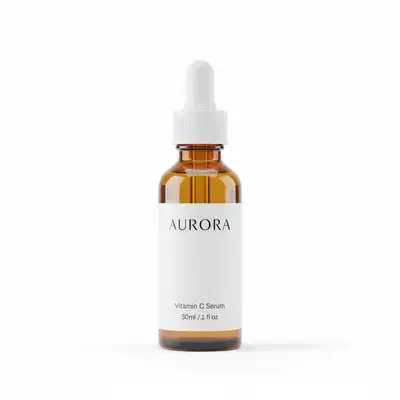
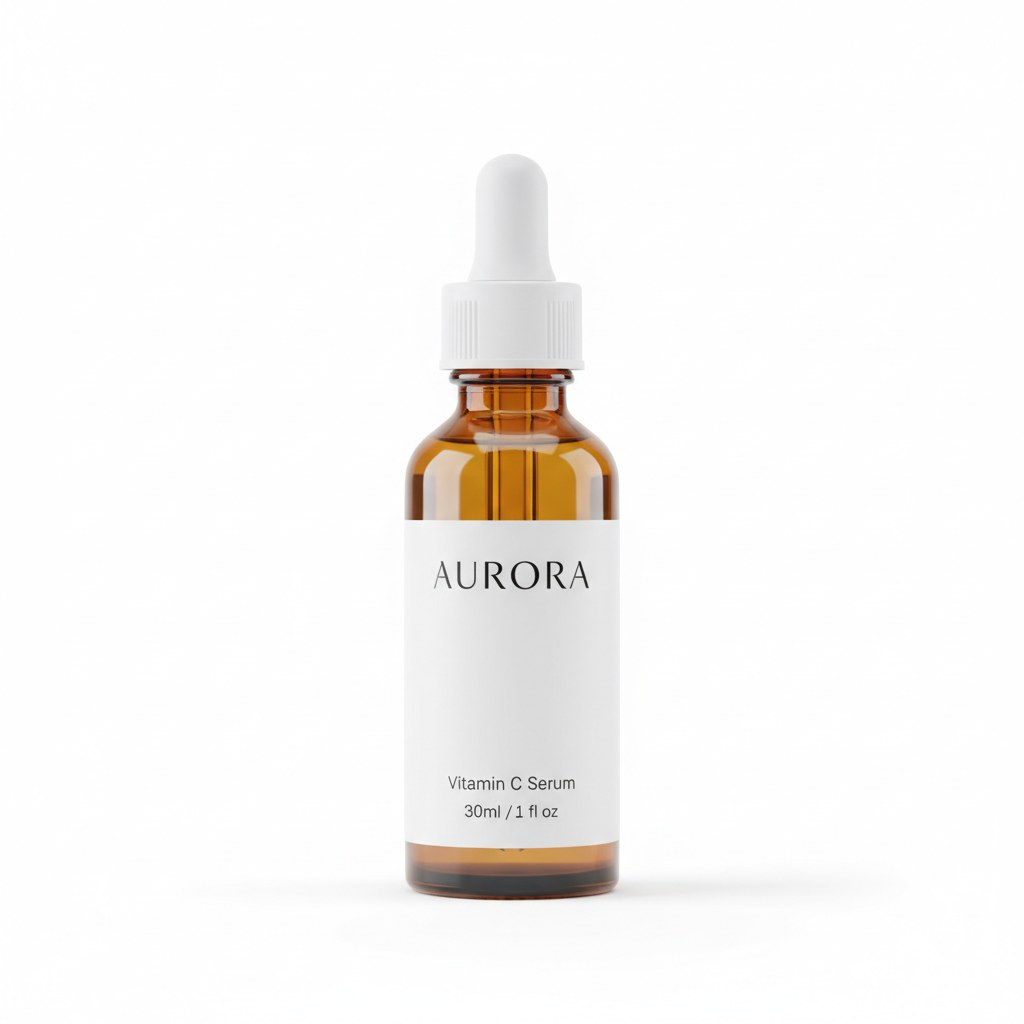
Amber glass serum bottle isolated on plain white background
Photo 1
+
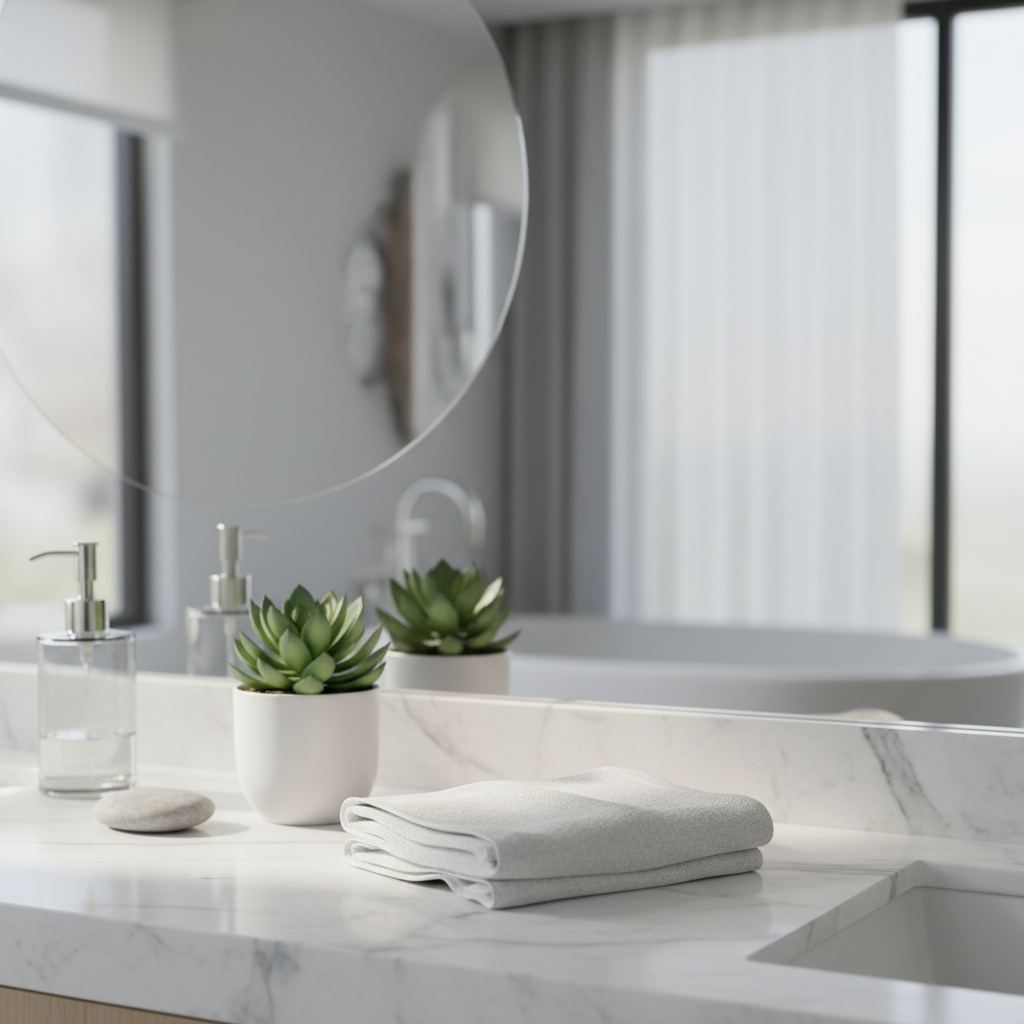
Reference image for Place Product on Background from Photo
Photo 2
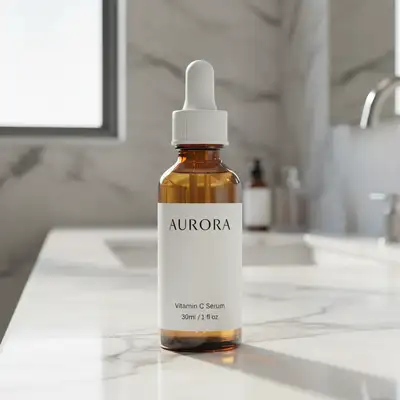
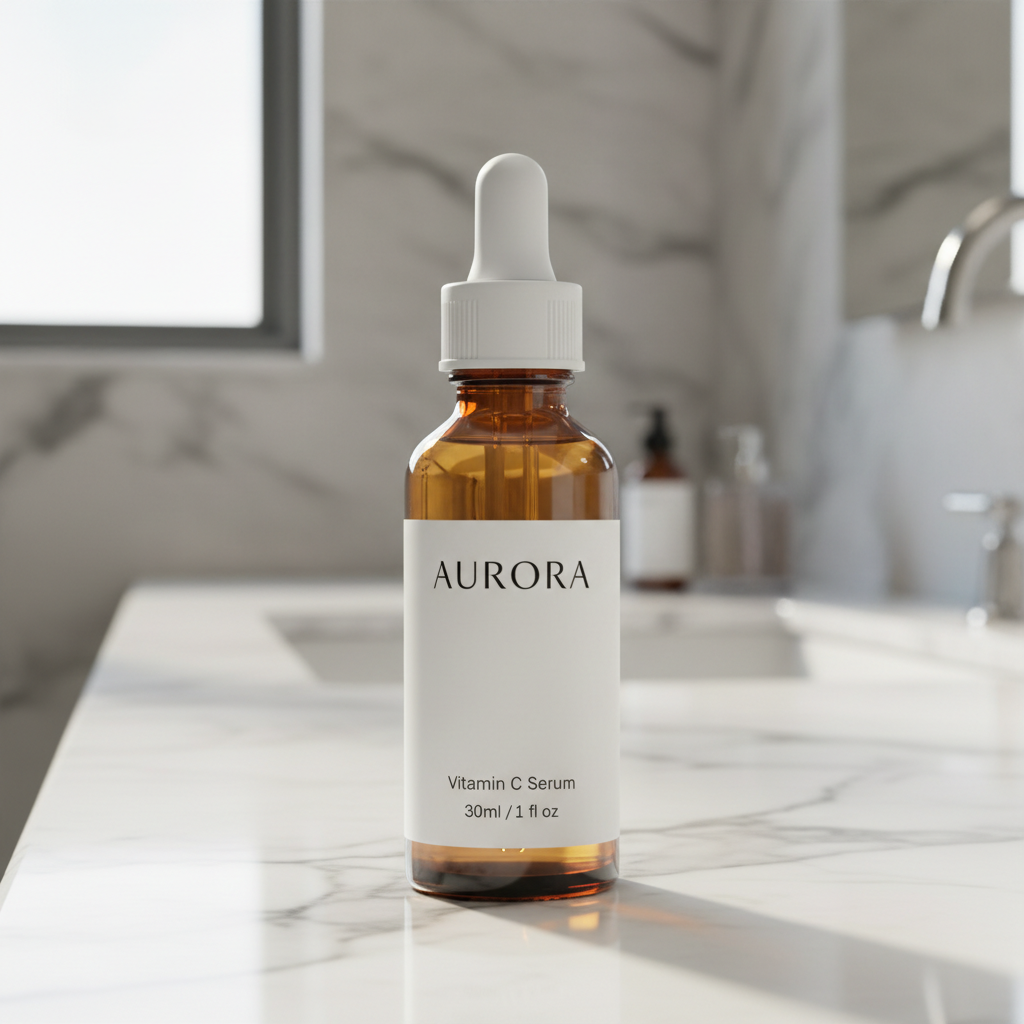
Serum bottle composited onto marble bathroom counter with natural window light and soft shadow
Result

Place Product on Background from Photo

Drop your photo here

or click to browse

Release to upload

Free • No signup

Popular use cases:
  • Amazon product lifestyle photo
  • Shopify product background
  • ecommerce product photo composite
  • product scene placement AI
  • product mockup from reference photo
  • lifestyle product photography AI
  • product photo background swap
  • Amazon FBA listing images
  • Etsy product styled photos
  • social media product ad creative
  • seasonal product campaign photos
  • product photo without photoshoot

1Your photo
+
2Reference
=
Result
Product on white background ready to composite Your product photo
Lifestyle scene to use as background reference Reference scene
Product composited naturally into lifestyle scene Result

"Place the product on the countertop in the foreground, with soft natural lighting from the left"

Cost
Free No signup required
Time
Instant results in 15-30 seconds
Works on
Any device - browser, phone, tablet, desktop
Powered by
AI-powered photo editing
Scenario Prompt Time
place product in foreground of reference scene, matching lighting, drop shadow on surface 30-45s
composite product center foreground, background softly blurred, scene lighting 30-45s
place product prominently in left foreground, dramatic lighting from reference scene 30-45s
place product on surface in festive scene foreground, warm ambient light, shadow on surface 45-60s

How it works

  1. Upload your product photo

    Drop your product image into EditThisPic. A clean white, gray, or plain background works best — the AI needs a clear product silhouette to extract and recomposite. JPG, PNG, or WebP up to 7MB. Studio shots and DIY lightbox photos both work well.

    Expect: Clean product on white background: 30-45 seconds for a natural composite. Textured or complex product backgrounds (wood, gradient): may need 2-3 refinements for clean extraction.
  2. Add your reference scene image

    Click '+ Add reference image' below the prompt box and upload the lifestyle scene photo you want the product placed into. This can be a room shot, outdoor setting, tabletop scene, or any contextually relevant environment. The AI uses this image directly as the background — no need to describe it from scratch.

    Tip: Use a reference scene with the lighting angle and mood you want. A reference image with natural light from the left will produce that same light wrapping your product.

    Copy one of these to get started:

    Place Product on Background + Add reference image — make it look natural and professional
    Product on wooden desk or table from reference composite the product onto the desk surface visible in the reference image, in the foreground center, with the same warm ambient lighting, a soft shadow on the wood, and slight surface reflection
    Product prominently placed for ad creative place the product in the foreground left of the reference scene, large and prominent, with the background naturally blurred behind it, lighting from the scene wrapping the product
    Outdoor or nature background from reference photo place the product on the flat surface in the outdoor reference scene, with bright natural sunlight from above, a hard shadow on the surface beneath it, and natural blending with the environment
    4 more prompts
    Premium product in luxury background composite the product into the reference scene as the central hero element, with dramatic side lighting matching the moody scene, a subtle gradient shadow, and seamlessly blended edges
    Multiple products or product with props in reference scene place the product in the center of the reference scene alongside the other items visible, scaled proportionally, with consistent lighting across all objects in the scene
    Seasonal or holiday scene placement place the product on the surface in the foreground of the festive reference scene, with warm ambient lighting from the scene, a soft shadow on the surface, and the holiday elements naturally surrounding it
    Product leaning or positioned at angle for visual interest place the product at a slight 15-degree angle in the left foreground of the reference scene, with lighting from the upper left matching the scene, and a natural shadow cast to the right
  3. Describe where and how to place the product

    Type your placement instruction: 'place the product in the foreground center, with soft natural light from the left, casting a subtle shadow on the surface.' Specify position (foreground, background, left/right), any scale adjustment, and how the product should interact with the surface (shadow, reflection, slight angle).

    Tip: Mention surface interaction for realism: 'with a soft drop shadow on the wooden surface beneath it' makes the product look grounded rather than floating.

    Copy one of these to get started:

    Place Product on Background + Add reference image — make it look natural and professional
    Product on wooden desk or table from reference composite the product onto the desk surface visible in the reference image, in the foreground center, with the same warm ambient lighting, a soft shadow on the wood, and slight surface reflection
    Product prominently placed for ad creative place the product in the foreground left of the reference scene, large and prominent, with the background naturally blurred behind it, lighting from the scene wrapping the product
    Outdoor or nature background from reference photo place the product on the flat surface in the outdoor reference scene, with bright natural sunlight from above, a hard shadow on the surface beneath it, and natural blending with the environment
    4 more prompts
    Premium product in luxury background composite the product into the reference scene as the central hero element, with dramatic side lighting matching the moody scene, a subtle gradient shadow, and seamlessly blended edges
    Multiple products or product with props in reference scene place the product in the center of the reference scene alongside the other items visible, scaled proportionally, with consistent lighting across all objects in the scene
    Seasonal or holiday scene placement place the product on the surface in the foreground of the festive reference scene, with warm ambient lighting from the scene, a soft shadow on the surface, and the holiday elements naturally surrounding it
    Product leaning or positioned at angle for visual interest place the product at a slight 15-degree angle in the left foreground of the reference scene, with lighting from the upper left matching the scene, and a natural shadow cast to the right
  4. Generate, review, and refine

    Check the lighting direction on the product matches the scene, the shadow looks natural, and the scale is proportionally correct. Zoom in to verify edge blending at the product boundary. If placement is off, use markers to tap the exact spot you want the product and regenerate.

    Tip: Markers are for precision, not required. Try without them first. Only tap a marker if the product keeps appearing in the wrong position.
Try it free

Place Product on Background from Photo

Drop your photo here

or click to browse

Release to upload

Free • No signup

"I saved $800 on a lifestyle photoshoot. Uploaded my product shot and a reference kitchen scene — the composite looks completely real. My Shopify conversion rate went up 22%." @FounderEcomm_Jake

See it in action

Amber glass serum bottle isolated on plain white background
Main Photo
Reference image for Place Product on Background from Photo
Reference
Serum bottle composited onto marble bathroom counter with natural window light and soft shadow
Result

Skincare serum composited into marble bathroom scene

An Amazon FBA seller placed their serum bottle (white background product shot) into a marble bathroom reference photo for A+ content. The result matched the ambient light and surface reflection perfectly.

Prompt: place the serum bottle in the foreground center of the marble bathroom counter from the reference image, with soft natural light from the left window, a subtle drop shadow on the marble surface, and a slight reflection beneath the bottle
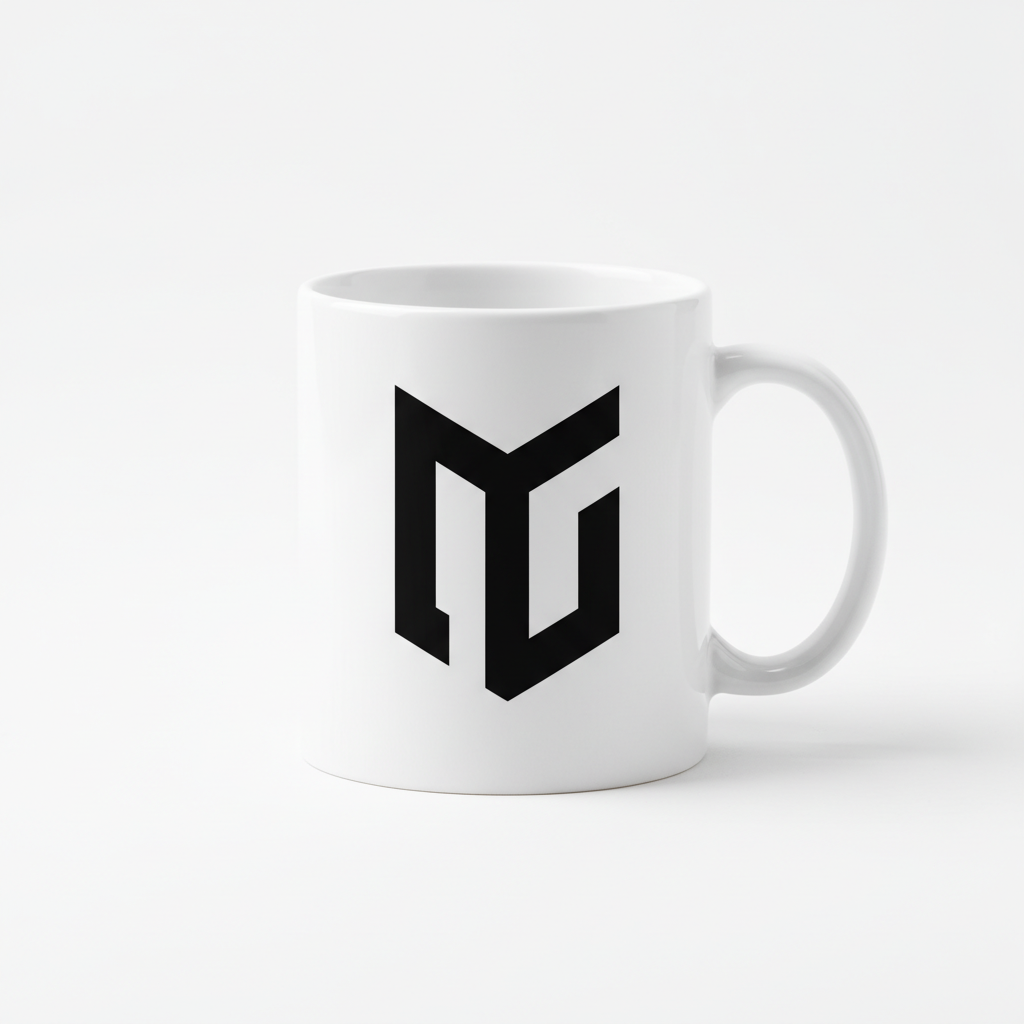
White ceramic coffee mug with black logo isolated on white background
Main Photo
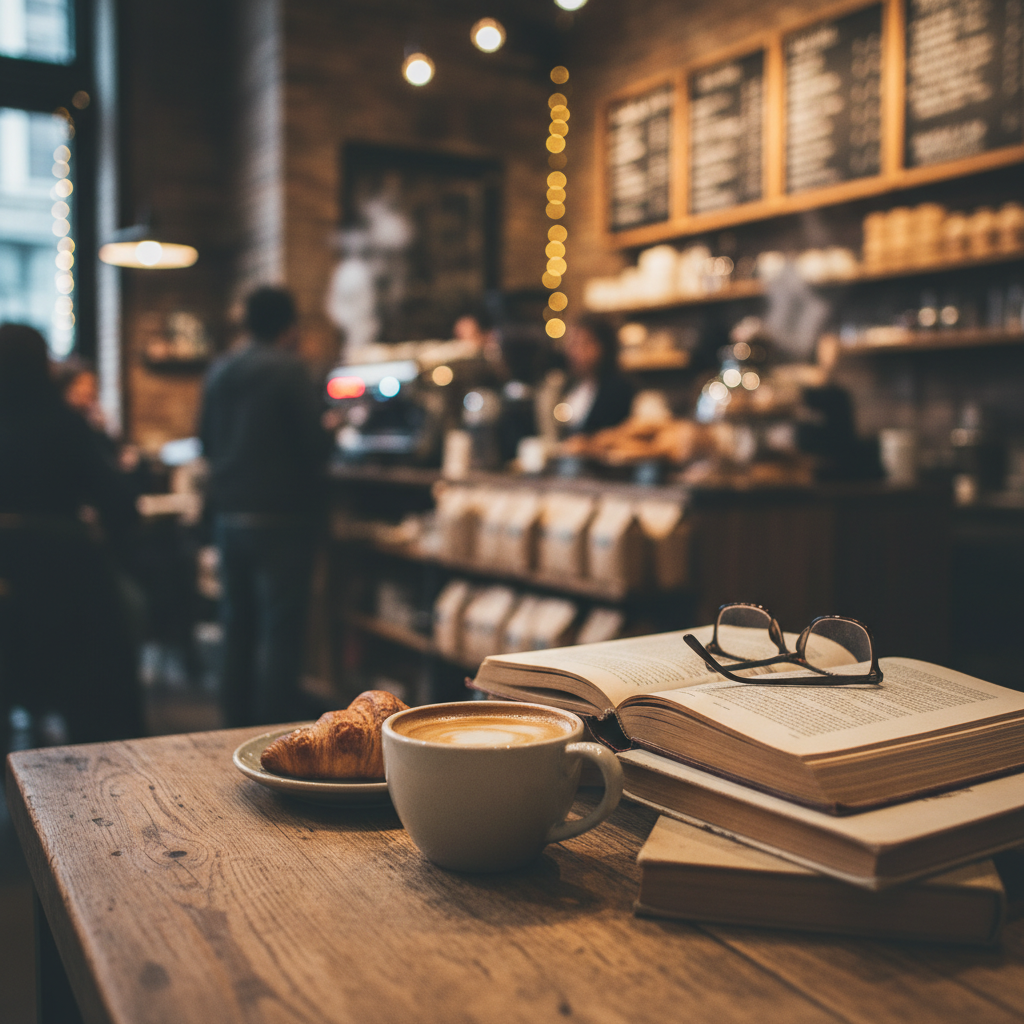
Reference image for Place Product on Background from Photo
Reference
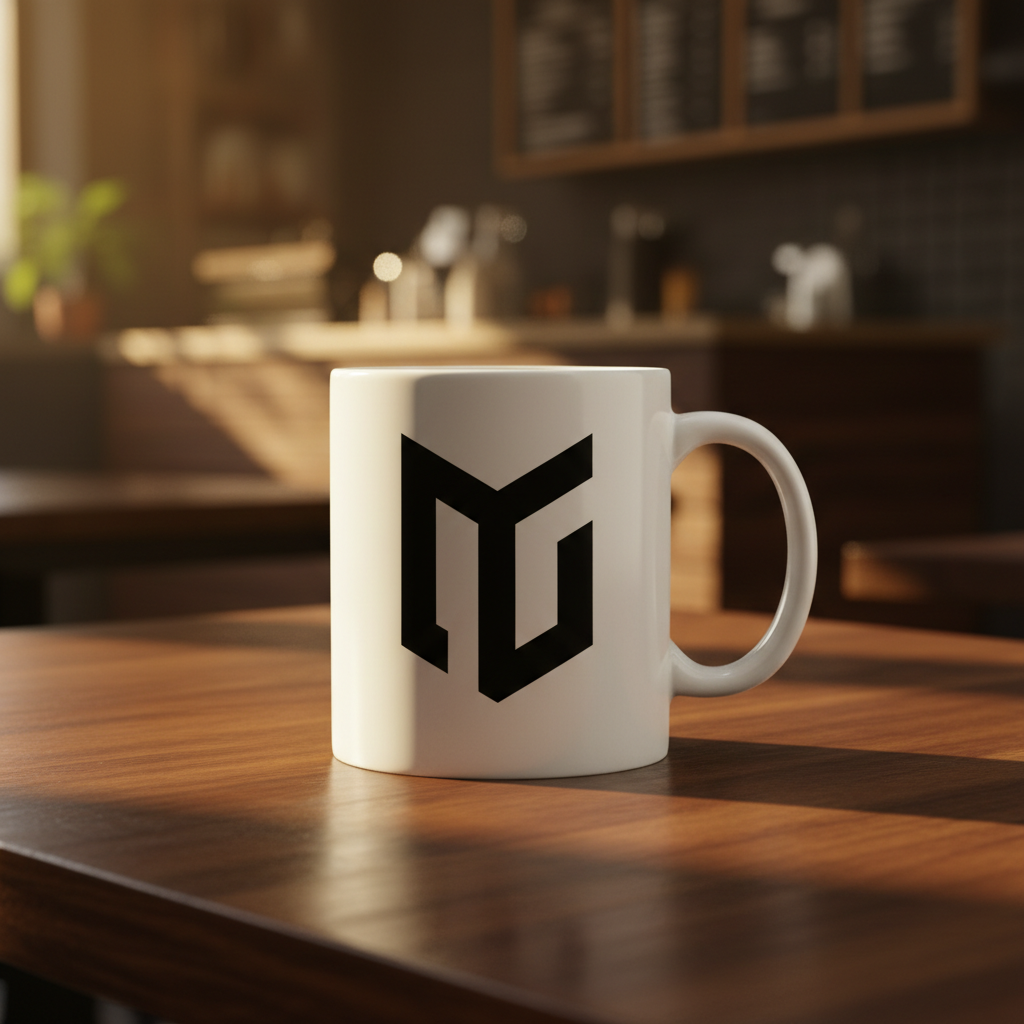
Coffee mug composited onto a warm wooden cafe table with ambient light and natural shadow
Result

Coffee mug placed on cafe wooden table scene

A Shopify store owner used their product-only mug photo and a coffee shop reference image to create a lifestyle hero shot for their store front page — no photoshoot needed.

Prompt: place the mug on the wooden cafe table in the foreground of the reference scene, with the warm ambient cafe lighting, a shadow on the wood surface beneath it, and a realistic reflection on the table

Detailed Guides by Scenario

📷

Amazon and Shopify Product Listing Photos

Lifestyle images increase conversion rates by 20-40% on marketplace listings. Create them from your existing product photos without booking a studio.

Common Scenarios

  • Amazon A+ content requires lifestyle images alongside the white-background hero
  • Shopify product pages need contextual shots showing the product in use
  • Etsy listings perform better with styled scene photos than plain backgrounds
  • Walmart Marketplace and Target+ listing requirements for lifestyle imagery

Best Practices

  • Match the reference scene to your target customer — a kitchen scene for cookware, a desk for office supplies
  • Keep product scale realistic relative to scene objects (a mug should look mug-sized next to a keyboard)
  • Use reference scenes with neutral or complementary color palettes to your product
  • Generate 3-4 variations using different reference scenes for carousel images
Kitchen product for Amazon listing place the product in the center foreground on the kitchen counter, with soft overhead lighting matching the scene, casting a natural shadow beneath it
Office product for Shopify carousel position the product on the wooden desk surface in the lower third, with the same warm ambient lighting as the room, slight reflection on the desk surface
📷

Social Media Ads and Creative Assets

Meta, TikTok, and Pinterest ads perform best with lifestyle creative. Generate multiple scene variations from one product photo to A/B test across campaigns.

Common Scenarios

  • Meta and Instagram feed ads requiring lifestyle imagery to avoid banner-blindness
  • TikTok product showcase ads with contextual backgrounds
  • Pinterest promoted pins with styled product scenes
  • Google Shopping lifestyle images for Performance Max campaigns

Best Practices

  • Generate 4-6 variations using different reference scenes to A/B test ad creative
  • Match scene to the platform: aspirational interiors for Instagram, relatable everyday scenes for Facebook
  • Keep backgrounds uncluttered so the product remains the clear focal point
  • Use reference scenes that evoke the emotion tied to your product's benefit (relaxation, productivity, outdoors)
Hero product placement for paid ad place the product prominently in the foreground left of frame, with the lifestyle background scene softly blurred behind it, natural lighting from the scene
Premium brand Instagram ad position the product on the surface in the center, scale to feel like a premium display, with dramatic side lighting matching the moody scene reference
📷

Seasonal Campaigns and Holiday Promotions

Swap product backgrounds seasonally without reshooting. Place your product into holiday, summer, fall, or back-to-school scenes using reference images.

Common Scenarios

  • Christmas and holiday gift guide imagery — product in festive scene
  • Summer seasonal promotion — product placed in outdoor or beach setting
  • Back-to-school campaigns — product in desk or classroom reference scene
  • Valentine's Day, Mother's Day, and gifting occasion product shots

Best Practices

  • Source royalty-free reference scenes from Unsplash or Pexels that match the seasonal mood
  • Create a seasonal content calendar and generate all seasonal variants from one product photo session
  • Maintain consistent product presentation (same angle) across seasonal variants for brand consistency
  • For gifting campaigns, place product near complementary items visible in the reference scene
Holiday gift guide product shot place the product gift-wrapped or displayed on the festive table in the foreground, matching the warm candlelight in the reference scene, with a soft shadow on the tablecloth
Summer campaign lifestyle image position the product on the wooden picnic table in the outdoor summer scene, with bright natural sunlight from above and a light drop shadow on the table

If something looks off

Product looks like it's floating above the surface instead of sitting on it

Why: The AI composited the product without generating a contact shadow, which is the main visual cue that an object is resting on a surface.

Try: place the product on the surface with a natural contact shadow directly beneath it where it touches the surface, and a soft drop shadow extending in the direction of the scene's light source

Tip: Always specify both a 'contact shadow' (where the product touches the surface) and a 'drop shadow' (cast by the light direction) for the most realistic grounding

The lighting on the product doesn't match the reference scene

Why: The AI retained the original product photo's lighting direction instead of re-lighting the product to match the reference scene's light source.

Try: relight the product to match the reference scene with light from [left/right/above], with highlights on the [left/right] side of the product and shadow on the opposite side

Tip: Study where the brightest highlights appear on objects in your reference scene — that's the light direction to specify in your prompt

Product edges look cut out or have a harsh artificial border

Why: The extraction of the product from the original background left hard edges that stand out against the new scene, especially visible on curved or glossy product surfaces.

Try: blend the product edges naturally into the scene, softening any hard cutout borders, with the product surface interacting naturally with the ambient light of the background

Tip: Using markers to tap around the product edges and adding 'seamlessly blended edges' to your prompt helps the AI focus on edge refinement specifically

Product is the wrong scale — too large or too small relative to the scene

Why: Without scale reference cues, the AI estimated the product size incorrectly relative to other objects in the reference scene.

Try: scale the product to be proportionally realistic for the scene, approximately the same size as [reference object visible in scene], placed in the foreground

Tip: Reference a visible object in your scene for scale: 'about the same height as the water glass on the table' gives the AI a concrete size anchor

AI changed the wrong area or something I didn't want changed

Why: The AI couldn't determine exactly which area you meant from the description alone. This happens with ambiguous requests or when the product and background have similar colors.

Try: Tap a marker on the specific area you want to adjust, then regenerate with the same prompt

Tip: Markers tell the AI 'I mean THIS area specifically.' Use them for precision when the product blends into the background or when shadow placement needs to be exact.

The reference scene background changed or got distorted instead of the product being placed into it

Why: The AI interpreted the instruction as modifying the reference scene rather than compositing the product into it as a background.

Try: keep the reference scene as the background exactly as it is, and place the product from my main photo onto the [surface/counter/table] in the foreground without altering the scene

Tip: Adding 'keep the reference scene as the background exactly as it is' explicitly tells the AI to treat the reference as the environment, not the subject

Quick answers

Do I need to mark or select the product before uploading the reference scene?

No. Just upload your product photo as the main image, then click '+ Add reference image' to upload the scene you want. Type where to place the product and the AI composites it automatically. Use markers only if the product keeps appearing in the wrong position after your first attempt.

How do I place a product on a lifestyle background from a reference photo?

Upload your product photo (white or plain background) to EditThisPic. Click '+ Add reference image' below the prompt box and upload your lifestyle scene photo. Then type: 'place the product in the foreground of the reference scene, with matching lighting and a shadow on the surface.' The AI composites your product into the scene in 30-45 seconds. Free, no login needed.

Is there a free AI tool to composite product photos onto lifestyle backgrounds without Photoshop?

Yes. EditThisPic does this without Photoshop, no account required. Upload your product photo, add your reference lifestyle scene as a second image, describe the placement, and download the result. No watermark. Photoshop compositing takes 30-60 minutes of manual masking — EditThisPic does it in under a minute.

What kind of product photo works best for this tool?

A clean white, gray, or light solid-color background produces the cleanest composites because the AI can clearly extract the product silhouette. Studio shots and DIY lightbox photos both work well. Avoid product photos where the background has similar colors to the product itself, as this makes edge extraction harder.

Can I use any lifestyle scene photo as my reference image?

Yes. Upload any photo that shows the environment you want your product placed into — a kitchen counter, a marble bathroom, an outdoor table, a styled desk. The AI uses the reference as the actual background and composites your product into it. For best results, choose scenes where there's a clear flat surface the product can logically rest on.

What is the best AI tool for creating Amazon lifestyle product photos?

EditThisPic is purpose-built for this use case. Upload your product's white-background hero shot, upload a reference lifestyle scene, and describe placement. The result meets Amazon's A+ content image requirements and typically produces listing-ready lifestyle photos in under a minute, for free. Amazon recommends lifestyle images alongside the required white background hero — this tool generates them from your existing product photo.

How do I make sure the lighting on the product matches the background scene?

Describe the light direction in your prompt. Look at the reference scene: if light comes from the left (bright wall or window on the left side), type 'with lighting from the left matching the scene.' The AI re-lights the product accordingly. If the first result has mismatched lighting, refine with: 'adjust the product lighting to match the reference scene's light source direction.'

Can I create multiple seasonal product lifestyle photos from the same product shot?

Yes. Upload your product photo once, then use different reference scene images — a holiday table scene, an outdoor summer setting, a back-to-school desk — to generate seasonal variants. This is the most cost-effective way to maintain a seasonal content calendar without rebooking product photography sessions.

Will the composite product photo look realistic enough for paid ads?

When lighting and shadows are specified in the prompt, yes. The key factors are: (1) a clean product photo on a plain background, (2) a reference scene with clear light direction, and (3) prompt instructions that include drop shadow and lighting match. Most composites are indistinguishable from real photography at web and social media display sizes.

Can this handle reflective or glossy products like glass bottles or metallic packaging?

Yes, though glossy products benefit from additional prompt specificity. For glass or metallic products, add 'with realistic reflections from the scene environment visible on the product surface.' This tells the AI to generate environment reflections that make the material look physically accurate in the new scene. Edge detection on transparent products (clear glass) may need one refinement pass.

How is this different from just using a background removal tool and pasting manually?

Background removal cuts the product out but leaves you with a flat paste that looks obviously composited — wrong lighting angle, no surface shadow, no environment interaction. EditThisPic's two-image workflow re-lights the product to match the scene, generates contact and drop shadows appropriate for the surface, and blends product edges naturally. The result looks like the product was photographed in that location.

Does this work for Shopify product pages and social media ad creative?

Yes. This is one of the primary use cases. Upload your standard product hero shot, add a reference lifestyle scene, and generate the image in under a minute. Generate 4-6 variants using different reference scenes and use them for Shopify product carousel images, Meta ad creative A/B testing, Pinterest promoted pins, and Google Shopping lifestyle images.

Ready to create professional product lifestyle photos?

Upload your product photo + reference scene. Free, no signup required.

Try it free