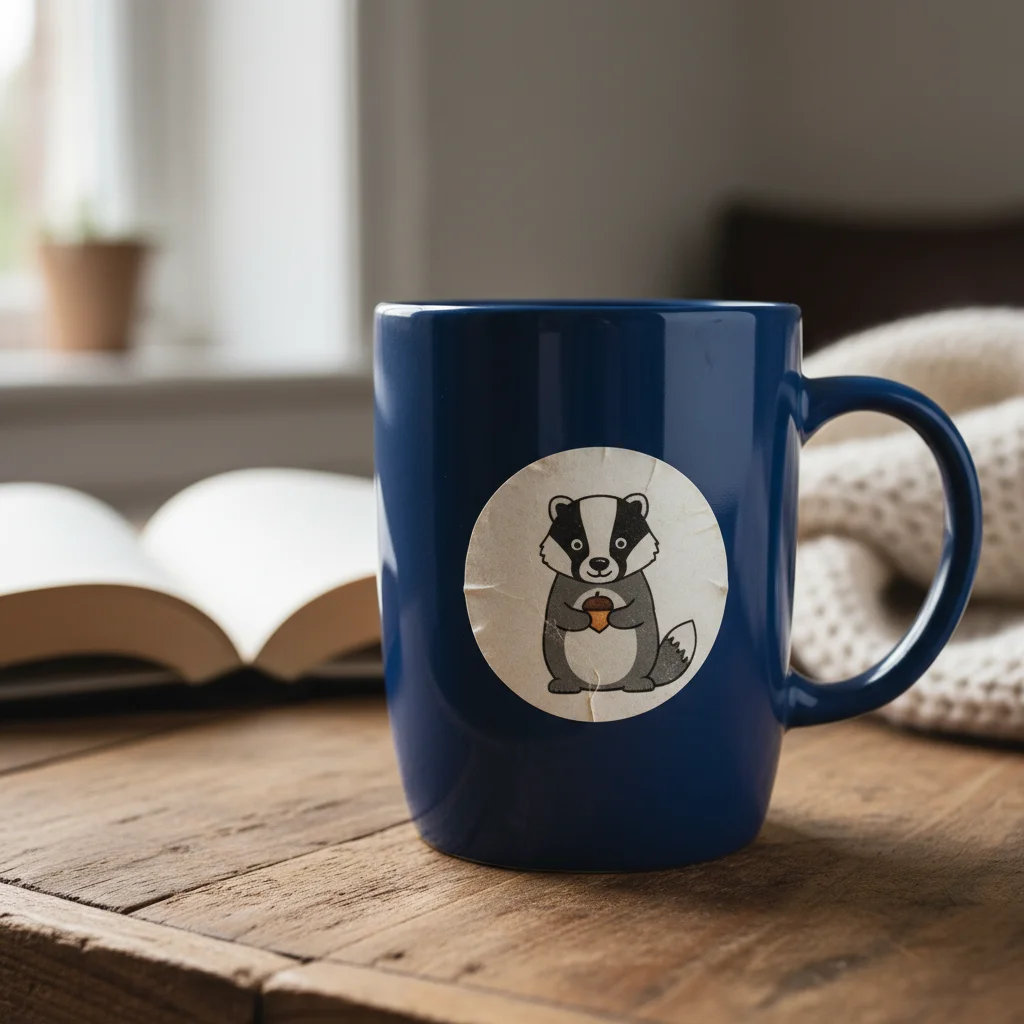
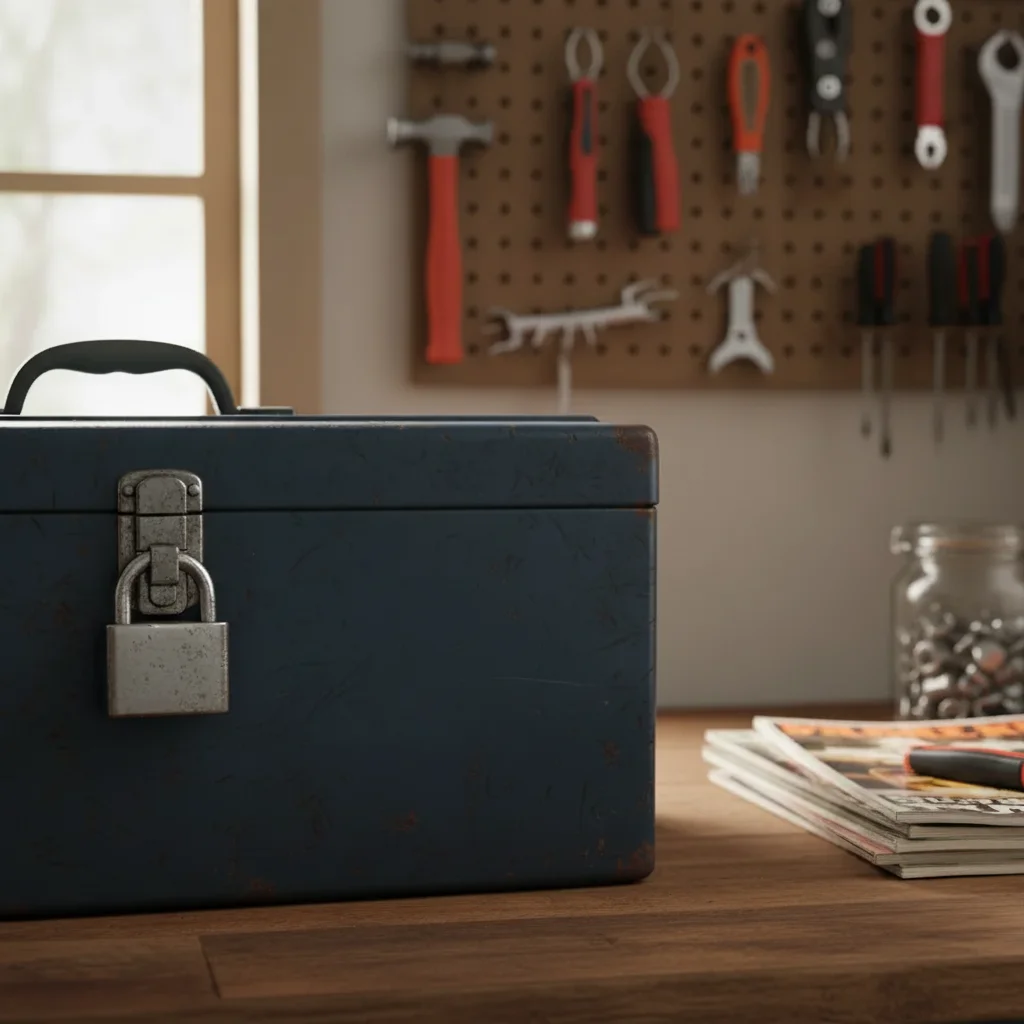
Remove Sticker from Photo
Remove stickers and labels from any photo without tedious selection tools.
Type 'remove the sticker and restore the surface underneath' and EditThisPic's AI cleanly erases stickers in 15-30 seconds. Works on price tags, bumper stickers, labels, and decorative stickers. The AI reconstructs whatever was hidden beneath. No marking required for most removals. Free to try, no account needed.
How it works
Upload your photo
Drop your image into EditThisPic. JPG, PNG, WebP up to 7MB. Works with product photos, screenshots, vehicle images, or any photo with unwanted stickers.
Describe what you want removed
Type your instruction: 'remove the sticker and restore the surface underneath' or 'erase the price tag on the item.' Be specific about which sticker if there are multiple. No marking needed - the AI understands what stickers look like.
Copy one of these to get started:
remove the price tag sticker and restore the clean surface underneath
remove all the brand stickers from the laptop lid and show clean metal surface
erase the bumper sticker and restore the car paint finish
remove the decorative stickers from the wall and restore the paint
3 more prompts
remove the partially peeled sticker including the residue and restore the surface
remove the sticker from the window and restore the transparent glass
remove only the round red sticker on the left side, keep the others
Generate and review
Check that the sticker is fully removed and the surface looks natural. Zoom in to verify the reconstructed area matches the surrounding texture and color.
Refine with markers if needed
If edges remain or the wrong sticker was removed, tap markers on the specific sticker and regenerate. This is optional - most sticker removals work without markers.
"Had old price stickers on vintage items I was photographing for eBay. Typed remove the sticker and it looked like they were never there." @vintagefinds_amy
See it in action
Price tag removed from vintage item
Thrift store price sticker was covering part of a collectible. One prompt removed it cleanly.
remove the price tag sticker and restore the surface underneath
Brand stickers removed from laptop
New laptop came covered in promotional stickers. Removed them all for a clean professional look.
remove all the brand stickers from the laptop lid and show clean brushed aluminum
Bumper sticker removed from car
Previous owner's political bumper sticker needed to go. The car paint was perfectly restored.
remove the bumper sticker and restore the white car paint finish
If something looks off
AI removed the wrong sticker
Why: Multiple stickers present and the AI couldn't determine which one you meant from description alone.
Tap a marker directly on the specific sticker you want removed, then regenerate with the same prompt
💡 Describe the sticker's color, shape, or position to help the AI distinguish it.
Sticker edges still visible
Why: The sticker had a thick border or residue that wasn't fully detected.
remove the remaining sticker residue and edges, blend with surrounding surface
💡 Zoom in and place a marker directly on the leftover edge.
Reconstructed surface looks wrong
Why: The AI guessed the wrong texture or pattern for what was under the sticker.
restore the area where the sticker was to match the surrounding [wood grain/metal/paint]
💡 Be specific about the surface material for better texture matching.
Only part of the sticker was removed
Why: Large stickers or those with multiple colors may not be fully recognized in one pass.
remove the rest of the sticker that's still visible and complete the surface restoration
💡 For large stickers, you may need 2-3 passes working from edges inward.
AI changed areas around the sticker
Why: The AI interpreted the surface area too broadly when reconstructing.
Tap markers only on the sticker area, then regenerate to limit the edit zone
💡 Markers constrain the AI's editing area to exactly where you tap.
Quick answers
Do I need to mark the sticker before describing what to remove?
No! Just describe what you want: 'remove the sticker and restore the surface.' The AI recognizes stickers automatically. Only use markers when you need to specify which sticker to remove among several, or to refine edges after the first attempt.
Can it remove stickers from curved or textured surfaces?
Yes. The AI can reconstruct curved surfaces, textured materials, and even patterned backgrounds. Mention the surface type in your prompt for best results: 'restore the wood grain' or 'match the brushed metal.'
What about stickers that are partially peeled or have residue?
Include that in your prompt: 'remove the partially peeled sticker including the residue.' The AI will clean up both the sticker and any leftover adhesive marks.
Can I remove multiple stickers at once?
Yes. Use 'remove all the stickers' to clear everything, or be specific: 'remove the three stickers in the corner.' For selective removal, describe which ones to keep.
Will this work on transparent or holographic stickers?
Usually yes, though holographic stickers can be tricky. Be specific: 'remove the shiny holographic sticker' so the AI knows what to look for. May need markers for precise edges.
Ready to remove stickers from your photos?
Free to try. No signup required.