Free • No signup Transfer Style · Free

AI Style Transfer from Photo

Upload your photo + a style reference image. AI copies the look in seconds.

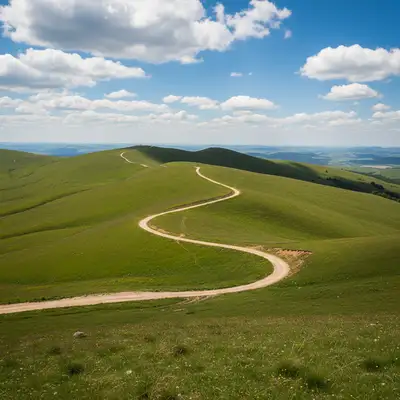
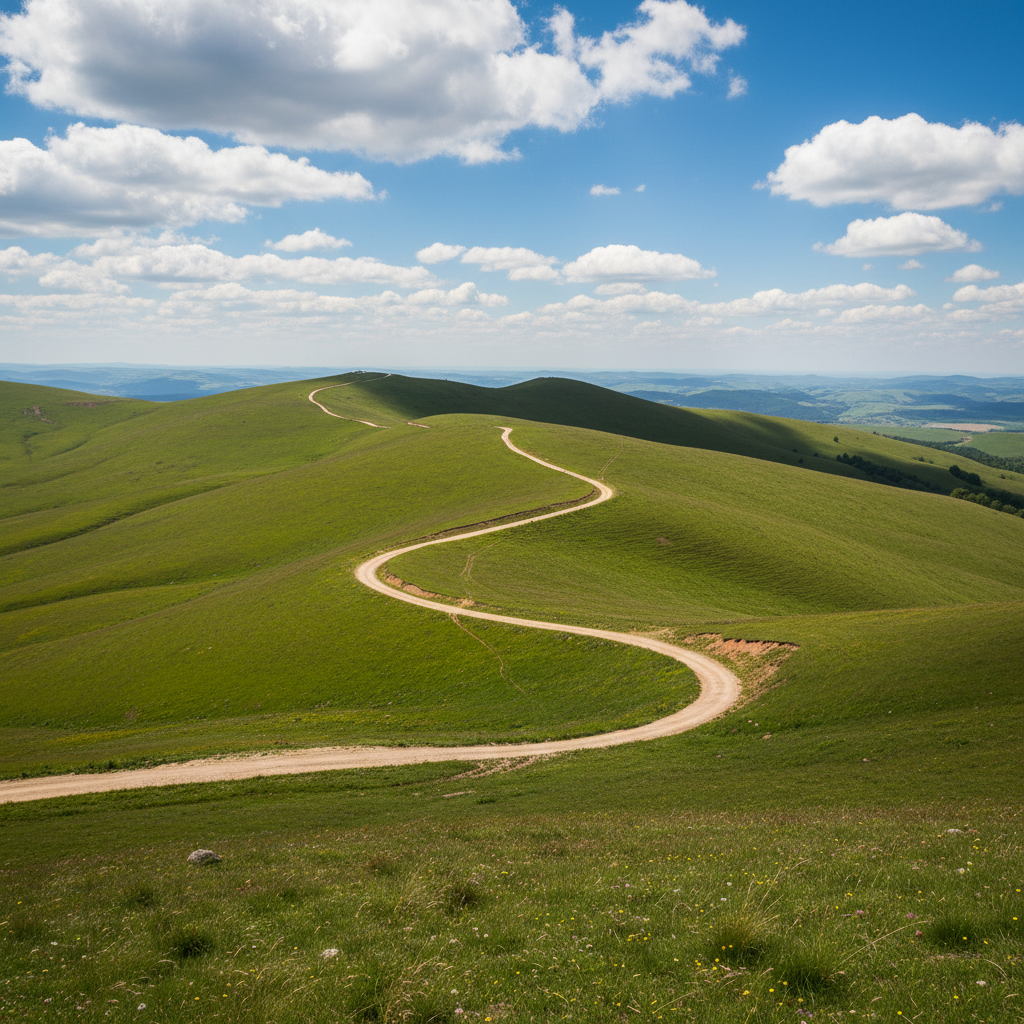
Realistic DSLR photograph of rolling green countryside hills under a blue sky
Before
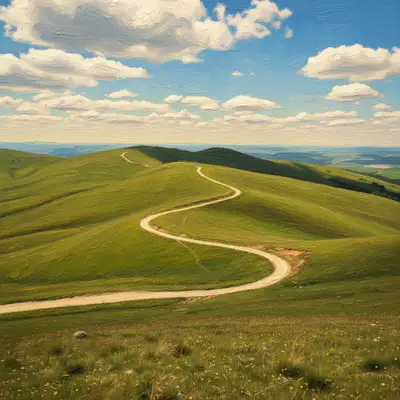
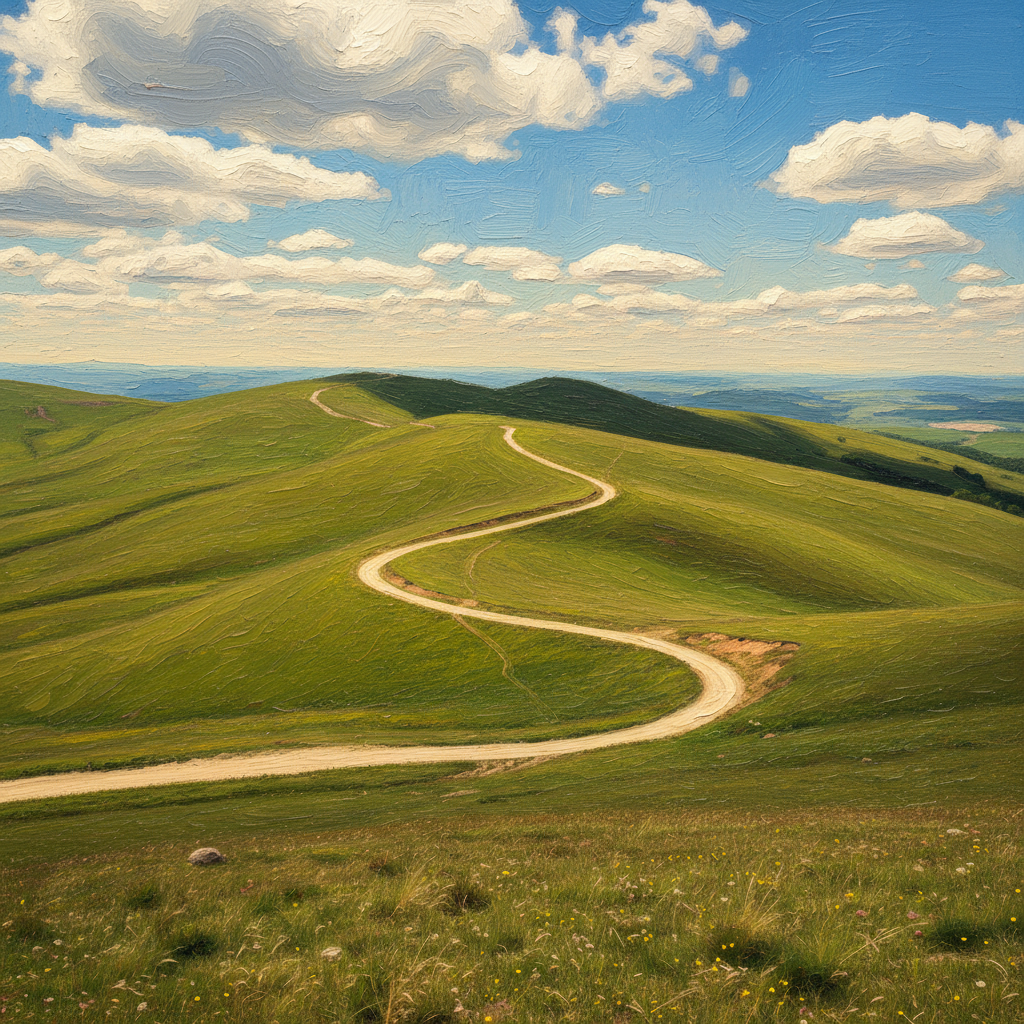
Same countryside scene rendered in impressionist oil painting style with swirling brushstrokes and warm golden palette
After

Style Transfer from Photo

Drop your photo here

or click to browse

Release to upload

Free • No signup

Popular use cases:
  • style transfer two images
  • apply art style from photo
  • neural style transfer online
  • make photo look like painting
  • transfer painting style to photo
  • color grade transfer between photos
  • anime style portrait from reference
  • impressionist style photo
  • watercolor style transfer
  • copy photographer style to photo

1Your photo
+
2Reference
=
Result
Your photo — the image whose content will be kept Your photo
Reference image — the photo whose art style will be applied Style reference
Result — your photo rendered in the style of the reference Result

"Transfer the art style from the reference image to my photo"

Cost
Free No signup required
Time
Instant results in 15-30 seconds
Works on
Any device - browser, phone, tablet, desktop
Powered by
AI-powered photo editing
Scenario Prompt Time
transfer the art style from the reference image to my photo — same color palette, texture, and brushwork 20-30s
apply the color grading from the reference photo — keep sharp photographic detail, only transfer the colors 15-20s
apply the anime illustration style from the reference, with clean outlines and vibrant flat colors 20-30s
apply a strong, heavy style transfer from the reference — maximize the artistic effect 25-40s

How it works

  1. Upload your main photo

    Drop the photo whose content you want to keep into EditThisPic. This is your base image — its subjects, composition, and scene will be preserved while the visual style changes. JPG, PNG, WebP up to 7MB.

    Expect: Most style transfers complete in 15-30 seconds. Highly detailed reference styles with complex textures may need 2-3 refinements to fully capture the look.
  2. Add your style reference image

    Click '+ Add reference image' below the prompt to upload a second photo — this is the style source. It can be a painting, artwork, stylized photo, or any image with the visual look you want applied to your main photo. The AI reads the color palette, texture, and brushstroke patterns from this reference.

    Tip: Use a reference image with a strong, distinctive visual style — bold brushwork, a unique color palette, or clear artistic treatment. The more visually distinct the style, the more dramatic and accurate the transfer.

    Copy one of these to get started:

    Style Transfer from Photo transfer the style from the reference image to my photo — make it look natural and professional
    Impressionist or oil painting style from reference apply the impressionist painting style from the reference image to my photo, with visible loose brushstrokes, the same warm color palette, and soft edge rendering
    Color grade / mood transfer between photos apply the color grading and cinematic mood from the reference photo to my image, matching the tonal range, contrast, and dominant color temperature — keep the photographic detail sharp
    Anime or illustration style from reference artwork transfer the anime illustration style from the reference image to my portrait, with clean ink outlines, vibrant flat colors, and the same expressive character rendering
    3 more prompts
    Watercolor style from reference apply the watercolor painting style from the reference image to my photo — soft color washes, visible paper texture, gentle bleeding edges, and the same muted pastel palette
    Sketch or line art style from reference transfer the pencil sketch style from the reference image to my photo, with visible hand-drawn lines, hatching for shading, and minimal color — match the reference's line weight and density
    Heavy, dramatic style transfer apply a strong, heavy style transfer from the reference image to my photo — make it clearly and boldly look like the reference artwork, maximizing the artistic effect while keeping the main subject recognizable
  3. Describe the style transfer

    Type what you want: 'transfer the art style from the reference image to my photo' or be more specific: 'apply the impressionist brushstroke style and warm color palette from the reference to my photo.' The more precisely you describe which stylistic qualities to emphasize, the better the result.

    Tip: Name the specific qualities you want emphasized — 'the loose brushwork,' 'the muted earthy tones,' 'the pencil sketch texture.' This guides the AI beyond simply matching the overall look.

    Copy one of these to get started:

    Style Transfer from Photo transfer the style from the reference image to my photo — make it look natural and professional
    Impressionist or oil painting style from reference apply the impressionist painting style from the reference image to my photo, with visible loose brushstrokes, the same warm color palette, and soft edge rendering
    Color grade / mood transfer between photos apply the color grading and cinematic mood from the reference photo to my image, matching the tonal range, contrast, and dominant color temperature — keep the photographic detail sharp
    Anime or illustration style from reference artwork transfer the anime illustration style from the reference image to my portrait, with clean ink outlines, vibrant flat colors, and the same expressive character rendering
    3 more prompts
    Watercolor style from reference apply the watercolor painting style from the reference image to my photo — soft color washes, visible paper texture, gentle bleeding edges, and the same muted pastel palette
    Sketch or line art style from reference transfer the pencil sketch style from the reference image to my photo, with visible hand-drawn lines, hatching for shading, and minimal color — match the reference's line weight and density
    Heavy, dramatic style transfer apply a strong, heavy style transfer from the reference image to my photo — make it clearly and boldly look like the reference artwork, maximizing the artistic effect while keeping the main subject recognizable
  4. Generate, review, and refine

    Check that the style elements from your reference — texture, palette, stroke quality — are visible across the whole image. Zoom in to inspect details like how edges are rendered and whether the color grading matches your reference. If the transfer feels too subtle or too heavy, describe the adjustment and regenerate.

    Tip: If the style isn't strong enough, add 'increase the intensity of the style transfer' to your prompt. If content details are lost, add 'preserve the subject details while applying the style.'
Try it free

Style Transfer from Photo

Drop your photo here

or click to browse

Release to upload

Free • No signup

"I uploaded a Van Gogh painting as the reference and it turned my landscape photo into something that looks hand-painted. Took me 20 seconds." @ArtLover_Petra

See it in action

Realistic DSLR photograph of rolling green countryside hills under a blue sky
Before
->
Same countryside scene rendered in impressionist oil painting style with swirling brushstrokes and warm golden palette
After

Landscape photo turned impressionist painting

A countryside photo transformed using a Van Gogh-style reference painting. The swirling brushstrokes and warm yellows carry over to the landscape.

Prompt: transfer the impressionist oil painting style from the reference image to my photo, applying the same swirling visible brushstrokes, warm golden-yellow palette, and textured sky
Sharp realistic headshot portrait of a woman against a plain grey background
Before
->
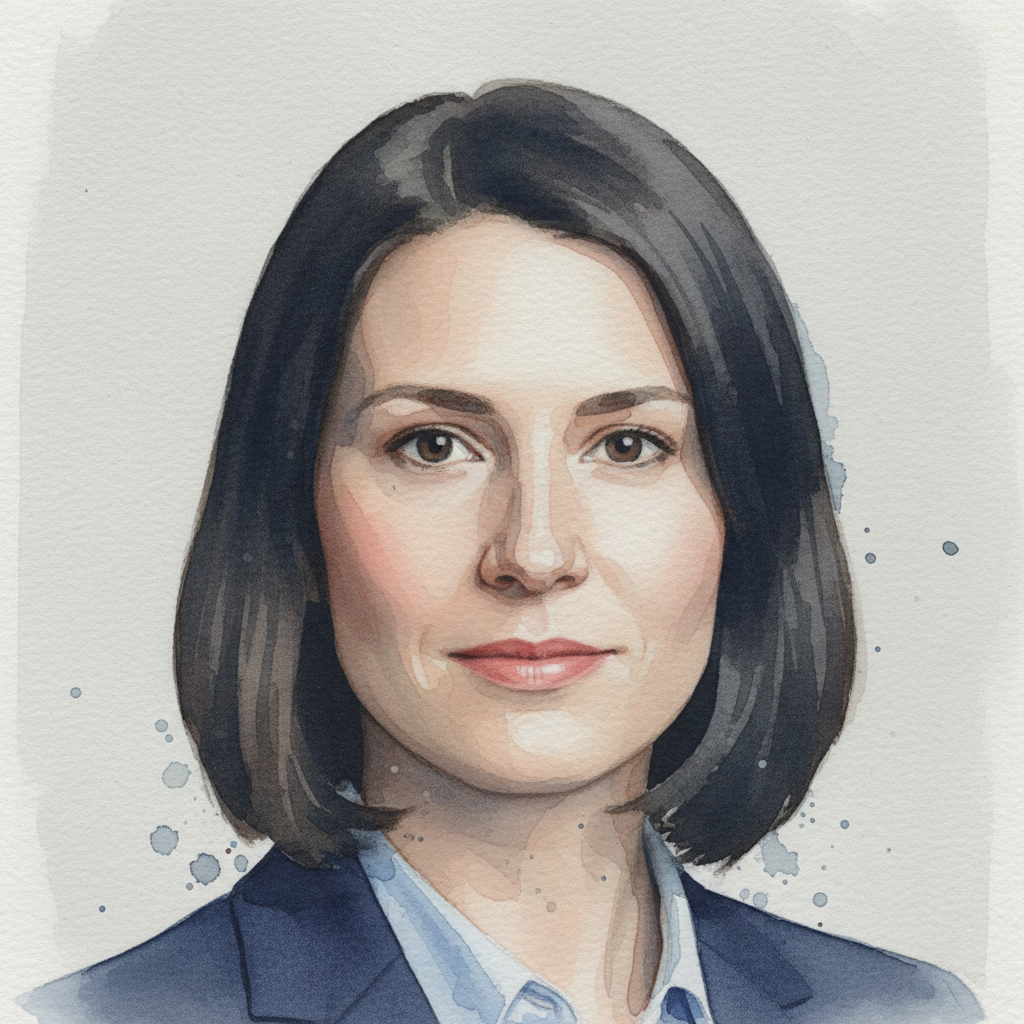
Same portrait rendered in soft watercolor illustration style with muted cool tones and visible paper texture
After

Portrait given a watercolor illustration look

A standard headshot portrait given the soft watercolor treatment from a reference illustration — loose washes, visible paper texture, and gentle muted tones.

Prompt: apply the watercolor portrait illustration style from the reference image to my photo, with soft color washes, visible paper grain, gentle bleeding edges around the hair, and the same muted cool-tone palette

Detailed Guides by Scenario

📷

Make Photos Look Like Paintings

Apply the look of oil paintings, watercolors, impressionism, or any fine art style to your photos using a reference image.

Common Scenarios

  • Make a portrait look like a Renaissance oil painting
  • Apply impressionist brushstrokes to a landscape photo
  • Turn a cityscape into a watercolor artwork
  • Give a family photo the look of an old master painting

Best Practices

  • Use a high-resolution crop of the reference painting for the clearest style signal
  • Match the subject type when possible — reference a portrait painting for portrait style transfers
  • Describe the specific medium: 'oil paint texture,' 'watercolor washes,' 'impasto brushwork'
  • For subtle effects, specify 'light style influence' — for bold effects, specify 'heavy style transfer'
Applying impressionist painting style to a landscape transfer the impressionist oil painting style from the reference image to my photo, applying the same loose visible brushstrokes and warm golden palette
Watercolor portrait style from reference apply the watercolor style from the reference image to my portrait, with soft color washes, gentle edges, and the same muted blue-green tones
📷

Transfer Style Between Photographs

Copy the color grading, mood, and visual treatment from one photo to another. Great for matching filters, cinematic looks, or photographer aesthetics.

Common Scenarios

  • Match the moody color grade of a film photographer's work
  • Apply the warm, golden-hour look from one travel photo to another
  • Copy the high-contrast black-and-white treatment from a reference
  • Match the soft pastel aesthetic of a reference lifestyle photo

Best Practices

  • Use a reference photo with a distinctive, intentional color grade
  • Describe the mood you're after: 'cinematic and desaturated,' 'warm and hazy,' 'cold and blue-toned'
  • For color grade transfers, mention 'color grading only, keep the sharp photographic detail'
  • The reference should be well-exposed — avoid dark or over-exposed references
Matching cinematic color grade between photos apply the color grading and cinematic mood from the reference photo to my image, matching the desaturated tones, lifted shadows, and orange-teal split toning
Copying golden-hour travel photo aesthetic transfer the warm golden-hour color treatment from the reference image to my portrait, with the same soft haze, amber skin tones, and bright highlights
📷

Apply Digital Art and Illustration Styles

Use an anime frame, comic panel, concept art piece, or any digital artwork as your style reference to transform a photo.

Common Scenarios

  • Make a portrait look like anime using an anime screencap as reference
  • Apply a graphic novel ink style from a reference comic panel
  • Transfer the look of concept art to a scene photo
  • Apply a cel-shaded illustration style to a photo

Best Practices

  • Choose a reference that shows the style at its most characteristic — strong lines, flat colors, distinctive shading
  • Describe what makes the style distinctive: 'large expressive eyes,' 'bold ink outlines,' 'flat cell shading'
  • For anime: 'apply the anime illustration style from the reference, with clean line art and vibrant flat colors'
  • Avoid references that are very detailed and busy — simpler, cleaner reference art transfers more reliably
Anime style portrait from reference screencap apply the anime illustration style from the reference image to my portrait, with clean outlines, vibrant saturated colors, and large expressive eyes
Comic book style from reference panel transfer the graphic novel ink and halftone style from the reference panel to my photo, with bold black outlines and limited flat color fills

If something looks off

Style looks too subtle — result still looks like a photograph

Why: The AI balanced style intensity conservatively to preserve photo detail. The reference style signal may need to be strengthened.

Try: apply a strong, heavy style transfer from the reference image to my photo — make it clearly look like the reference artwork, dramatically increasing the artistic effect

Tip: Add 'heavy style transfer' and 'maximize the artistic look' to push for a more dramatic transformation

Colors don't match the reference — wrong palette applied

Why: The AI may have prioritized texture over color, or the reference image's palette wasn't distinct enough for the AI to isolate accurately.

Try: transfer the color palette from the reference image to my photo exactly — match the dominant hues, saturation level, and warm or cool temperature of the reference

Tip: If color is the main thing you want to transfer, add 'prioritize color palette matching over texture transfer' to your prompt

Subject details are lost — faces or key elements look distorted

Why: The style transfer treated subject features as texture to stylize, rather than content to preserve.

Try: apply the art style from the reference image to my photo while preserving the facial features and key subject details — stylize the background and texture but keep the subject recognizable

Tip: Use markers to tap on the face or important subject area, then add 'preserve these areas while applying style elsewhere' to protect specific regions

AI changed the wrong area or applied the style only partially

Why: The AI couldn't determine exactly which areas you wanted stylized from description alone. This happens when background and subject have similar tonal values.

Try: Tap a marker on the area you want fully stylized, then regenerate with 'apply the reference style fully to this area'

Tip: Markers tell the AI 'apply the style transformation here specifically.' Use them to target the background or a specific region when the whole-image transfer isn't working.

Reference image style not recognized — result ignores the reference

Why: The reference image may be too small, too dark, or too low-contrast for the AI to extract a clear style signal.

Try: use the reference image I uploaded as the style guide and apply its visual treatment — the brushwork, color palette, and texture quality — to my main photo

Tip: Use a clear, well-lit reference crop that shows the style at its most characteristic. A 512px+ image with strong contrast works better than a small or dark reference.

Style transfer looks artificial or 'filtered' rather than artistic

Why: The AI applied a texture overlay uniformly rather than integrating the style organically. Often happens with very photographic references.

Try: apply the art style from the reference naturally and organically — integrate the texture and color as if the original was always painted this way, not as an overlay filter

Tip: Adding 'naturally integrated, not filtered' shifts the AI toward deeper style blending rather than surface-level texture mapping

Quick answers

Do I need to mark areas before transferring the style?

No. Just upload both images — your main photo and the style reference — then describe the transfer: 'transfer the art style from the reference image to my photo.' The AI reads the style from the reference and applies it to your whole photo. Use markers only if you want to apply the style to a specific region rather than the entire image.

How do I use a reference image for style transfer in EditThisPic?

Upload your main photo first, then click the '+ Add reference image' button below the prompt field. This opens a second upload for your style reference — any photo, painting, or artwork whose visual style you want to apply. Then type your instruction: 'transfer the art style from the reference image to my photo.' The AI applies the reference's color palette, texture, and visual treatment to your main photo.

Is there a free neural style transfer tool that doesn't require login?

Yes. EditThisPic does neural-style-transfer-style AI processing completely free with no account required and no watermark. Upload your photo, add a reference image with the style you want, describe the transfer, and download the result. You get one free edit per week without signing up.

How do I apply an art style from one photo to another?

Upload the photo you want to stylize into EditThisPic. Click '+ Add reference image' and upload the photo or artwork with the style you want to copy. Type: 'transfer the art style from the reference image to my photo, applying the same color palette and texture.' The AI extracts the visual style from your reference and renders your main photo in that style.

What kinds of reference images work best for style transfer?

References with a strong, distinctive visual style work best: paintings with visible brushwork, illustrations with a clear aesthetic, or photos with a bold color grade. The reference should be well-lit and at least 512px wide. Avoid very dark, blurry, or low-contrast references — the AI needs to clearly read the style to apply it accurately.

Can I make my photo look like a Van Gogh or specific painting style?

Yes. Find an image of the painting or style you want as a reference, upload it via '+ Add reference image,' then describe the specific qualities: 'apply the swirling brushstroke style and warm yellow-blue palette from the reference.' You don't need to own the painting — any digital image of the artwork works as a style reference.

Can I transfer just the color grading, not the painting texture?

Yes. Be specific in your prompt: 'apply the color grading and cinematic mood from the reference photo to my image — keep the photographic detail sharp, only transfer the colors and tonal treatment.' Adding 'keep photographic detail sharp' tells the AI to focus on color rather than adding painterly texture.

How do I make a photo look like anime using a reference?

Upload your photo, then click '+ Add reference image' and upload an anime screenshot or frame with the style you want. Type: 'apply the anime illustration style from the reference image to my portrait, with clean ink outlines, vibrant flat colors, and expressive rendering.' For best results, use a reference that clearly shows faces in the anime style you want.

What is the best free AI tool for style transfer between two images?

EditThisPic is a free, no-login AI tool that transfers style between any two images. Unlike standalone neural style transfer apps that only work with preset styles, EditThisPic lets you use any photo or artwork as your style reference and describe exactly what qualities to transfer. Results in under 30 seconds, no watermark.

Will the content of my photo be preserved after style transfer?

Yes. Style transfer keeps your main photo's content — the people, objects, scene, and composition — while changing how it looks visually. If content details are getting distorted, add 'preserve the facial features and main subject details while applying the style' to your prompt. For very strong style transfers, some fine detail loss is expected and normal.

Can I apply the style to only part of my photo?

Yes. Tap a marker on the area where you want the style applied, then describe the region: 'apply the reference style only to the background, keep the subject realistic.' Markers let you target specific areas — useful if you want a stylized background with a realistic subject, or vice versa.

Ready to transfer a style to your photo?

Upload two images. Get results in 30 seconds. Free, no signup.

Try it free