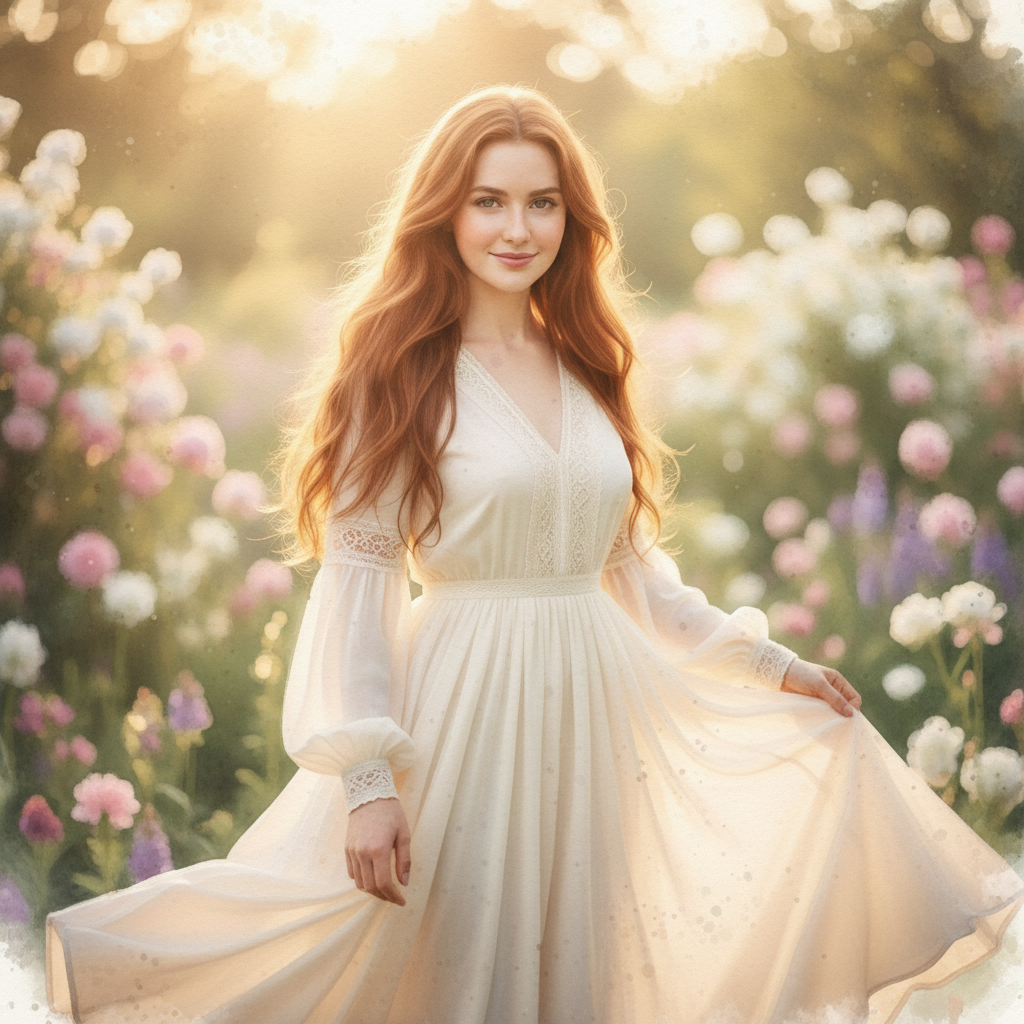
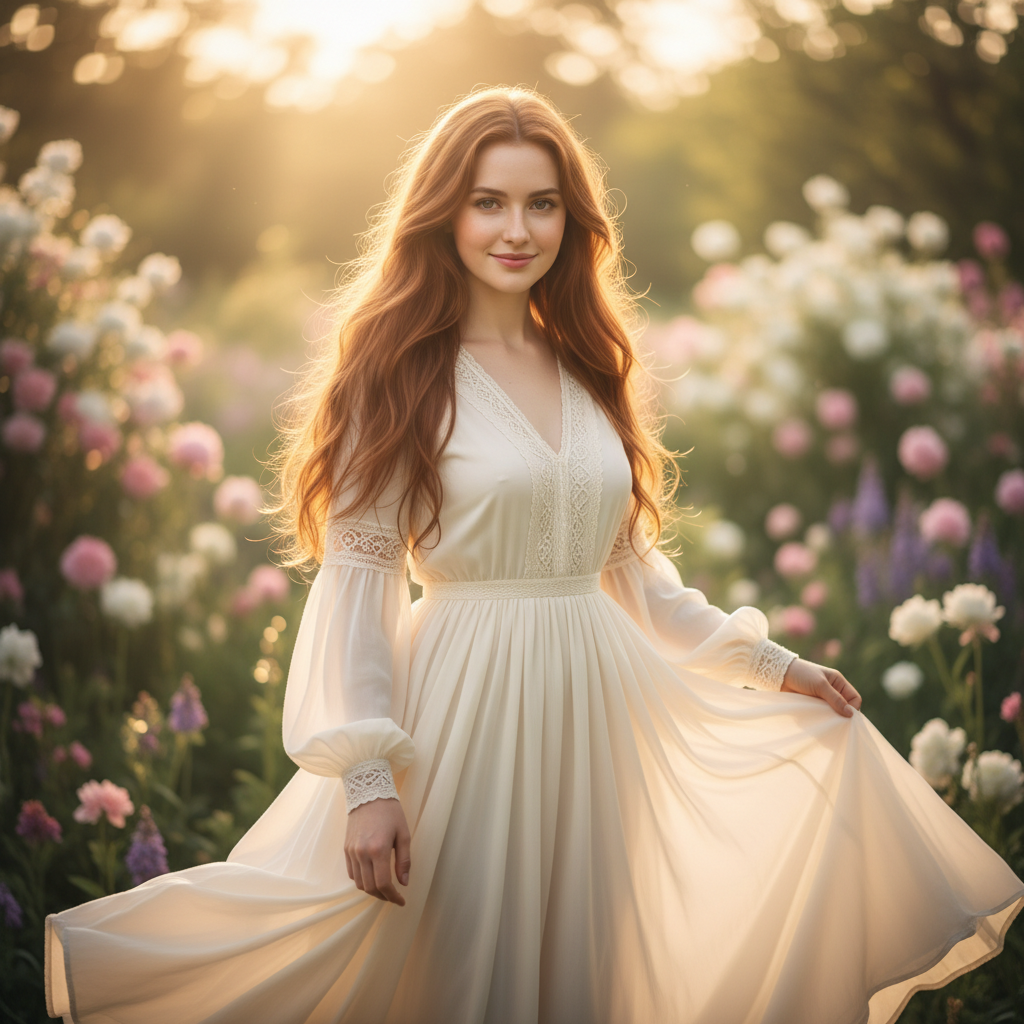
Free • No signup Convert Photo to watercolor · Free

AI Watercolor Generator

Describe the watercolor style and AI paints your photo with soft washes and delicate blending.
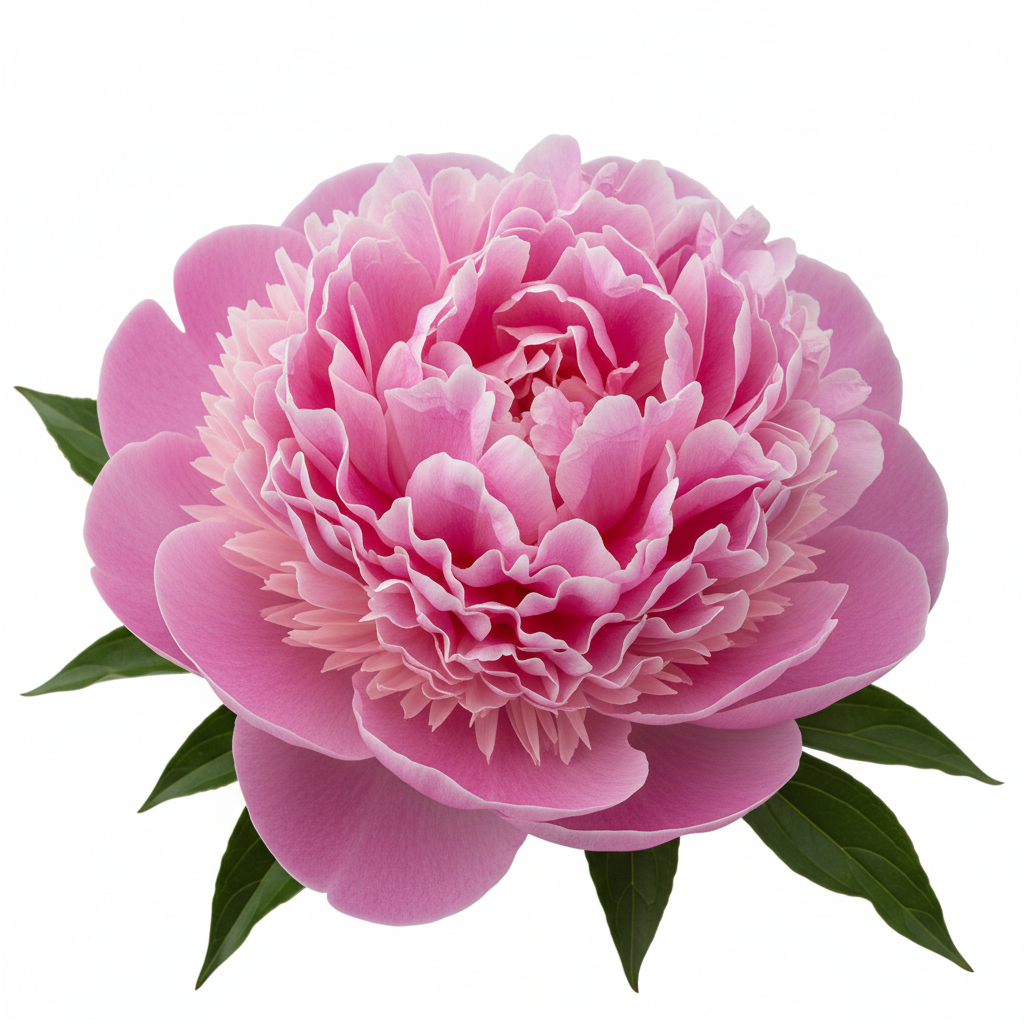
Bright pink peonies in a glass vase on white table
Before
Same peonies rendered as a loose botanical watercolor with soft washes
After

AI Watercolor Generator

Drop your photo here

or click to browse

Release to upload

Free • No signup

Advertisement
Popular use cases:
  • botanical prints
  • wedding art
  • nursery decor
  • greeting cards
  • floral illustrations
  • landscape art prints
  • invitation design
  • home decor wall art

Cost
Free No signup required
Time
Instant results in 15-30 seconds
Works on
Any device - browser, phone, tablet, desktop
Powered by
AI-powered photo editing
Scenario Prompt Time
Classic soft watercolor convert to watercolor with soft washes and paper texture 30s
Botanical watercolor turn this flower into a botanical watercolor 35s
Abstract watercolor convert to abstract watercolor with flowing washes 45s

How it works

  1. Upload your photo

    Drop your image into EditThisPic. JPG, PNG, WebP up to 7MB. Photos with clear subjects and soft natural lighting produce the most beautiful watercolor results. Flowers, landscapes, and portraits are ideal subjects.

    Expect: Simple watercolor conversion: 30-40 seconds. Complex detailed scenes: 45-60 seconds.
  2. Describe the watercolor style you want

    Type your instruction: 'convert this photo to a watercolor painting with soft translucent washes and visible paper texture' or 'turn this into a loose watercolor with bleeding edges and splatter effects.' Specify the wetness, blending style, and color intensity. No marking needed—the AI transforms the entire image.

    Tip: Specify 'wet-on-wet' for soft blending or 'dry brush' for textured strokes—these are watercolor techniques the AI understands.

    Copy one of these to get started:

    Classic watercolor painting convert this photo to a watercolor painting with soft translucent washes, gentle blending, and visible watercolor paper texture
    Loose botanical watercolor turn this flower photo into a loose botanical watercolor with wet-on-wet blending, soft color bleeds, and white space around the edges
    Vibrant watercolor landscape convert this landscape to a vibrant watercolor painting with bold washes of color, dramatic sky gradients, and crisp architectural details
    Soft watercolor portrait turn this portrait into a delicate watercolor painting with soft skin tones, gentle shading, and slightly unfinished edges
    3 more prompts
    Splatter and ink watercolor convert this photo to a watercolor illustration with ink outlines, paint splatter accents, and pools of vibrant color
    Muted vintage watercolor turn this photo into a muted vintage watercolor with faded pastel tones, aged paper texture, and gentle sepia undertones
    Abstract watercolor convert this photo to an abstract watercolor where the subject is suggested through flowing color washes and drips rather than precise detail
  3. Review the watercolor result

    Check for characteristic watercolor qualities: translucent washes, visible paper texture, natural color bleeding at edges. The best results feel light and airy, not heavy. Zoom in to see wash details.

  4. Refine with markers if needed

    If specific areas need more or less detail, or you want different wash intensity in certain spots, tap markers on those areas and regenerate. Most watercolor conversions look beautiful on the first try.

    Tip: Markers are for precision refinement only. Try without them first—watercolor conversions usually achieve the right balance immediately.
Try it free

AI Watercolor Generator

Drop your photo here

or click to browse

Release to upload

Free • No signup

"Converted my garden photos to watercolors and made a calendar for my mom. She cried. Best $0 gift ever. The flower details are unreal." @WatercolorMomLisa

See it in action

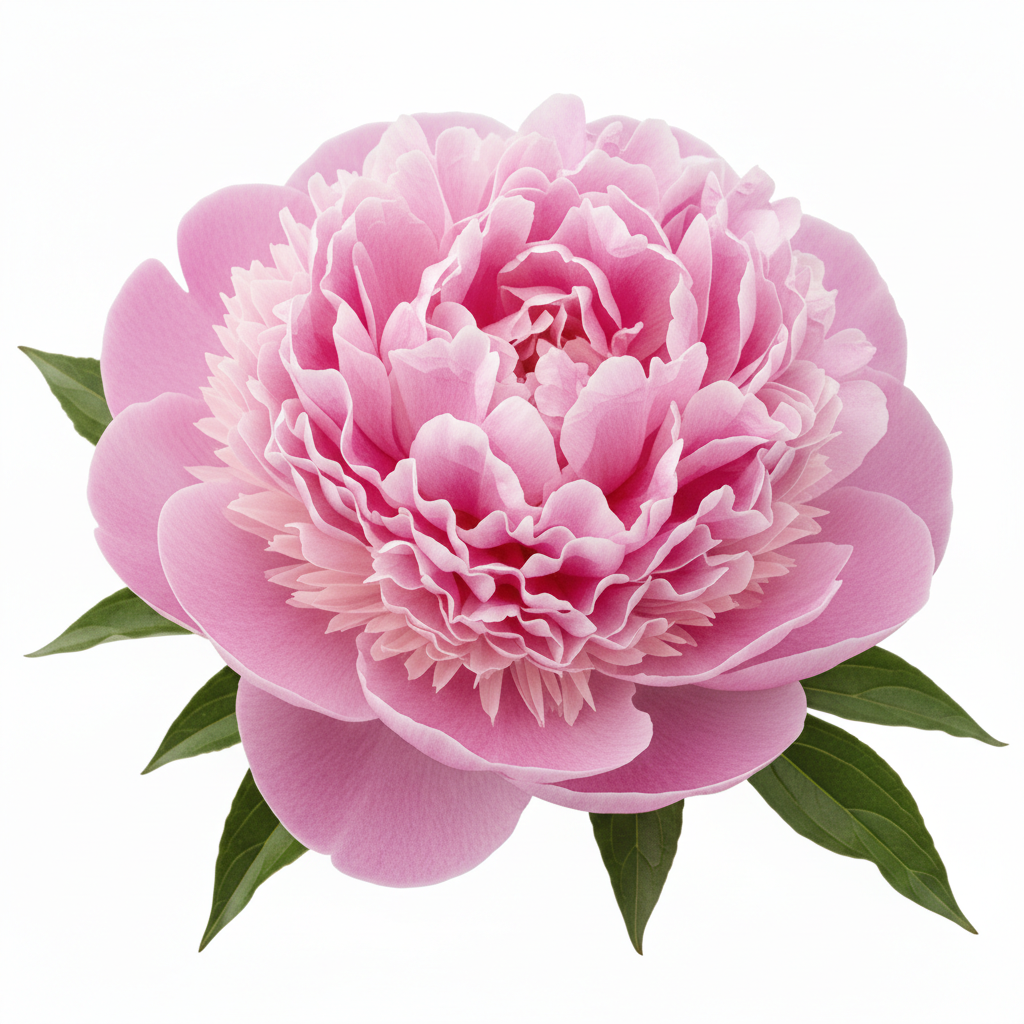
Bright pink peonies in a glass vase on white table
Before
->
Same peonies rendered as a loose botanical watercolor with soft washes
After

Flower photo to botanical watercolor

A close-up flower photo transformed into a delicate botanical watercolor with soft washes and natural bleeding.

Prompt: turn this flower photo into a loose botanical watercolor with wet-on-wet blending, soft color bleeds, and white space around the edges
Lighthouse on rocky coastline with blue sky and ocean
Before
->
Same coastal scene as a vibrant watercolor painting with flowing washes
After

Coastal landscape to watercolor painting

A seaside photo converted into a vibrant watercolor landscape with flowing sky washes and textured shoreline.

Prompt: convert this landscape to a vibrant watercolor painting with bold washes of color, dramatic sky gradients, and crisp architectural details
Advertisement

If something looks off

AI changed the wrong area or something I didn't want changed

Why: The AI couldn't determine which part to convert from description alone. This happens when you want watercolor on only part of the image.

Try: Tap a marker on the specific area you want in watercolor style, then regenerate with the same prompt

Tip: Markers tell the AI 'I mean THIS area specifically.' Use them for selective watercolor effects.

Result looks like an oil painting, not a watercolor

Why: The AI applied too-thick paint effects without the translucent, light quality that defines watercolor.

Try: convert this photo to a watercolor with light translucent washes, visible white paper showing through, and delicate watery texture

Tip: Key watercolor words: 'translucent', 'light washes', 'paper visible', 'watery'. These differentiate from oil.

Colors are too heavy and opaque

Why: Watercolors are defined by their transparency—the AI applied colors too thickly.

Try: convert to watercolor with very light, transparent washes where the white paper shows through the paint layers

Tip: 'White paper shows through' is the critical instruction for authentic watercolor transparency.

No visible paper texture

Why: The AI smoothed the surface, losing the characteristic bumpy paper texture that makes watercolors feel authentic.

Try: convert to watercolor painting on textured cold-press watercolor paper with visible paper grain and subtle paint pooling

Tip: Specify 'cold-press paper' for bumpy texture or 'hot-press paper' for smooth—both are watercolor standards.

Everything is equally detailed—no loose or unfinished areas

Why: Watercolors typically have detailed focal points with loose, unfinished edges. The AI rendered everything equally.

Try: convert to watercolor with detailed center subject fading into loose, unfinished washes at the edges with white paper visible

Tip: Watercolor artists leave edges loose intentionally. Saying 'fade to unfinished edges' creates authentic style.

Quick answers

Do I need to mark any areas before converting my photo to watercolor?

No! Just upload your photo and describe the watercolor style: 'convert this to a watercolor painting with soft washes.' The AI handles the entire transformation. Only use markers if you want different wash intensities in different areas.

How do I turn a photo into a watercolor painting for free?

Upload your photo to EditThisPic and type 'convert this photo to a watercolor painting with soft translucent washes.' The AI generates the watercolor in about 30 seconds. Free to use, no account needed, and no watermark on the result.

Is there a free photo-to-watercolor tool that doesn't require login?

Yes. EditThisPic converts photos to watercolor paintings with no signup required. Upload your image, describe the style—botanical, landscape, portrait—and download. No watermarks, no account walls.

What's the best free AI tool for making watercolor paintings from photos?

EditThisPic lets you describe the exact watercolor style—loose botanical, vibrant landscape, soft portrait, or abstract. Unlike preset filters, you control the wetness, blending, and paper texture. Free, no login, results in 30 seconds.

Ready to turn your photo into a watercolor painting?

Free to try. No signup required.

Try it free