Free • No signup Convert Photo to sketch · Free

AI Sketch Maker

Describe the sketch style and AI converts your photo to a pencil drawing in seconds.
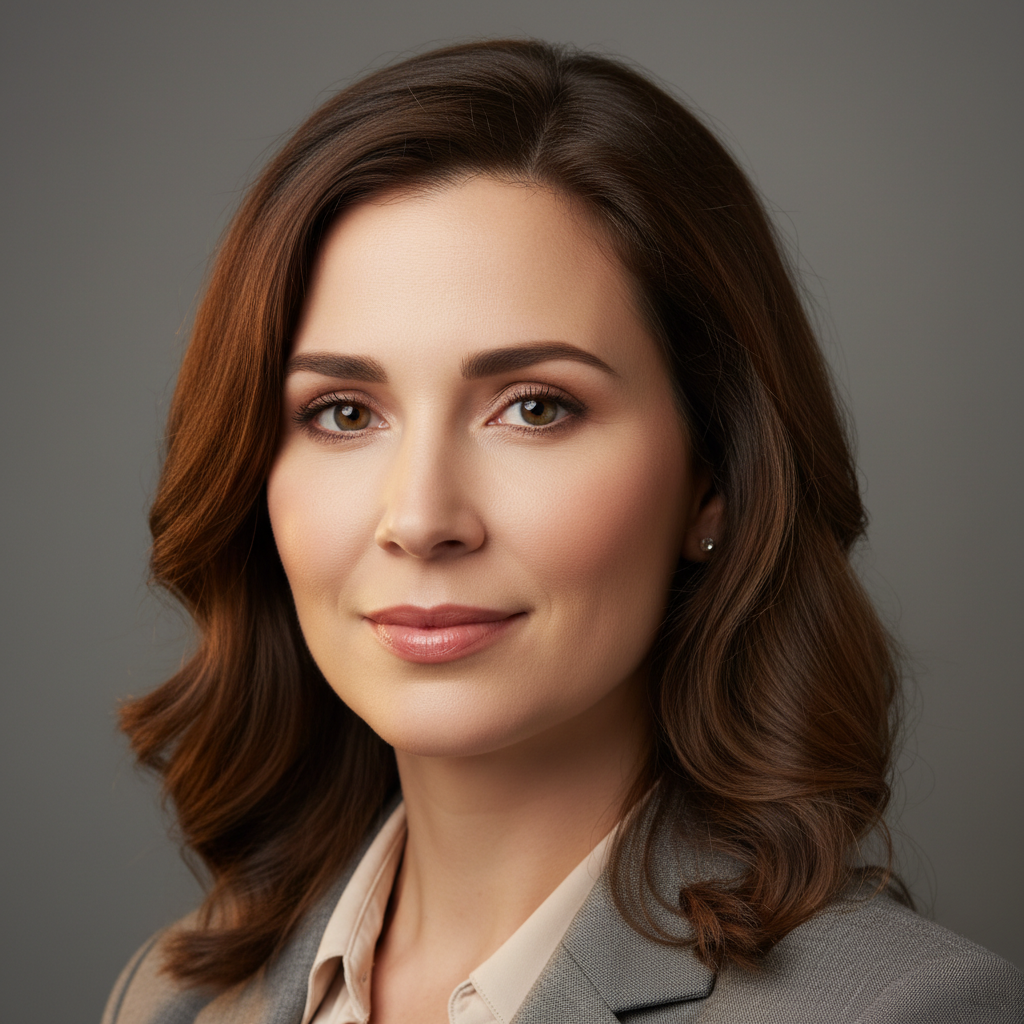
Woman with silver grey hair in black turtleneck
Before
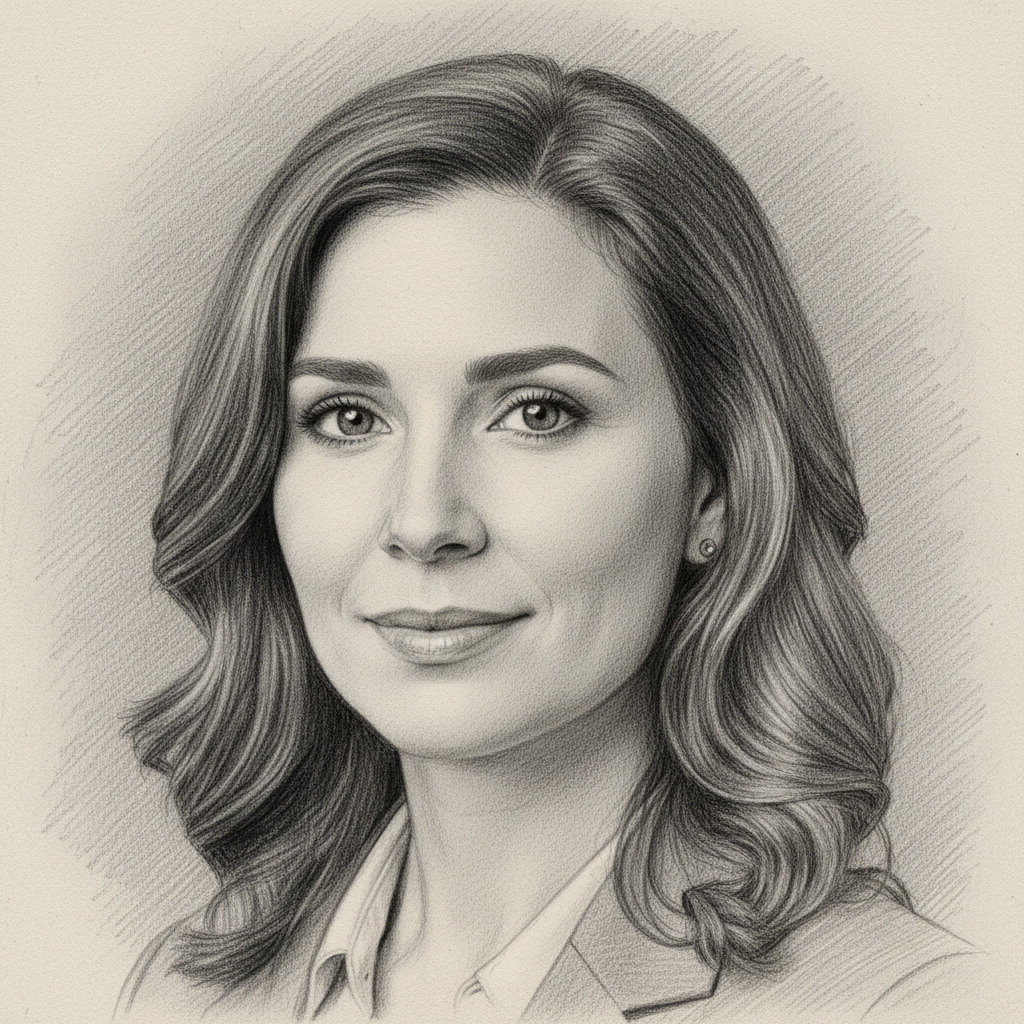
Same woman rendered as a detailed pencil sketch with realistic shading
After

AI Sketch Maker

Drop your photo here

or click to browse

Release to upload

Free • No signup

Advertisement
Popular use cases:
  • portrait art gifts
  • anniversary presents
  • home decor prints
  • social media art
  • artist references
  • wedding portrait sketch
  • memorial portraits
  • book illustrations

Cost
Free No signup required
Time
Instant results in 15-30 seconds
Works on
Any device - browser, phone, tablet, desktop
Powered by
AI-powered photo editing
Scenario Prompt Time
Simple pencil sketch convert this photo to a pencil sketch with realistic shading 30s
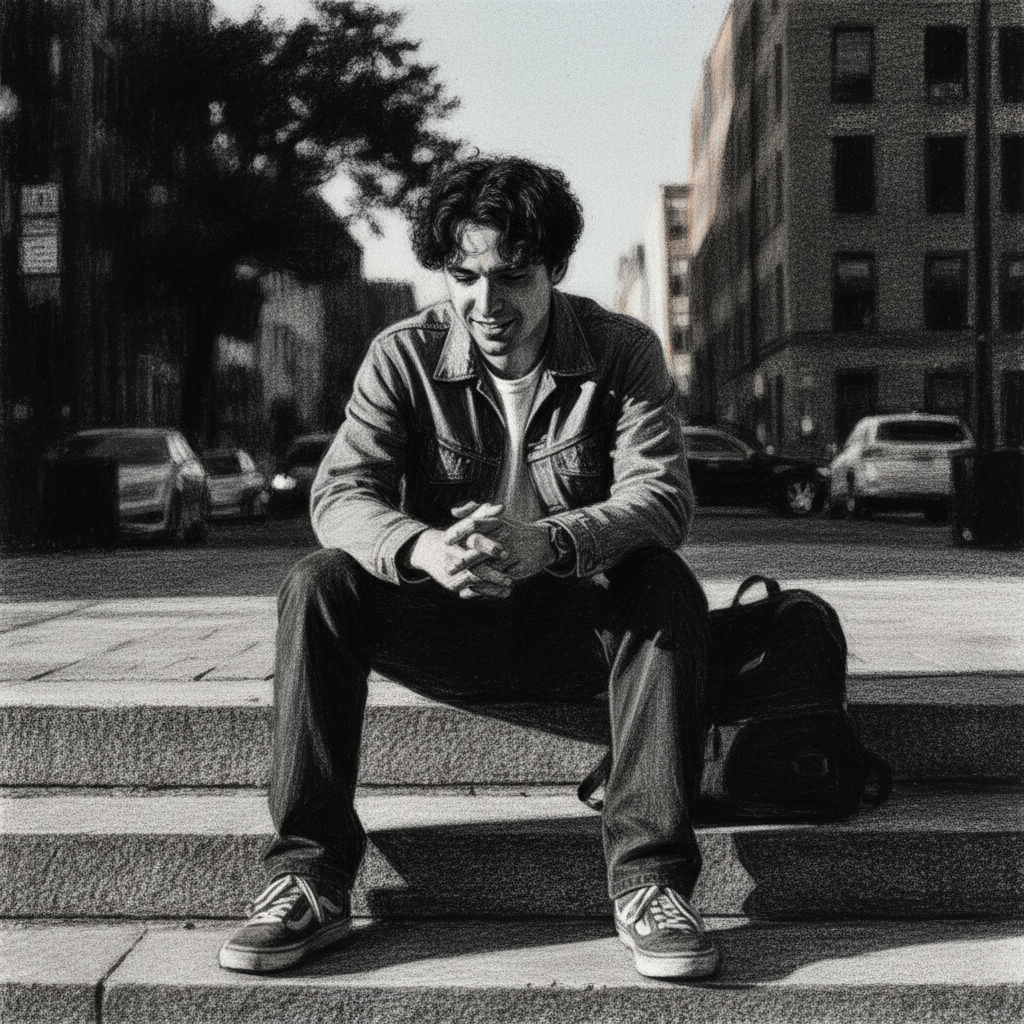
Charcoal drawing turn this into a charcoal drawing with deep blacks 35s
Architectural sketch convert this building to an architectural pencil sketch 45s

How it works

  1. Upload your photo

    Drop your image into EditThisPic. JPG, PNG, WebP up to 7MB. High-contrast photos with clear subjects produce the most detailed sketch results. Both portraits and landscapes work well.

    Expect: Simple sketch conversion: 30-40 seconds. Detailed architectural scenes: 45-60 seconds.
  2. Describe the sketch style you want

    Type your instruction: 'convert this photo to a detailed pencil sketch with realistic shading and crosshatching' or 'turn this into a loose charcoal sketch with expressive strokes.' Specify the drawing medium—pencil, charcoal, ink—and shading style. No marking needed—the AI transforms the entire image.

    Tip: Mention specific techniques like 'crosshatching', 'stippling', or 'smooth gradient shading' for different sketch effects.

    Copy one of these to get started:

    Classic pencil portrait sketch convert this photo to a detailed pencil sketch with realistic shading, fine lines, and white paper background
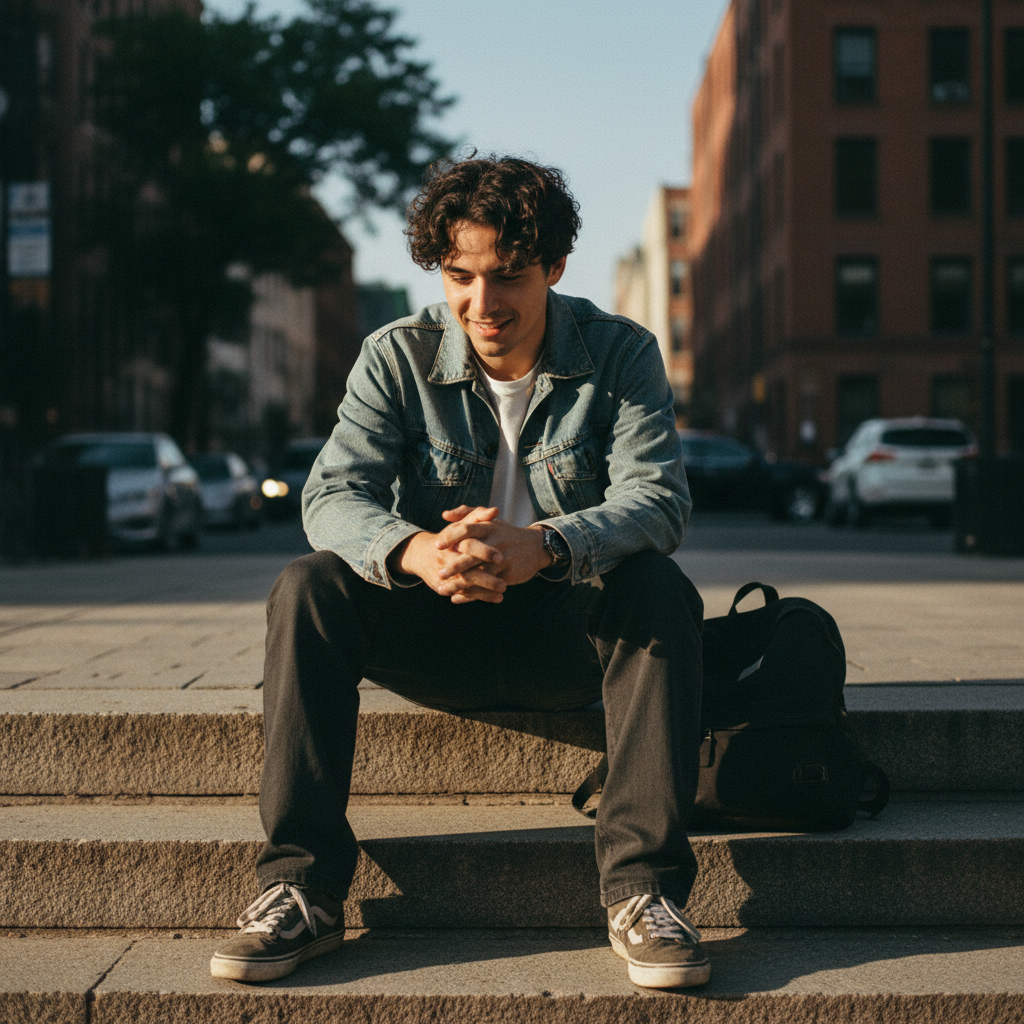
    Charcoal drawing effect turn this photo into a charcoal drawing with deep blacks, dramatic contrast, and smudged edges
    Light line sketch convert this photo to a light, minimalist line sketch with thin delicate pencil strokes and minimal shading
    Crosshatch illustration turn this photo into a pen-and-ink crosshatch illustration with dense hatching for shadows and clean lines
    3 more prompts
    Architectural sketch convert this building photo to an architectural pencil sketch with precise lines, perspective guides, and subtle shading
    Loose expressive sketch turn this photo into a loose, expressive sketch with quick confident strokes and unfinished edges
    Colored pencil drawing convert this photo to a colored pencil drawing with visible pencil strokes, soft blending, and natural paper texture
  3. Review the sketch result

    Check that the sketch captures the subject's key features and details. Look for clean line work, appropriate shading depth, and consistent pencil texture across the image. Zoom in on areas with fine detail.

  4. Refine with markers if needed

    If specific areas need more detail or different shading intensity, tap markers on those spots and regenerate. Most sketch conversions look excellent on the first try.

    Tip: Markers are for precision refinement only. Try without them first—sketch conversions usually work perfectly in one pass.
Try it free

AI Sketch Maker

Drop your photo here

or click to browse

Release to upload

Free • No signup

"Converted my engagement photo to a pencil sketch and framed it. Looks like we hired a portrait artist. Best anniversary gift I've ever given." @SketchGiftRyan

See it in action

Woman with silver grey hair in black turtleneck
Before
->
Same woman rendered as a detailed pencil sketch with realistic shading
After

Portrait to detailed pencil sketch

A color portrait photo transformed into a realistic pencil sketch with fine shading and detail.

Prompt: convert this photo to a detailed pencil sketch with realistic shading, fine lines, and white paper background
Classic brownstone building with ornate details
Before
->
Same building as a precise architectural pencil sketch
After

Building to architectural sketch

A city building photo converted to a precise architectural pencil drawing with clean lines and perspective.

Prompt: convert this building photo to an architectural pencil sketch with precise lines, perspective guides, and subtle shading
Advertisement

If something looks off

AI changed the wrong area or something I didn't want changed

Why: The AI couldn't determine which part you wanted sketched from description alone. This happens when you want to sketch only part of the image.

Try: Tap a marker on the specific area you want converted to sketch, then regenerate with the same prompt

Tip: Markers tell the AI 'I mean THIS area specifically.' Use them for partial sketch effects.

Sketch looks too dark or muddy

Why: The AI applied too much shading, especially in shadow areas, creating an overly dark result.

Try: convert this photo to a light pencil sketch with gentle shading, plenty of white space, and airy feel

Tip: Use 'light', 'gentle', and 'airy' to keep the sketch bright. Specify 'white paper visible' for open areas.

Lines look too uniform or mechanical

Why: The AI generated perfectly even strokes that look computer-generated rather than hand-drawn.

Try: convert this photo to a pencil sketch with varied line weight, natural hand-drawn strokes, and organic texture

Tip: 'Varied line weight' and 'organic texture' push the AI toward more natural, hand-drawn quality.

Important details are missing from the sketch

Why: The AI simplified too much, losing fine details like eyelashes, texture, or small features.

Try: convert to a highly detailed pencil sketch that preserves all fine details including texture, small features, and subtle expressions

Tip: 'Highly detailed' and 'preserves fine details' tell the AI not to over-simplify.

Sketch doesn't look like a real pencil drawing

Why: The AI produced a grayscale version of the photo rather than a true pencil sketch with visible strokes.

Try: convert this photo to a pencil sketch on white paper with visible individual pencil strokes, crosshatching, and hand-drawn texture

Tip: Insist on 'visible pencil strokes' and 'white paper' to differentiate from simple grayscale conversion.

Quick answers

Do I need to mark any areas before converting my photo to a sketch?

No! Just upload your photo and describe the sketch style: 'convert this to a pencil sketch with realistic shading.' The AI transforms the entire image automatically. Only use markers if you want to sketch just one part of the photo while leaving the rest unchanged.

How do I turn a photo into a pencil drawing for free?

Upload your photo to EditThisPic and type 'convert this photo to a detailed pencil sketch with realistic shading.' The AI generates the sketch in about 30 seconds. Free to use, no account needed, no watermark on the result.

Is there a free photo-to-sketch converter that doesn't require login?

Yes. EditThisPic converts photos to pencil sketches with no signup required. Upload your image, describe the drawing style—pencil, charcoal, ink—and download. No watermarks, no account walls.

What's the best free AI tool for converting photos to pencil drawings?

EditThisPic gives you control over the exact sketch style—pencil, charcoal, crosshatch, minimalist line art. Unlike one-button filters, you describe the look you want. Free, no login, results in 30 seconds.

Ready to turn your photo into a sketch?

Free to try. No signup required.

Try it free