Free • No signup Add Vineyard background · Free

Add Vineyard Background to Photo

Upload a portrait and AI swaps the background. Subject stays sharp, new scene looks natural.

Original photo before vineyard background editing — vacation rental bathroom refresh
Before
Result after AI vineyard background editing — vacation rental bathroom refresh
After

Add Vineyard Background to Photo Free Online | EditThisPi...

Drop your photo here

or click to browse

Release to upload

Free • No signup

Popular use cases:
  • add vineyard background
  • AI vineyard background editor
  • photo vineyard background tool
  • free vineyard background editing

Cost
Free No signup required
Time
Instant results in 15-30 seconds
Works on
Any device - browser, phone, tablet, desktop
Powered by
AI-powered photo editing

How it works

  1. Upload your photo

    Upload a well-lit interior or exterior photo. Straight-on angles with minimal lens distortion help the AI produce natural vineyard background results. JPG, PNG, WebP up to 7MB.

    Expect: Most edits complete in 20-45 seconds. Complex changes may need 1-2 refinements.
  2. Describe your edit

    Type what you want: 'add vineyard background.' Be specific about details for best results. The AI understands natural language — no technical skills needed.

    Tip: Describe the atmosphere too — 'cozy library with warm lamplight' adds realism to the scene.

    Copy one of these to get started:

    Home staging or design visualization add vineyard background with photorealistic quality — it should look like it was actually there when the photo was taken. Match the existing lighting, shadows, and perspective
    Client presentation or design pitch add vineyard background in a modern, high-end style. This is for a client presentation, so it needs to look polished and professional — not like a quick mockup
    Social media content creation add vineyard background in an eye-catching, Instagram-worthy way. Make it look vibrant and attention-grabbing while still appearing realistic
    Personal project or creative exploration add vineyard background to help me visualize a personal project. Show me a realistic version of how this would look in my actual space or photo
    2 more prompts
    Holiday card or themed event photo add vineyard background with a festive, celebratory feel. It should look joyful and seasonal while keeping the people and setting recognizable
    Before/after comparison for a proposal add vineyard background with realistic accuracy — I am using this in a before/after comparison to propose the change. It needs to be convincing side-by-side with the original
  3. Review the result

    Check perspective lines, wall edges, and furniture placement for realism. Verify that lighting looks consistent across the room and no ghosting artifacts remain. Use the before/after slider.

  4. Refine if needed

    If furniture placement looks off, wall colors need tweaking, or staging elements seem unrealistic, tap markers on problem areas. Describe specific fixes like 'make the couch cushions look more natural' or 'fix the shadow under the table.'

    Tip: Markers are optional. Try without them first — the AI usually gets it right.
Try it free

Add Vineyard Background to Photo Free Online | EditThisPi...

Drop your photo here

or click to browse

Release to upload

Free • No signup

"Wanted vineyard background in my holiday card photo but forgot during the shoot. The AI added it with matching depth and shading — looks like it was always there." @ShutterSpeed_Dan

See it in action

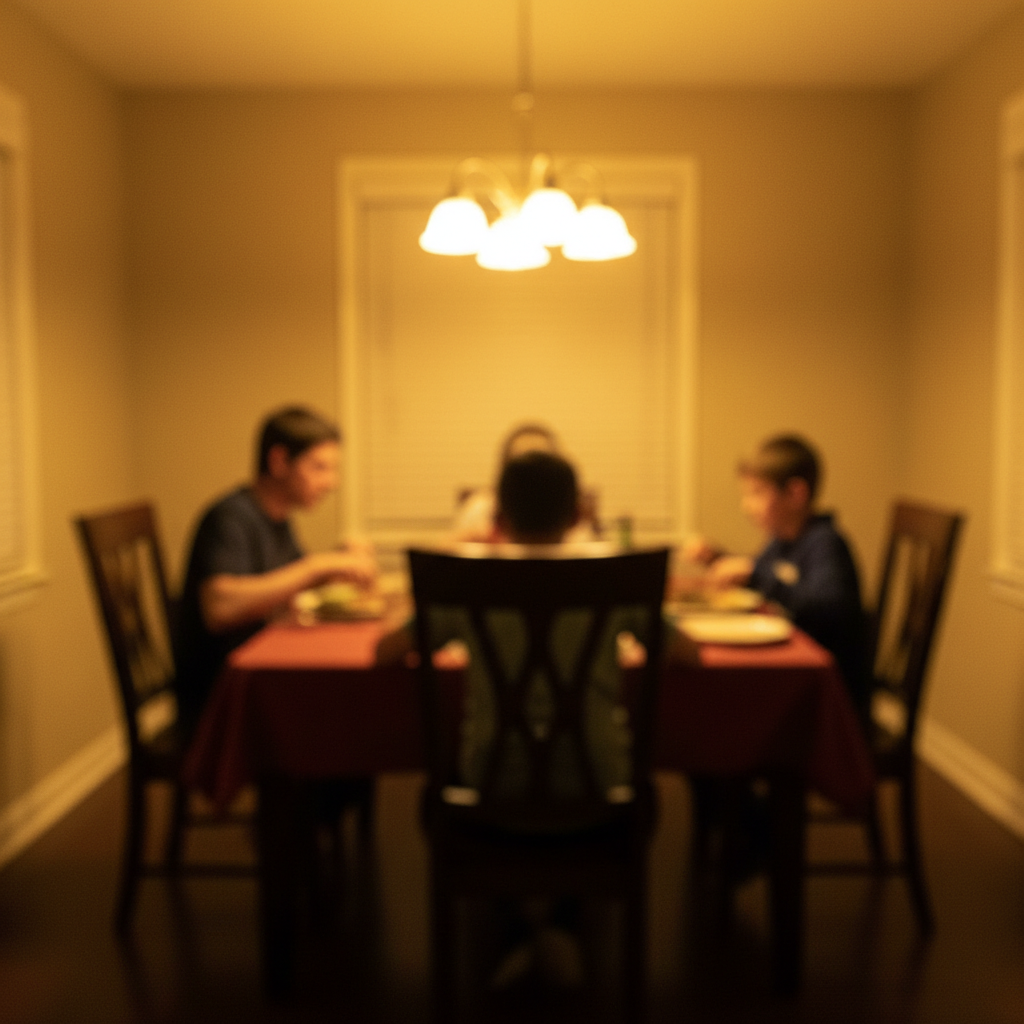
Original photo before vineyard background editing — vacation rental bathroom refresh
Before
->
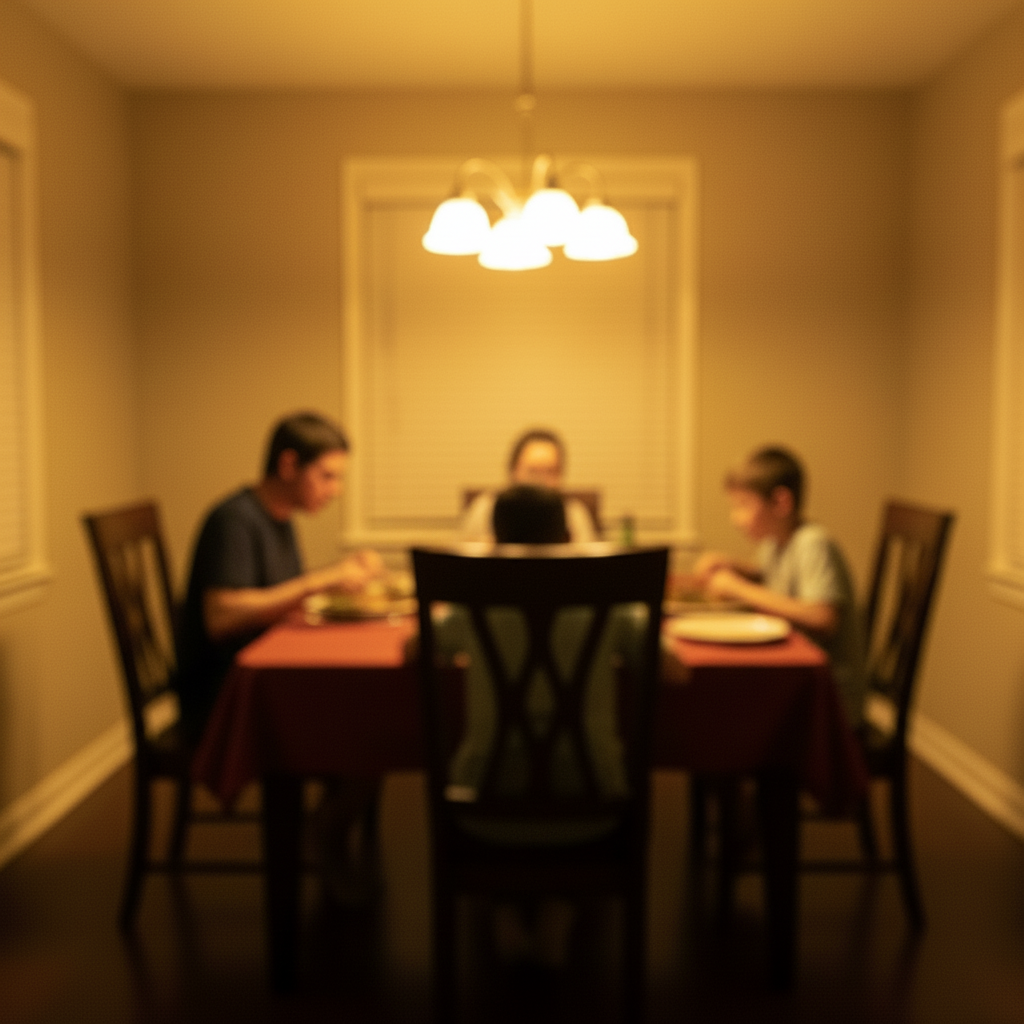
Result after AI vineyard background editing — vacation rental bathroom refresh
After

Vacation Rental Bathroom Refresh

Airbnb host needed appealing bathroom photos. The AI adjusted the vineyard background to show the space's potential with better visual appeal for guests.

Prompt: add vineyard background — make it look natural and professional
Original photo before vineyard background editing — condo bedroom virtual staging
Before
->
Result after AI vineyard background editing — condo bedroom virtual staging
After

Condo Bedroom Virtual Staging

A casual snapshot photo that needed professional-level quality. The AI delivered clean, natural results that looked like they were done by a skilled editor.

Prompt: add vineyard background with attention to detail, matching lighting and perspective

Detailed Guides by Scenario

📷

Home & Interior Design

Preview how vineyard background would look in a room or space before committing to a purchase or renovation.

Common Scenarios

  • Visualizing vineyard background in a living room, bedroom, or office before buying
  • Creating client mockups that show vineyard background in their actual space
  • Comparing different placements of vineyard background in renovation plans

Best Practices

  • Upload a well-lit, straight-on photo of the room for the most realistic result
  • Specify the size and position — e.g., 'add a large vineyard background on the left wall'
  • Match the room's lighting in your prompt: 'warm lighting' for evening shots, 'natural daylight' for window-lit rooms
📷

Creative & Social Content

Use vineyard background to create eye-catching content for social media, digital art, or personal projects.

Common Scenarios

  • Adding vineyard background to photos for unique social media posts that stand out in feeds
  • Creating fantasy or composite images that incorporate vineyard background for art projects
  • Making holiday or themed content by placing vineyard background in seasonal photos

Best Practices

  • Be specific about the style — 'realistic vineyard background' vs. 'illustrated vineyard background' gives very different results
  • Use reference images when you want the AI to match a particular look
  • For social content, try unusual placements that create a surreal or humorous effect
📷

Professional & Marketing Use

Incorporate vineyard background into marketing materials, presentations, and product catalogs without expensive photo shoots.

Common Scenarios

  • Adding vineyard background to product mockups and marketing banners
  • Creating presentation slides that show vineyard background in context
  • Building a catalog of variations that feature vineyard background in different settings

Best Practices

  • Use high-resolution source images — marketing materials demand sharp details
  • Keep brand guidelines in mind: specify colors and style that match when adding vineyard background
  • Generate multiple versions and A/B test which placement performs best in ads

If something looks off

AI changed the wrong area

Why: The AI couldn't determine exactly which area you meant from the description alone.

Try: Tap a marker on the specific area you want to edit, then regenerate with the same prompt

Tip: Markers tell the AI exactly where to focus. Use them when description alone is ambiguous.

Result looks unnatural

Why: The AI may need more specific guidance about the look you want.

Try: Add 'natural lighting and sharp details that match the rest of the photo' to your prompt

Tip: Adding 'natural' and 'realistic' to your prompt helps the AI prioritize believability.

Lighting doesn't match

Why: The edited area has different lighting than the original scene.

Try: Add: 'match the lighting direction and color temperature of the original photo'

Tip: If light comes from one side in the original, mention it: 'with light from the left side.'

Edges look rough or artificial

Why: Transitions between edited and unedited areas need refinement.

Try: Tap markers on the rough edges and regenerate: 'refine these edges for a seamless blend'

Tip: Edge refinement is the most common adjustment — markers on problem areas make it quick.

Quick answers

Can I undo the edit if I don't like the result?

Yes, you always keep your original photo. If the result isn't right, you can adjust your prompt and regenerate, or simply download your untouched original.

Does the AI add vineyard background work on mobile?

Yes, EditThisPic works fully in your mobile browser — no app download needed. It also has an iOS app available on the App Store.

How do I get better results when I add vineyard background?

Be specific in your prompt. Instead of vague descriptions, mention exact colors, materials, styles, or positions. Use markers to point the AI at the exact area you want changed.

Is my photo kept private when I add vineyard background?

Yes. Your photo is processed in real-time by the AI and is not stored on our servers after editing. No account is required to use the tool, and we don't collect or share your images. Your original file stays on your device.

How does EditThisPic compare to remove.bg for adding vineyard background?

EditThisPic uses AI that understands natural language, so you describe the edit you want instead of using complex tools. It works instantly in your browser with no software to install or learn. For adding vineyard background, you simply type what you want and the AI handles the rest in 20-45 seconds.

Will the added result look realistic and natural?

Yes. The AI analyzes edges and fine details like hair strands to produce clean, natural-looking results. Complex backgrounds with similar colors may need a follow-up prompt to refine edges, but most photos produce professional results on the first try.

Can I add vineyard background on my phone?

Yes. EditThisPic works in any mobile browser — iPhone, Android, or tablet. The full editor loads on mobile with touch-optimized controls. No app download needed, though an iOS app is also available. Upload from your camera roll and edit on the go.

What's the most common use case for adding vineyard background?

Most users add vineyard background for social media content, professional work, or personal projects. The AI handles both simple and creative edits, so whether you need a quick fix or an artistic transformation, you can describe exactly what you want in plain English.

Can I add vineyard background for multiple photos at once?

Currently, EditThisPic processes one photo at a time for the best AI results. Upload each photo individually and use the same prompt — the process takes about 20-45 seconds per image. For large batches, a paid plan gives you unlimited edits without waiting.

What makes a good photo for adding vineyard background?

Well-lit photos with clear subjects produce the best results. Avoid heavily compressed or very small images. Front-facing angles typically work better than extreme side angles. The AI can work with most photos, but higher quality input means higher quality output.

What types of photos work best with this tool?

JPG, PNG, and WebP photos up to 7MB work best. The AI handles photos from any camera or phone. High-resolution images with good lighting produce the best results. Extremely dark, heavily compressed, or very small images may produce less precise edits.

Can I also change the background to something specific in the same edit?

Yes! You can combine multiple edits in one prompt. For example, ask to add vineyard background and change the background to something specific at the same time. The AI understands complex multi-step instructions. For very different changes, separate prompts may give better control over each edit.

Ready to add your photos?

Free to try. No signup required.

Try it free