Do I need to mark or select my body before trying on clothes?
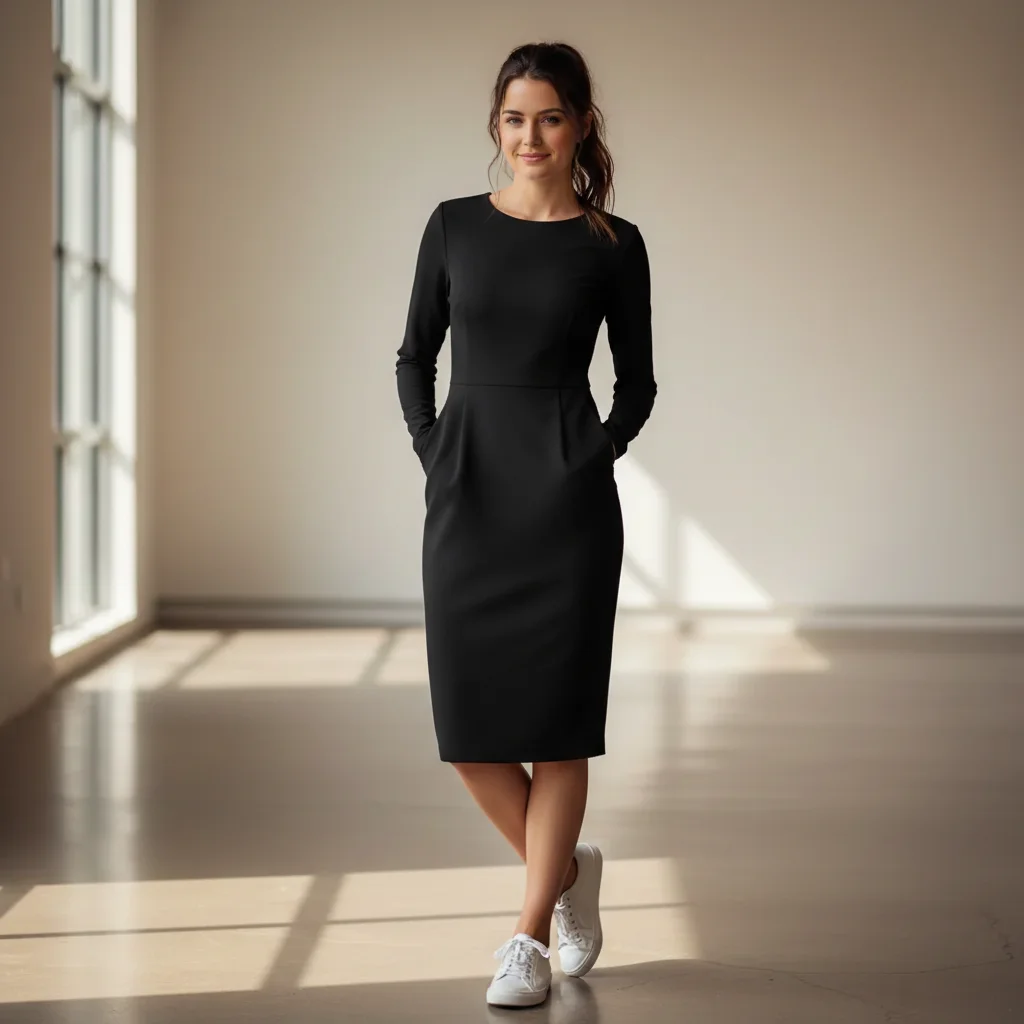
No. Just upload your photo, add the clothing reference image, and type what you want to try on. The AI automatically identifies your body and the garment — no selection or marking required.
How do I use the two-image workflow to try on clothes?
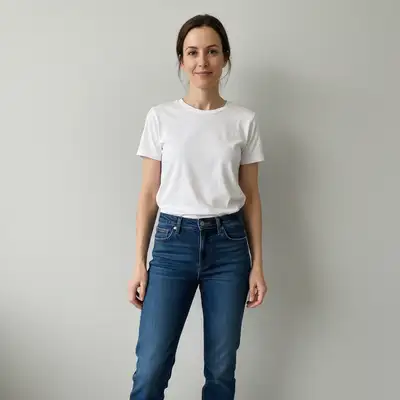
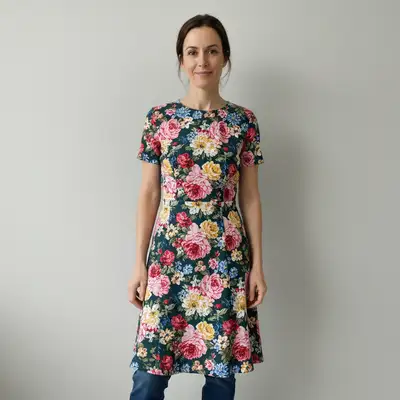
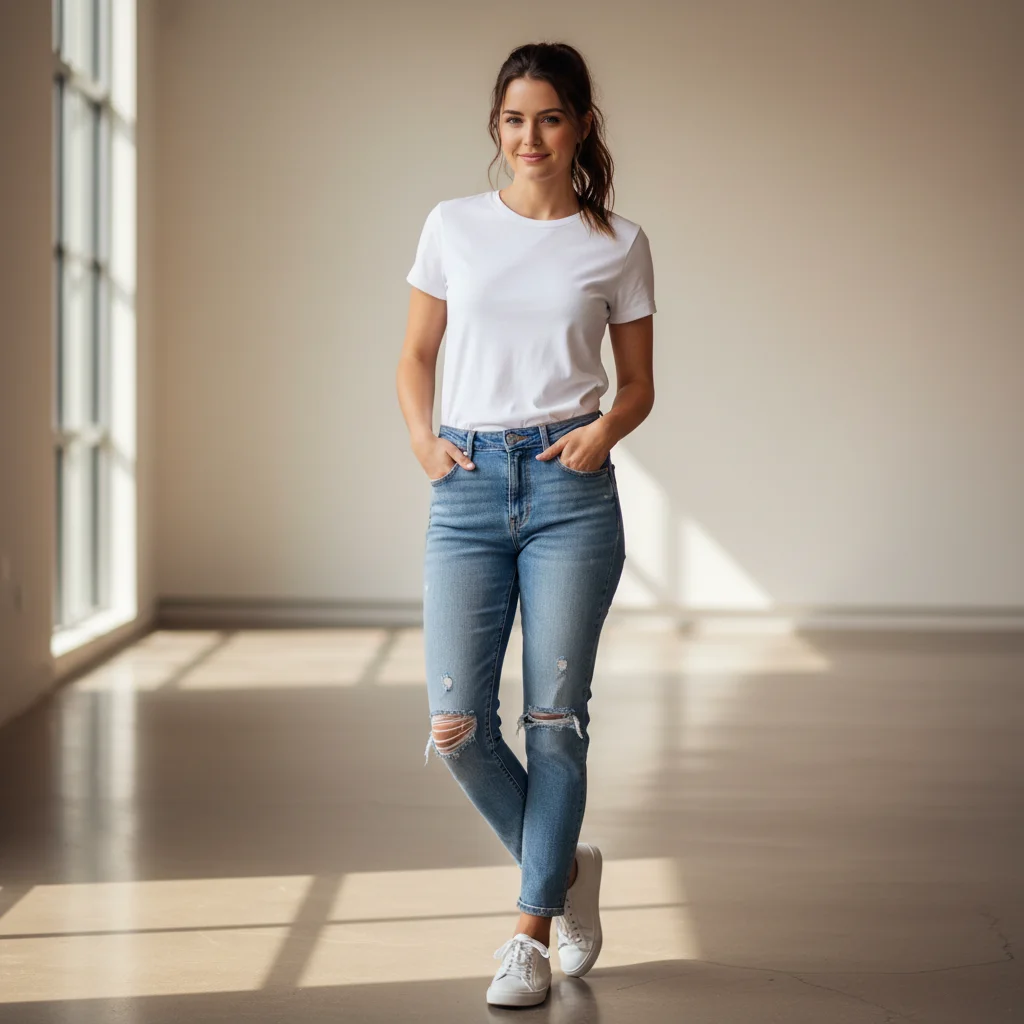
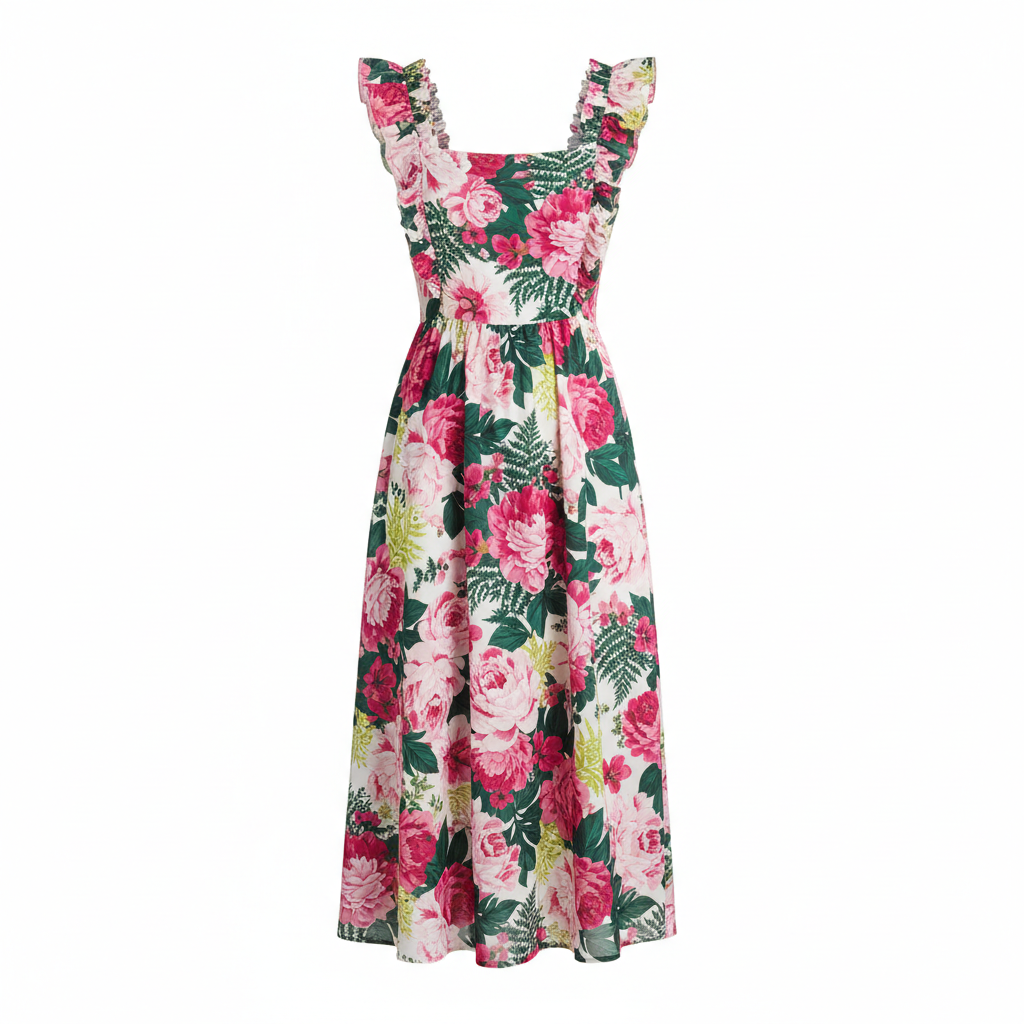
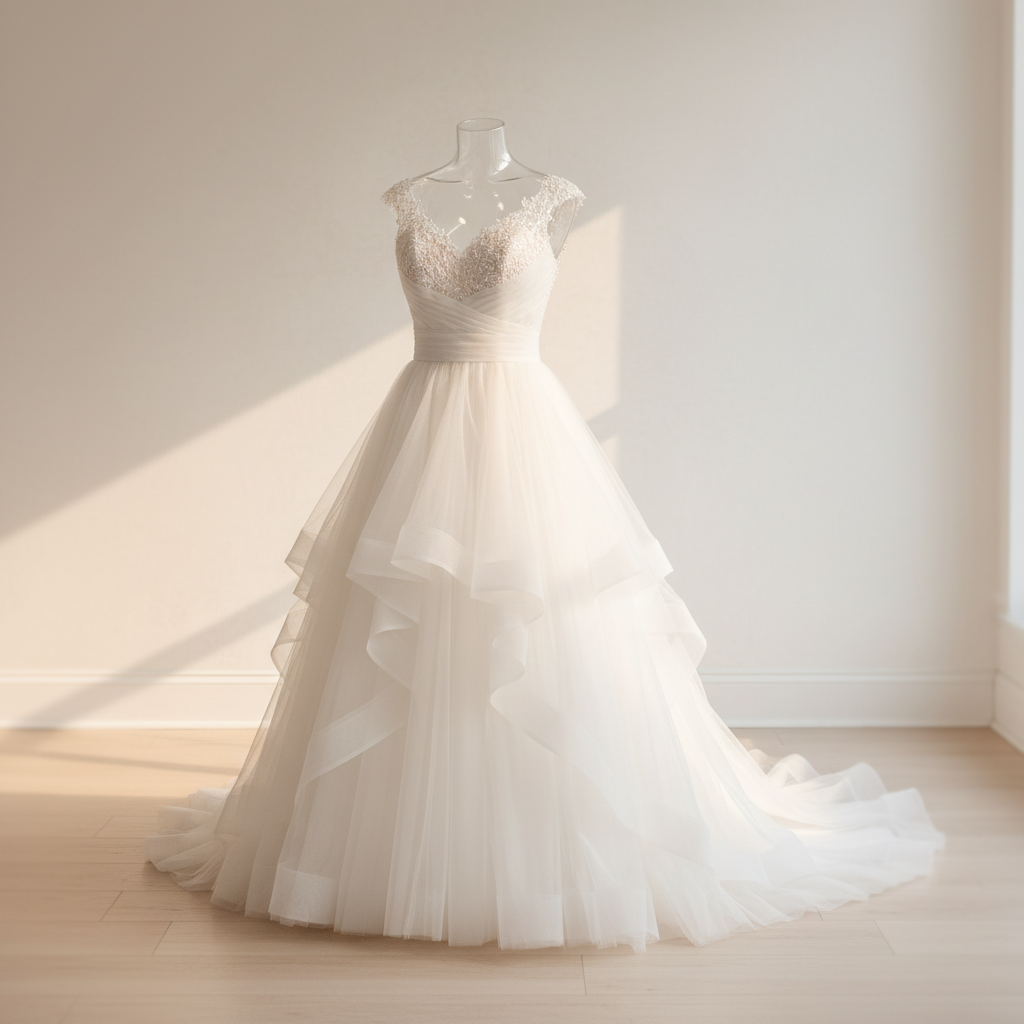
It is a two-step upload. First, upload your own photo as the main image. Then click '+ Add reference image' below the prompt box to upload a photo of the clothing you want to try on. That second image is the outfit reference. Type 'try on the outfit from the reference image' and click edit. The AI extracts the garment from the reference and transfers it onto your body in the main photo.
How do I virtually try on clothes from a photo for free?
EditThisPic lets you try on clothes virtually for free with no account required. Upload your photo, click '+ Add reference image' to upload the clothing photo, type 'try on the outfit from the reference image,' and click edit. The result downloads without a watermark. You get one free edit per week, or you can purchase credits for more sessions.
Is there a free virtual try-on tool that doesn't require login or signup?
Yes. EditThisPic is a free virtual try-on tool that requires no login, no account, and no app download. Open editthispic.com in any browser, upload your photo, add the clothing reference, and try it on instantly. Results are watermark-free.
What is the best free AI tool for trying on clothes from a photo?
EditThisPic's AI virtual try-on handles the full two-image workflow — your photo plus a clothing reference — with no login required. Unlike dedicated try-on apps that require account creation and limit you to specific brand catalogs, EditThisPic works on any clothing from any reference image: product pages, social media screenshots, magazine photos, or your own pictures.
Can I try on a wedding dress from a photo without going to a boutique?
Yes. Find a gown photo on the designer's website or a bridal boutique page, save it as your reference image, and use it in EditThisPic with a full-length photo of yourself. The AI transfers the gown silhouette, lace details, and train onto your photo in seconds. Many brides use this to shortlist 3 to 5 dresses before scheduling in-person appointments, saving time and narrowing down styles that actually suit them.
Can I try on clothes from a shopping website like Amazon or ASOS?
Yes. Screenshot or save the product image from any shopping website — Amazon, ASOS, Zara, Shein, or any retailer. Use it as your reference image in EditThisPic. The AI works from any clear clothing photo regardless of where it came from. Product photos on white or light backgrounds tend to give the most accurate color and texture results.
What kind of photo of myself should I use?
A front-facing, full-length photo gives the best results. The AI needs to see your body proportions from head to toe to correctly scale and drape the garment. A standing pose with arms slightly away from your body works better than arms crossed or hands in pockets. Soft, even indoor lighting helps the AI blend the outfit naturally. Phone selfies in a well-lit room work fine — professional quality is not required.
What kind of clothing reference photo works best?
The clearest reference photos are product shots on a white or neutral background, mannequin photos showing the full garment, or flat-lay shots. Front-facing images where the entire garment is visible work best. Avoid reference photos where the clothing is partially obscured, worn by someone in a busy scene, or shot at an extreme angle — these make it harder for the AI to extract the garment accurately.
Can I try on just a jacket or top without changing my pants?
Yes. In your prompt, specify which garment to transfer and what to keep: 'put the jacket from the reference photo on me while keeping my existing jeans and shoes.' The AI will layer the new garment over your existing clothing rather than replacing your entire outfit. Be explicit about what to keep and what to change.
Will the results look realistic enough to help me decide whether to buy?
For most standard clothing items — dresses, shirts, jackets, trousers — the results are realistic enough to give a clear sense of silhouette, color, and approximate fit. You can see whether the style suits your body shape, whether the neckline works with your face, and how the color looks against your skin tone. Very intricate embroidery or unusually complex fabrics may not render at full fidelity, but the overall look is accurate enough for most shopping decisions.
How much does EditThisPic cost?
You get 1 free edit per week — no account needed. After that, one-time credit packs start at $4.99 for 10 edits, valid 12 months, no subscription. Power users who edit daily can pick Studio Membership, a monthly workspace at $49.99/mo for 300 edits. Purchased downloads are clean with no watermark.