Do I need to mark the screen area before placing the screenshot?
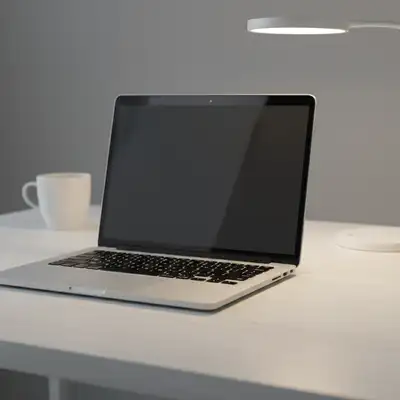
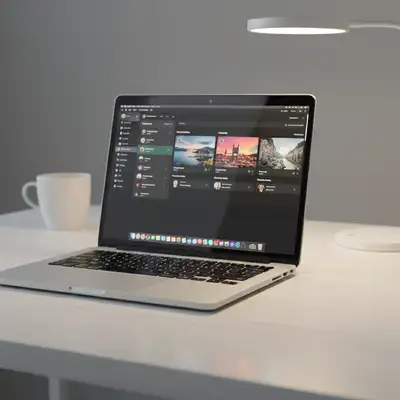
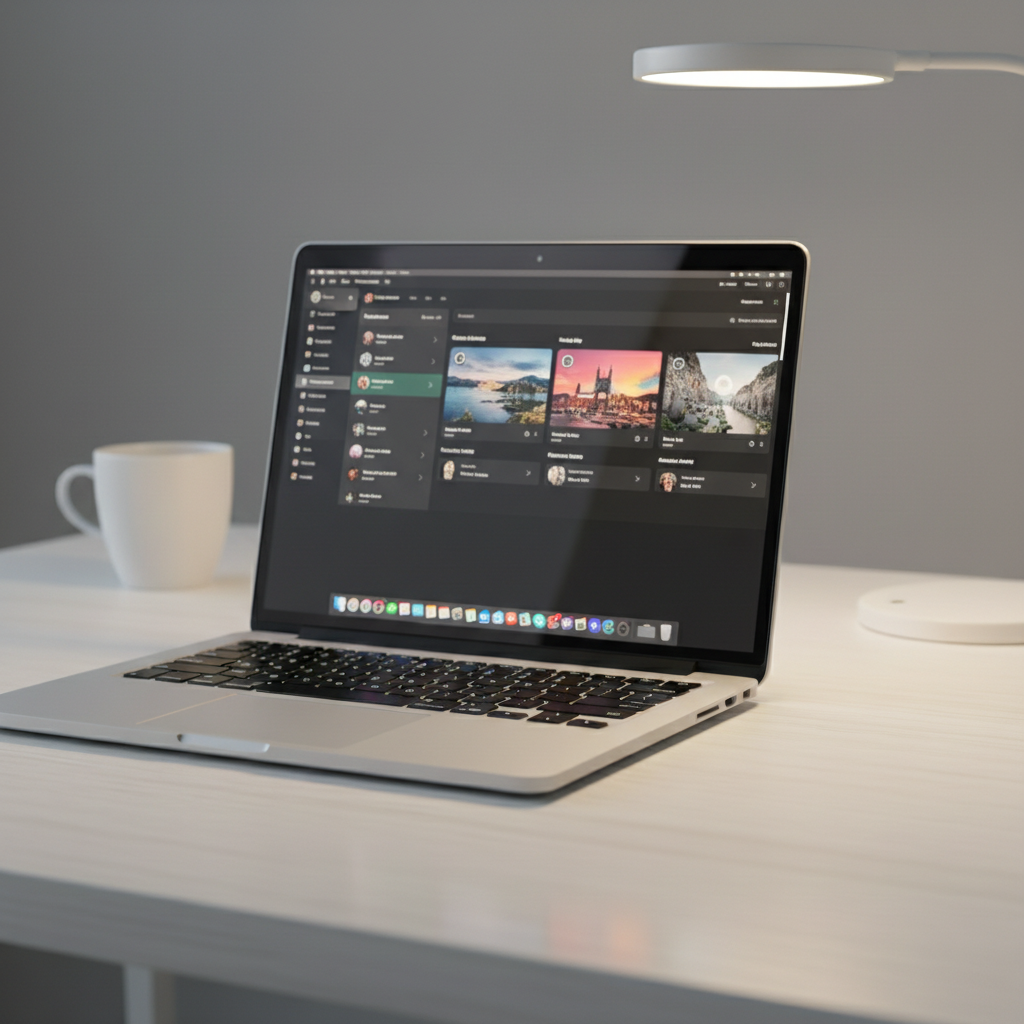
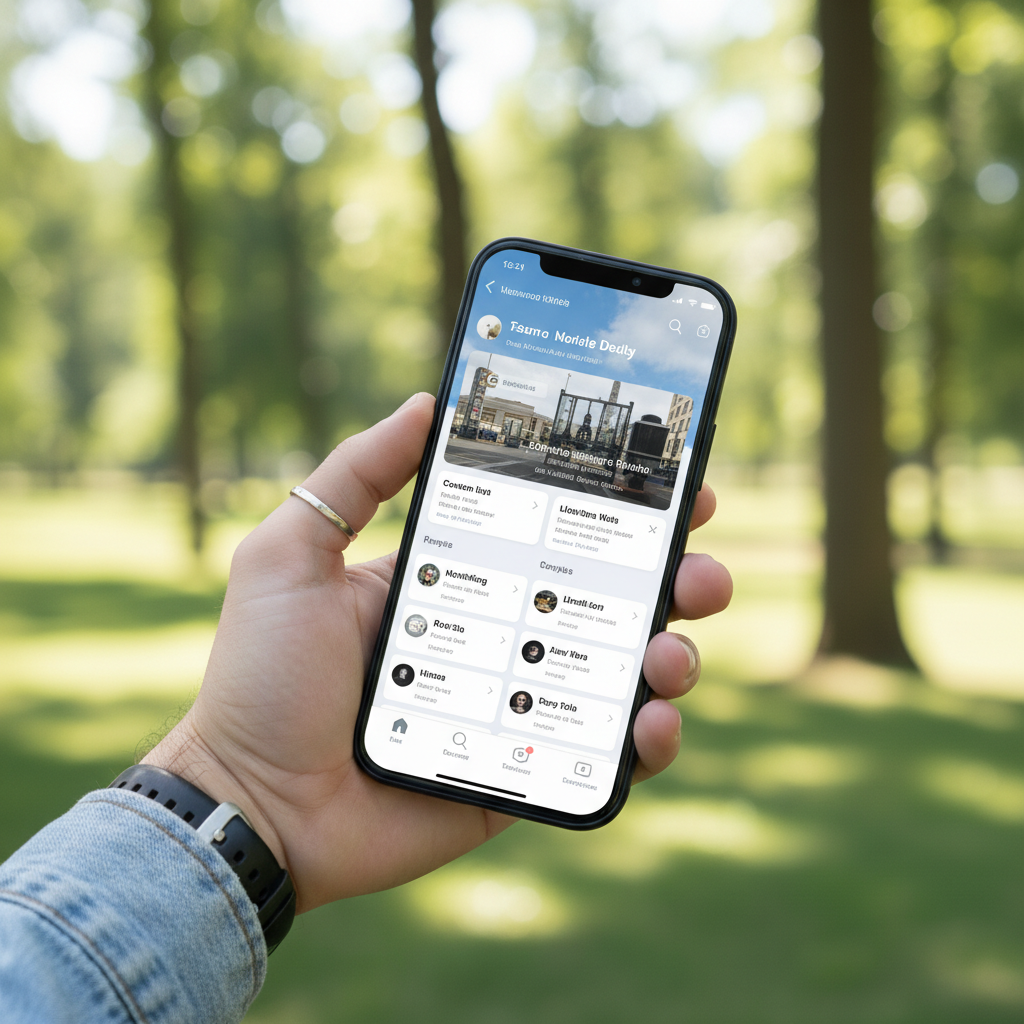
No. Just upload your device lifestyle photo, upload the screenshot as a reference image, and describe what you want: 'place the screenshot on the laptop screen with correct perspective.' The AI locates the device screen automatically.
How do I put a screenshot on a device mockup using a real photo?
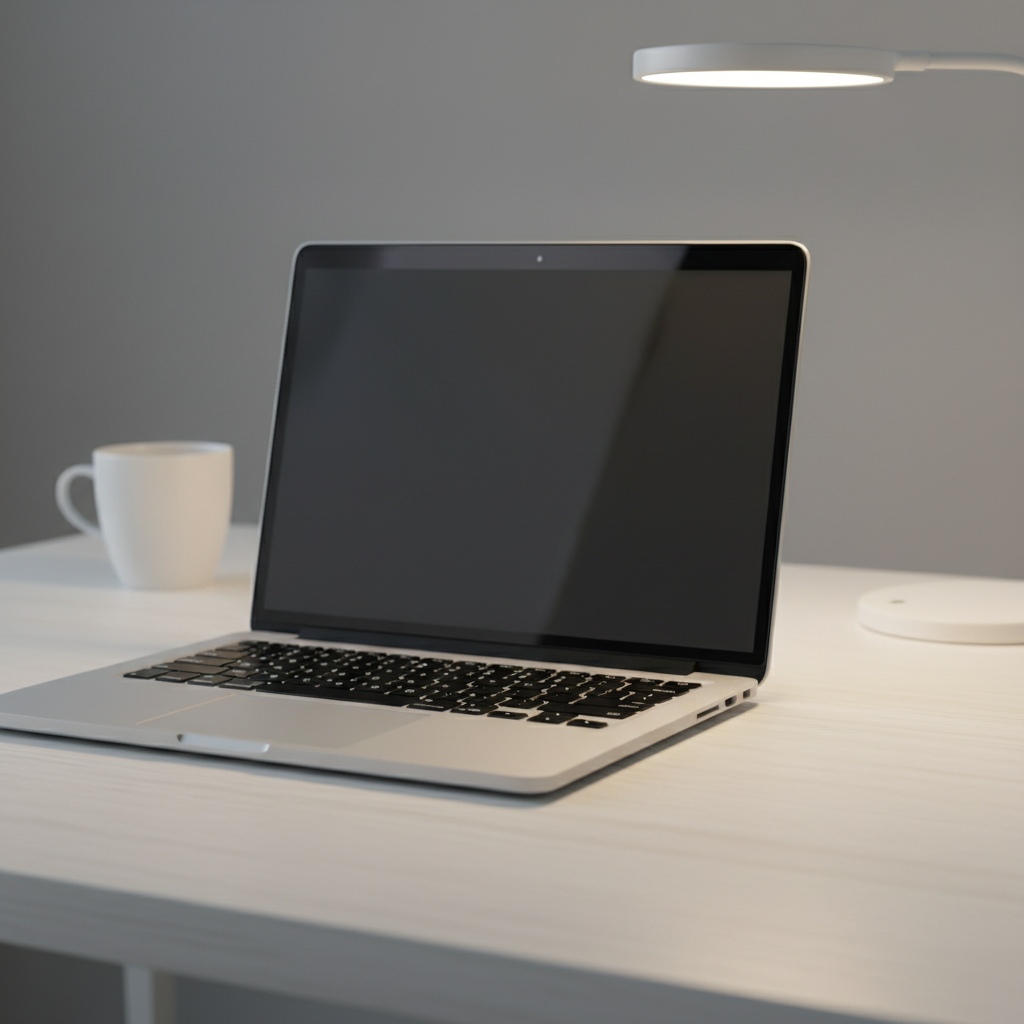
EditThisPic uses a two-image workflow. Upload your device lifestyle photo as the main image (laptop on desk, phone in hand, tablet on table), then click '+ Add reference image' to upload your UI screenshot. Type 'place the screenshot on the device screen, perspective-matched.' The AI handles all the distortion, screen glow, and reflection matching automatically. Free, no account needed.
Is there a free device mockup generator that doesn't require signup?
Yes. EditThisPic lets you create realistic device mockups from real photos completely free, with no account or signup required. Upload your device photo and UI screenshot, describe the placement, and download the result without any watermark. You get one free mockup per week, or purchase credits for more.
What kind of device photos work best for this?
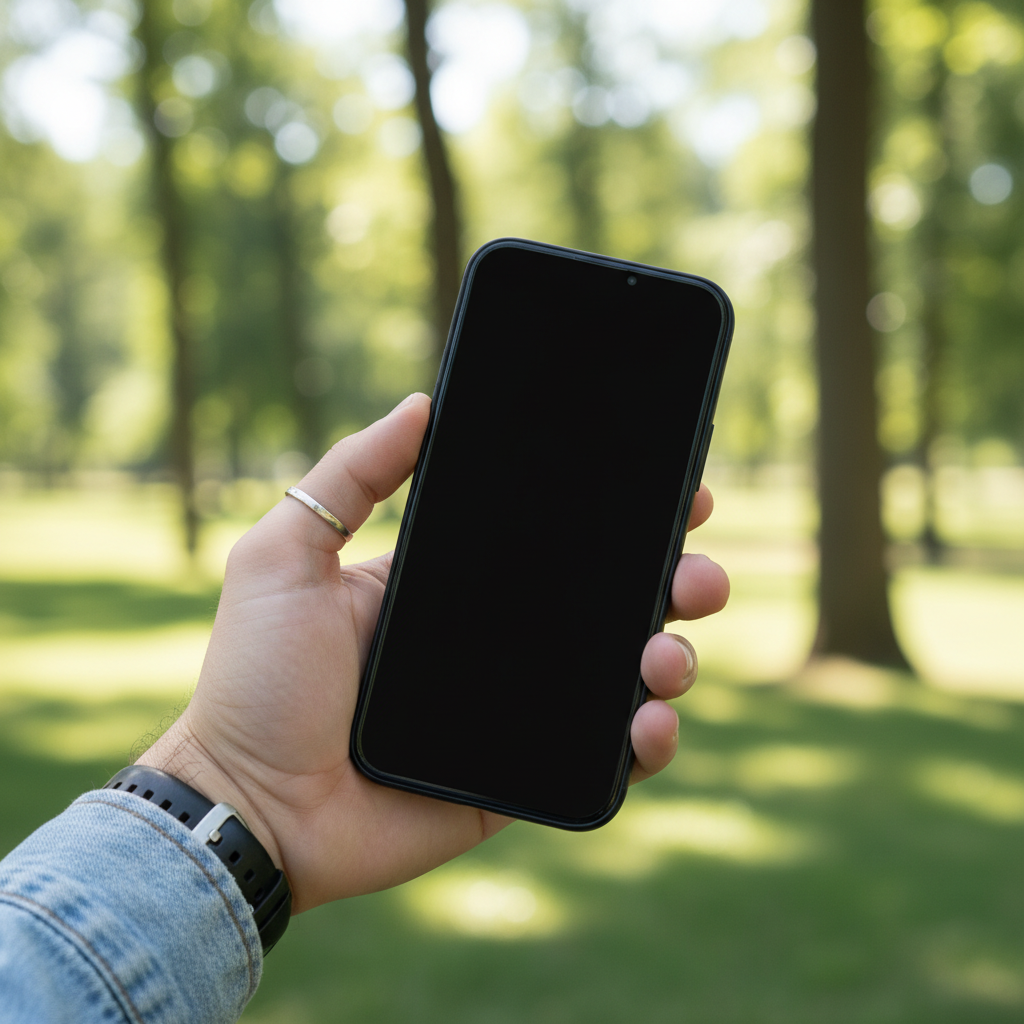
Photos where the screen faces mostly toward the camera work best — the screen should be clearly visible and take up a reasonable portion of the frame. Ideal setups: laptop open at 90-110 degrees on a desk, phone held upright or laid flat with screen up, tablet propped at reading angle. Avoid photos where the screen is nearly edge-on (more than 60 degrees from the camera), heavily glared, or too small in the frame.
Can I use my own screenshot or do I need a specific format?
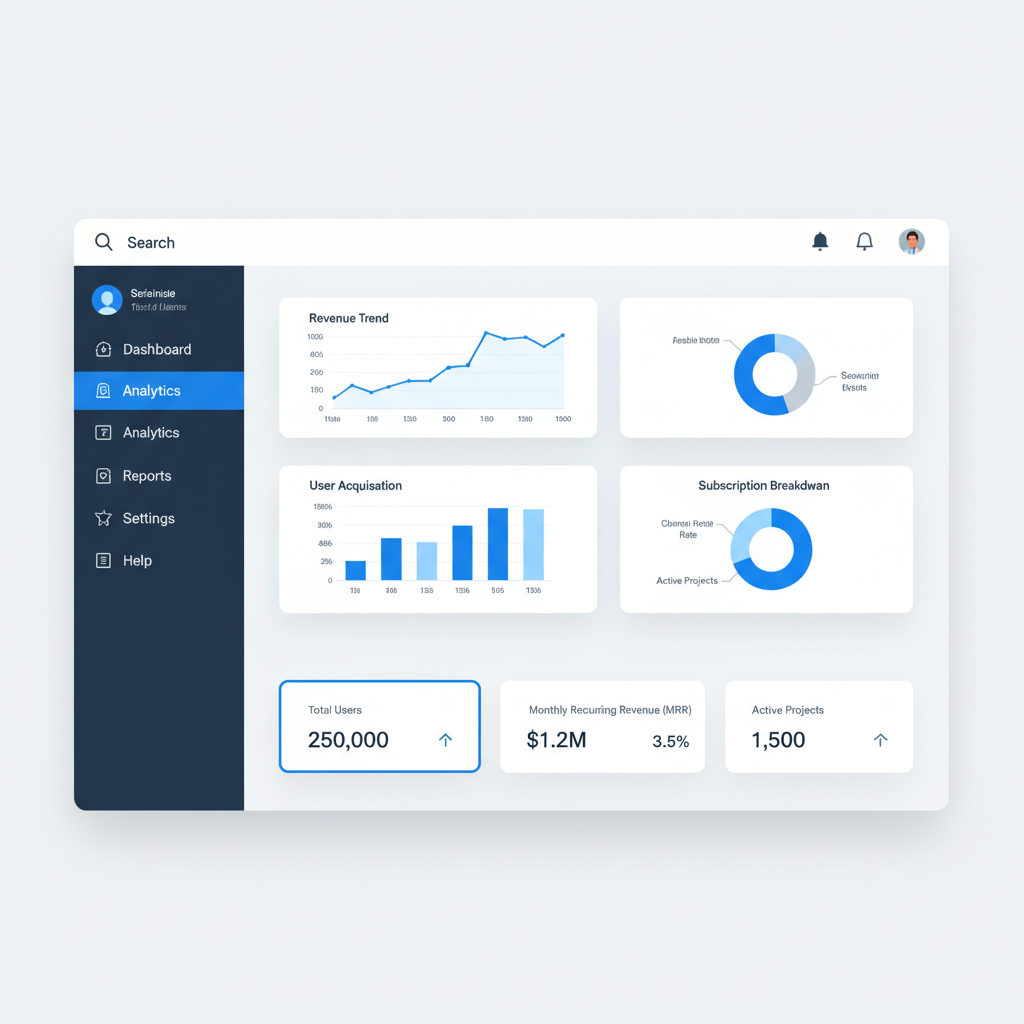
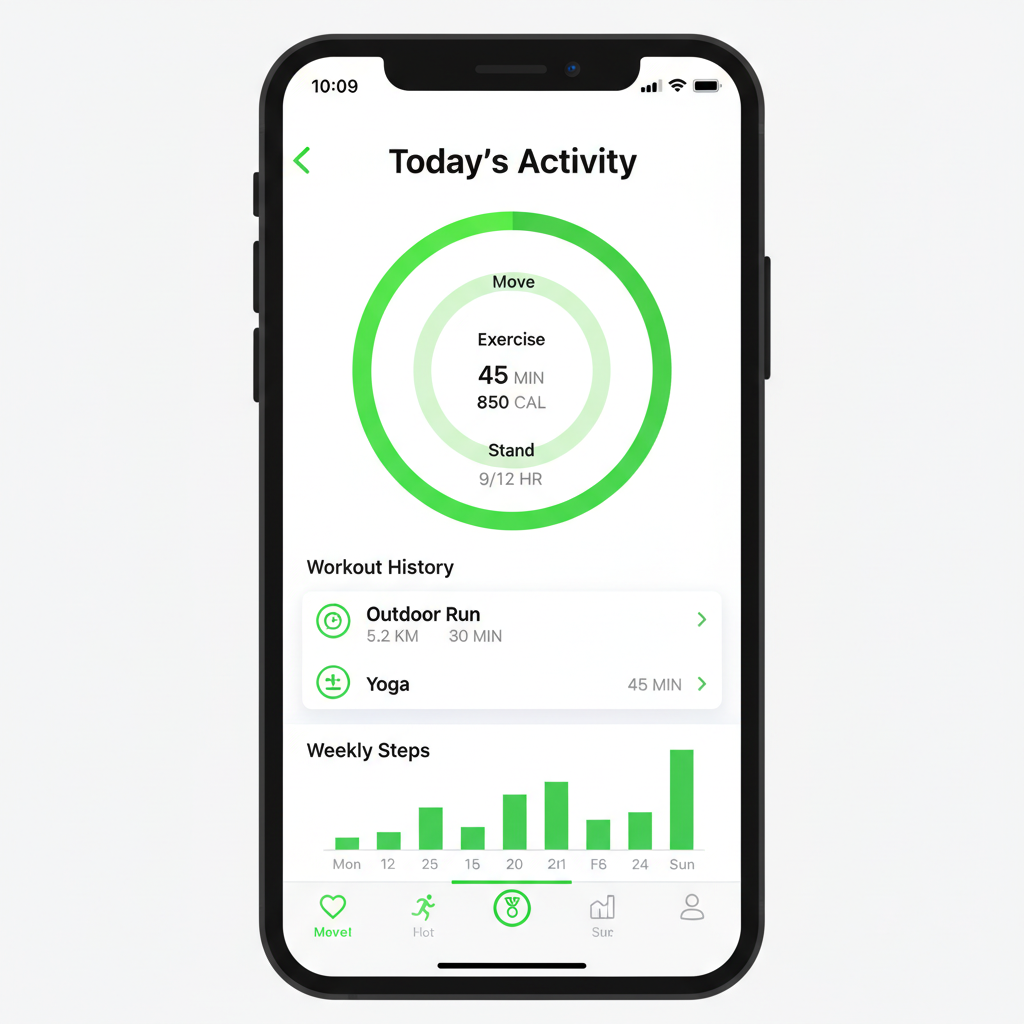
Any flat screenshot works: browser captures, Figma exports, full-resolution app screenshots, or UI designs. Upload it as the reference image. The AI handles all scaling and perspective distortion, so start with the full-resolution version of your screenshot. JPG, PNG, and WebP are supported up to 7MB.
What is the best free AI tool for creating device mockups from photos?
EditThisPic is built specifically for this workflow. Unlike static mockup generators that use pre-built 3D frames, EditThisPic works with any real device photo you provide — a MacBook in your actual office, a phone in someone's hand outdoors, a tablet at a client site. The result looks like an actual photograph because it starts from one.
How do I make a professional mockup for my startup pitch deck?
Use a high-quality photo of a premium device (MacBook Pro, latest iPhone) on a clean desk or professional environment. Upload it as the main image, then add your best product screenshot or dashboard as the reference image. Describe 'place the screenshot on the screen with clean screen glow and minimal reflections, suitable for a pitch deck.' This produces a polished result in about 30 seconds — much faster than Figma mockup plugins or Photoshop.
Can I create mockups for multiple device types — phone, tablet, and laptop?
Yes. Run separate edits for each device type. Upload the relevant device photo as the main image, upload your screenshot (or the responsive version for that screen size), and describe the placement. You can create a full device showcase in a few minutes. For a multi-device photo (laptop + phone in same frame), describe both screens in one prompt: 'place the desktop version on the MacBook and the mobile version on the iPhone.'
Why does my screenshot look pixelated or low quality on the screen?
The reference screenshot is likely low resolution. Use the highest-resolution version of your screenshot — a full-resolution browser capture or Figma export at 2x. The AI scales the reference image to fit the screen, so starting with a higher-resolution source always produces sharper results.
How is this different from using a Figma mockup plugin or a mockup generator site?
Standard mockup tools use pre-built 3D device frames with fixed angles and lighting. They look generic because thousands of other brands use the same frames. EditThisPic works with any real-world device photo you provide, so the lighting, background, and environment are completely custom. The result looks like an actual photograph taken with your app on screen — because it starts from a real photo.
Does this work for dark mode UI designs?
Yes. Dark mode screenshots work well on device photos with dim or neutral ambient lighting — office environments with desk lamps, evening shots, or any photo that isn't in direct bright sunlight. Describe 'with screen brightness matching the dim ambient lighting and a cool blue glow from the dark mode display' for the most realistic result.
Is EditThisPic free to use? What are the limits?
EditThisPic offers one free preview edit per week with no account required, and purchased downloads are clean. If you need more than one mockup per week, you can purchase credit packs starting at $4.99 for 10 edits. There is no signup required for the free weekly edit.
How much does EditThisPic cost?
You get 1 free edit per week — no account needed. After that, one-time credit packs start at $4.99 for 10 edits, valid 12 months, no subscription. Power users who edit daily can pick Studio Membership, a monthly workspace at $49.99/mo for 300 edits. Purchased downloads are clean with no watermark.