Free • No signup Remove Sora watermark · Free

Sora Watermark Remover

Last updated

Export a still frame from your Sora generation, upload here, describe the watermark — AI removes it cleanly in seconds.

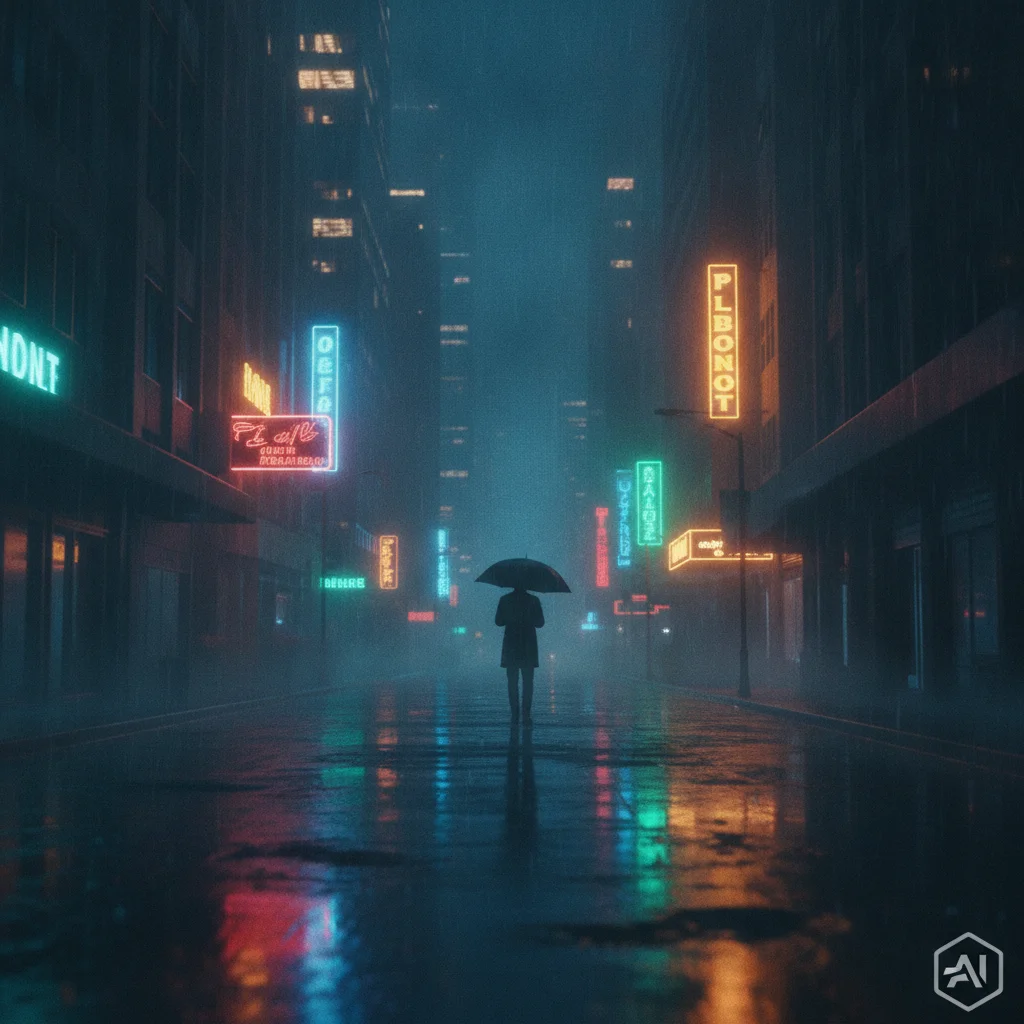
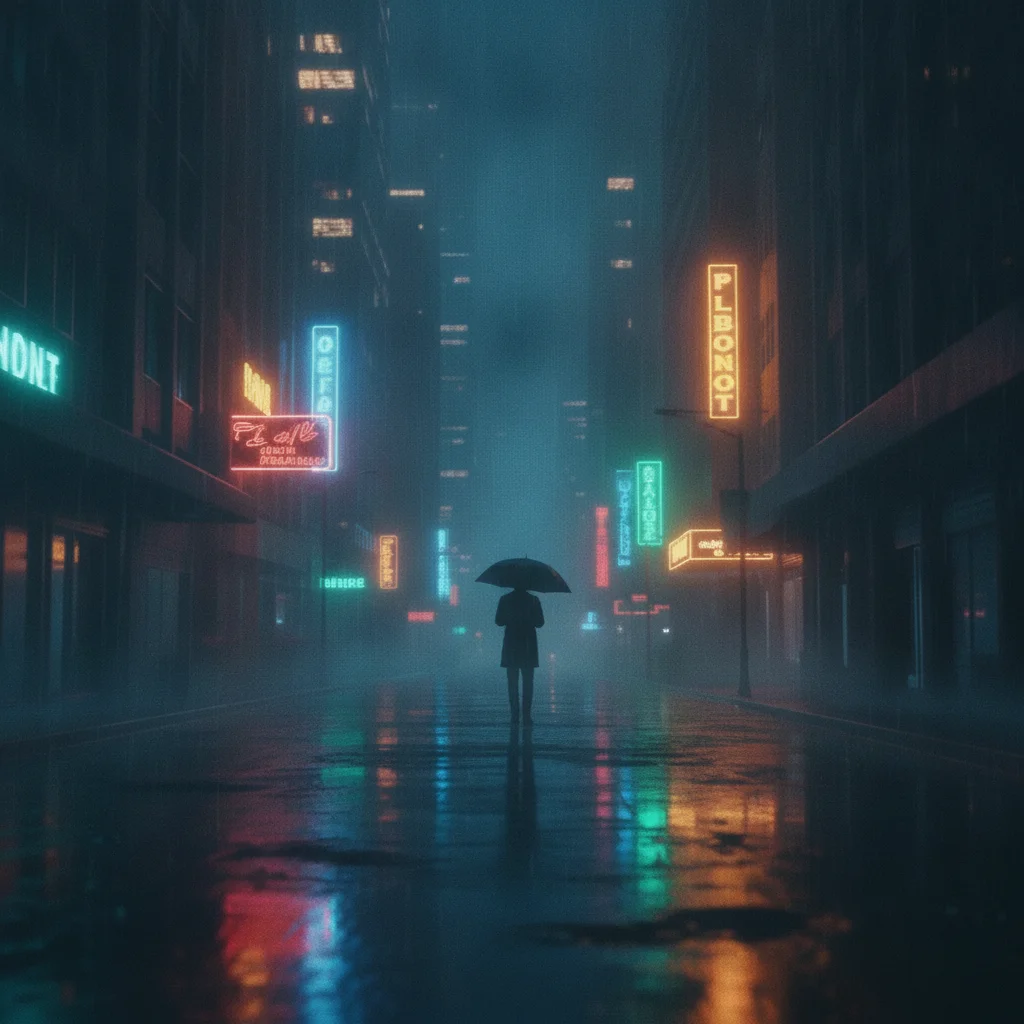
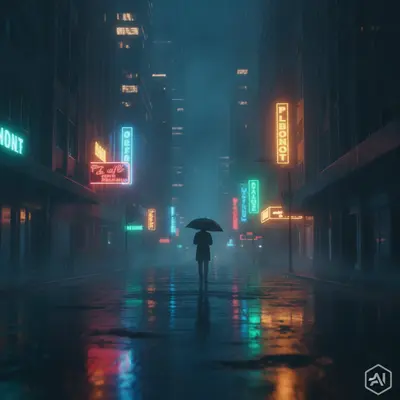
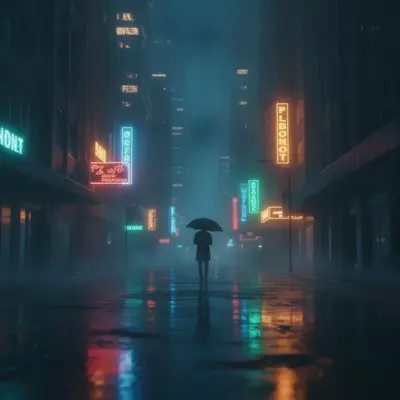
Cinematic AI still of neon-lit rainy city street with small watermark badge in bottom right corner Same cinematic city still with Sora watermark removed and dark wet pavement reconstructed in corner

Upload photo to remove sora watermark

"remove the Sora watermark in the bottom right corner and fill with matching dark cinematic background"

Release to upload

50,000+photos edited
<30stypical edit
1 freeedit weekly

1 free edit·then from $4.99

How it works

  1. Export your Sora frame as an image first

    EditThisPic is an image editor — it cannot process video files directly. To clean a Sora watermark, you need a still image: export the specific frame you want from Sora as a JPG or PNG, or take a screenshot during playback and crop to the frame area. Upload the resulting image file (JPG, PNG, WebP, HEIC, up to 7MB).

    Expect: Simple watermark on a solid or gradient background: 15-20 seconds. Watermark overlapping complex cinematic scene content (moving elements, detailed foreground): 25-35 seconds and may need a second pass.
  2. Describe the Sora watermark to remove

    Type the removal instruction specifying where the Sora mark appears — 'remove the Sora watermark in the bottom right corner and fill with matching background.' Sora's visible watermark is typically a text label or logo mark positioned in a corner. Mention the background behind the mark for cleaner fill: 'fill with matching dark cinematic sky' or 'blend with the concrete surface texture.'

    Tip: Sora videos have a distinctive cinematic quality — rich, detailed scenes with motion blur effects that survive as artifacts in stills. Name the visual style in your fill description: 'fill with matching cinematic bokeh background' or 'blend with the motion-blurred street scene.'

    Copy one of these to get started:

    Standard corner Sora watermark — easy remove the Sora watermark and fill with matching background
    Watermark on dark cinematic background — easy remove the Sora watermark in the bottom right corner and fill with matching dark cinematic background
    Watermark overlapping complex scene content — medium remove the Sora watermark from the corner and reconstruct the scene behind it, maintaining the cinematic depth and lighting
    Text label watermark — easy remove the Sora text label watermark near the bottom edge and restore the background underneath
    3 more prompts
    Screenshot still with Sora watermark — medium remove the Sora watermark from the corner of this screenshot and blend the area with the surrounding cinematic scene
    Multiple marks (Sora + third-party platform) — medium remove all visible watermarks and platform labels from this image and fill each area with matching background
    Watermark on bright exterior scene — hard remove the Sora watermark from the bright corner and reconstruct the sky gradient and ambient light to match the surrounding frame
  3. Generate and inspect the result

    Click Generate. The AI removes the visible Sora stamp and reconstructs what should be behind it in the cinematic scene. Zoom to 100% in the corner where the watermark was — check for any residual ghost or brightness artifact. A second pass with 'clean any remaining trace in the corner' handles stubborn remnants.

  4. Download your clean still

    Download as PNG or JPG. PNG is lossless and preserves all the detail in the Sora-quality still — recommended for any further editing or print use. JPG is compact for sharing. EditThisPic adds no watermark to your output.

See it in action

Cinematic AI still of neon-lit rainy city street with small watermark badge in bottom right corner
Before
->
Same cinematic city still with Sora watermark removed and dark wet pavement reconstructed in corner
After

Sora watermark removed from cinematic street scene

A still frame exported from a Sora-generated urban street scene at night. Atmospheric fog, neon lighting, rain-wet pavement. The Sora watermark was in the lower right corner over a dark, rain-blurred area — single pass, 20 seconds.

Prompt: remove the Sora watermark in the bottom right corner and fill with matching dark cinematic background
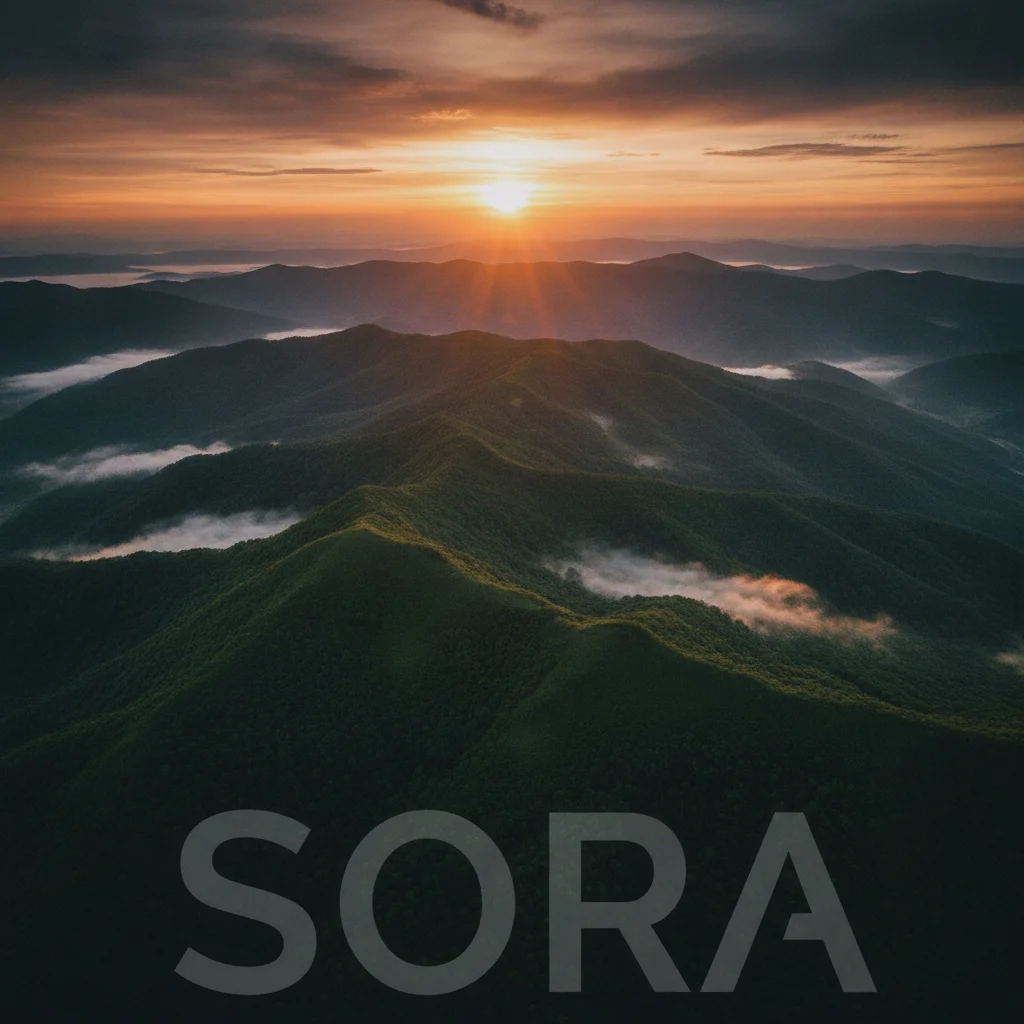
Cinematic aerial mountain landscape at golden hour with Sora text label along bottom edge overlapping foothills
Before
->
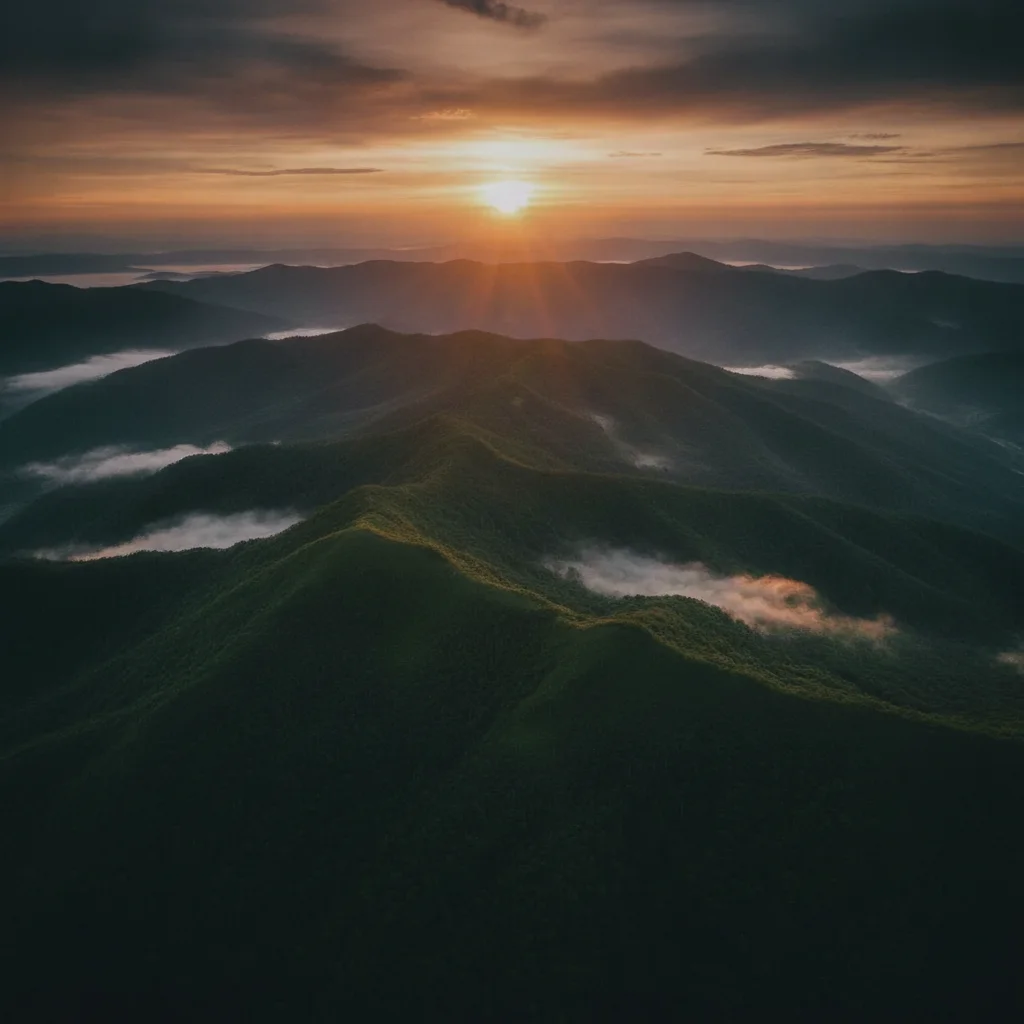
Clean aerial landscape still with Sora text label removed and mountain foothills and sky reconstructed
After

Text label removed from landscape still

A gorgeous aerial landscape still from a Sora generation — wide shot of mountains at golden hour. The Sora text label ran along the bottom edge, partially overlapping the mountain foothills. Two passes: first removed the text, second cleaned the residual brightness difference along the edge.

Prompt: remove the Sora text label watermark near the bottom edge and restore the background underneath
Cinematic close-up portrait with dramatic lighting and small Sora watermark in lower left on bokeh background
Before
->
Clean portrait still with Sora watermark removed and warm bokeh background reconstructed naturally
After

Watermark removed from close-up portrait still

A hyper-realistic close-up portrait still from a Sora generation. Shallow depth of field with fine facial detail. The watermark was in the lower left corner on a blurred background area — single pass because the background behind the mark was defocused bokeh, which the AI reconstructs well.

Prompt: remove the Sora watermark from the corner and reconstruct the scene behind it, maintaining the cinematic depth and lighting

Quick answers

Do I need to mark the watermark before describing it?

No. Describe the mark's position in text — 'remove the Sora watermark in the bottom right corner' — and the AI targets it without any selection, brush, or tracing tool. Works on any corner position.

Does this tool process Sora video files directly?

No. EditThisPic is an image editor — it accepts still photos (JPG, PNG, WebP, HEIC up to 7MB) and cannot process video files. To clean a watermark from a Sora video, export the specific frame you want as a JPG or PNG from Sora's interface, or take a screenshot during playback. Upload the still image here, describe the watermark, and get a clean result in 15-30 seconds.

How do I remove the Sora watermark from my video still for free?

Export the frame as a JPG or PNG, upload it to EditThisPic, type 'remove the Sora watermark and fill with matching background,' and click Generate. Result in 15-30 seconds, free, no account needed. One free Fast edit per week. Additional edits from $1.99 for a 3-pack or $4.99/month for the Lite plan.

Does removing the visible Sora watermark also remove C2PA metadata?

No. The visible stamp and the invisible C2PA provenance metadata are separate layers. EditThisPic edits pixels — it removes the visible watermark from the image content. C2PA data is stored in the file's binary metadata fields and is not touched by pixel-level editing. The C2PA chain survives. If you need to inspect or strip C2PA metadata, that requires a dedicated metadata tool.

What does the Sora watermark actually look like?

Sora's visible watermark is typically a small text label or logo badge positioned in a corner of the generated video — it appears on frames exported during the preview/generation phase. The exact appearance has evolved with Sora's updates. On exported stills, it usually appears as a corner badge or bottom-edge text label.

Is it legal to remove the Sora watermark from my own video generations?

Only remove watermarks from Sora videos you created yourself and have full rights to use. Sora watermarks identify AI-generated content and indicate the generation source — removing them from someone else's content to misrepresent origin may violate OpenAI's terms of service and applicable law. This tool is for cleaning stills from your own generations. This is a summary, not legal advice.

How do I export a still frame from my Sora video?

In Sora's interface, you can pause on the frame you want and use Sora's export or download functionality to save that frame as a JPG or PNG. Alternatively, take a screenshot while the video is paused and crop to the frame area. For maximum quality, use Sora's native frame export over a screenshot — screen capture from compressed playback is lower resolution than the source frame.

Can I remove the Sora watermark on my phone?

Yes. EditThisPic runs in any mobile browser — Safari on iPhone, Chrome on Android — with nothing to install. Export the frame from Sora on your phone or take a screenshot, upload the image, type your removal prompt, and download the clean still.

What file formats does EditThisPic accept?

JPG, PNG, WebP, and HEIC up to 7MB. Sora frame exports are typically high-resolution JPGs or PNGs — both work directly. Screenshot stills are usually PNG or JPG depending on your device. For output, PNG is lossless and best for preserving the cinematic quality of the Sora still.

Why do Sora stills look different from other AI images when edited?

Sora generates video with cinematic motion blur, shallow depth-of-field, and film-quality color grading — stills from Sora often have blurred bokeh edges, motion artifacts, and complex lighting that differs from static AI image generators. These characteristics are preserved after watermark removal; the AI reconstructs the fill to match the specific cinematic visual language of the surrounding frame.

How much does EditThisPic cost?

You get 1 free edit per week — no account needed. After that, credit packs start at $1.99 for 3 edits. Monthly plans start at $4.99/mo for 20 edits with unused credits rolling over. All edits are full resolution with no watermark.
Ready to clean your Sora video stills?

Free to try. No signup required.

1 free edit included·Credit packs from $4.99