How specific should my prompt be to get a good AI Hair Color Preview result on the first try?
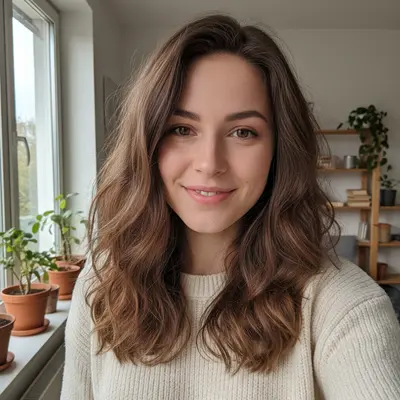
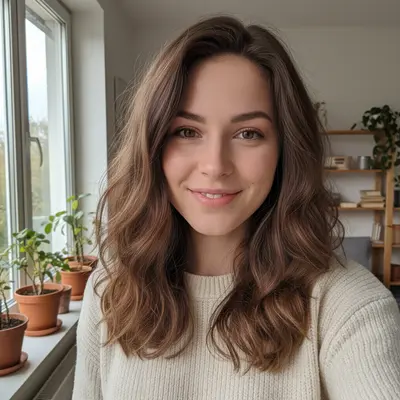
One sentence is usually enough: 'preview the hair color.' If the first result is off, refine with details — color, position, lighting, or what to keep. Each pass takes 20-45 seconds and runs separately, so you can compare. Free first edit per week, no signup.
Can I compare different hair colors on the same selfie?
Yes. Upload your selfie once, then run separate edits — 'honey blonde,' 'auburn red,' 'pastel pink.' Each generates a preview for side-by-side comparison before your salon visit.
Is there a free hair color preview without signup?
Yes. EditThisPic is free to try with no account needed. Upload a selfie, describe the color, and see it in 30 seconds. One free edit per week, credit packs from $1.99 for trying multiple shades.
How do I see what a hair color looks like on me?
Upload a selfie to EditThisPic and type 'change my hair to [color].' The AI applies the color realistically in 20-30 seconds. Free, no app download, works in any browser.
What hair colors can the AI preview?
Any natural color (blonde, brunette, red, black), fashion colors (pink, blue, purple, silver), techniques (balayage, highlights, ombre), and specific shades. Describe the exact color you want.
Can I preview highlights or balayage?
Yes. Specify the technique: 'add caramel balayage highlights to my dark brown hair' or 'add platinum blonde highlights around my face.' The AI renders the technique realistically.
Can I show the preview to my hair stylist?
Yes. Download the preview and bring it to your appointment. It shows the exact color on your actual face — much more useful than showing the stylist a photo of a different person's hair.
Does it work on my phone?
Yes. EditThisPic works in any mobile browser. Take a selfie and try hair colors on your phone. No app download needed.
How much does EditThisPic cost?
You get 1 free edit per week — no account needed. After that, credit packs start at $1.99 for 3 edits. Monthly plans start at $4.99/mo for 15 edits with unused credits rolling over. All edits are full resolution with no watermark.