Free • No signup Edit Real estate photographer workflow · Free

AI Photo Editor for Real Estate Photographers

← Browse all creative effects

Last updated

Sky replacements, object removal, interior cleanup — describe what needs fixing and AI handles it between shoots.
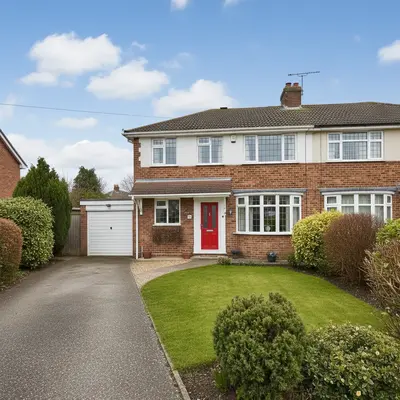
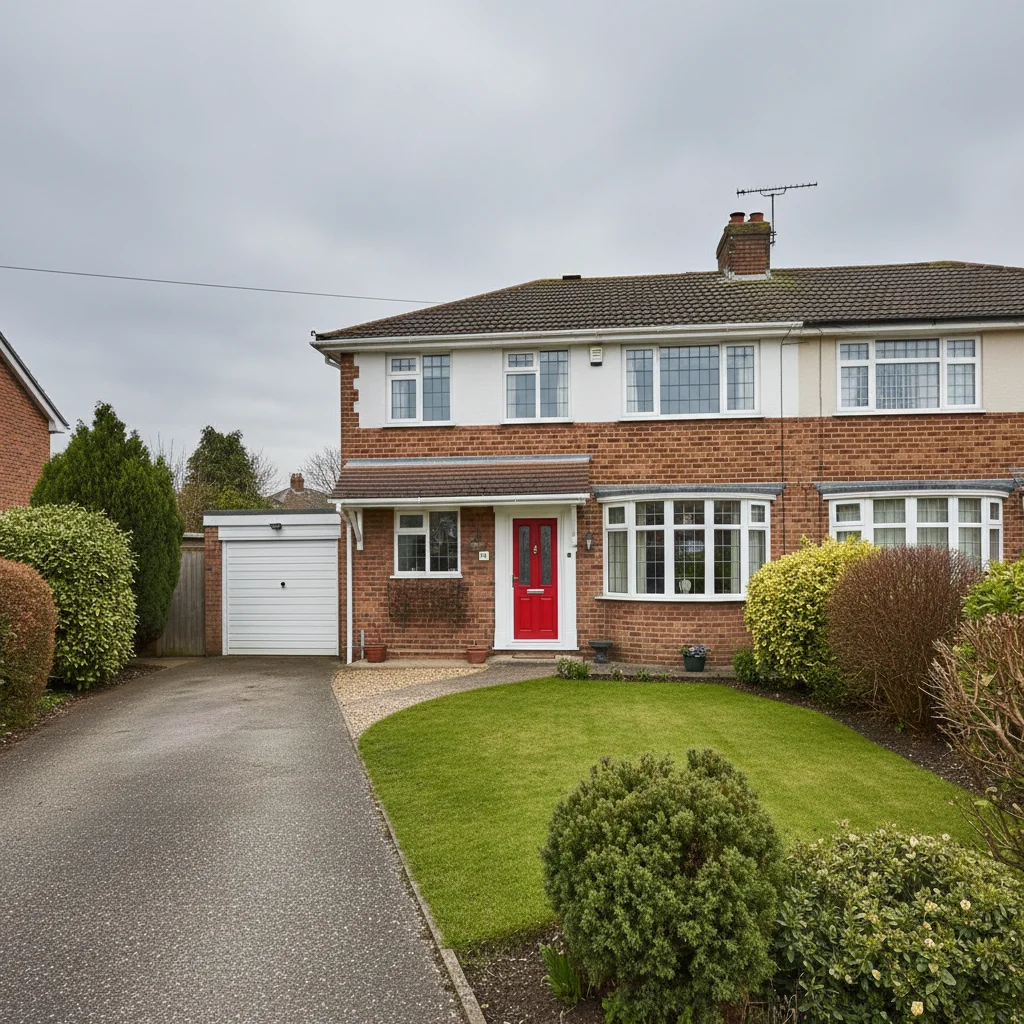
House exterior with flat grey sky
Before
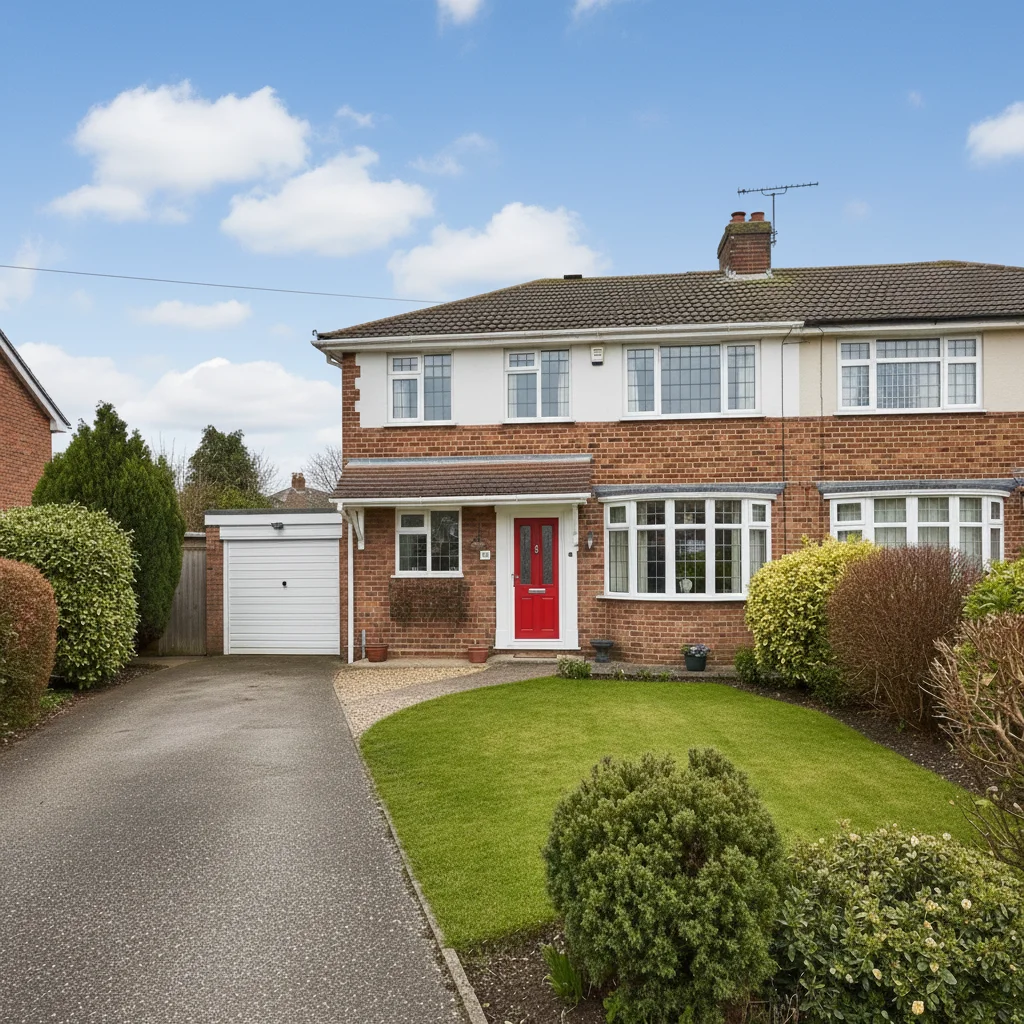
Same house with bright blue sky and clouds
After

Upload photo to edit real estate photographer workflow

"remove the silver car parked at the left side of the driveway and fill with the driveway surface"

Release to upload

FreeNo signupNo watermark

1 free edit·then from $1.99

Popular use cases:
  • real estate photo editing AI
  • sky replacement real estate
  • remove car from property photo
  • real estate photographer tool
  • property photo editing free

Cost
Free No signup required
Time
Instant results in 15-30 seconds
Works on
Any device - browser, phone, tablet, desktop
Powered by
AI-powered photo editing
Scenario Prompt Time
Sky replacement replace the grey overcast sky with bright blue sky and white clouds 20s
Car removal remove the [colour] car in the driveway and fill with the driveway surface 30s
Bin removal remove the bins near the front door and fill naturally 20s
Interior clutter remove the boxes along the wall and show the clean floor 35s
Lighting fix brighten the interior naturally, balance the exposure 25s

How it works

  1. Upload the property photo

    Drop your exterior or interior shot directly into EditThisPic. Works with JPG, PNG, and WebP from any camera. Best results with photos where the subject of the edit (sky, clutter, parked cars) is clearly visible.

    Expect: Most property photos process in 20-40 seconds. Complex exterior edits with detailed landscapes may take up to a minute.
  2. Describe the edit you need

    This is where the work happens. Type exactly what you need changed: 'replace the grey sky with a bright blue sky and white clouds', 'remove the red car parked in the driveway', 'remove the recycling bins at the bottom left'. Be specific about what stays and what changes. You don't need to mark or select anything — just describe it.

    Tip: Mention what should stay unchanged if the AI might be confused. 'Remove the car in the driveway but keep the garden in front' gives clearer context.

    Copy one of these to get started:

    Grey or overcast sky replace the grey overcast sky with a bright blue sky with white fluffy clouds, keep the roofline and trees sharp
    Parked cars blocking facade remove the silver car parked at the left side of the driveway and fill with the driveway surface
    Wheelie bins or rubbish visible remove the green and brown bins near the front gate and fill naturally with the driveway
    Interior with too much clutter remove the pile of boxes and miscellaneous items along the left wall and show the clean floor and wall
    4 more prompts
    For sale sign from competitor remove the estate agent signage from the front garden and fill with the lawn
    Power lines across the sky remove the power lines running across the top of the frame and fill with the sky behind them
    Interior lighting fix brighten the interior, balance the exposure, and reduce the dark shadows in the corners
    Garden enhancement make the grass greener and brighter, and fill any dry or brown patches with healthy green lawn
  3. Check the result

    Review the sky replacement for natural horizon blending. Check that removed objects (cars, bins, signage) are filled naturally with driveway, grass, or pavement as appropriate. Look at corners and edges where edits meet unchanged areas.

  4. Refine with markers if an area needs precision

    If the AI changed something you didn't want — part of the roof, a garden feature — use markers to show exactly which area to target on the next attempt.

    Tip: Markers help when there are multiple similar elements. 'Remove the car' works when there's one car. When there are two, mark the one you mean.
Try it free

Upload photo to edit real estate photographer workflow

"remove the green and brown bins near the front gate and fill naturally with the driveway"

Release to upload

Free • No signup

See it in action

House exterior with flat grey sky
Before
->
Same house with bright blue sky and clouds
After

Sky replacement on overcast listing day

Exterior shot taken on a grey day — the property looks great but the sky is flat. Sky replacement makes the listing photo significantly more appealing without misrepresenting the property.

Prompt: replace the flat grey sky with a bright blue sky with white clouds, keep the roofline and garden sharp
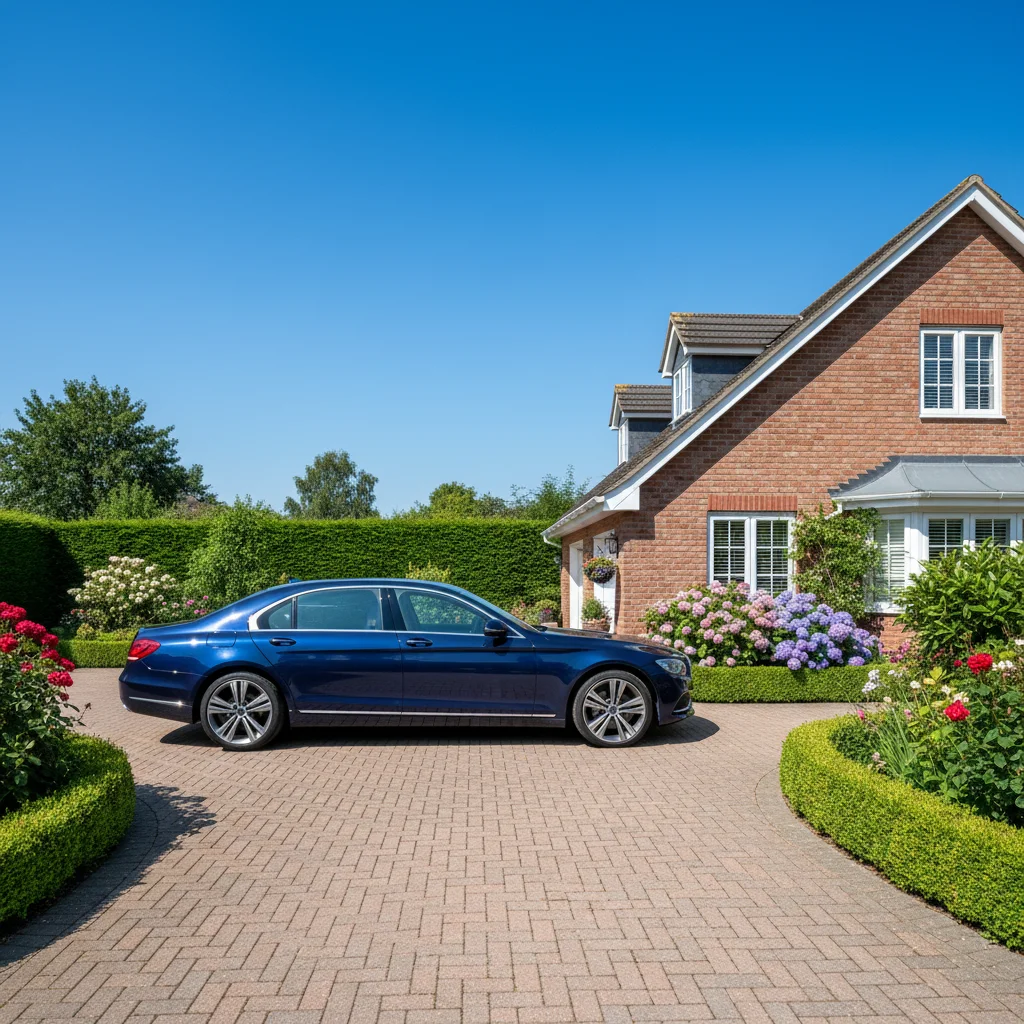
Driveway with parked car blocking the view
Before
->
Clean driveway with car removed
After

Parked car blocking driveway view

The owner left a car in the driveway during the shoot. Removal shows the full driveway and property approach — straightforward edit that changes the photo's impact.

Prompt: remove the dark blue car parked at the left side of the driveway and fill naturally with the driveway surface
Living room with boxes and clutter against wall
Before
->
Clean living room with clear wall and floor
After

Interior clutter removal

Sellers don't always have time to clear everything before a shoot. A quick description removes the visible clutter without misrepresenting the property's condition.

Prompt: remove the boxes and clutter stacked against the right wall and show the clean wall and floor behind

If something looks off

AI changed the wrong area — part of the roof or garden was affected

Why: The AI interpreted the prompt broadly and changed more than intended.

Try: Tap a marker on the specific element to change (the car, the sky, the bins), then regenerate with the same prompt

Tip: Markers are essential when the element to remove is near something that should stay. 'Remove the car near the gate' is safer with a marker on the car.

Sky replacement doesn't blend cleanly at the roofline

Why: Complex rooflines, trees, or chimneys make precise sky masking harder for the AI.

Try: Add: 'blend the sky seamlessly at the roofline and treetops, no harsh edges'

Tip: If the edge is still rough, place a marker along the roofline and re-run.

Removed car left an unnatural-looking area

Why: The fill didn't match the driveway surface texture or perspective perfectly.

Try: Follow up with: 'clean up the driveway where the car was removed, make the texture match the rest of the driveway'

Tip: A second targeted prompt for the fill area often cleans up any remaining artifacts.

Power lines were partially removed but traces remain

Why: Thin linear elements spanning the image are harder than block objects.

Try: Place markers along the remaining wire traces and prompt: 'remove the remaining power line traces completely'

Tip: Multiple markers along the line help the AI understand the full extent of what needs removing.

Interior looks artificially bright after lighting edit

Why: Aggressive brightening can lose shadow detail that makes a room look three-dimensional.

Try: Try: 'brighten the interior naturally, preserve depth and shadow detail in the corners, increase warmth slightly'

Tip: Adding 'naturally' and 'preserve' helps restrain overzealous enhancement.

Quick answers

Do I need to select or mark areas before describing the edit?

No — just describe what you want changed. 'Remove the car in the driveway', 'replace the grey sky', 'remove the bins near the front door'. The AI understands spatial descriptions. Only use markers when there are multiple similar elements and you need to specify exactly which one.

Is this tool meant to replace professional retouching software?

No. EditThisPic is a fast, free tool for common real estate photo fixes: sky swaps, object removal, quick interior tidying. For complex retouching, HDR blending, or large-scale virtual staging, you'll likely still want dedicated real estate editing software. This fills the gap for quick edits between shoots.

Is there a free AI tool for real estate photo editing that doesn't require a login?

EditThisPic is free to try with no account required. You get 1 free edit per week. For higher volumes, plans start at $4.99/month for 15 edits. No download, no app — works in any browser.

Can it do virtual staging?

EditThisPic can make targeted changes like adding a piece of furniture you describe, or changing the colour of walls and floors. It's not a dedicated virtual staging tool and won't fully furnish an empty room in one pass. For full virtual staging, use a dedicated staging service.

How does sky replacement compare to dedicated real estate sky tools?

EditThisPic's sky replacement is AI-driven and handles complex rooflines and trees well. The trade-off vs dedicated tools is control: you describe the sky you want, but you can't select from a library of specific sky images. For most listing shots the result is clean and fast.

How much does EditThisPic cost?

You get 1 free edit per week — no account needed. After that, credit packs start at $1.99 for 3 edits. Monthly plans start at $4.99/mo for 15 edits with unused credits rolling over. All edits are full resolution with no watermark.

Edit Your Next Listing Shoot

Sky replacements, car removal, interior cleanup. Free to try, no signup.

1 free edit included·Credit packs from $1.99