Free β€’ No signup Try on Shoes Β· Free

AI Shoe Try-On

Describe any shoes and see how they look on your feet instantly.
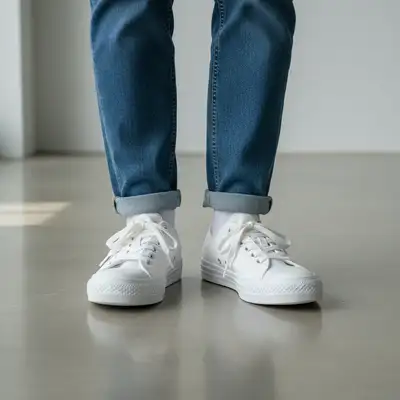
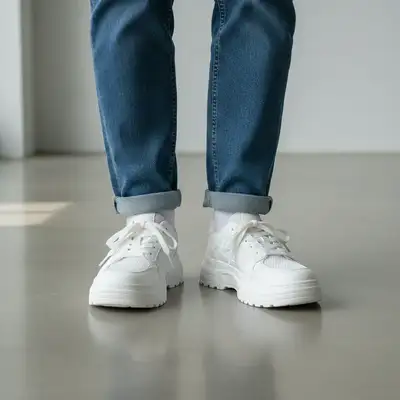
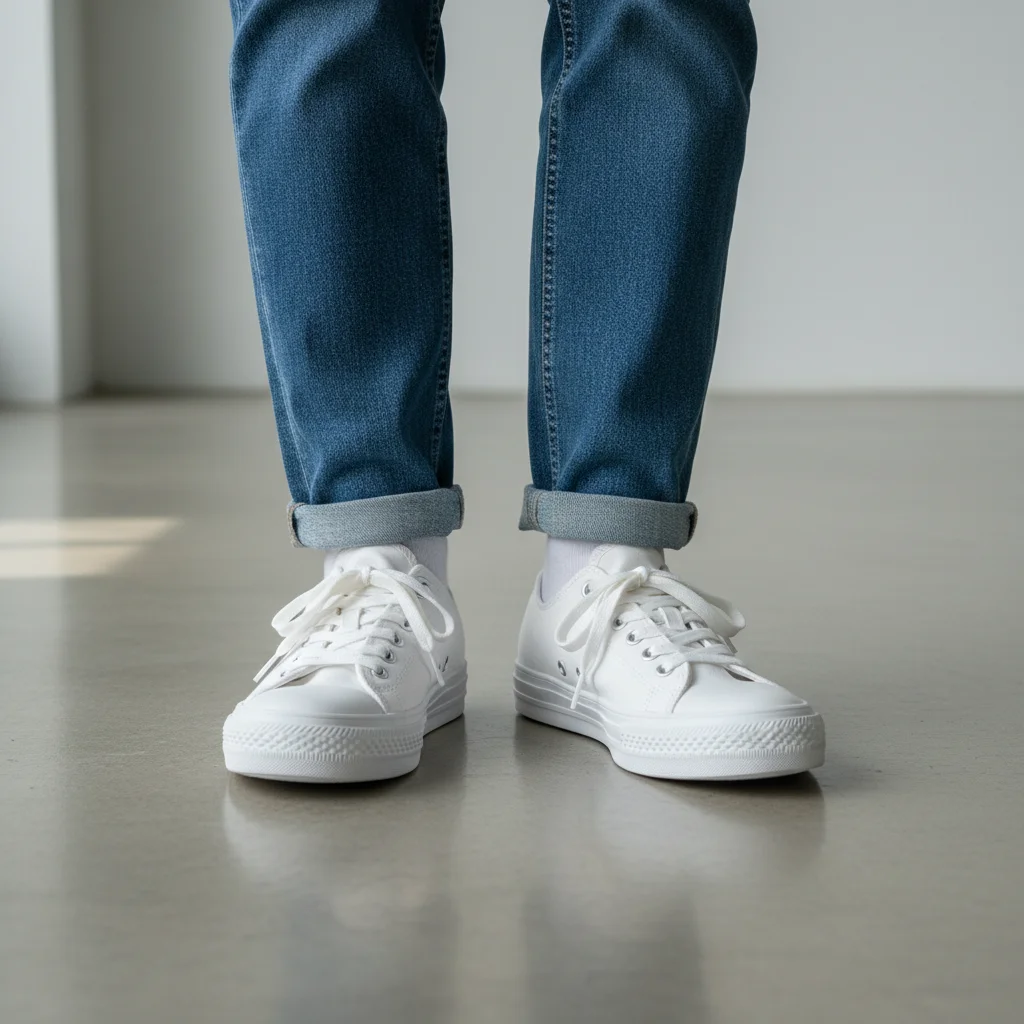
Feet wearing plain old white canvas sneakers
Before
β†’
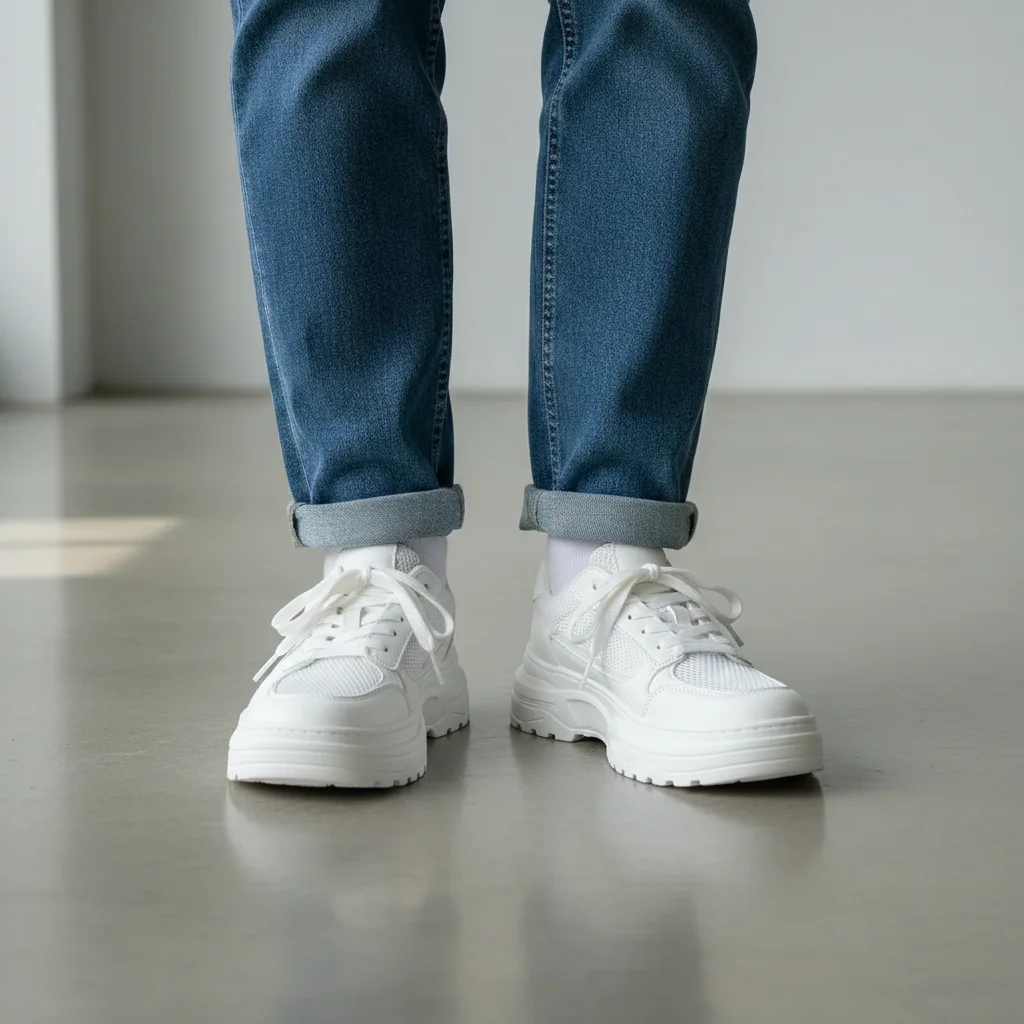
Same feet wearing trendy white chunky platform sneakers
After

AI Shoe Try-On

Upload photo to try on shoes

Free β€’ Results in 30 seconds β€’ No signup

Release to upload

FreeNo signupNo watermark
Popular use cases:
  • shoe shopping preview
  • virtual shoe fitting
  • sneaker try-on
  • heel preview
  • boot try-on
  • footwear visualization
  • online shoe shopping
  • shoe comparison

Cost
Free No signup required
Time
Instant results in 15-30 seconds
Works on
Any device - browser, phone, tablet, desktop
Powered by
AI-powered photo editing
Scenario Prompt Time
Simple shoe swap try on white platform sneakers 30s
Detailed footwear replace shoes with red patent leather stiletto heels 40s
Reference image try-on replace shoes with the ones from the reference image 45s

How it works

  1. Upload your photo

    Upload your product photo on a clean surface. Even lighting and a simple background help the AI focus on shoes details. JPG, PNG, WebP up to 7MB.

    Expect: Simple shoe swap: 30-40 seconds. Detailed boots or strappy heels: 45-60 seconds and may need refinements.
  2. Describe the shoes you want

    Type what you want: 'try on white chunky platform sneakers with thick soles' or 'replace the shoes with black pointed-toe stiletto heels.' Include color, style, and distinctive features. No marking neededβ€”the AI understands what 'shoes' and 'footwear' mean.

    Tip: Mention sole type (platform, flat, wedge) and toe shape (pointed, round, square) for more accurate shoe renders.

    Copy one of these to get started:

    Chunky sneakers try on white chunky platform sneakers with thick rubber soles and mesh panels
    Classic stiletto heels replace the shoes with red patent leather stiletto heels with a pointed toe and 4-inch heel
    Ankle boots try on black leather Chelsea ankle boots with elastic side panels and a low block heel
    Casual loafers replace the shoes with brown suede penny loafers with a classic moccasin stitch
    3 more prompts
    Running shoes try on neon green running shoes with a breathable mesh upper and white cushioned sole
    Strappy sandals try on gold metallic strappy sandals with a thin heel and ankle wrap ties
    Knee-high boots replace the shoes with tall black leather knee-high boots with a pointed toe and stiletto heel
  3. Review the result

    Check that the shoes fit naturally on the feet. Look for correct proportions relative to the foot size, proper angle matching, and realistic shadows on the ground.

  4. Refine with markers if needed

    If the shoe shape or ankle area needs adjustment, tap markers on those specific spots and regenerate. Most shoe try-ons work well on the first attempt.

    Tip: Markers are for precision refinement only. Try without them firstβ€”you usually won't need them.
Try it free ↓

AI Shoe Try-On

Upload photo to try on shoes

Free β€’ Results in 30 seconds β€’ No signup

Release to upload

Free β€’ No signup

"I'm obsessed with sneakers but hate going to stores. Now I upload a foot pic, try on 10 different colorways in minutes, and order my favorites online knowing they look right." @SneakerHead_Alex

See it in action

Feet wearing plain old white canvas sneakers
Before
->
Same feet wearing trendy white chunky platform sneakers
After

Old sneakers to chunky platforms

Plain white sneakers swapped for trendy chunky platform sneakers to preview the look before buying.

Prompt: try on white chunky platform sneakers with thick rubber soles and mesh side panels
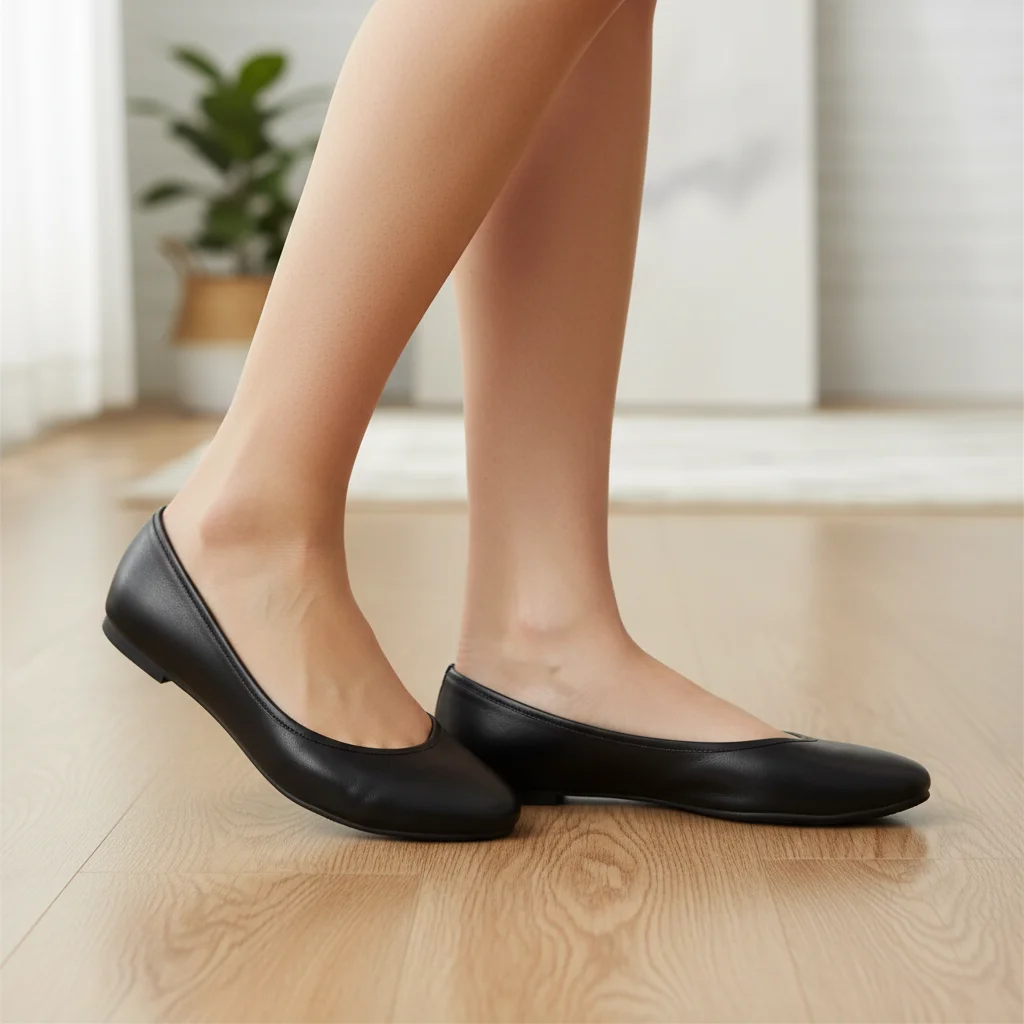
Feet wearing simple black ballet flats
Before
->
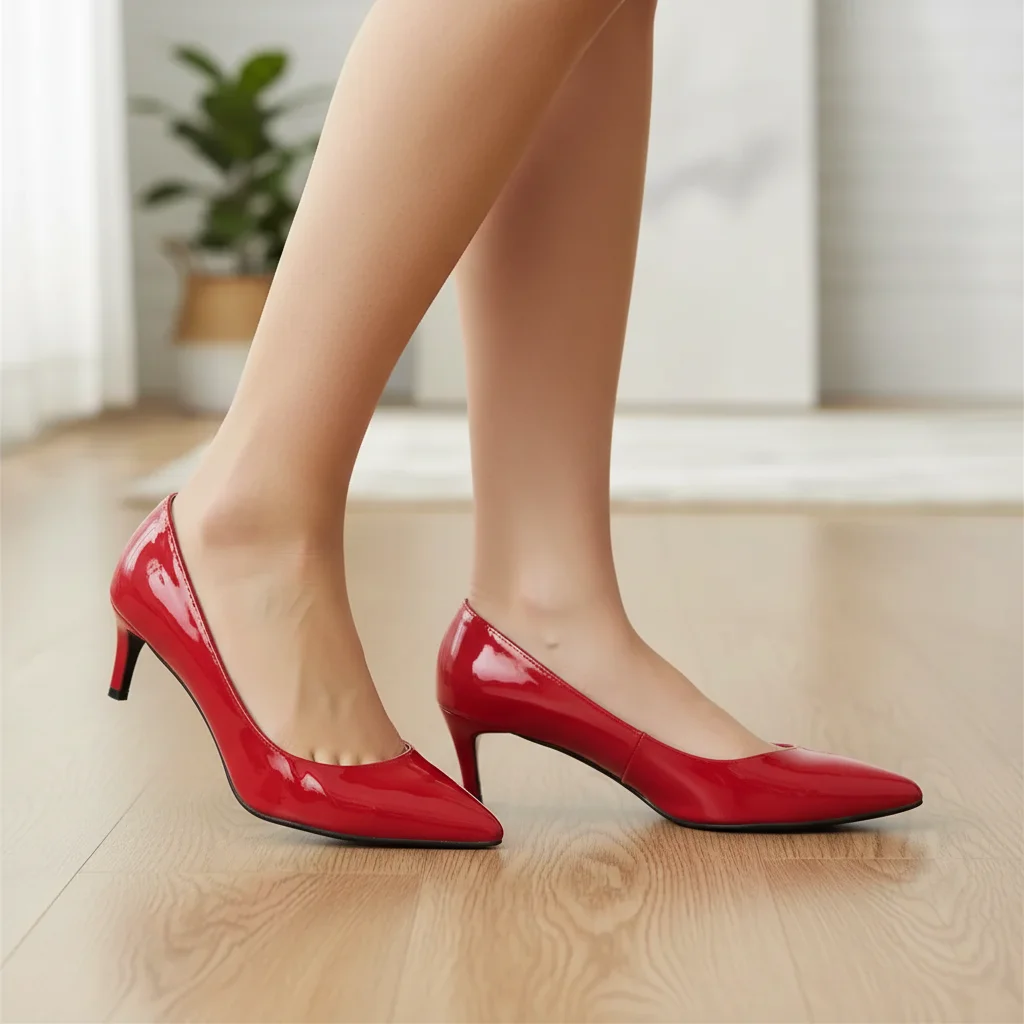
Same feet wearing red patent leather stiletto heels
After

Flats to stiletto heels

Simple ballet flats transformed into elegant red stiletto heels for previewing a formal shoe option.

Prompt: replace the shoes with red patent leather stiletto heels with a pointed toe and 4-inch heel

Detailed Guides by Scenario

πŸ“·

Professional Use

Apply 'AI Shoe Try-On' to images for professional projects β€” websites, marketing materials, client deliverables, and presentations.

Common Scenarios

  • Using 'AI Shoe Try-On' for client work or commercial photography
  • Applying 'AI Shoe Try-On' to product or marketing images for a business
  • Batch-processing multiple images with 'AI Shoe Try-On' for a project deadline

Best Practices

  • Use the highest resolution source image available for professional-quality results
  • Be specific in your prompt about the exact 'AI Shoe Try-On' effect you need
  • For consistency across multiple images, reuse the same prompt template
πŸ“·

Creative & Social Media

Use 'AI Shoe Try-On' creatively for social media content, personal projects, and artistic expression.

Common Scenarios

  • Applying 'AI Shoe Try-On' to a photo for a unique social media post
  • Using 'AI Shoe Try-On' to create artistic variations of a favorite image
  • Experimenting with 'AI Shoe Try-On' for a creative project or portfolio piece

Best Practices

  • Experiment freely β€” AI editing lets you try bold ideas with no risk to the original
  • For social content, pair the visual effect with a caption that references the transformation
  • Try the effect on different types of photos to find what looks most striking
πŸ“·

Personal Photos & Memories

Apply 'AI Shoe Try-On' to personal photos to fix issues, enhance quality, or create something special from everyday images.

Common Scenarios

  • Using 'AI Shoe Try-On' on family photos to improve or personalize them
  • Applying 'AI Shoe Try-On' to vacation or event photos before printing or sharing
  • Trying 'AI Shoe Try-On' on a selfie or portrait for profile or personal use

Best Practices

  • Always work on a copy β€” keep the original safe in case you want to try a different approach
  • Natural-looking results are almost always better than dramatic over-processing
  • If it doesn't look right the first time, rephrase your prompt with more specific details

If something looks off

AI changed the wrong area or something I didn't want changed

Why: The AI couldn't determine which footwear to replace, especially if socks, leggings, or pant hems overlap the shoe area.

Try: Tap markers on both shoes specifically, then regenerate with the same prompt

Tip: Markers tell the AI 'I mean THIS area specifically.' Use them when description alone is ambiguous.

Shoes look disproportionate to the feet

Why: Without a clear reference for foot size, the AI may generate shoes that are too large or too small relative to the actual feet.

Try: try on [shoes] that fit proportionally to the feet in the photo, matching the actual foot size

Tip: Photos taken from a natural standing angle (not extreme close-ups or far away) give the best proportion results.

Only one shoe was changed or they look different

Why: If one foot is partially hidden or at a very different angle, the AI may render the shoes inconsistently between left and right.

Try: replace both shoes with matching [shoe description], ensuring left and right are identical in style and color

Tip: Photos where both feet are equally visible and at similar angles produce the most consistent results.

Shoe color doesn't match what I described

Why: Generic color names are interpreted broadly. 'Brown' could mean tan, chocolate, cognac, or chestnut.

Try: try on [shoe type] in [specific shade] color, like cognac brown or cherry red

Tip: Use specific shade names: 'cognac', 'navy', 'burgundy', 'cream' instead of generic 'brown', 'blue', 'red', 'white'.

Ankle and shoe transition looks unnatural

Why: The boundary between the shoe opening and the ankle/sock area requires precise edge rendering that can look off.

Try: Tap markers on the ankle area where shoe meets leg, then regenerate: refine the transition between shoe and ankle

Tip: Edge refinement at the shoe opening is the most common adjustment for shoe try-ons.

Quick answers

Do I need to mark the shoes before describing the new ones?

No! Just describe the shoes you want: 'try on white platform sneakers' or 'replace the shoes with red heels.' The AI understands what 'shoes' and 'footwear' mean. Only use markers if you want to adjust a specific area like the ankle transition after the first try.

How do I try on a specific shoe I saw in an online store?

Click '+ Add reference image' and upload the product photo from the store. Then type 'replace the shoes with the ones from the reference image.' The AI matches the shoe's design, color, and style. Great for previewing purchases before ordering.

Is there a free virtual shoe try-on that doesn't require login?

Yes, EditThisPic is free to try with no account needed. Upload your photo showing your feet, describe the shoes, and download the result. No watermarks. Works for sneakers, heels, boots, sandals, and more.

What's the best free AI tool for virtual shoe try-on?

EditThisPic offers free AI shoe try-on with no signup required. Unlike shoe apps that need AR camera access, just upload any photo and describe the footwear. It renders realistic shoes matched to your foot position and angle.

Is EditThisPic's AI shoes try oner really free?

Yes β€” you get 1 free edit per week, no account needed. For unlimited edits, plans start at $3.99/month.

Can I try on shoes on my phone?

Yes. EditThisPic works in any mobile browser β€” iPhone, Android, tablet. No app download needed.

What photo formats does the AI shoes try oner support?

JPG, PNG, WebP, and HEIC. Upload any common photo format and EditThisPic handles the rest.

How long does it take to try on shoes?

Usually 15-30 seconds. Upload your photo, describe what you want, and the AI delivers the result.

Ready to try on shoes virtually?

Free to try. No signup required.