Create Amazon Comparison Chart Images
Last updated
Create professional comparison chart images for your Amazon listing gallery. Side-by-side infographics that highlight your product advantages.
Drop your photo here
"enhance text sharpness and visual clarity, professional infographic quality, crisp lines and readable text"
Release to upload
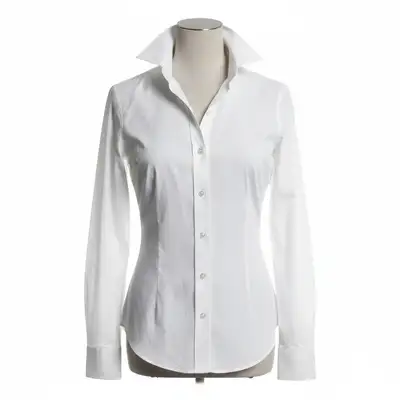
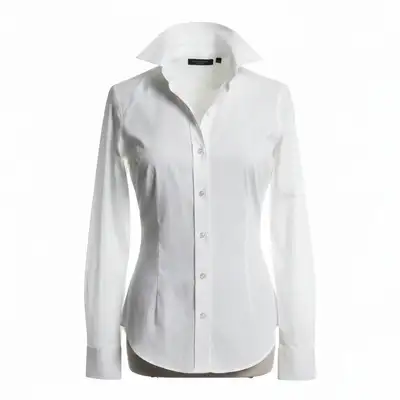
Why Comparison Charts Drive Amazon Sales
Comparison charts are the most persuasive secondary image type on Amazon. They show buyers at a glance why your product is the better choice. EditThisPic enhances your comparison images so text is sharp, colors are consistent, and the overall design looks professional and trustworthy.
Tools for Comparison Chart Images
Enhance Photo
Sharpen text and improve overall chart quality
Enhance Colors
Make chart colors vibrant and brand-consistent
Whiten Background
Clean up chart background to pure white
Remove Object
Remove unwanted elements from chart images
Create Professional Amazon Comparison Charts
-
Create your base comparison chart
Use any design tool (Canva, PowerPoint, Google Slides) to create your comparison layout. Include your product vs competitors, feature checkmarks, and key selling points. Export at 2000x2000px or larger.
Base chart creation: 15-30 minutes. EditThisPic polishing: 2-5 minutes. -
Upload and enhance with EditThisPic
Upload your exported chart image. Type 'enhance text sharpness, improve visual clarity, professional infographic quality.' The AI sharpens text, improves color consistency, and polishes the overall appearance.
Export from your design tool at 2x the final size, then enhance. Starting with higher resolution gives the AI more data to work with. -
Polish product images within the chart
If your chart includes product photos, ensure they are sharp and consistently styled. Use EditThisPic to enhance individual product images before placing them in the chart for the cleanest result.
Process each product photo separately on white background first, then place them into your chart template. Pre-processed images make charts look more professional. -
Verify readability and download
Zoom to 50% (simulating mobile viewing). If you can read all text at this zoom level, it will be readable on phones. Download at maximum quality for Amazon.
Most Amazon shoppers view images on mobile. Test readability at small sizes -- if text is too small, increase font size in your design tool and re-process.
Comparison Chart Enhancement Prompts
enhance text sharpness and visual clarity, professional infographic quality, crisp lines and readable text
The all-purpose chart enhancement prompt. Improves every element of your comparison image.
sharpen all text in this image, maximum text readability, crisp font rendering
When text is the main concern, focus the AI specifically on text clarity.
enhance chart colors, make checkmarks vivid green and crosses vivid red, increase contrast between sections
Color contrast makes comparison charts scannable. Green/red pairs are universally understood.
make chart background pure clean white, remove any gray or off-white areas, crisp clean infographic
Clean white backgrounds make charts look more professional than textured or gray backgrounds.
Show 4 more prompts
enhance the product photos within this chart, sharpen detail, maintain consistent quality across all product images
Product images embedded in charts often lose quality. This restores their sharpness.
enhance brand colors in this chart, make consistent and vibrant, professional branded appearance
Brand colors should be consistent and vibrant throughout the chart.
increase contrast and text size readability, optimize for small screen viewing, bold clear infographic
Most Amazon browsing happens on phones. High contrast ensures mobile readability.
remove any visible brand names or logos from competitor products, keep comparison structure intact
Show competitor weakness without naming them directly. Use generic labels like 'Other Brand.'
| Edit Type | Prompt | Time | |
|---|---|---|---|
| General chart enhancement | enhance text sharpness and visual clarity |
15s | Try This → |
| Text-focused sharpening | sharpen all text, maximum readability |
10s | Try This → |
| Color enhancement | vivid checkmarks, high contrast sections |
15s | Try This → |
| Product images in chart | enhance product photos within chart |
20s | Try This → |
Comparison Chart Examples


Feature comparison polished
Side-by-side feature comparison chart enhanced to professional quality with sharp text and vivid colors.
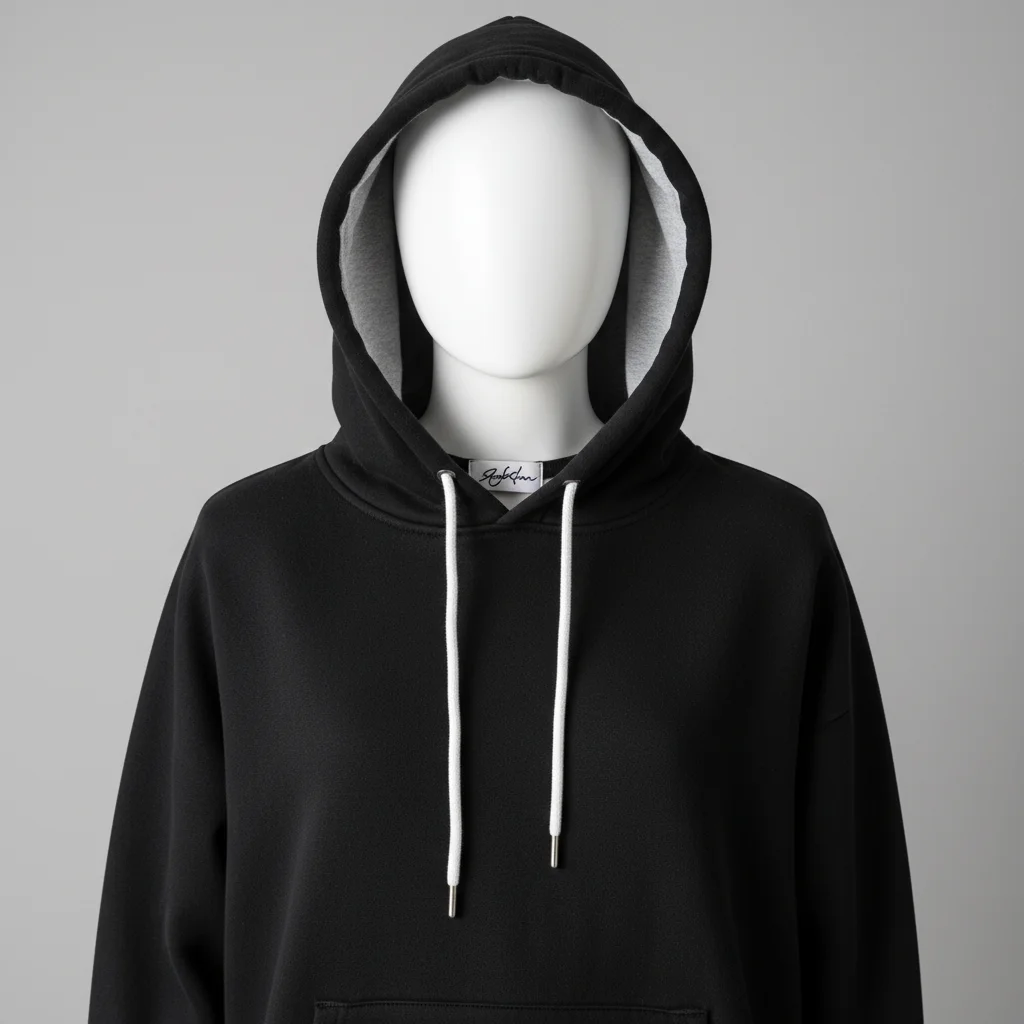
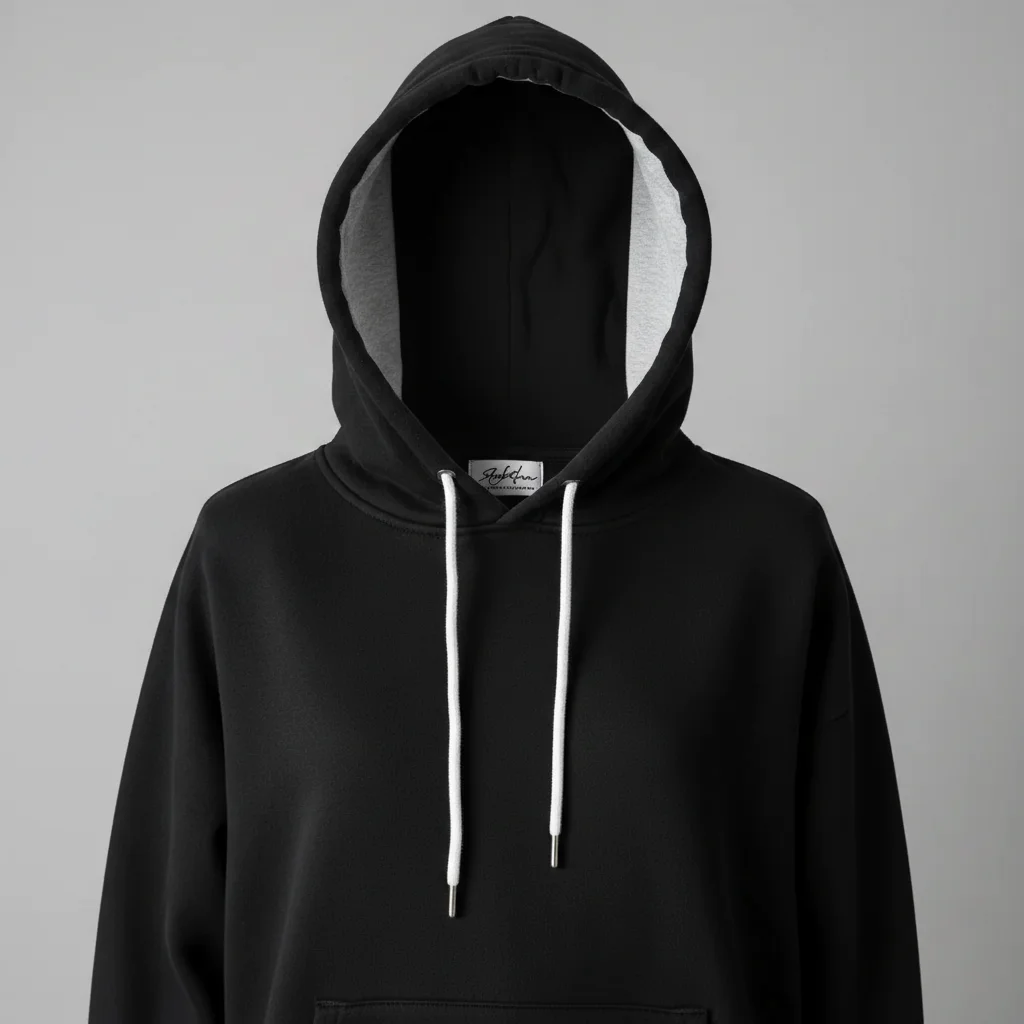
Checkmark comparison sharpened
Green checkmark vs red cross comparison enhanced for maximum readability and visual impact.
sharpen text, enhance checkmark colors to vivid green and red, professional quality
Product-embedded chart enhanced
Comparison chart with embedded product photos. Both the text and product images were enhanced together.
Comparison Chart Troubleshooting
Text is still blurry after enhancement
Why: The source chart was exported at too low a resolution. AI cannot create detail that does not exist.
Always export charts at 2000x2000px or higher. Amazon supports up to 10,000px images.
Colors look different after enhancement
Why: The AI's color enhancement may have shifted your brand colors.
If specific brand colors are important, note the hex codes and verify after editing.
Chart text too small for mobile viewing
Why: Chart was designed for desktop viewing without considering mobile phone screens.
Use minimum 24pt font for body text and 32pt+ for headings in Amazon infographics. Test at 50% zoom.
Product images within chart look inconsistent
Why: Products were photographed under different lighting or edited with different settings.
normalize product images within chart, consistent lighting and color treatment across all products
Process all product images through EditThisPic individually first, then place them into your chart template.
Comparison Chart FAQ
Are comparison charts allowed on Amazon?
Yes, in secondary image slots (2-7). Comparison charts, feature tables, and infographics are all allowed. Only the main image (slot 1) must be product-only on white background. Many successful sellers use slot 6 or 7 for comparison charts.
Can I name competitors in my comparison chart?
Amazon's policies discourage directly naming competitors or showing their logos/brands. Use generic labels like 'Other Brands,' 'Leading Competitor,' or 'Standard Products.' Focus on feature comparisons rather than brand attacks.
What makes a comparison chart effective on Amazon?
Keep it simple: 3-5 key features, clear visual checkmarks/crosses, minimal text, and large readable fonts. Buyers scan these images in 2-3 seconds. If they can't understand your chart instantly, it's too complex.
What resolution should my comparison chart be?
Export at minimum 2000x2000 pixels. Amazon supports up to 10,000px and buyers zoom in to read text. Higher resolution means sharper text after Amazon's compression.
Should I use EditThisPic or a design tool for creating charts?
Use a design tool (Canva, Figma, PowerPoint) to create the chart layout and content. Then use EditThisPic to polish, enhance, and sharpen the final exported image. Best results come from combining both.
How many comparison charts should I include in my listing?
One comparison chart is usually sufficient. Use it in slot 6 or 7. Don't waste multiple slots on comparisons -- use the other slots for angles, close-ups, and lifestyle images that serve different purposes.
Is EditThisPic's AI create amazon comparison chart images really free?
Yes — you get 1 free edit per week, no account needed. Plans start at $4.99/month for 15 edits.
What photo formats does the AI create amazon comparison chart images support?
JPG, PNG, WebP, and HEIC. Upload any common photo format and EditThisPic handles the rest.
Popular use cases
Create professional comparison charts now.
Free to try. No signup. Polished infographics in seconds.
Enhance My ChartTrusted by 15,000+ users