Change Sky from Photo
Just type what sky you want. The AI knows where the sky is—no marking needed.
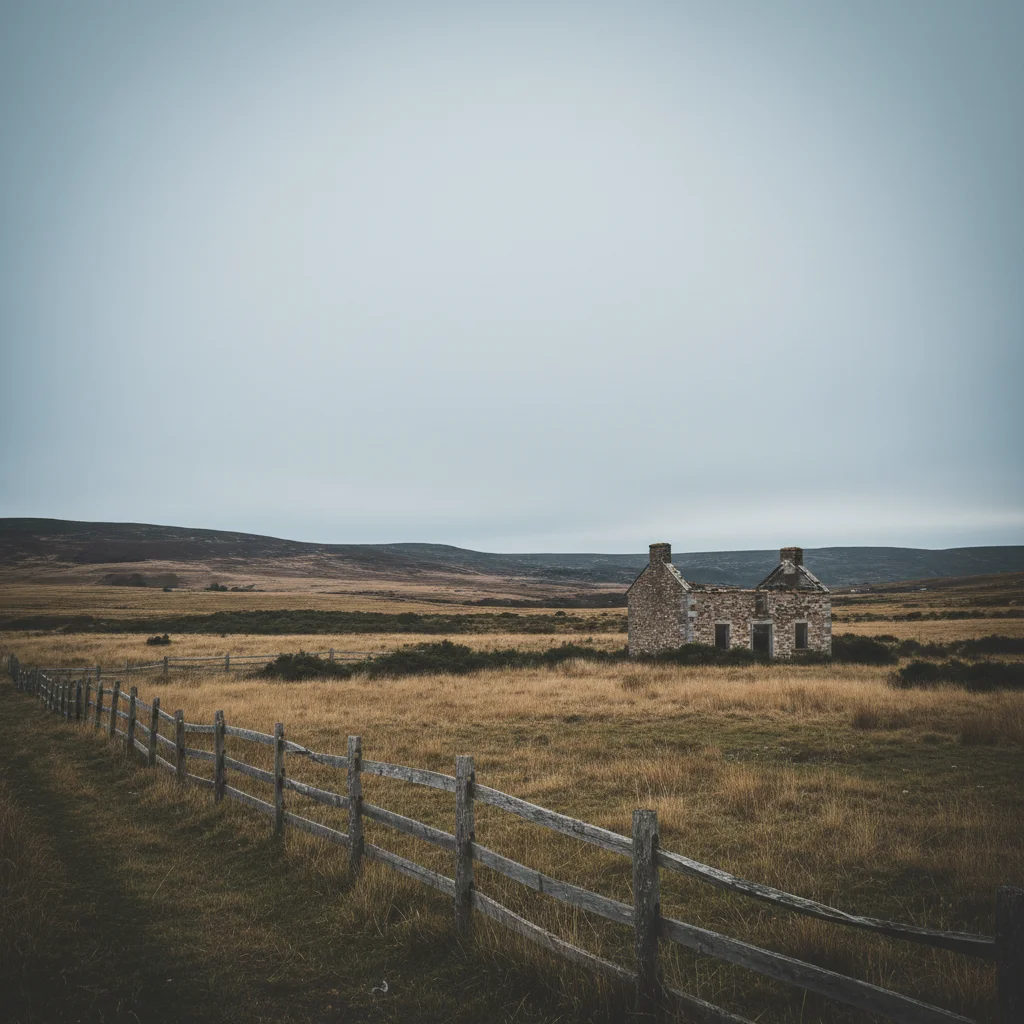
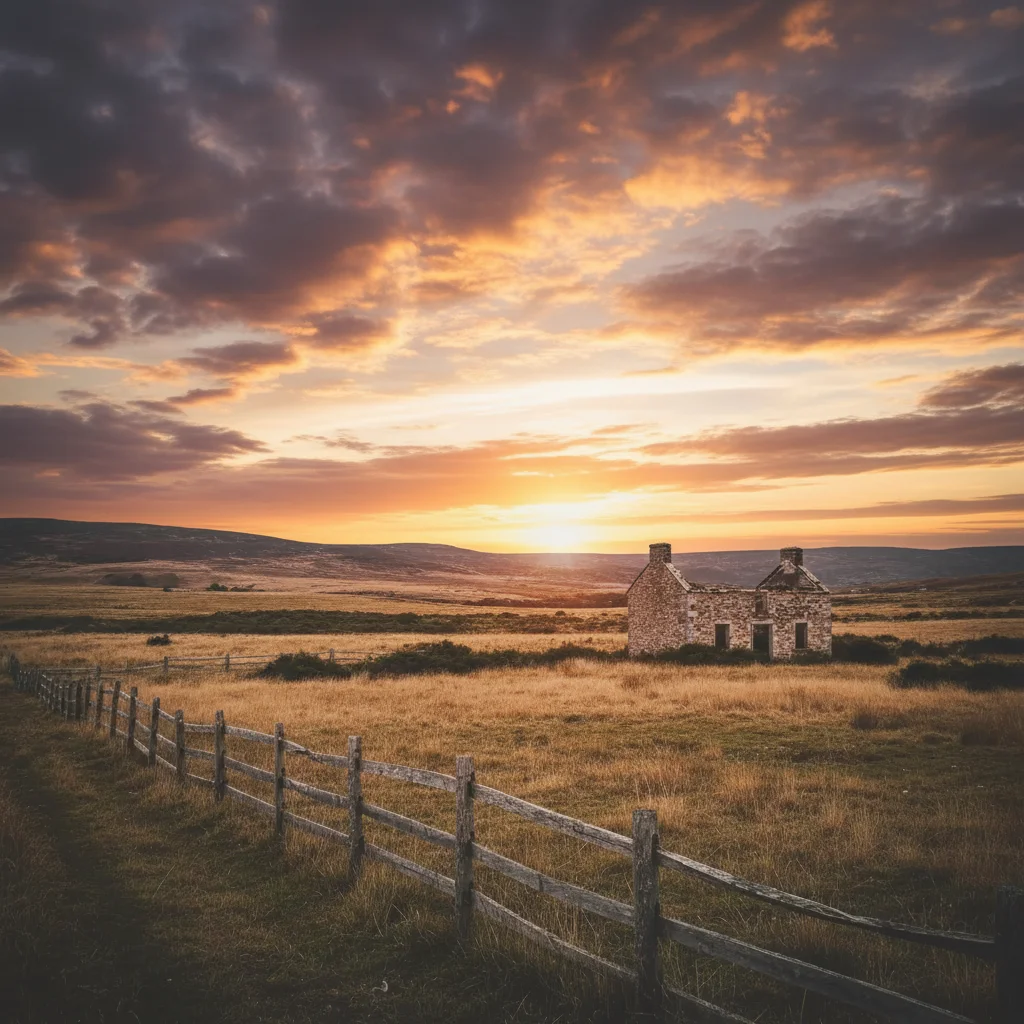
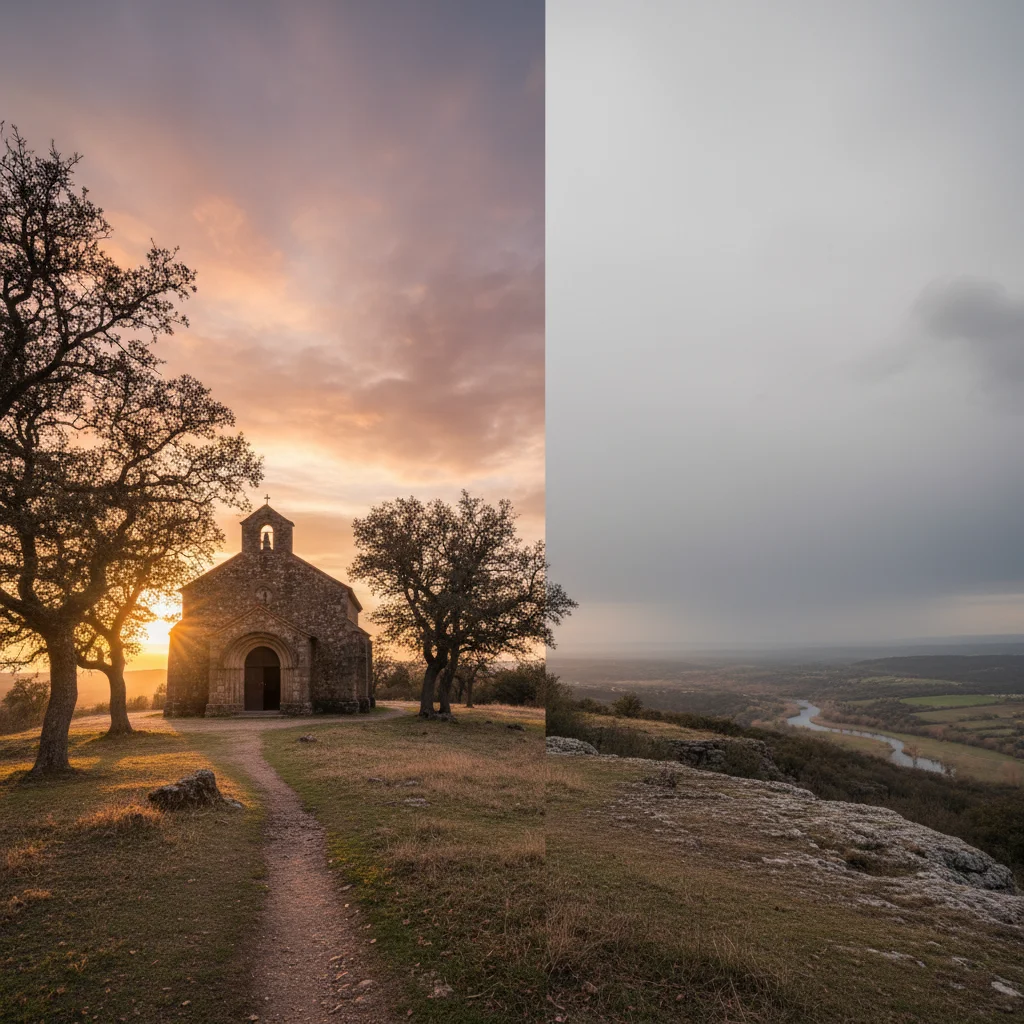
Type 'change the sky to a dramatic sunset with orange and pink clouds' and EditThisPic's AI replaces it in 15-30 seconds. No selection tools, no marking the sky first. The AI understands what 'sky' means and handles the horizon line automatically. Works on landscapes, cityscapes, and outdoor portraits. Free, no signup needed.
How it works
Upload your photo
Drop your image into EditThisPic. JPG, PNG, and WebP up to 7MB work best. Photos with a clear horizon line give the best results, but the AI handles complex treelines and buildings too.
Describe your ideal sky
Type exactly what you want: 'change the sky to dramatic sunset with orange and purple clouds' or 'replace the sky with clear blue and scattered white clouds.' That's it. The AI knows where the sky is—no marking, no selecting. Most sky replacements work on the first try.
Copy one of these to get started:
change the sky to clear bright blue with scattered fluffy white cumulus clouds, sunny day lighting
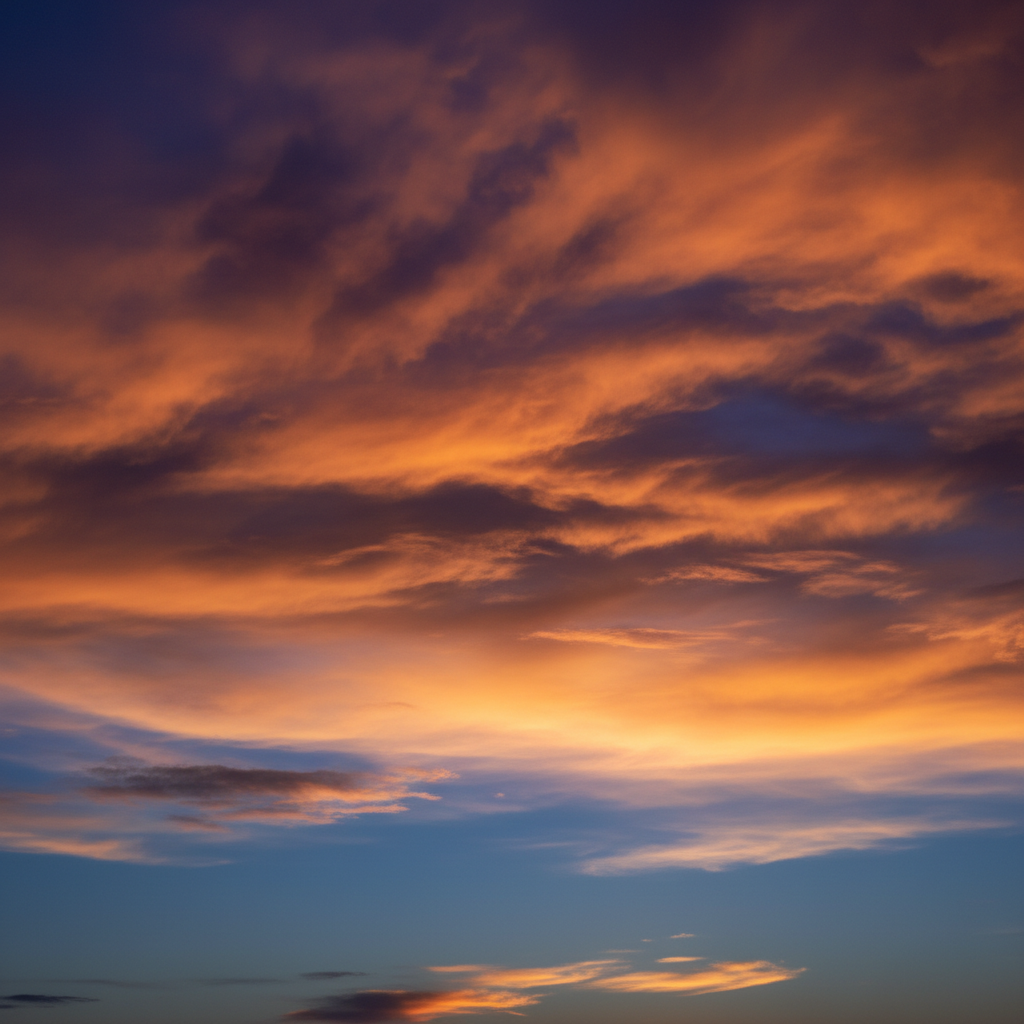
replace the sky with dramatic golden hour sunset, warm orange and pink clouds, sun low on the horizon
change the sky to dramatic dark storm clouds with rays of light breaking through, moody and atmospheric
replace the sky with vibrant blue gradient fading to light at horizon, wispy cirrus clouds, perfect vacation weather
3 more prompts
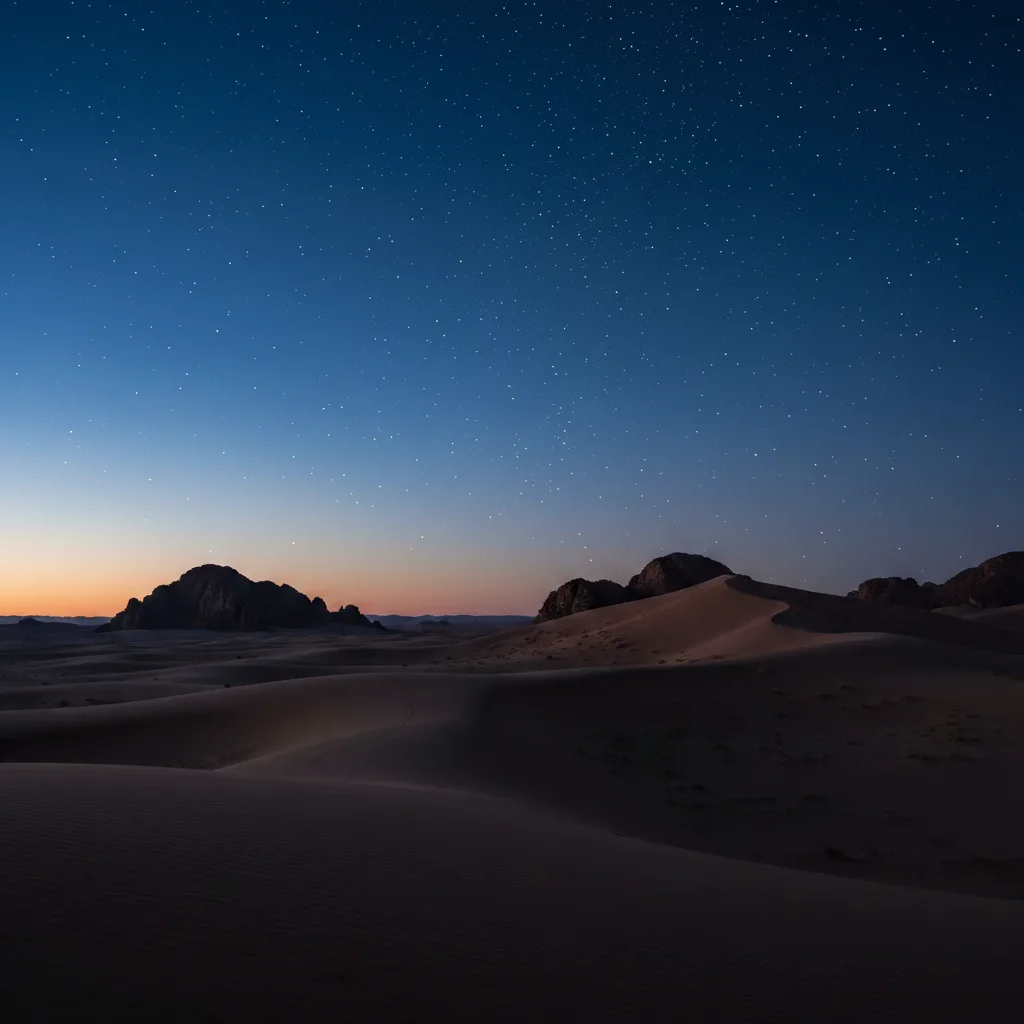
change the sky to deep twilight blue with stars visible and a subtle purple gradient near the horizon
replace the sky with dark night sky featuring the Milky Way galaxy clearly visible, stars scattered across, no light pollution
change the sky to soft pastel dawn colors with gentle pink and lavender gradients, delicate high clouds, peaceful morning atmosphere
Generate and review
Tap generate and examine the result at full zoom. Check the horizon line where sky meets ground, treetops, and any buildings. These boundary areas need the most attention to look natural.
Refine edges with markers if needed
If tree branches have sky bleeding through or buildings have rough edges, tap markers on those specific spots and regenerate. This precision step is optional—most sky replacements work without markers.
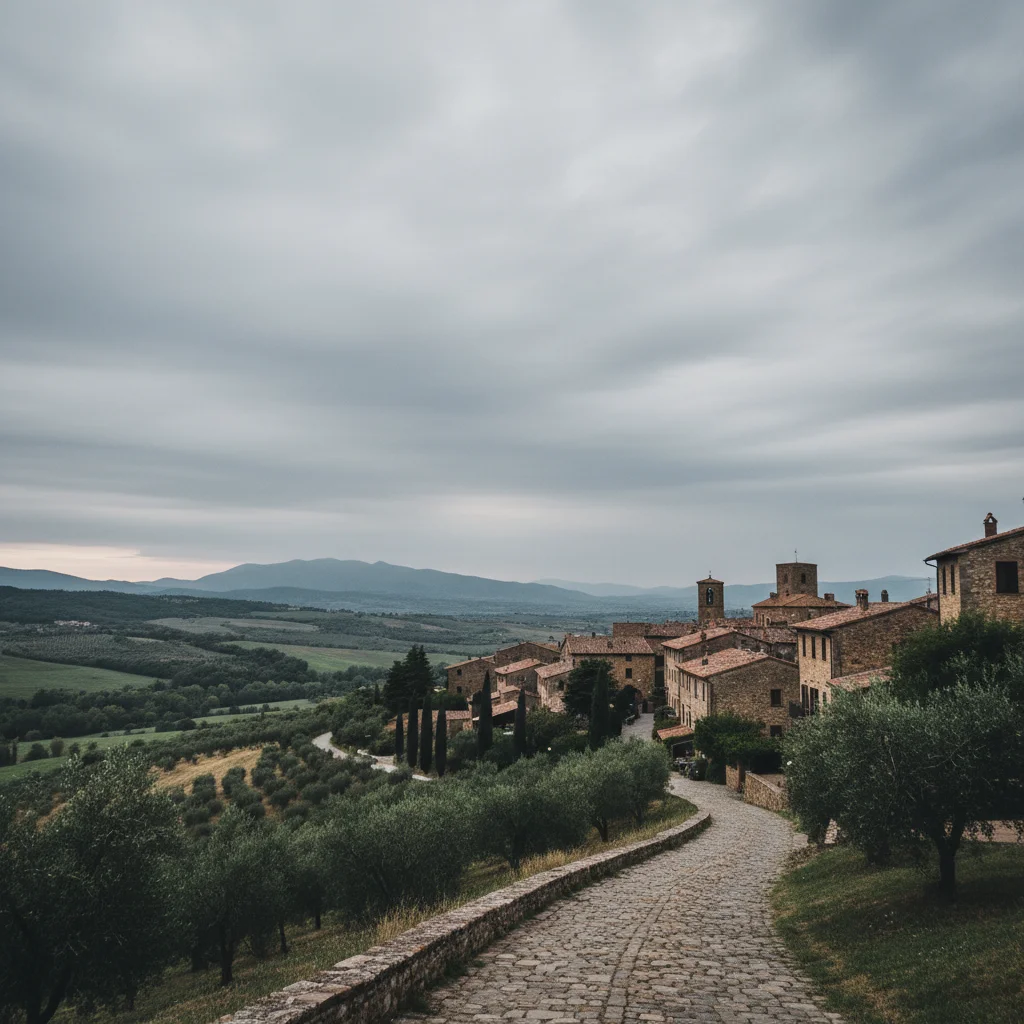
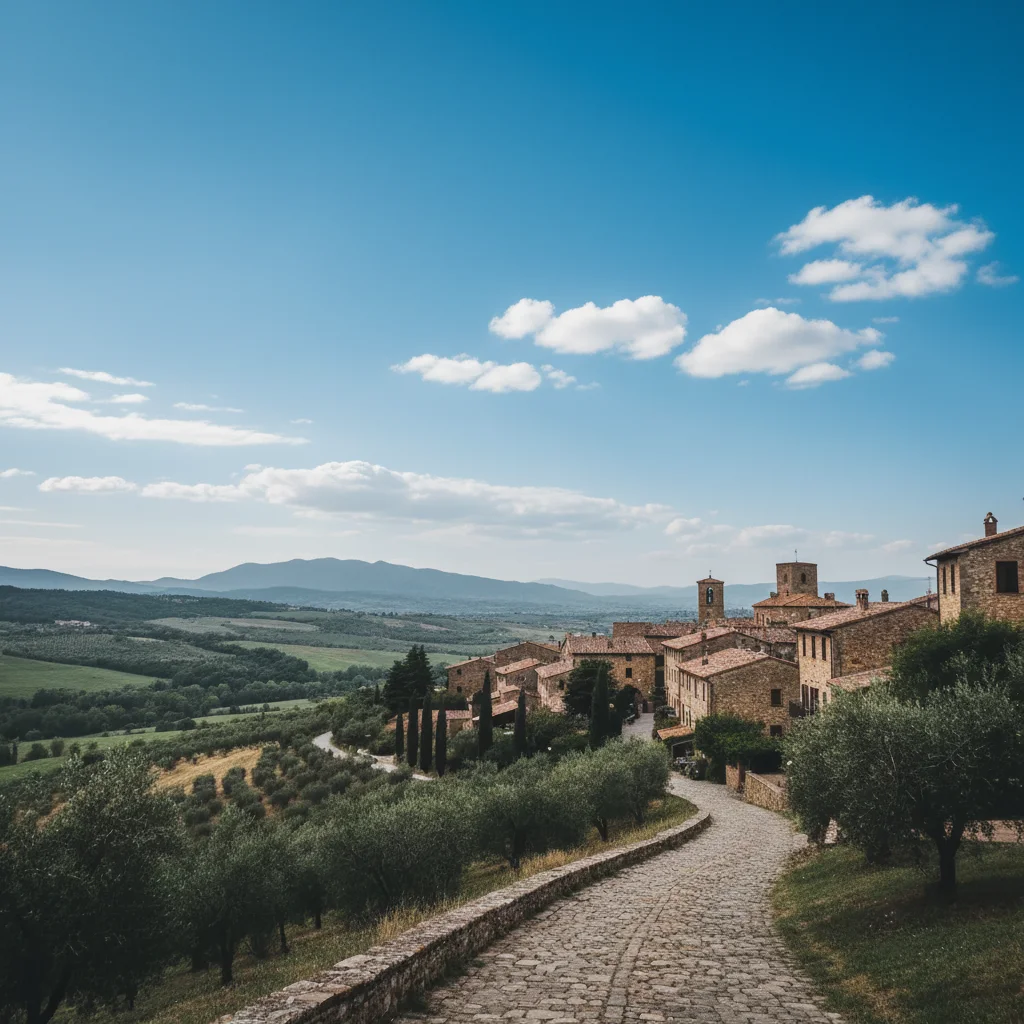
"Saved a whole real estate shoot from a gray overcast day. Just typed 'change sky to bright blue with fluffy white clouds' and every listing photo looked amazing." @RealEstateMarketing_Jake
See it in action
Overcast real estate listing
Property photographed on a gray cloudy day. One prompt transformed the dull sky into inviting blue for the listing.
change the sky to clear bright blue with a few scattered white fluffy clouds, sunny day, cheerful atmosphere
Travel landscape sunset upgrade
Beach vacation photo taken midday with harsh blue sky. Transformed into a stunning golden hour moment.
replace the sky with dramatic sunset, vibrant orange and pink clouds, golden hour lighting reflecting on the water
Outdoor portrait mood enhancement
Portrait taken under a boring white overcast sky. Added dramatic clouds to create visual interest behind the subject.
change the sky to dramatic clouds with golden light breaking through, late afternoon atmosphere, warm and moody
If something looks off
AI changed the wrong area or something I didn't want changed
Why: The AI interpreted 'sky' differently than you expected, perhaps including reflections in windows or water that share the sky color.
Tap a marker on the specific area you want to keep unchanged, then regenerate with the same prompt
💡 Markers tell the AI 'I mean THIS area specifically.' Use them when description alone is ambiguous.
New sky lighting doesn't match the scene
Why: The sun position in your new sky doesn't match the shadows in the original photo. A sunset sky with midday shadows looks wrong.
change the sky to [your choice] with lighting matching the existing shadows in the photo
💡 Look at which direction shadows fall in your original photo, then choose a sky where the sun would be in that direction.
Treeline or building edges look rough or have halos
Why: Complex edges like bare branches or detailed rooftops are challenging. The original sky color may be bleeding into edge pixels.
change the sky to [your choice] with clean natural edges along the treeline, no color fringing
💡 If rough edges persist, tap markers on the affected boundary areas and regenerate.
Sky in reflections (windows, water) doesn't match new sky
Why: The AI only changed the actual sky, not reflections of it. Reflections need to be addressed separately or included in your prompt.
change the sky to [your choice] and update any sky reflections in water or windows to match
💡 For water reflections, add 'with matching reflection in the water' to your prompt.
Sky looks pasted on or unnatural
Why: The new sky doesn't have atmospheric perspective—distant horizons should be lighter and hazier than directly overhead.
change the sky to [your choice] with natural atmospheric perspective, lighter and hazier near the horizon
💡 Real skies fade to lighter tones at the horizon. Adding this detail makes replacements much more believable.
Parts of trees or buildings have sky showing through incorrectly
Why: The AI treated some foreground elements as sky due to similar colors or complex patterns like bare branches.
Tap markers on the specific areas where the foreground should remain, then regenerate
💡 For bare tree branches, sometimes it helps to specify 'preserving all tree branches and foliage detail.'
Quick answers
Do I need to mark the sky before describing what I want?
No! Just describe the sky you want: 'change the sky to sunset' or 'replace the sky with blue and clouds.' The AI knows what 'sky' means—it's unambiguous. Only use markers if you need to refine specific tricky edges afterward, like bare tree branches or complex rooftops.
Will the new sky lighting match my existing photo?
The AI tries to match lighting, but you'll get better results by choosing a sky that logically matches your scene. If your photo has long shadows suggesting late afternoon, a sunset sky will look natural. If shadows suggest midday, a bright blue sky works better. You can also add 'with lighting matching the scene' to your prompt.
Can I change the sky in a photo with complex treelines?
Yes—the AI handles trees, buildings, and complex horizons well. For best results with bare branches or detailed foliage, add 'preserving natural tree edges' to your prompt. If some branches get the wrong treatment, tap markers on those spots and regenerate.
What about reflections in water or windows?
By default, the AI changes only the actual sky. To update reflections too, add 'and update sky reflections in the water to match' or 'including window reflections.' For complex scenes with multiple reflective surfaces, you may need a second pass focusing on reflections.
Which sky types work best for real estate photography?
Bright blue skies with scattered white clouds are the industry standard—they look cheerful and inviting. Try 'change the sky to clear blue with fluffy white clouds, sunny day.' For luxury properties, dramatic sunset skies can add aspiration. Avoid stormy or gray skies unless the property style calls for moody atmosphere.
Ready to change your sky?
Free to try. No signup required.