Free β€’ No signup Change Season Β· Free

AI Season Changer

Describe the season you want. AI handles the transformation.
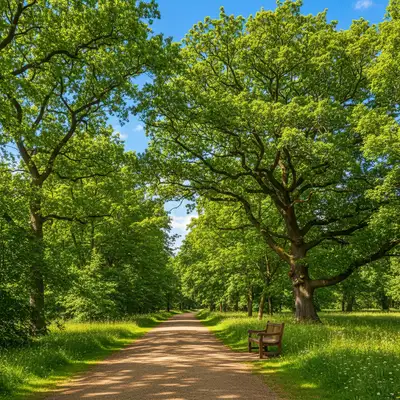
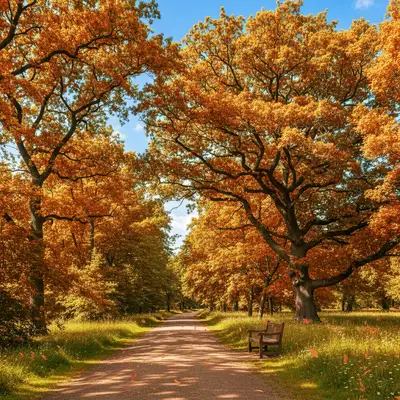
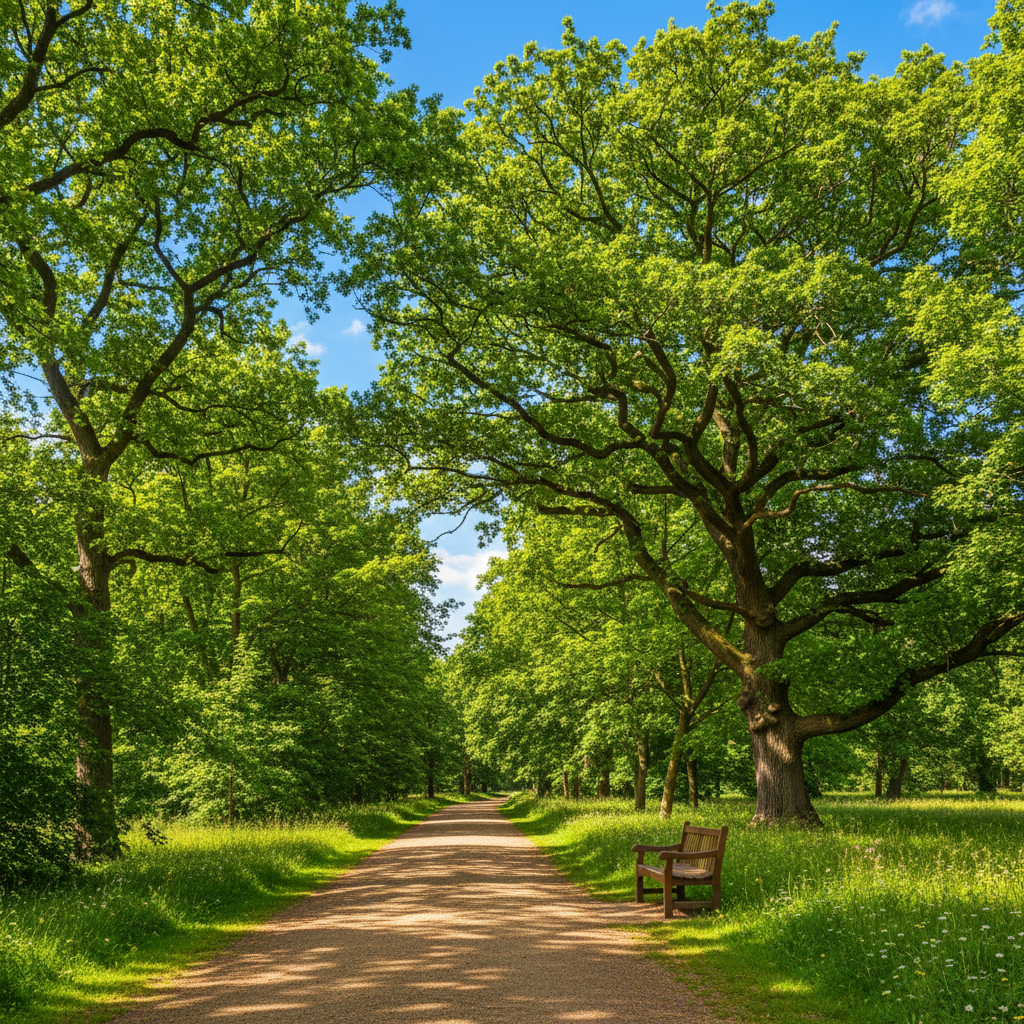
Park with summer green trees and grass
Before
β†’
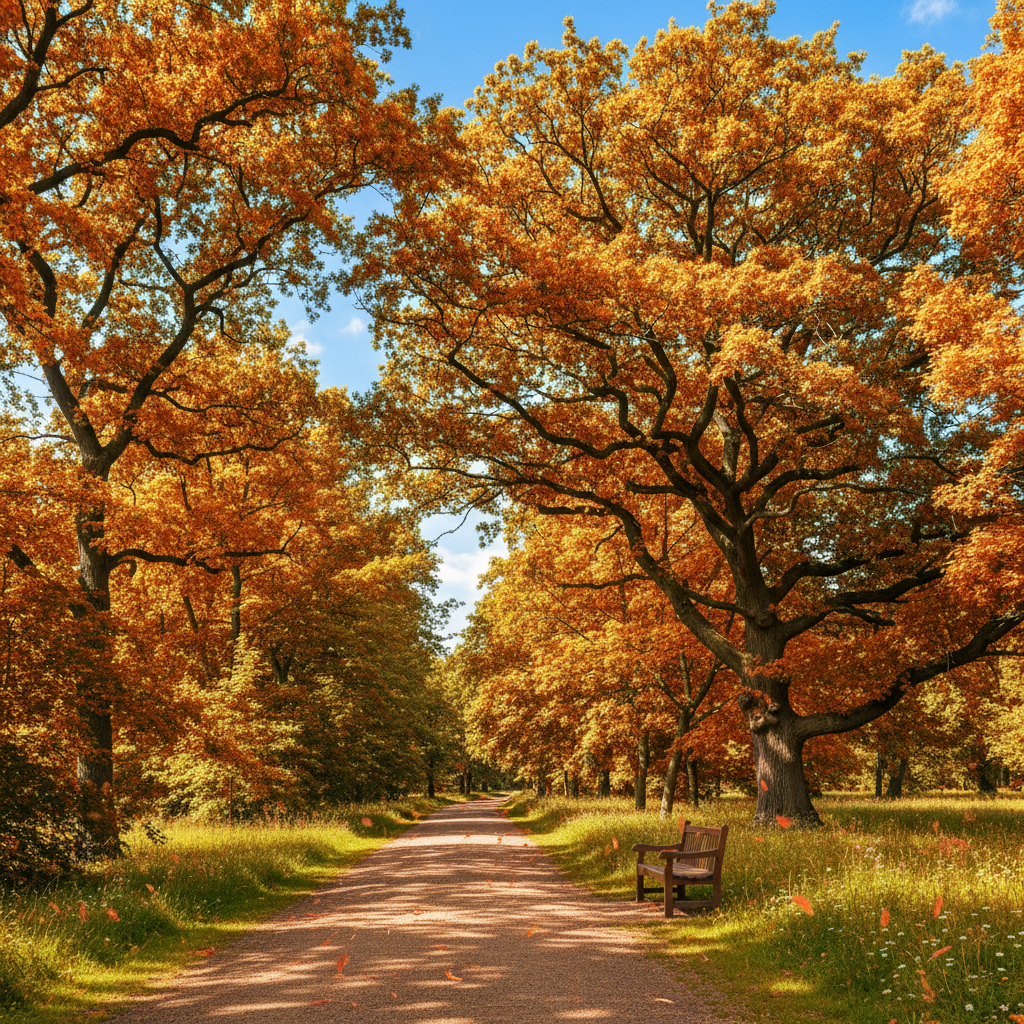
Same park with vibrant autumn fall colors
After

Change Season in Photo

Upload photo to change season

Free β€’ Results in 30 seconds β€’ No signup

Release to upload

FreeNo signupNo watermark
Popular use cases:
  • real estate photography
  • landscape photographers
  • property marketing
  • seasonal portfolios
  • garden photography
  • outdoor marketing
  • nature photography
  • home staging

Cost
Free No signup required
Time
Instant results in 15-30 seconds
Works on
Any device - browser, phone, tablet, desktop
Powered by
AI-powered photo editing
Scenario Prompt Time
Summer to autumn transform scene to autumn with vibrant orange, red, and yellow fall foliage on trees, golden afternoon light 35s
Any to winter change to winter with fresh snow covering ground and tree branches, cold overcast atmosphere 40s
Winter to spring transform to spring with trees in bloom, pink cherry blossoms, fresh green grass, warm sunlight 45s
Any to summer change to summer with vibrant green trees in full foliage, lush grass, bright blue sky 30s

How it works

  1. Upload your outdoor photo

    Upload a clear photo showing the area you want to edit. Good lighting and sharp focus help the AI deliver better season results. JPG, PNG, WebP up to 7MB.

    Expect: Simple landscapes: 30-40 seconds for natural transformation. Complex scenes with multiple elements: may need 2-3 refinements for perfect seasonal details.
  2. Describe the season transformation

    Type your instruction: 'change to autumn with vibrant fall colors' or 'transform to winter with snow covering trees and ground.' Be specific about seasonal details like leaf colors, snow coverage, or spring blooms. The AI understands seasonal vocabulary and handles the transformation automatically.

    Tip: Include atmosphere details for realism: 'autumn with golden afternoon light' or 'winter with overcast cold atmosphere' helps the AI match lighting and mood to the season.

    Copy one of these to get started:

    Summer to vibrant autumn transform scene to autumn with vibrant orange, red, and yellow fall foliage on trees, golden afternoon light
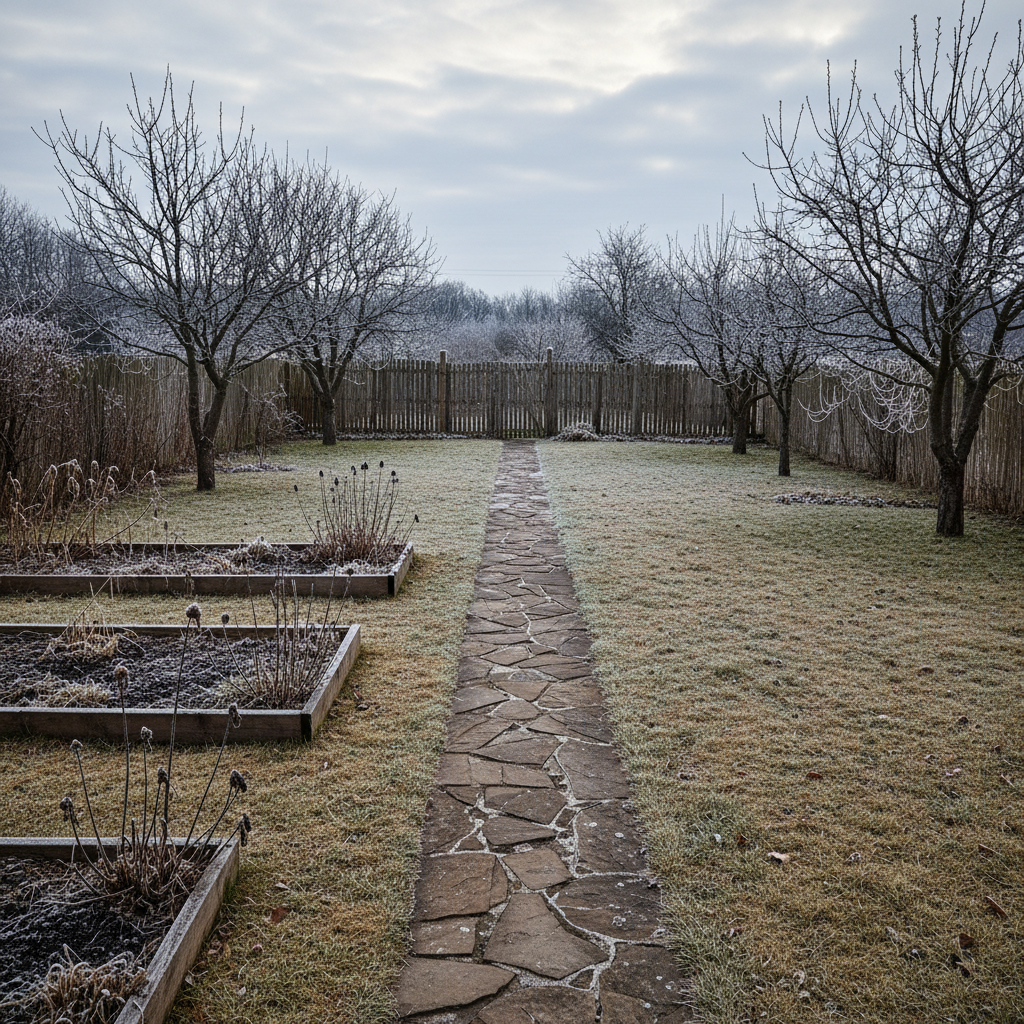
    Any season to winter wonderland change to winter with fresh snow covering ground and tree branches, cold overcast atmosphere
    Winter to spring bloom transform to spring with trees in bloom, pink cherry blossoms, fresh green grass, warm sunlight
    Any season to lush summer change to summer with vibrant green trees in full foliage, lush grass, bright blue sky, warm sunlight
    4 more prompts
    Early to peak autumn enhance fall colors to peak autumn with deep orange and crimson leaves, scattered leaves on ground
    Summer to late autumn transform to late autumn with mostly bare trees, brown fallen leaves on ground, gray overcast sky
    Winter to early spring change to early spring with melting snow patches, budding trees with light green, muddy ground visible
    Autumn to snowy winter scene transform fall scene to winter with heavy snow covering colorful leaves, snow on bare branches, cold blue lighting
  3. Generate and review transformation

    Click Generate and watch the AI transform trees, grass, sky, and lighting to match your target season. Check vegetation details and overall atmosphere. The AI adjusts colors, adds or removes foliage, and modifies lighting temperature automatically.

  4. Refine specific areas if needed

    If certain trees or areas need more seasonal adjustment, describe the specific changes: 'make the trees in the background more orange' or 'add more snow to the foreground.' Most transformations work on the first try, but complex scenes may benefit from targeted refinements.

    Tip: The AI handles broad transformations best. If you need to adjust one specific tree, use markers to indicate which tree, then describe the change.
  5. Download your seasonal photo

    Save your transformed image in full resolution with no watermark. Perfect for real estate marketing, seasonal portfolios, or creative projects.

Try it free ↓

Change Season in Photo

Upload photo to change season

Free β€’ Results in 30 seconds β€’ No signup

Release to upload

Free β€’ No signup

"Transformed my summer property photos to show fall colors. Real estate agents loved it - buyers could visualize the home in different seasons." @realestate_pro

See it in action

Park with summer green trees and grass
Before
->
Same park with vibrant autumn fall colors
After

Summer park to autumn showcase

Transformed a summer park photo with green trees into a stunning autumn scene with vibrant fall colors.

Prompt: transform scene to autumn with vibrant orange, red, and yellow fall foliage on trees, golden afternoon light
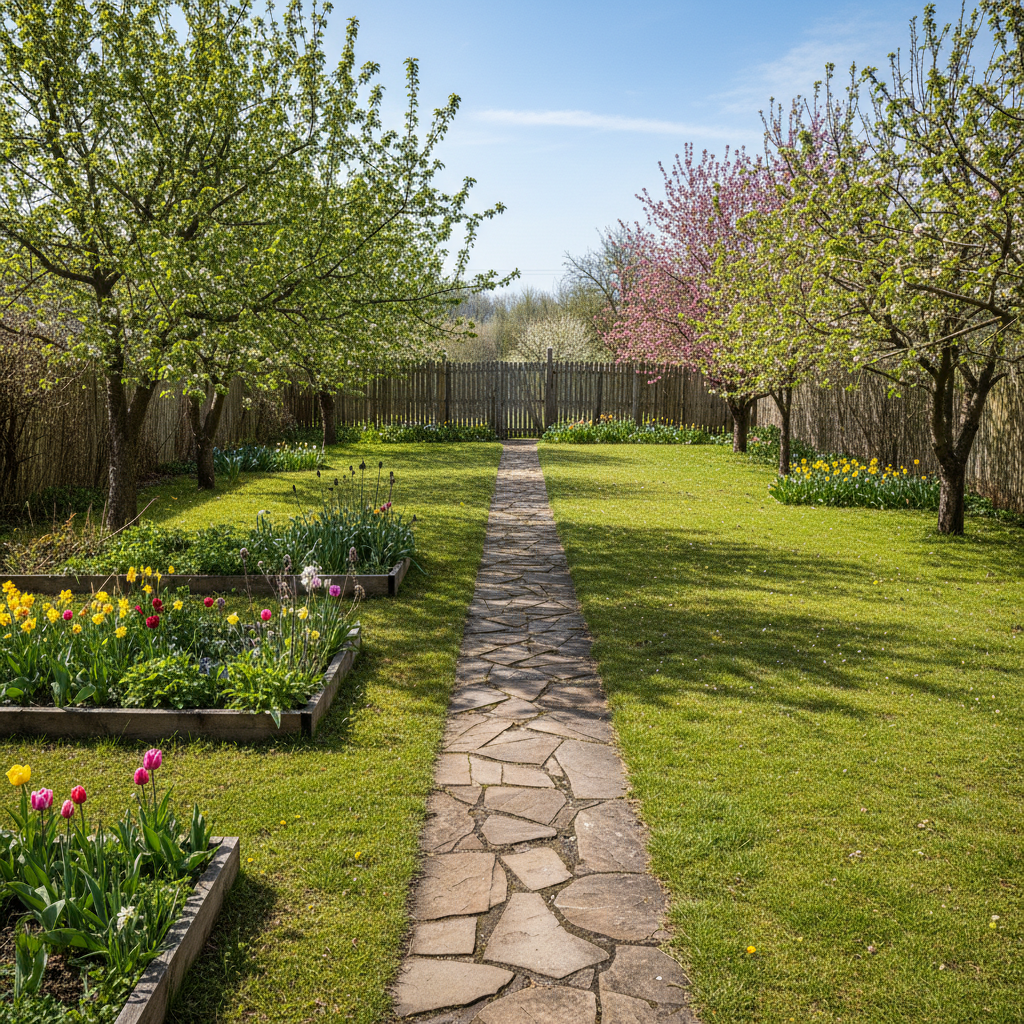
Street with bare winter trees
Before
->
Street with spring cherry blossoms and greenery
After

Bare winter to spring bloom

Brought a cold winter landscape to life with spring blossoms and fresh greenery.

Prompt: transform to spring with trees in bloom, pink cherry blossoms, fresh green grass, warm sunlight
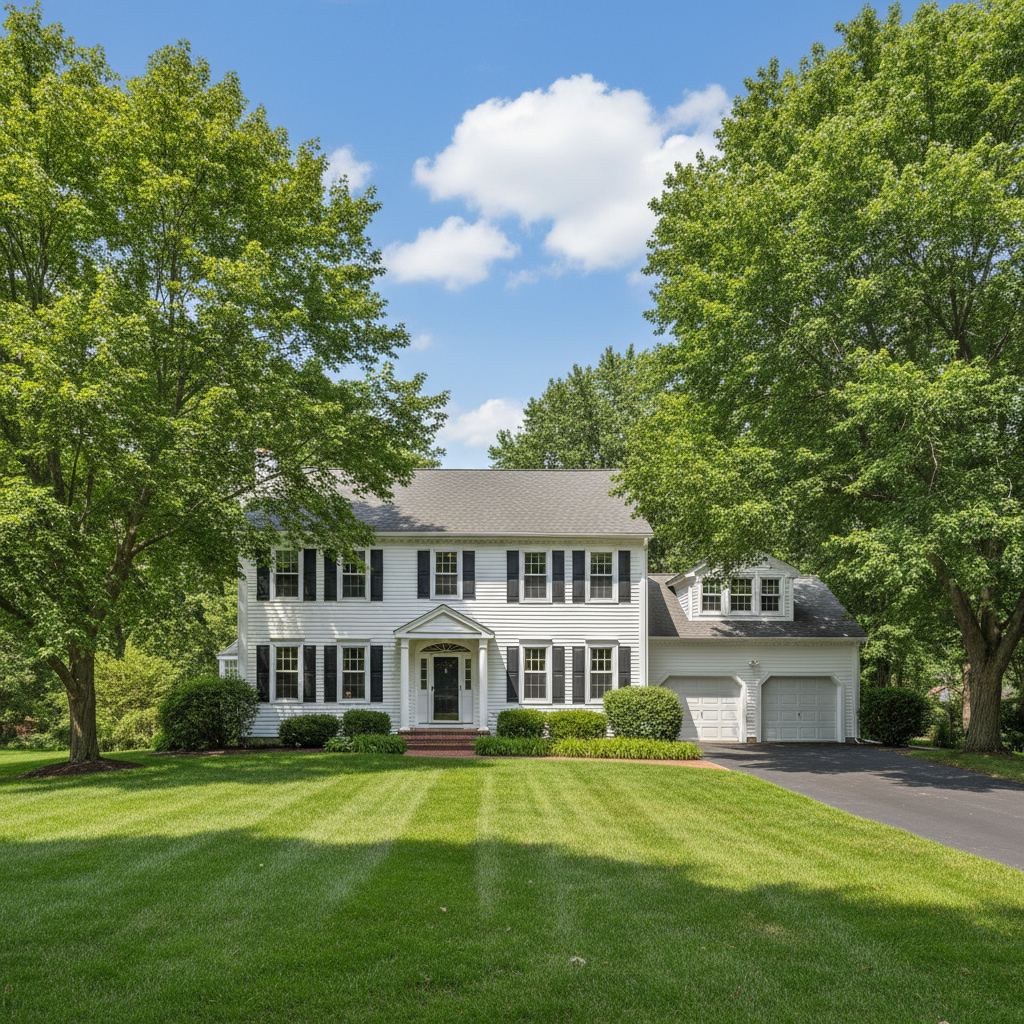
Garden with autumn leaves and brown grass
Before
->
Garden covered in winter snow
After

Autumn garden to snowy winter

Added snow coverage to transform a fall garden into a winter wonderland.

Prompt: change to winter with fresh snow covering ground and tree branches, cold overcast atmosphere

Detailed Guides by Scenario

πŸ“·

Professional Use

Apply 'AI Season Changer' to images for professional projects β€” websites, marketing materials, client deliverables, and presentations.

Common Scenarios

  • Using 'AI Season Changer' for client work or commercial photography
  • Applying 'AI Season Changer' to product or marketing images for a business
  • Batch-processing multiple images with 'AI Season Changer' for a project deadline

Best Practices

  • Use the highest resolution source image available for professional-quality results
  • Be specific in your prompt about the exact 'AI Season Changer' effect you need
  • For consistency across multiple images, reuse the same prompt template
πŸ“·

Creative & Social Media

Use 'AI Season Changer' creatively for social media content, personal projects, and artistic expression.

Common Scenarios

  • Applying 'AI Season Changer' to a photo for a unique social media post
  • Using 'AI Season Changer' to create artistic variations of a favorite image
  • Experimenting with 'AI Season Changer' for a creative project or portfolio piece

Best Practices

  • Experiment freely β€” AI editing lets you try bold ideas with no risk to the original
  • For social content, pair the visual effect with a caption that references the transformation
  • Try the effect on different types of photos to find what looks most striking
πŸ“·

Personal Photos & Memories

Apply 'AI Season Changer' to personal photos to fix issues, enhance quality, or create something special from everyday images.

Common Scenarios

  • Using 'AI Season Changer' on family photos to improve or personalize them
  • Applying 'AI Season Changer' to vacation or event photos before printing or sharing
  • Trying 'AI Season Changer' on a selfie or portrait for profile or personal use

Best Practices

  • Always work on a copy β€” keep the original safe in case you want to try a different approach
  • Natural-looking results are almost always better than dramatic over-processing
  • If it doesn't look right the first time, rephrase your prompt with more specific details

If something looks off

AI changed wrong areas or affected buildings

Why: The AI interpreted 'change scene' to include more than just vegetation, or had difficulty distinguishing permanent structures from seasonal elements.

Try: Be specific about what should change: 'change only the trees and grass to autumn, keep buildings unchanged' or use markers to indicate vegetation areas

Tip: Markers work great for seasonal changes. Tap on tree areas and grass, then describe the seasonal transformation.

Transformation looks unrealistic or artificial

Why: The prompt was too extreme or didn't match the photo's natural setting (e.g., tropical scene to snowy winter).

Try: Match the transformation to your location's realistic seasons. Use 'natural' and 'realistic' in your prompt: 'natural autumn colors for deciduous forest'

Tip: Some locations don't experience certain seasons. A palm tree scene won't look natural with snow.

Colors are oversaturated or look fake

Why: Your prompt used extreme descriptors that pushed color saturation too high.

Try: Use moderate language: instead of 'extremely vibrant fall colors', try 'natural autumn orange and yellow tones'

Tip: Real seasons have color variation. Mention 'natural color variation' to avoid uniform saturation.

Lighting doesn't match the season

Why: The original photo's lighting (harsh summer sun) conflicts with the requested season (winter), and the AI didn't fully adjust it.

Try: Include lighting in your prompt: 'winter with soft diffused light' or 'autumn with warm golden hour light'

Tip: Each season has characteristic lighting: summer = bright, autumn = golden, winter = cool/diffused, spring = fresh warm light.

Some trees changed, others didn't

Why: The AI had mixed signals about which vegetation to transform, possibly due to varying tree types or photo depth.

Try: Be explicit: 'change all trees throughout the entire scene to autumn colors' or use markers to select specific trees

Tip: Background trees may need separate mention: 'including distant trees in the background.'

Snow or leaves look painted on

Why: The AI applied the seasonal element as a texture rather than integrating it naturally.

Try: Use natural placement language: 'snow naturally accumulated on branches and ground' or 'leaves fallen and scattered naturally'

Tip: Phrases like 'naturally accumulated' and 'realistically distributed' improve integration.

Seasonal change is too subtle or barely visible

Why: Your prompt didn't specify intensity, so the AI applied a conservative transformation.

Try: Use intensity words: 'heavy snow coverage', 'peak autumn with maximum color', or 'full spring bloom'

Tip: Compare 'light dusting of snow' vs 'heavy snow covering everything' for very different results.

Quick answers

Do I need to mark areas before changing the season?

No! Just describe the seasonal change you want: 'transform to autumn with fall colors' or 'change to winter with snow.' The AI automatically identifies vegetation, trees, and outdoor elements. Only use markers when you want to target specific areas or exclude certain parts of the photo from transformation.

How do I change seasons in a photo for free?

Upload your outdoor photo to EditThisPic, type what season you want (like 'change to autumn with fall foliage'), and click Generate. The AI handles vegetation transformation, color adjustments, and atmospheric changes automatically. No Photoshop or manual painting required. Free to try with no signup.

Will the transformation look natural or obviously edited?

When you specify realistic seasonal details (natural autumn colors, snow on branches and ground), the AI creates convincing transformations. The key is matching the season to your location's climate and including lighting/atmosphere cues. Tropical locations won't look natural with heavy snow, but temperate forests transform beautifully between all four seasons.

Can I transform any outdoor photo between any seasons?

Yes, but realistic results depend on your starting photo. Photos with deciduous trees transform better than evergreens (which don't change much seasonally). The AI can add snow, change foliage colors, add spring blooms, or create summer greenery. For best results, choose transformations that match your location's natural climate.

Does this work for real estate photos?

Absolutely! Real estate agents use seasonal transformations to showcase properties in different seasons, improve curb appeal with fall colors, or remove winter's drab appearance. It's perfect for creating marketing materials that show a home's potential across the year without waiting for seasons to change.

What's the best free AI tool for seasonal photo transformation?

EditThisPic offers free AI-powered seasonal transformation with no signup, no watermark, and no download required. Unlike manual editing that requires painting foliage and color grading, EditThisPic understands seasonal language and transforms vegetation, lighting, and atmosphere automatically. Perfect for real estate marketing, landscape photography, and creative seasonal projects.

Is EditThisPic's AI season changer really free?

Yes β€” you get 1 free edit per week, no account needed. For unlimited edits, plans start at $3.99/month.

Can I change season on my phone?

Yes. EditThisPic works in any mobile browser β€” iPhone, Android, tablet. No app download needed.

Ready to transform your photos across seasons?

Free to try. No signup required.