Do I need to mark the hazy areas before describing?
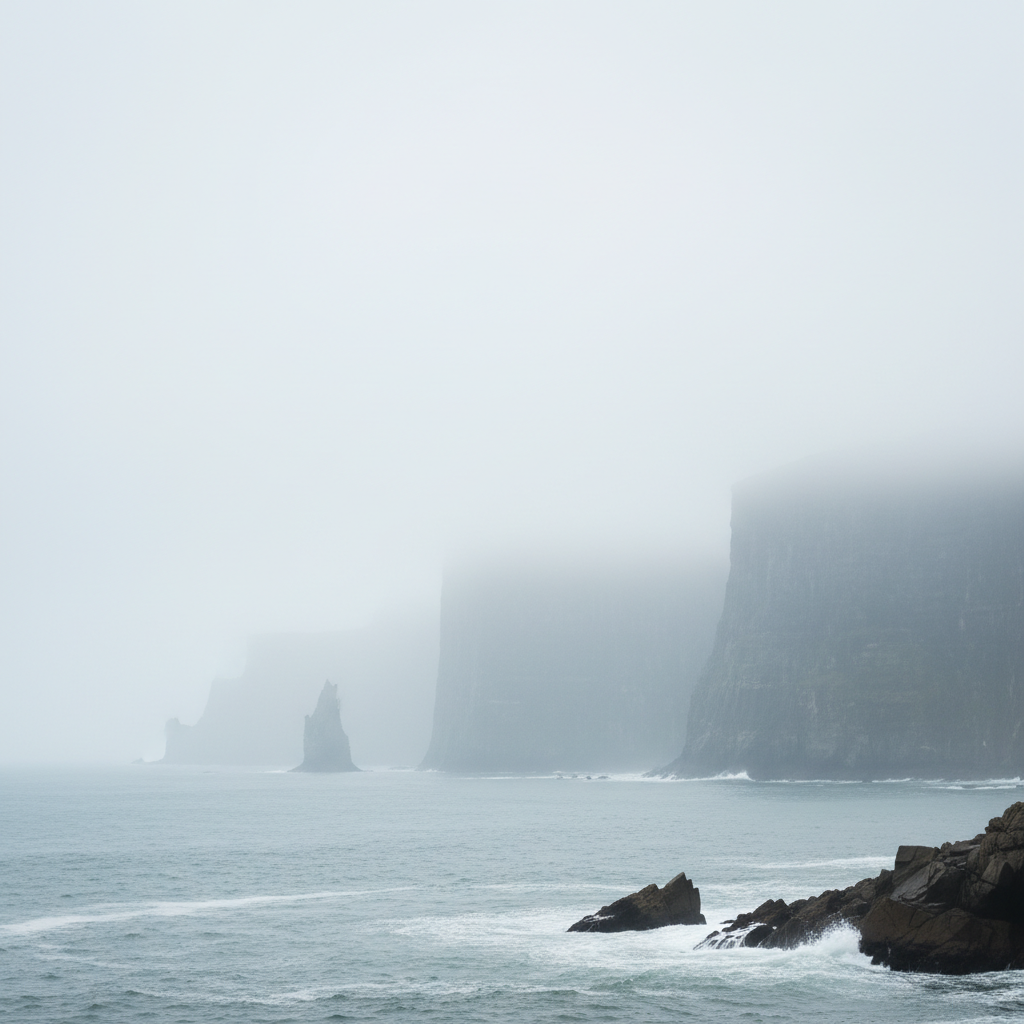
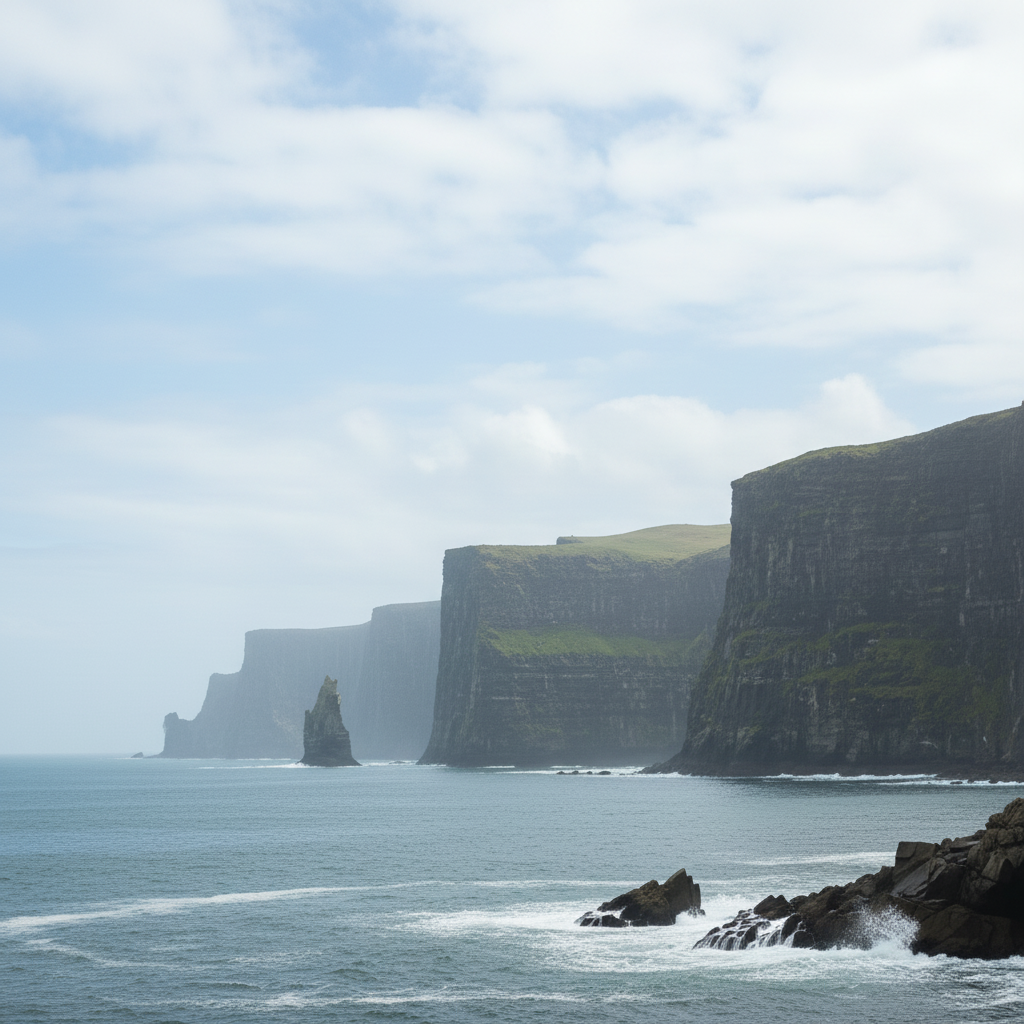
No! Just describe what you want: 'remove atmospheric haze' or 'clear fog from mountains.' The AI understands atmospheric conditions. Only use markers when you need precision—like clearing haze from one specific area while leaving atmospheric depth elsewhere.
How do I remove haze from a photo for free?
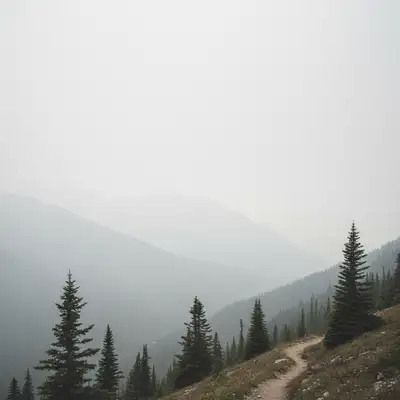
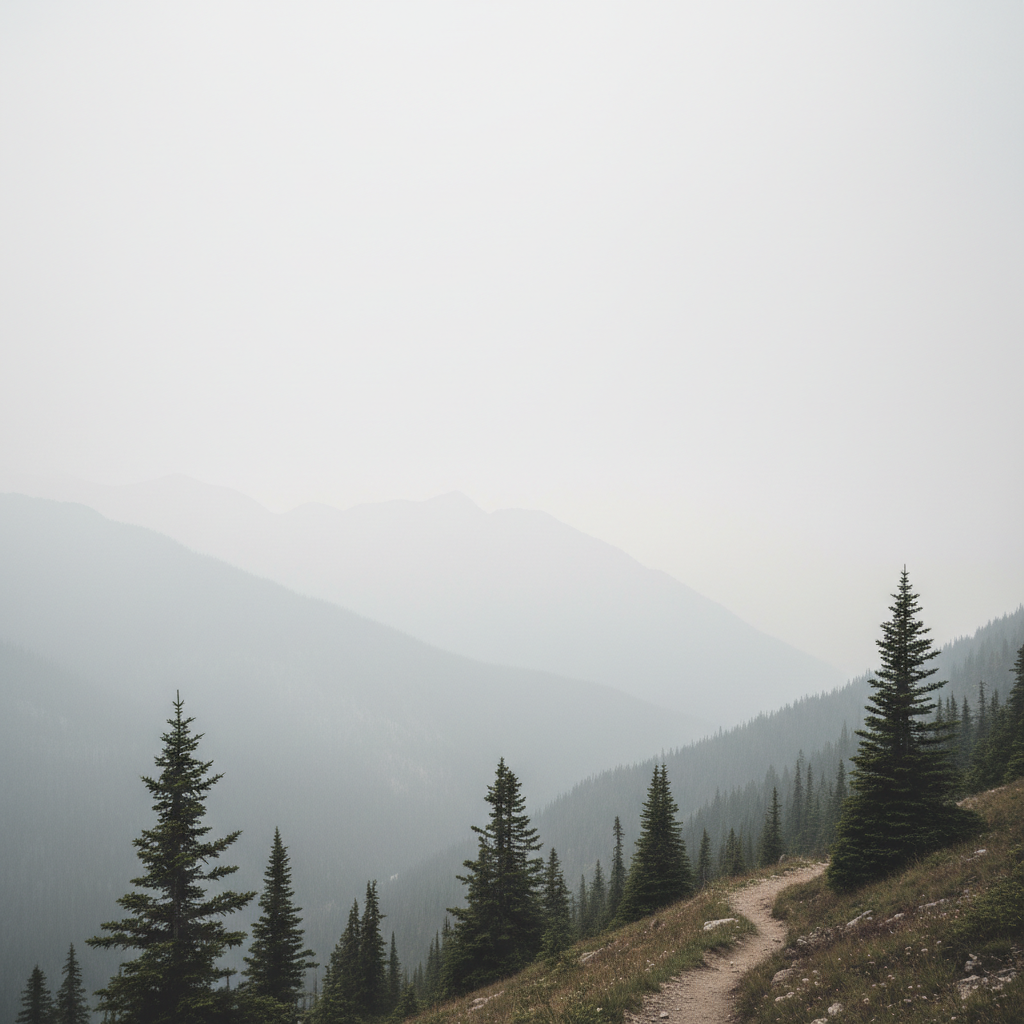
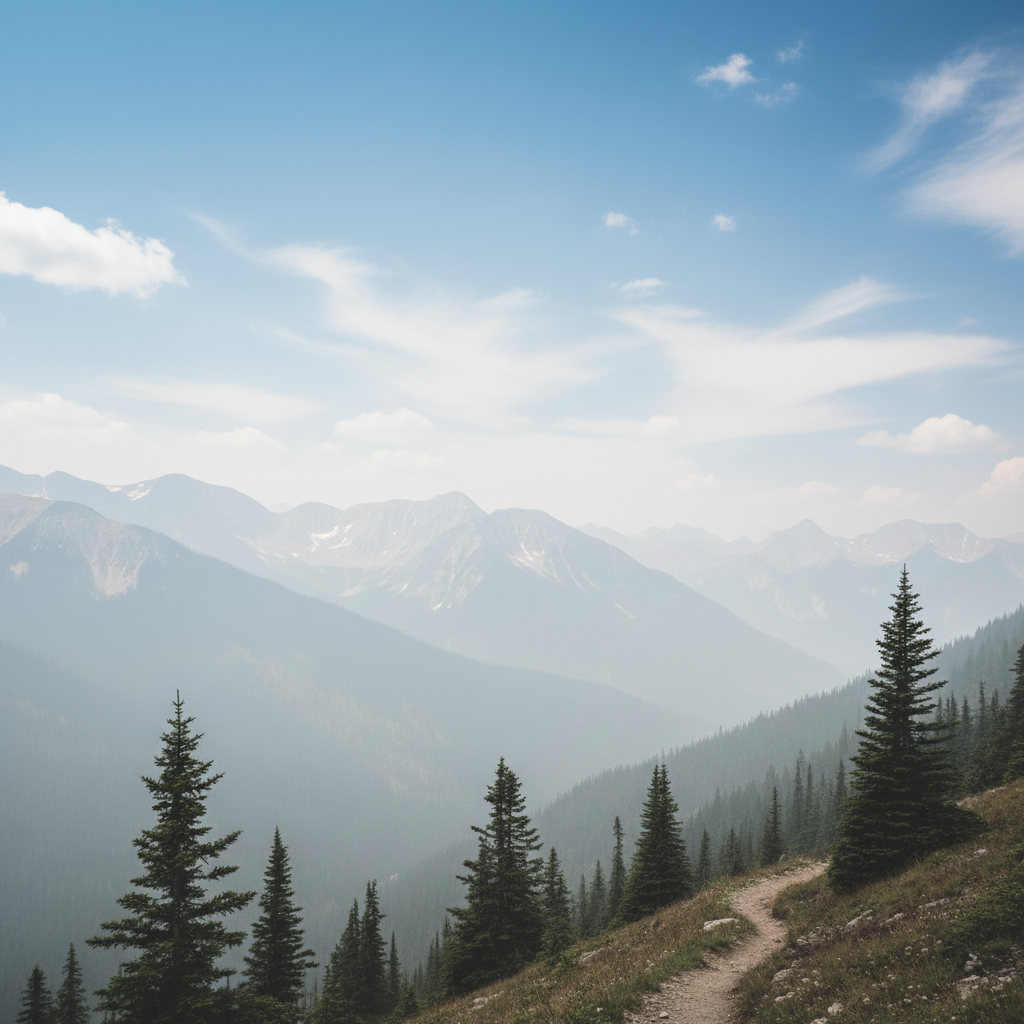
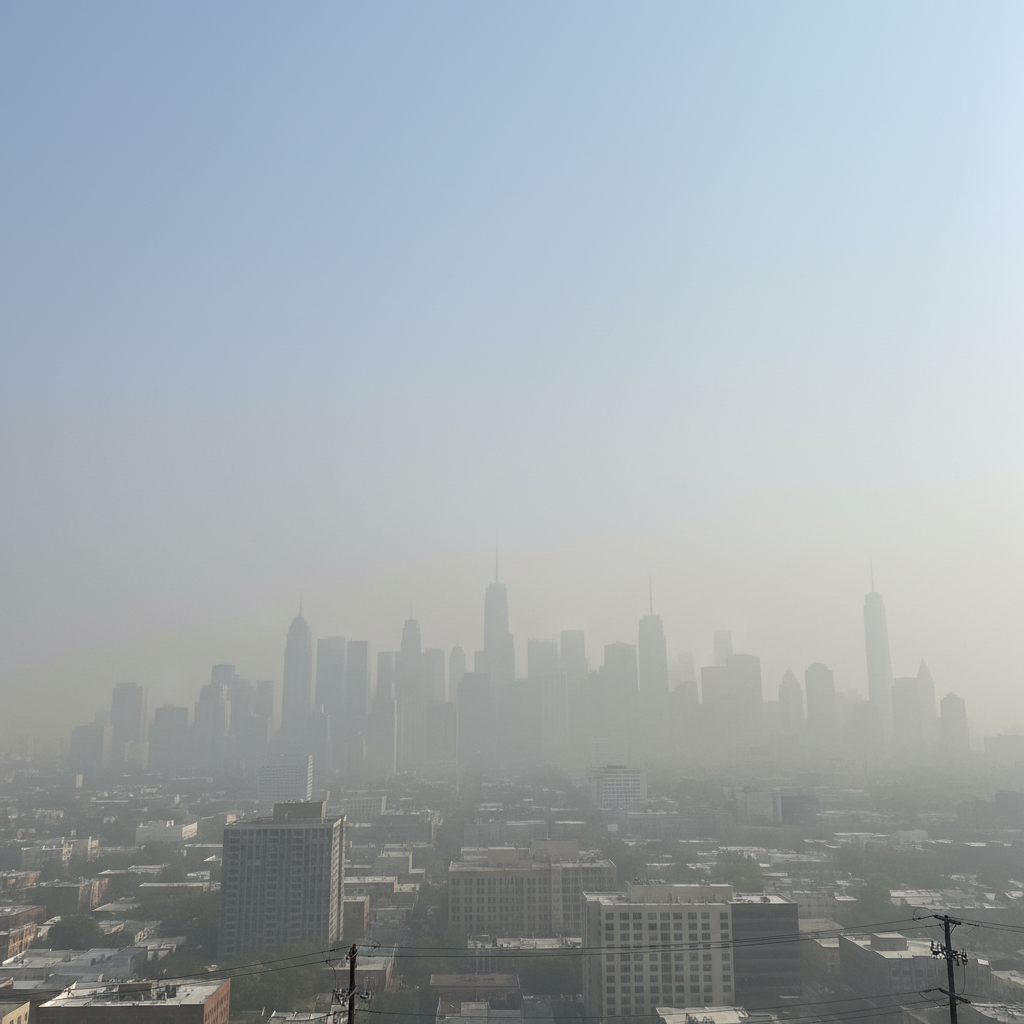
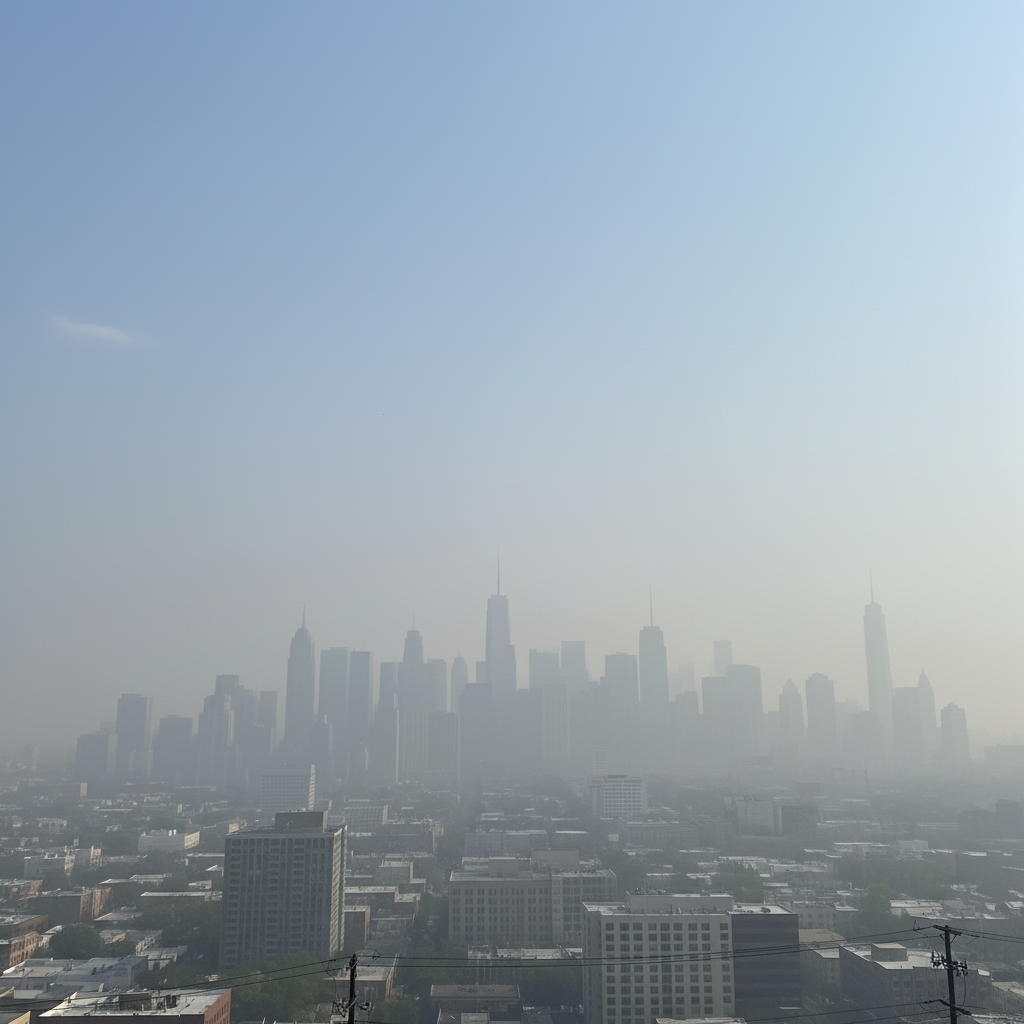
Upload your image to EditThisPic, type 'remove atmospheric haze and increase clarity,' and click Generate. The AI automatically identifies and removes haze while preserving natural colors and details. Free to try with no account needed.
Will removing haze make my photo look unnatural?
EditThisPic's AI preserves natural atmospheric perspective and color gradients while clearing haze. The key is being specific in your prompt—mention 'natural colors' and 'preserve lighting' to maintain realistic results. Some atmospheric depth is retained for natural-looking landscapes.
Can I remove haze from just part of a photo?
Yes. Describe the specific area: 'clear haze from distant mountains only' or use markers to tap on the hazy region you want cleared. This preserves foreground clarity while enhancing distant visibility.
What's the difference between haze and fog removal?
Haze is typically thinner atmospheric obscuration that reduces contrast and clarity. Fog is denser and can completely obscure subjects. EditThisPic handles both—just describe what you see: 'remove haze' for thin atmospheric effects or 'clear thick fog' for dense obscuration.
Is EditThisPic's AI haze remover really free?
Yes — you get 1 free edit per week, no account needed. For unlimited edits, plans start at $3.99/month.
Can I remove haze on my phone?
Yes. EditThisPic works in any mobile browser — iPhone, Android, tablet. No app download needed.
What photo formats does the AI haze remover support?
JPG, PNG, WebP, and HEIC. Upload any common photo format and EditThisPic handles the rest.
How much does EditThisPic cost?
You get 1 free edit per week — no account needed. After that, credit packs start at $1.99 for 3 edits. Monthly plans start at $4.99/mo for 15 edits with unused credits rolling over. All edits are full resolution with no watermark.