Free • No signup Place Logo on product · Free

Place Logo on Product Photo

Upload your product photo + logo. AI places your brand with realistic shadows, perspective, and material texture.

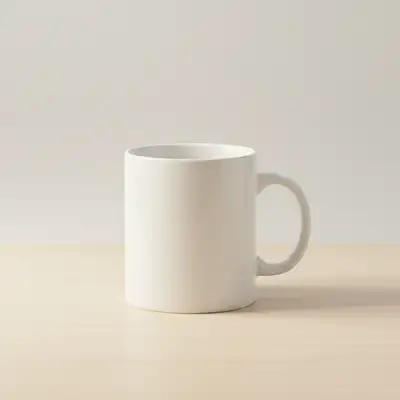
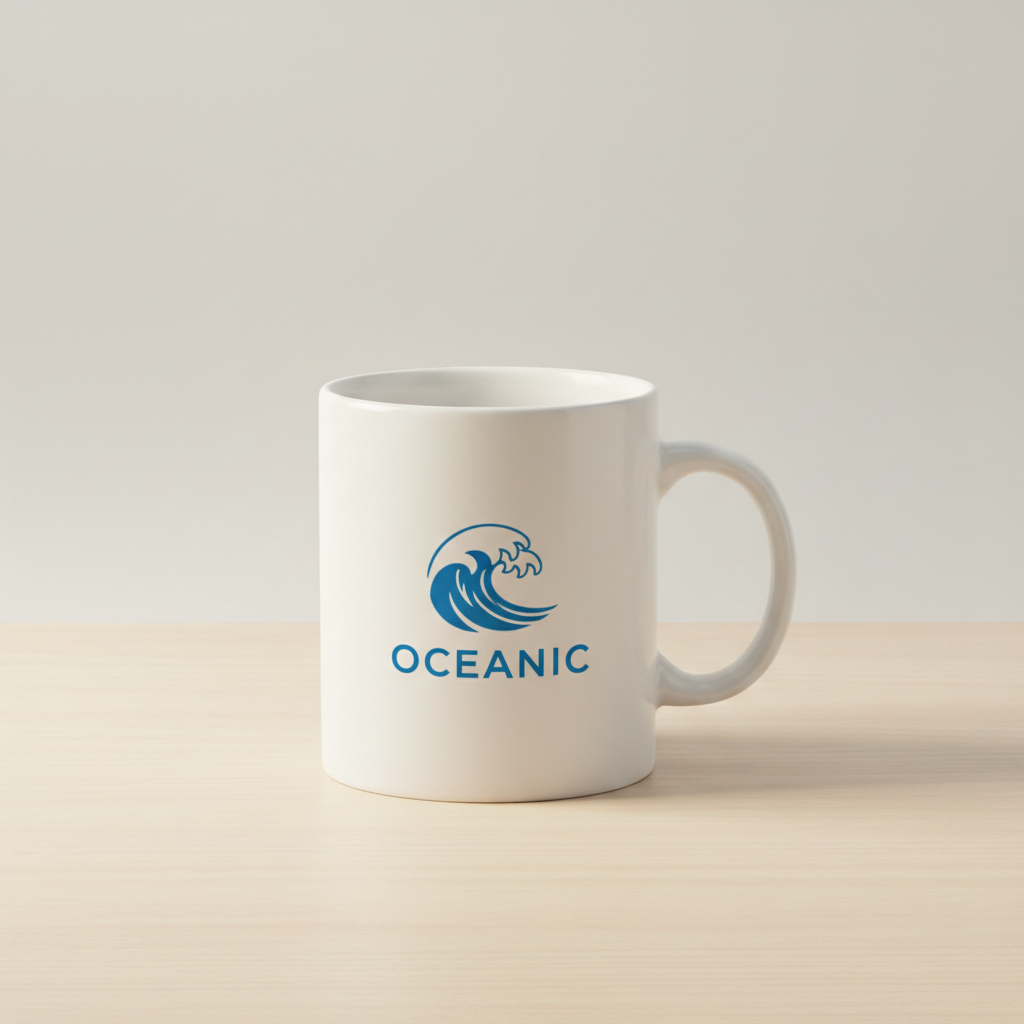
Plain white ceramic mug with no branding on a wood surface
Photo 1
+
Company logo on a transparent/white background used as reference
Photo 2
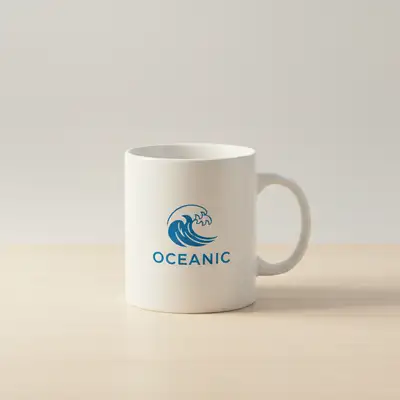
Same mug with a circular company logo on the front, realistic wrap and shadow
Result

Place Logo on Product Photo Free

Drop your photo here

or click to browse

Release to upload

Free • No signup

Popular use cases:
  • logo mockup on mug
  • brand product photo with logo
  • merchandise mockup AI
  • logo on t-shirt photo
  • product branding tool free
  • logo on packaging photo
  • corporate gifting mockup
  • Etsy product photo with logo
  • startup branding mockup
  • agency client presentation mockup
  • print-on-demand mockup generator
  • promotional product photo branding

1Your photo
+
2Reference
=
Result
Plain white mug on a clean surface — the product photo Your product photo
Company logo on a white background — the reference image Your logo (reference)
Mug with logo applied with correct perspective and shadow Result

"Place this logo centered on the mug front with natural wrap and shadow"

Cost
Free No signup required
Time
Instant results in 15-30 seconds
Works on
Any device - browser, phone, tablet, desktop
Powered by
AI-powered photo editing
Scenario Prompt Time
place this logo centered on the mug front with cylindrical wrap and matching shadow 20-30s
apply this design to the chest area, screen-printed look with fabric texture 20-30s
place this logo centered on the front panel, screen-printed in [color] ink on canvas 20-30s
apply as a centered front label, white matte paper label, full-color print 25-40s
apply logo to front panel, offset-printed look, centered with equal margins 25-40s
place logo on the front face, centered upper half, matte stock surface 15-25s

How it works

  1. Upload your product photo

    Drop your product photo into EditThisPic — a mug, t-shirt, tote bag, business card, hoodie, packaging, or any other item. Photos with a clean, well-lit surface work best because the AI needs clear texture information to apply the logo realistically. JPG, PNG, or WebP up to 7MB.

    Expect: Flat product on a clean background: 20-30 seconds. Products with complex texture or unusual angles: may need 1-2 refinements for perfect perspective matching.
  2. Add your logo as a reference image

    Click '+ Add reference image' below the prompt field and upload your logo, design file, or artwork. This is the two-image workflow: your product photo tells the AI where to apply the design, and your logo reference tells it exactly what design to apply. PNG files with transparent backgrounds give the cleanest results.

    Tip: Use a PNG with a transparent background for your logo. If you only have a logo on a white background, add 'ignore the white background of the logo' to your prompt.

    Copy one of these to get started:

    Place Logo on Product center of the mug front — make it look natural and professional
    Logo on a t-shirt chest area apply this logo to the center chest area of the t-shirt, screen-printed look with cotton fabric texture showing through the lighter areas, slightly faded for a worn look
    Logo as a label on a bottle or jar place this logo as a centered front label on the bottle, white matte paper label with the design printed in full color, matching the soft studio lighting from above, with a slight label edge shadow
    Logo on a tote bag for promotional use place this logo centered on the front panel of the canvas tote bag, screen-printed in black ink with natural canvas grain visible through thin areas, outdoor daylight lighting
    3 more prompts
    Logo debossed on a leather or card-stock product apply this logo as a debossed imprint on the front cover of the leather notebook, centered in the lower third, with the depth and shadow typical of blind debossing on smooth leather
    Logo on a business card photo place this logo on the front face of the business card, centered on the upper half, offset-printed on a white matte stock surface, with the sharp studio lighting consistent with the card photo
    Logo on a box or packaging for pitch deck apply this logo to the front panel of the cardboard box, printed in full color with a slight matte finish, centered with equal margins, matching the overhead product photography lighting
  3. Describe the placement

    Tell the AI exactly where to place the logo and how: 'place this logo centered on the mug front with cylindrical wrap and a subtle cast shadow' or 'apply this design to the chest area of the t-shirt with natural fabric texture.' The more specific you are about position and surface interaction, the more realistic the result.

    Tip: Mention the surface material: 'ceramic,' 'cotton fabric,' 'matte cardstock,' or 'glossy label.' This helps the AI match the logo's finish to the product texture.

    Copy one of these to get started:

    Place Logo on Product center of the mug front — make it look natural and professional
    Logo on a t-shirt chest area apply this logo to the center chest area of the t-shirt, screen-printed look with cotton fabric texture showing through the lighter areas, slightly faded for a worn look
    Logo as a label on a bottle or jar place this logo as a centered front label on the bottle, white matte paper label with the design printed in full color, matching the soft studio lighting from above, with a slight label edge shadow
    Logo on a tote bag for promotional use place this logo centered on the front panel of the canvas tote bag, screen-printed in black ink with natural canvas grain visible through thin areas, outdoor daylight lighting
    3 more prompts
    Logo debossed on a leather or card-stock product apply this logo as a debossed imprint on the front cover of the leather notebook, centered in the lower third, with the depth and shadow typical of blind debossing on smooth leather
    Logo on a business card photo place this logo on the front face of the business card, centered on the upper half, offset-printed on a white matte stock surface, with the sharp studio lighting consistent with the card photo
    Logo on a box or packaging for pitch deck apply this logo to the front panel of the cardboard box, printed in full color with a slight matte finish, centered with equal margins, matching the overhead product photography lighting
  4. Generate, review, and refine

    Check that the logo follows the product's surface curves, that shadows and highlights are consistent with the photo's lighting, and that any text in the logo remains legible. If perspective or scale is off, refine your prompt with specific adjustments like 'make the logo slightly smaller' or 'increase the wrap curvature on the cylinder.'

    Tip: If the logo looks too flat, add 'with subtle surface shading to match the product curvature' to your prompt. If it looks too embedded, try 'as a printed graphic on the surface.'
Try it free

Place Logo on Product Photo Free

Drop your photo here

or click to browse

Release to upload

Free • No signup

"We needed 40 mockup variations for our Kickstarter page. I just uploaded the mug photo once, swapped the logo reference each time, and had everything in under an hour. No designer, no Photoshop." @StartupMerchCo

See it in action

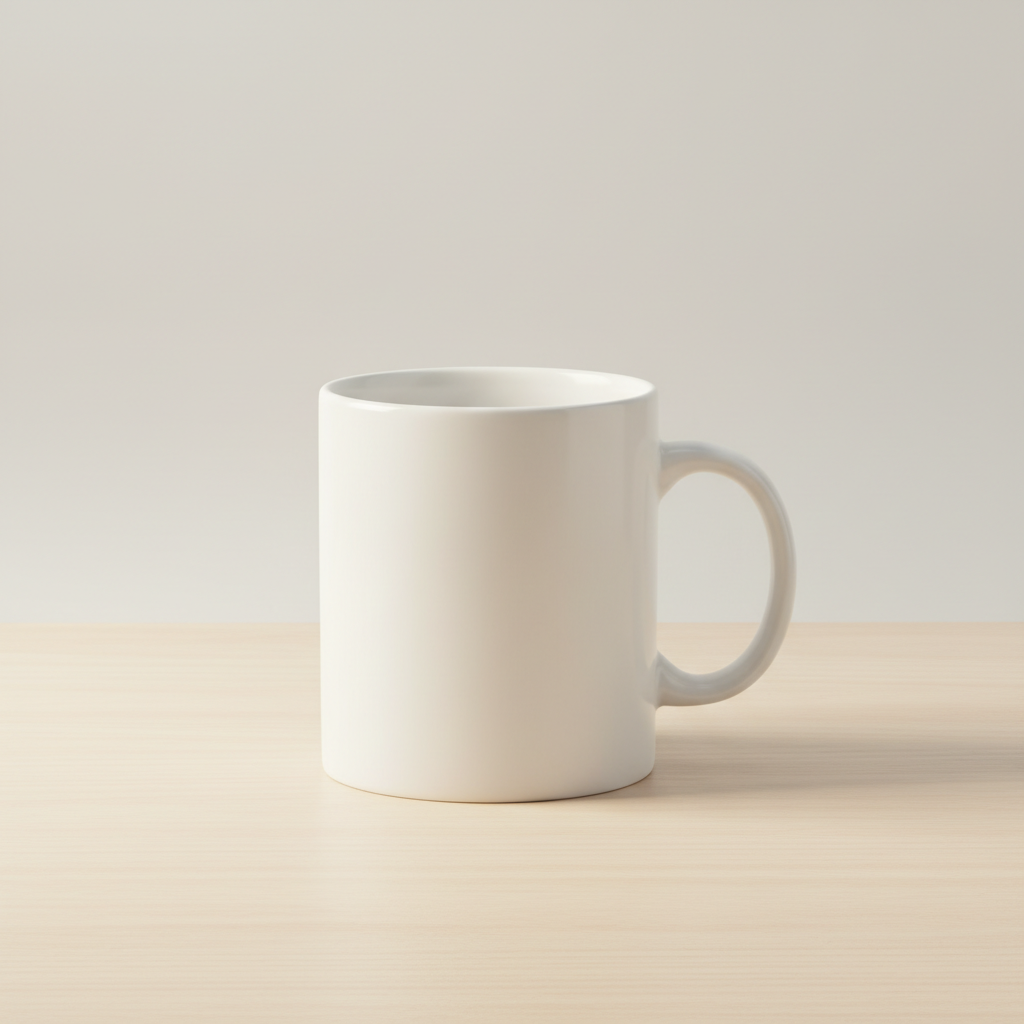
Plain white ceramic mug with no branding on a wood surface
Main Photo
Company logo on a transparent/white background used as reference
Reference
Same mug with a circular company logo on the front, realistic wrap and shadow
Result

Startup logo placed on a white ceramic mug

A print-on-demand seller needed a product photo for their Etsy listing. The AI applied the circular logo to the mug with a natural cylindrical wrap and matching studio shadows.

Prompt: place this logo centered on the front of the mug with a slight cylindrical wrap, matching the warm diffuse studio lighting, with a subtle shadow cast to the right side
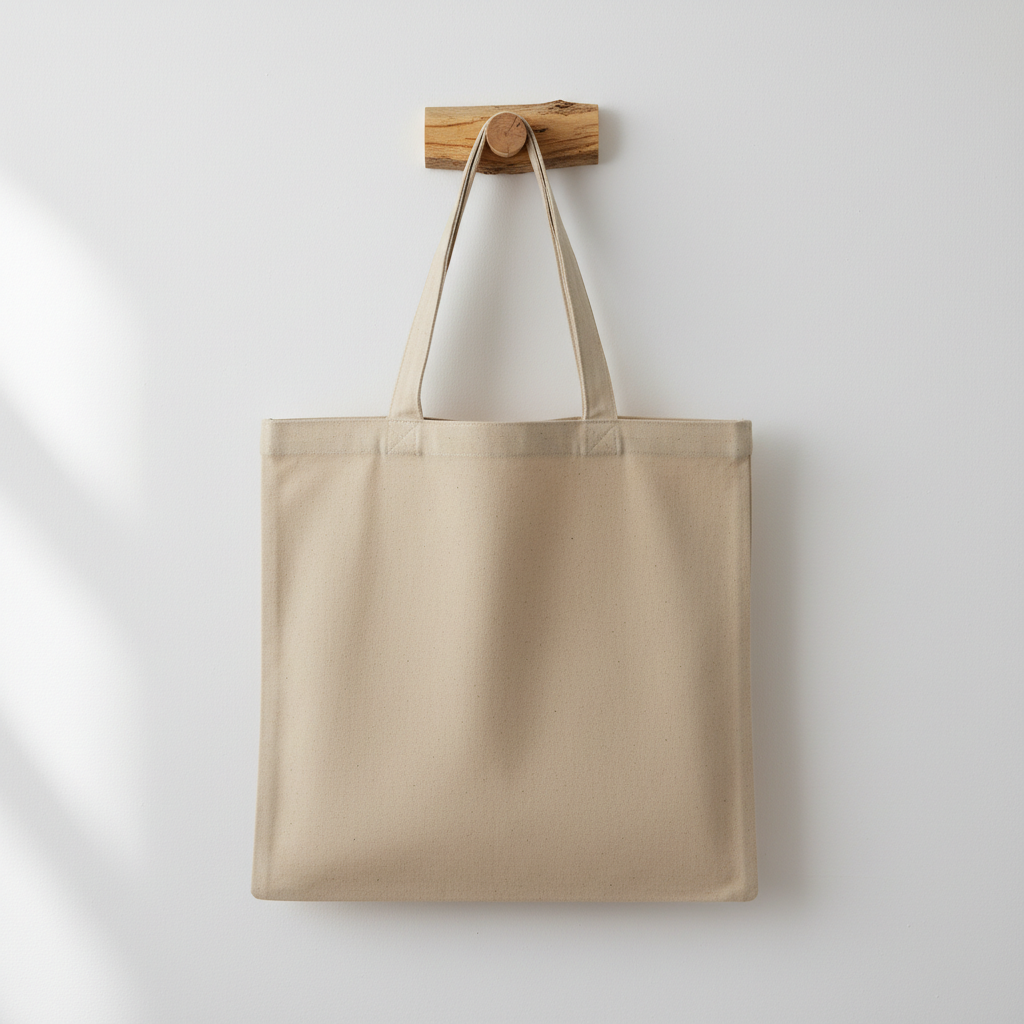
Blank natural canvas tote bag hanging on a white wall, front panel empty
Main Photo
Agency brand logo used as the reference design
Reference
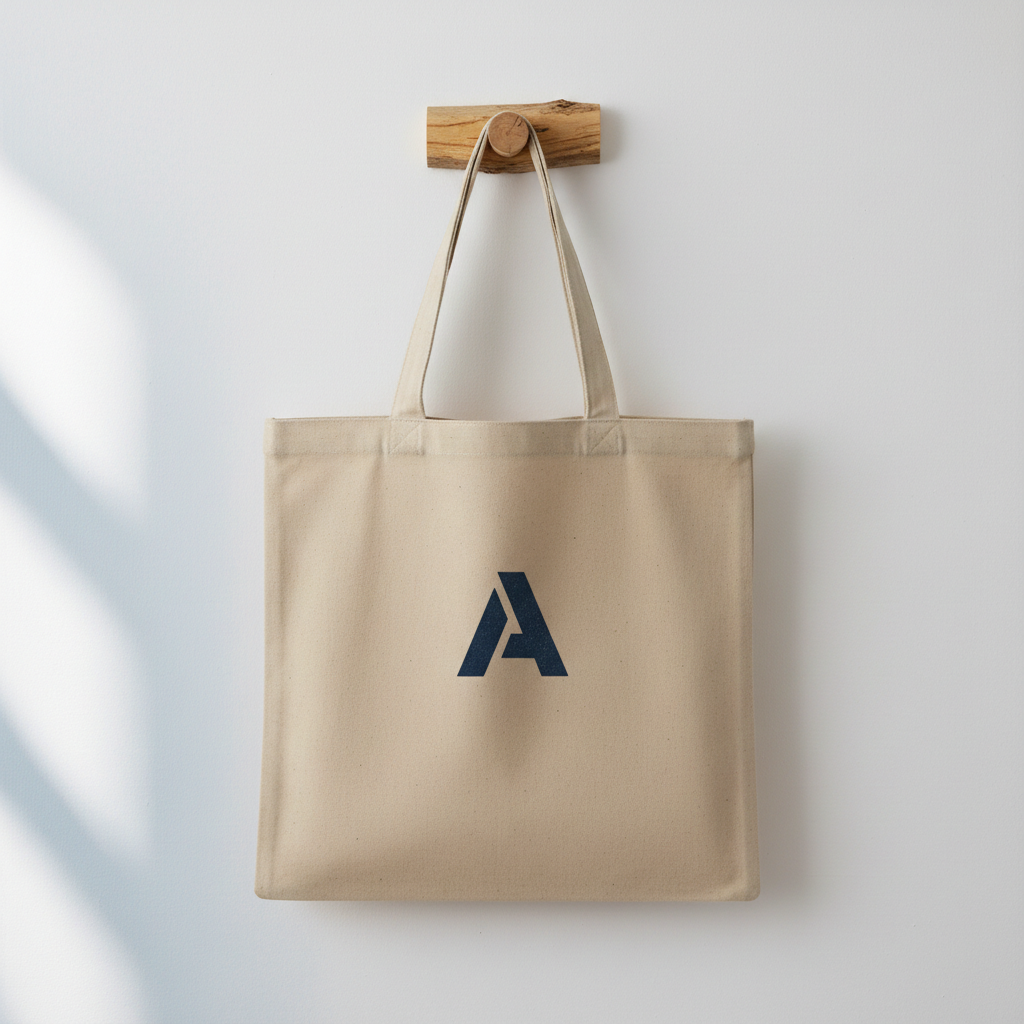
Same tote bag with a screen-printed navy logo on the front panel, fabric texture visible
Result

Agency logo applied to a tote bag for a client pitch

A creative agency needed to show a client how their rebrand would look on promotional tote bags — without ordering physical samples. One upload, 30 seconds.

Prompt: place this logo centered on the front panel of the canvas tote bag, screen-printed in dark navy ink, natural canvas grain visible through thin areas of the design, outdoor daylight lighting

Detailed Guides by Scenario

📷

Merchandise Mockups for Etsy, Amazon, and Shopify

Sell branded merch without ordering physical samples first. Create realistic product photos for mugs, t-shirts, hoodies, tote bags, and caps directly from your existing product shots.

Common Scenarios

  • Generating Etsy listing photos for print-on-demand products before launch
  • Creating Amazon product images for a new branded merchandise line
  • Producing Shopify store photos showing different logo colorways on the same product
  • Testing multiple design options on a single product photo before committing to production

Best Practices

  • Use a product photo with consistent, even lighting so the logo blends naturally
  • For curved surfaces like mugs, specify 'cylindrical wrap' in your prompt
  • For fabric products, add 'with slight fabric texture and thread impression' for realism
  • Create multiple logo colorway variants by swapping your reference image each time
Branded mug for Etsy shop place this logo centered on the front of the mug with cylindrical surface wrap, matching the warm side lighting, with a subtle shadow cast to the right
T-shirt listing photo for print-on-demand apply this design to the chest area of the t-shirt, printed look with natural cotton texture showing through, centered at mid-chest height
📷

Branded Packaging and Label Mockups

Show clients or stakeholders exactly how branding will look on boxes, bottles, bags, and labels — before spending on physical prototypes or print runs.

Common Scenarios

  • Agency presenting packaging concepts to a brand client without physical mockups
  • Startup creating pitch deck visuals showing branded packaging
  • Small business testing label designs on bottles or jars before printing
  • Freelance designer producing deliverables showing logo on product packaging

Best Practices

  • For box packaging, describe which face the logo appears on: 'front panel,' 'lid,' or 'side gusset'
  • For bottles and jars, specify label size: 'full-wrap label' or 'small front label centered'
  • Mention material finish for accuracy: 'matte kraft paper,' 'glossy white label,' 'frosted glass'
  • For client presentations, include 'clean, professional rendering with no visible editing artifacts' in your prompt
Bottle label mockup for client presentation place this logo as a label on the front of the glass bottle, centered vertically, white matte label with logo printed in brand colors, matching the studio lighting from the top
Startup packaging pitch deck visual apply this logo to the front panel of the cardboard box, offset-printed look on kraft paper, centered with even margins on all sides
📷

Promotional Materials and Corporate Gifting

Create branded corporate gift visuals, trade show giveaway photos, and promotional product catalogs without photographing every physical item.

Common Scenarios

  • Creating a branded giveaway catalog showing the company logo on pens, notebooks, and bags
  • Producing trade show booth visuals with branded merchandise before printing
  • Showing clients how their logo would look on co-branded promotional products
  • Building a portfolio of branded item options for a corporate gifting service

Best Practices

  • Use high-resolution product photos with neutral backgrounds for the cleanest mockups
  • For pen and notebook engravings, describe 'debossed' or 'laser engraved' instead of 'printed'
  • When creating catalog pages, generate each product separately for consistent quality
  • For co-branding, upload both logos together in the reference image with a note describing their intended arrangement
Branded notebook for corporate gifting catalog engrave this logo onto the front cover of the leather notebook, debossed effect with slight shadow depth, centered in the lower third of the cover
Trade show tote bag promotional visual place this logo on the tote bag centered on the front panel, screen-printed in white ink, natural canvas texture visible through the lighter areas of the design

If something looks off

Logo looks flat and pasted on rather than part of the product surface

Why: The AI applied the logo as a flat overlay instead of conforming it to the product's surface curves and material texture.

Try: place this logo on the product surface with the texture of the [material] showing through, conforming to the surface curvature with matching highlights and shadows

Tip: Explicitly name the surface material and effect: 'screen-printed on cotton,' 'offset-printed on cardboard,' 'engraved into ceramic.' This tells the AI how to integrate the design physically.

Logo wraps too aggressively or distorts on a mug or bottle

Why: The AI over-applied cylindrical perspective, causing the logo to warp more than it would in a real print.

Try: place this logo on the mug with a flat label applied to the curved surface — minimal wrap distortion, as if it were a sticker label rather than a wraparound print

Tip: Use 'flat label' for sticker-style application and 'cylindrical wrap' for a full-print look. Both are correct depending on the actual product print method.

Logo colors look wrong or desaturated on the product

Why: The AI may have blended the logo colors with the product surface color or lighting, shifting the apparent hue.

Try: preserve the exact colors of the logo design from the reference image, print the logo in full color with accurate color reproduction on the product surface

Tip: If the product is a dark color, add 'printed on a white base layer beneath the logo colors' — this is how real garment printing works and prevents color shift.

White background of the logo is visible instead of being transparent

Why: The reference logo has a white or light background, and the AI included it in the placement rather than treating it as transparent.

Try: place only the logo design from the reference image, ignoring the white background — apply only the graphic marks and text as if on a transparent background

Tip: Save logos as PNG with a transparent background before uploading for the cleanest results. If you only have a white-background version, this fix prompt usually solves it.

AI changed the wrong area or something I didn't want changed

Why: The AI couldn't determine exactly which area you meant from description alone. This happens when the product has multiple surfaces or the placement description is ambiguous.

Try: Tap a marker on the specific surface area where you want the logo placed, then regenerate with the same prompt

Tip: Markers tell the AI 'I mean THIS surface specifically.' Use them when the product has multiple visible faces — front panel, side, lid — and your description alone isn't precise enough.

Logo scale is wrong — too large, too small, or poorly proportioned

Why: Without explicit size guidance, the AI guesses the proportional size of the logo relative to the product surface.

Try: place this logo at [small/medium/large] scale — occupying roughly [one-third/half/two-thirds] of the printable area, centered with even margins

Tip: Describing the logo's footprint as a proportion of the surface ('occupying roughly a third of the front panel') is more reliable than abstract terms like 'small' or 'big.'

Quick answers

Do I need to mark where the logo should go on the product?

No. Just describe the placement in your prompt: 'centered on the mug front' or 'chest area of the t-shirt.' The AI understands product surface descriptions. Use markers only if you need to pin a precise spot — for example, if your product has multiple areas that could be confused, tap the exact location and regenerate.

How do I add my logo as a reference image?

Click '+ Add reference image' below the prompt field before you submit. Upload your logo file — PNG with transparent background works best. The AI uses this reference to extract your exact logo design and apply it to the product surface in your main photo. You don't need to crop or resize it first.

How do I put my logo on a product photo for free?

EditThisPic lets you place a logo on any product photo completely free, with no signup or account required. Upload your product photo, click '+ Add reference image' to add your logo, describe the placement, and click edit. The result downloads without a watermark. You get one free edit per week, or purchase credits for more edits.

What is the best free AI tool for product logo mockups?

EditThisPic is purpose-built for this: it accepts both a product photo and a logo reference image in a single edit. Unlike generic mockup generators that require fixed templates, you can use any real product photo you already have. No templates, no design skills, no Photoshop. The AI matches perspective, material texture, lighting, and shadows automatically.

Can I use my own product photo, or do I need a template?

You can use any product photo you own — a photo you took yourself, a supplier photo, or any existing product image. Unlike mockup generators that lock you into pre-set templates, EditThisPic works on the actual photo. This means the lighting, angle, and surface texture in the mockup will exactly match your real product.

Will the logo look realistic or obviously edited?

When the product photo has consistent lighting and a clean surface, results are typically indistinguishable from professional product photography. The AI handles cylindrical wrap on mugs and bottles, fabric texture on apparel, and material-appropriate finishes. Complex angles or unusual surfaces may need a second attempt with a more specific prompt.

What product types work best for logo placement?

Flat or near-flat surfaces work best on the first attempt: tote bags, t-shirts, business cards, boxes, and flat packaging. Curved surfaces like mugs, bottles, and cylindrical containers work well with the right prompt ('cylindrical wrap'). The most challenging surfaces are highly reflective products like glossy phone cases or metal items — these may need 2-3 refinements.

Can I generate multiple logo colorway variants on the same product?

Yes. Run the same prompt multiple times with different logo reference images — one for each colorway. Each edit takes about 30 seconds. This is useful when testing which logo color reads best on a given product material before committing to a print run.

Is there a free logo mockup generator that doesn't need a login or design skills?

Yes. EditThisPic requires no account and no design skills. Upload your product photo, add your logo as a reference image, describe where to place it, and download the result. No templates, no monthly fee to start, and no watermark on your first edit each week.

Can I use this for client deliverables and commercial projects?

Yes. The images you generate are yours to use commercially — for client presentations, e-commerce listings, marketing materials, and pitch decks. There are no restrictions on commercial use of your edited images. Using your own product photos and logos means you retain full rights to the inputs and outputs.

What file format should my logo be in for best results?

PNG with a transparent background gives the cleanest results because the AI can extract just the logo marks without guessing where the logo ends and the background begins. SVG files converted to PNG also work well. If you only have a logo on a white background (JPG or PNG), add 'ignore the white background of the logo' to your prompt and the AI will typically handle it correctly.

Ready to edit your photos?

Upload your product photo + logo. Realistic mockup in 30 seconds. Free, no signup.

Try it free