Free • No signup Open Editor

Add Text to Photo

Add professional-looking text overlays to any photo with AI-generated typography.

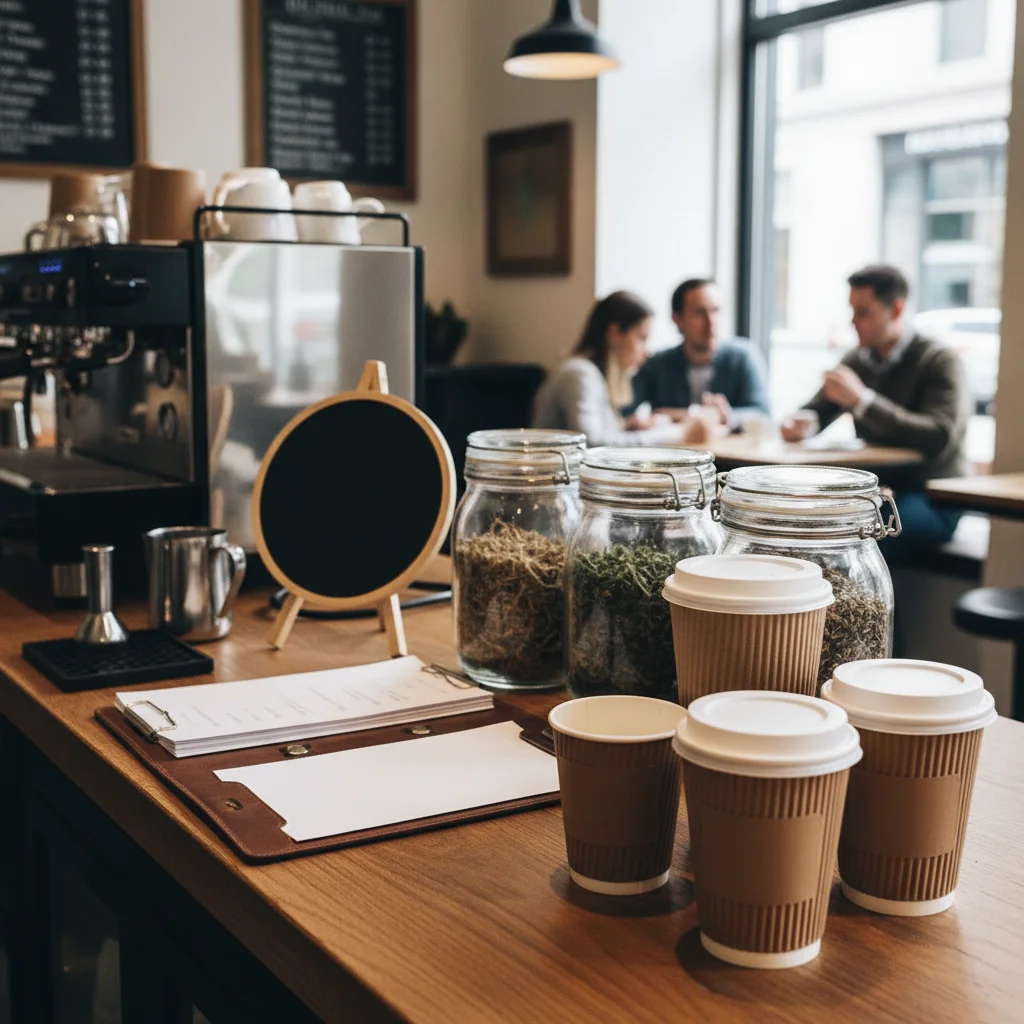
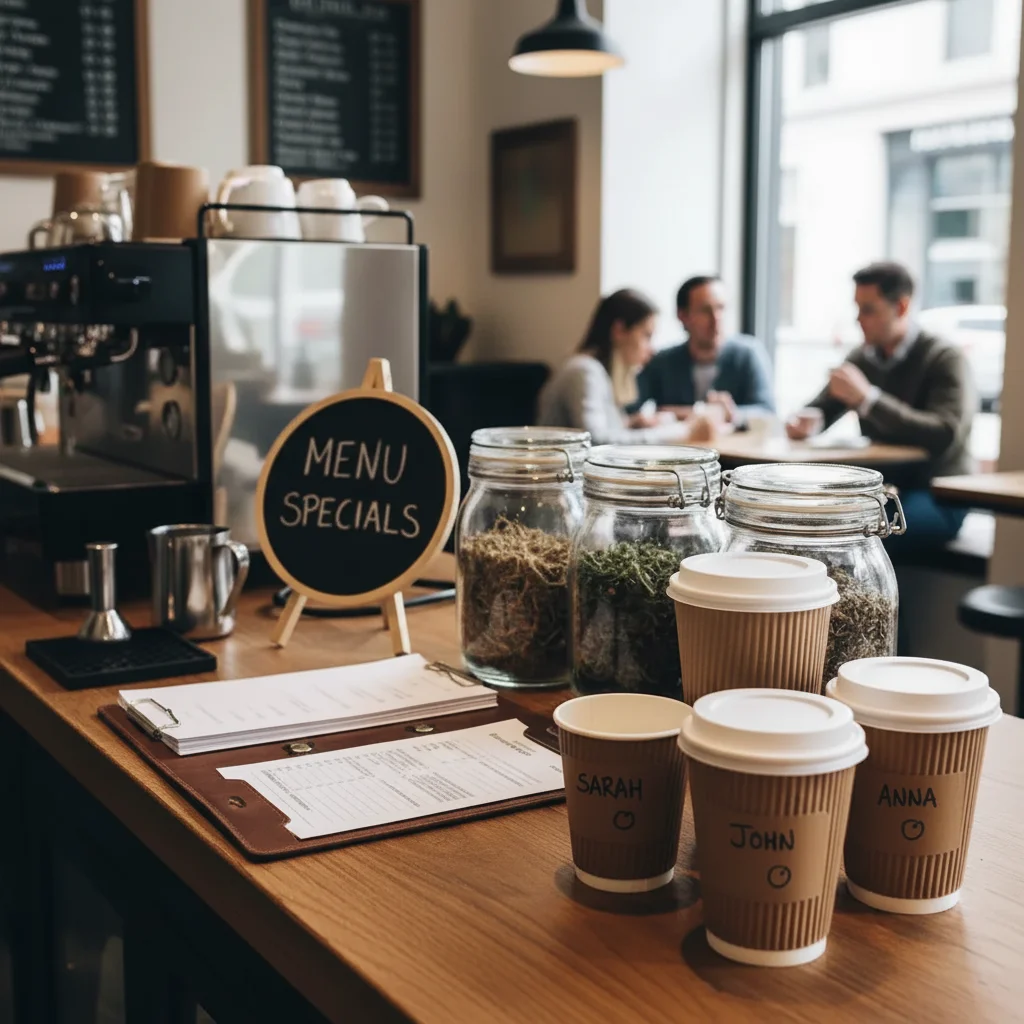
Type 'add the text HELLO SUMMER in bold white letters at the top center of the image' and EditThisPic's AI places stylized text in 15-30 seconds. Perfect for social media graphics, quotes on photos, watermarks, or promotional materials. The AI understands typography, placement, and styling. No design skills required. Free to try, no account needed.

Scenic mountain sunset landscape
Before
Same landscape with WANDER MORE text overlay
After

How it works

1

Upload your photo

Drop your image into EditThisPic. Photos with clear areas for text placement work best - consider where the text won't cover important subjects. JPG, PNG, WebP up to 7MB.

⏱ Simple text additions: 15-25 seconds. Styled typography: may need 2-3 refinements for exact look.
2

Describe the text and style

Type exactly what text and how: 'add SPRING SALE in bold pink script letters in the top right corner' or 'add a subtle watermark with my name in the bottom corner.' Include the exact words, font style, color, and position. The AI generates text matching your description.

💡 Put your exact text in CAPS or quotes so the AI knows exactly what words to add

Copy one of these to get started:

Instagram quote graphic add the text 'ADVENTURE AWAITS' in elegant white serif letters centered on the image with a subtle drop shadow
Sale announcement add SALE 50% OFF in bold red letters at the top of the image, attention-grabbing retail style
Subtle watermark add a semi-transparent watermark with '@mybrand' in the bottom right corner, subtle and professional
Event announcement add 'WEDDING JUNE 2025' in elegant gold script letters at the bottom center, romantic and sophisticated style
3 more prompts
Motivational quote add 'BELIEVE IN YOURSELF' in modern minimalist black letters on the left side of the image, clean sans-serif font
Product label add 'NEW ARRIVAL' as a diagonal banner in the top corner, bright yellow with black text, retail style
Date stamp style add the date 'DEC 2024' in orange timestamp style in the bottom right corner, like a vintage photo date stamp
3

Generate and review

Check that the text is readable against the background, positioned correctly, and styled as requested. Verify spelling is correct and the font style matches your vision.

4

Refine style if needed

If the text isn't quite right, describe adjustments: 'make the text larger and more bold' or 'change to a more elegant script font.' Fine-tuning gets the exact typography you want.

💡 For readability, add 'with a subtle shadow behind the text' when placing on busy backgrounds.
Try it free
"Needed to add my brand name to product photos for Instagram. Just described where and how I wanted it - looked like I hired a designer." @SmallBizSarah

See it in action

Scenic mountain sunset landscape
Before
Same landscape with WANDER MORE text overlay
After

Instagram travel quote

A scenic photo transformed into a shareable social media graphic with an inspirational overlay.

Prompt: add 'WANDER MORE' in bold white capital letters centered on the image with a subtle drop shadow for readability
Summer product flat-lay with sunglasses and beach towel
Before
Same products with SUMMER SALE promotional text
After

Product promotion graphic

A product photo turned into a promotional graphic with sale messaging.

Prompt: add 'SUMMER SALE 30% OFF' in bold red and white letters at the top of the image, retail promotional style
Romantic couple photo in garden setting
Before
Same photo with elegant save-the-date text overlay
After

Elegant event save-the-date

A photo transformed into a sophisticated announcement with elegant typography.

Prompt: add 'SAVE THE DATE - JUNE 15, 2025' in elegant gold script letters at the bottom center, wedding invitation style

If something looks off

Text is hard to read against busy background

Why: The text color blends with the background elements, reducing contrast and legibility.

Try: add the text with a solid background box behind it, or add a strong drop shadow for contrast

💡 Always add 'with drop shadow' or 'with dark/light outline' when placing text on complex backgrounds

Text has spelling mistakes

Why: The AI interpreted or generated the text differently than intended.

Try: Make sure to put your exact text in quotes or CAPS: add 'YOUR EXACT TEXT HERE' in the style...

💡 Use quotes around the exact text you want, and check carefully - AI can sometimes misread

Font style isn't what I wanted

Why: The AI interpreted the style description differently or has limited font options.

Try: add the text in a [more specific style - clean sans-serif/elegant script/bold block/handwritten] font

💡 Be specific: 'modern sans-serif like Helvetica' or 'elegant script like wedding calligraphy'

AI changed the wrong area or something I didn't want changed

Why: The AI could not determine exactly which area you meant from description alone. This happens with ambiguous requests.

Try: Tap a marker on the specific area you want to change, then regenerate with the same prompt

💡 Markers tell the AI 'I mean THIS one specifically.' Use them when description alone is ambiguous.

Text is too small or too large

Why: The AI misjudged the appropriate scale for the text relative to the image.

Try: add the text at [larger/smaller] size, taking up about [percentage] of the image width

💡 Give size context: 'large and bold' or 'small and subtle in the corner'

Quick answers

Do I need to mark where the text should go?

No! Just describe the position: 'at the top center,' 'in the bottom right corner,' or 'across the middle.' The AI understands these spatial descriptions. Use markers only when you need very precise positioning or the AI keeps placing text in the wrong spot.

Can I choose specific fonts?

You can describe the font style rather than specific font names: 'elegant script,' 'bold sans-serif,' 'handwritten casual,' or 'classic serif.' The AI generates text matching these style descriptions. For brand-specific fonts, traditional design software offers more precision.

How do I add multiple lines of text?

Include all text in your prompt with line breaks described: 'add HELLO on the first line and WORLD below it in the same style.' The AI handles multi-line layouts when you describe them clearly.

Can I add text in languages other than English?

Yes. Include the exact text in your prompt: 'add BONJOUR in elegant script' or include characters from other languages. The AI can generate text in various languages and scripts, though some may have more limited style options.

Will the text be editable later?

The text becomes part of the image and is not separately editable. If you need to change the text, regenerate with the new wording. For frequently updated text, consider using traditional design tools that keep text as separate layers.

Ready to add text to your photos?

Free to try. No signup required.

Try it free