Replace Sky from Photo
Transform dull overcast skies into stunning sunsets, clear blue, or dramatic clouds in seconds.
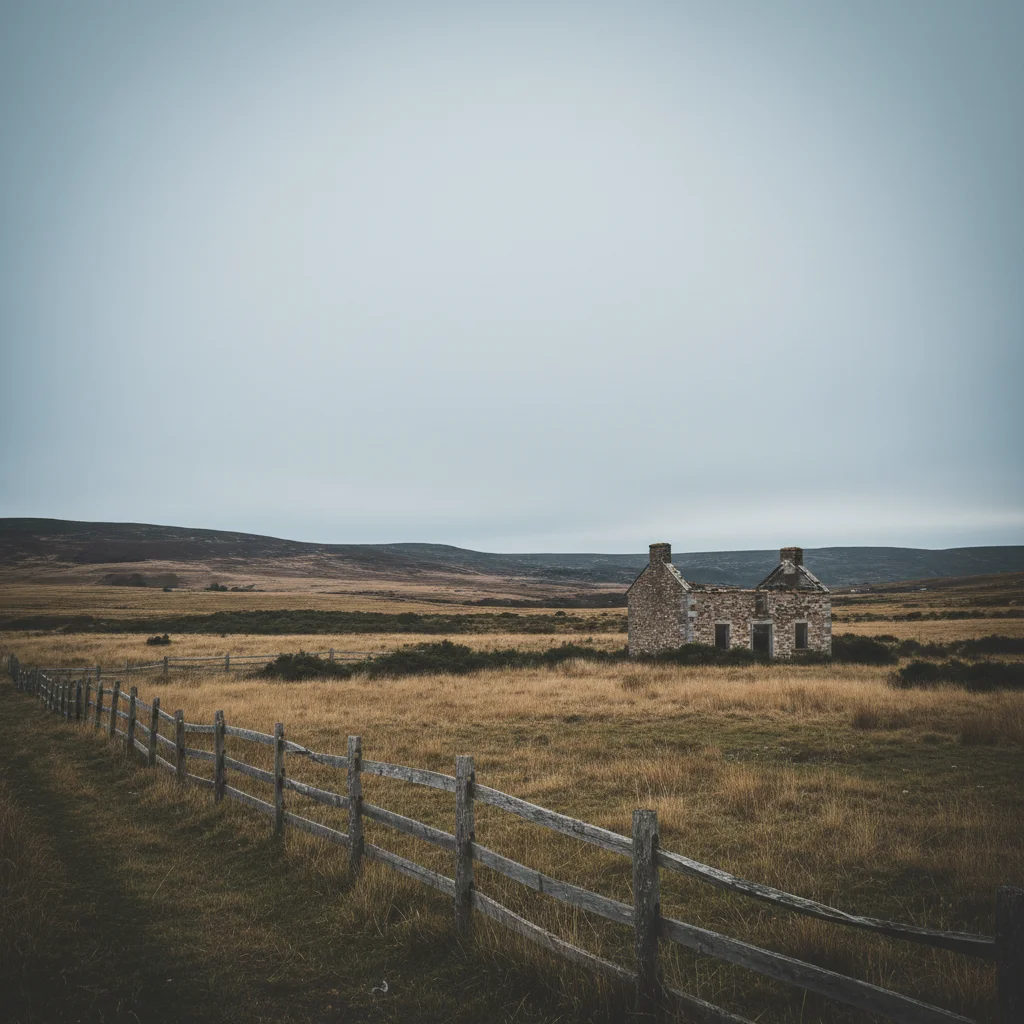
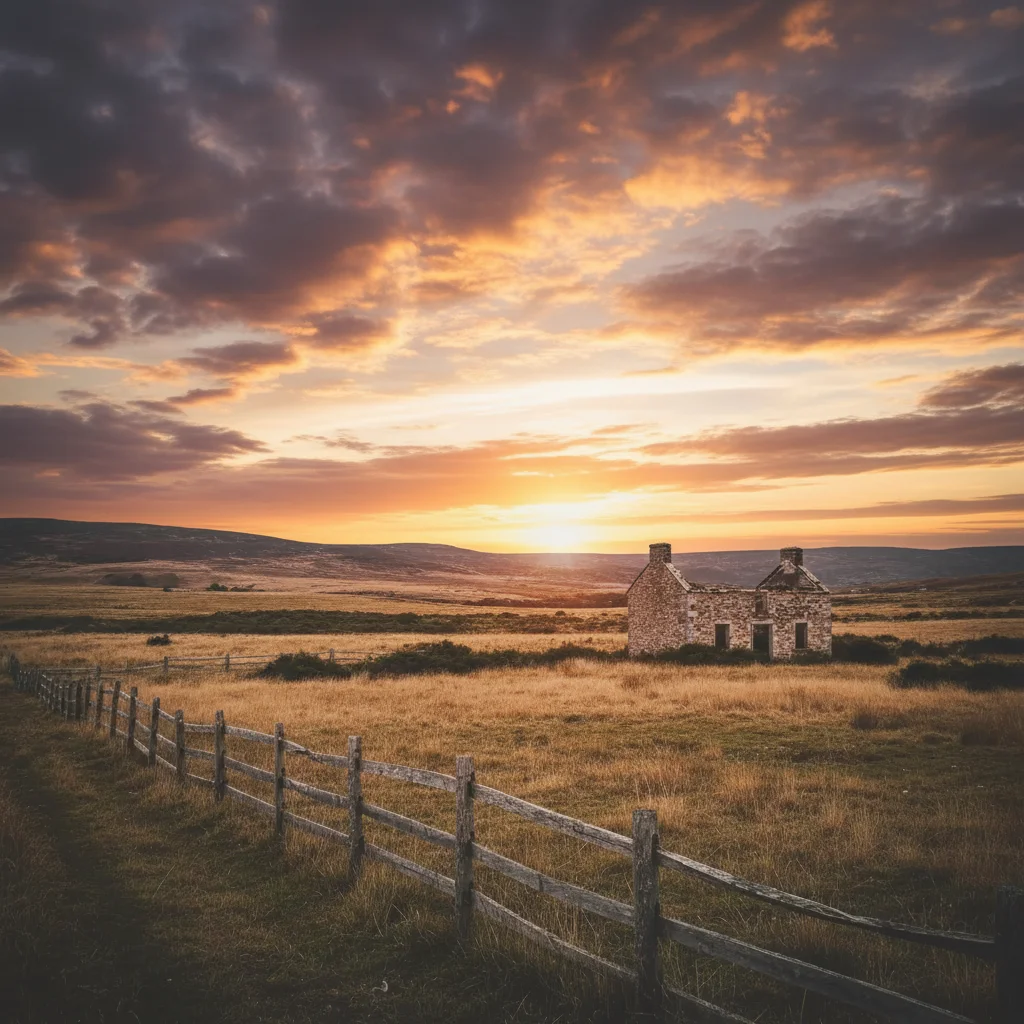
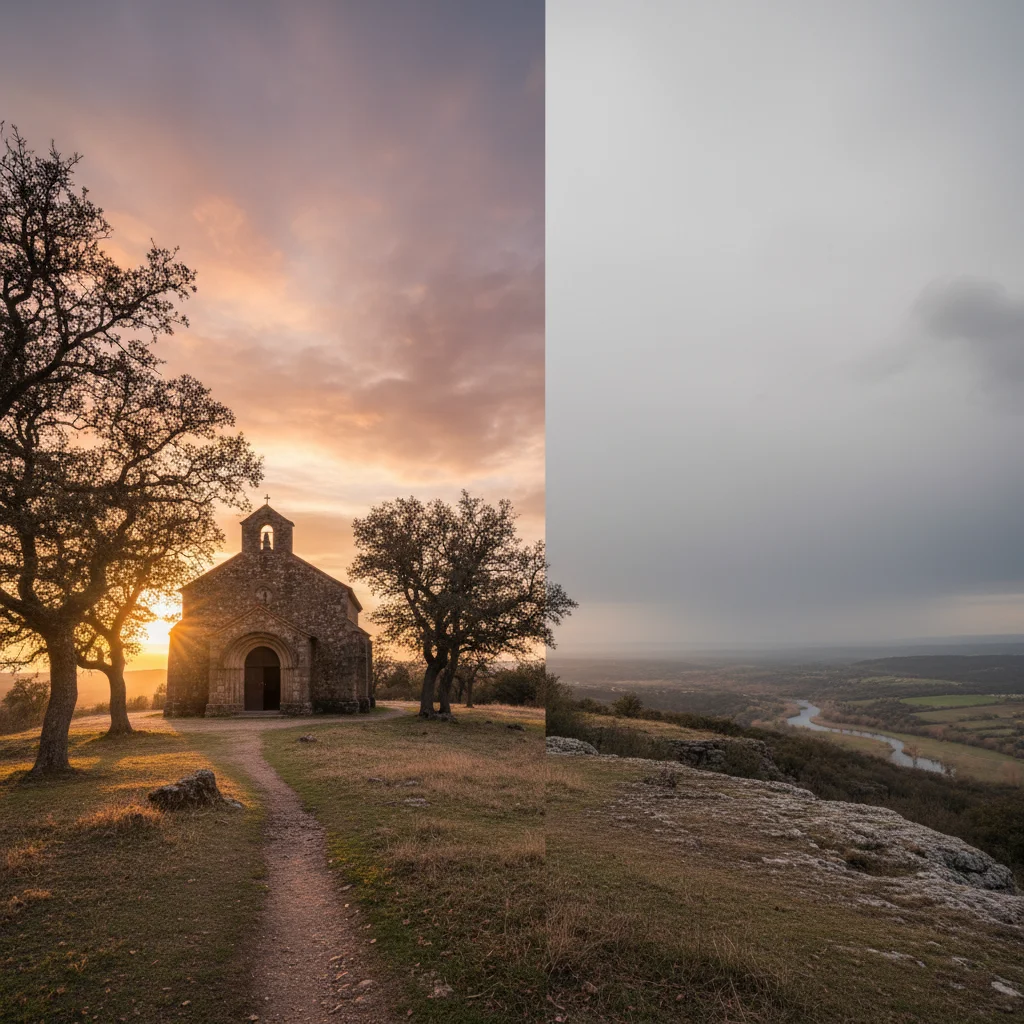
Type 'replace the sky with a dramatic sunset with orange and pink clouds' and EditThisPic's AI handles the rest in 20-40 seconds. No masking required. The AI automatically finds the sky boundary, even with complex tree branches or buildings. Works on landscapes, architecture, and outdoor portraits. Lighting adjusts to match your new sky. Free to try, no account needed.
How it works
Upload your photo
Drop your image into EditThisPic. JPG, PNG, WebP up to 7MB. Works with any outdoor photo where sky is visible. Complex treelines, building silhouettes, and multiple horizon elements are handled automatically.
Describe your new sky
Type your instruction: 'replace the sky with a bright blue sky with fluffy white clouds' or 'change to dramatic sunset with orange and purple colors.' Be specific about colors, mood, and cloud types. No marking needed—the AI finds the sky automatically.
Copy one of these to get started:
replace the sky with a clear bright blue sky with a few small white clouds, sunny and inviting
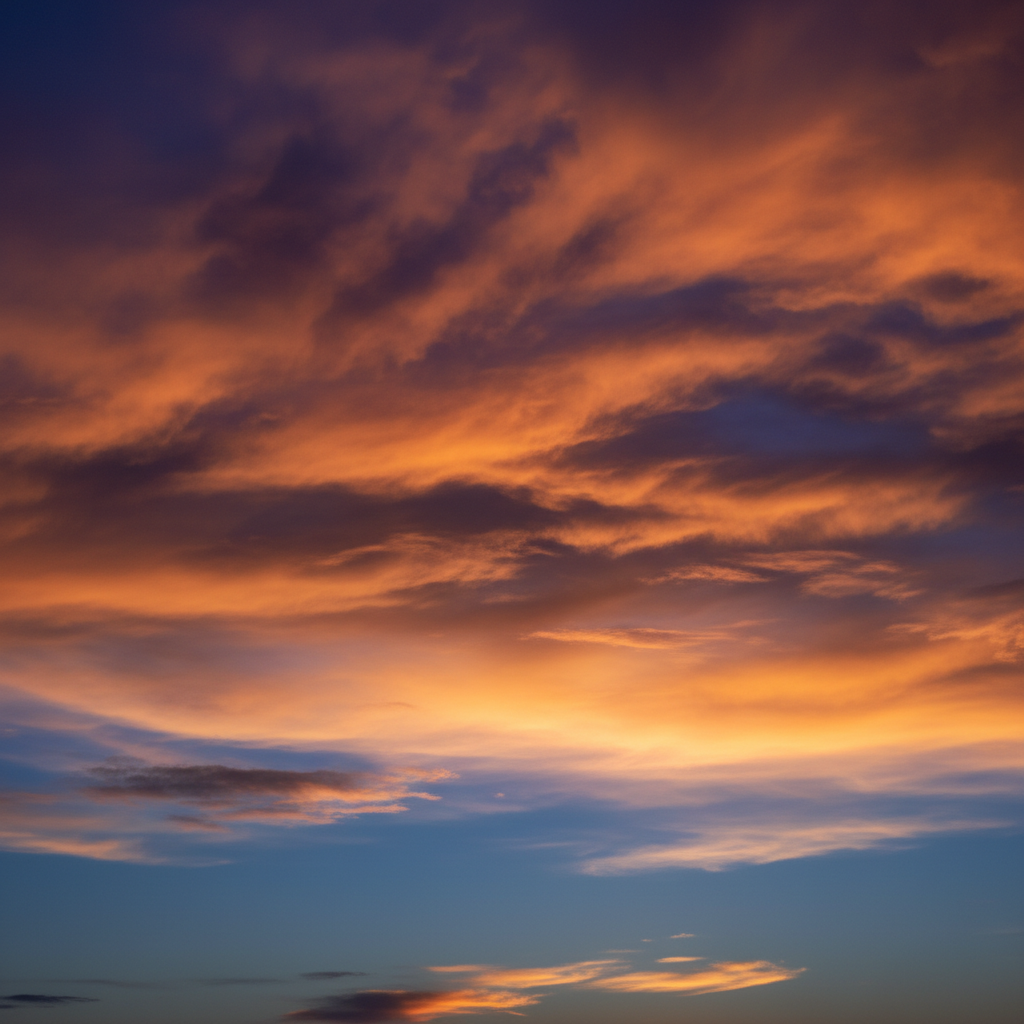
replace the sky with a vibrant sunset featuring orange, pink, and purple clouds, golden hour lighting
replace the sky with dark dramatic storm clouds, moody and atmospheric with breaks of light
replace the sky with a soft dawn sky featuring gentle pink and blue pastel colors, peaceful morning mood
3 more prompts
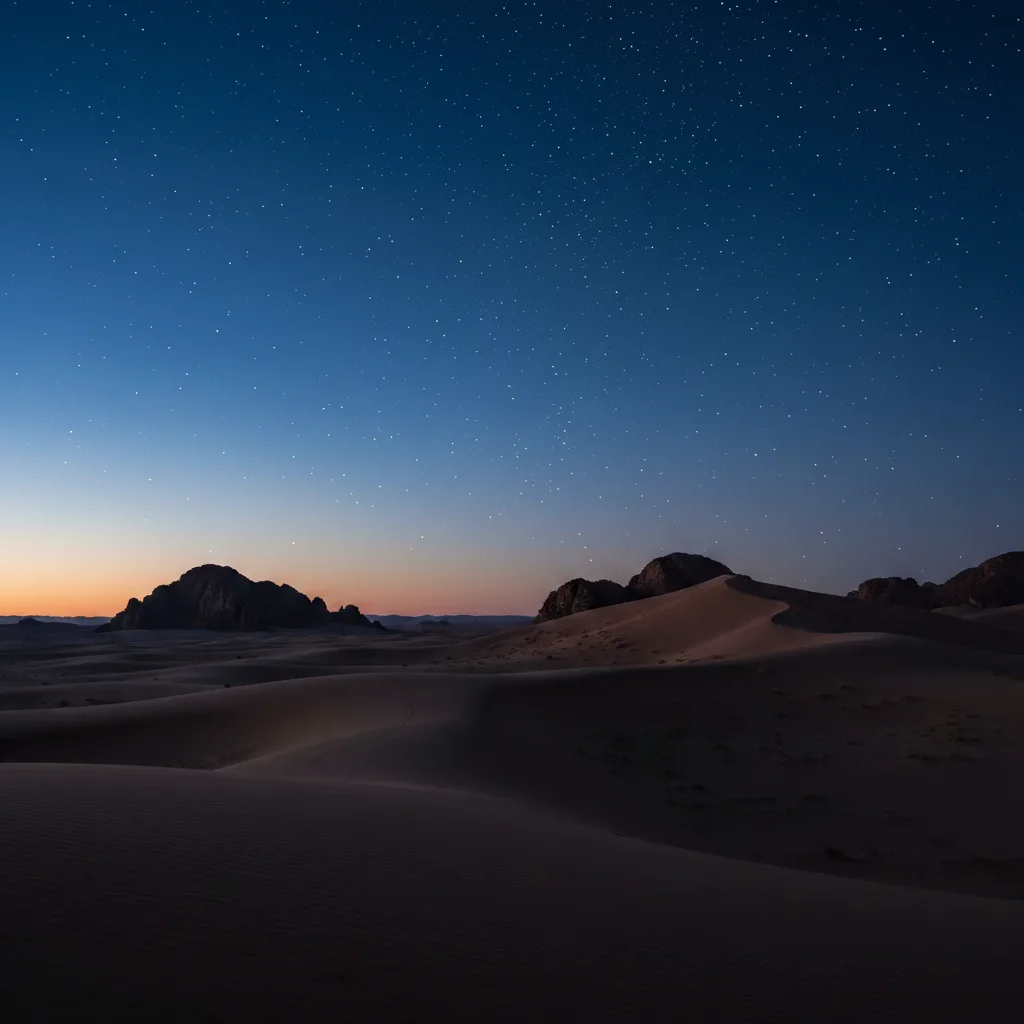
replace the sky with a clear night sky filled with stars, deep blue transitioning to black at the top
replace the sky with a blue sky featuring varied cumulus clouds of different sizes, bright daylight
replace the sky with a warm autumn sky with golden sunlight and wispy clouds, warm afternoon light
Review the blend
Check where the new sky meets foreground elements like buildings, trees, or mountains. Look for natural color transitions at the horizon. Verify the overall lighting feels consistent.
Refine the horizon if needed
If sky bleeds into foreground or tree edges look unnatural, tap markers on problem areas and regenerate. This tells the AI exactly where to improve the blend. Most sky replacements work beautifully on the first try.
"My real estate listing had grey rainy sky. Replaced it with perfect blue sky and the house got three offers in a week. The treeline looks completely natural." @RealtorPro_Kevin
See it in action
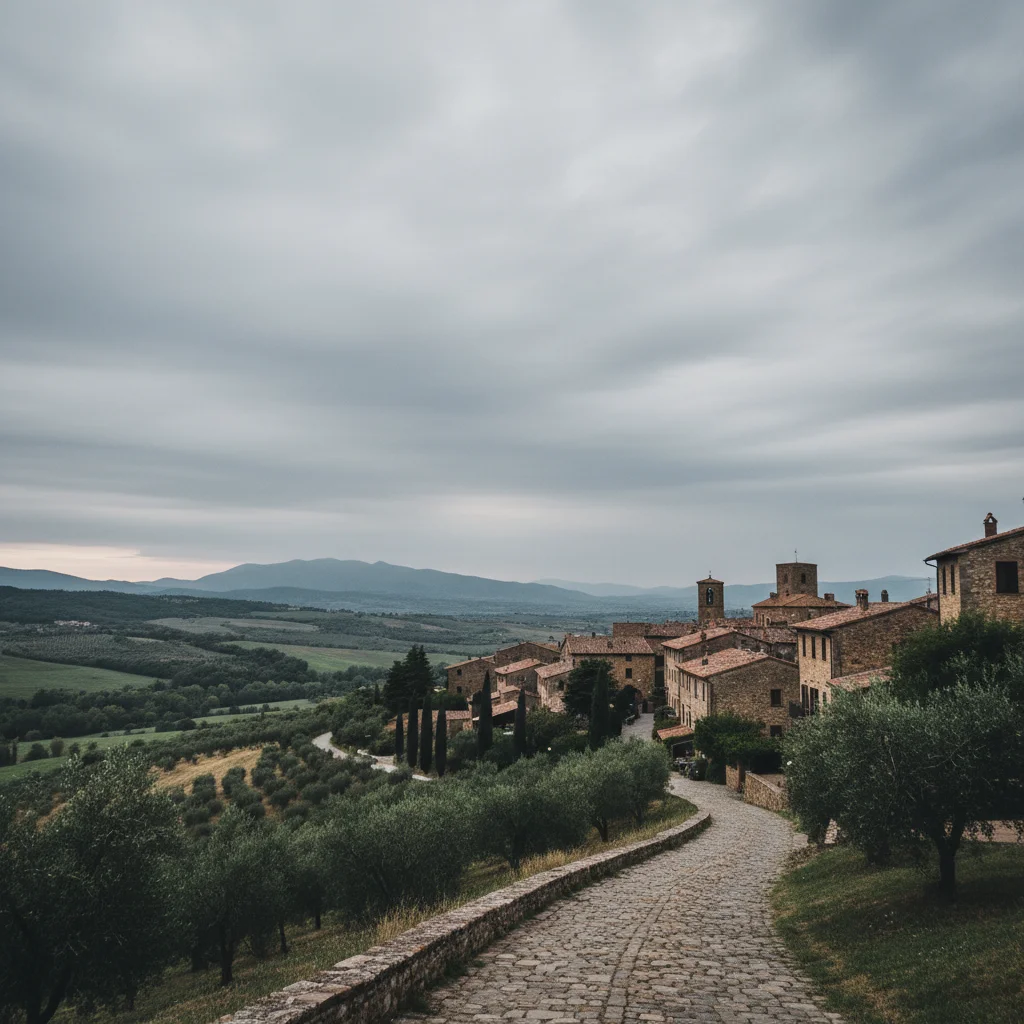
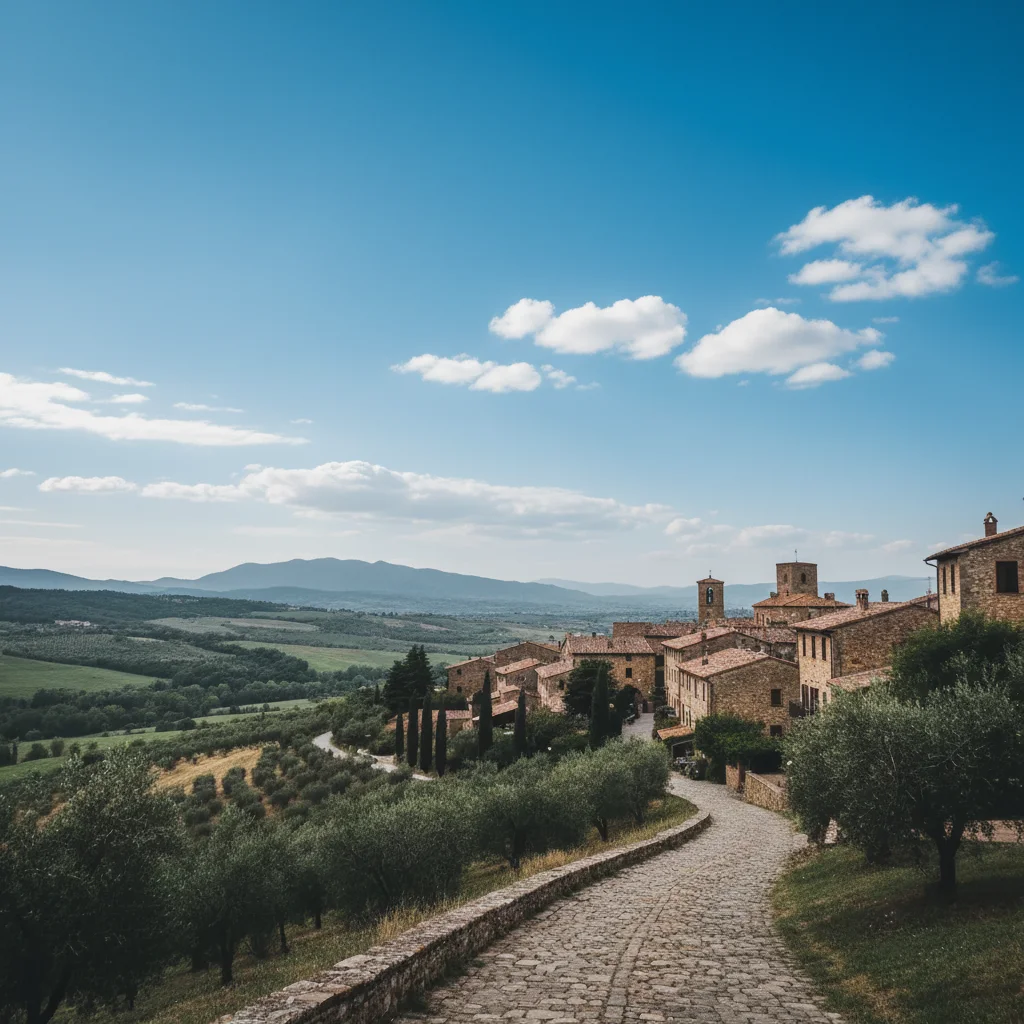
Real estate listing with blue sky upgrade
A house exterior shot on a grey overcast day. The AI replaced the dull sky with inviting blue for the listing.
replace the sky with a clear bright blue sky with a few small white clouds, sunny and inviting
Landscape transformed with sunset
A mountain landscape taken midday with harsh lighting. The AI added a dramatic sunset that transforms the mood.
replace the sky with a vibrant sunset featuring orange, pink, and purple clouds, golden hour lighting
City skyline with stormy drama added
An urban skyline shot with boring clear sky. The AI added dramatic storm clouds for visual impact.
replace the sky with dark dramatic storm clouds, moody and atmospheric with breaks of light
If something looks off
New sky bleeds into buildings or trees
Why: Complex edges like tree branches or intricate architecture are challenging for automatic detection.
Tap markers on the areas where sky incorrectly replaced foreground, then: restore this foreground area, only replace the sky behind it
💡 Markers on the building or trees tell the AI 'this is NOT sky' very clearly.
Horizon line looks unnatural or has visible edge
Why: Color difference between the new sky and the ground creates a noticeable transition that needs blending.
replace the sky and blend naturally at the horizon, smooth transition between sky and landscape
💡 Adding 'blend naturally at horizon' prioritizes a seamless transition.
AI changed the wrong area or something I didn't want changed
Why: The AI couldn't determine exactly which area you meant from description alone. This happens with ambiguous requests.
Tap a marker on the specific sky area you want replaced, then regenerate with the same prompt
💡 Markers tell the AI 'I mean THIS area specifically.' Use them when description alone is ambiguous.
Lighting on foreground doesn't match new sky
Why: If you add a sunset but your subject has midday lighting, the composite looks unrealistic.
replace the sky with [your sky] and adjust the foreground lighting to match the new sky colors
💡 Asking to 'adjust foreground lighting' helps the AI create a more realistic composite.
Reflections in water don't match new sky
Why: Water reflections should show the new sky but weren't updated to match.
replace the sky with [your sky] and update the water reflections to match the new sky colors
💡 Water scenes need this extra instruction to look fully realistic after sky replacement.
Quick answers
Do I need to mark the sky before describing the replacement?
No! Just describe what you want: 'replace the sky with a bright blue sky.' The AI automatically identifies where the sky is and finds all its boundaries, even with complex tree branches, building silhouettes, or mountain peaks. Only use markers when you need to fix specific edge issues after your first attempt.
How does it handle complex tree branches and foliage?
The AI is trained on intricate sky-foreground boundaries including leafy trees, bare branches, and complex architectural details. It identifies the tiny gaps between branches where sky shows through. Very dense or complex foliage may need a refinement pass with markers on problem areas, but most cases work automatically.
Will the lighting on my subject change to match the new sky?
The AI attempts to harmonize overall lighting but doesn't dramatically re-light subjects. For best results, match your new sky to existing lighting: if your subject has warm golden light, describe a sunset sky. If it has neutral light, blue sky works well. Major lighting mismatches may need the 'adjust foreground lighting' instruction.
Can I replace sky in photos with water reflections?
Yes! Add 'update water reflections to match' to your prompt. The AI will change both the sky and its reflection in water bodies. Without this instruction, the reflection may still show the original sky, creating an unrealistic result.
What about photos taken at night or indoors?
Sky replacement works best with visible outdoor sky. Indoor photos or night scenes without visible sky won't have anything to replace. For night scenes with some visible dark sky, you can add stars or moon, but dramatic sunrise effects would look unrealistic.
Ready to transform your sky?
Free to try. No signup required.