AI Photo Editor for StockX
Last updated
Turn phone shots into authentication-ready StockX listings. Perfect white backgrounds, enhanced condition details, no editing skills needed.
Drop your photo here
"pure white background for sneaker listing, remove all distractions, professional product photography look"
Release to upload
Built for StockX Sellers
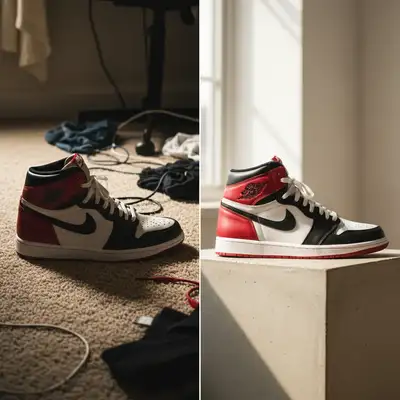
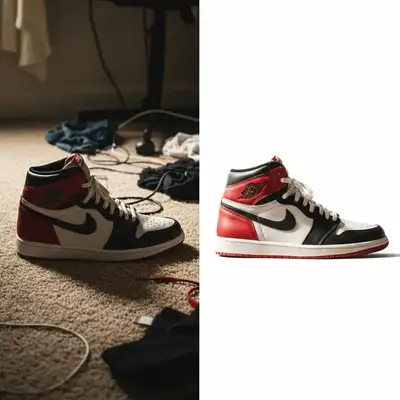
StockX is a $1B+ authentication marketplace where photos directly impact verification success rates and buyer confidence. Clean, detailed photos help authentication teams verify condition faster and give buyers the clarity they need to commit to premium prices. EditThisPic transforms quick phone shots into StockX-standard presentation instantly - no lightbox, no studio, no Photoshop.
Tools StockX Sellers Use Most
Remove Shadow
Clean up harsh shadows from indoor lighting that hide condition details
Enhance Details
Show texture, stitching, and condition details buyers need to authenticate
Remove Background
Alternative approach - complete background removal for clean isolation
Create StockX-Ready Sneaker Photos
-
Upload your sneaker photo
Drop your product image into EditThisPic. JPG, PNG, and WebP up to 7MB. Phone camera photos work perfectly. StockX recommends high resolution for authentication - the better your source photo, the more condition details buyers can verify.
Simple sneaker shots with decent lighting: 15-20 seconds. Complex materials like patent leather or reflective details: may need 1-2 refinements. -
Describe the StockX-ready look
Type 'pure white background for sneaker listing' or 'enhance the details showing sneaker condition.' The AI understands StockX requirements without you selecting anything. Be specific: pure white background, enhanced texture details, even lighting across the product. These are the elements authentication teams and buyers need.
Combine multiple improvements: 'pure white background, remove shadows, enhance condition details' works in one prompt. -
Review condition visibility
Zoom in to verify stitching, texture, and any wear are clearly visible. StockX buyers are detail-obsessed - make sure creasing, scuffs, or material texture shows accurately. Check that colors match the actual sneaker. Download your authentication-ready photo.
Compare before and after at 100% zoom. Condition details should be MORE visible, not smoothed over.
StockX Sneaker Photo Prompts
pure white background for sneaker listing, remove all distractions, professional product photography look
This is the StockX gold standard. Works for any sneaker, any condition, any angle.
enhance the details showing sneaker condition, improve clarity of creasing and texture, maintain authentic appearance
Critical for used sneakers. Buyers need to see exactly what they're getting.
remove shadows from sneaker, even lighting across the entire product, show all condition details clearly
Indoor lighting creates shadows in creases. This reveals true condition for authentication.
pure white background, remove shadows, enhance condition details and texture, professional sneaker listing quality
Combines the three most important improvements for StockX in one shot.
Show 3 more prompts
pure white background, remove reflections from glossy material, show true color and condition without glare
Patent leather and metallic details reflect everything. This cleans them up while keeping texture.
pure white background, enhance texture detail on all material types, show leather grain and suede nap clearly
Premium sneakers mix materials. This ensures each panel's texture shows accurately.
pure white background, enhance factory details like stitching and material edges, pristine deadstock presentation
For DS pairs, buyers verify via factory details. This makes every stitch visible.
| Edit Type | Prompt | Time | |
|---|---|---|---|
| White background | pure white background for sneaker listing, remove all distractions |
15s | Try This → |
| Show condition | enhance details showing sneaker condition, preserve authentic wear |
20s | Try This → |
| Remove shadows | remove shadows from sneaker, even lighting across product |
20s | Try This → |
| Complete upgrade | white background, remove shadows, enhance condition details |
25s | Try This → |
StockX Photo Examples
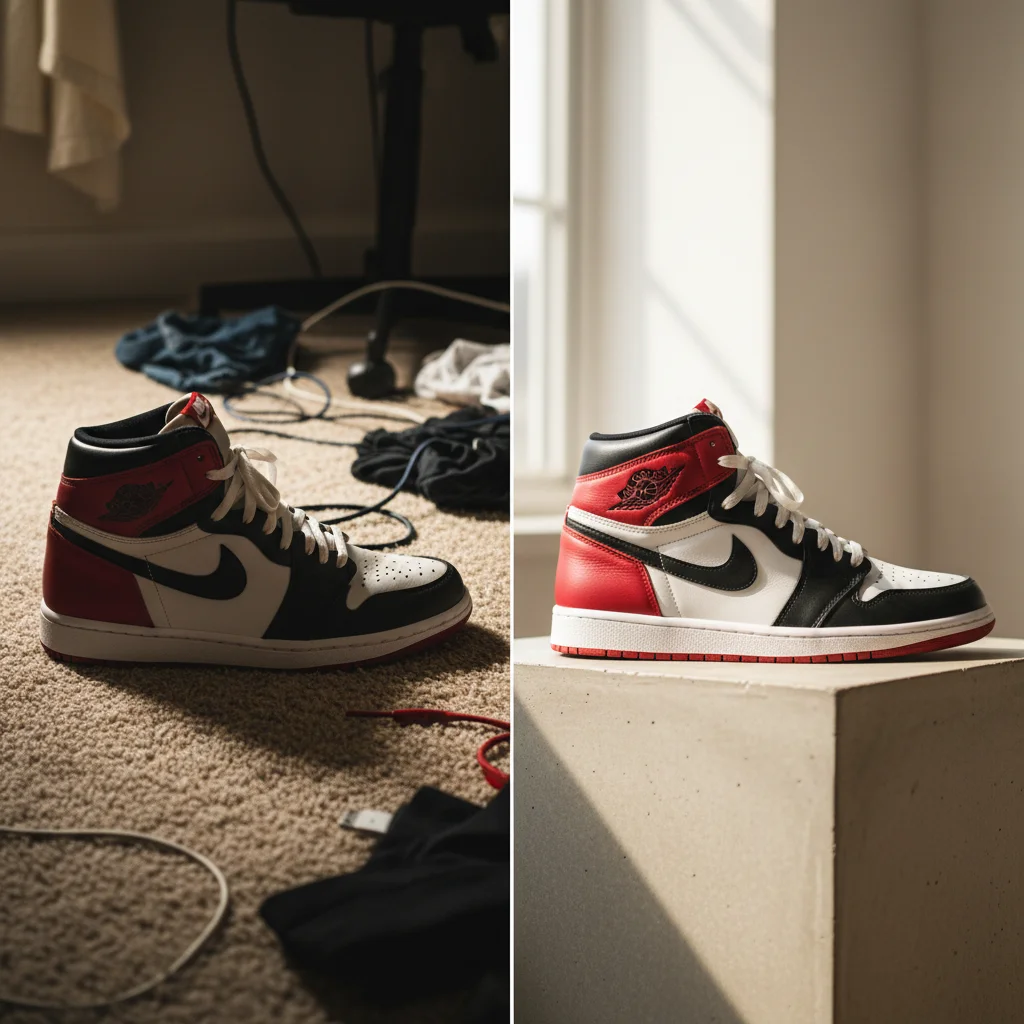
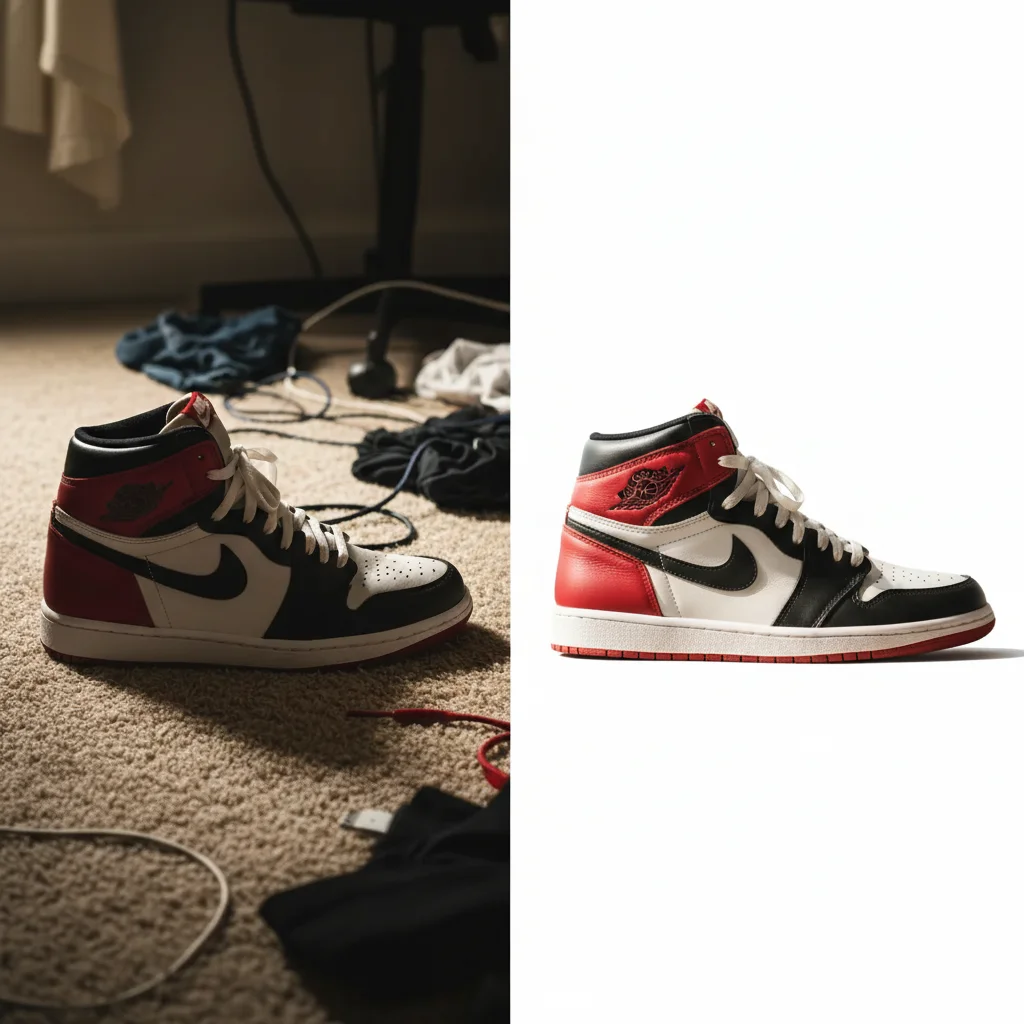
Jordan 1 from bedroom floor to listing-ready
Jordan 1 High photographed on messy bedroom carpet. One prompt created authentication-ready white background with enhanced condition visibility.
pure white background for sneaker listing, remove all background distractions, enhance condition details
Yeezy 350 with visible wear enhancement
Used Yeezy Boost 350 with authentic wear. Enhanced condition details for buyer confidence while maintaining honest representation.
pure white background, enhance the details showing sneaker condition including creasing and wear, authentic used appearance
Common StockX Photo Issues
Background isn't pure white (still shows gray or shadows)
Why: The AI preserved some natural shadowing for product depth. StockX requires completely flat white backgrounds.
Adding 'completely uniform' signals you want zero variation in the white background.
Condition details look too smooth or polished (doesn't match actual sneaker)
Why: Enhancement mode may have reduced texture to create a cleaner look. For used sneakers, you need authentic representation.
pure white background, enhance clarity but preserve authentic wear and texture exactly as it appears
Use 'preserve authentic wear' to prevent the AI from smoothing over creases or scuffs.
Colors don't match the actual sneaker colorway
Why: Auto-enhancement may have adjusted color balance. StockX buyers are colorway-obsessed and need accurate representation.
If colors shift, add 'maintain original colorway exactly' to your prompt.
Reflections on patent leather or glossy panels still visible
Why: Shiny materials naturally reflect surroundings. The AI needs explicit instruction to remove these while keeping material shine.
pure white background, remove environmental reflections from glossy surfaces while preserving material shine
Distinguish between 'reflections' (remove) and 'shine' (keep) in your prompt.
StockX Seller Questions
Do I need to mark the sneaker or background before editing?
No! Just describe what you want: 'pure white background for sneaker listing' or 'enhance condition details.' The AI understands these instructions without any marking. Most StockX photos work perfectly on the first try.
How do I show authentic wear without making the sneaker look bad?
Use prompts like 'enhance clarity of condition details while preserving authentic wear' or 'show creasing and texture clearly, maintain honest used appearance.' The AI will make wear VISIBLE without exaggerating it. StockX buyers want to see real condition - photos that accurately show wear build more trust than artificially clean images.
What are StockX's photo requirements for authentication?
StockX requires clear photos showing overall condition, specific angles of toe box, heel, sole, and any defects. Clean backgrounds (preferably white) help authentication teams verify faster. Photos must show accurate condition - enhanced clarity is good, but don't hide authentic wear or defects. Multiple angles are required for verification.
Can I use this for deadstock (new) sneakers too?
Absolutely. For deadstock pairs, use prompts like 'pure white background, enhance factory details like stitching and material edges.' This makes the pristine condition obvious to buyers. DS verification relies on showing perfect edges, clean materials, and factory-fresh details. The AI can enhance these without adding artificial elements.
Will this work for streetwear items like hoodies or hats?
Yes. The same principles apply: 'pure white background for streetwear listing, enhance fabric texture and details.' StockX authenticates streetwear the same way as sneakers - clear photos showing condition, tags, and materials. Use the same prompts, just reference the item type instead of 'sneaker.'
How many angles should I edit for one StockX listing?
StockX typically requires 4-6 photos: lateral (side), medial (inside), toe box, heel, sole, and overall. Edit each angle with the same prompt for consistency. Batch editing takes about 2 minutes total. Consistent white backgrounds across all angles look professional and help authentication teams verify faster.
Is EditThisPic's AI photo editor for stockx really free?
Yes — you get 1 free edit per week, no account needed. Plans start at $4.99/month for 15 edits.
Can I stockx photos on my phone?
Yes. EditThisPic works in any mobile browser — iPhone, Android, tablet. No app download needed.
Popular use cases
Ready to upgrade your StockX listings?
Free to try. No signup required. Start selling faster.
Start EditingTrusted by 15,000+ users