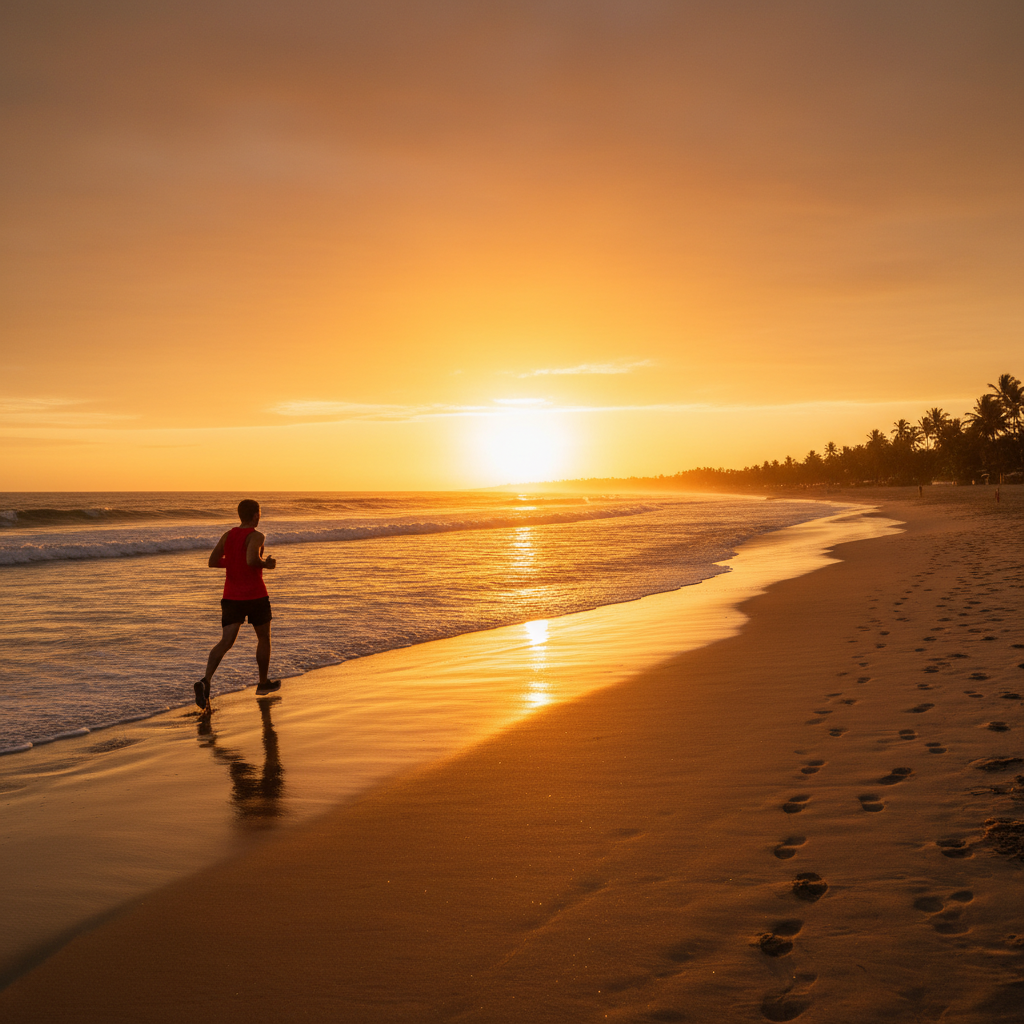
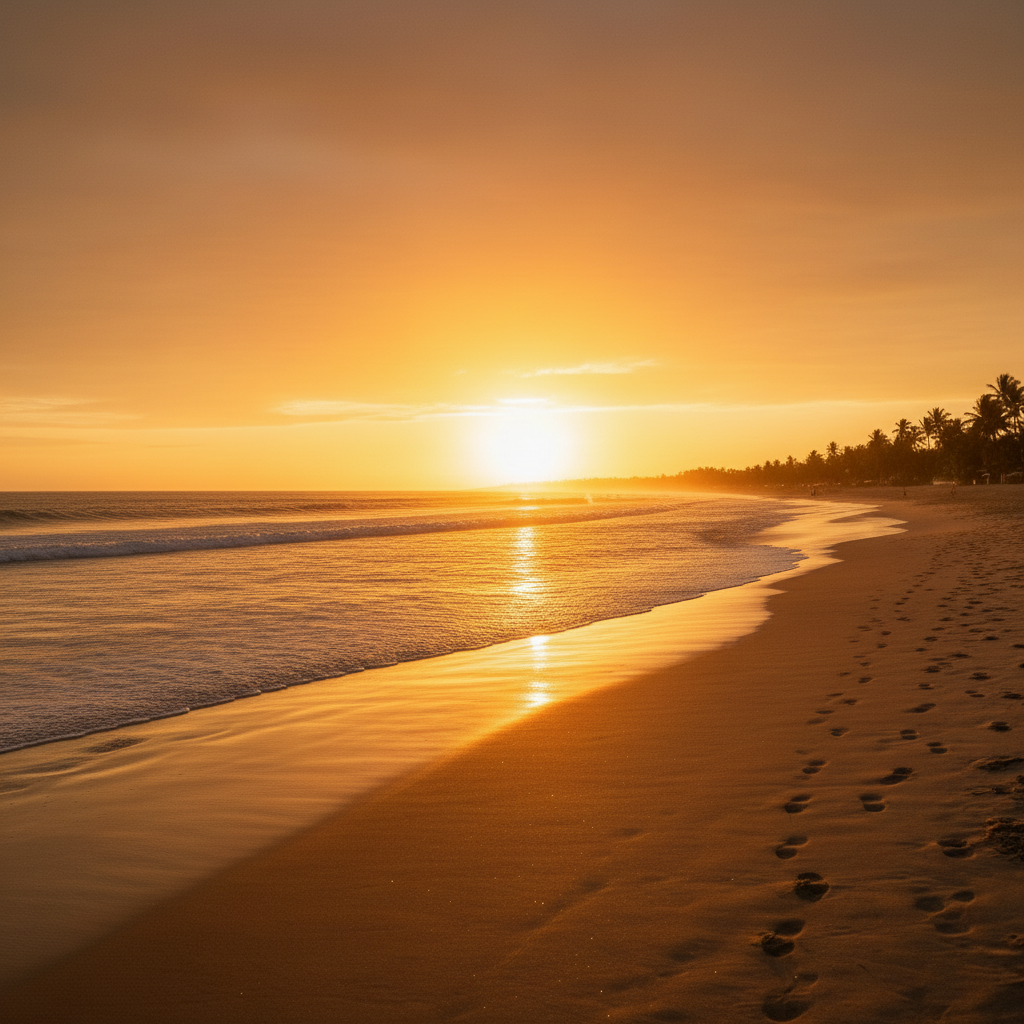
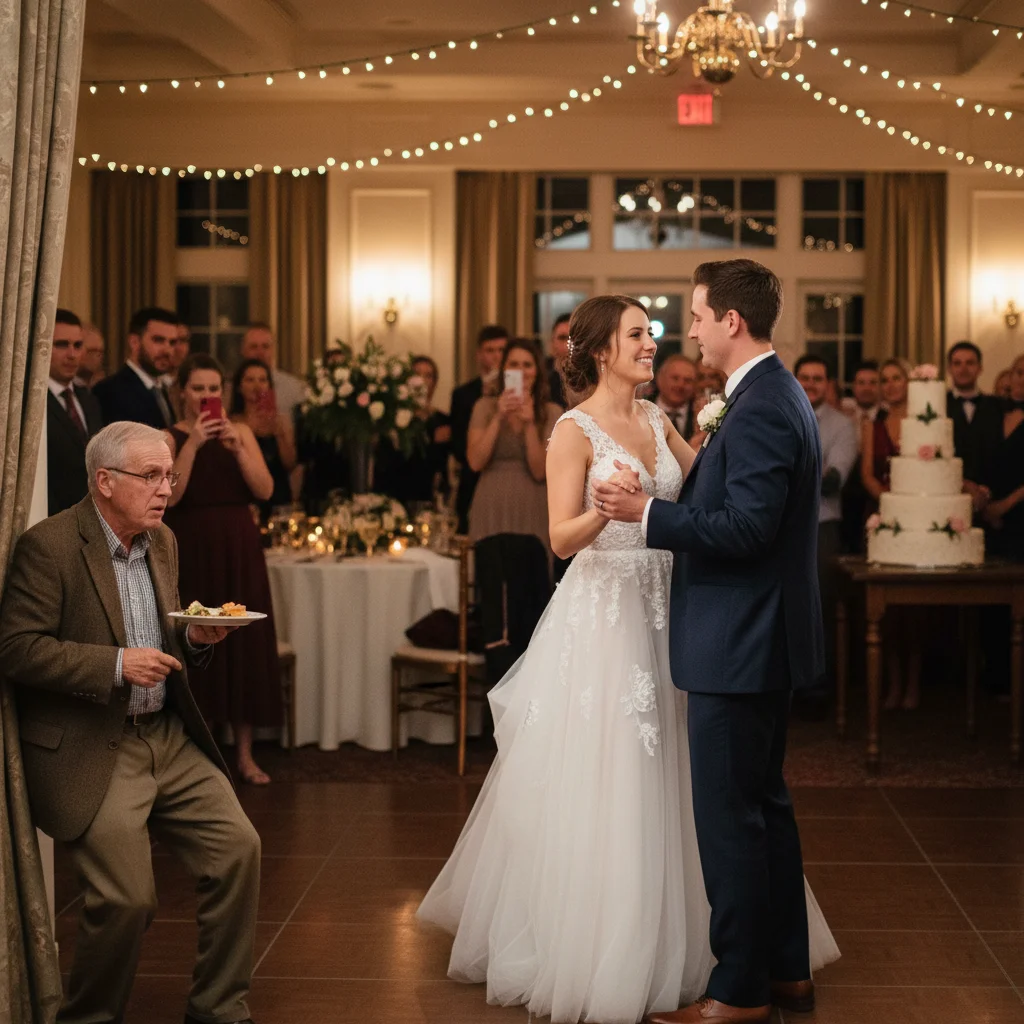
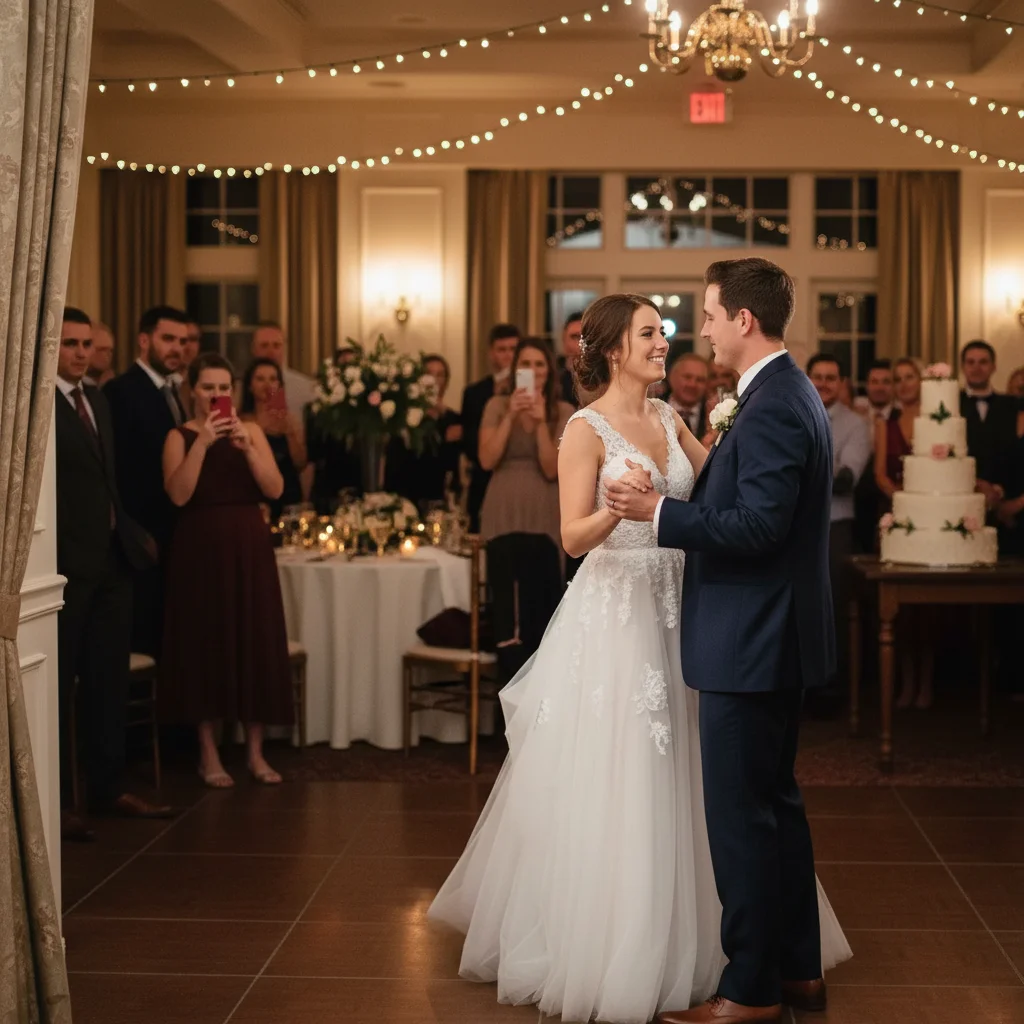
How do I remove a photobomber from my wedding photo?
Upload the wedding photo, prompt 'remove the guest walking in the background behind the couple, fill the area with the wedding venue wall and floor, match the warm lighting.' Results in 15 seconds. Describe the venue so the AI reconstructs cleanly — 'stone archway,' 'ballroom wall,' 'garden path.' Wedding photobombs are the most common case and the AI handles them well.
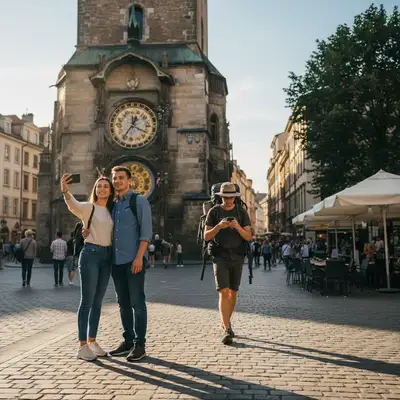
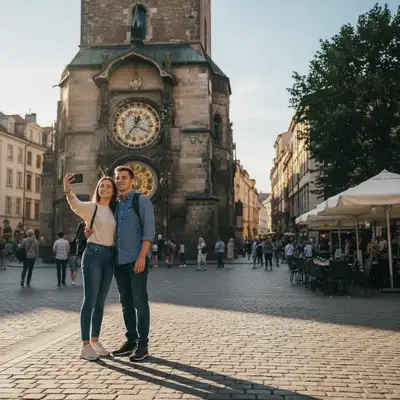
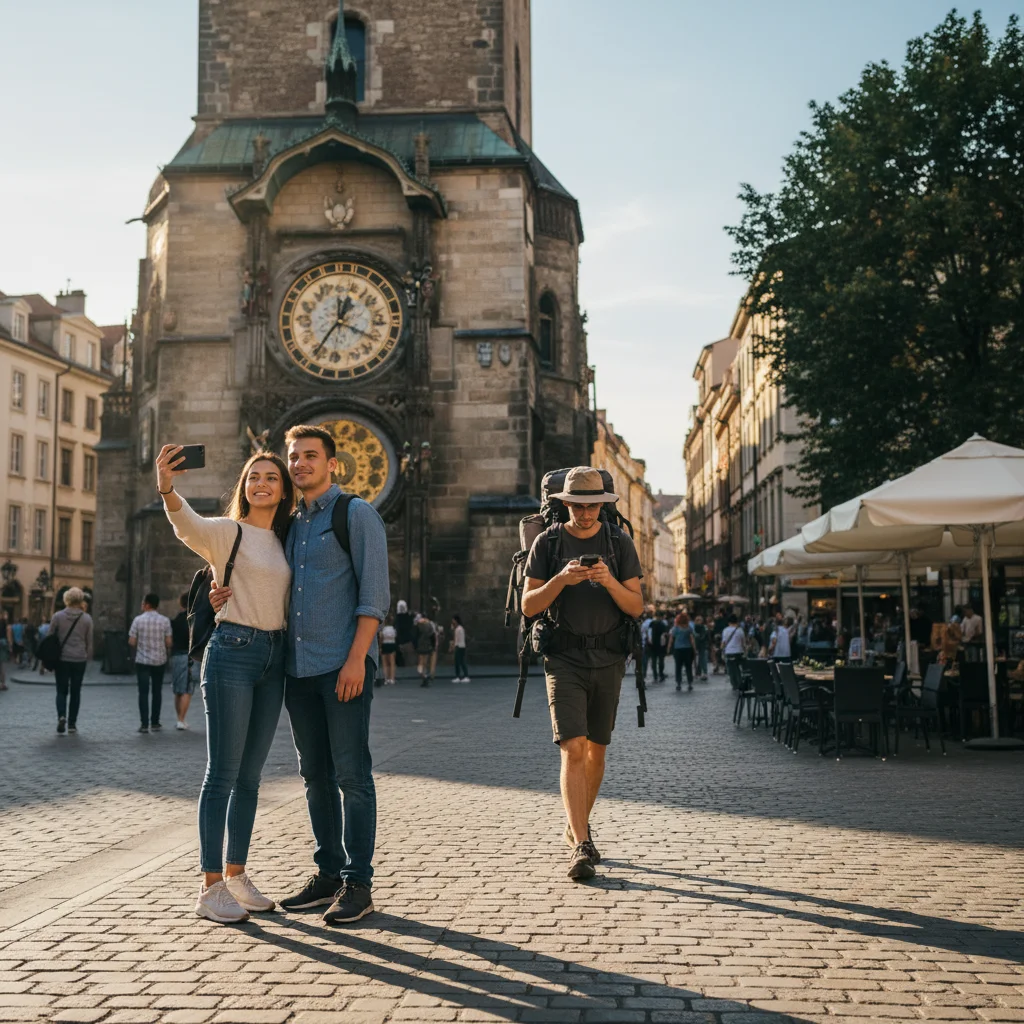
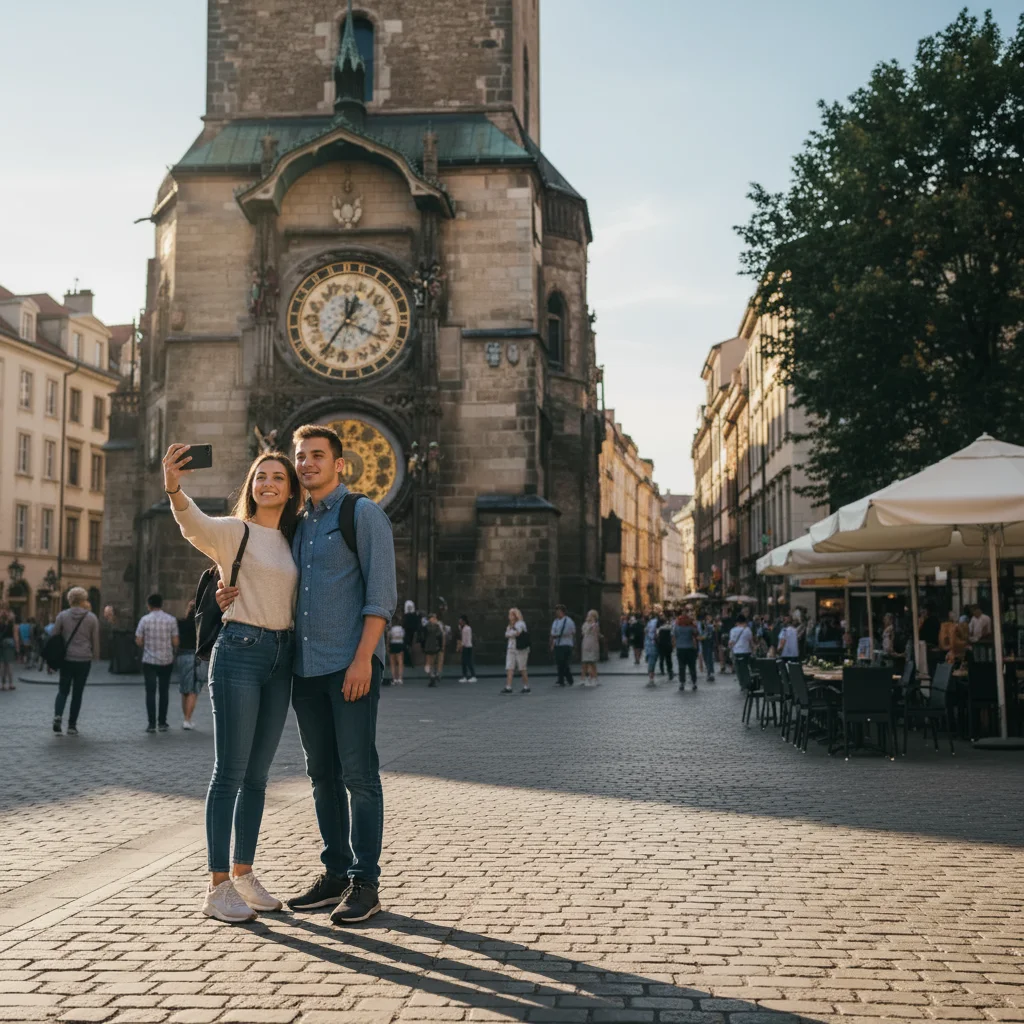
Can it remove tourists from my vacation landmark photo?
Yes. Prompt 'remove all other tourists visible in this photo in front of the [landmark], fill the gaps with the [scene].' Works at the Eiffel Tower, Colosseum, Times Square, Machu Picchu, Taj Mahal, Statue of Liberty, Big Ben, Acropolis, and every other crowded landmark. The AI reconstructs the landmark and surroundings even when multiple tourists stand in front.
Does it work on sports photos — fans, opponents, background players?
Yes. For sports photos, describe the venue and the unwanted person: 'remove the fan leaning over the railing behind the player, fill with continuation of the stadium seats.' Works for basketball courts, soccer sidelines, baseball dugouts, tennis crowds, concert arena barriers. Great for parents editing their kid's little-league action shots to look more pro.
Will the background look natural after removal?
Yes — if the original background was clean. The AI reconstructs the area the photobomber occupied by referencing the surrounding pixels. Textured backgrounds (foliage, grass, cobblestone) reconstruct well. Uniform backgrounds (sky, walls, water) are nearly invisible. Complex detail behind the photobomber (ornate architecture, dense crowds) may need a refinement pass.
Can it remove multiple photobombers at once?
Yes. Prompt 'remove all the photobombers from this photo, including [describe each one if crowded]' — the AI identifies every unwanted figure and removes them simultaneously. For best results in dense crowds (concerts, markets, festivals), specify who to KEEP rather than who to remove: 'keep only the two people in the foreground.'
What kinds of photobombers does this work for?
All of them. Common cases: (1) strangers in the background at weddings, (2) tourists at landmarks, (3) fans and opponents in sports photos, (4) a sibling making a face in family portraits, (5) an animal (dog, bird, squirrel) that wandered into the frame, (6) a photographer or crew member in an event photo, (7) a coworker walking behind you on a video-call-ready headshot. Describe what you want removed.
Can I use this for real estate photos — remove neighbors or contractors?
Yes. Real estate photographers routinely remove contractors, homeowners, or passersby from listing photos. Prompt 'remove the contractor in the background of this kitchen photo, fill with the continuation of the cabinets.' Also useful for removing for-sale signs from neighbor's lawns or parked cars from exterior shots.
Does it work on professional photo shoots or is it only for amateurs?
Both. Professional wedding, portrait, and event photographers use AI removal during post-processing to save hours of manual clone-stamping. EditThisPic Pro ($29.99/mo, 150 edits) handles a typical 500-photo wedding shoot where 10-20 frames need photobomber cleanup. Output is sharp enough for prints up to 16x24.
Can I remove a photobomber AND fix closed eyes in the same photo?
Not in one prompt — run two separate edits. First edit: 'remove the photobomber.' Second edit (on the output): 'open the closed eyes naturally.' Each prompt focuses on one change. Multi-change prompts often produce worse results than sequential single-change edits.
Is the removed photobomber's shadow always removed too?
Not always — this is the most common miss. Always zoom into the ground/floor and adjacent walls after removal. If a shadow remains, tap a marker on the shadow and regenerate with 'remove the shadow cast by the photobomber.' A 10-second second pass usually handles it.
Will this work on phone photos vs DSLR photos?
Both. Phone photos (iPhone, Samsung, Pixel) work great — the AI handles 12MP and higher cleanly. DSLR/mirrorless photos (24-50MP) give the best quality output. For very high-resolution shots (100MP+ from medium format), the AI may downsample — crop first if you want pixel-level sharpness on a print.
Can I use this for social media content where photobombers ruin the aesthetic?
Yes. Instagram and TikTok creators use AI removal constantly for aesthetic shots — remove the crowd behind a beach selfie, erase the barista behind a coffee-shop flat-lay, clean up the background of a product photo. Works for lifestyle, fashion, food, and travel content. Free for 1 edit/week.
Is there a way to remove photobombers without AI?
Manual methods: Photoshop Content-Aware Fill (5-10 minutes, learning curve), Lightroom spot healing (works for small objects only), or burst-mode substitution (only if you shot a burst). For single still photos without a burst, AI removal is faster, free, and handles complex backgrounds that Content-Aware struggles with (dense architecture, crowds, reflections).
How much does EditThisPic cost?
You get 1 free edit per week — no account needed. After that, credit packs start at $1.99 for 3 edits. Monthly plans start at $4.99/mo for 15 edits with unused credits rolling over. All edits are full resolution with no watermark.