Free • No signup Fix Bad Google My Business photos · Free

Your Google My Business photos look bad?

Poor GMB photos hurt local search rankings and customer trust. Fix them in 30 seconds without a photographer.
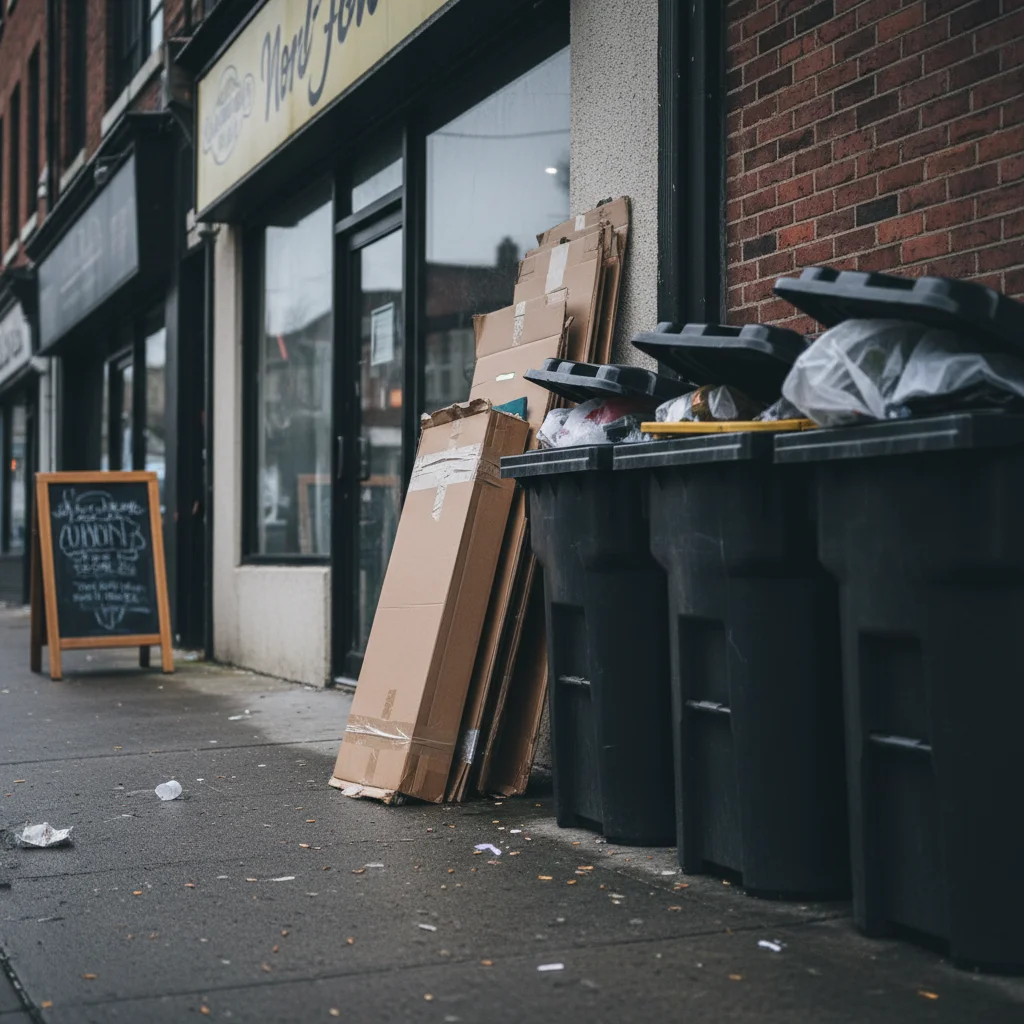
Restaurant storefront with trash bins and clutter visible on sidewalk
Before
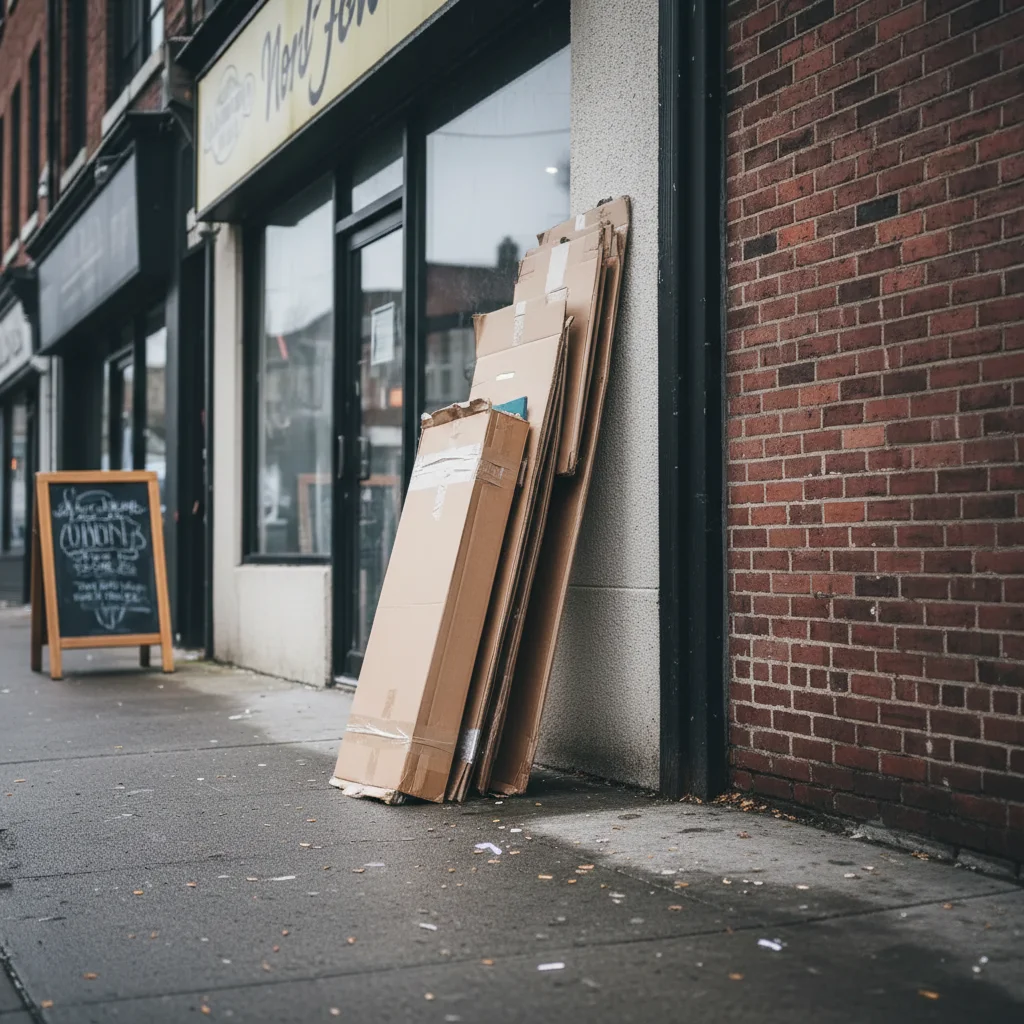
Clean inviting restaurant storefront with clutter removed
After

Your Google My Business Photos Look Bad? Fix Local SEO

Drop your photo here

or click to browse

Release to upload

Free • No signup

Advertisement
Popular use cases:
  • Google My Business photos
  • GMB photos bad
  • local SEO photos
  • storefront photos unprofessional
  • restaurant GMB photos
  • salon business photos
  • retail store photos
  • local business photography

Cost
Free No signup required
Time
Instant results in 15-30 seconds
Works on
Any device - browser, phone, tablet, desktop
Powered by
AI-powered photo editing
Scenario Prompt Time
Remove sidewalk clutter remove trash bins and clutter from sidewalk, brighten lighting 20s
Fix dark interior fix dark lighting to look bright and welcoming 15s
Clean messy background remove clutter and create clean professional look 20s
Update old signage remove old faded signage, make storefront look modern 25s

How it works

  1. Upload your GMB photo

    Drop your current Google My Business photo into EditThisPic. Works with storefront shots, interior photos, product displays, or team pictures. Phone photos, old pictures, anything you currently have published.

    Expect: Simple fixes (lighting, background): 15-25 seconds. Complex transformations: may need 2-3 refinements.
  2. Describe what's wrong and what you want

    Type 'remove the clutter from background and make it look professional' or 'fix the dark lighting to look bright and welcoming like a real business.' Be specific about the problem. The AI understands business context—'make it look trustworthy for customers' or 'remove the mess and create clean storefront look.'

    Tip: Mention customer perception: 'make it look inviting' or 'create professional first impression' helps the AI understand business goals.

    Copy one of these to get started:

    Storefront looks unprofessional or closed brighten the lighting to look open and welcoming, remove clutter from sidewalk, make it look like a thriving business
    Dark interior making business look uninviting fix the dark interior lighting to look bright and clean, enhance natural light, make it look professional and welcoming
    Messy background hurting credibility remove the clutter and messy background, create clean professional look that builds customer trust
    Phone photo quality too low enhance photo quality to look professional, fix blurriness, improve sharpness and clarity for Google display
    3 more prompts
    Old signage or outdated branding visible remove the old faded signage and dated elements, make the storefront look modern and well-maintained
    Weather making storefront look bad replace the gray rainy day with bright sunny weather, make it look inviting and open for business
    Empty interior looks abandoned enhance lighting and warmth to make the space look active and welcoming, not empty and closed
  3. Review for local search impact

    Check that the photo looks professional and trustworthy. Verify lighting is bright and welcoming. Ensure backgrounds are clean without distractions. Your GMB photos directly impact whether people choose you over competitors in local search.

  4. Refine if needed

    If specific areas need work—edge cleanup, lighting adjustments, removing remaining clutter—tap markers on those spots and regenerate. Most business photos work on the first try.

    Tip: Google recommends 3+ high-quality photos per business category. Create variations—exterior, interior, products, team.
Try it free

Your Google My Business Photos Look Bad? Fix Local SEO

Drop your photo here

or click to browse

Release to upload

Free • No signup

"Fixed all 12 GMB photos in one afternoon. Got more 'direction' clicks and calls that week than the previous month. Looked like a real business, not someone's garage." @LocalPlumberPro

See it in action

Restaurant storefront with trash bins and clutter visible on sidewalk
Before
->
Clean inviting restaurant storefront with clutter removed
After

Restaurant with cluttered sidewalk

Small restaurant photographed with trash bins, A-frame signs from neighbors, and cardboard boxes visible on sidewalk. One prompt created clean, inviting storefront that builds trust.

Prompt: remove all the sidewalk clutter including trash bins and boxes, brighten to look open and welcoming
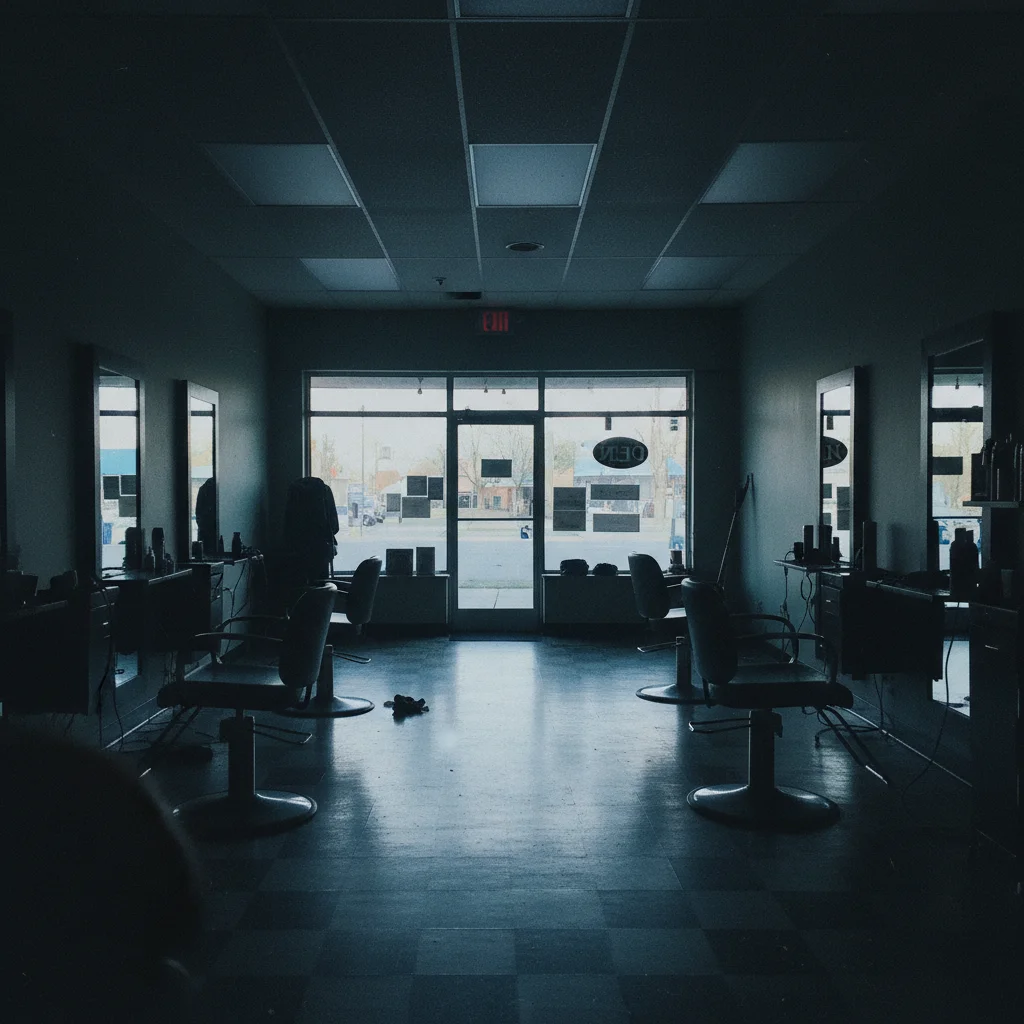
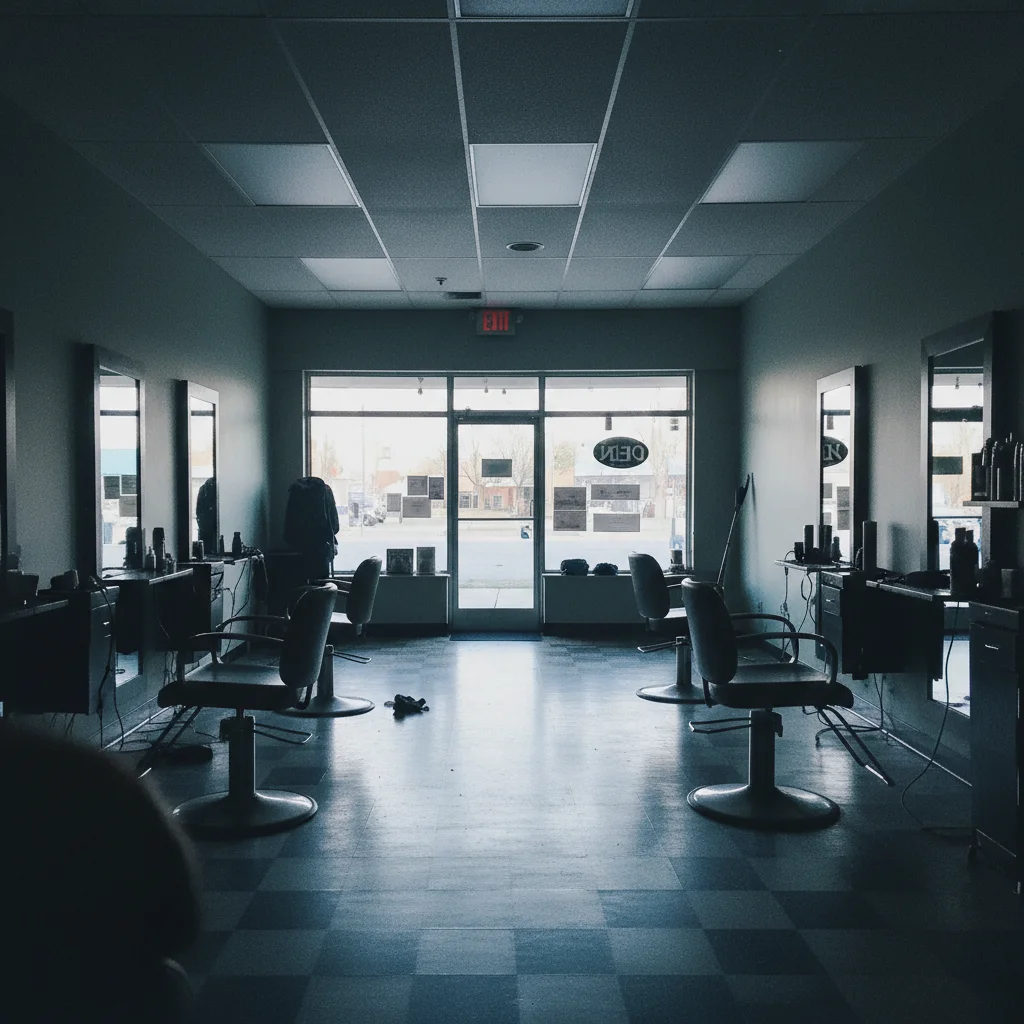
Dark salon interior with lights off looking closed
Before
->
Bright welcoming salon interior with professional lighting
After

Dark interior salon photo

Hair salon interior shot with all overhead lights off, making it look closed or abandoned. Enhanced to bright, welcoming professional space that attracts customers.

Prompt: fix the dark interior lighting to look bright and clean, enhance natural light, make it look professional and open
Advertisement

If something looks off

AI removed part of signage or important branding

Why: If your signage blends with clutter, the AI may have removed it along with background mess.

Try: remove only the clutter and trash, keep all business signage and branding intact and clear

Tip: For signs, add 'preserve business name and logo clearly visible' to your prompt.

Lighting looks fake or over-brightened

Why: Very dark photos that get heavily brightened can look artificially lit.

Try: enhance lighting naturally to look like a sunny day, keep realistic shadows and depth

Tip: Mention 'natural lighting' or 'like a sunny day' to avoid the over-processed look.

Background replacement looks obviously edited

Why: Complex backgrounds with multiple elements can be hard to replace seamlessly.

Try: blur the messy background instead of removing it, keep edges natural

Tip: Blurring messy backgrounds is often more natural than complete replacement for storefronts.

Photo looks too perfect and fake

Why: Too many enhancements stacked can make the photo look unrealistic.

Try: enhance only the specific problem: lighting OR background, keep photo looking real

Tip: Customers expect real photos. Fix the obvious problems but keep authentic texture and details.

AI changed the wrong part of the photo

Why: Vague descriptions like 'fix the background' can be ambiguous when there's both exterior and interior visible.

Try: Tap a marker on the specific area to fix, then regenerate with clear description of that exact spot

Tip: Markers tell the AI 'I mean THIS specific area.' Use them when description alone is unclear.

Quick answers

Do I need to mark areas before describing what to fix?

No! Just describe the problem: 'remove the clutter from sidewalk' or 'fix dark lighting.' The AI understands business photo context. Only use markers if the AI needs help identifying which specific area you mean—like 'remove this trash bin' when there are multiple objects.

How do bad GMB photos hurt my local search ranking?

Google's local algorithm considers photo quality and quantity. Businesses with high-quality, professional photos get more clicks, which signals relevance to Google. Poor photos reduce click-through rates, which can lower your ranking. Customers also judge legitimacy—bad photos make them scroll to competitors. Professional photos directly increase calls, directions, and website visits.

Can I use these enhanced photos on Google My Business?

Yes. Google's photo guidelines prohibit excessive filters or major alterations that misrepresent your business. EditThisPic creates realistic enhancements—removing clutter, fixing lighting, cleaning backgrounds. These are legitimate improvements that show your business at its best without misrepresentation. Avoid adding elements that don't exist (fake products, false features).

What types of GMB photos should I fix first?

Priority order: (1) Main storefront/exterior—first impression in search results, (2) Interior showing cleanliness and professionalism, (3) Products or services in action, (4) Team photos showing real people. Google recommends at least 3 photos per business category. Focus on photos that build trust and show you're a real, active business.

Should I remove customers or people from GMB photos?

Depends. Photos with happy customers using your service build social proof—keep them. Random strangers, employees doing non-work activities, or people blocking your storefront—remove them. Ask for permission before publishing recognizable customer faces. Team photos showing your staff are valuable for building trust.

How many photos should I upload to Google My Business?

Google recommends at least 3 photos for most business types. Top-performing businesses have 10-30 photos showing: exterior, interior, products/services, team, and customer experiences. More high-quality photos correlate with higher engagement (calls, directions, website clicks). Upload variations—different angles, times of day, seasonal updates.

Ready to fix your Google My Business photos?

Free to try. No signup required.

Try it free