Free • No signup Fix Client testimonial photos · Free

Make Client Testimonial Photos Look Credible

Turn unprofessional client selfies into credible testimonial photos that build trust.
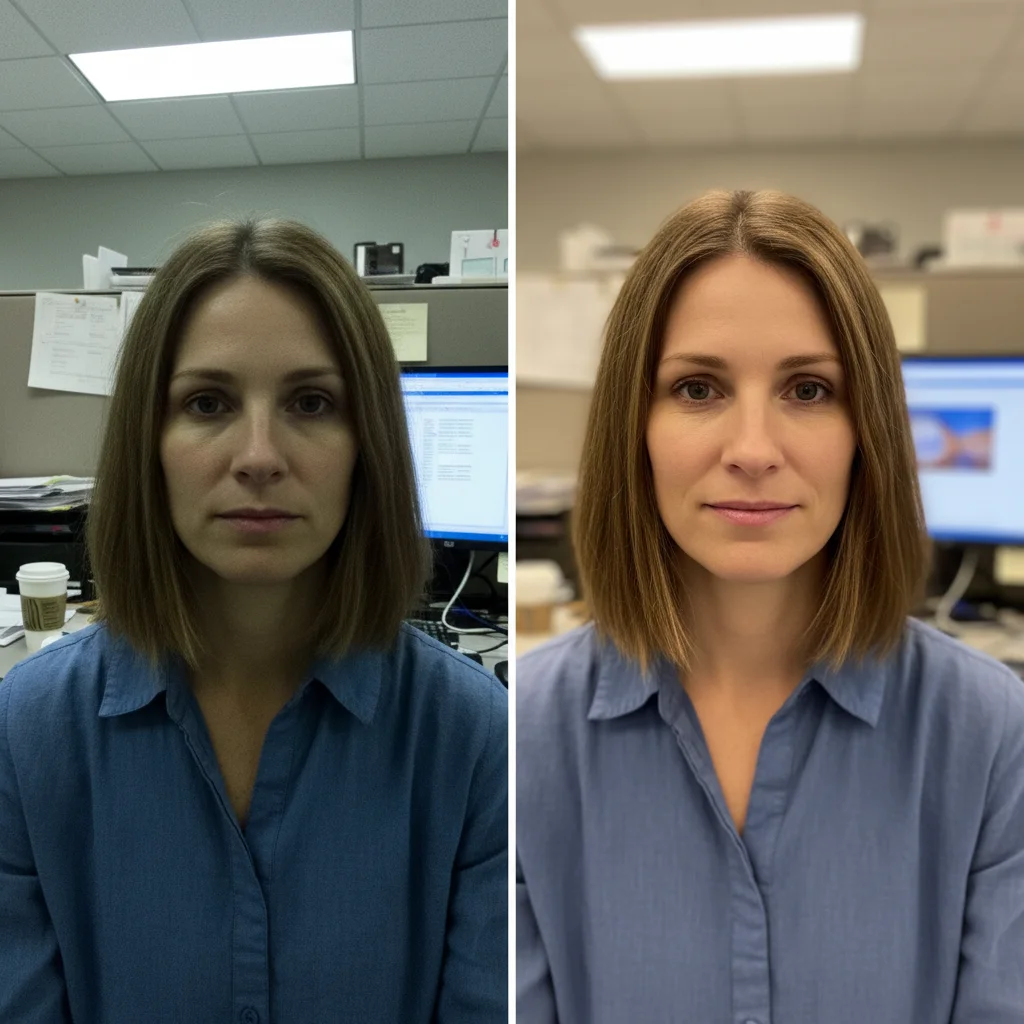
Client selfie with poor lighting and cluttered office background
Before
Same client photo with professional lighting and clean neutral background
After

Fix Client Testimonial Photos

Drop your photo here

or click to browse

Release to upload

Free • No signup

Advertisement
Popular use cases:
  • Client testimonial photos
  • Customer testimonial images
  • Case study photos
  • B2B testimonials
  • SaaS testimonials
  • Website testimonials
  • Social proof photos
  • Customer success stories

Cost
Free No signup required
Time
Instant results in 15-30 seconds
Works on
Any device - browser, phone, tablet, desktop
Powered by
AI-powered photo editing
Scenario Prompt Time
Casual client selfie improve lighting and make background professional while keeping natural 15s
Webcam screenshot enhance webcam photo to professional quality, improve lighting 20s
Consistent testimonial style professional neutral gray background and even lighting 15s

How it works

  1. Upload client photo

    Drop the client's photo into EditThisPic. JPG, PNG, WebP up to 7MB. Works with selfies, Zoom screenshots, LinkedIn profile photos, casual headshots—any photo a client sends you for a testimonial.

    Expect: Simple enhancements: 15-20 seconds. Photos with complex backgrounds or very poor lighting: may need one refinement.
  2. Describe the improvement

    Type 'improve lighting and make background professional' or 'enhance to look like a professional headshot while keeping it natural.' The AI fixes dim lighting, cleans messy backgrounds, and improves overall photo quality without making it look overly edited—critical for testimonial credibility.

    Tip: Include 'keep it natural' or 'authentic look' to prevent over-polishing that makes testimonials feel fake.

    Copy one of these to get started:

    Client sent a casual selfie for testimonial improve lighting and make background professional while keeping the photo natural and authentic
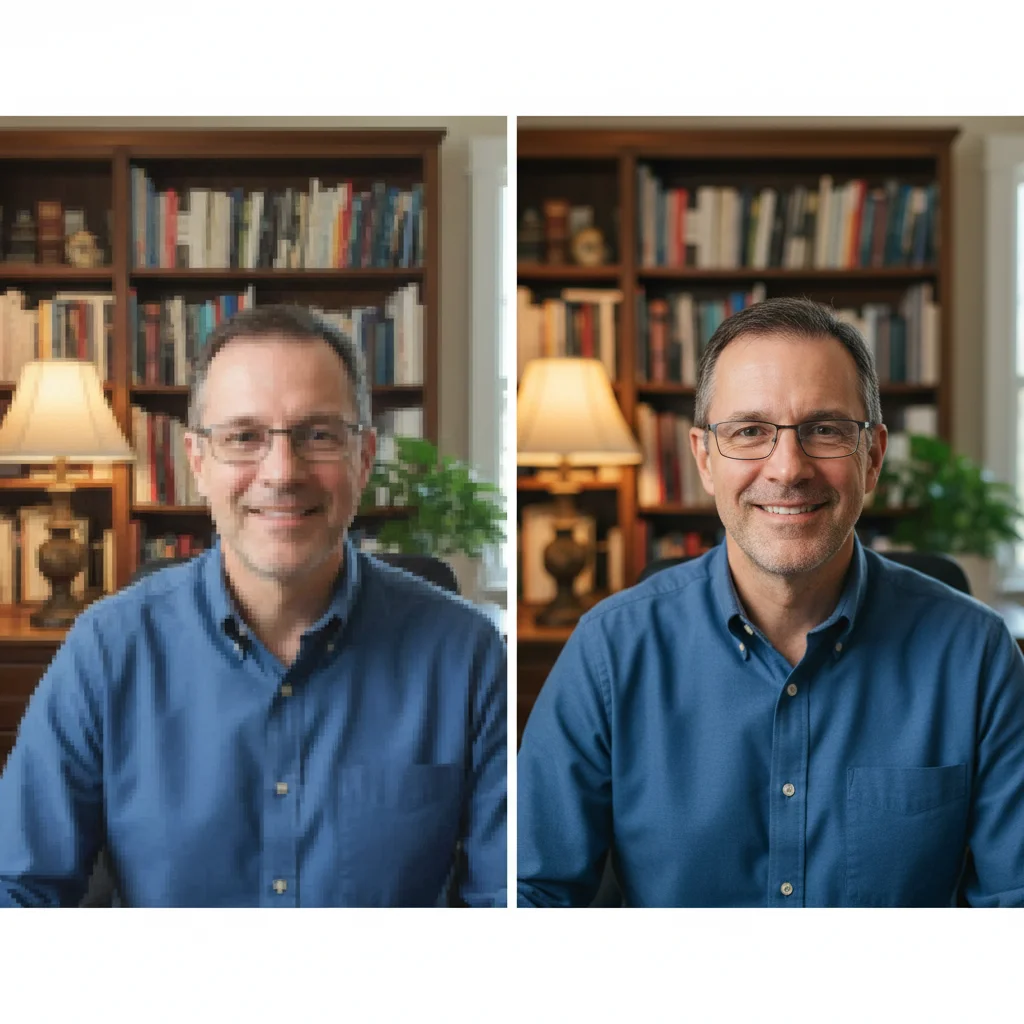
    Dark or poorly lit client photo brighten the photo with even professional lighting, clean up background, make it look like a quality headshot
    Zoom screenshot or webcam photo enhance webcam photo to professional quality, improve lighting, remove distracting background elements
    Client photo with messy home background replace messy background with professional neutral background, improve lighting to make it look like a studio headshot
    3 more prompts
    Multiple testimonial photos need consistency create professional headshot style with neutral gray background and even lighting
    Client photo is too casual for B2B context enhance to professional corporate headshot quality, neutral background, even lighting, keep natural expression
    Photo quality is too low for website enhance image quality and sharpness, improve lighting, make it look professional enough for a company website testimonial section
  3. Verify authenticity

    Check that the person still looks like themselves—testimonials must feel real to be credible. Verify lighting is even, background is professional but not distracting, and the photo looks like a quality headshot, not an AI-generated image.

  4. Refine if needed

    If the background needs more cleanup or lighting adjustments, add specific instructions: 'make background more neutral' or 'brighten face area.' Markers are rarely needed for testimonial enhancements since the face is the obvious focal point.

    Tip: For consistency across testimonials, use similar prompts for all client photos: 'professional neutral background, even lighting.'
Try it free

Fix Client Testimonial Photos

Drop your photo here

or click to browse

Release to upload

Free • No signup

"Our conversion rate jumped 23% after replacing our amateur testimonial photos. Clients look real but professional now." @SaaSMarketer

See it in action

Client selfie with poor lighting and cluttered office background
Before
->
Same client photo with professional lighting and clean neutral background
After

Client selfie enhanced for SaaS testimonial

B2B SaaS client sent a casual LinkedIn profile photo. Enhanced to look like a professional headshot while maintaining the authentic feel critical for testimonial credibility.

Prompt: improve lighting and make background professional while keeping the photo natural and authentic
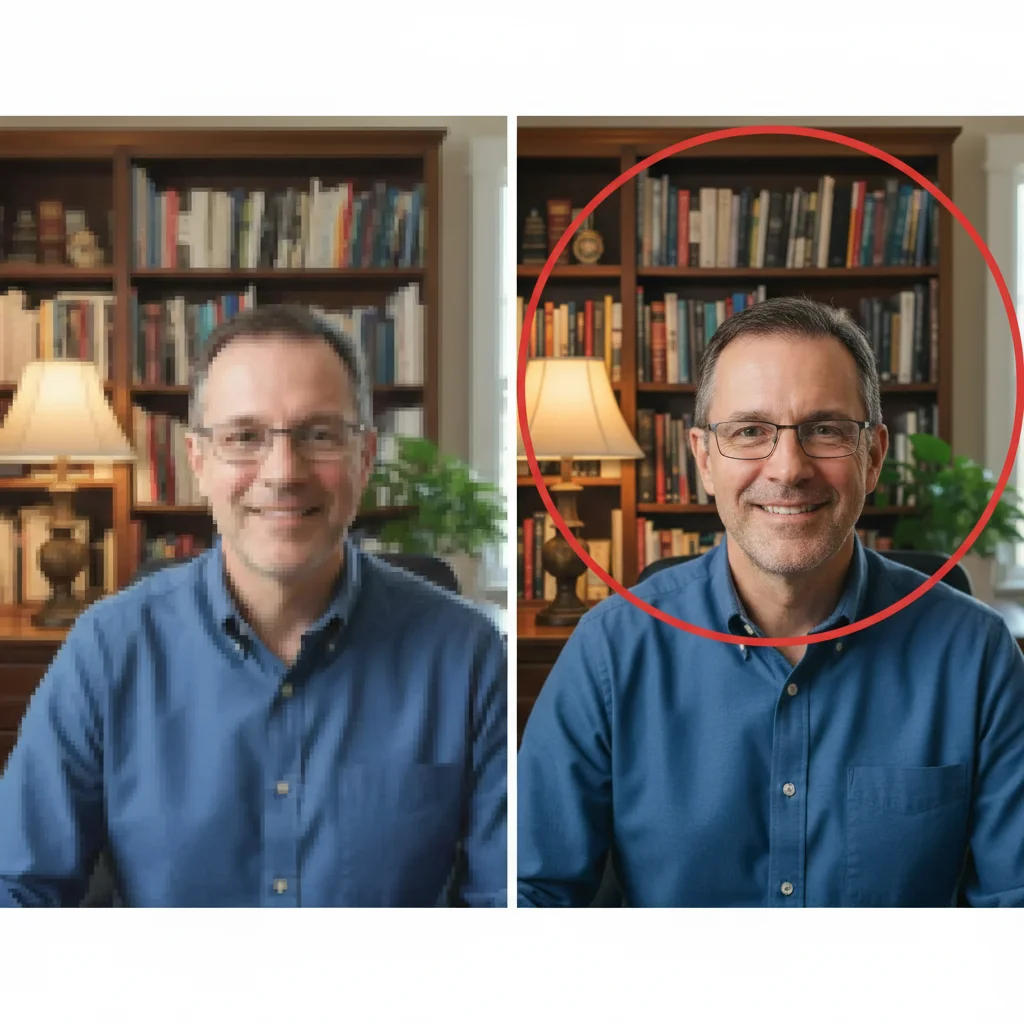
Webcam screenshot with low quality and home office background
Before
->
Enhanced professional headshot with improved lighting and clean background
After

Webcam screenshot turned into credible testimonial

Customer sent a Zoom screenshot for a case study. Transformed from pixelated webcam quality to professional headshot quality that builds trust.

Prompt: enhance webcam photo to professional quality, improve lighting, remove distracting background elements
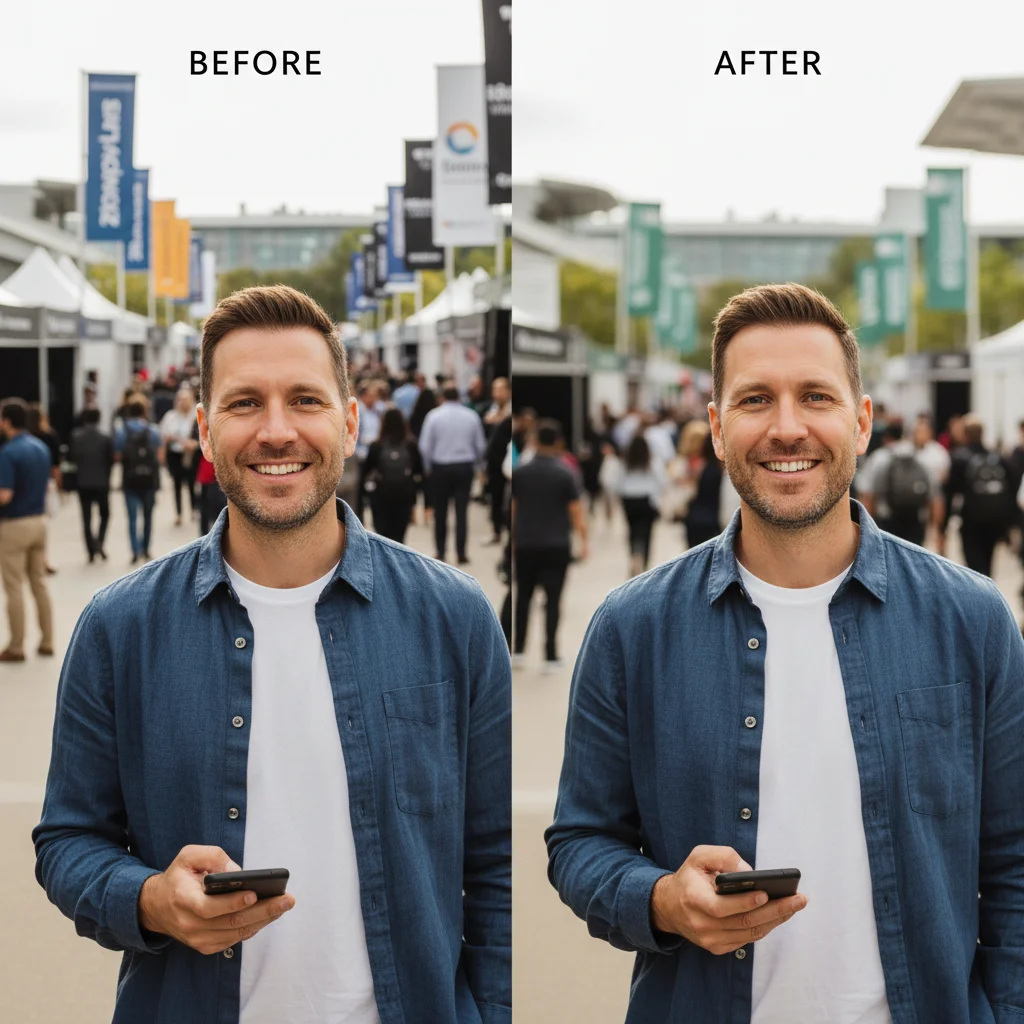
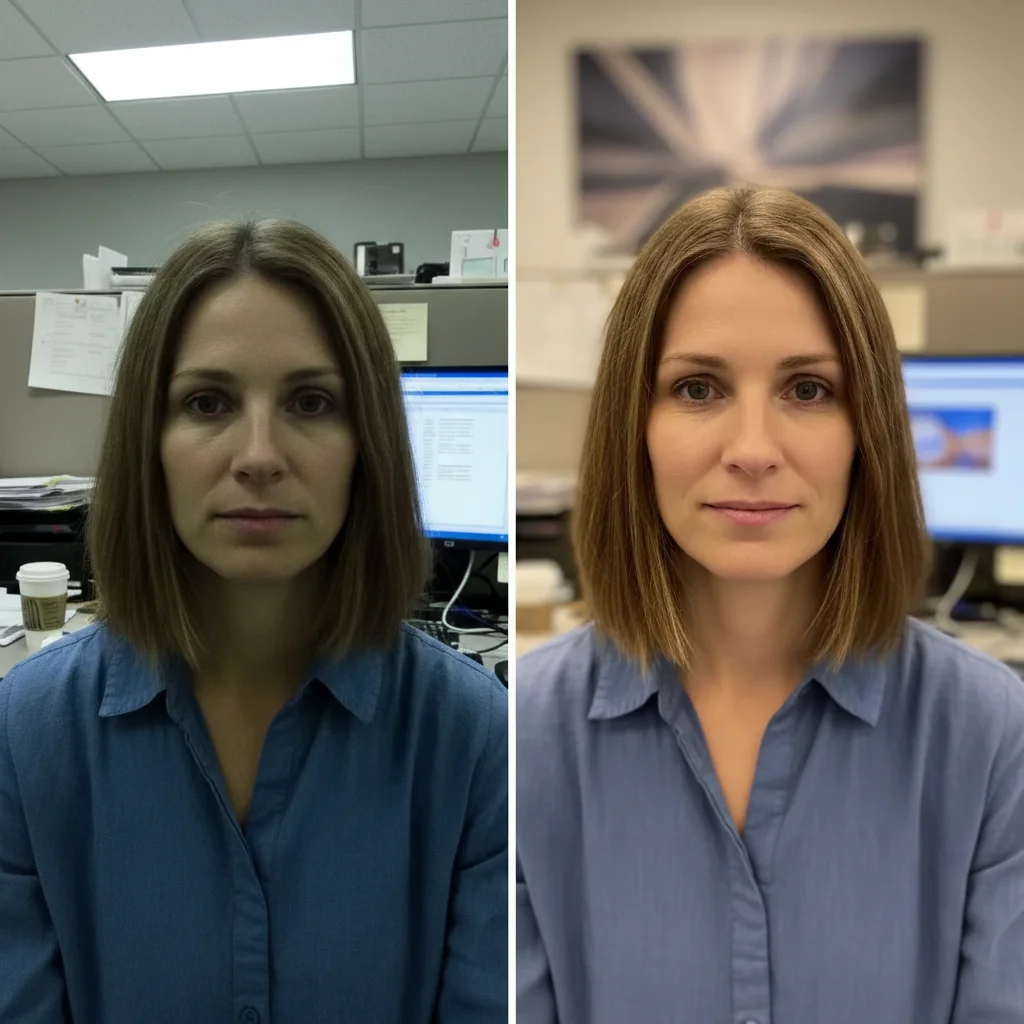
Client photo at conference with busy distracting background
Before
->
Professional headshot with neutral gray background and even lighting
After

Casual client photo made consistent with brand

Marketing agency needed consistent testimonial photos across 8 clients who sent varying quality images. Applied same enhancement to create visual consistency.

Prompt: create professional headshot style with neutral gray background and even lighting
Advertisement

If something looks off

Photo looks too polished or fake after enhancement

Why: Over-enhancement destroys testimonial credibility. People need to see real customers, not stock photos or AI-generated faces.

Try: enhance lighting and background while keeping natural skin texture and authentic look, do not over-smooth

Tip: Add 'natural' or 'authentic' to your prompt to prevent the AI from making it look like a studio portrait.

Background replacement made it look like a stock photo

Why: Pure white or perfectly smooth backgrounds can trigger 'this looks fake' reactions in viewers.

Try: create professional neutral gray background with slight texture, not pure white, keep it looking like a real photo

Tip: Neutral gray with subtle texture looks more authentic than pure white for testimonials.

Face looks different from the original person

Why: Aggressive lighting fixes can alter facial features. Testimonials must look like the actual client or trust is destroyed.

Try: improve lighting minimally while preserving exact facial features and expression, only clean the background

Tip: When in doubt, focus enhancements on background and overall lighting, not facial adjustments.

Multiple testimonials don't match in style

Why: Inconsistent photo quality across testimonials looks unprofessional and hurts credibility.

Try: Use the exact same prompt for all testimonial photos: 'professional neutral background, even lighting, natural look'

Tip: Save your best-working prompt and reuse it on every testimonial photo for perfect consistency.

Lighting improvement made person look washed out

Why: Brightening can reduce contrast and make faces look flat or overexposed.

Try: improve lighting with natural skin tones preserved, even illumination but maintain facial depth and contrast

Tip: Include 'natural skin tones' to prevent the AI from over-brightening.

Client's logo or branding visible in background was removed

Why: The AI may have interpreted branded elements as 'distracting background' to remove.

Try: clean background but preserve any company logos or branding visible in the photo

Tip: If the client works for a recognizable company, seeing their logo adds credibility—tell the AI to keep it.

Quick answers

Do I need to mark anything before enhancing the testimonial photo?

No! Just describe the enhancement you want: 'improve lighting and make background professional.' The AI automatically focuses on the face and background. Markers are only needed if you want to adjust specific areas after seeing the first result—like if one side needs more brightening.

How do I make client photos look professional without looking fake?

Add 'keep it natural' or 'authentic look' to your prompt. The key is improving lighting and cleaning backgrounds while preserving skin texture and genuine expressions. Testimonials that look too polished destroy credibility—viewers immediately sense fakeness. Good enhancement makes the photo look like a professional photographer took it, not like it was AI-generated.

Will this work with webcam screenshots and Zoom photos?

Yes. Webcam and video call screenshots are common sources for testimonial photos. The AI enhances resolution, fixes the typical webcam lighting issues (overexposure or dim lighting), and removes distracting home office backgrounds. Just specify 'webcam photo' or 'Zoom screenshot' in your prompt so the AI knows what quality issues to expect.

How do I create consistent testimonial photos across multiple clients?

Use the exact same prompt on every client photo: 'professional neutral gray background, even lighting, natural look.' This creates visual consistency even when clients send wildly different photo quality. Consistency signals professionalism and makes your testimonial section look intentional, not cobbled together.

What if the client doesn't look like themselves after enhancement?

Reduce the enhancement intensity by focusing only on background and lighting, not facial features. Use prompts like 'improve background and lighting only, do not alter facial features.' If a client doesn't recognize themselves in the testimonial photo, you've destroyed authenticity—the photo must look like the real person for testimonials to work.

Ready to make your client testimonials look credible?

Free to try. No signup required.

Try it free