Free • No signup Fix Outdated service area photos · Free

Your service area photos look outdated?

Old signage, dated decor, and faded branding make customers think you're closed or out of business.

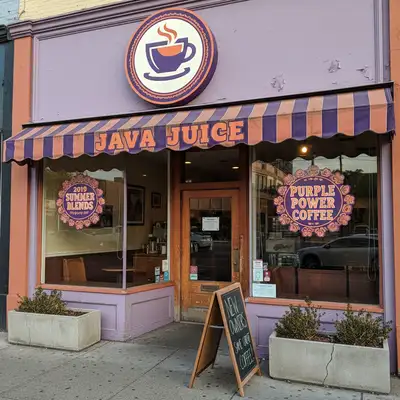
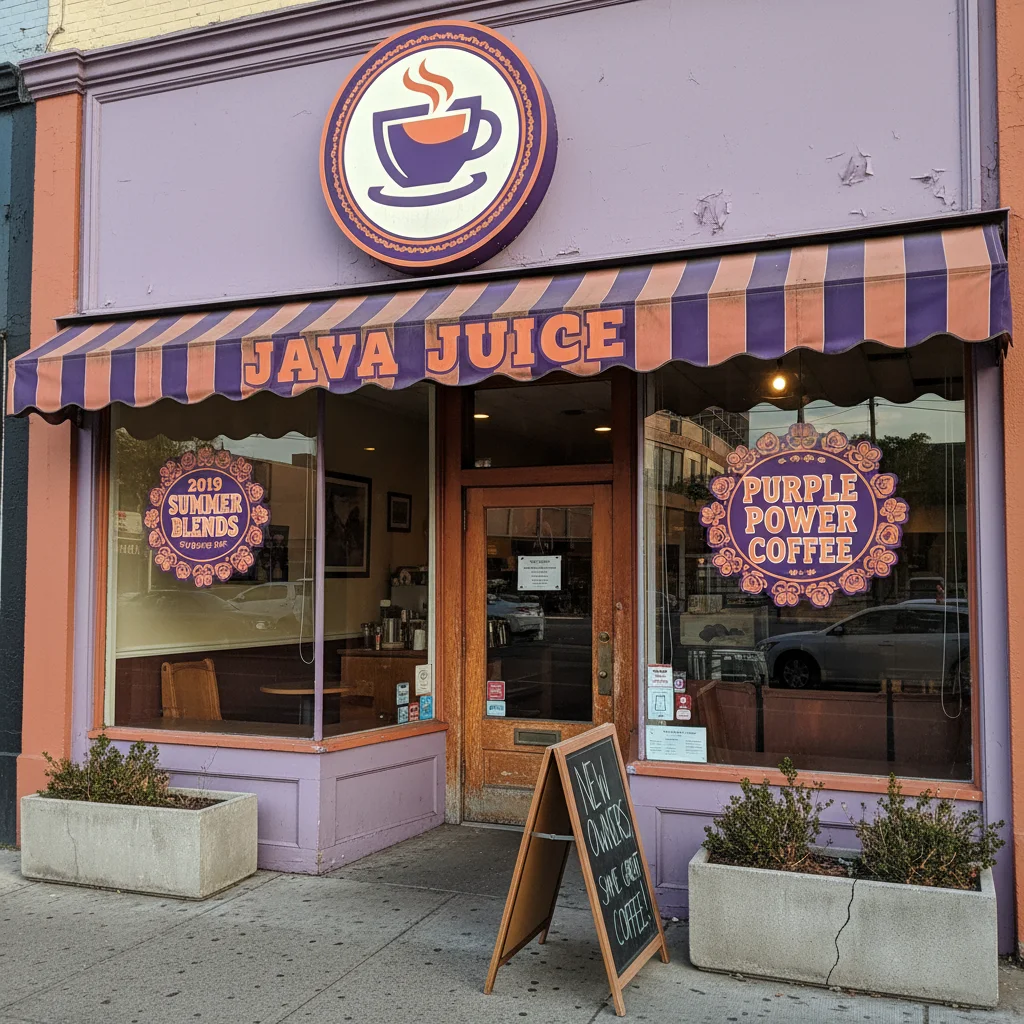
Coffee shop with old purple logo and faded branding
Before
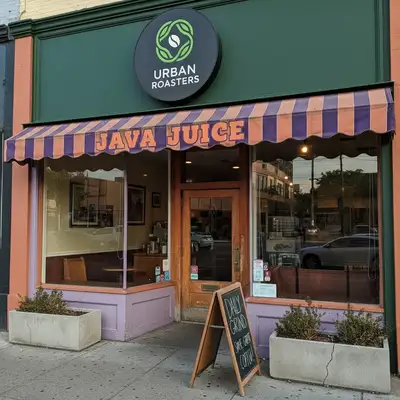
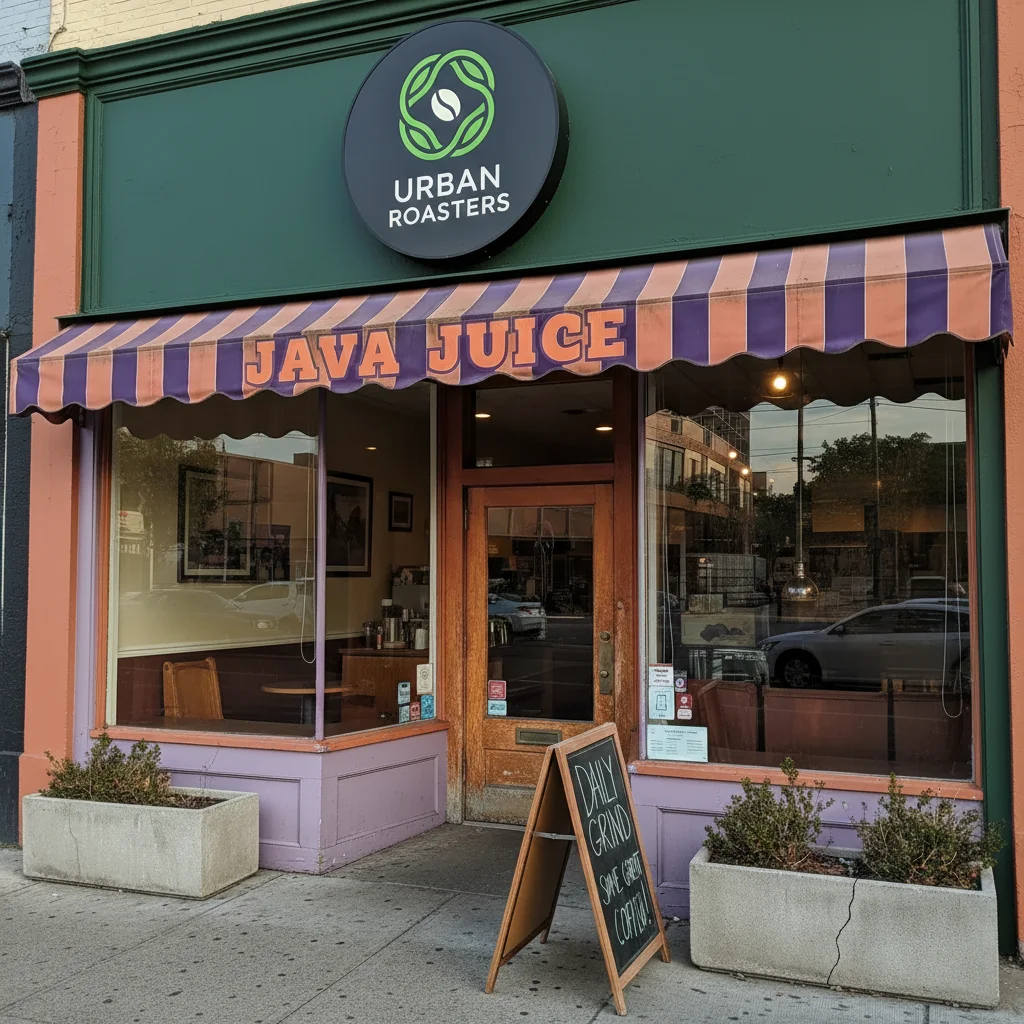
Updated storefront reflecting current green brand identity
After

Service Area Photos Look Outdated? Remove Old Signage

Upload photo to fix outdated service area photos

Free • Results in 30 seconds • No signup

Release to upload

FreeNo signupNo watermark
Popular use cases:
  • Outdated service area photos
  • Remove old signage
  • Update location photos
  • Dated storefront photos
  • Franchise rebrand photos
  • Old business photos

Cost
Free No signup required
Time
Instant results in 15-30 seconds
Works on
Any device - browser, phone, tablet, desktop
Powered by
AI-powered photo editing
Scenario Prompt Time
Remove old signage remove old faded signage, make storefront current 20s
Update branding remove old logo, update to current brand identity 25s
Remove dated awning remove dated awning, create fresh modern appearance 18s
Remove old promotions remove old promotional signs, clean modern storefront 15s

How it works

  1. Upload your outdated location photo

    Drop the photo showing old signage, dated decor, previous branding, or elements that make your location look old or closed. Common for franchise rebrandings, renovations, or just aging storefronts.

    Expect: Simple removals (signage, dated elements): 15-25 seconds. Complex updates: may need refinement.
  2. Describe what's outdated and should go

    Type 'remove old faded signage and update to modern look' or 'remove dated awning and old logo, make it look current.' Be specific about outdated elements. The AI understands business context—'make it look open and current' or 'remove 2015 branding.'

    Tip: If you have new branding, describe it: 'replace old blue logo with current green branding style.'

    Copy one of these to get started:

    Old faded signage making business look closed remove old faded signage, make the storefront look current and well-maintained
    Previous branding from franchise rebrand remove old logo and branding elements, update to reflect current brand identity
    Dated awning or exterior elements remove dated awning and worn exterior elements, create fresh modern appearance
    Old promotional signs and dated displays remove old promotional signs and dated window displays, clean modern storefront
    2 more prompts
    Weathered paint or worn appearance enhance appearance to look freshly maintained, remove signs of weathering and age
    Outdated decor visible through windows update the interior decor visible through windows to look modern and current
  3. Review for current appearance

    Check that obviously dated elements are gone. Verify the location looks maintained and current. Ensure nothing suggests 'closed' or 'out of business.' Your location photos directly impact whether people visit.

  4. Refine if needed

    If specific dated elements remain or need more work, tap markers on those areas and regenerate. Most updates work on the first try.

    Tip: Update Google My Business and website immediately—outdated photos actively hurt foot traffic.
Try it free

Service Area Photos Look Outdated? Remove Old Signage

Upload photo to fix outdated service area photos

Free • Results in 30 seconds • No signup

Release to upload

Free • No signup

"Our franchise location photos from 2018 showed old logo and faded awning. Customers called asking if we were still open. Updated all 5 locations in 20 minutes—no more confused calls." @MultiLocationOwner

See it in action

Coffee shop with old purple logo and faded branding
Before
->
Updated storefront reflecting current green brand identity
After

Franchise with old logo from rebrand

Coffee shop franchise rebranded in 2023 but location photos from 2019 still showed old logo and color scheme. Customers confused about whether location was part of new brand. Updated signage digitally.

Prompt: remove old logo and branding elements, update to reflect current brand identity
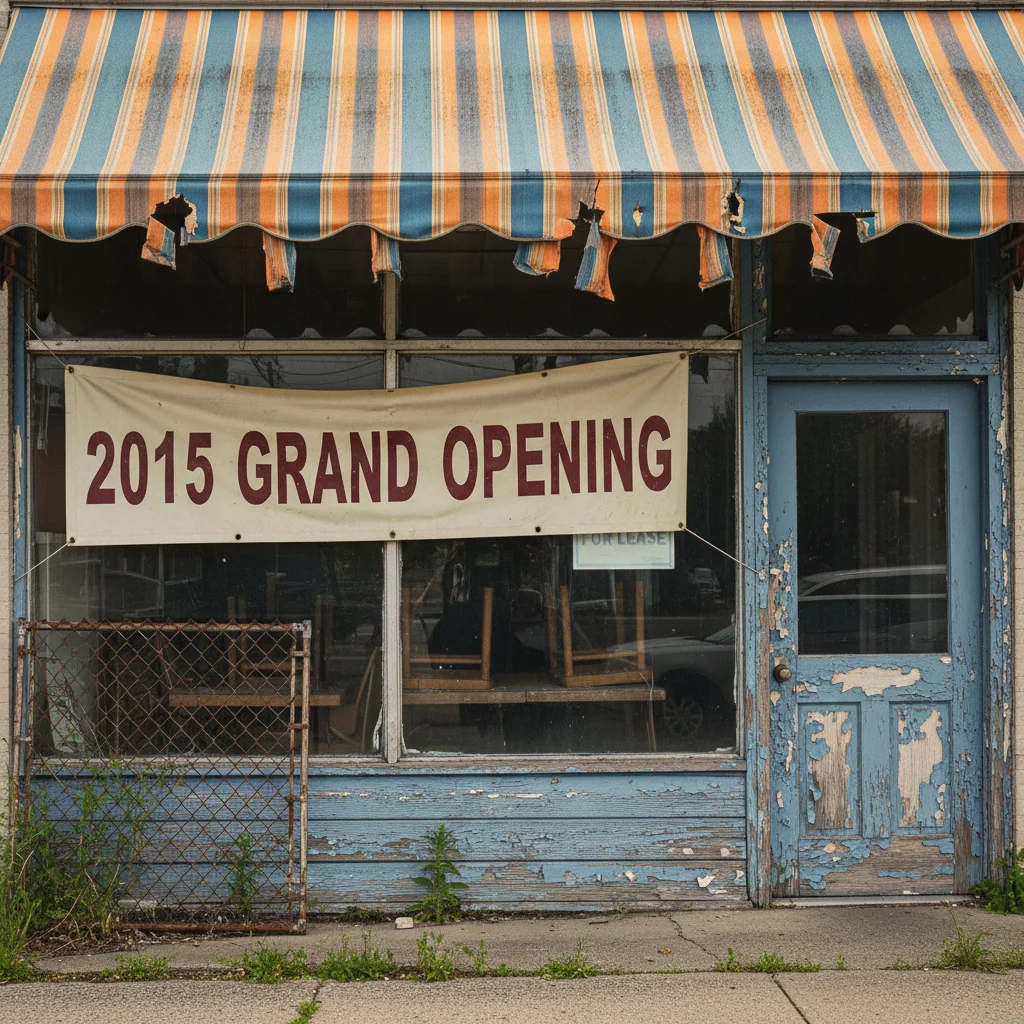
Restaurant with faded torn awning and old 2015 banner
Before
->
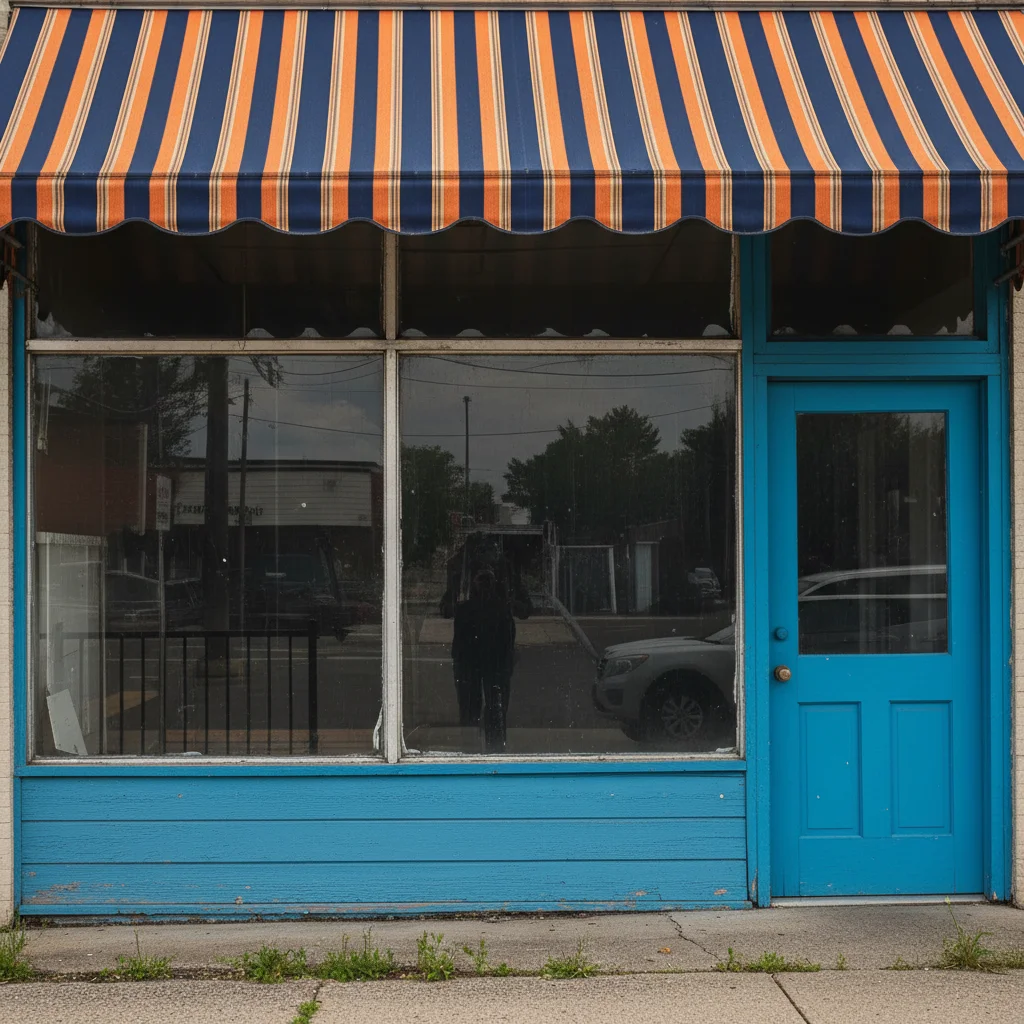
Fresh updated storefront looking well-maintained and current
After

Restaurant with dated awning and old sign

Restaurant exterior photo showed sun-faded awning with tears and old '2015 OPEN' banner still up. Made them look closed or struggling. Removed dated elements to look fresh and current.

Prompt: remove old faded signage, make the storefront look current and well-maintained

Detailed Guides by Scenario

📷

Photo Rescue & Restoration

Revive old, damaged, or poorly-shot photos with AI outdated service area photos — bring new life to images you thought were unsalvageable.

Common Scenarios

  • Applying outdated service area photos to old family photos that have degraded over time
  • Fixing a once-in-a-lifetime shot (wedding, graduation) that suffers from poor quality
  • Using outdated service area photos on scanned prints to get crisp digital versions

Best Practices

  • Scan old photos at the highest DPI your scanner supports before uploading for best results
  • Describe the specific issue — 'this photo is too dark and blurry' gives better outdated service area photos than a generic prompt
  • For severely damaged photos, work in stages: fix the biggest issue first, then refine
📷

Professional & Business Use

Ensure photos for websites, presentations, and marketing meet professional standards with outdated service area photos.

Common Scenarios

  • Using outdated service area photos on employee photos for a company website that need to look polished
  • Applying outdated service area photos to event photos before sharing in a client presentation
  • Improving product images with outdated service area photos for an online store or catalog

Best Practices

  • Process all images in a batch with the same enhancement settings for visual consistency
  • For web use, balance enhancement quality with file size — overly large images slow page loads
  • Always compare before and after to make sure outdated service area photos looks natural, not over-processed
📷

Social Media & Personal Sharing

Make your personal photos look their best before sharing with friends, family, or followers using outdated service area photos.

Common Scenarios

  • Quickly applying outdated service area photos to vacation photos before posting on social media
  • Using outdated service area photos on a selfie that has great composition but poor lighting
  • Batch-fixing a phone gallery of photos with outdated service area photos before creating an album to share

Best Practices

  • Start with the photo you'd most like to share — fix that one first and use the same approach on the rest
  • For selfies, subtle enhancement always beats heavy processing — keep it natural
  • If the photo was shot in low light, mention it in the prompt so the AI tailors outdated service area photos accordingly

If something looks off

AI removed current signage along with old elements

Why: The AI may have interpreted 'remove signage' too broadly.

Try: remove only the old faded signage, keep current branding and signs intact

Tip: Specify 'old' or 'faded' to distinguish outdated elements from current ones you want to keep.

Updated area looks fake or obviously edited

Why: Complex signage removal can leave visible patches or unnatural areas.

Try: blend the area naturally where old signage was removed, make it look realistic

Tip: For very prominent signage, consider having new signage added rather than just removed.

Photo still looks dated even after updates

Why: Multiple dated elements (architecture, cars in shot, style) create overall old feeling.

Try: Also enhance lighting and colors to modern bright style, not just remove specific elements

Tip: Sometimes overall color grading and lighting updates are needed beyond specific element removal.

Can't remove all outdated elements without destroying photo

Why: If the entire location is dated (old architecture, everything needs updating), digital fixes have limits.

Try: Focus on most obvious dated elements, or consider new photos if entire location looks old

Tip: Digital updates work best for specific elements (signage, awnings). Entire location aging may need actual renovation photos.

AI changed the wrong part of the photo

Why: Multiple signs or elements may have caused ambiguous targeting.

Try: Tap a marker on the specific old element to remove, then: remove only this item

Tip: Markers tell the AI 'remove THIS specific sign' when multiple signs exist.

Quick answers

Do I need to mark areas before describing what to remove?

No! Just describe what's outdated: 'remove old faded signage' or 'remove dated awning.' The AI understands business location context. Only use markers if you need to specify exactly which element when there are multiple similar items.

Why do outdated location photos hurt business?

Customers judge whether you're open, current, and well-maintained by photos. Faded signage signals 'going out of business.' Old branding suggests 'not updated in years.' Dated elements make people think you're closed or changed ownership. On Google My Business especially, outdated photos reduce visits and calls. Current photos prove you're active and professional.

Can I use digitally updated photos on Google My Business?

Yes, with reasonable limits. Removing outdated signage, faded elements, or previous branding shows your location as it should appear now. Don't misrepresent reality—adding features that don't exist or showing major changes that haven't happened. The goal is showing your location at its current best, not creating false expectations.

Should I update photos or just take new ones?

If only specific elements are outdated (signage, awning, dated decor), digital updates are faster and cheaper than coordinating new photoshoots. If the entire location has changed significantly (renovation, expansion, new layout), take new photos. Digital updates work best for specific element removal, not wholesale transformations.

How often should I update location photos?

Update immediately when: branding changes, signage is replaced, major renovations happen, visible wear appears (faded paint, torn awnings), or photos are 3+ years old. Old photos actively hurt business—they're not neutral, they make you look closed or neglected. Fresh photos signal active thriving business.

Is EditThisPic's AI outdated service area photos fixer really free?

Yes — you get 1 free edit per week, no account needed. For unlimited edits, plans start at $3.99/month.

Can I fix outdated service area photos on my phone?

Yes. EditThisPic works in any mobile browser — iPhone, Android, tablet. No app download needed.

What photo formats does the AI outdated service area photos fixer support?

JPG, PNG, WebP, and HEIC. Upload any common photo format and EditThisPic handles the rest.

Ready to update your outdated location photos?

Free to try. No signup required.