Free • No signup Enhance Airbnb listing photo · Free

AI Airbnb Photo Editor

← Browse all creative effects

Last updated

Brighter rooms, cleaner spaces, better first impressions — describe the fix and our AI handles it. Free, no account needed.
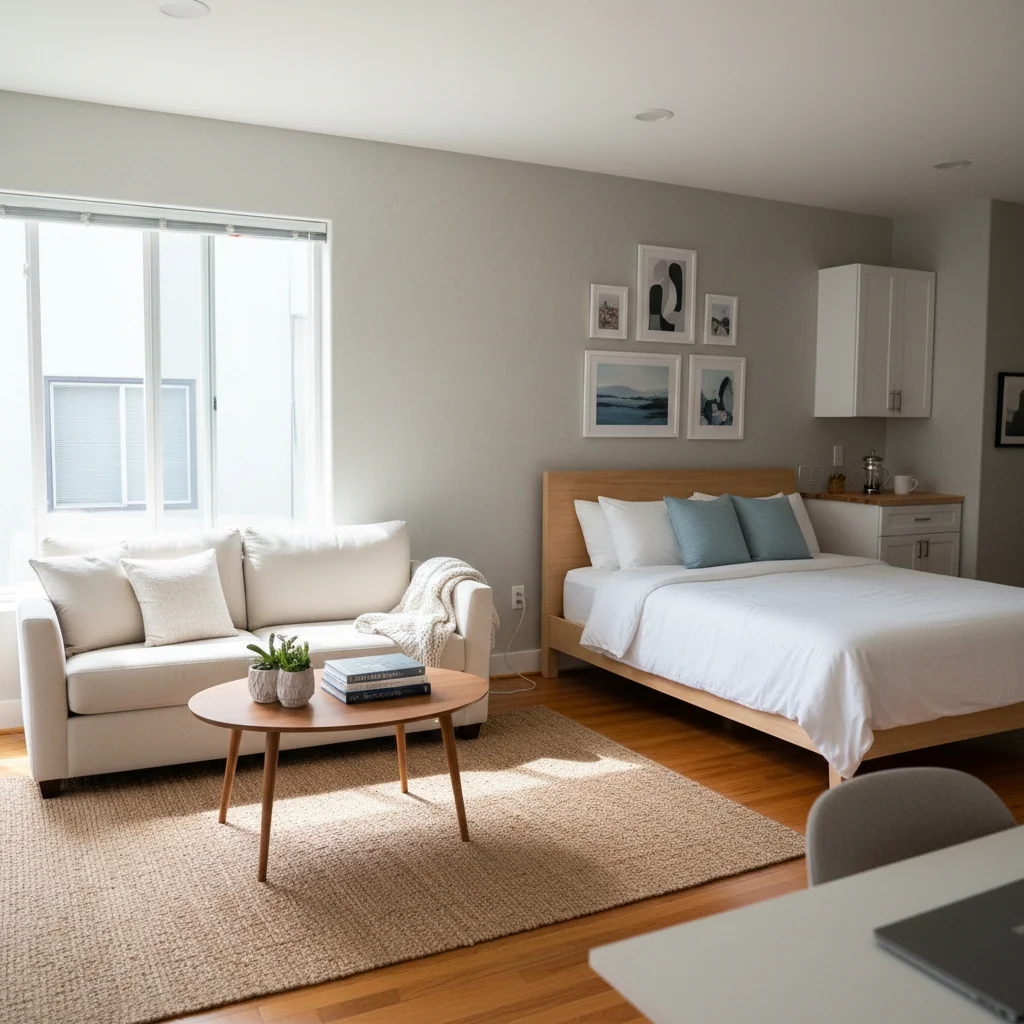
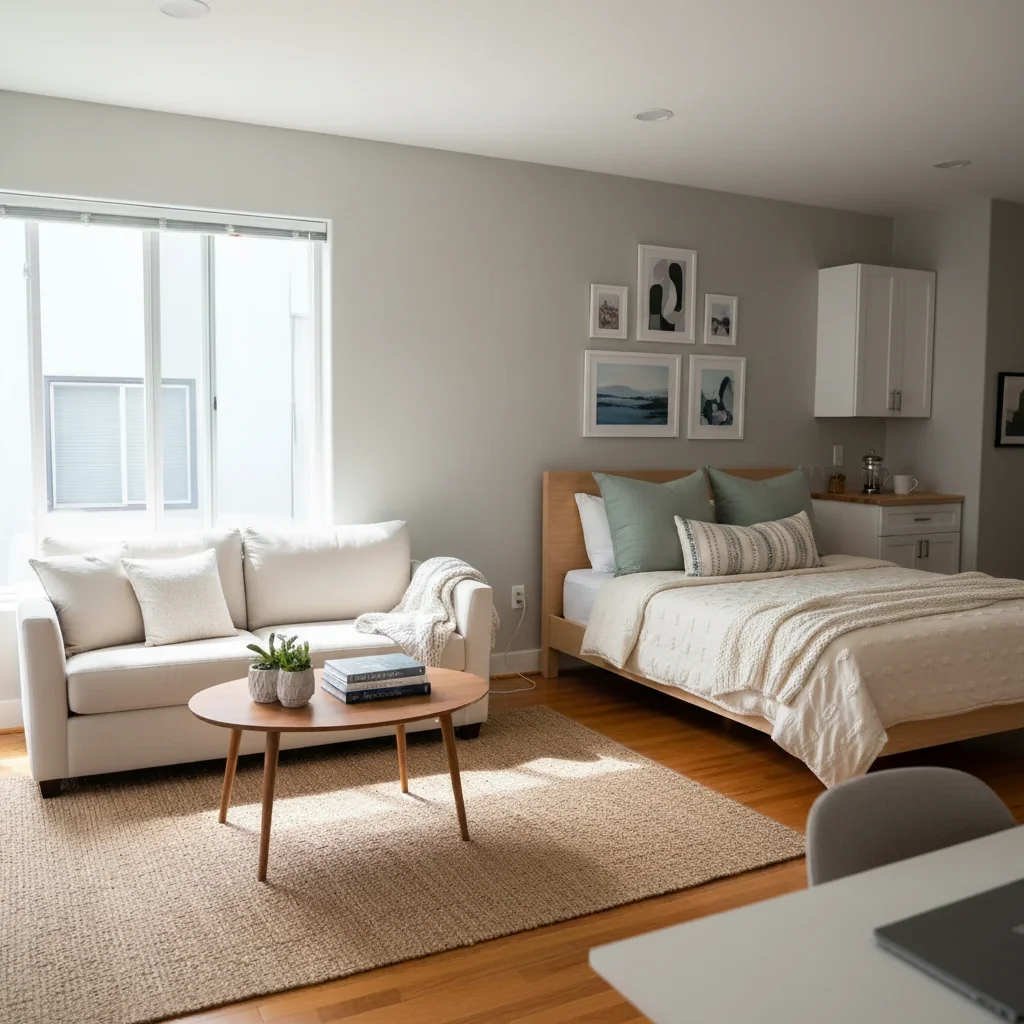
Dim bedroom with flat overhead fluorescent light and plain white duvet Same bedroom with warm inviting lighting and cozy atmosphere

Upload photo to enhance airbnb listing photo

"remove all personal items from the nightstand, the bathroom vanity, and any visible shelves — keep the furniture, fixtures, and room structure unchanged"

Release to upload

1 free edit·then from $4.99

Popular use cases:
  • airbnb listing photos
  • rental photo enhancement
  • brighten bedroom photo
  • declutter rental photo
  • improve host photos

Cost
Free No signup required
Time
Instant results in 15-30 seconds
Works on
Any device - browser, phone, tablet, desktop
Powered by
AI-powered photo editing
Scenario Prompt Time
Warm and brighten bedroom warm up the lighting to cozy and inviting, brighten without harshness 25s
Declutter any room remove personal items from nightstand and visible surfaces, keep furniture unchanged 30s
Fix kitchen for listing clean up the kitchen — remove dishes from sink, spotless countertops, shiny appliances 30s

How it works

  1. Upload your Airbnb photo

    Use your highest-resolution photo — at least 1200px wide. JPG, PNG, or WebP up to 7MB. Bedroom, living room, kitchen, bathroom, and outdoor/patio shots all work well. Airbnb recommends landscape orientation (3:2 or wider), so portrait shots may need cropping after editing.

    Expect: Photos with some ambient light give the AI the room structure it needs to enhance realistically. Very dark or heavily blurred photos may require two passes.
  2. Describe the improvement you need

    This is the key step. Type a direct instruction — 'warm up the lighting, remove the toiletries from the bathroom vanity, and make the bed look crisper.' You don't need to mark areas unless the edit is very specific to one corner.

    Tip: Airbnb guests respond to warmth and cleanliness. Prompts that include 'warm, inviting' and 'clean' tend to push the AI toward the aesthetic that performs well in rental listings.

    Copy one of these to get started:

    Bedroom — warm and inviting warm up the room lighting to feel cozy and inviting, brighten the space without making it harsh, keep all furniture colors and textures accurate
    Remove personal items from any room remove all personal items from the nightstand, the bathroom vanity, and any visible shelves — keep the furniture, fixtures, and room structure unchanged
    Kitchen — clean and fresh clean up the kitchen — remove any dishes or items from the sink, brighten the room, and make the countertops look spotless and the appliances shiny
    Fix harsh sunlight / window glare balance the exposure between the room interior and the bright windows, reduce the harsh window glare so both the room and the view outside are visible without blown highlights
    4 more prompts
    Bathroom — bright and spotless brighten the bathroom, clean the grout lines between tiles to look fresh, remove any water spots from the mirror and chrome fixtures
    Outdoor patio or deck make the patio look sunny and inviting — brighten the outdoor furniture, make the plants look lush and green, enhance the overall outdoor ambiance
    Living room staging make the living room look professionally staged — brighter, with warmer lighting, fluffed pillows on the couch, and a clean coffee table surface
    Exterior — curb appeal brighten the exterior photo, make the lawn look greener and well-maintained, and add a soft warm sky if the current sky is flat or grey
  3. Review for natural, inviting quality

    Check that the result looks like a real, well-photographed room — not artificially processed. Verify that furniture and flooring colors are accurate, shadows look natural, and no surfaces appear smeared or distorted.

  4. Use a marker for room-specific fixes if needed

    For a specific object to remove or an area to brighten individually — tap a marker on that spot and re-run. Most Airbnb photo enhancements don't need markers; use them when the whole-room prompt affects something you want unchanged.

    Tip: Markers are optional. Most host edits — brightening, decluttering, fixing white balance — work accurately from description alone.
Try it free

Upload photo to enhance airbnb listing photo

"clean up the kitchen — remove any dishes or items from the sink, brighten the room, and make the countertops look spotless and the appliances shiny"

Release to upload

See it in action

Dim bedroom with flat overhead fluorescent light and plain white duvet
Before
->
Same bedroom with warm inviting lighting and cozy atmosphere
After

Dim bedroom made warm and inviting

A standard bedroom photographed with only a bedside lamp and overhead fluorescent — cold, flat light. After: warm ambient lighting, naturally soft shadows, and an inviting atmosphere.

Prompt: warm up the room lighting to feel cozy and inviting, brighten the space without making it harsh, keep all furniture colors and textures accurate
Cluttered rental kitchen with dirty dishes in sink and items on counter
Before
->
Same kitchen with clean empty sink, spotless counters, and shiny appliances
After

Kitchen decluttered for listing

A fully functional but cluttered rental kitchen — dishes in the sink, items on the counter, condiments on the stove. All items removed while keeping the space looking lived-in and real.

Prompt: clean up the kitchen — remove any dishes or items from the sink, brighten the room, and make the countertops look spotless and the appliances shiny

If something looks off

AI changed the wrong area or something I didn't want changed

Why: The AI interpreted the prompt more broadly and adjusted elements you wanted to keep — for example, changing wall colors when you only wanted the lighting fixed.

Try: Tap a marker on the specific area you want changed, then regenerate with the same prompt

Tip: Markers constrain the edit to the area you tap. Use them any time the whole-room prompt affects something you want unchanged.

Room looks over-saturated or artificially colorful

Why: The 'warm' instruction can trigger over-saturation if not qualified. The AI pushed vibrancy too far.

Try: warm the lighting slightly — natural warm ambient light, not oversaturated, preserve all furniture and wall colors accurately

Tip: Add 'not oversaturated' or 'natural warm' to color prompts. The qualifier consistently keeps the result realistic.

Personal items removed but a smear or patch left behind

Why: The AI filled the area where the item was but the fill texture didn't match the surrounding surface perfectly.

Try: smooth the nightstand surface where the items were removed, match the wood texture and color of the surrounding area exactly

Tip: Name the surface material in follow-up prompts. 'Match the surrounding wood grain' targets the fill more accurately than a generic redo.

Bed looks odd after editing — duvet appears smeared

Why: Fabric-heavy edits can cause subtle texture artifacts on bedding, especially with complex patterns.

Try: keep the bedding exactly as it is — only adjust the room lighting, do not alter the bed or duvet

Tip: Exclude specific elements explicitly: 'do not alter the bedding' prevents fabric artifacts when you only want a lighting change.

Bathroom looks clinical or over-bright

Why: Bathroom brightening prompts can push exposure beyond realistic levels, making the room look like a hospital setting.

Try: brighten the bathroom to a clean, hotel-quality level — warm white balance, not clinical, with natural tile shadows preserved

Tip: 'Hotel-quality' is a useful reference point for bathroom photos — it implies clean and bright but not sterile.

Quick answers

Do I need to mark areas before describing what I want to fix?

No. Just describe the fix — 'warm up the lighting' or 'remove the items from the nightstand.' The AI applies the edit from your description. Only use markers when you need to isolate a very specific area.

How do I improve Airbnb listing photos for free?

Upload your photo to EditThisPic and describe the improvement — brighten, declutter, fix white balance, warm the lighting. The AI enhances the photo in about 30 seconds. No account required, no watermark.

Will better photos affect my Airbnb search ranking?

Photo quality influences guest engagement and booking conversion, which can indirectly affect search visibility over time. We don't have any influence over Airbnb's ranking algorithm — we only improve photo quality.

Is there a free tool to remove clutter from Airbnb photos?

Yes. EditThisPic removes clutter from rental photos free with no signup. Describe what to remove — 'remove the personal items from the nightstand' — and the AI fills the clean surface. No watermark.

What's the best Airbnb photo size to use before editing?

Use your highest-resolution original. EditThisPic accepts JPG, PNG, and WebP up to 7MB. Airbnb recommends landscape orientation (3:2 or wider), so crop to that ratio after editing if needed.

Can I edit outdoor and patio photos too?

Yes. The same description-based workflow works for outdoor spaces — patios, pools, gardens, exterior shots. 'Brighten the patio and make the plants look more lush' works the same way as indoor room edits.

How much does EditThisPic cost?

You get 1 free edit per week — no account needed. After that, credit packs start at $1.99 for 3 edits. Monthly plans start at $4.99/mo for 15 edits with unused credits rolling over. All edits are full resolution with no watermark.

Ready to improve your Airbnb listing photos?

Free to try. No signup required.

1 free edit included·Credit packs from $4.99