Pricing Change Dress color · Free

AI Dress Color Variation Generator

← Browse all creative effects

Last updated

Generate 10 dress color variants from one photo in 60 seconds — no samples, no studio, no Photoshop.
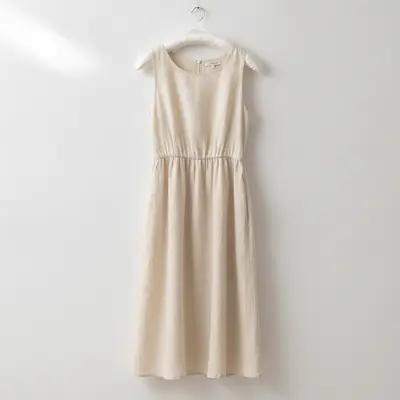
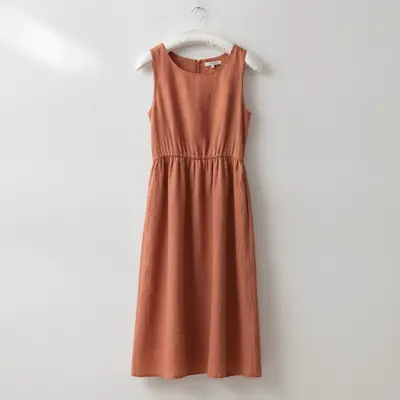
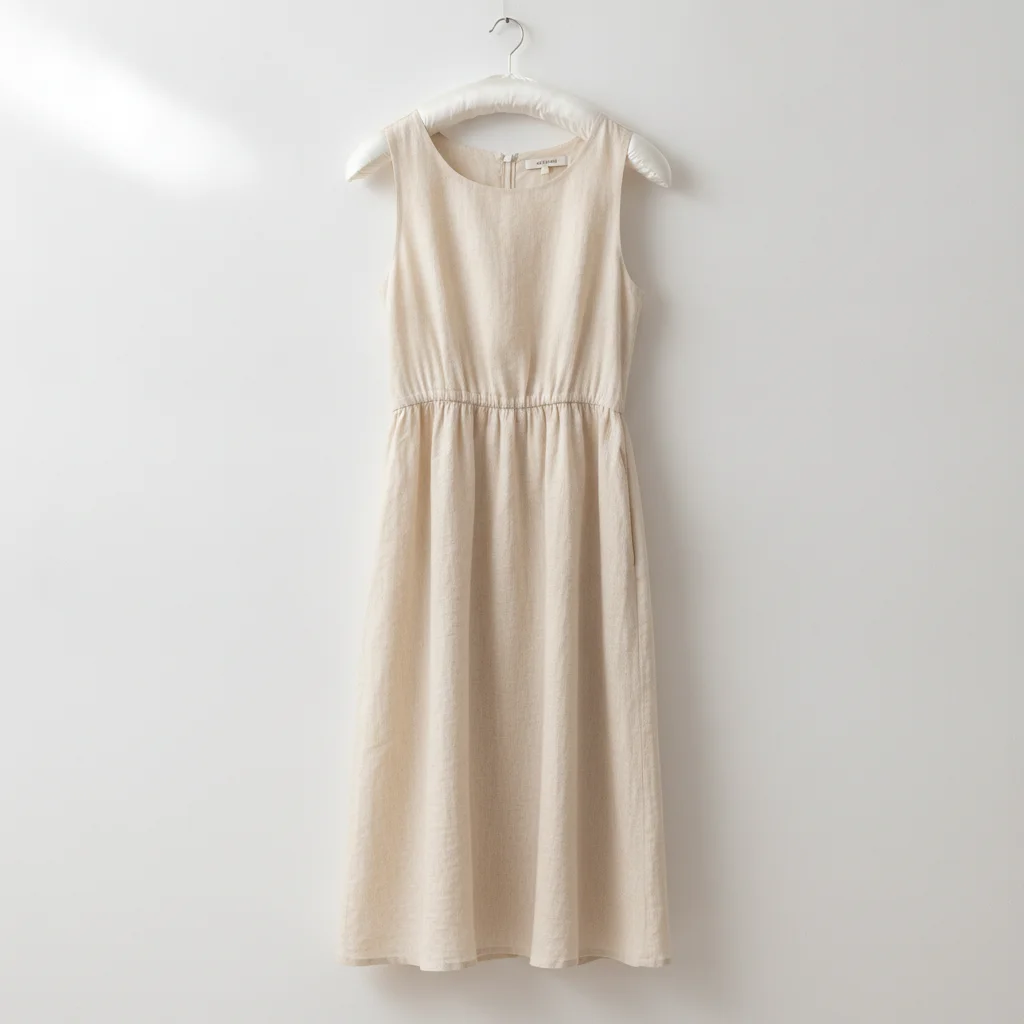
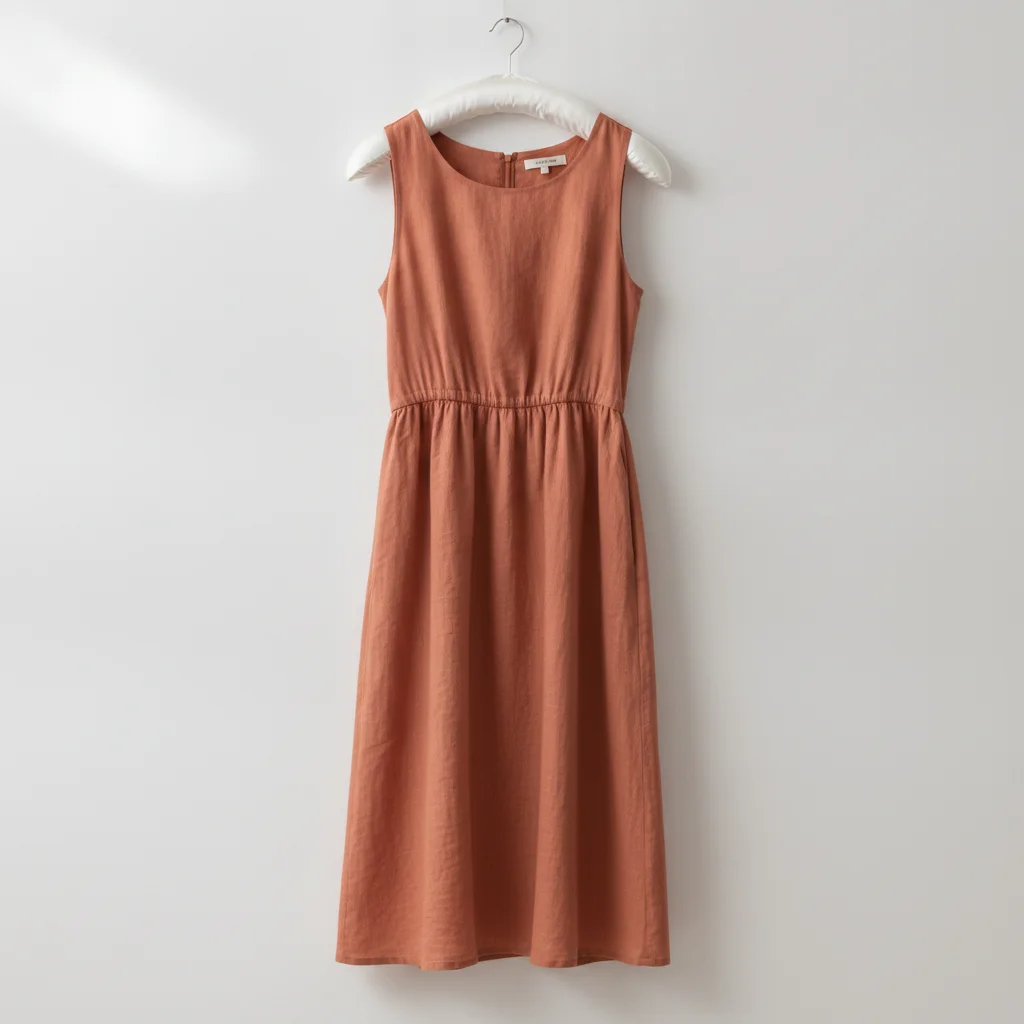
Ivory linen midi dress on hanger against white wall, gathered waist and fabric texture visible Same dress in terracotta with identical gathered waist, seam positions, and linen texture

Upload photo to change dress color

"change dress color to dark red, deep burgundy-red with cool undertones, not bright or neon, preserve all fabric folds, seams, and silhouette — only the hue changes"

Free to try · no sign-up · photos are never shared

Release to upload

<30stypical edit
1 freeedit weekly
Photo on your phone? Scan to open this editor there — free edit works on your phone too.

1 free edit every week·packs from $4.99

How it works

  1. Upload a clean dress photo

    Upload a flat-lay, hanger shot, or on-model dress photo — JPG, PNG, or WebP up to 7MB. A plain or white background makes edge detection cleaner, but darker and lifestyle backgrounds also work. The dress should be fully visible with no significant overlapping items. Good lighting that reveals fabric texture helps the AI preserve detail in every variant.

    Expect: Solid-color dresses generate the most consistent variants across 10 colors. Printed or patterned dresses can change color but patterns may shift — use the explicit pattern-preservation prompt if needed.
  2. Describe the color change

    Type the color you want — be specific about tone and mood. 'Make dress terracotta' works. 'Make dress dark reddish brown with warm undertones' is more precise. For muted earthy tones like the user queries we see most often — earthy green, blood red, light terracotta — describe the undertone explicitly. The AI reads color vocabulary and maps it to a visual result. No marking required — it knows what 'the dress' means.

    Tip: For a full 10-variant color run, write out all your color terms first: 'terracotta, dark red, earthy green, black, rust, maroon, teal, blood red, light terracotta, dark reddish brown.' Work through them one prompt at a time using the same base photo.

    Copy one of these to get started:

    Make dress terracotta — the most common request change dress color to terracotta, warm burnt orange-red tone with earthy undertones, preserve all seams, drape, and fabric texture exactly — only the hue should change
    Make dress dark red change dress color to dark red, deep burgundy-red with cool undertones, not bright or neon, preserve all fabric folds, seams, and silhouette — only the hue changes
    Make dress earthy green change dress color to earthy olive green, muted and desaturated, warm brown undertones, not bright or yellow-green, preserve all seam lines, drape, and fabric texture
    Make dress black change dress color to true black, deep matte black with no color cast, preserve all fabric texture, weave detail, seams, and silhouette — keep the original lighting direction
    4 more prompts
    Make dress rust change dress color to rust, warm reddish-orange with brown undertones, slightly muted and oxidized-looking, preserve all drape, seams, and fabric texture exactly
    Make dress maroon change dress color to maroon, deep dark brownish-red, muted and rich, not bright red or purple, preserve all fabric details, seams, and drape
    Make dress teal change dress color to teal, mid-depth blue-green with equal blue and green balance, not too bright, not turquoise, preserve all seams and fabric texture exactly
    Make dress blood red — deep saturated change dress color to blood red, very deep saturated red with almost no orange or brown, pure dark crimson, preserve fabric drape, seams, and silhouette exactly
  3. Review silhouette, seams, and drape

    Zoom to 100% and check three areas: the seam lines (should be the same position as the original), the hemline (should have the same weight and fall), and any belt, trim, or embellishment on the dress. Color should be even across all fabric panels with no patchiness at seams.

  4. Download and move to the next color

    Download the variant, then re-upload the same original dress photo for the next color. Do not use a previously-generated variant as the base for the next — always return to the original photo. Stacking generation on top of generation compounds color drift and texture degradation.

    Tip: Keep a 'master' copy of your original product photo. Every variant in your lineup should generate from that same file.
  5. Refine with markers if a specific panel is off

    If the AI changed the dress but one panel — a sleeve, a bodice section, or a sash — came out a different shade, tap a marker on that panel and regenerate with 'match the color of this panel to the rest of the dress.' Markers target the edit to that specific zone only.

    Tip: Uneven color across fabric panels is the most common issue with complex silhouettes like wrap dresses or tiered skirts. Markers fix it in one additional pass.

See it in action

Ivory linen midi dress on hanger against white wall, gathered waist and fabric texture visible
Before
->
Same dress in terracotta with identical gathered waist, seam positions, and linen texture
After

Linen midi dress — ivory to terracotta variant

A fashion Etsy seller photographed her best-selling linen midi dress in the hero color (ivory). She generated a terracotta variant in one pass — same drape, same gathered waist, same hemline weight.

Prompt: change dress color to terracotta, warm burnt orange-red tone with earthy undertones, preserve all seams, drape, and gathered waist detail exactly — only the hue should change
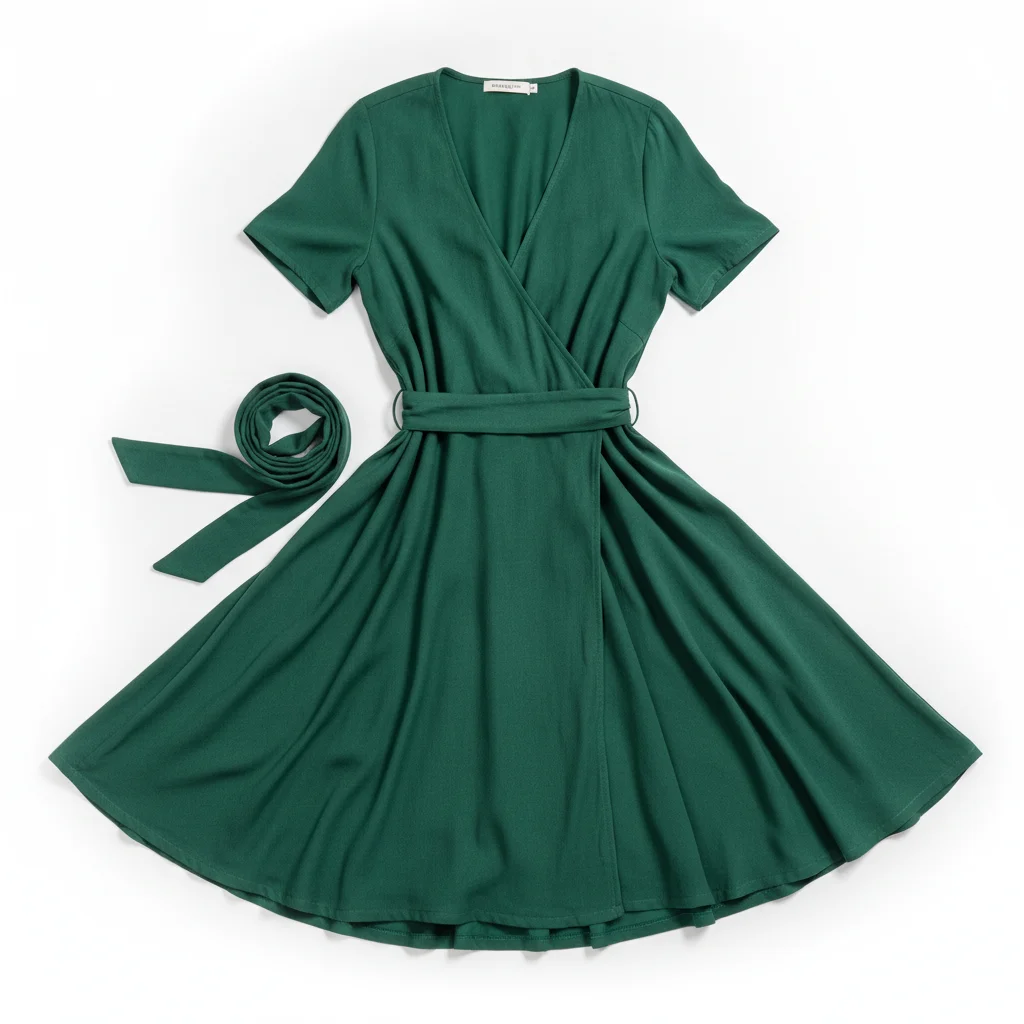
Wrap dress flat-lay on white background with wrap tie and V-neckline clearly visible
Before
->
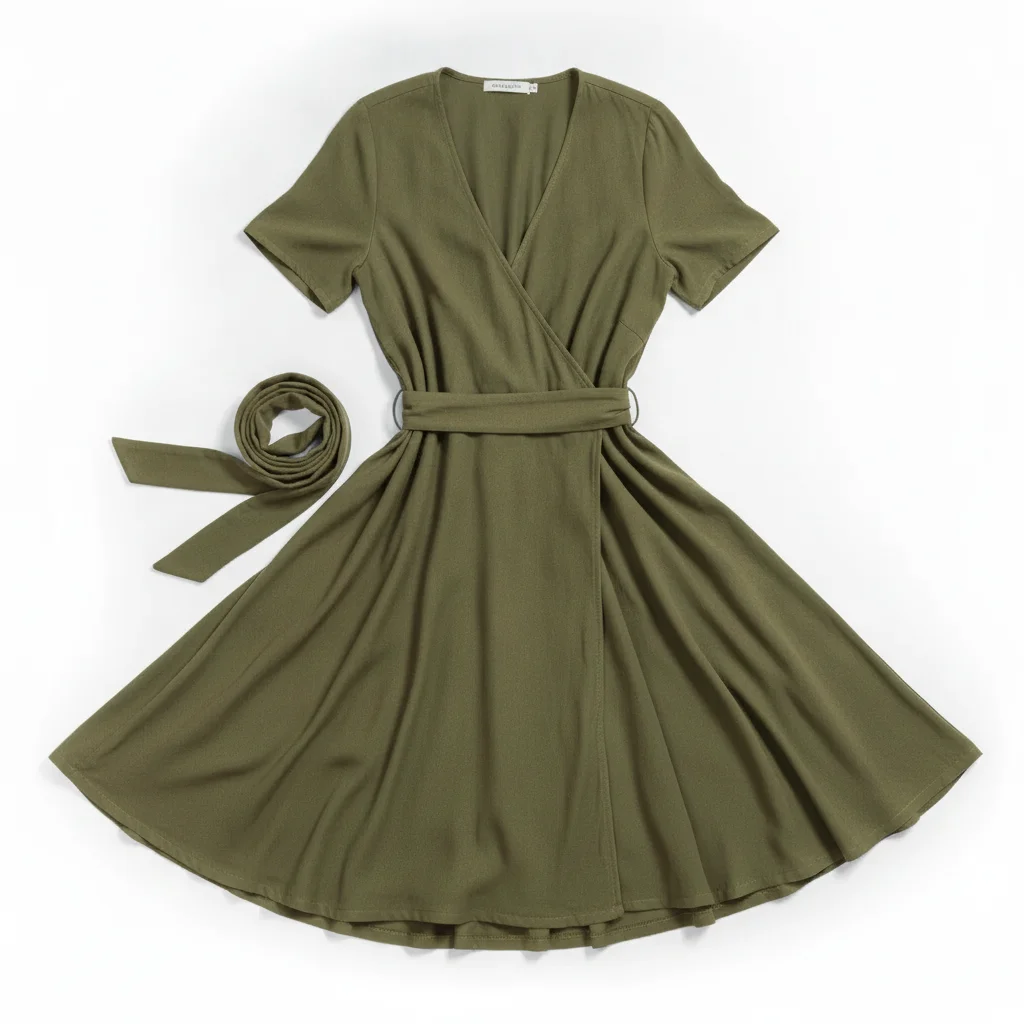
Same wrap dress in earthy olive green — wrap tie and neckline details preserved
After

Wrap dress — earthy green and maroon variants for a 10-color batch

A Shopify fashion seller runs a 10-color lineup for her bestselling wrap dress. From one hero photo, she generates each colorway using the same base prompt. This shows the earthy green and maroon variants side-by-side — the wrap tie and V-neckline are identical across both.

Prompt: change dress color to earthy olive green, muted and desaturated with warm brown undertones, not bright or yellow-green, preserve the wrap tie, V-neckline, and all fabric drape exactly
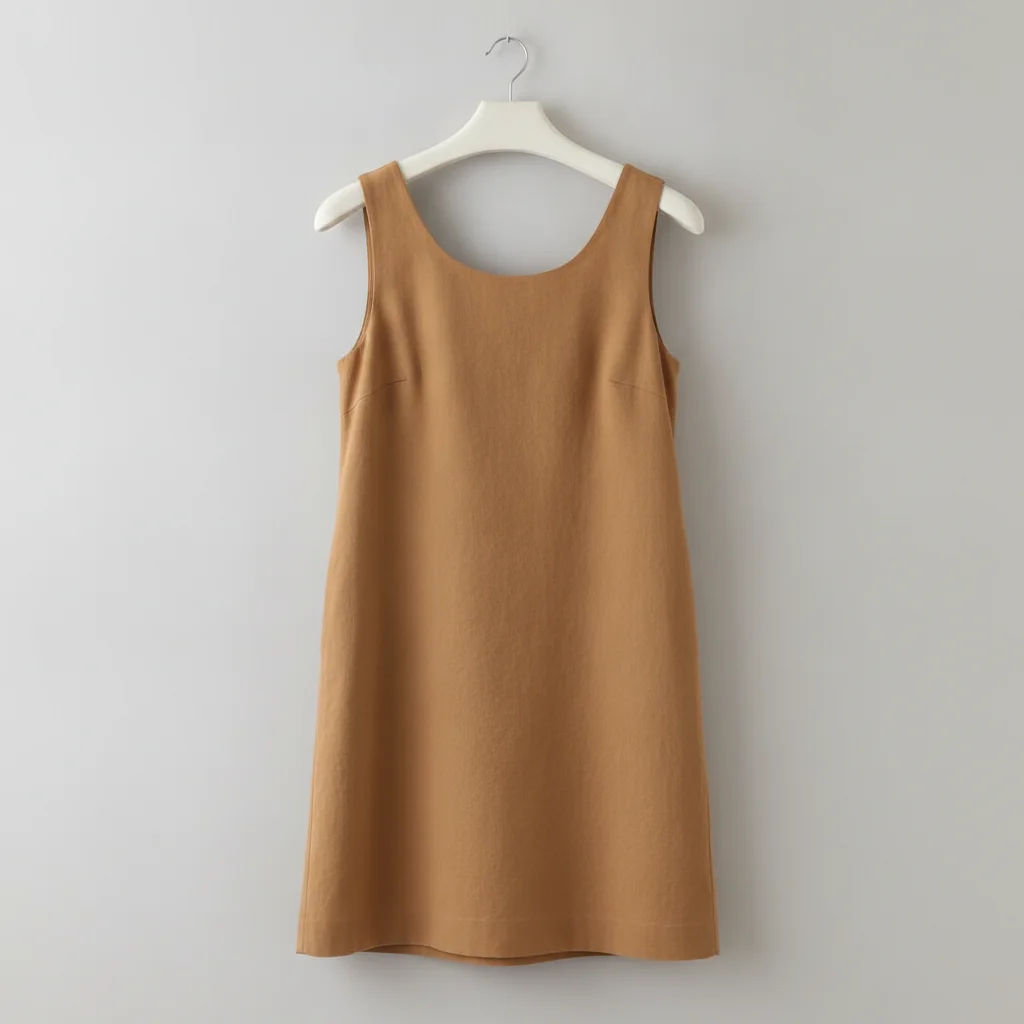
Camel sleeveless shift dress on hanger against light grey background, pockets visible
Before
->
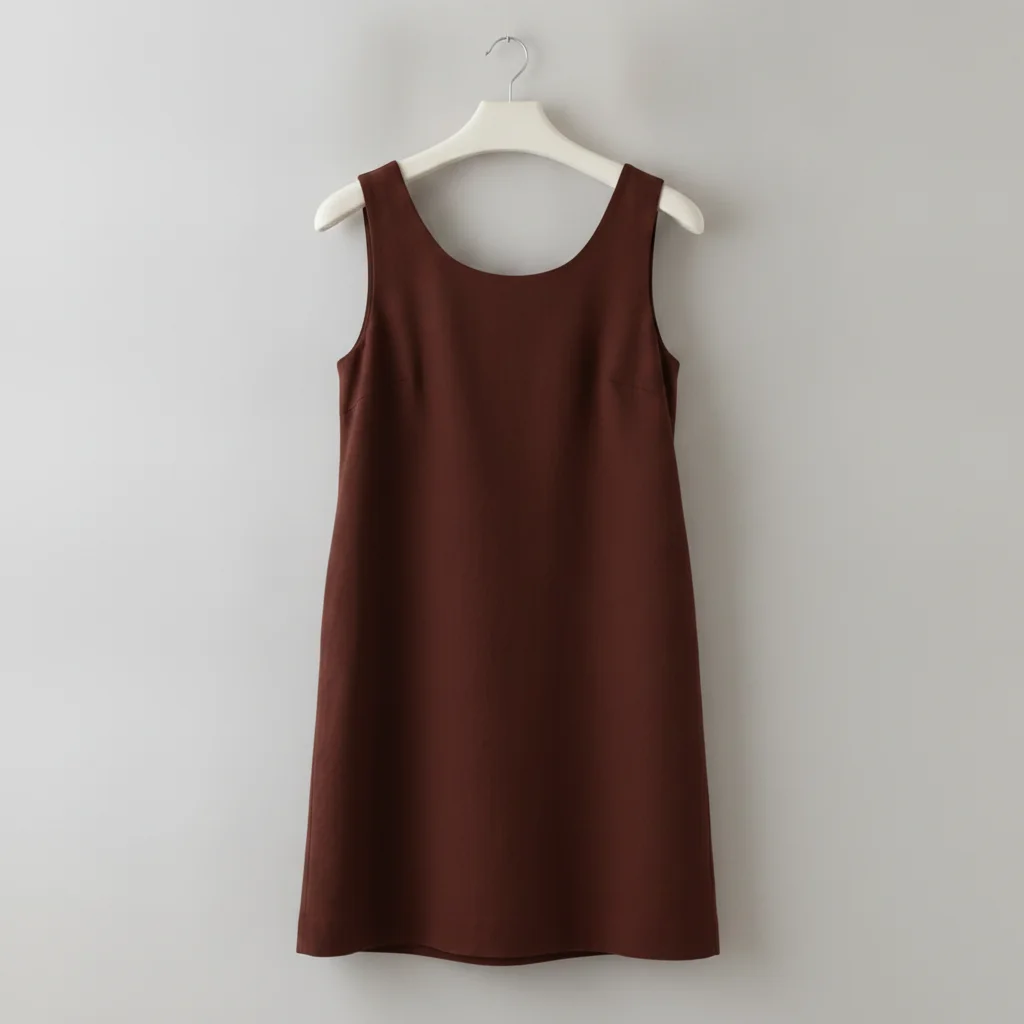
Same shift dress in dark reddish brown, seams and pockets identical to original
After

Sleeveless shift dress — dark reddish brown for a seasonal collection update

A buyer update for a fall collection required a dark reddish brown 'chocolate-adjacent' colorway. The seller used the specific user-language they'd seen in customer messages to write a precise prompt — 'dark reddish brown' matched exactly what their customers were searching for.

Prompt: change dress color to dark reddish brown, deep warm brown with a red undertone, like dark chocolate with a burgundy cast, preserve all seams, hemline, and fabric texture exactly

Quick answers

Do I need to mark the dress before changing its color?

No. Just type 'change dress color to terracotta' and the AI understands which area you mean. Markers are only needed when you have multiple similar-colored elements in the frame and description alone is ambiguous — for example, a model wearing a dress and a matching cardigan where you only want one changed. For a single dress on a white background, description works every time.

Is there a free AI dress color changer that doesn't require an account?

Yes. EditThisPic generates dress color variants for free with no login, no signup. Upload a dress photo, type the color you want, and download the result in 15-30 seconds. Works in any browser — Safari, Chrome, mobile — no app install needed. The free edit is a preview — purchased downloads are clean, full quality.

How do I generate 10 dress color variants in one workflow?

Upload your hero dress photo and run one color per prompt: 'change dress color to terracotta, preserve all details.' Download, then re-upload the SAME original photo for the next color — never use a generated variant as input for the next. Stacking generation on generation causes color drift. With 15-30 seconds per variant, a 10-color run takes about 5 minutes.

What is the best free AI tool for generating fashion color variants?

EditThisPic generates dress color variants from a description — no templates, no color palettes to click through. Just type the color you need, including specific tone descriptors like 'muted earthy green' or 'dark reddish brown.' It's free, requires no signup, and handles 10 variants per session without limits.

How do I get earthy tones right — terracotta, rust, earthy green?

Earthy tones need undertone descriptors to generate correctly. For terracotta: 'warm burnt orange-red with earthy undertones.' For rust: 'warm reddish-orange with brown undertones, slightly muted.' For earthy green: 'muted desaturated olive with warm brown undertones, not bright or yellow-green.' Without these descriptors, earthy tones often come out too saturated or too bright.

Can I generate dress color variants for Shopify or Etsy listings?

Yes. This is the primary use case. Upload your hero product photo, generate each colorway with the same prompt structure, and download listing-ready variants. For consistent listings, always generate from the same original photo and use the same prompt structure across all variants — same lighting description, same detail-preservation instruction. This produces a professional, consistent color lineup without ordering physical samples.

How much does EditThisPic cost?

You get 1 free edit per week — no account needed. After that, one-time credit packs start at $4.99 for 10 edits, valid 12 months, no subscription. Power users who edit daily can pick Studio Membership, a monthly workspace at $49.99/mo for 300 edits. Purchased downloads are clean with no watermark.

Ready to generate your dress color lineup?

Free to try. No signup required.

1 free edit included·Credit packs from $4.99