Free • No signup Change Dress · Free

AI Dress Changer

Describe the dress you want and AI replaces it on your photo instantly.

Woman in light blue casual cotton dress
Before
Same woman in red floor-length evening gown with sweetheart neckline
After

AI Dress Changer

Upload photo to change dress

Free • Results in 30 seconds • No signup

Release to upload

FreeNo signupNo watermark
Popular use cases:
  • dress shopping preview
  • bridesmaid dress visualization
  • formal wear preview
  • dress color comparison
  • prom dress try-on
  • cocktail dress preview
  • wardrobe planning
  • fashion e-commerce

Cost
Free No signup required
Time
Instant results in 15-30 seconds
Works on
Any device - browser, phone, tablet, desktop
Powered by
AI-powered photo editing
Scenario Prompt Time
Color change only change the dress color to emerald green 30s
Style swap change the dress to a navy sheath dress with cap sleeves 40s
Complete transformation replace with a floor-length red evening gown 45s

How it works

  1. Upload your photo

    Upload a photo with clearly visible clothing. Full-body or upper-body shots where the fabric is unobstructed work best for dress editing. JPG, PNG, WebP up to 7MB.

    Expect: Simple dress swap: 30-40 seconds. Complex formal gown with details: 45-60 seconds and may need refinements.
  2. Describe the new dress

    Type what you want: 'change the dress to a navy blue cocktail dress with a V-neckline' or 'replace with a floral summer maxi dress.' Include length, color, neckline, and material. No marking needed—the AI understands what 'dress' means.

    Tip: Specify neckline (V-neck, sweetheart, off-shoulder) and length (mini, midi, floor-length) for the most accurate results.

    Copy one of these to get started:

    Elegant evening gown change the dress to a red floor-length evening gown with a fitted bodice and sweetheart neckline
    Casual summer dress replace the dress with a light floral sundress with thin spaghetti straps and an A-line skirt
    Professional sheath dress change to a navy blue knee-length sheath dress with cap sleeves and a round neckline
    Cocktail party dress replace the dress with a black sequined cocktail dress, above-knee length with a one-shoulder strap
    3 more prompts
    Boho maxi dress change to a bohemian maxi dress with earthy tones, tiered ruffled skirt, and bell sleeves
    Bridesmaid dress replace the dress with a sage green floor-length bridesmaid dress with a halter neckline and flowing chiffon fabric
    Wrap dress for work change to a classic wrap dress in deep burgundy with three-quarter sleeves and a knee-length hem
  3. Review the transformation

    Check that the new dress fits naturally on the body. Look for realistic fabric draping, correct proportions, and smooth transitions at necklines, sleeves, and hemline.

  4. Refine with markers if needed

    If the neckline, sleeves, or hem look off, tap markers on those specific areas and regenerate. Most dress changes work perfectly on the first try.

    Tip: Markers are for precision refinement only. Try without them first—you usually won't need them.
Try it free

AI Dress Changer

Upload photo to change dress

Free • Results in 30 seconds • No signup

Release to upload

Free • No signup

"Bridesmaids kept changing their minds on dress color. I used this to show them exactly how each option would look on our group photo instead of arguing over swatches." @WeddingPlanner_Tara

See it in action

Woman in light blue casual cotton dress
Before
->
Same woman in red floor-length evening gown with sweetheart neckline
After

Casual dress to elegant evening gown

A casual day dress transformed into a stunning red evening gown for visualizing formal wear options.

Prompt: change the dress to a red floor-length evening gown with a fitted bodice and sweetheart neckline
Woman in bright floral summer dress with spaghetti straps
Before
->
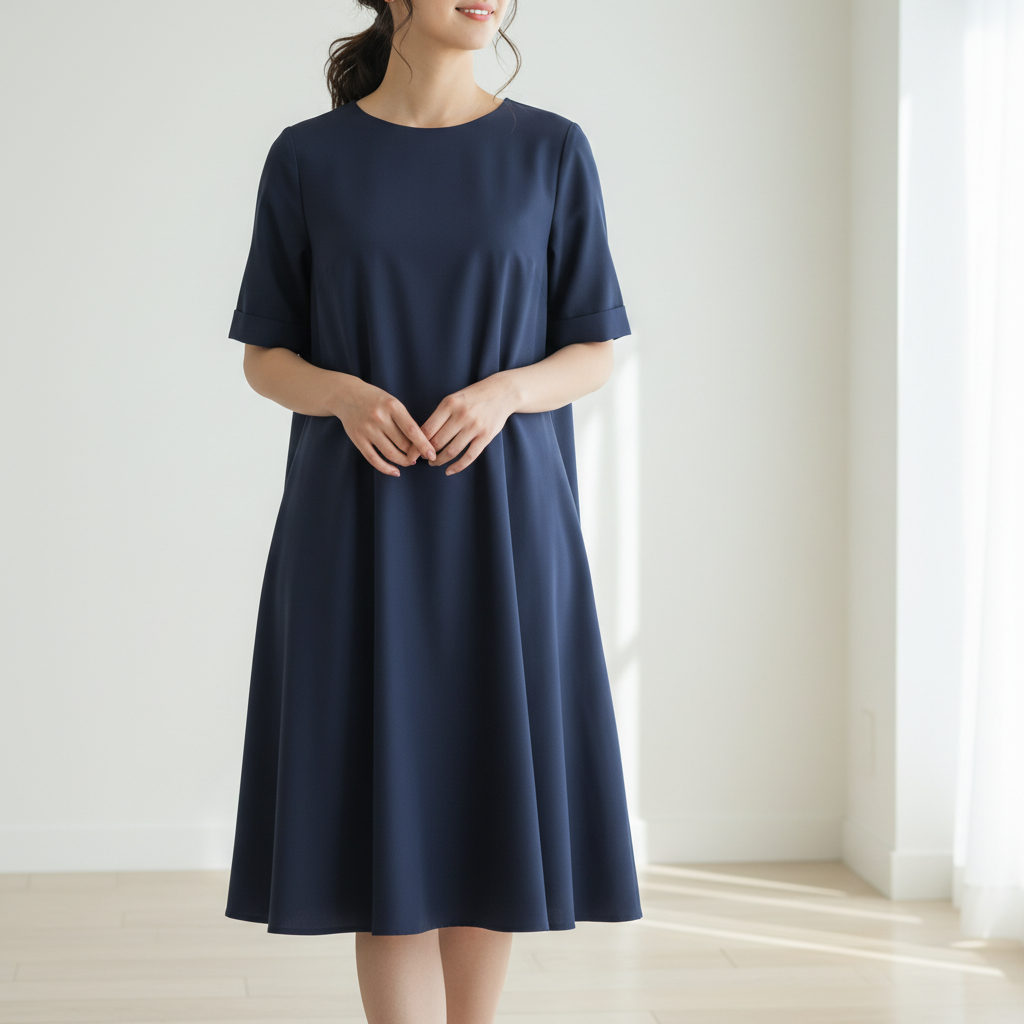
Same woman in navy blue knee-length sheath dress with cap sleeves
After

Summer dress to professional sheath

A floral summer dress swapped for a professional sheath dress to preview a corporate look.

Prompt: change to a navy blue knee-length sheath dress with cap sleeves and a round neckline

Detailed Guides by Scenario

📷

Professional Use

Apply 'AI Dress Changer' to images for professional projects — websites, marketing materials, client deliverables, and presentations.

Common Scenarios

  • Using 'AI Dress Changer' for client work or commercial photography
  • Applying 'AI Dress Changer' to product or marketing images for a business
  • Batch-processing multiple images with 'AI Dress Changer' for a project deadline

Best Practices

  • Use the highest resolution source image available for professional-quality results
  • Be specific in your prompt about the exact 'AI Dress Changer' effect you need
  • For consistency across multiple images, reuse the same prompt template
📷

Creative & Social Media

Use 'AI Dress Changer' creatively for social media content, personal projects, and artistic expression.

Common Scenarios

  • Applying 'AI Dress Changer' to a photo for a unique social media post
  • Using 'AI Dress Changer' to create artistic variations of a favorite image
  • Experimenting with 'AI Dress Changer' for a creative project or portfolio piece

Best Practices

  • Experiment freely — AI editing lets you try bold ideas with no risk to the original
  • For social content, pair the visual effect with a caption that references the transformation
  • Try the effect on different types of photos to find what looks most striking
📷

Personal Photos & Memories

Apply 'AI Dress Changer' to personal photos to fix issues, enhance quality, or create something special from everyday images.

Common Scenarios

  • Using 'AI Dress Changer' on family photos to improve or personalize them
  • Applying 'AI Dress Changer' to vacation or event photos before printing or sharing
  • Trying 'AI Dress Changer' on a selfie or portrait for profile or personal use

Best Practices

  • Always work on a copy — keep the original safe in case you want to try a different approach
  • Natural-looking results are almost always better than dramatic over-processing
  • If it doesn't look right the first time, rephrase your prompt with more specific details

If something looks off

AI changed the wrong area or something I didn't want changed

Why: The AI couldn't determine exactly which garment you meant from description alone. This happens when wearing separates that look like a dress or layered outfits.

Try: Tap a marker on the dress area specifically, then regenerate with the same prompt

Tip: Markers tell the AI 'I mean THIS garment specifically.' Use them when description alone is ambiguous.

Neckline or sleeves don't match what I described

Why: The AI may default to common neckline styles if your description isn't specific enough about the neckline cut.

Try: change the dress neckline to [specific style] with [sleeve type], keep everything else the same

Tip: Use precise fashion terms: 'sweetheart', 'off-shoulder', 'boat neck', 'halter', 'scoop' for accurate necklines.

Dress length is wrong—too long or too short

Why: Without explicit length instructions, the AI picks a default based on the dress style. 'Dress' alone doesn't specify length.

Try: change the dress to [style] at exactly [mini/knee-length/midi/floor-length] length

Tip: Always specify length explicitly. 'Knee-length', 'midi' (calf), 'maxi' (ankle), and 'floor-length' are distinct.

Fabric texture looks unrealistic or flat

Why: The AI needs material cues to render realistic textures. Without them, fabric can look generic or plasticky.

Try: change the dress to [style] in [fabric type] material with natural draping and visible texture

Tip: Mention fabrics explicitly: 'silk', 'chiffon', 'satin', 'cotton', 'velvet' for realistic texture rendering.

Body shape looks distorted with the new dress

Why: Very different silhouettes from the original can cause the AI to warp the body slightly to fit the new dress shape.

Try: change the dress to [style], keep the body shape and proportions exactly as the original photo

Tip: Adding 'keep the body shape as original' prevents the AI from adjusting body proportions to fit the dress.

Quick answers

Do I need to mark the dress area before describing the new one?

No! Just describe the dress you want: 'change to a red evening gown' or 'replace the dress with a navy sheath dress.' The AI understands what 'dress' means. Only use markers if you're wearing separates and want to change just one piece—like only the skirt or only the top.

How do I change a dress in a photo to a specific one I saw online?

Click '+ Add reference image' and upload a photo of the dress you like. Then type 'replace the dress with the one from the reference image.' The AI matches the style, color, and silhouette. Perfect for previewing dresses before buying.

Is there a free AI dress changer that doesn't require login?

Yes, EditThisPic is free to try with no account needed. Upload your photo, describe the dress change, and download the result. No watermarks. Works for casual dresses, formal gowns, cocktail dresses, and any other style.

Can I change just the color of my dress without changing the style?

Yes! Type 'change the dress color to [color] while keeping the same style and cut.' The AI preserves the silhouette, neckline, and length while swapping only the color. Great for comparing color options for the same dress.

What photo formats does the AI dress changer support?

JPG, PNG, WebP, and HEIC. Upload any common photo format and EditThisPic handles the rest.

How long does it take to change dress?

Usually 15-30 seconds. Upload your photo, describe what you want, and the AI delivers the result.

Do I need to create an account to change dress?

No. You can try your first edit without signing up. An account is only needed to save edits and manage a subscription.

Can I undo or adjust the AI edit if I don't like the result?

Yes. You can refine your prompt and re-edit as many times as you want. Each attempt uses one edit credit (or your free weekly edit).

Ready to change the dress in your photos?

Free to try. No signup required.